Is your Windows PC getting slower over time, even though you have not changed much? A recent Reddit discussion about building free PC optimizer software highlights the same question many users face: which maintenance features actually make a difference, and which are just unnecessary tweaks?
That makes choosing the right PC optimizer software more complicated than simply picking the first tool labeled “free.” A good PC optimizer software free option should offer useful maintenance without unnecessary changes, while a reliable PC optimizer program can bring cleanup, startup management, and performance tools together. Here are top options worth considering.
What Is PC Optimizer Software and What Can It Do?
PC optimizer software is a kind of program designed to help maintain Windows performance by identifying unnecessary files, managing system resources, and simplifying routine maintenance. Depending on the product, a PC optimizer program may work as a simple cleaner or as a broader system maintenance suite.
Common functions include:
Cleaning temporary and junk files
Managing startup applications
Removing browser and application leftovers
Freeing disk space
Monitoring or optimizing system resources
Providing automated maintenance tools
Some PC optimizer software focuses on one area, while others combine several utilities. Therefore, the best choice depends on whether you need basic cleanup, general maintenance, or more comprehensive optimization.
What Should You Look for in a PC Optimizer Software Free?
Not every tool labeled “free” provides the same experience. Some offer a genuinely useful free edition, while others mainly use the free version to introduce premium features. Before choosing a PC optimizer free solution, it is worth checking what you can actually use without upgrading.
Consider these factors:
1. Useful free features: Make sure essential cleanup and optimization tools are available.
2. Junk cleanup: Look for support for temporary files, caches, logs, and other unnecessary data.
3. Startup management: Controlling unnecessary startup apps can help reduce boot time.
4. Ease of use: A clear interface makes regular maintenance much easier.
5. Safety: The software should clearly identify what it plans to clean or change.
With these criteria in mind, the following tools represent several different approaches to PC optimization.
5 Best PC Optimizer Software Free to Try
The 5 options below cover different needs. While each can be useful, their free features and limitations vary, so the PC optimizer best free for one user may not be the right choice for another. Choose one based on your needs.
1. Advanced SystemCare Free - Best All-Around PC Optimizer Free
Advanced SystemCare is an all-in-one PC optimizer software designed for users who want to handle multiple maintenance tasks from one interface. Its free edition can scan for junk files, clean unnecessary system data, remove tracking cookies, manage startup items, delete temporary files, and perform basic and deep system optimization.
Advanced SystemCare Free
- Clean: 420 billion traces removed & 85 EB junk files cleaned
- Protect: 80 million unauthorized access blocked & 20 million bugs fixed
- Speed Up: 6 million hours of startup time saved & Turbo boost
- Optimize: Auto clean and auto care your PC with AI mode

One advantage is convenience. Instead of switching between several utilities, users can run multiple maintenance checks through a single program. It is not only a good system cleaning software for Windows; if you are a game fan, it is also a good PC game optimizer to help you get a better gaming experience. It is particularly suitable for users who want a straightforward computer optimizer software solution rather than manually configuring Windows settings.
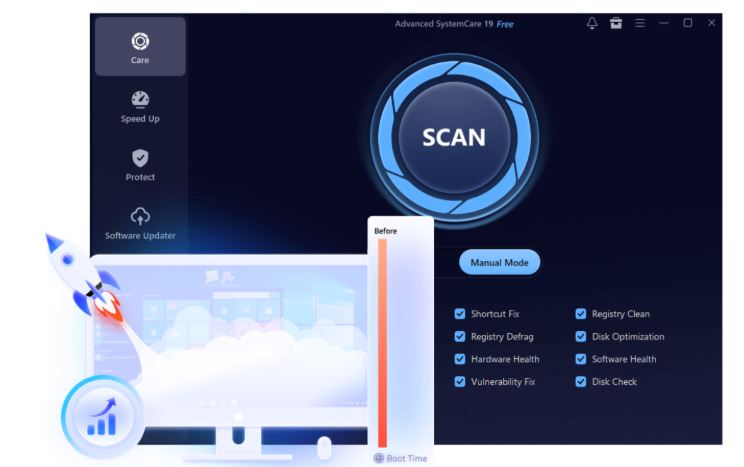
For users searching for a PC optimizer software free option with a broader range of maintenance functions, Advanced SystemCare free is one of the best PC cleaners with more comprehensive choices on this list.
2. Microsoft PC Manager - Best for Basic Windows Maintenance
Microsoft PC Manager is another free Windows optimizer utility focused on basic system maintenance. It provides tools for cleaning unnecessary files, managing storage, checking system health, and controlling some startup applications.
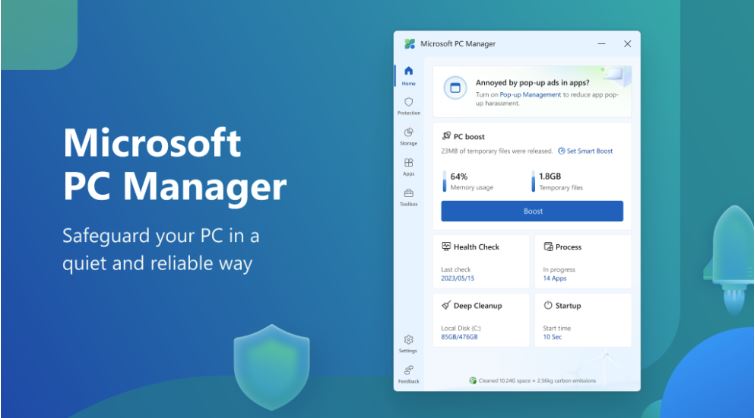
Because it comes from Microsoft, its interface follows a familiar Windows-style design, making it approachable for less experienced users. It is a good choice if your main goal is straightforward cleanup rather than extensive third-party optimization. As a PC optimizer program, however, it has a narrower feature set than full system maintenance suites.
3. CCleaner Free - Best for Junk and Browser Cleanup
CCleaner Free is well known for cleaning temporary files, browser data, application leftovers, and other unnecessary files. Its straightforward interface makes it easy for users. Its free version only supports deleting specific data across your operating system, apps, and web browsers that you don't need, like browser data and temporary internet files.
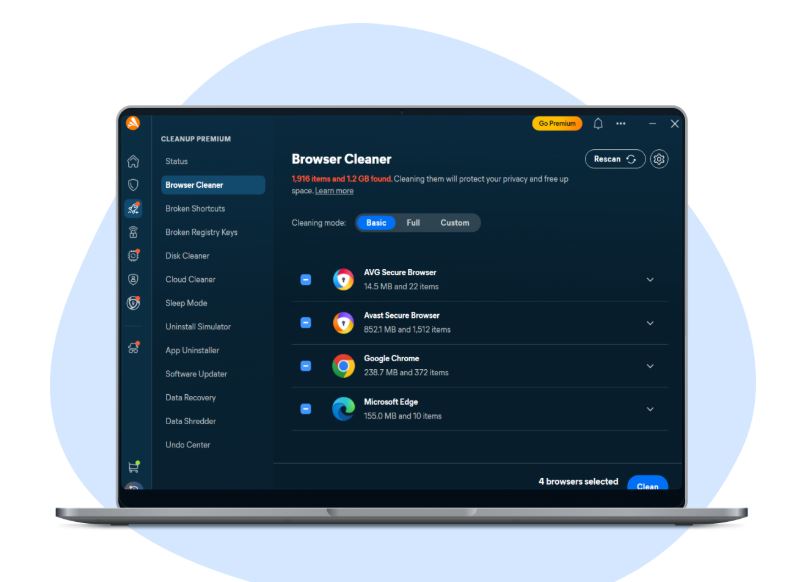
The free edition is suitable for basic maintenance, while some advanced features require an upgrade, like those who want to clean the hard disk and perform routine cleanup. If your primary concern is unnecessary data rather than extensive performance tuning, it can be a practical PC optimizer free option.
4. Glary Utilities Free - Best for All-in-One Maintenance
Glary Utilities Free combines multiple Windows maintenance tools in one package. It includes junk cleanup, startup management, privacy-related cleanup, and several utilities for routine system maintenance.
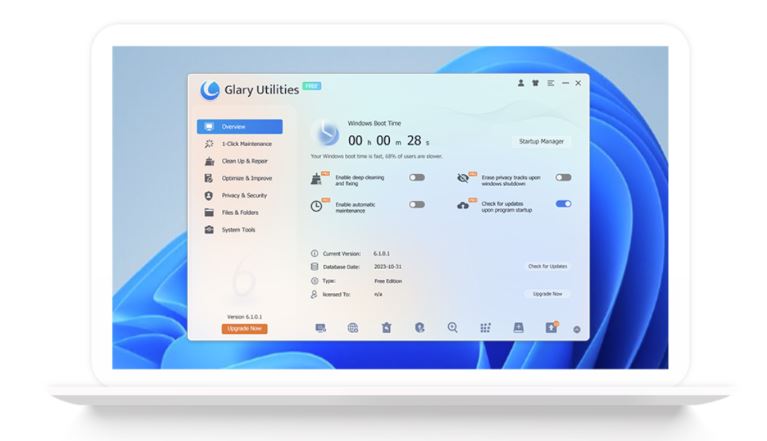
Its broader collection of tools makes it useful for users who want more than a basic cleaner. However, having many utilities can also make the interface feel more complex to beginners.
As a system optimizer software option, Glary Utilities is best suited to users who prefer having several maintenance functions available in one place instead of installing separate programs for each task.
5. Wise Care 365 Free - Best for Lightweight Maintenance
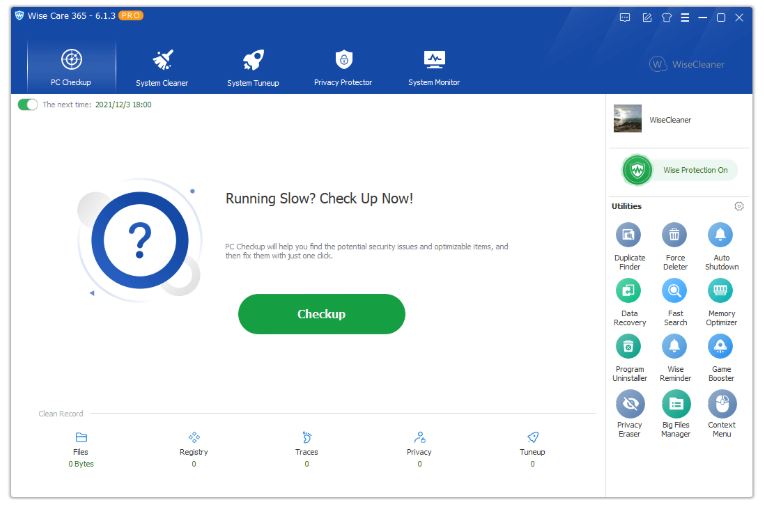
Wise Care 365 offers a free edition aimed at everyday Windows maintenance. It can help clean unnecessary files, manage startup items, and perform basic system optimization.
Its relatively straightforward design makes it a reasonable option for users who want a lightweight maintenance tool without a large learning curve. It is particularly useful for regular cleanup rather than aggressive performance tuning.
If memory usage is the specific problem you are trying to address, a dedicated RAM optimizer may be more appropriate than relying on it.
PC Optimizer Software Quick Comparison
Software |
Junk File Cleanup |
Registry Cleanup |
Auto‑scheduled Cleaning |
Best For |
Microsoft PC Manager |
System cache, Windows update cache, browser cache, Recycle Bin, large‑file scan |
No |
No |
Basic Windows maintenance |
Advanced SystemCare Free |
Deep junk & multi‑application cache cleanup |
Yes |
Pro‑only |
All-around optimization |
CCleaner Free |
System & multi‑browser cache |
Yes |
Pro‑only |
Junk cleanup |
Glary Utilities Free |
Deep junk‑file cleanup |
Yes |
Pro‑only |
System maintenance |
Wise Care 365 Free |
Junk files, broken shortcuts, trace erasure |
Yes |
Pro‑only |
Lightweight maintenance |
The differences become easier to see when the main features are placed side by side. This comparison focuses on the general purpose of each tool rather than treating one product as universally superior. The right choice depends less on the number of features and more on whether those features match your actual needs.
How to Choose the Best Free PC Optimizer for Your Needs
Different users need different types of optimization, so there is no single PC optimizer best free for every Windows PC. Start with the problem you are trying to solve, then choose a tool that addresses it without adding unnecessary complexity.
For all-around optimization: Advanced SystemCare Free
For basic Windows maintenance: Microsoft PC Manager
For junk and browser cleanup: CCleaner Free
For multiple maintenance utilities: Glary Utilities Free
For lightweight routine care: Wise Care 365 Free
For traditional system maintenance: Ashampoo WinOptimizer Free
Gamers should also be more selective. A general PC optimizer software for gaming may help with background processes or system clutter, but it cannot replace hardware upgrades or solve every network-related problem. Before optimizing, you can also run a PC performance test to identify potential bottlenecks.
How to Use Free PC Optimizer Software Safely
If you want to try a pc optimizer software without changing Windows settings manually, Advanced SystemCare Free provides a simple starting point:
Step 1: Install and launch Advanced SystemCare on your Windows PC.
Step 2: Run a scan to identify junk files, unnecessary startup items, privacy traces, and other areas that may need attention.
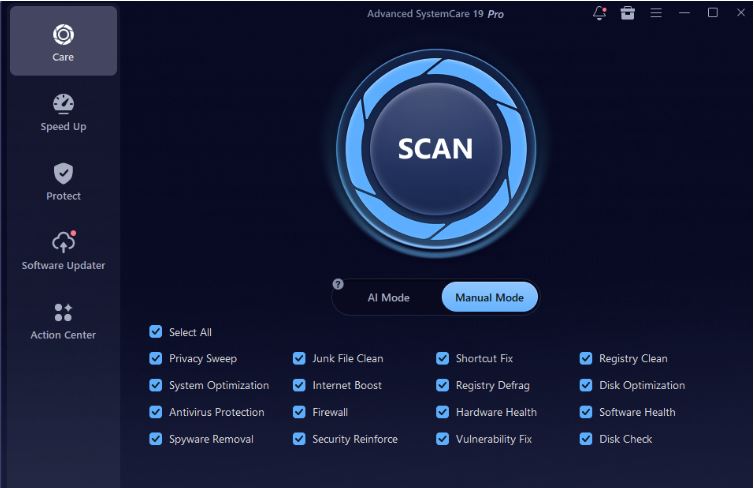
Step 3: Wait for the scan to complete. The initial full scan may take a few minutes. If you wish to target specific types of junk files or optimize particular functions, you can customize your selections before starting the scan.
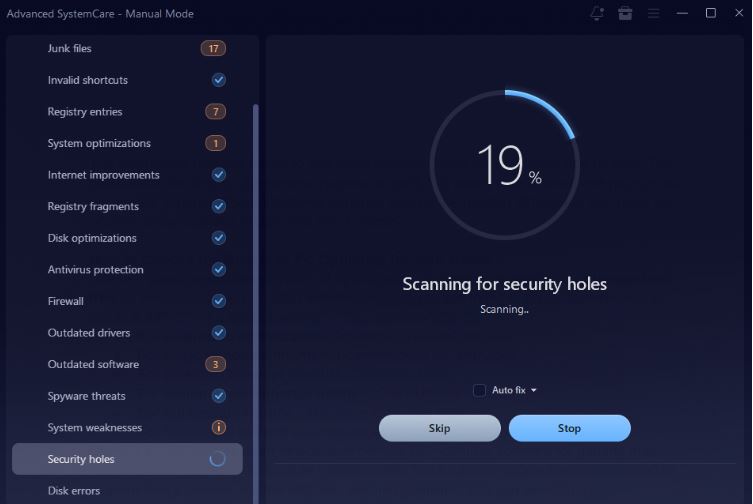
Step 4: Review the results, select the changes you want to make, and start the optimization.
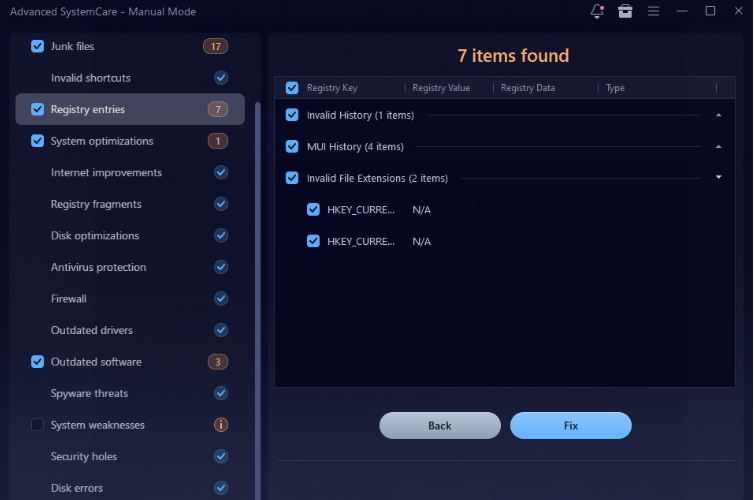
Step 5: Restart your PC if needed and check whether system responsiveness or available storage has improved.
Even with a reliable PC optimizer program, it is better to review changes before applying them. Create a restore point when available, avoid aggressive registry changes, and keep Windows and the optimizer updated. The goal is safer, more manageable maintenance - not changing every setting simply because the software offers it.
Conclusion
The best PC optimizer software depends on your maintenance needs. Advanced SystemCare Free is a strong all-around choice, while Microsoft PC Manager and CCleaner Free are better suited to simpler tasks. Compare the free features carefully, then choose the PC optimizer program that fits your Windows PC rather than simply choosing the one with the longest feature list.