Have you ever wondered why ads seem to follow you across different websites? Or why do some sites remember what you've searched for? Tracking cookies is often the reason. If you're looking for how to remove tracking cookies or want to remove tracking cookies to better protect your privacy, you're not alone.
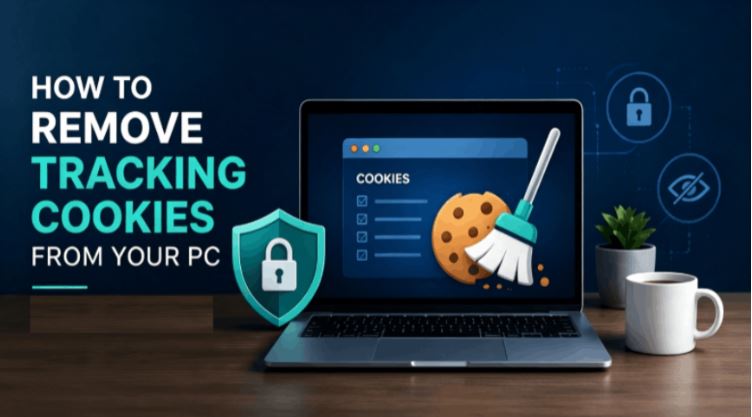
Fortunately, tracking cookies removal is easier than many people think. However, deleting them properly - and knowing whether you're removing all of them - is another story. If you've been wondering how to remove tracking cookies from my PC, a few simple changes can make a noticeable difference to your online privacy.
What Are Tracking Cookies?
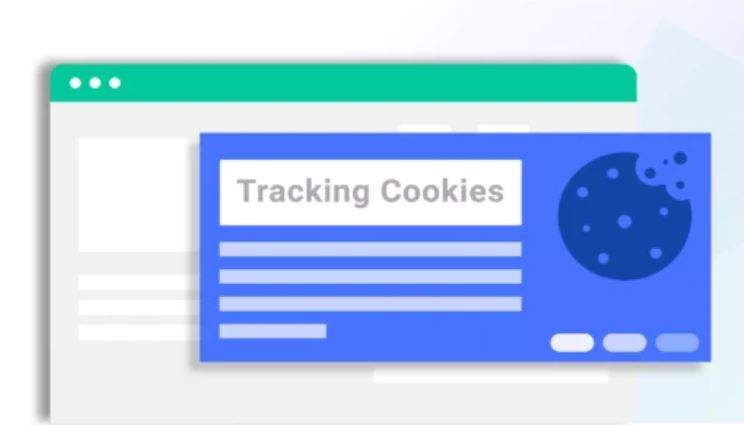
Tracking cookies are small files stored by websites or third-party advertisers to record your browsing activity across different websites. Unlike regular cookies that save login sessions or shopping carts, tracking cookies are mainly designed to build user profiles for personalized advertising and analytics.
Cookie Type |
Purpose |
Should You Remove It? |
Essential Cookies |
Keep websites working properly |
Usually No |
Preference Cookies |
Save language and settings |
Optional |
Tracking Cookies |
Track browsing for advertising |
Recommended |
While they aren't malware or viruses, they can collect information such as visited websites, browsing habits, and interests.
If privacy matters to you, removing them regularly helps improve privacy and limits unwanted tracking. Then, how to remove tracking cookies from Chrome or other browsers on your PC? Keep reading.
How to Remove Tracking Cookies from Your PC
To improve online privacy, learning how to remove tracking cookies from PC is one of the simplest steps you can take. Most tracking cookies are stored inside your web browser rather than Windows itself, which means you'll need to clear them from each browser you use.
The good news is that all major browsers include built-in options for deleting cookies, and the process only takes a few minutes. If you've been wondering how do I remove tracking cookies from my PC, follow the steps below.
Google Chrome:
How to remove tracking cookies from Chrome? Follow these steps.
Step 1. Open Chrome and click the three-dot menu in the upper-right corner.
Step 2. Go to Settings > Privacy and Security > Delete browsing data.
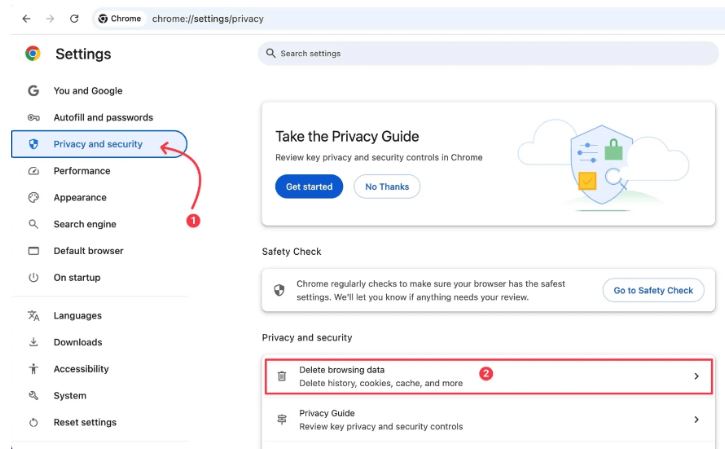
Step 3. Select Cookies and other site data, choose a time range (such as "All time"), and click Delete data.
Microsoft Edge:
To remove tracking cookies from Microsoft Edge, you can:
Step 1. Open Settings and select Privacy, search, and services.
Step 2. Scroll to Clear browsing data.
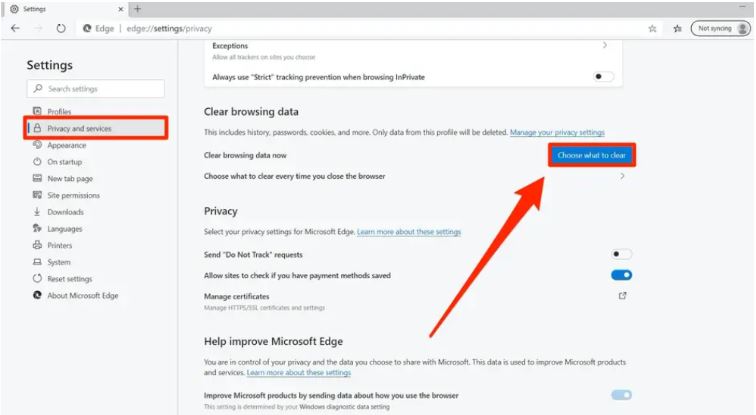
Step 3. Choose Cookies and other site data, then click Clear now.
Mozilla Firefox:
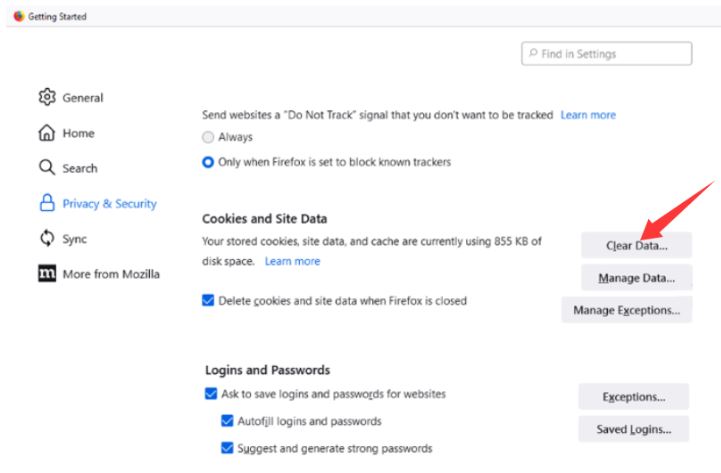
How to remove tracking cookies from Firefox? It’s easy as well.
Step 1. Open Settings and go to Privacy & Security.
Step 2. Find Cookies and Site Data, select Manage Data.
Step 3. Click Clear Data, select Cookies, and confirm the removal.
Although these manual methods work well, they require you to repeat the same steps in every browser. How to find and remove tracking cookies across multiple browsers or perform regular cleanup, a dedicated Windows cleaner can save time and provide a more comprehensive solution.
Is Manual Tracking Cookies Removal Enough?
Manually deleting cookies works well if you only clean your browser occasionally. However, over time many people install multiple browsers, each storing its own cookies, cache, and browsing data. Repeating the same process across Chrome, Edge, Firefox, or other browsers quickly becomes inconvenient.
Manual cleaning also focuses mainly on browser data. Temporary files, privacy traces, and other unnecessary system files often remain on your PC. Since browsers continue creating new cookies every day, you'll also need to remember to repeat the process regularly. To enjoy faster tracking cookies removal with less effort, dedicated cleaning software can scan multiple browsers at once and automate routine maintenance.
Best Tracking Cookies Removal Software
If you're looking for free software to remove tracking cookies, several trusted tools can help simplify the process. Besides deleting tracking cookies, these tools also clean browser caches, temporary files, and other privacy traces.
Tool |
Best For |
Free Version |
Key Features |
Advanced SystemCare |
Complete PC privacy cleanup |
Yes |
Browser Privacy Sweep, junk cleaning, scheduled cleanup |
CCleaner |
Custom browser cleaning |
Yes |
Cookie manager, browser cache cleaning |
BleachBit |
Advanced users |
Yes |
Open-source privacy and file cleanup |
1. Advanced SystemCare
Advanced SystemCare is an all-in-one PC cleaner that makes removing tracking cookies much easier than manually checking every browser. It scans Chrome, Edge, Firefox, and other supported browsers for tracking cookies while also cleaning browser cache, temporary files, and other privacy traces.
Advanced SystemCare Free
- Clean: 420 billion traces removed & 85 EB junk files cleaned
- Protect: 80 million unauthorized access blocked & 20 million bugs fixed
- Speed Up: 6 million hours of startup time saved & Turbo boost
- Optimize: Auto clean and auto care your PC with AI mode

Additional features include Privacy Sweep, Junk File Clean, Startup Optimizer, hard disk clean, and scheduled automatic cleanup. It is suitable for users who want ongoing privacy protection instead of one-time cleaning.
Steps to remove tracking cookies:
Step 1. Install and launch Advanced SystemCare.
Step 2. Select Privacy Sweep and click SCAN.
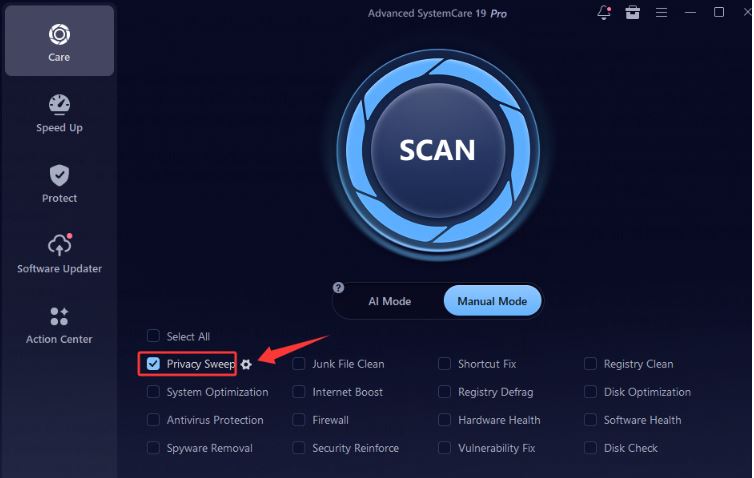
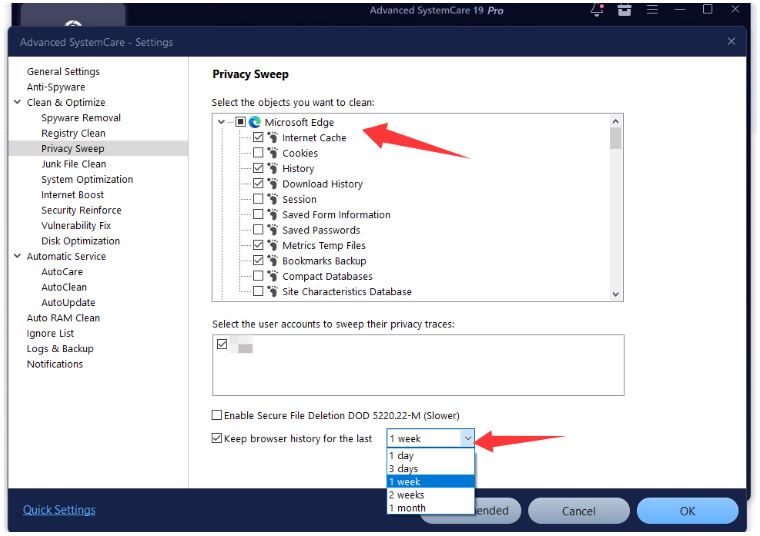
Step 3. Or, you can click the Gear button, further select the trace files you wish to clean up, as well as the time period for the cleanup.
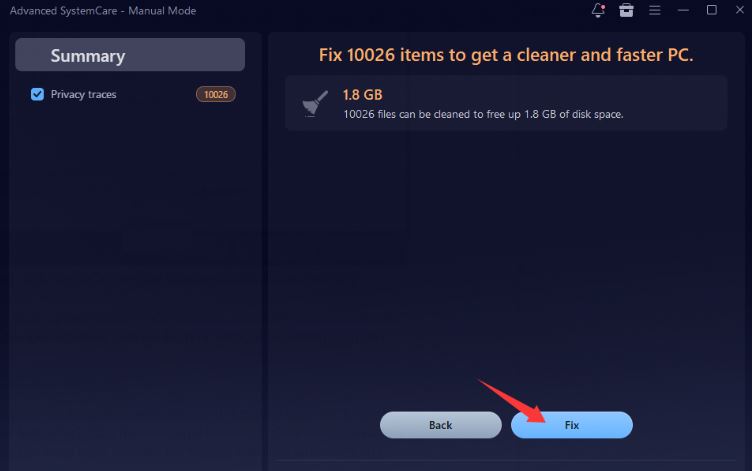
Step 4. Review the results and click Fix to remove tracking cookies instantly.
Go beyond tracking cookies; you can also use it as a Windows optimizer to clean unnecessary files, optimize system settings, and improve overall PC performance. This makes it easier to combine privacy cleanup with regular Windows maintenance, especially if your PC has accumulated other digital clutter over time.
2. CCleaner
CCleaner remains a popular option for browser maintenance. It removes cookies, browsing history, cached files, and other temporary data from multiple browsers. One useful feature is its cookie whitelist, allowing you to keep login cookies for trusted websites while deleting advertising trackers.
It is not a totally free software to remove tracking cookies, but it is also recommended thanks to its powerful features. You can just give its free trial a try.
3. BleachBit
BleachBit is a free, open-source utility designed for users who want detailed control over what gets cleaned. It supports browser cookies, cache files, logs, junk files, temporary files, and many other privacy-related items.
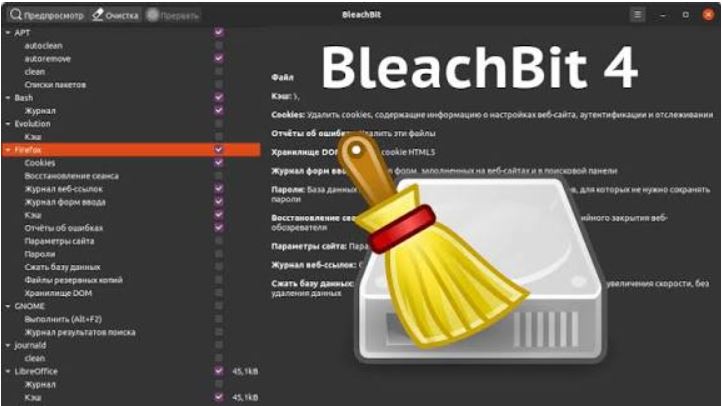
Although its interface is more technical than other cleaners, experienced users appreciate its flexibility. Before deleting files, review the selected items carefully to avoid removing data you still need.
How to Stop Tracking Cookies in the Future
Removing cookies is only part of protecting your privacy. To reduce new tracking cookies from being stored:
Block third-party cookies in your browser.
Enable built-in tracking protection.
Use Private or Incognito mode when appropriate.
Set your browser to clear cookies automatically after closing.
Keep your browser updated to receive the latest privacy features.
Regular maintenance also helps your computer stay responsive. Optimising memory usage with a good RAM optimizer Windows 11 can further improve overall performance alongside browser cleanup.
FAQs about Tracking Cookies Removal
1. Can tracking cookies harm my computer?
Tracking cookies generally don't damage your PC, but they can collect browsing information for advertising and profiling.
2. Will deleting tracking cookies sign me out?
Yes. Some websites may require you to log in again after cookies are removed.
3. How often should I remove tracking cookies?
For most users, removing them once or twice a month is enough. If privacy is a priority, clean them more frequently.
4. Can I check whether my PC is running efficiently after cleanup?
Yes. Running a PC performance test can help identify whether browser cleanup and other maintenance tasks have improved your system's overall responsiveness.
Conclusion
Learning how to remove tracking cookies is an easy way to improve online privacy. While manual methods work well for occasional cleanup, dedicated tools make regular maintenance faster, more thorough, and much easier to manage. No matter which method you choose, regular removal is necessary. Remove your online trace and stay safe anytime.