Is your PC running slowly, and you're unsure if the problem lies with the hardware, the graphics card, or the system configuration? Running a computer performance test is one of the best ways to detect errors, measure your computer's true power, and determine if it needs optimization.
With a good PC performance test, you can check PC performance, analyze CPU, RAM, disk, and GPU usage, and even learn how to view your PC's performance step by step. Furthermore, there are now online PC performance test options and numerous websites that analyze computers, ideal for obtaining a quick and easy evaluation.
In this article, you'll find a complete guide to run a free PC performance test, along with a selection of free online tools. You'll also discover several useful tips to improve your computer's performance.
How to Run a PC Performance Test: 3 Methods to Check
If you want to check your PC's performance in a practical way, there are several options depending on the level of detail you need. You can use built-in Windows tools, such as Performance Monitor or Task Manager, to analyze CPU, RAM, disk, and GPU usage in real time. You can also use an online PC performance test or a website that analyzes computers for a faster and more comparative evaluation. Below, we show you the most useful methods for easily testing PC performance.
1. Use Windows Performance Monitor
If you're looking for an accurate way to run a PC performance test without installing additional programs, Windows Performance Monitor is one of the best options. This built-in tool allows you to generate a detailed system report and detect potential bottlenecks in the hardware or computer configuration.
Follow these steps to use it:
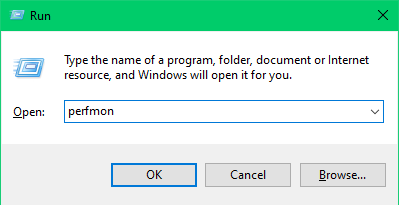
Press Win + R, type perfmon, and press Enter.
In the Performance window, go to Data Collector Sets > System. Right-click on System Performance and select Start.
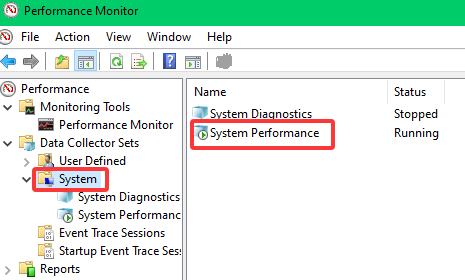
Wait approximately 60 seconds for the test to complete. The results will be available in Reports > System > System Performance.
2. Use Task Manager to View PC Performance in Real Time
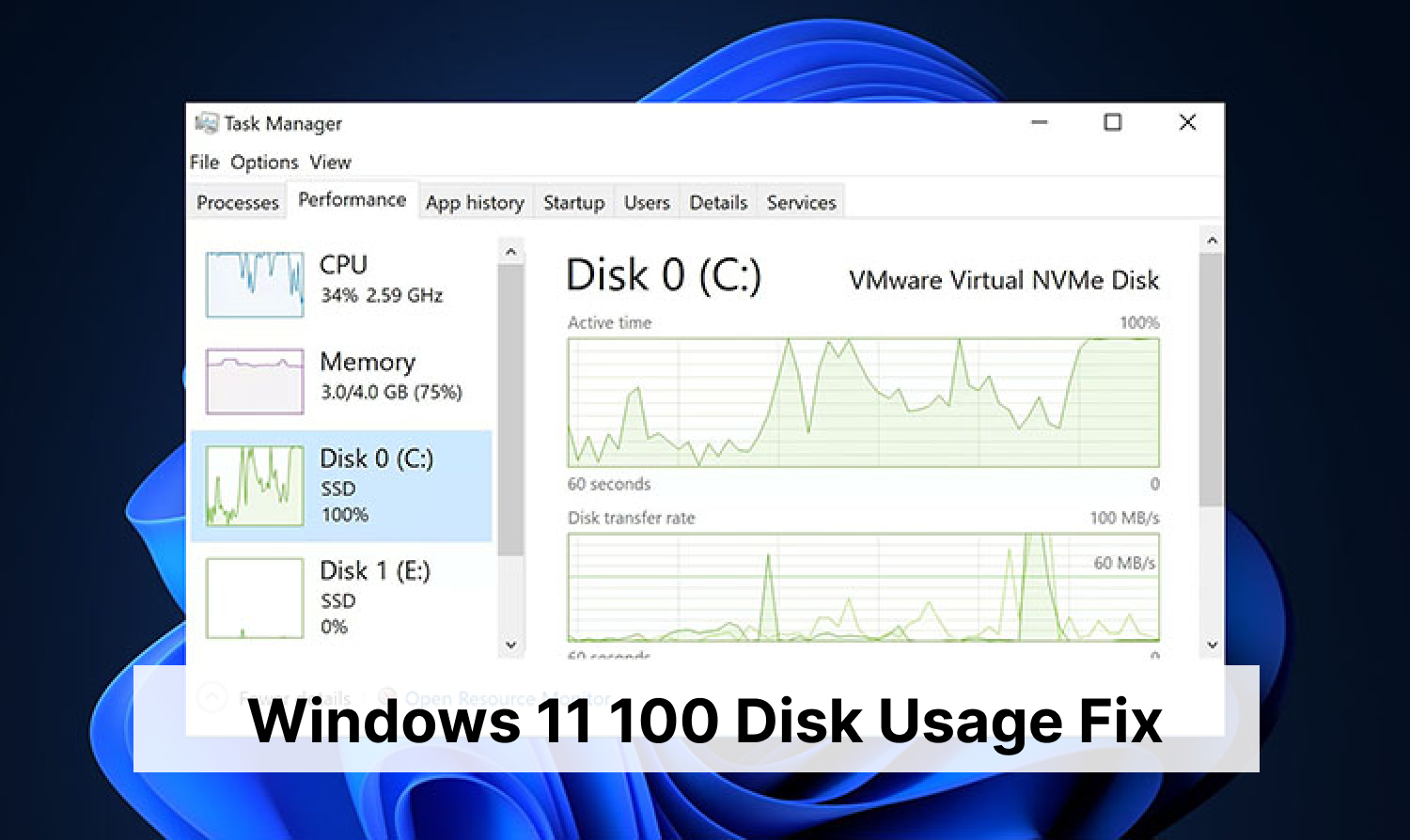
Another quick way for PC health check is to use Task Manager. While it doesn't offer a full benchmark, it does allow you to review system resource consumption in real time and identify processes that are slowing down your computer.
To access it:
Press Ctrl + Shift + Esc or right-click on the taskbar and select Task Manager.
Go to the Performance tab to view real-time graphs of CPU, RAM, GPU, disk, and network usage.
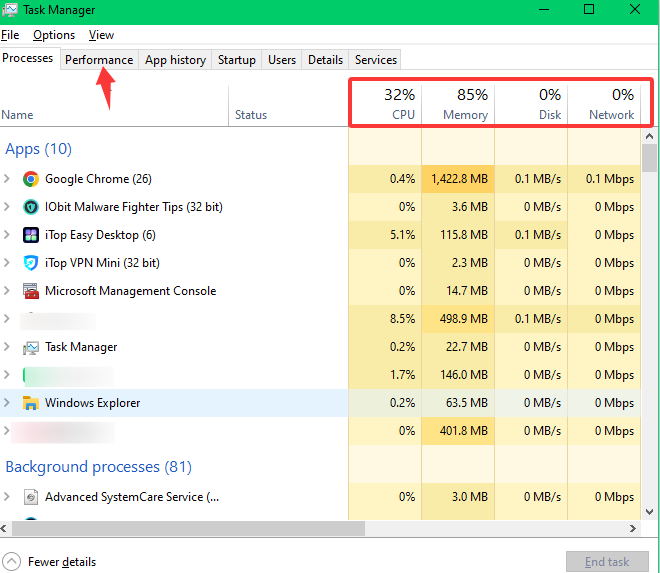
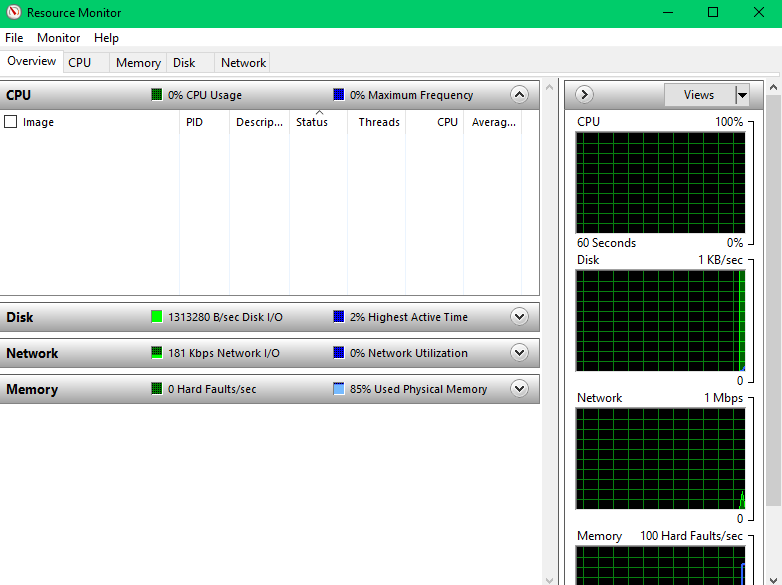
TIPS: For a more detailed view, click Open Resource Monitor within the Performance tab. This will give you an even deeper overview of system usage, including CPU consumption per process.
>> Also check the best RAM optimizers for Windows 11 to boost PC performance
3. How to Run an Online PC Performance Test
If you prefer a quicker solution, you can also run an online PC performance test. These types of tools are very practical for obtaining an overall score for your computer and comparing its results with other similar computers. They are also a good option if you are looking for a website that analyzes computers without requiring complex configurations. Below are some of the most well-known options for easily evaluating performance.
1. IObit Bottleneck Calculator
IObit Bottleneck Calculator is one of the most popular performance testing tools. It analyzes the processor (CPU), graphics card (GPU), RAM, and hard drive (HDD or SSD), and compares your results with other users with similar configurations.
How it works: It is a free online PC performance testing tool. Just go to the webpage and select the specs to finish the test. You'll get an overall score and specific recommendations.
2. PC Stress Tester
PC Stress Tester, developed by IObit, is a free, browser-based hardware diagnostic and performance evaluation tool. It is designed for estimating your PC performance when gaming, streaming, or using heavy software.
How it works: It is a free online test tool to estimate whether your PC can handle demanding tasks or modern gaming workloads after getting certain PC system information.
3. Basemark Web 3.0
Basemark Web 3.0 is a 100% online solution that runs directly in your browser. It evaluates your PC's performance in intensive web tasks such as 3D rendering and JavaScript execution.
How it works: No download required. Just visit the site, start the test, and get a score that reflects your browser and GPU's capabilities for modern web tasks.
Comparison of PC Performance Testing Tools:
Tool |
Access |
What it evaluates |
Advantages |
Bottleneck Calculator |
Online |
CPU, GPU, RAM, disk |
Fast results |
PC Stress Tester |
Online |
System stability |
Fast and detailed |
Basemark Web 3.0 |
Online |
Browser and GPU |
No download needed |
How to Improve Your PC's Performance after a Test
After running a computer performance test, the problem is often no longer identifying what's wrong, but knowing how to practically improve the system via PC optimization skills. If, when checking your PC's performance, you've noticed slowness, high CPU usage, too many programs at startup, low disk space, or unstable operation, the usual thing to do is to look for a solution that helps optimize the computer without having to make all the adjustments manually.
>> Also check, How to Free up Disk Space on PC Windows 11/10?
Advanced SystemCare Free
- Clean: 420 billion traces removed & 85 EB junk files cleaned
- Protect: 80 million unauthorized access blocked & 20 million bugs fixed
- Speed Up: 6 million hours of startup time saved & Turbo boost
- Optimize: Auto clean and auto care your PC with AI mode
A computer's performance depends on many factors: outdated drivers, junk files, background programs, poorly optimized configurations, privacy issues, and even small system errors that accumulate over time. Therefore, to know if your PC is optimized, it's not enough to just run a test: it's also important to implement real improvements after the analysis.
What to do if your PC performance test shows it's not optimized
If, after a PC performance test, you notice that your computer is slow or not making good use of its resources, here are some areas to check:
Cleaning junk files and system debris
Optimizing Windows startup
Managing background processes and resources
Protecting privacy
Repairing common system errors
Checking for vulnerabilities and insecure configurations
Doing all this manually is possible, but it also requires more time and some experience. That's why many users prefer to use an all-in-one solution that simplifies system optimization.
Advanced SystemCare: A Solution for Optimizing PC Performance
Advanced SystemCare is a tool designed to quickly and comprehensively improve computer performance. It can be especially useful after running a PC performance test, as it allows you to directly address several of the most common problems that affect system speed and stability.
Among its most useful functions are:
Deep system cleaning to remove unnecessary files and residual data that slow down your PC
Resource and startup optimization to reduce the load when Windows starts and improve overall performance
Privacy protection by helping to eliminate traces and strengthen computer security
System status monitoring for a clearer view of your computer's operation
Repair of errors and vulnerabilities that can affect both performance and stability
When does it make sense to use an optimization tool?
A tool like Advanced SystemCare can be a good option in situations like these:
You've just run a PC performance test and detected performance issues
You want a quick way to check PC performance and improve it afterward
You notice that your system is slow to start up or open programs
You want to know how to tell if your PC is optimized and apply improvements without complications
You're looking for a practical solution to regain speed without making advanced adjustments manually
Conclusion
Running an analysis is just the first step. After a computer performance test, the most important thing is to implement improvements that help restore speed, stability, and smoothness. If your computer is sluggish or shows signs of poor optimization, a tool like Advanced SystemCare can help simplify the process and improve several key aspects of the system from a single interface.