

- Support Center
- Multiple Languages
- Language
- Help Us Translate
Expert in
PC Health Solution

All-in-one PC health solution: clean, optimize and secure

Comprehensive PC cleaning, optimization and protection

Keep drivers always up-to-date

More stable performance with less system crashes

Protect millions of computers against malware

Top computer security with full-round protection

Protect against viruses & boost PC performance
This PC power supply calculator helps estimate PSU wattage for your build. Check power requirements, find the right PSU size, and calculate watts for gaming PCs.
Your configuration
Use this PC power supply calculator to select your CPU, GPU, motherboard, storage, cooling system, and other hardware components to estimate the recommended PSU wattage for your custom PC build.
Most Important Component
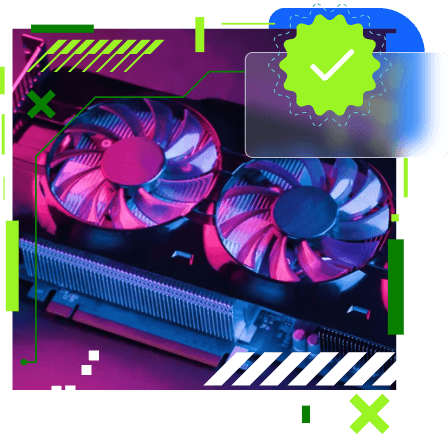
The GPU is usually the most power-hungry component in a modern gaming PC and has the biggest impact on PSU wattage requirements. High-end graphics cards can consume hundreds of watts during gaming, rendering, or AI workloads, and they can also create sudden power spikes that require extra PSU headroom. You should know the model of your GPU and find the matching option in our PSU calculator.
Second Important Component
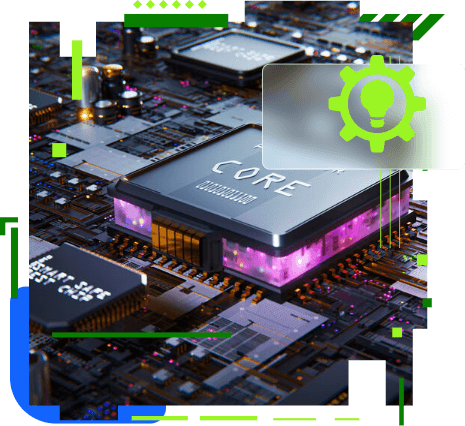
The CPU is another major factor in total system power consumption, especially during multitasking, streaming, rendering, or heavy productivity workloads. High-performance processors — particularly flagship Intel CPUs — can draw a large amount of power under boost conditions. Our Watt calculator PC provides all the Intel and AMD CPU models, please go and make accurate matches.
Also Focus on This Component
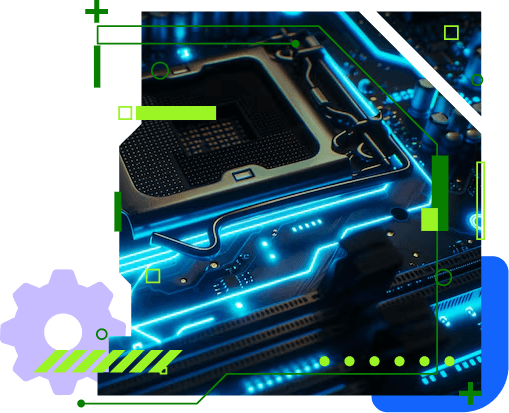
The motherboard itself does not consume as much power as the GPU or CPU, but it distributes power to almost every component in the system. High-end motherboards with stronger VRMs, more RGB lighting, Wi-Fi modules, and additional features can slightly increase total power consumption. The motherboard also affects compatibility with PSU connectors and overall power stability. Want to know how much wattage your motherboard needs? Use the power supply calculator now.
Also Focus on This Component
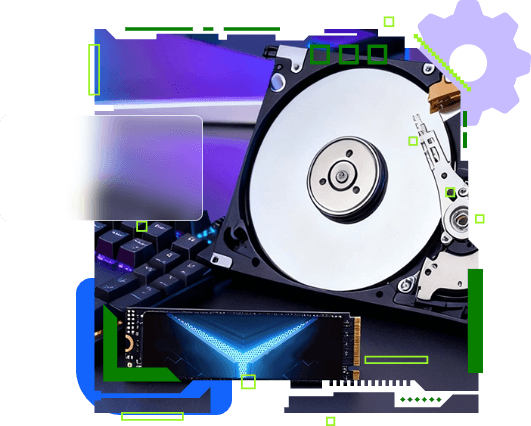
Storage devices usually consume relatively low power compared to GPUs and CPUs, but they still contribute to the total PSU load. SATA SSDs are very power efficient, while traditional HDDs use more power because of spinning disks and motorized components. Systems with multiple storage drives may require additional PSU wattage and power connectors. Hit the button below to see how much wattage your storage components need.
Use this PC power supply estimator to calculate your PSU requirements instantly.
How to Calculate PSU Wattage?
Explain step-by-step:
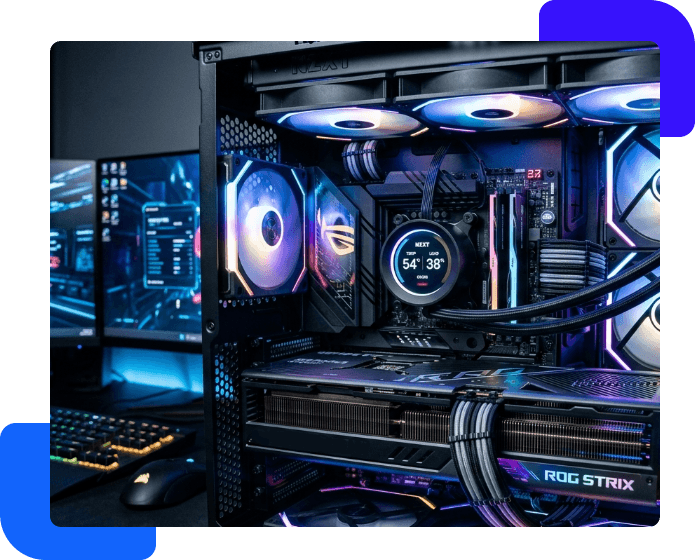
Step 1.
Select your CPU and GPU
Step 2.
Add RAM and storage
Step 3.
Include cooling and extras and hit ‘Calculate Now’
Step 4.
Get recommended PSU wattage
Know your PC power supply size to build a gaming PC, workstation, or everyday desktop. The right PSU ensures stable and reliable performance.
The Benefits of Checking PC Power Supply Requirements
Choosing the right power supply is critical for stable FPS, video rendering, and hardware protection.


Deal with power spikes safely
Promise gaming stability during high-load sessions
Protect expensive components
Ensure smoother performance for streaming, rendering, and multitasking
Leave space for future hardware upgrades
A Simple PSU Wattage Requirements Chart for Gaming PC Builds
Recommended Power Supply Sizes for Gaming PCs:
Entry-level gaming PC: 400–550W
Mid-range gaming PC: 550–750W
High-end gaming PC: 750–1000W
Extreme / enthusiast builds: 1000W+
Benefits of Proper Computer PSU Wattage for a Custom PC Build
Choosing the right power supply is critical for stability, performance, and future upgrades.


Ensure long-term hardware reliability
Keep your PC stable and running smoothly
Handle heavy workloads and gaming sessions with ease
Maximize CPU and GPU performance
Reduce overheating and excessive fan noise
A Simple PSU Wattage Requirements Chart for PC Building
Recommended PSU Wattage by PC Build Type:
Basic office PC: 300-150W
Entry-level gaming PC: 500-650W
Mid-range PC build: 650-750W
Maximize CPU and GPU performance
High-end gaming/workstation: 750-1000W
Enthusiatis multi-GPU build: 1000W+
Use Advanced SystemCare to run a free system scan and fix potential performance issues.


Too Many Background Programs — It helps users manage background processes.
Game Crashes — It reduces software conflicts and improves gaming performance.
Lag / Stuttering — It frees up system resources to help lower Ping and escalate FPS.
Instability Under Heavy Load — It helps optimize Windows performance for more stable operation.
System Errors — It helps detect and fix common Windows issues that may affect system reliability.
An accurate PC power calculator helps you estimate the correct wattage for your build and avoid issues caused by insufficient or unstable power delivery.
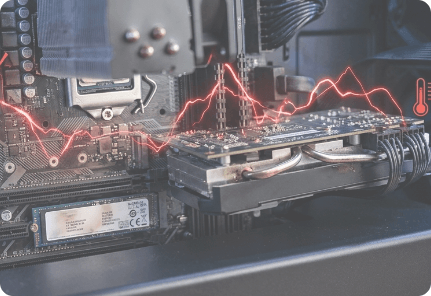
Modern GPUs and CPUs can suddenly demand much more power during gaming or heavy workloads. If the PSU cannot handle these rapid power spikes, the system may become unstable or shut down unexpectedly. Our PSU wattage calculator easily help you cope with the extreme power spike problem.
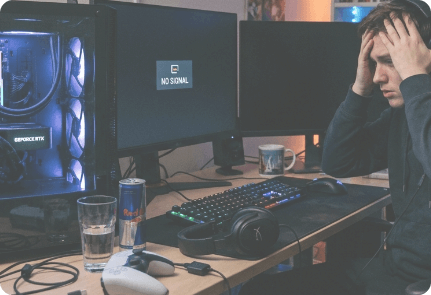
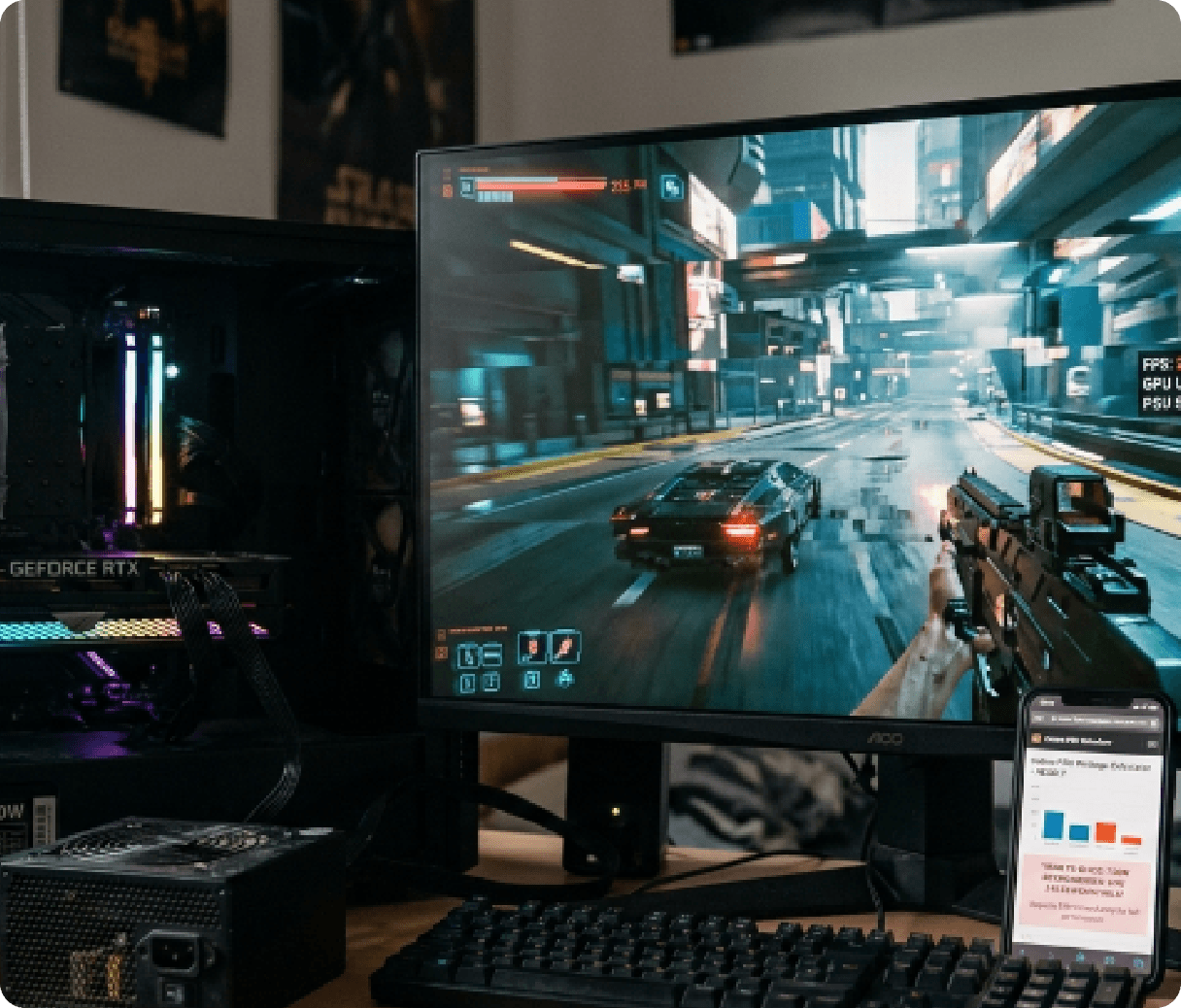
An underpowered or incompatible PSU may fail to provide stable power to the GPU, leading to lower FPS, stuttering, and reduced gaming performance. Using an online PSU wattage calculator or PC power supply calculator can help ensure your graphics card gets enough power to run at full performance.
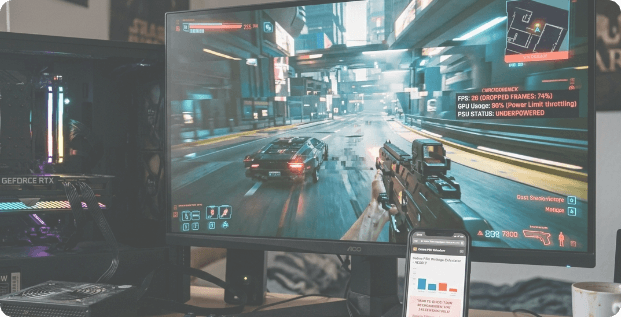
Low-quality or overloaded PSUs often generate excessive heat, causing cooling fans to spin faster and louder. Computer power supply calculator can help you choose the right wattage for better airflow, lower temperatures, and more stable system performance.
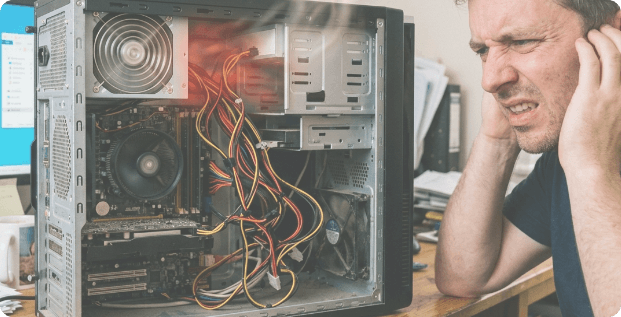
Unstable voltage, poor power regulation, or missing protection features can gradually damage critical components like the GPU, motherboard, SSD, and CPU. Using a trusted PC power supply wattage calculator helps you choose a stable PSU that delivers safe and reliable power for your system.
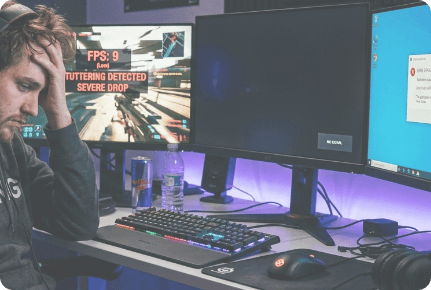
When the PSU cannot deliver stable power during heavy gaming sessions, your PC may suffer from random crashes, stuttering, FPS drops, display signal loss, or black screen issues. An accurate power supply calculator for gaming PC can help you estimate the right wattage for stable gaming performance.
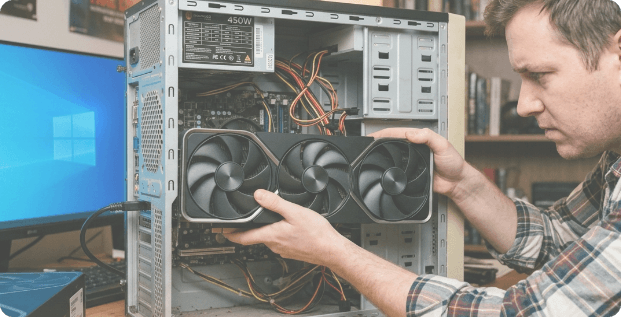
Older or weaker PSUs may lack enough wattage, modern power connectors, or PCIe support for newer GPUs. This can limit future upgrades and reduce overall system compatibility.
Modern GPUs and CPUs can suddenly demand much more power during gaming or heavy workloads. If the PSU cannot handle these rapid power spikes, the system may become unstable or shut down unexpectedly. Our PSU wattage calculator easily help you cope with the extreme power spike problem.

An underpowered or incompatible PSU may fail to provide stable power to the GPU, leading to lower FPS, stuttering, and reduced gaming performance. Using an online PSU wattage calculator or PC power supply calculator can help ensure your graphics card gets enough power to run at full performance.
Low-quality or overloaded PSUs often generate excessive heat, causing cooling fans to spin faster and louder. Computer power supply calculator can help you choose the right wattage for better airflow, lower temperatures, and more stable system performance.

Unstable voltage, poor power regulation, or missing protection features can gradually damage critical components like the GPU, motherboard, SSD, and CPU. Using a trusted PC power supply wattage calculator helps you choose a stable PSU that delivers safe and reliable power for your system.
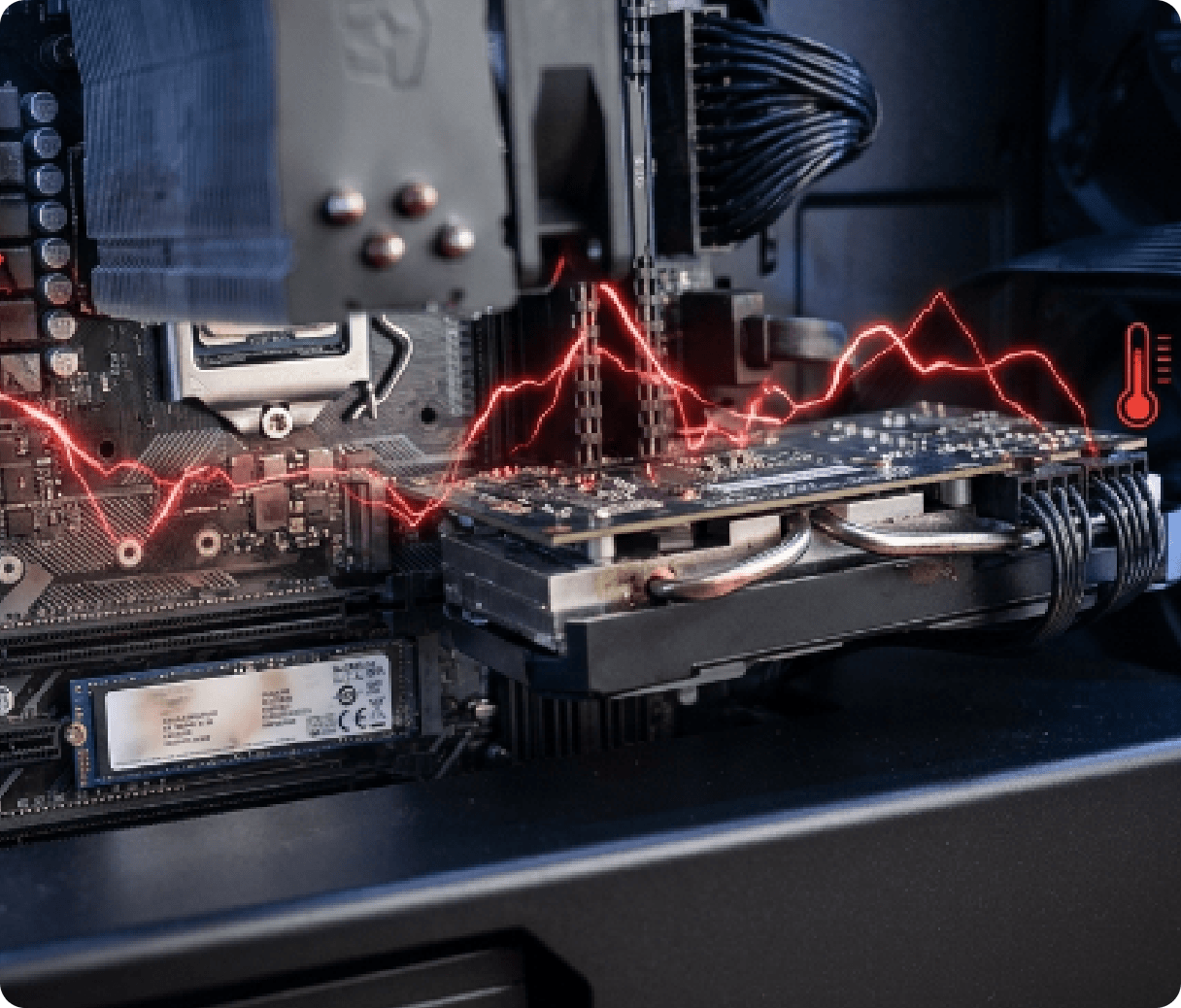
When the PSU cannot deliver stable power during heavy gaming sessions, your PC may suffer from random crashes, stuttering, FPS drops, display signal loss, or black screen issues. An accurate power supply calculator for gaming PC can help you estimate the right wattage for stable gaming performance.
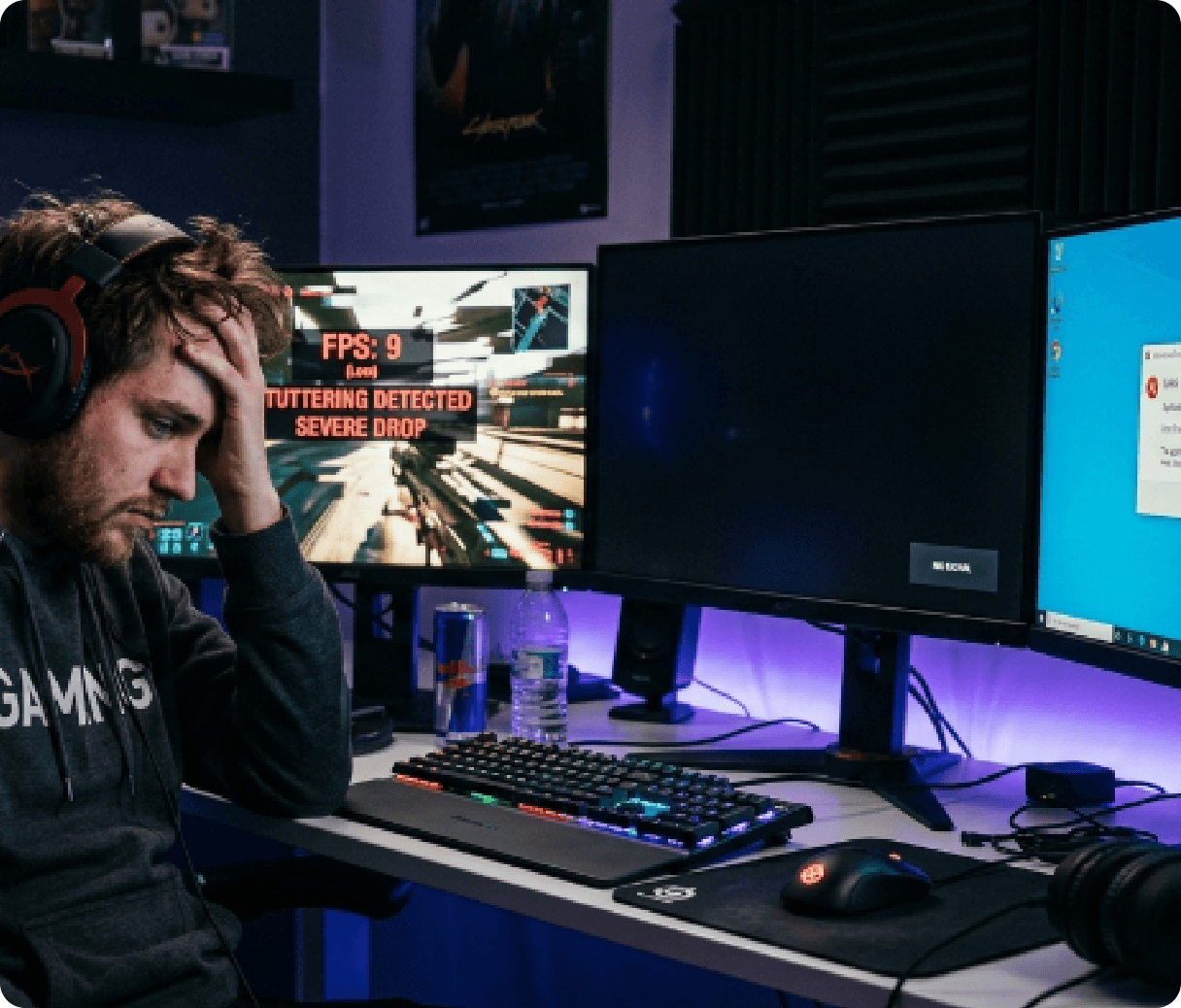
Older or weaker PSUs may lack enough wattage, modern power connectors, or PCIe support for newer GPUs. This can limit future upgrades and reduce overall system compatibility.
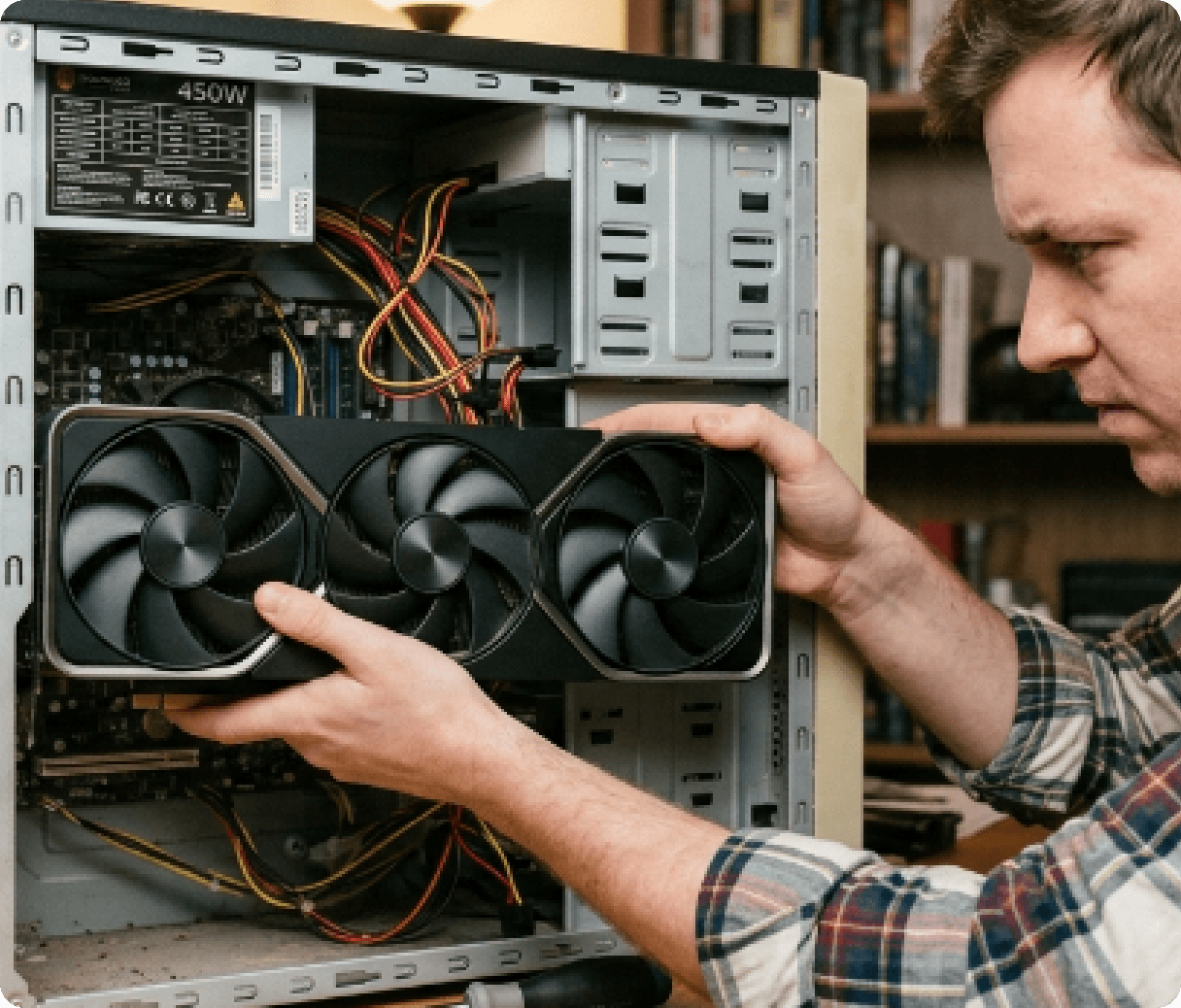
Not sure how much PSU wattage your gaming PC really needs? Check the recommended PSU sizes for popular RTX GPUs and modern Intel or AMD CPUs.
| Tier | Quality Level | Recommended For (GPU) | Typical Wattage | Recommendation |
|---|---|---|---|---|
| S Tier | Premium / Enthusiast | RTX 4090 / 5090 | 1000W–1600W | Extreme gaming, AI, overclocking |
| A Tier | High-End Gaming | RTX 4080 / 5080 | 850W–1000W | High-end gaming, 4K gaming |
| B Tier | Mainstream Gaming | RTX 4070 / RX 7800 XT | 650W–850W | Standard 1080p or 1440p gaming PCs(Mainstream gaming) |
| C Tier | Entry-Level / Budget | RTX 4060 / RX 7600 | 500W–650W | Office PCs, casual gaming, low-power GPUs |
| D Tier | Low Quality / Risky | Old GPUs / generic builds | Below 500W | Avoid for modern gaming |
Five principles to bear in mind before purchasing a PSU for your PC build.
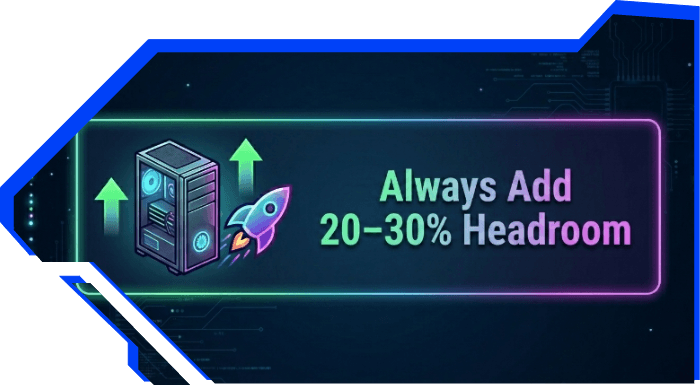
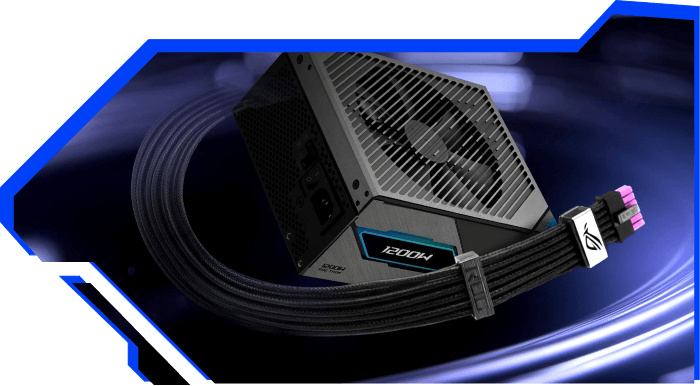
When choosing a PSU, it is recommended to leave around 20–30% extra wattage above your system’s estimated power consumption. This additional headroom helps the PSU handle sudden GPU power spikes, improves overall system stability, and supports future hardware upgrades.
A reliable PSU brand usually offers better build quality, safer internal components, and stronger protection features such as over-voltage and short-circuit protection. A reputable 750W PSU is often better than a low-quality 850W PSU.
Before buying a PSU, make sure it matches your PC case and motherboard form factor. Most gaming PCs use standard ATX power supplies, while compact systems may require SFX or other smaller PSU sizes. Checking compatibility in advance helps avoid installation problems and ensures proper airflow and cable management.
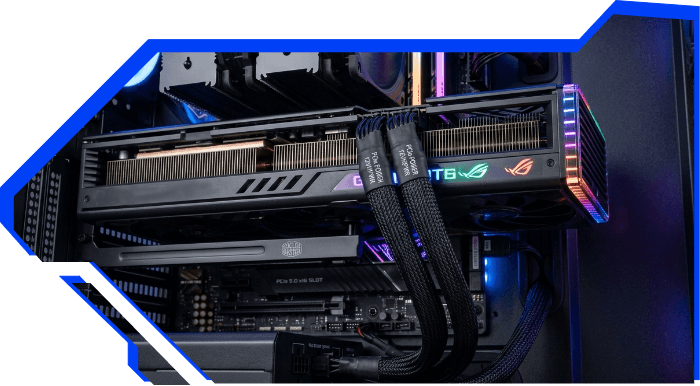
Modern GPUs often require specific PCIe power connectors, especially newer high-end graphics cards that use 12VHPWR or PCIe 5.0 connectors. An incompatible PSU may not provide enough connectors or proper cable support for your GPU. Always verify that the PSU can fully support your graphics card’s power requirements before building your PC.
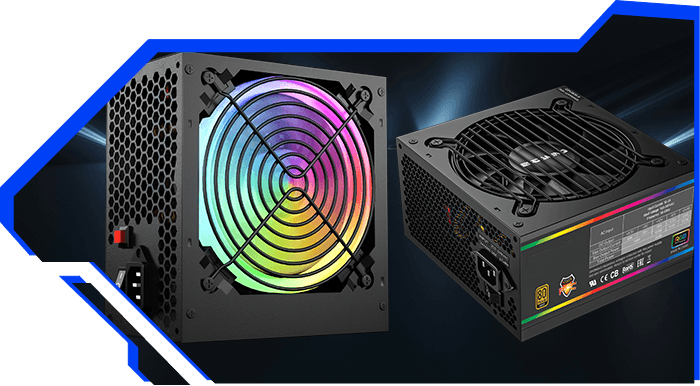
Modular PSUs allow users to connect only the cables they need, helping reduce cable clutter and improve airflow inside the case. Non-modular PSUs are usually more affordable but can create messier cable management because all cables are permanently attached. Semi-modular PSUs offer a balance between cost and convenience for many gaming PC builders.
When choosing a PSU, it is recommended to leave around 20–30% extra wattage above your system’s estimated power consumption. This additional headroom helps the PSU handle sudden GPU power spikes, improves overall system stability, and supports future hardware upgrades.
When choosing a PSU, it is recommended to leave around 20–30% extra wattage above your system’s estimated power consumption. This additional headroom helps the PSU handle sudden GPU power spikes, improves overall system stability, and supports future hardware upgrades.
A reliable PSU brand usually offers better build quality, safer internal components, and stronger protection features such as over-voltage and short-circuit protection. A reputable 750W PSU is often better than a low-quality 850W PSU.
Before buying a PSU, make sure it matches your PC case and motherboard form factor. Most gaming PCs use standard ATX power supplies, while compact systems may require SFX or other smaller PSU sizes. Checking compatibility in advance helps avoid installation problems and ensures proper airflow and cable management.
Modern GPUs often require specific PCIe power connectors, especially newer high-end graphics cards that use 12VHPWR or PCIe 5.0 connectors. An incompatible PSU may not provide enough connectors or proper cable support for your GPU. Always verify that the PSU can fully support your graphics card’s power requirements before building your PC.
Modular PSUs allow users to connect only the cables they need, helping reduce cable clutter and improve airflow inside the case. Non-modular PSUs are usually more affordable but can create messier cable management because all cables are permanently attached. Semi-modular PSUs offer a balance between cost and convenience for many gaming PC builders.
Old PC Power Supply problems
Old PC power supplies can become unstable over time and may cause crashes, overheating, boot failures, or reduced gaming performance. Aging PSUs also struggle to support modern GPUs and sudden power spikes, increasing the risk of hardware damage. Using a computer PSU wattage calculator can help determine whether your current PSU is still suitable for your PC build.
Should I pay to update my Power Supply?
If you plan to upgrade to a more powerful GPU or CPU, it’s a good idea to use a PC power supply calculator to estimate whether your current PSU can still handle the new hardware. You should also consider replacing an old PSU if your PC starts showing problems like random crashes, restarts, loud fan noise, overheating, or unstable gaming performance.
My PC power supply how many watts?
The easiest way is to look directly at the power supply label inside your PC case.
You will usually see something like: 500W/650W/750W/850W.
For Example: Corsair RM850x → 850W PSU
The wattage is normally printed clearly on the side sticker of the PSU.
What PC power supply sizes do I need?
The PC power supply size you need depends mainly on your GPU, CPU, and some optional components. You need to know the brands of your GPU, CPU, input them into a PSU calculator to know the size of PC PSU you need.
Best PSU for High-End gaming PC
Not everyone needs a high-end PSU. Your PC may never generate extreme 1000W-level power spikes, so buying an oversized power supply can be unnecessary. The best PSU is the one that properly matches your PC components — use the power supply unit calculator to estimate the right wattage for your build and avoid overspending.