We are living in a digital world where internet plays a crucial role for work, study, and entertainment. A stable WiFi connection ensures an enjoyable surfing experience but so many people are suffering from a diversity of WiFi issues from weak signal to long-time buffering without knowing the real cause.
Don't let those WiFi connection issues ruin your daily life and make everyday tasks frustrating. This article will guide you to explore the reasons of why your wireless network is so slow and list all possible ways of how to boost WiFi speed on PC and laptop.
Understand the Basics of WiFi
What Is WiFi
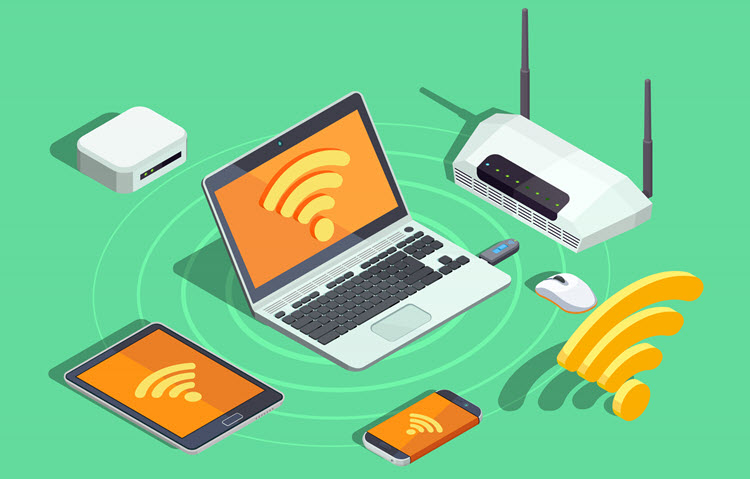
WiFi, the wireless networking technology, makes it a reality to connect your devices (PCs, laptops, mobiles and smart TVs) with the internet without cables. It transmits data between wireless router and internet interface card of your device through radio frequency waves across different bands:
2.4 GHz – Offers wider coverage but slower speeds and more interference.
5 GHz – Provides faster speeds and lower interference but shorter range.
6 GHz - Delivers massive bandwidth and almost zero legacy interference, the newest frontier.
How Does WiFi Work
WiFi uses a set of standards (technically IEE 802.11 protocols) to implement WLAN connection. Each standard comes with different frequency bands, maximum data rate, channel and modulation techniques. WiFi 7 is the latest standard that operates across 2.4/5/6 GHz bands, ensuring optimized performance.
What Are Types of WiFi
WLAN - Local Area Network: Commonly used in home or office that covers a localized building.
WAPN - Personal Area Network: Short-range network designed to connect a minimal number of devices within a small area.
WWAN - Wide Area Network: Utilizes cellular data to provide continuous internet access across geographic areas.
Top Factors to Affect WiFi Speed
As more devices support WiFi connection for high convenience, slow WiFi is reported as a common issue. How to increase WiFi speed? Before making any change, it is a necessity to diagnose why your WiFi speeds are tanking. Check the main reasons that slow down the connection.
Physical Router Distance
The farther your device is from the router, the weaker the WiFi signal becomes. Worse yet, materials like concrete, brick, metal lath, and even large mirrors, can reduce signal strength.
Network Interference
A crowded neighborhood with dozens of routers/wireless devices probably cause network congestion and interference. Also, bandwidth gets divided internet speeds gets slower if too many device are connected with the same network at the same time.
Weak Hardware
An older wireless router/network card may not support modern WiFi standards or high-speed plans, leading to a limited performance.
Outdated WiFi Driver
Your software won’t be able to process the incoming data efficiently with outdated or corrupted wireless network drivers. Slow internet speed and random disconnection may happen unexpectedly.
Bandwidth-Consuming Software
Sometimes, your network works well but background processes like Windows update, cloud syncing, large downloads, etc., silently eat your bandwidth, leaving other things stuttering.
How to Boost WiFi Speed on Windows
If you are struggling with slow wireless network and need a way to improve its performance for better productivity, troubleshooting tips blow can help you get faster speed on PC and laptop.
1. Put Your Router in a Better Place
It is a practical method to enhance your WiFi signal by moving your router as close as possible to your PC/laptop. If you have several connected devices in a room or office, put your router in a central, open and higher location for better signal coverage. Avoid placing it in corners or behind walls.
2. Restart Your Router and Modem
Glitches appear when your router and modem have worked for a long time, like long loading time, buffering videos and more. A simple reboot can clear temporary network issues and refresh the connection.
Turn off your router/modem for about 30 seconds.
Turn on your router and modem again.
Restart your device and reconnect WiFi.
3. Swift to 5 GHz or 6 GHz Band
If your router supports dual-band or tri-band, make sure your PC or laptop is explicitly connected to the 5 GHz or 6 GHz network rather than the default 2.4 GHz option.
Click your Wi-Fi icon in the taskbar. Look for your network name with "_5G" appended to it, or check your router settings to ensure the bands have distinct names so you can choose the faster one manually.
4. Reduce Wireless Interference
Some household appliances like microwaves, bluetooth devices, security cameras, etc., commonly operate the same wireless frequency and cause localized interference. Please put your router away from those objects.
5. Optimize Your Router
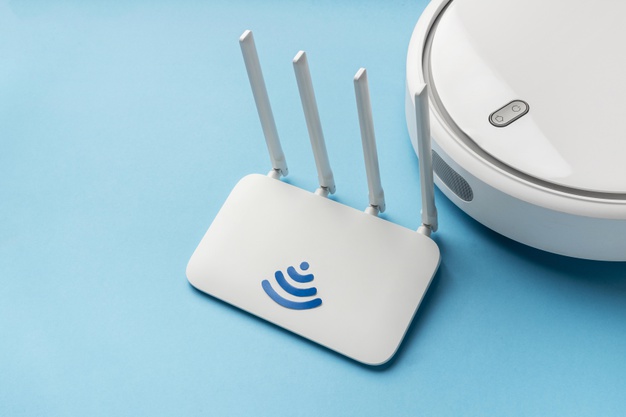
Adjust router antennas: Router antennas are used to shape, direct and maximize your WiFi signal. Most antennas are are omnidirectional and broadcast a "donut" of energy perpendicular to the antenna itself. Adjusting them ensures coverage reaches exactly where you need it most.
Update router firmware: Up-to-date firmware can protect your network against cyber threats, fix bugs, improve WiFi speed and compatibility with newer devices. Visit the manufactures websites, download the latest version and update.
6. Limit Background Network Usage
When you find the WiFi speed slow down all of a sudden, check whether there are some background processes that heavily consume bandwidth. Stop unnecessary processes like large downloads, cloud backup, auto-update, to boost WiFi speed for active tasks.
Tip: You can use a third-party PC optimizer to monitor your PC status in real-time and close unnecessary apps automatically.
7. Update Your WiFi Driver
WiFi driver update ensures improved performance, stability and better compatibility with new network adapter.
Go to Device Manager > Network adapters > right-click your WiFi adapter and update driver.
8. Keep Your Network Safe
Malware or unwanted software may use internet bandwidth in the background. Running a trusted antivirus scan can help improve network performance and get WiFi faster.
9. Upgrade Hardware
Modern WiFi standards (WiFi 6/6E/7) ensures faster WiFi and low latency. Get a new router or network adapter that supports newer standard can help you boost internet speed on PC and laptop.
10. Additional Tips to Boost WiFi Speed
There are some more tricks that possibly enhance your WiFi connection.
Use a WiFi extender or mesh system for larger homes or offices.
Use strong router security to prevent unauthorized access.
Disconnect used devices from the network.
Connect your PC/laptop with the router using an Ethernet cable if possible.
Ultimate Solution to Make Your WiFi Faster
It is troublesome to experiment all tips and find the actually useful solutions for boosting your WiFi speed on PC or laptop. Fortunately, some PC optimization tools include the feature to boost internet automatically, helping people effectively fix WiFi connection issues.
Advanced SystemCare is an industry-leading PC manager, primarily committed to reinforcing your system, from optimization, cleanup to security protection. It leverages Advanced Network Optimization to configure how your PC/laptop connects to the internet and increase the internet speed automatically. It also has a "Speed Up" mode allowing you to stop background apps to release the bandwidth usages for boosting WiFi speed. With it, you can keep your system always in a perfect status for getting faster WiFi without manual operation.
Advanced SystemCare is a beginner-friendly Windows optimizer with a modern and polished design. Just in a few clicks, you can increase your WiFi speed.
Step 1. Download and install Advanced System Care on your computer. It supports Windows XP to 11, both 32-bit and 64-bit.
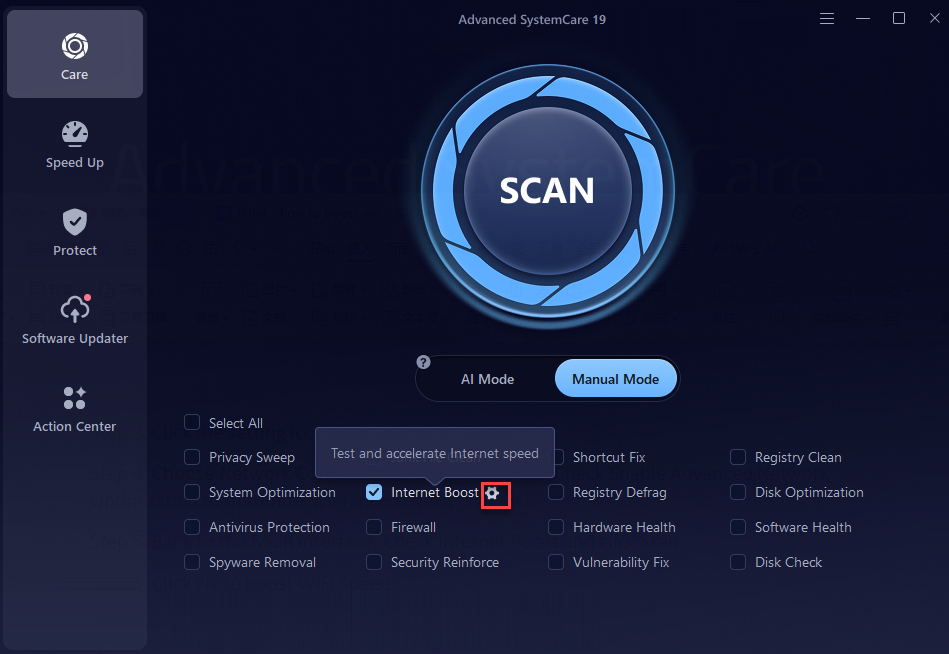
Step 2. Navigate to Care panel and find Internet Boost.
Step 3. Click the setting icon next to Internet Boost.
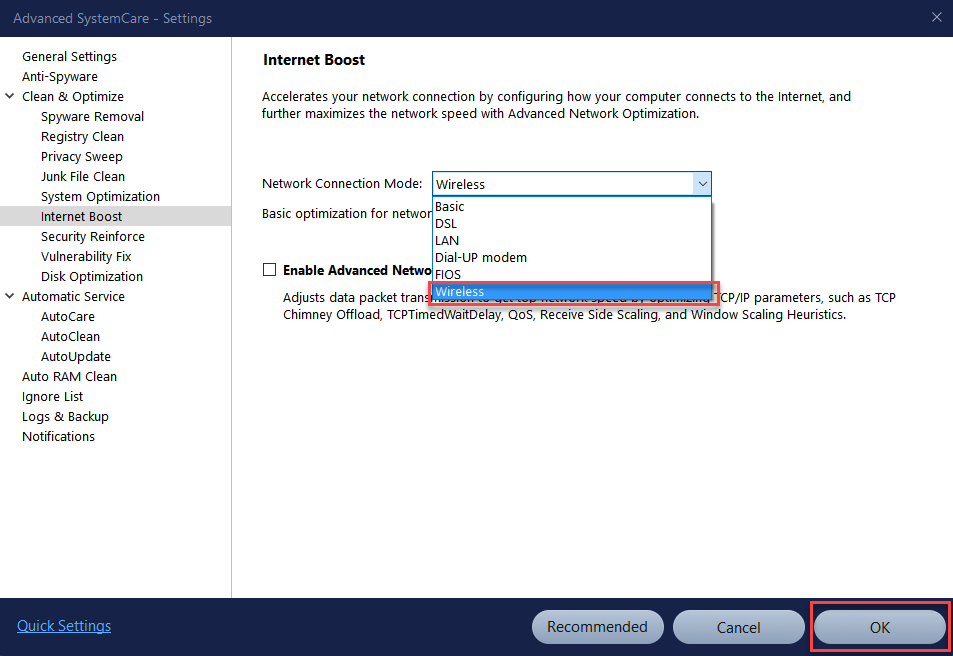
Step 4. Choose Network Connection Mode as Wireless. Check Enable Advanced Network Optimization to maximize WiFi speed. Next, click OK.
Step 5. Back to the Main interface. Check Internet Boost and click Scan.
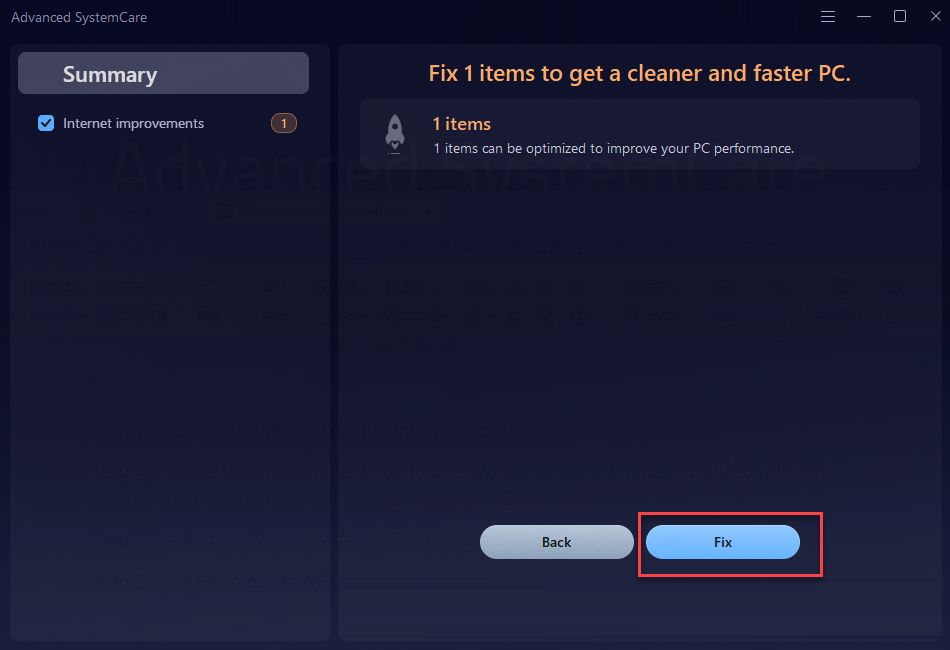
Step 6. Click Fix to boost WiFi Speed.
Tip: If you want to manage background processes and startup programs that hog bandwidth, go to Speed Up panel and optimize.
Conclusion
How to boost WiFi speed on a PC or laptop? It does not always require expensive upgrades. In many cases, simple changes like updating drivers, switching WiFi bands, repositioning the router, or reducing background network usage can make a noticeable difference. You can also take advantage of Advanced SystemCare, an overall PC optimizer and cleaner, to make WiFi faster for smoother streaming, gaming and better overall productivity.
Advanced SystemCare Free
- Clean: 420 billion traces removed & 85 EB junk files cleaned
- Protect: 80 million unauthorized access blocked & 20 million bugs fixed
- Speed Up: 6 million hours of startup time saved & Turbo boost
- Optimize: Auto clean and auto care your PC with AI mode