Picture this, you're working on an important project when suddenly an app freezes. Your mouse stops responding, the window won't close, and everything comes to a standstill. It's frustrating, especially when you don't know what to do next.
The good news is that Windows offers several ways to close unresponsive programs, from quick keyboard shortcuts to powerful system tools. You don't need any technical expertise to get things working again. In this guide, we'll show you 6 effective methods for how to force quit on Windows, along with practical tips to prevent apps from freezing and improve your PC's overall performance.
#1. How to Force Quit on Windows with Alt + F4 Shortcut
If you are looking for the quickest way to force close on Windows, this is your go-to choice. Simply click the unresponsive program to make it the active window, then press Alt + F4 simultaneously. This method works well for apps that are unresponsive but not completely frozen.
If it doesn't work, your laptop may require the Fn key, or the program may be completely frozen to respond. In that case, continue reading for more ways to force quit on Windows.
#2. How to Force Close on Windows via Task Manager
How do you force quit on Windows? Another simple and reliable way to force quit a program is via Task Manager:
Step 1. Press Ctrl + Shift + Esc to open Task Manager.
Step 2. Under the Processes tab, locate the frozen program or the app marked Not Responding.
Step 3. Right-click the frozen application and select End task. Windows will immediately terminate the program and free up system resources.
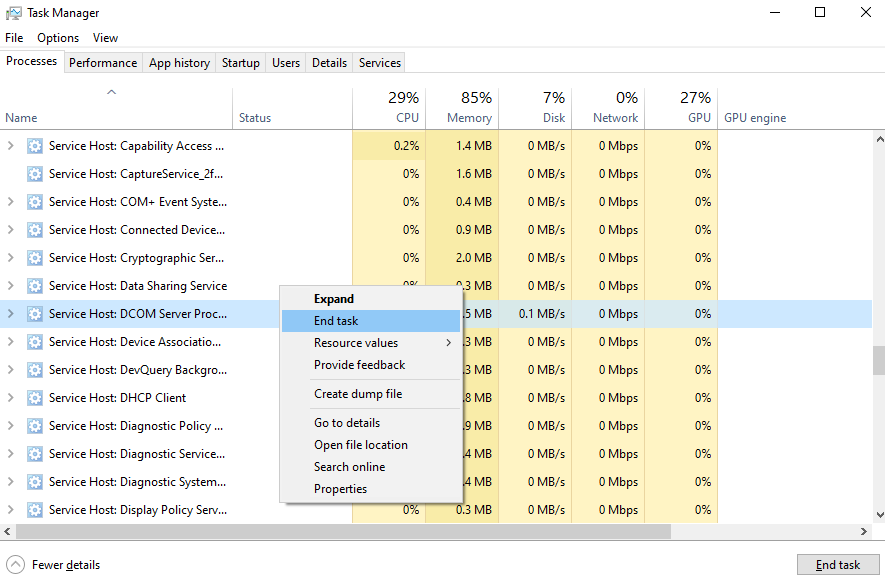
Tip: On recent Windows 11 versions, you can force close apps even faster. Right-click the app's icon on the taskbar and select End Task. If you don't see this option, enable it by going to Settings > System > For Developers > End Task.
#3. How to Force Quit on PC via Ctrl + Alt + Delete
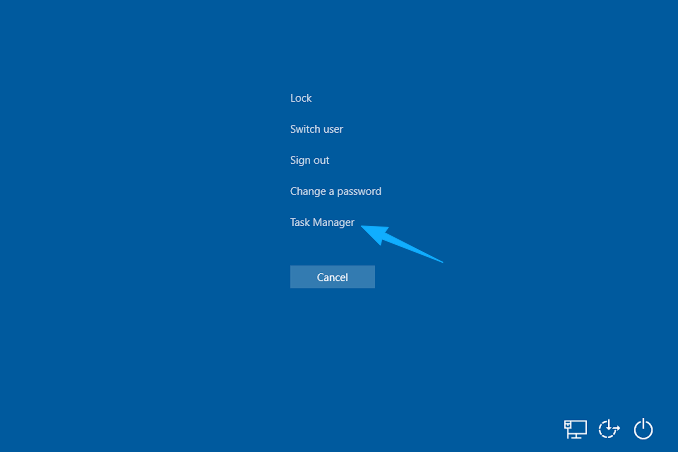
If the screen is completely frozen and you can't open Task Manager normally, try the Ctrl + Alt + Delete shortcut. Unlike regular app-closing methods, this key combination opens the Windows security screen, making it useful when a frozen program prevents you from interacting with the desktop, taskbar, or other applications.
The process is simple: press Ctrl + Alt + Delete, then select Task Manager from the menu and follow the steps in the previous method to end the frozen program. You can also choose Sign out or Switch user if a specific profile is crashing.
#4. How to Force Quit in Windows with Command Prompt
How do you force quit on Windows without Task Manager? Command Prompt is a great alternative. While it may look intimidating at first, you don't need any technical expertise to use it. With a simple command, you can quickly identify and force close a frozen program. It's one of the most effective ways to force quit Windows apps using your keyboard only.
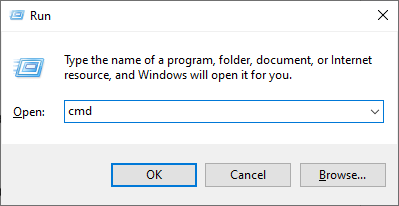
Step 1. Press Windows + R, type cmd, and click OK to open Command Prompt.
 Step 2. Type tasklist and hit Enter. This command will display all currently running processes.
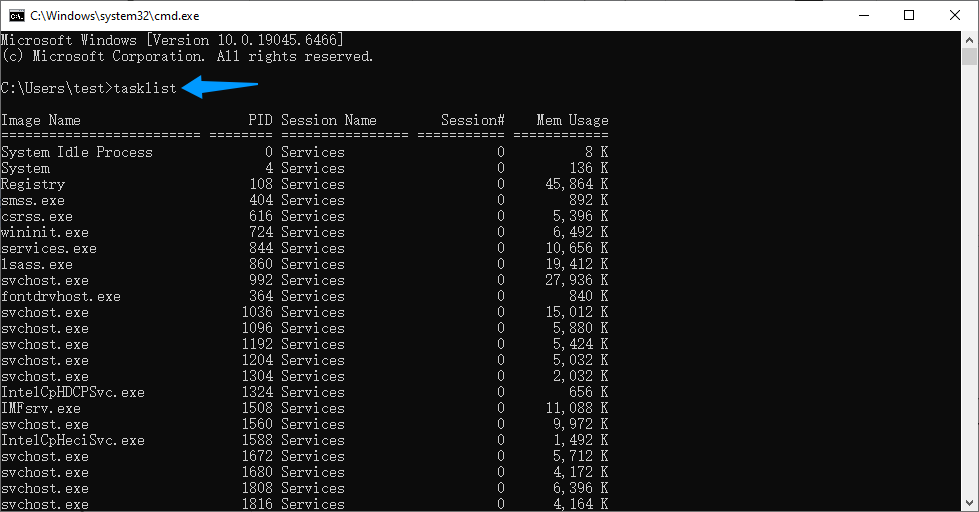
Step 3. Locate the name of the unresponsive program in the list.
Step 4. Type the command: taskkill/im programname.exe and press Enter. Replace programname.exe with the actual process name. (e.g. taskkill /f /im chrome.exe)
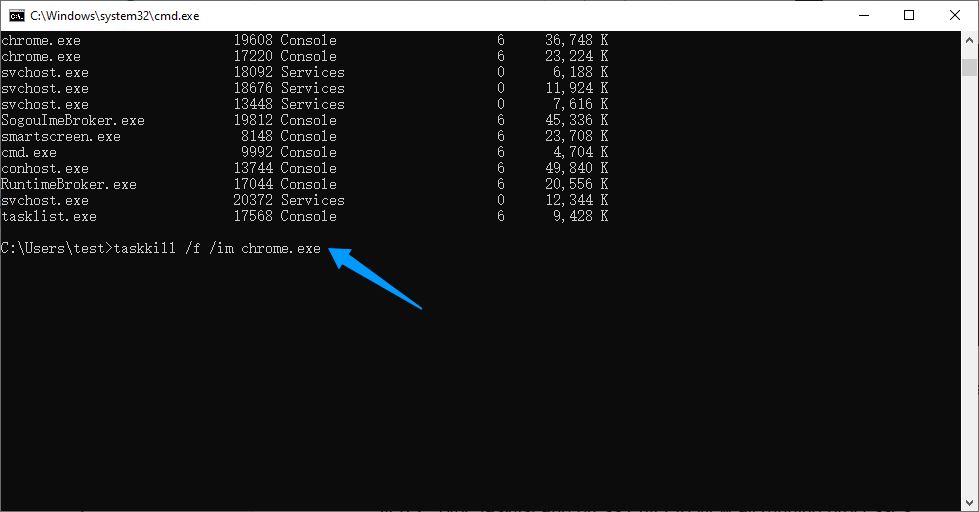
Step 5. The /f parameter forces Windows to terminate the program immediately, even if it isn't responding.
Tip: If you know the process name, you can skip the tasklist step and run the taskkill command directly to force close the application faster.
#5. How to Force Quit Apps on Windows Using PowerShell
If you prefer a command-line approach, PowerShell is another built-in Windows tool that can help you force quit unresponsive programs. Like Command Prompt, it allows you to terminate processes using simple commands, and the steps are very similar.
Step 1. Press Windows + X and select Windows PowerShell (or Terminal on Windows 11).
Step 2. Type the command: Get-Process and press Enter. Locate the frozen app from the running process list.
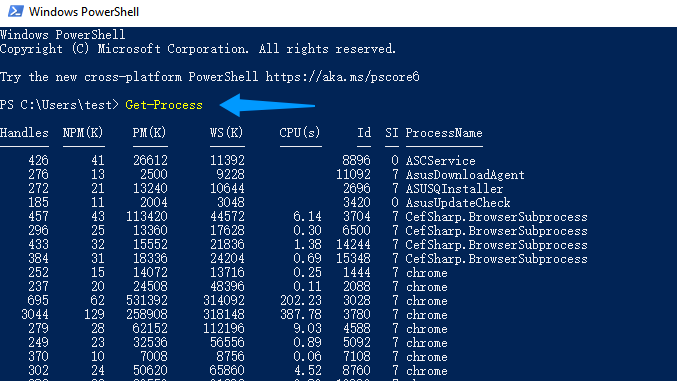
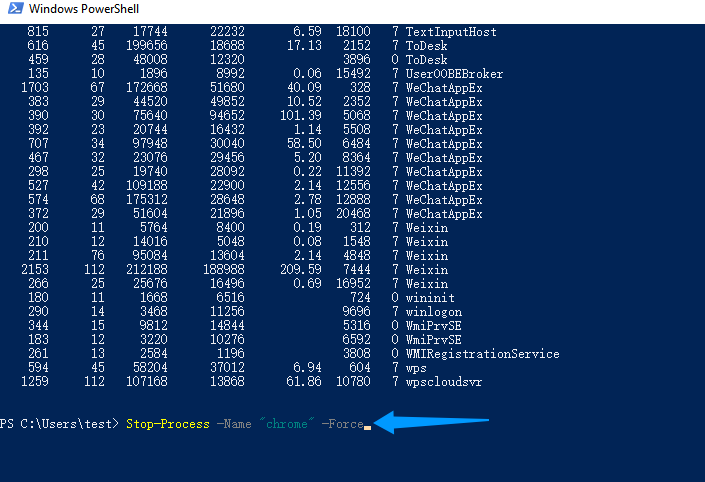
Step 3. Run the command: Stop-Process -Name "programname" -Force to force close the program. You need to replace programname with the actual process name. For example, Stop-Process -Name "chrome" -Force.
#6. Last Resort: Force Restart Your PC
If none of the methods above work, a restart may be the easiest solution. First, try a soft restart by pressing Ctrl + Alt + Delete, clicking the Power button in the bottom-right corner, and selecting Restart.
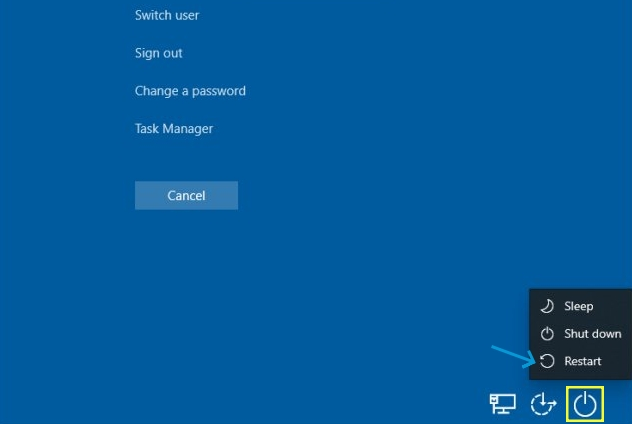
If your computer is completely frozen and won't respond to any commands, you may need to perform a force restart. Press and hold the physical Power button for 5–10 seconds until the screen turns off, then press it again to power the PC back on.
Warning: A force restart immediately cuts power to your system and may result in lost unsaved work. Use this method only as a last resort after waiting a few minutes to confirm that Windows is truly frozen.
How to Prevent Programs from Freezing Again on Windows
Force quitting a frozen app is a quick fix to get you back on track, but frequent unresponsiveness may indicate underlying performance issues at play. Common culprits include excessive background processes, outdated drivers, insufficient memory, startup overload, or accumulated junk files.
To keep your PC running smoothly, regular maintenance is essential. Rather than spending time searching for solutions, you can simplify this with Advanced SystemCare—an all-in-one PC optimization tool that cleans, speeds up, and stabilizes your Windows system. No technical know-how is needed; just one click and let it work its magic.
Advanced SystemCare Free
- Clean: 420 billion traces removed & 85 EB junk files cleaned
- Protect: 80 million unauthorized access blocked & 20 million bugs fixed
- Speed Up: 6 million hours of startup time saved & Turbo boost
- Optimize: Auto clean and auto care your PC with AI mode

See below to discover how this tool can help you avoid frequent force quitting:
This Windows optimizer cleans up junk files and frees up system resources so the applications can run without hiccups.
Its built-in Startup Optimizer spots unnecessary startup items and lets you disable them to improve boot speed and overall responsiveness.
This Windows RAM optimizer helps optimize system performance by reducing resource-hungry processes that may contribute to program freezes.
Monitor CPU, RAM, disk, and network usage in real time to identify performance bottlenecks before they make applications unresponsive.
No complex setup. Advanced SystemCare makes it simple for everyday users to automatically clean, optimize, and boost performance with minimal effort.
Now, follow the steps to clean and optimize your Windows PC:
Step 1. Download Advanced SystemCare on your PC, and follow the on-screen instructions to install it.
Step 2. On the main dashboard, switch to Manual Mode, tick the items you want to optimize, such as Junk File Clean, Registry Clean, and System Optimization. Alternatively, choose AI Mode for automatic optimization.
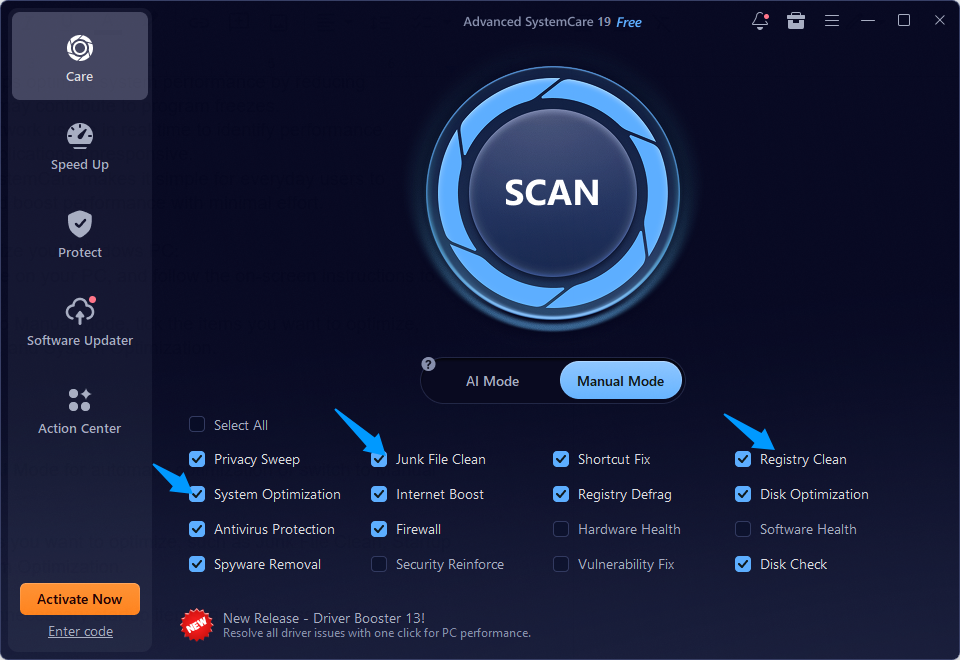 Step 3. Click Scan to start. You may need to wait a while.
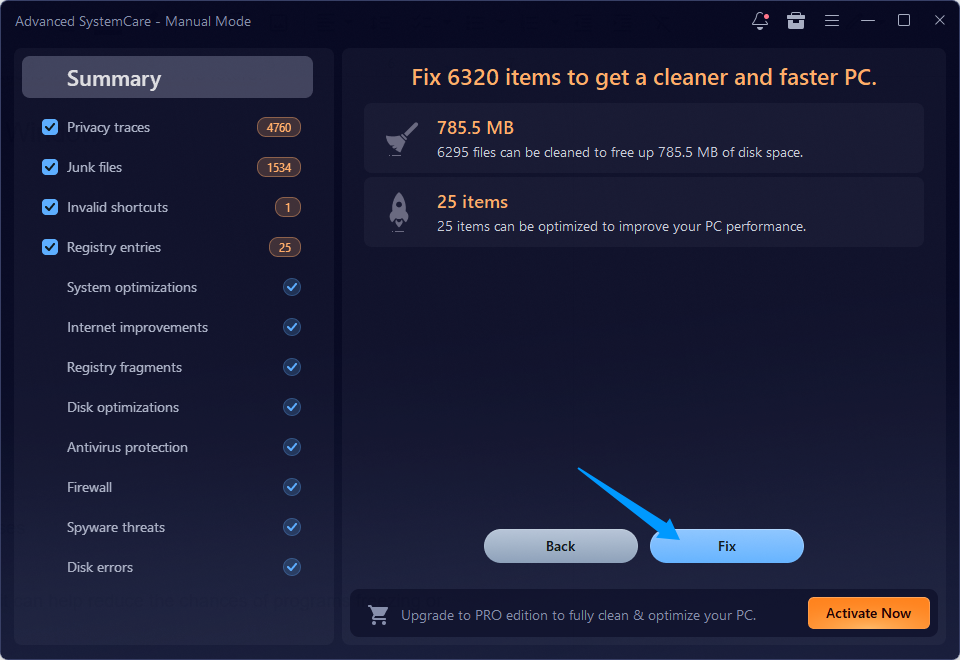
Step 4. Once done, click Fix to clean and optimize your system immediately.
Step 5. For additional improvements, go to the Speed Up tab and use tools such as Startup Optimizer and Turbo Boost to free up system resources. You can also enable Performance Monitor to track your background activity in real time.
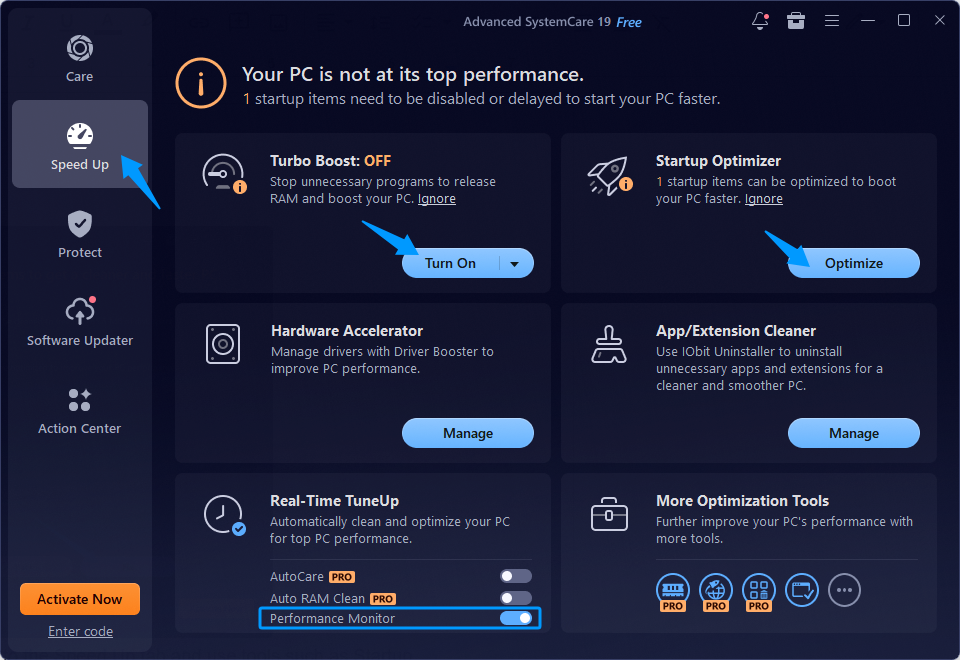
Going forward, incorporate Advanced SystemCare into your routine PC maintenance to improve responsiveness and help prevent your computer from freezing in the future.
FAQs: How Do You Force Quit on Windows
1. What is the shortcut to force quit on Windows?
The fastest way to close a frozen application is to press Alt + F4 while the app is selected.
2. How to force quit if Alt+F4 doesn't work?
If Alt + F4 fails to close the application, try using Ctrl + Shift + Esc to bring up Task Manager, or use Ctrl + Alt + Delete to access it from the Windows security screen.
3. Why do programs keep freezing on Windows?
Frequent freezes can be caused by insufficient RAM, outdated drivers, software conflicts, or accumulated junk files, etc. You can use Advanced SystemCare for regular system optimization and Driver Booster to safely update outdated drivers that may be causing stability issues.
4. How do I force quit a full-screen game on Windows?
If a full-screen game prevents you from accessing the desktop, press Ctrl + Shift + Esc to open Task Manager. If that doesn't work, use Windows + Tab to create a new virtual desktop, then open Task Manager and end the game's process.
5. Can force quit cause data loss?
Yes, force-closing a program could result in data loss if you have unsaved work. Since force-quitting immediately terminates the application, any unsaved changes may be lost.
Conclusion
Knowing how do you force quit on Windows is an essential troubleshooting skill when an application becomes unresponsive. You can try the methods mentioned above to quickly regain control of your PC. However, if your applications frequently lag or freeze, consider optimizing your system with tools like Advanced SystemCare to improve performance, reduce slowdowns, and keep Windows running as smoothly as it did on day one.
Advanced SystemCare Free
- Clean: 420 billion traces removed & 85 EB junk files cleaned
- Protect: 80 million unauthorized access blocked & 20 million bugs fixed
- Speed Up: 6 million hours of startup time saved & Turbo boost
- Optimize: Auto clean and auto care your PC with AI mode