You've just closed your laptop lid with 50% battery remaining, expecting it to last through a long flight or commute. Hours later, you open it and find the device nearly dead or, worse, it shut down unexpectedly during an important video call. While Windows 11 brings sleek visuals and modern features, it also introduces more background processes, animated effects, and power-hungry defaults that can accelerate battery drain.
But worry not. You don’t have to constantly worry about your battery life anymore. This guide explores effective battery optimizer Windows 11 methods, including built-in tools and powerful third-party solutions. Just read on to reclaim your hours of productivity and entertainment now!
Why Does Windows 11 Battery Drain So Fast?
When your Windows 11 laptop seems to lose power more quickly than before, there are several common factors that contribute to this issue.
Background apps: They handle syncing, notifications, and updates, consuming battery even when minimized or inactive.
High resource usage: CPU, RAM, and disk overload from multiple apps or heavy tasks can drain your battery.
Poor power settings: Default modes prioritize performance over efficiency, which increases unnecessary battery consumption overall.
High display brightness: Excessive brightness and high refresh rates significantly increase power usage as well.
Outdated drivers: Older drivers are blocking proper low-power management and causing unnecessary energy drain.
System bloat/junk files: Accumulated junk files and startup items increase system workload, leading to faster battery depletion.
Built-in Windows 11 Battery Optimization Tools
Now that you understand the main causes of battery drain, it’s time to take action. Here’s how to use built-in settings effectively as a battery optimizer in Windows 11.
1. Energy Saver
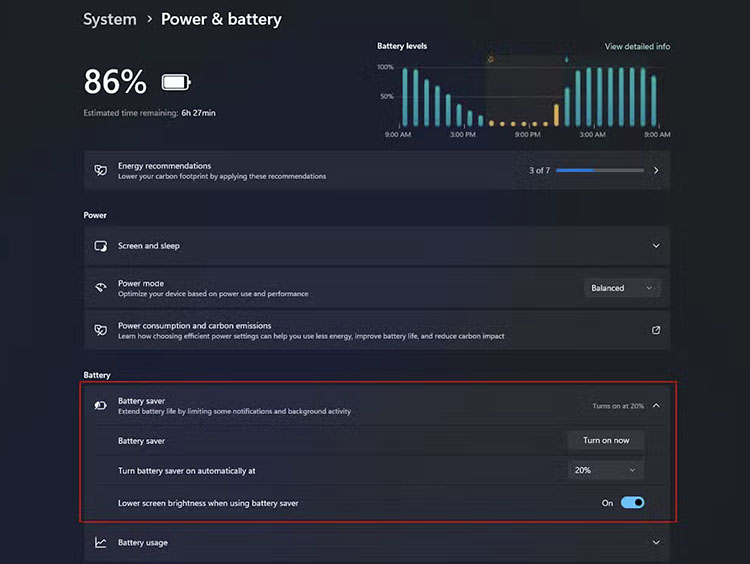
This is one of the most straightforward options. You can find it in Settings > System > Power & battery > Battery. When enabled, it reduces screen brightness, limits background activity, and pauses some syncing to conserve power. It can also turn on automatically below a certain percentage for immediate relief during low-battery situations.
2. Power Modes
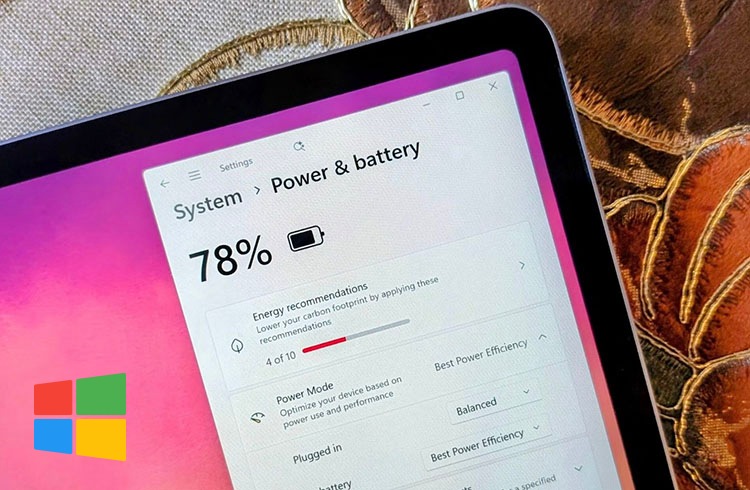
The Power Mode is also a great battery optimizer Windows 11, which allows you to balance performance and efficiency based on your needs. It’s located in the Power & battery > Power section. You can switch to “Best Power Efficiency” to reduce background activity and CPU usage.
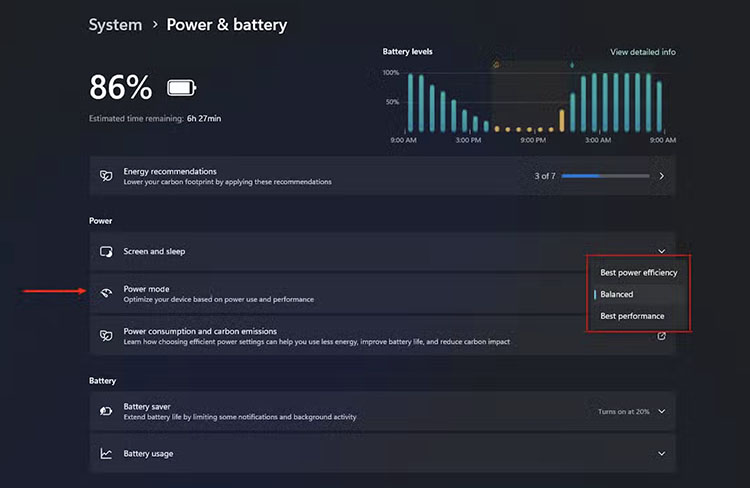
3. Energy Report
You can generate a detailed report identifying specific drivers or apps causing high power drain. Right-click the Start button and select Command Prompt (Admin). Run Command: Type powercfg /energy and press Enter. Wait 60 seconds and navigate to the file path provided in the terminal.
4. Screen Brightness
The display is the single largest consumer of battery power. Lowering brightness is the fastest way to see an immediate improvement in runtime. You can lower it manually from the Settings > System > Display for battery optimization Windows 11.
5. Sleep Mode
Navigate to Settings > System > Power & battery > Screen and Sleep. Click the “Screen and sleep” section to reveal the timers. Set the "On battery power, put my device to sleep after" to a low number, such as 5 minutes, to ensure the PC doesn't stay active when you walk away.
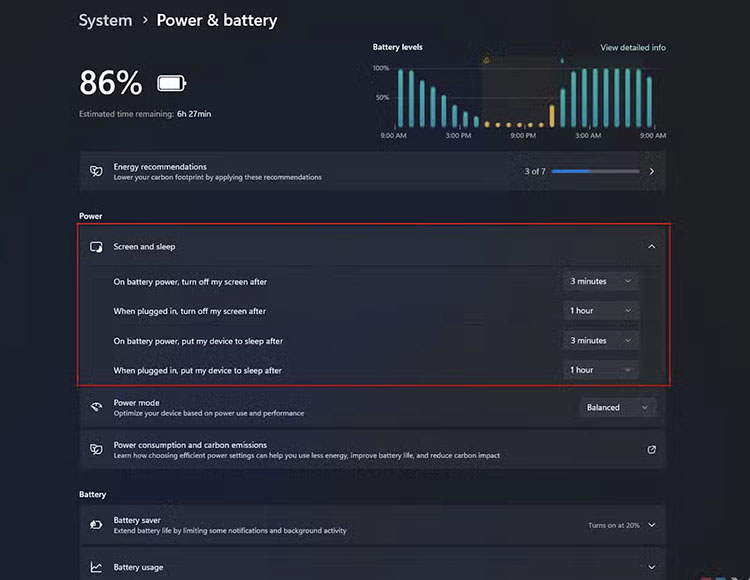
While these built-in tools are helpful, they may not be sufficient for heavy multitasking or persistent background processes. Meanwhile, manual adjustments can also become repetitive over time. So, how to increase laptop battery life more easily? There’s a more comprehensive and automated solution. Just read on!
Advanced SystemCare: All-in-One Battery Optimizer for Windows 11
If you are looking for an effortless way to optimize Windows 11 for battery life, Advanced SystemCare is your best bet. Developed by IObit, this free tool combines intelligent power management with full-system optimization. By stopping unnecessary services and enhancing your Windows settings, it’s a strong battery booster that helps extend runtime. It’s also a comprehensive software suite (cleaner, driver updater, etc.) that ensures smooth, efficient Windows performance.
Advanced SystemCare Free
- Clean: 420 billion traces removed & 85 EB junk files cleaned
- Protect: 80 million unauthorized access blocked & 20 million bugs fixed
- Speed Up: 6 million hours of startup time saved & Turbo boost
- Optimize: Auto clean and auto care your PC with AI mode

Key features for Windows Battery Optimization
Free Windows battery optimizer: Advanced SystemCare is free to use. You can easily reduce background activity and optimize power usage, achieving battery optimizer Windows 11 with no extra cost.
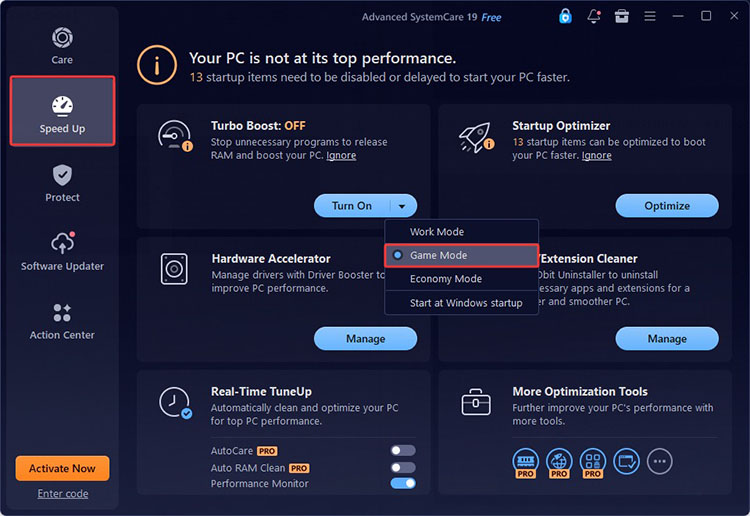
Smart power plan switching: Its Turbo Boost is an excellent tool for battery saver Windows 11. You can turn on the Work Mode, Game Mode, or Economy Mode to ensure optimal efficiency with minimal power consumption to extend laptop battery life.
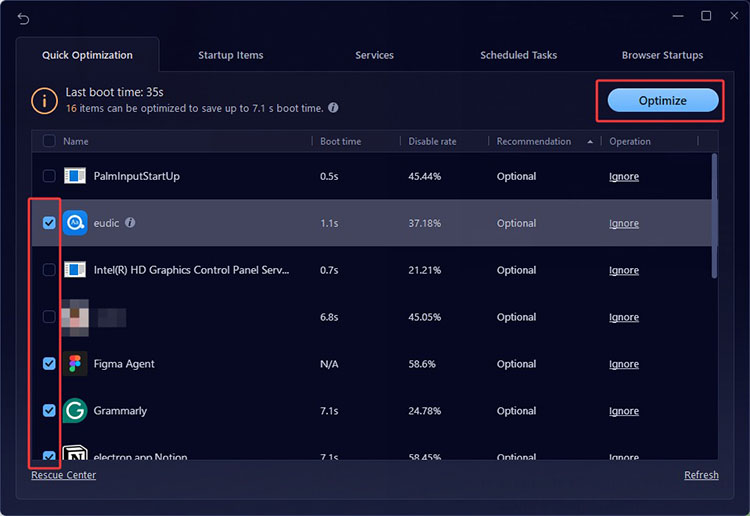
Startup items optimization: It scans and disables programs that launch automatically at boot. Managing startups, services, and scheduled tasks, it reduces initial resource load and prevents constant power consumption.
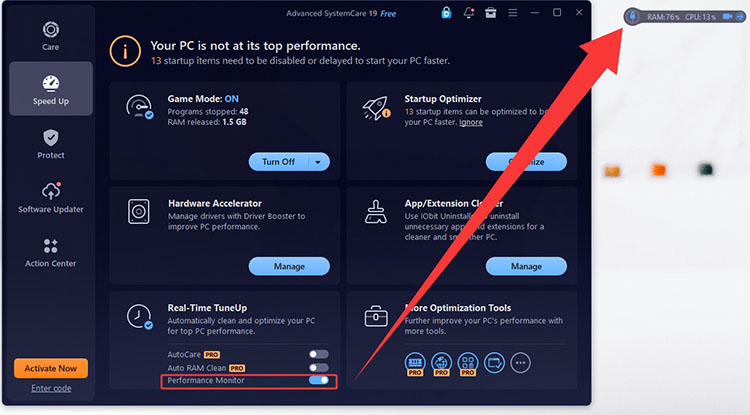
Background process management: Its Performance Monitor feature is also a solid battery optimizer Windows 11. It detects resource-heavy processes and helps stop them, reducing CPU and memory usage to improve efficiency and extend battery runtime.
Real-time performance monitoring: Users can also get real-time insights into CPU, RAM, and disk usage. You can stay aware of resource-intensive tasks and quickly take action to reduce unnecessary load for overall power efficiency improvement.
How to Optimize Battery Life with Advanced SystemCare
Advanced SystemCare is the best battery optimization software to maintain optimal performance on Windows. Want to see how to increase laptop battery life with it? Follow these simple steps to get the most out of its powerful features.
Step 1. Download and install Advanced SystemCare from the official website.
Step 2. Go to the Care tab and select AI Mode to run a full system scan.
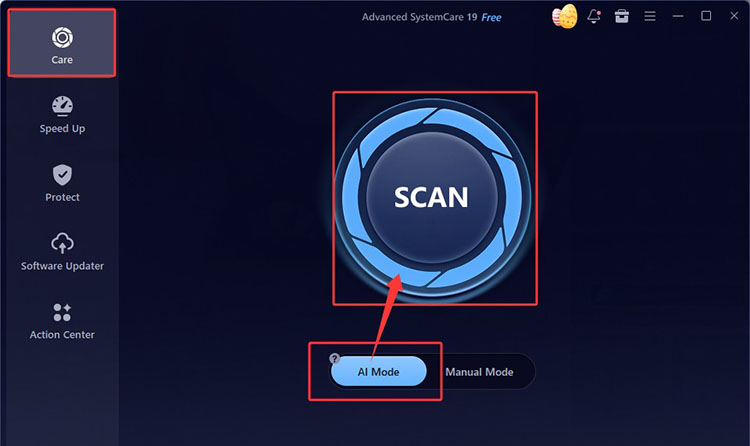
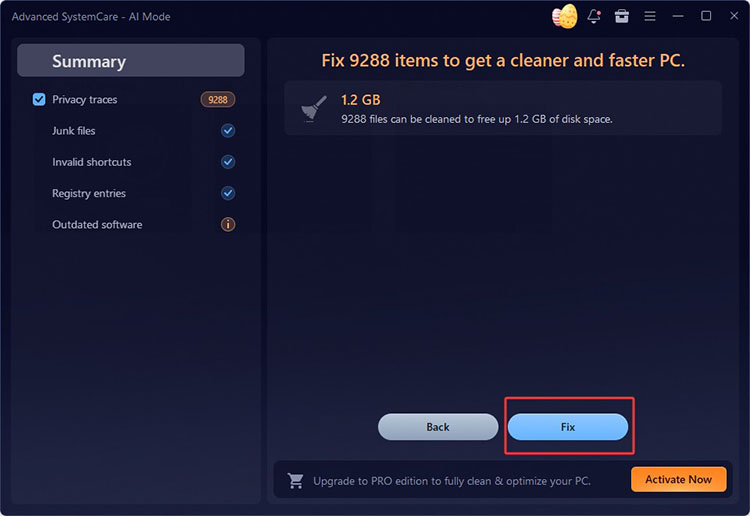
Step 3. Advanced SystemCare will automatically detect and fix junk files and system issues that contribute to battery drain.
Step 3. For the battery optimizer Windows 11 feature, navigate to Speed Up > Turbo Boost. Turn on the mode (Work, Game, Economy, etc.) that best fits your usage.
Step 4. Next, open Startup Optimizer (next to the Turbo Boost) and disable unnecessary startup apps. This reduces boot time, lowers background activity, and helps conserve battery power from the moment your system starts.
Step 5. You can also use the Real-time TuneUp tool. Enable Performance Monitor to track CPU, RAM, and disk usage in real time, and close resource-heavy processes for efficient power usage.
Other Third-Party Battery Optimizers for Windows 11
Aside from Advanced SystemCare, several dedicated tools offer powerful ways to manage your laptop's energy consumption. These third-party options often provide better control than the standard Windows settings.
1. Avira
Avira offers a solid Battery Saver within its System Speedup or security suite. It provides multiple power modes (Energy Saver, Balanced, Power Boost) that intelligently regulate processor frequency, adjust display settings, and manage background tasks. It's particularly suited for users who want integrated antivirus and performance tools with battery optimization.
2. Battery Optimizer (ReviverSoft)
This battery optimizer Windows 11 specializes in diagnostics and recommendations. It performs in-depth scans to analyze battery health and provide recommended actions to perform, with the estimated time-savings and other battery management features. It’s great for users who want detailed insights and alerts about usage patterns and those troubleshooting battery drain issues.
3. Battery Saver - Power plan management
Available on the Microsoft Store, Battery Saver is a lightweight tool designed for simple energy control on Windows. Users can adjust settings for plugged-in or battery use and see throttled processes marked with efficiency indicators. With power plan integration, one-click optimization, and visual status display, it’s an ideal battery optimizer Windows 11 for students, remote workers, and everyday users.
FAQs About Windows 11 Battery Optimization
1. How can I check my battery health in Windows 11?
You can open Command Prompt as administrator and type powercfg /batteryreport. This generates a detailed HTML report showing design capacity, current capacity, and usage history.
2. How can I see which apps are draining my battery?
Go to Settings > System > Power & battery and check the battery usage section. You can also use Task Manager to monitor real-time power consumption.
3. How often should I run battery optimization?
You can perform battery calibration every two to three months. This ensures the digital sensor remains accurate, preventing sudden shutdowns and ensuring the displayed percentage correctly reflects the actual remaining chemical energy.
4. Why does my battery drain even when my laptop is shut down?
Features like Fast Startup and Always-On USB ports draw power for background tasks. Additionally, lithium-ion batteries naturally suffer from self-discharge, where internal chemical reactions consume energy even without a load.
Conclusion
While Windows 11 offers convenient built-in tools and settings, they can be helpful for basic adjustments but often require manual effort and ongoing management. For more effective and hassle-free improvements, Advanced SystemCare delivers superior results. It’s a dedicated battery optimizer Windows 11 solution that intelligently reduces background activity, optimizes system settings, and extends battery life with minimal effort. Download Advanced SystemCare, run a quick scan, and experience the difference for yourself!
Advanced SystemCare Free
- Clean: 420 billion traces removed & 85 EB junk files cleaned
- Protect: 80 million unauthorized access blocked & 20 million bugs fixed
- Speed Up: 6 million hours of startup time saved & Turbo boost
- Optimize: Auto clean and auto care your PC with AI mode