Looking for a quick way for how to lock a folder and keep your files safe? This guide covers 5 easy and free methods to protect your personal data, business documents, and sensitive backups with or without a password.
If you share a PC or laptop with family, coworkers, or others, your private files could be exposed at any time. Learning how to password-protect a folder can help you avoid serious risks—like personal photos being leaked or confidential files being accessed without permission.
In this article, you’ll discover built-in Windows tools as well as simple third-party solutions to lock folders securely. Whether you want basic protection or stronger security, we’ve got you covered. Let’s dive in and find the best way to lock your folders—fast and free.
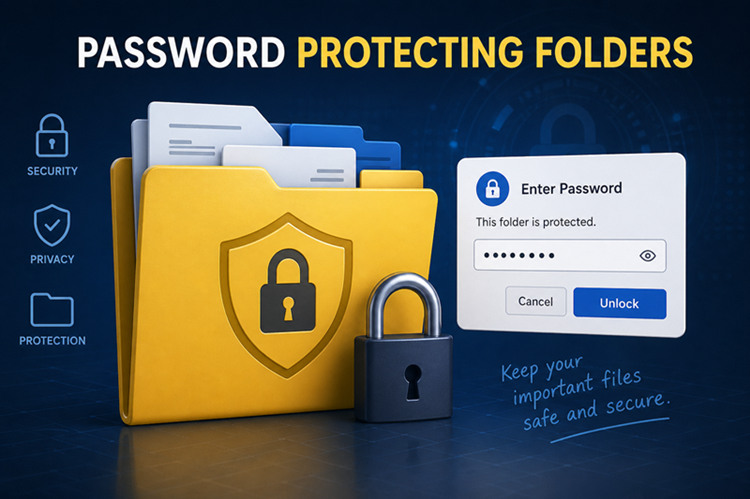
Windows Doesn’t Support Password-Protect Files
You might be surprised to learn that Windows doesn’t natively let you password-protect a single folder. If you’ve ever right-clicked a folder expecting to find a “lock with password” option, you’ve probably noticed—it’s just not there. But don’t worry—there are several effective workarounds. Here are 4 proven ways to lock a folder on Windows:
Use EFS (Encrypting File System) to encrypt files and folders
Use BitLocker to lock an entire drive
Password-protect Microsoft Office files using built-in encryption
Use free tools like 7-Zip or WinRAR to lock folders with a password
On top of that, there are also one-click folder locker tools that let you instantly secure any folder with a password and control access permissions—such as blocking read/write access or preventing other programs (including File Explorer) from opening it. Keep reading to find out which method works best for your needs.
Lock a Folder in Windows 11: Five Ways in Total for Laptop and PC
Windows doesn’t offer a built-in folder locker for password-protecting individual folders. Laptop and PC users both face this dilemma. However, you can still secure your files using several built-in Windows features—no third-party software required.
If you prefer a quick, automated solution, you can also skip the manual setup and use dedicated tools (covered later). But first, here are 4 built-in ways to lock a folder on Windows:
#1. BitLocker
BitLocker is a default program designed to lock an entire drive with a password. While it doesn’t directly support locking a single folder, advanced users often combine BitLocker with a Virtual Hard Disk (VHD). This allows you to create a secure, password-protected container that acts like a locked folder.
#2. EFS (Encrypting File System)
EFS is ideal if you share a PC with other users. When you encrypt files or folders with EFS, they remain visible to other users—but only your account can open or modify them. This means if another user logs into the same computer, they won’t be able to access your protected files.
#3. WinRAR
Another practical method is to compress your files into a password-protected archive using tools like WinRAR or built-in ZIP compression. This lets you lock documents, images, and videos with a password. However, it does require a few extra steps, and compressed files may need to be extracted before use—making it slightly less convenient for frequent access.
#4. Documents That Support Built-in Password Protection
Some file types are designed to be locked with passwords, making them one of the easiest ways to protect sensitive data:
Microsoft Excel
Microsoft Word
Microsoft PowerPoint
Adobe PDF (Acrobat)
#5. Create an Encrypted Image (for MacBook Users)
When your laptop is running macOS, you can use this built-in method to password-protect documents on your PC. The key is to use Disk Utility and create new image to encrypt your files with a password.
These applications come with built-in encryption features that let you add a password directly to the file. Once enabled, anyone trying to open the document must enter the correct password—or access will be denied.
Finally: Why Third-Party Folder Lockers Are Still the Best Option
Windows native tools can be limited, time-consuming, or inconvenient for everyday use. A reliable third-party folder locker offers one-click protection. With the right tool, you can easily lock folders containing Word documents, Excel files, videos, images, and more.
How to Lock A Folder with BitLocker in Laptop and PC?
Before we get into the tutorials, there’s one important thing to clarify: BitLocker does not lock individual folders. This Windows-based file-encrypting tool locks a drive (such as your C: drive) with a password. There’s a common workaround. You can create a Virtual Hard Disk (VHD), enable BitLocker on it, and then store your folders inside.
How to use BitLocker to lock a virtual hard disc?
Step 1. Open Disc Management > Action > Create VHD.
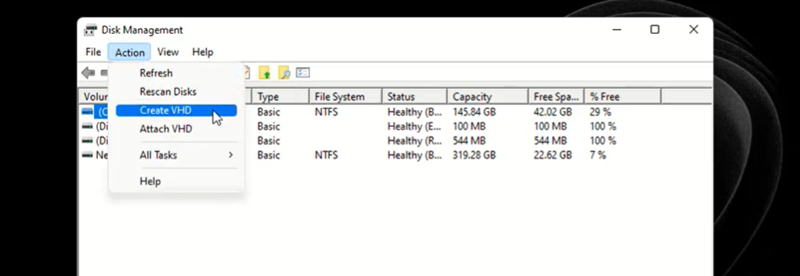
Step 2. Choose a local disc to store files in your VHD.
Step 3. Cap the maximum size of your VHD, for example, 2GB > Set up the format of your VHD & Hard disc type.
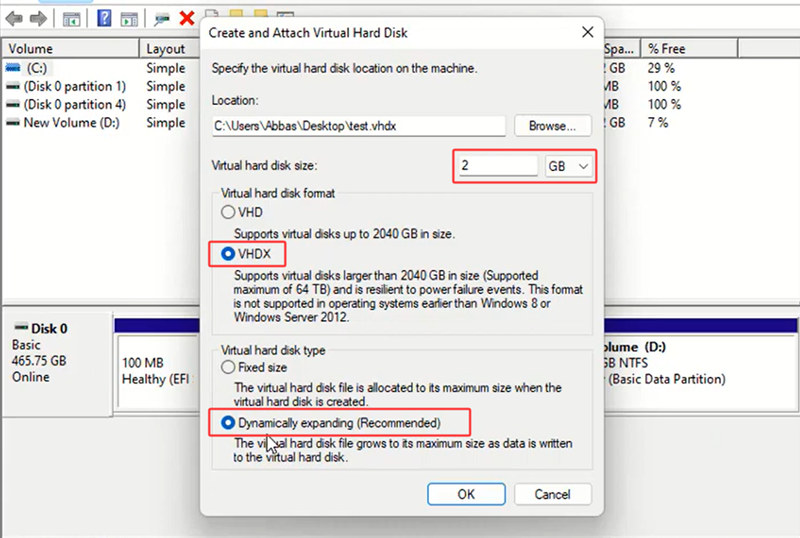
Step 4. Initiate your VHD.
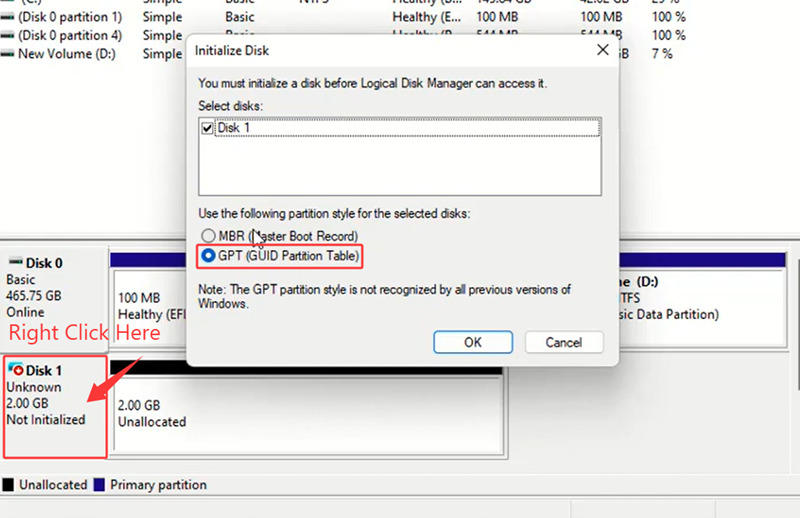
Step 5. Open BitLocker, locate the target virtual hard disc that you created just now. Lock it and set up a password for it.
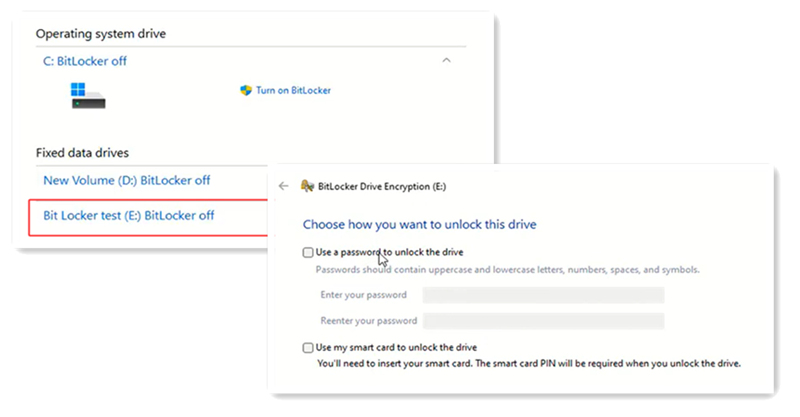
Note: Cannot use BitLocker and a message says ‘Compatible TPM cannot be found?’
Scenario one: TPM is on your motherboard, but it is not activated (common).
Scenario two: TPM is not in your motherboard (rare).
Scenario three: Your system is too old to support TPM (very rare)
How to address Compatible TPM cannot be found?
Step 1. Restart your PC.
Step 2. Before entering your system, repeatedly press Delete or F2(laptop users) to enter the BIOS panel.
Step 3. Follow the paths to find the TPM option: Advanced > Trusted Computing > Security Device Support > Enabled.
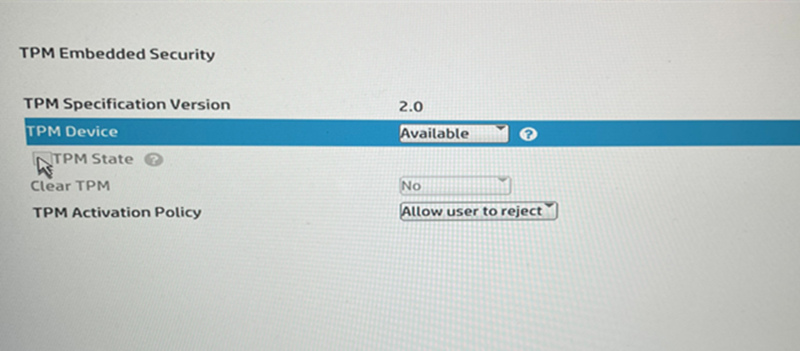
Step 4. Save the changes and restart your PC.
Step 5. Open Win+R to check if your TPM is activated or not.
If you don’t want to go through all the manual steps, you can use an all-in-one system utility tool to handle everything for you. These tools let you lock folders, encrypt files, and protect your data in just a few clicks. Keep reading to see how to lock folders without BitLocker the easy way.
How to Lock A Folder with Advanced SystemCare in Laptop and PC?
As a well-known software developer with over 20 years of experience, IObit Advanced SystemCare includes a powerful folder protection feature called Safe Folder. It lets you hide folders completely, restrict access, and prevent unauthorized users from opening your files.
One standout advantage is that it can block other programs from reading your locked folders, helping reduce the risk of data leaks—something Windows’ built-in tools don’t fully offer.
While the Safe Folder feature is paid, a single license also includes a full suite of tools like PC cleanup, performance optimization, ad removal, anti-spyware, and system protection, making it a solid value overall.
How to lock a folder with software in laptop and PC?
Step 1. Download IObit SystemCare for free.
Step 2. Switch to the ‘Settings’ tab, choose how you like to lock your folders. You can deny read access, deny write access, and hide your folders from explorer and other programs. Then set up a password.
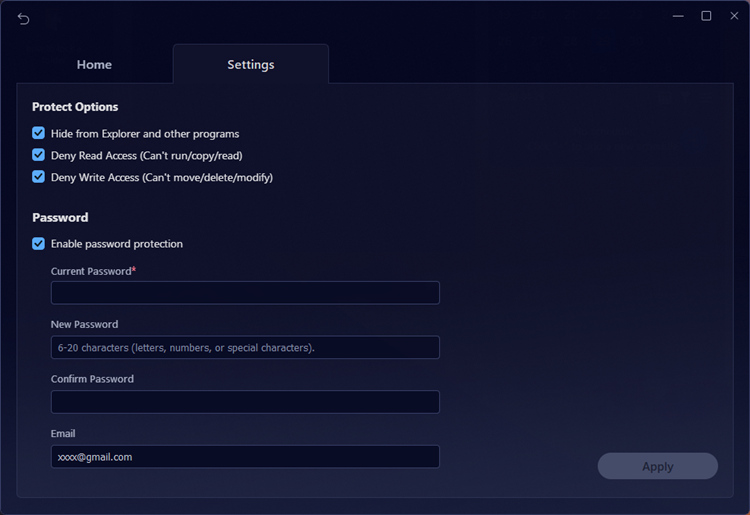
Step 3. Drag and drop to lock a folder.
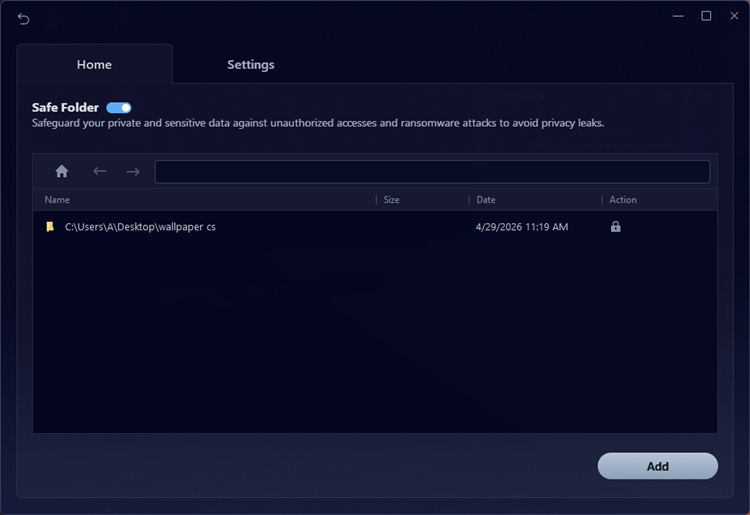
Step 4. Hit ‘Add’ to lock more folders.
Advanced SystemCare Free
- Clean: 420 billion traces removed & 85 EB junk files cleaned
- Protect: 80 million unauthorized access blocked & 20 million bugs fixed
- Speed Up: 6 million hours of startup time saved & Turbo boost
- Optimize: Auto clean and auto care your PC with AI mode

How to Lock A Folder in Windows with EFS in Laptop and PC?
Encrypting File System (EFS) protects your folders so that only your Windows account can access them. It uses your account credentials, meaning no extra password setup is required. This method is easy to use, requires no additional software, and offers stronger protection than simply hiding folders. However, there are some important limitations. If multiple people share the same Windows account, EFS won’t provide any real protection. Also, if you reinstall Windows without backing up your encryption certificate, you may lose access to your encrypted files permanently.
How to lock a folder with EFS? 3 steps
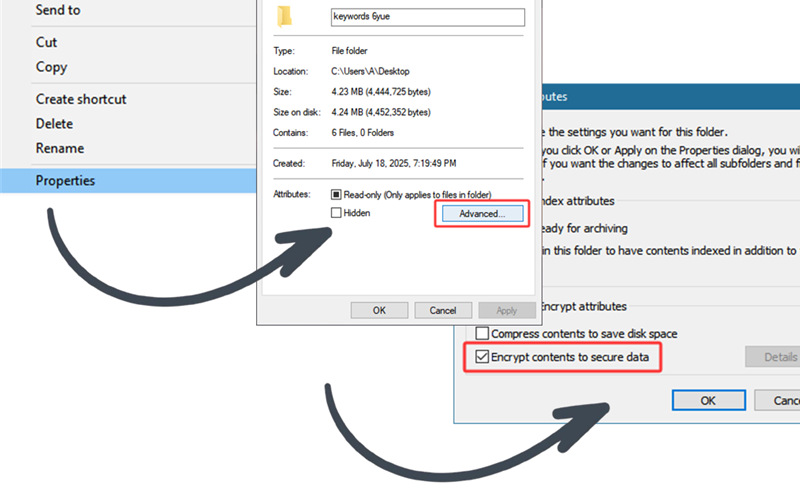
Step 1. Right-click on a folder and select ‘Properties.’
Step 2. From the pop-up window, hit on the ‘Advanced’ button.
Step 3. Check the box that reads ‘Encrypt contents to secure data.’
How to Lock A Folder in Windows with WinRAR
If you have already downloaded unzipping software on your laptop and PC, then you can instantly lock videos, images, texts, Word, PowerPoint, and Excel files, and codes with a password. But this method has a huge difference from a real file locker, in which you always need to zip and unzip your files to access the target files. During the process, many issues are latent.
Frequent zipping and unzipping damage your files
Cannot directly edit the locked document
One single file’s brokenness can harm the whole zipped document
Huge files like movies and novels take a long time to get zipped & unzipped
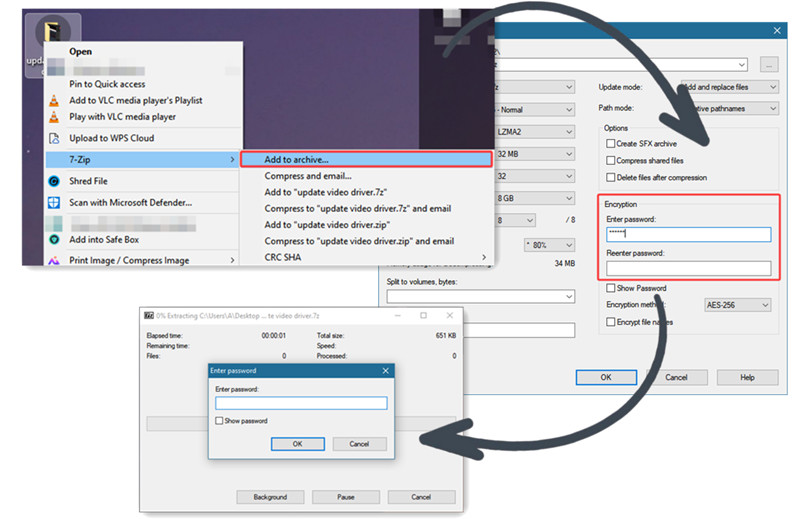
How to lock a folder with 7-Zip?
Step 1. Right-click on the folder you want to encrypt.
Step 2. Find the option that reads ‘Add to archive…’.
Step 3. Set up your password and hit OK.
Now, anyone who attempts to visit this zipped file needs to enter your pre-set password.
How to Lock A Folder in Computer By Setting Up Microsoft Office Documents?
Microsoft Office documents are, by default, equipped with properties to be encrypted. Follow the instructions below:
Step 1. Open the Excel file you want to encrypt. Click File > Info.
Step 2. Click Protect Workbook > Encrypt with Password. Type a unique password and click OK.
Step 3. Type your password again and click OK.
Disadvantages of this method, however, are evident too.
#1. The Microsoft Office documents are still on your desktop. The file name, file size, file format, and metadata are visible.
#2. The file can be deleted or copied.
#3. You can only lock one single document for once, not a folder.
#4. Not handy for document transmission.
Conclusion
This guide covers 5 quick ways to answer the question of how to lock a folder in laptop and PC. Four of them use built-in Windows features—they’re free, but often limited in security and convenience, especially if you frequently access or edit your files. If you want a simpler and more secure solution, IObit Advanced SystemCare brings the best of these methods together. Its Safe Folder feature is easy to use, highly secure, and requires no learning curve. Feel free to download it and protect your folders in just a few clicks.
Advanced SystemCare Free
- Clean: 420 billion traces removed & 85 EB junk files cleaned
- Protect: 80 million unauthorized access blocked & 20 million bugs fixed
- Speed Up: 6 million hours of startup time saved & Turbo boost
- Optimize: Auto clean and auto care your PC with AI mode