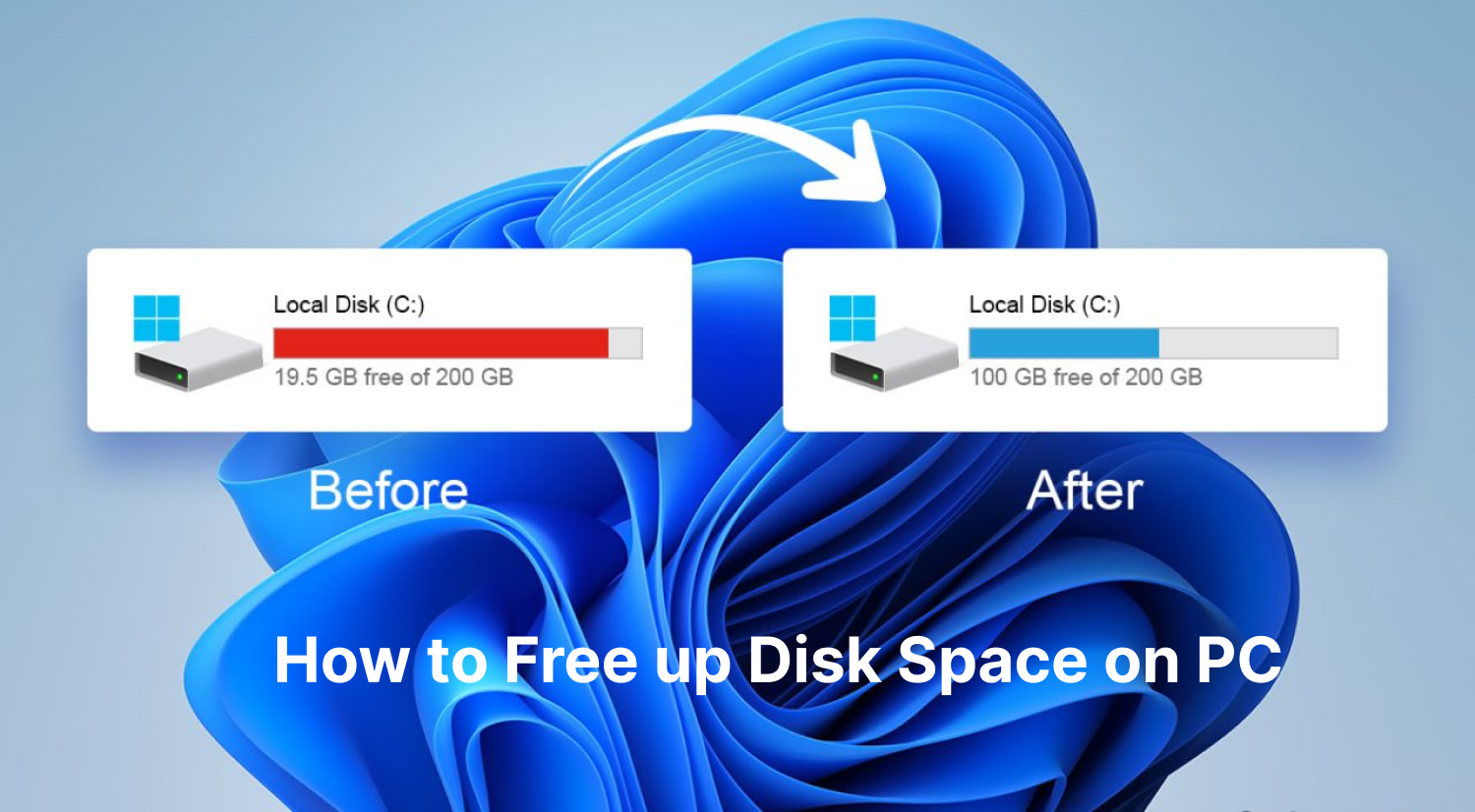
Is your PC frustratingly sluggish? Long boot times, freezing browser tabs, and slow file transfers aren't just annoyances; they're symptoms of a hard drive drowning in digital clutter. Over time, junk files, fragmentation, and bloated caches quietly choke your system's speed. Your drive isn't failing—it just needs proper maintenance.
A dedicated disk optimization tool can breathe new life into your computer. But with built-in Windows features and countless third-party options available, which one truly delivers?

In this guide, we’ll explain how disk optimization works, review the best disk optimization tools for 2026, and help you choose the perfect solution to safely reclaim your PC’s day-one speed.
What is a Disk Optimization Tool?
A disk optimization tool is specialized software designed to improve storage efficiency and boost overall system performance. It works through 2 main methods: defragmentation for traditional hard disk drives (HDDs) and TRIM optimization for solid-state drives (SSDs). For HDDs, the tool reorganizes scattered file pieces into neat, contiguous blocks for faster access. For SSDs, it clears wiped data blocks to ensure faster subsequent write speeds.
Without routine maintenance, day-to-day use inevitably accumulates digital clutter and fragmented files. By reversing this buildup, a disk optimizer keeps your PC responsive, extends hardware life, and saves you from the expense of an untimely replacement.
Windows Built-In Tools vs. Third-Party Software: Which is Better?
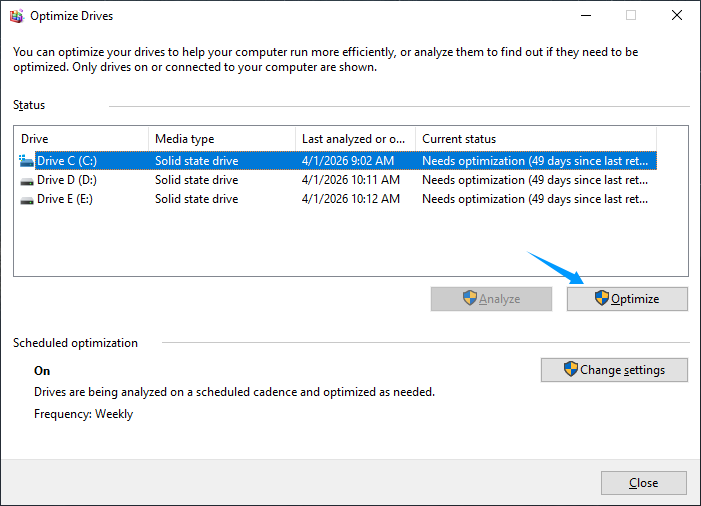
Many users don’t realize Windows includes free disk optimization utilities right out of the box. The Defragment and Optimize Drives utility automatically defragments HDDs and sends TRIM commands to SSDs on a schedule. To use it, you can:
Search “Defragment and Optimize Drives” in the Start menu.
Select the drive you want to optimize, and click “Optimize”.
 Windows also offers Disk Cleanup to clean junk files, and Storage Sense to auto remove temporary data and old downloads. These tools are free, lightweight, and safe—but fairly basic. They can’t intelligently erase privacy traces, monitor disk health, or batch-clean leftover junk from third-party apps.
That’s where third-party disk optimization software comes in. With one-click cleanup, automation, and more powerful optimization features, they provide a simpler and more effective solution, especially for users who want better performance without navigating multiple system settings.
4 Best Free Disk Optimization Tools for 2026 (Top Picks)
Here are the 4 best free disk optimization tools for 2026 that deliver excellent features:
Defraggler: Lightweight Disk Defrag for Targeted File Defragmentation
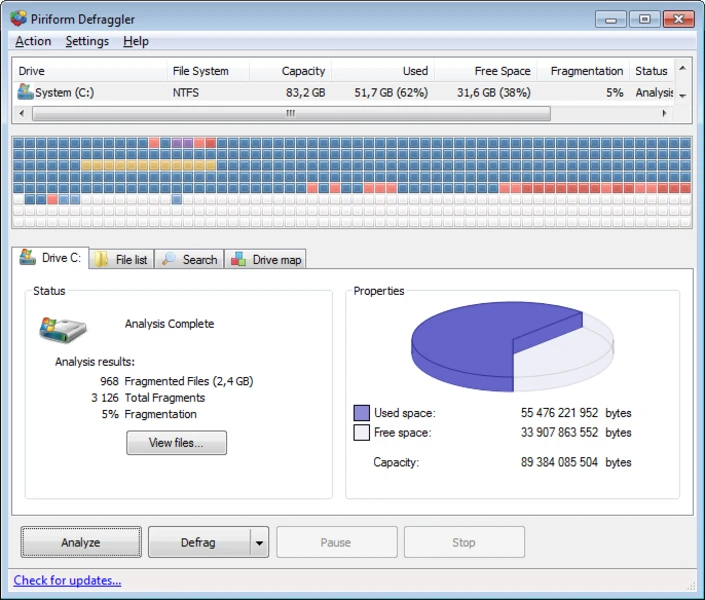
Defraggler is a lightweight hard disk optimizer software from Piriform, the same developer behind CCleaner. Unlike many defrag tools that only work on entire drives, Defraggler gives users precise control to defragment entire drives or specific files and folders. Its simple interface and unique color-coded drive map make it easy to visualize fragmentation and improve file access speed.
Pros
Lightweight and easy to use
Supports selective defragmentation
Visual block-based drive map
Free version available
Cons
Quite slow on large drives
Outdated interface design
Limited features beyond defragmentation
Best For:
Targeted file defragmentation needs
Beginners needing basic disk optimization
PCs with traditional hard drives (HDDs) rather than SSDs
Advanced SystemCare: All-in-one System Cleanup and Drive Optimization
Advanced SystemCare is an all-in-one PC optimization and security suite from IObit. It integrates a powerful disk defragmentation engine with advanced junk file cleanup, registry repair, and real-time performance monitoring to free up storage space and enhance data access speed. Unlike single-function tools, it delivers one-click maintenance that tackles disk clutter, system bottlenecks, and privacy traces simultaneously.
Advanced SystemCare Free
- Clean: 420 billion traces removed & 85 EB junk files cleaned
- Protect: 80 million unauthorized access blocked & 20 million bugs fixed
- Speed Up: 6 million hours of startup time saved & Turbo boost
- Optimize: Auto clean and auto care your PC with AI mode

Pros
Combines cleanup, optimization, and privacy tools in one suite
Extremely beginner-friendly with a clean interface
Offers automation and AI-assisted maintenance
Free version covers essential features for everyday use
Provides a rich Toolbox beyond basic optimization
Cons
Frequent bundled recommendations may appear
Performance may vary depending on the hardware configurations
Best for:
Beginners who want automated PC maintenance
Older or cluttered Windows PCs with limited storage
Casual users who prefer an all-in-one Windows optimizer
If you need a more dedicated, professional-grade defragmentation tool specifically optimized for HDD performance and faster data access, Smart Defrag is a better choice.
Auslogics Disk Defrag: Fast, Dedicated Disk Defragmentation Tool
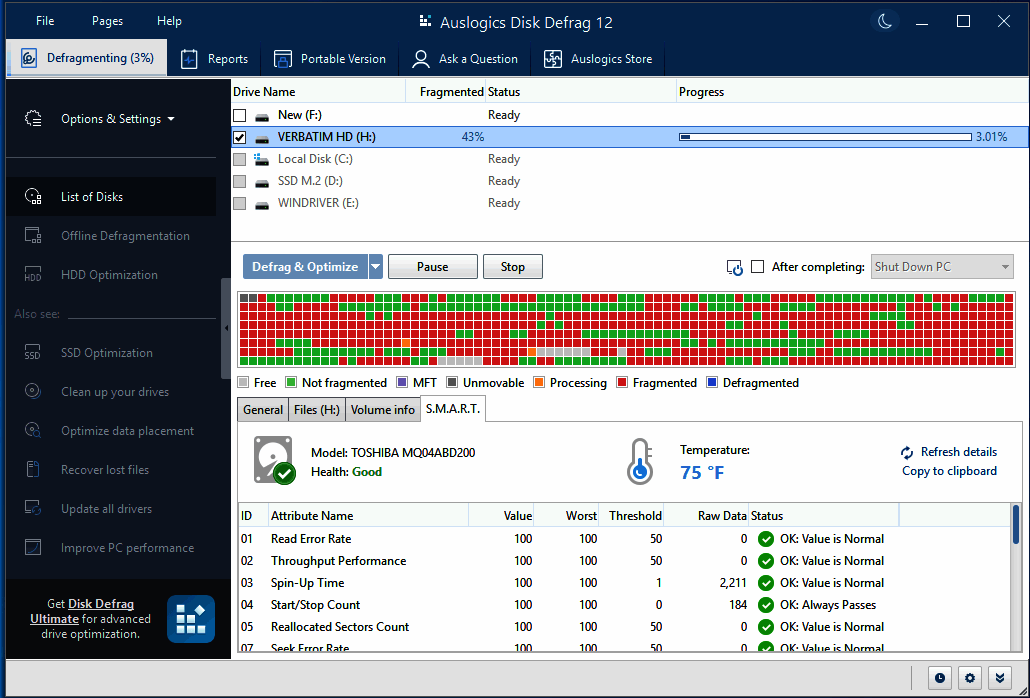
Auslogics Disk Defrag is a lightweight disk defragmentation tool designed to improve hard drive performance by reorganizing fragmented data. It focuses on fast and efficient defragmentation, rearranging scattered file fragments into contiguous blocks to reduce access time and help maintain smoother overall system performance.
Pros
Blazing fast performance
Simple and user-friendly interface
More control over defragmentation
Free version available
Cons
Primarily designed for HDDs; limited benefits for SSDs
Limited features beyond defragmentation
Some advanced options require the Pro version
Best for:
Users who want a dedicated defragmentation tool
HDD users looking to improve file access speed
Anyone tired of Windows' slow defragger
Also Read: Best RAM Optimizers for Windows 11 >>
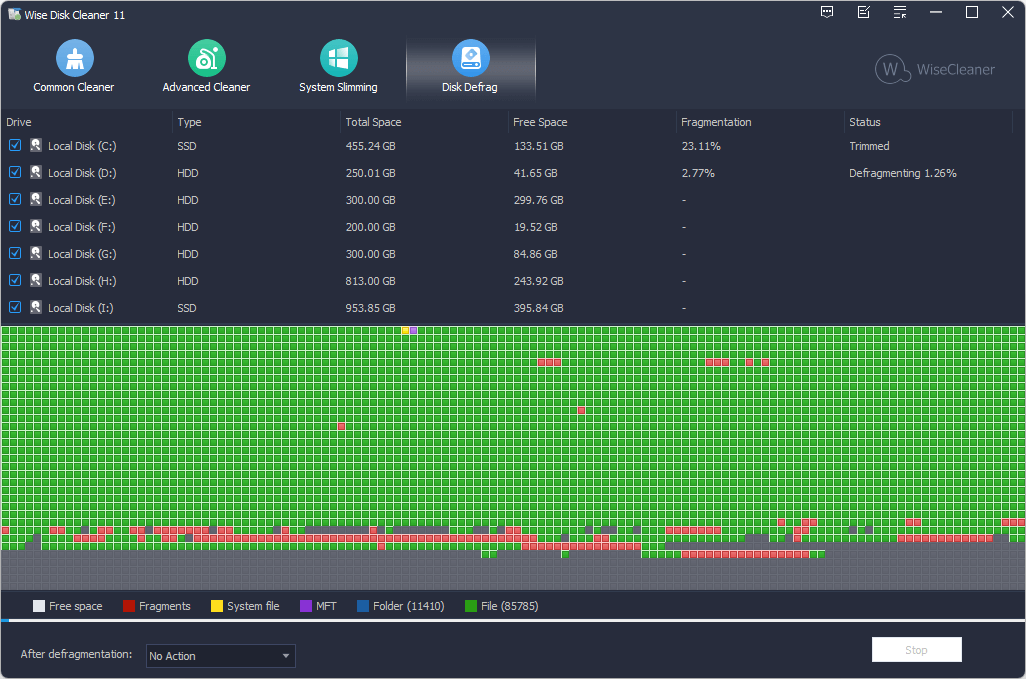
Wise Disk Cleaner: Lightweight Free Disk Cleaner with Basic Defrag
Wise Disk Cleaner is a lightweight, free disk cleanup tool developed by WiseCleaner. Designed for fast, low-resource maintenance, it combines automatic junk file removal with basic disk optimization features for both HDDs and SSDs.
Pros
Free version includes most core features
Low impact on system resources
Supports automated scheduled cleanup
Feature-rich alternative to Windows Disk Cleanup
Cons
Lacks advanced optimization capabilities
Cleaning may be overly aggressive in some cases
Relatively basic defragmentation features
Best for:
Beginners looking for a simple disk cleanup tool
Users with older or low-storage Windows PCs
People who prefer lightweight maintenance software
How to Use a Disk Optimization Tool Step-by-Step
Advanced SystemCare makes disk optimization refreshingly simple. Follow this step-by-step guide to unblock its powerful cleanup and other optimization tools.
Step 1. Download and launch Advanced SystemCare on your PC.
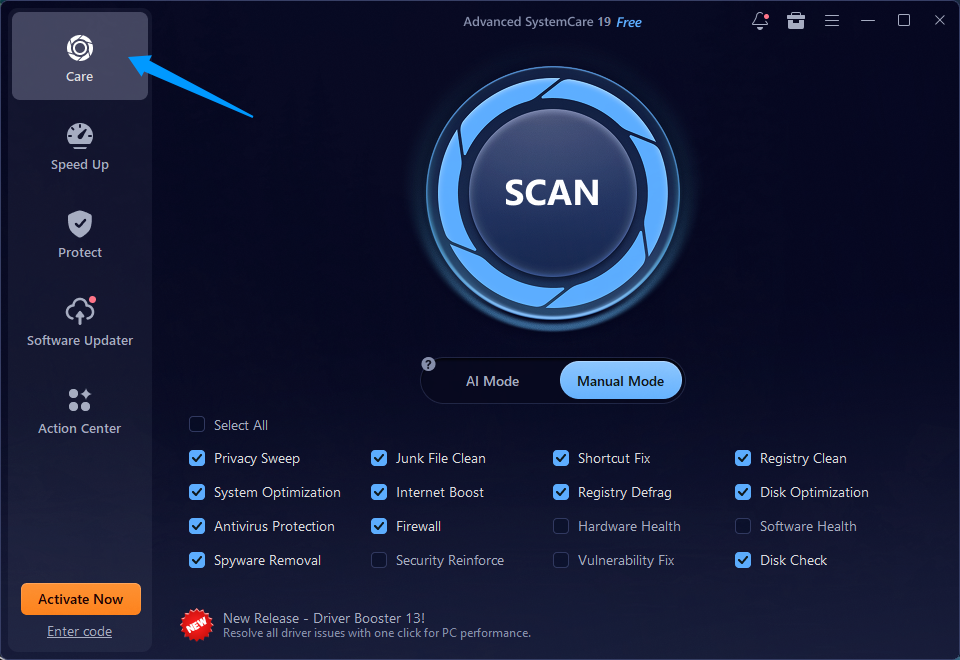
Step 2. Open the program and switch to the “Care” tab. You will see 2 options: AI Mode (automatically chooses optimization parameters based on your PC's status) and Manual Mode. For targeted disk optimization, select Manual Mode.
Step 3. In Manual Mode, tick the boxes for the specific tasks you want to run, such as Junk File Clean and Disk Optimization.
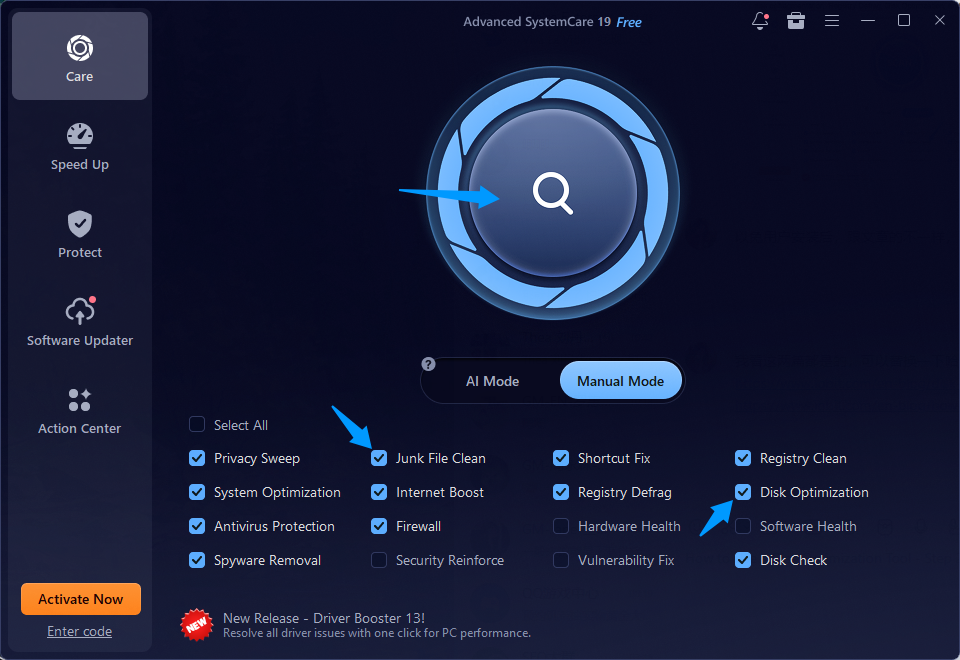
Step 4. Click the large SCAN button in the center of the screen to start analyzing your system.
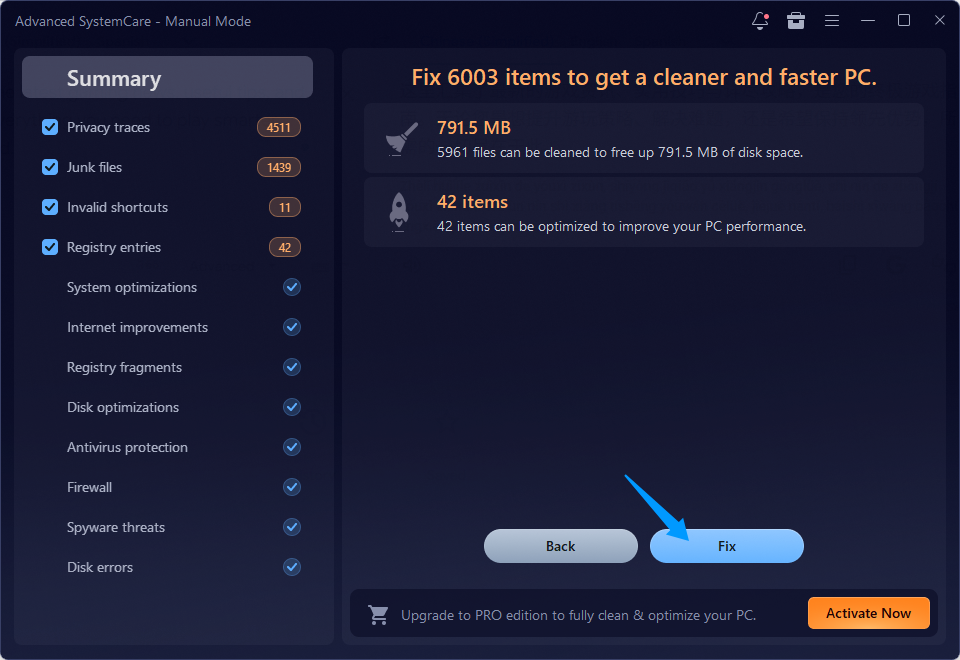
Step 5. Wait for the scan to finish. You can monitor the progress bar as it scans your storage drives. Then click “Fix” to automatically clean junk files, optimize disks, and improve performance.
A small caveat: Go to the “Toolbox” tab on the top-right corner for advanced tools like Disk Cleaner, Registry Defrag, and Disk Doctor.
Conclusion
Disk optimization tools play a key role in maintaining storage efficiency and system performance, especially on cluttered or HDD-based PCs. While built-in utilities handle basic cleanup, third-party tools offer more automation and deeper optimization. Among them, Advanced SystemCare stands out as a well-rounded option, combining disk cleanup, performance tuning, and privacy protection in one platform. Try it to make full-system optimization simple and hassle-free.
Advanced SystemCare Free
- Clean: 420 billion traces removed & 85 EB junk files cleaned
- Protect: 80 million unauthorized access blocked & 20 million bugs fixed
- Speed Up: 6 million hours of startup time saved & Turbo boost
- Optimize: Auto clean and auto care your PC with AI mode