Gamers are constantly chasing smooth gameplay while unexpected lags could ruin everything. Even modern power PCs sometimes struggle to deliver a stutter-free gaming experience due to cluttered background processes and services which stealthily consume resources. Luckily, with a reliable PC gaming optimizer, you can unblock the full potential of the system. It automatically shuts down unnecessary tasks to free up CPU and RAM usage, ensuring consistent gameplay on Windows.
What is the best PC optimizer for gaming? In this article, we round up the best 5 tools to maximize the gameplay quality.
Best PC Gaming Optimization Software [Quick Guide]
|
Rating |
Standout Features |
Best For |
| Razer Cortex |
★★★★★ |
Game booster, AI optimization, Integration with Steam, Epic and other game launchers |
Gamers want a totally free and trusted game boost solution. |
| Advanced SystemCare |
★★★★★ |
Game Mode, Real-time PC optimization, Deep cleanup |
Gamers prefer an easy yet versatile PC gaming optimizer. |
| Hone |
★★★★☆ |
Easy PC gaming optimization, Graphics booster, Preconfigured settings |
Gamers need a fast optimizer to boost FPS. |
| Hypertune |
★★★★☆ |
Smart optimization engine, Performance tracking, Flexible system tweaks |
Serious gamers seek for deeper optimization. |
| EXM Tweaks |
★★★★☆ |
FPS booster, Network priority, Advanced BIOS optimization |
Pro games pursues system-level optimization. |
Top 5 PC Optimizers for Gaming [Full Review]
Search for an effective solution to achieve better gaming performance without upgrading hardware and manual settings? Here are the 5 high-rated PC gaming optimization software tailored for diverse needs.
Razer Cortex - Entirely Free PC Gaming Optimizer
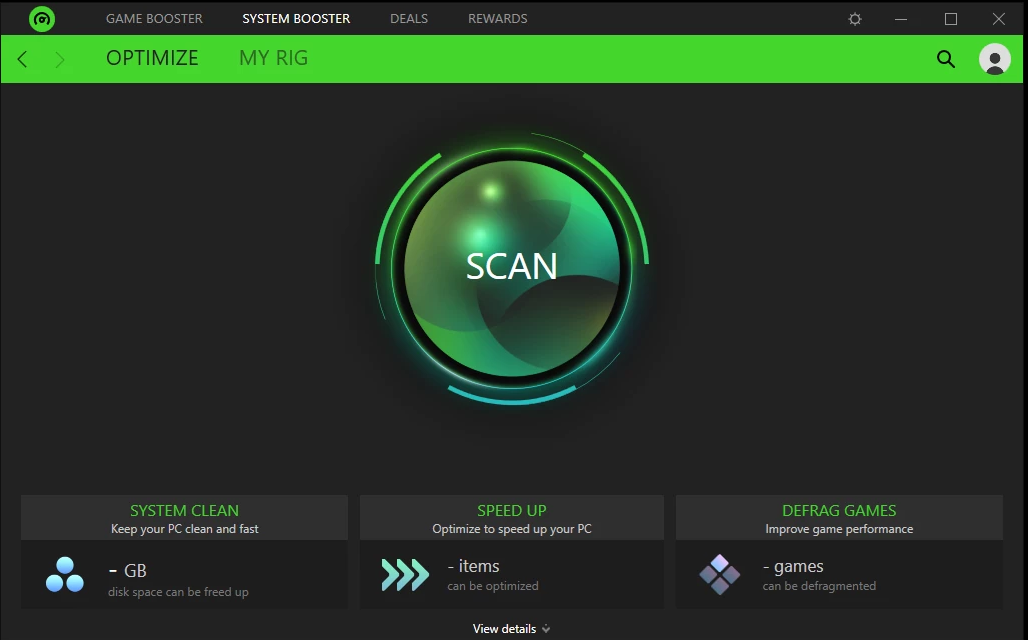
Razer, a well-known brand in gaming industry, rolls out the game booster to enhance gameplay on PCs and laptops. It automatically manages non-essential applications the moment you launch a game, freeing up valuable resource for faster load time and smoother experience. The AI-powered “Booster Prime” can analyze your system and determine the best settings that cater to different games. It also offers a game launcher allowing you to play favorite games across platforms, like Steam, Ubisoft Connect etc., and enjoy ultimate performance.
Additional features included in the PC gaming optimizer further improve your gaming experience. Game Clips helps instantly record the last 30 seconds of gameplay on PC, Deals drives you to find the best prices of games, and Playtest Program gives you the chance to get early access to unreleased games and earn Razer Sliver rewards.
Tips
Check CPU/GPU/RAM performance balance with Bottleneck Calculator, to quickly evaluate your PC's performance for gaming.
Pros
Easy to use
No cost for core features
Automatic optimization
Useful extra tools
Cons
Small FPS improvements in certain games
Limited customization options
Slightly slow down startup speed if enable
Verdict: Razer Cortex is a beginner-friendly and convenient PC optimizer for gaming. It performs well to improve FPS on an older PC and provides extra feature for more fun in games. However, it is not the best choice if you need advanced manual optimization.
Advanced SystemCare - All-Round PC Optimizer for Gaming and Productivity
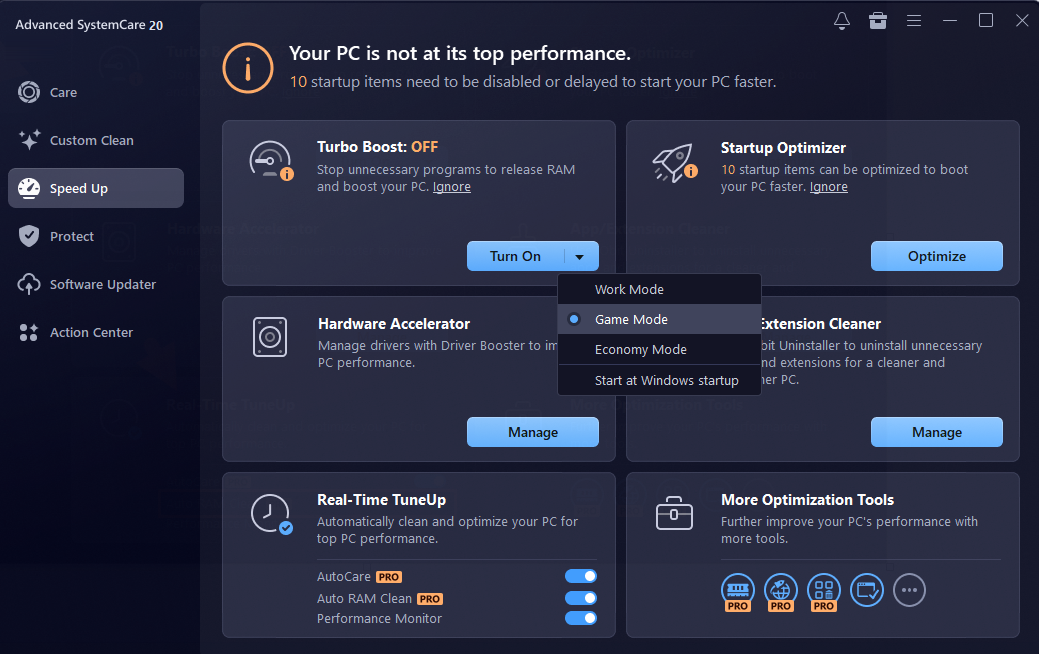
Advanced SystemCare is packed with a set of system optimization tools, promising a faster and cleaner PC. Turbo Boost is a specialized feature, aiming to speed up your PC for different modes, Game, Work and Economy. Simply turn on the Game Mode and the PC gaming optimizer will stop all unneeded programs to release RAM for a superior gameplay performance. Manual configuration is allowed as well. Flexibly disable certain services and background apps for your preference.
Advanced SystemCare also works on creating a stable system environment before launching games. It removes junk files and fix registry issues to raise disk efficiency. So, you can enjoy faster load times and few crashes when playing a game.
Pros
Modern and intuitive interface
1-click PC optimization for gaming
Noticeable speed boost
Reduced background interference
All-in-one PC optimizer, cleaner & protector
Cons
Limited free features
Improper configuration may cause issues
Verdict: Advanced SystemCare is useful for casual gamers with quick optimization and basic tweaks. It ensures smoother gameplay on a cluttered PC, not only reducing background interference, but stabilizing your system to avoid random shutters.
Advanced SystemCare Free
- Clean: 420 billion traces removed & 85 EB junk files cleaned
- Protect: 80 million unauthorized access blocked & 20 million bugs fixed
- Speed Up: 6 million hours of startup time saved & Turbo boost
- Optimize: Auto clean and auto care your PC with AI mode

Hone - Streamlined PC and FPS Optimizer
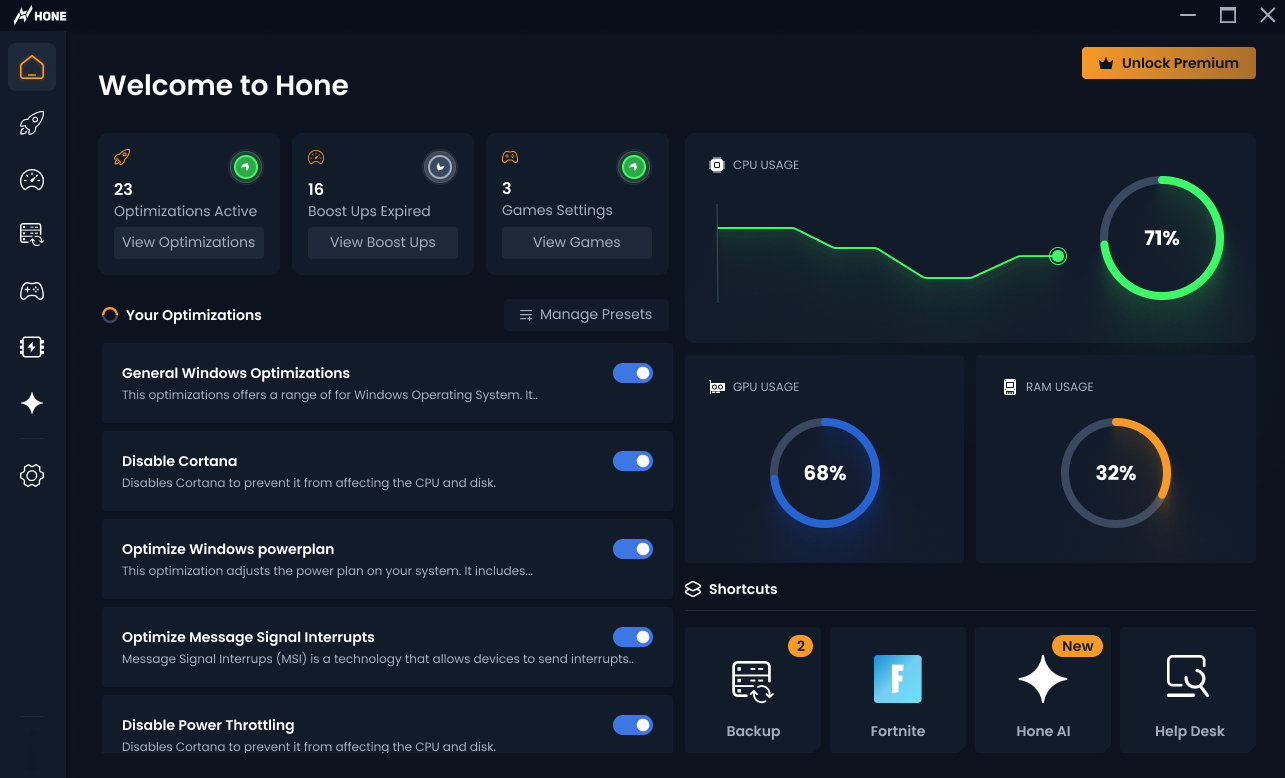
Hone streamlines gaming optimizations on PC, offering higher FPS, lower input lag and better overall responsiveness. It enables you to disable useless background services and adjust power plans for interrupted gameplay. Preconfigured in-game settings tailored to different titles help you gain best possible ping without manual effort. And, the PC optimizer for gaming has a system backup option to create a restore point before changes in case of data loss.
Pros
Convenient gaming optimization
Large number of presets for games
Advanced system tweaks
Real-time optimization monitor
Cons
BIOS tweaks only available in Premium version
Inconsistent performance or issues
Verdict: Hone automatically adjusts game and BIOS settings to prioritize frame rates. It is worth trying if you are searching for an automated solution to optimize specific games that requires high FPS.
>> This FPS calculator can help you test FPS online quickly for free.
Hypertune - Pro-Level PC Optimizer for Gaming & Esports
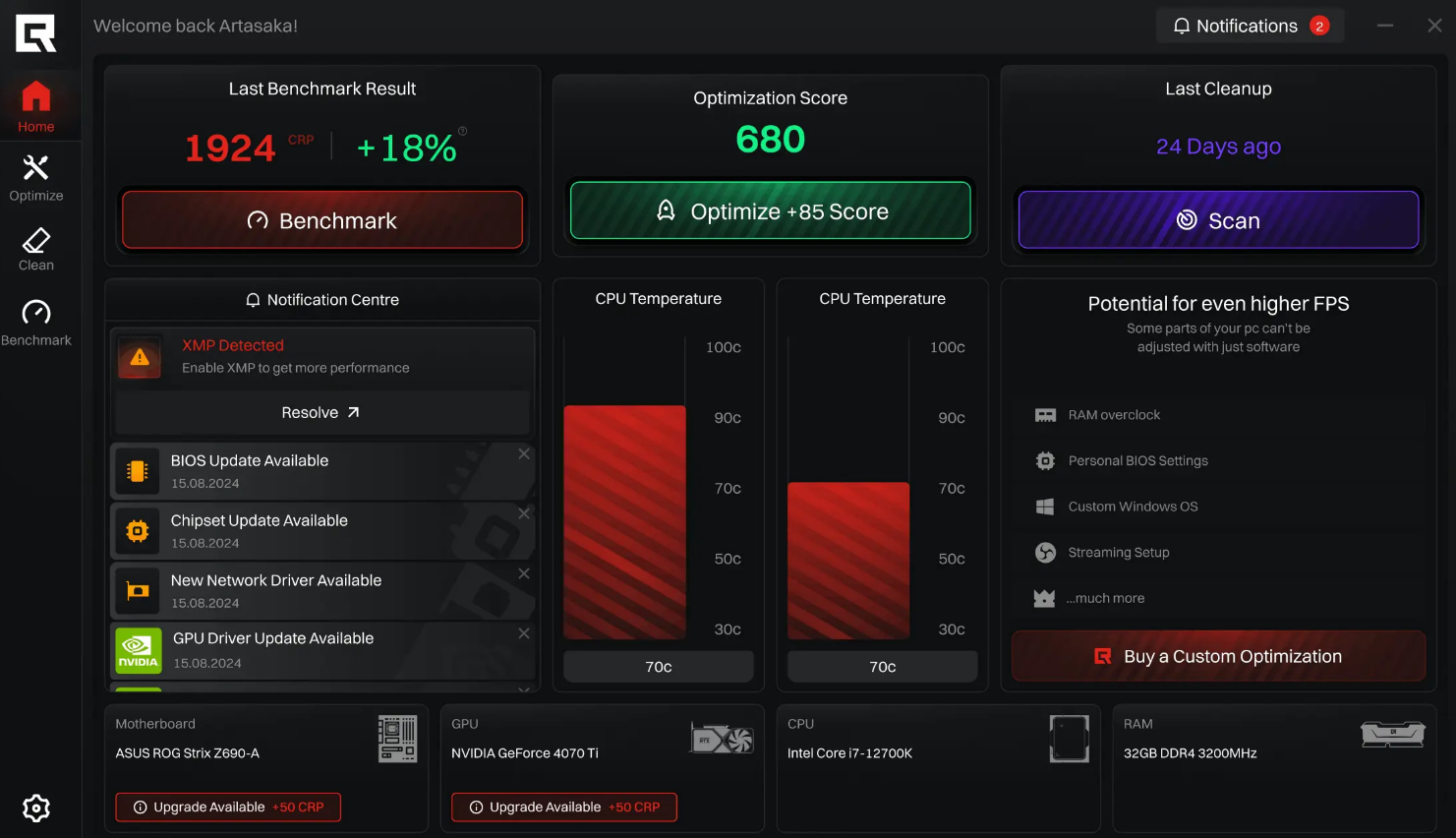
Hypertune is a recommended PC gaming optimizer that instantly fine-tunes system and hardware settings for better performance. It includes two modes catered to different cases, Smart Mode for balanced, consistent gameplay while Performance Mode for maximum FPS. It can also remove junk files and background clutter, making your game run faster with no wasted resources. If you are a pro gamer, unblock deeper system tweaks to reach the best gaming experience. In addition, the benchmark system empowers you to track real performance gains.
Pros
Instant game boost
Advanced settings
Performance tracking
Safe optimization with anti-cheat
Cons
Learning curve for non-technical users
Deep manual tweaks may lead to instability or system errors
Verdict: Hypertune is considered as a more “serious” gaming optimizer. It has more advanced options to enhance every setting for higher efficiency and FPS. But, it features a bit complex workflow, not good for beginners but designed for competitive gamers.
EXM Tweaks - Powerful Game-Focused Optimizer for PC
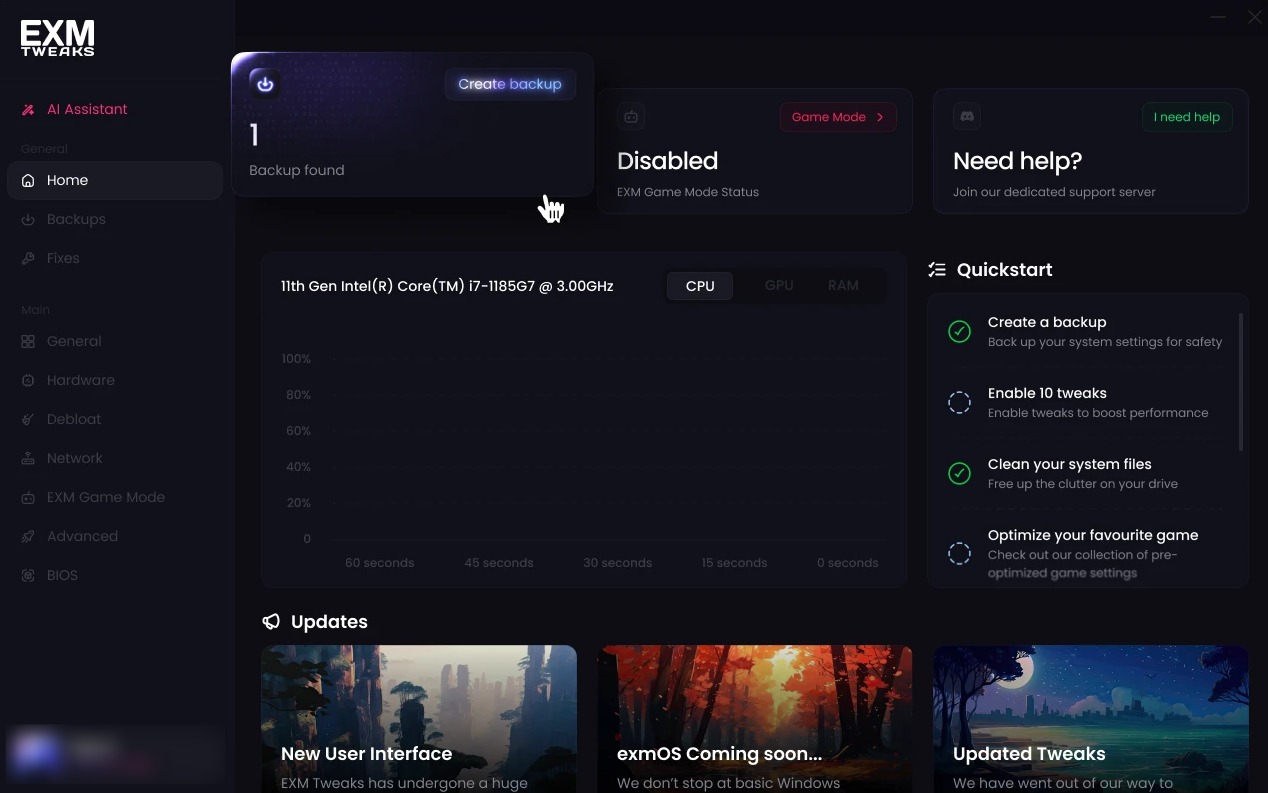
EXM Tweaks gives strong focus on consistent performance during gaming sessions. On one hand, the PC gaming optimizer manages system/GPU power to prevent overhead and keep stability; on the other, it turns of redundant apps to reduce latency. Use game optimization to apply the best settings for your favorite games without manual adjustments. And, its smart system detection offers recommendations ideal for your system specs. You can also unblock premium features to get access to complete enhancement for gaming, from advanced tweaks to Game Mode and BIOS optimization.
Pros
Accessible adjustments to beginners
Preconfigured game optimization settings
Reversible tweaks for stability
Cons
May cause system instability issues
Negligible performance gains on certain devices
Verdict: EXM Tweaks bundles advanced tweaks into a simple PC optimizer for gaming. It simplifies the process and empowers every games to boost performance. However, the reported inconsistent results and unexpected system errors in certain conditions, increase risks to use it.
How to Choose the Right PC Gaming Optimizer [Key Criterion]
All recommendations are well recognized PC optimizer for gaming in the market. However, choosing a right tool refers to many aspects, your hardware, skill level and goals. Here are common factors helping find out the best PC gaming optimizer that suits you.
Optimization Features You Actually Need
A good optimizer can manage background processes and free up resources for a smoother gameplay. Some tools perform better to reduce lags and some other focus on FPS boost. Decide your priority and install the matched software.
Ease of Use or Full Control
Gamers who are not familiar with PC skills prefer an easy-to-navigate program to optimize PC for gaming without guesswork. Advanced users are prone to more controls for maximum efficiency and performance.
Hardware Compatibility
Optimization works best when fitting with your hardware, especially CPU/GPU balance. A lightweight game booster is perfect for low-end PCs but may help less on high-end gaming devices. If you are using a modern PC, an optimizer with powerful fine-tuning tool is a better choice.
Free or Paid
Usually, free PC gaming optimizer is enough for casual gamers. For hardcore gamers and esports players, premium tools that apply hundreds of automate adjustments across system, network, and gaming settings, can level up optimization and maximize performance.
How to Improve Gaming Experience on PC [Additional Tips]
A PC gaming optimizer is not magic. It reallocates your system’s existing resources but doesn’t create new performance. Besides taking advantage of an optimizer, there are some tips that can improve your gaming experience on PC.
Optimize in-game settings: Adjust game and graphic settings to balance visual quality and performance. Set resolution to match your GPU capability and use DLSS or FSR if available. And, you’d better lower shadow quality, reflections, and anti-aliasing.
Update drivers: Keep your graphic drivers up-to-date. New drivers often include performance improvements and bug fixes, enhancing in-game experience. Use a driver updater if you have no idea of how to update.
Fine-tune Windows settings: Windows natively includes a Game Mode to optimize PC for gaming. In addition to enabling it, set Power Plan to High Performance; disable Game Bar and turn off unnecessary visual effects to ensure your system at full potential.
Improve network connection: Bad network often causes lags in online games. Use Ethernet instead of Wi-Fi if possible; close bandwidth-heavy services (like downloads, streams) and optimize DNS settings to get faster response and lower ping.
Upgrade your hardware: Hardware plays an important role for gameplay. Configure HDD and keep enough free space (at least 10%), more RAM (at least 16 GB) and better GPU to ensure faster load times, fewer latency and biggest FPS improvement.
Final Thoughts
A trustworthy PC optimizer for gaming can significantly enhance performance, ensuring seamless in-game experience. All tools listed here offer one-click optimization and deliver real performance gains. They automatically stop background apps and remove junk files so that the system resources can be freed up for stutter reduction and FPS boost. Pick the best PC optimization software for gaming according to your needs.