- Support Center
- Multiple Languages
- Language
- Help Us Translate
Expert in
PC Health Solution

All-in-one PC health solution: clean, optimize and secure

Comprehensive PC cleaning, optimization and protection

Keep drivers always up-to-date

More stable performance with less system crashes

Protect millions of computers against malware

Top computer security with full-round protection

Protect against viruses & boost PC performance


 Keyboard Latency Test - Measure Input Lag, Scan Rate, Response




 Key Press History
 Clear History

 WAITING FOR INPUT
What Is a Good Keyboard Latency? Keyboard Delay Test
 Excellent
Extremely low latency with a highly responsive feel, ideal for competitive gaming.
≤ 2 ms
Keyboard Latency
1000–8000 Hz
Polling Rate
2000–8000+ Hz
Scan Rate
≤ 2 ms
Response Time
 Acceptable
Low latency that should feel responsive for gaming and everyday use.
5–10 ms
Keyboard Latency
125–500 Hz
Polling Rate
125–1000 Hz
Scan Rate
5–10 ms
Response Time
 High Latency
Input may feel less responsive, especially in fast-paced or competitive games.
>10 ms
Keyboard Latency
<125 Hz
Polling Rate
2000–8000+ Hz
Scan Rate
>10 ms
Response Time


Press Any Key to Test
Whether you’re using Mac or Windows, every key press is recorded and measured in milliseconds (ms).


Check Key Press History
Compare your key-press latency with the standard ms ranges above to check keyboard latency.


Solve Keyboard Latency Problem
Try switching the connection type or updating your keyboard drivers to reduce latency.
Wondering, “Why is my keyboard lagging?” Start by checking these four common causes.

1. Keyboard Connection Type
Wired USB connections typically offer the most stable response, while Bluetooth may introduce higher or more variable latency.

2. Outdated or Faulty Keyboard, USB, or Chipset Drivers
Outdated, corrupted, or incompatible drivers can interfere with keyboard communication and cause delayed or unstable input.

3. High CPU or System Load
Heavy CPU usage and too many background processes can delay keyboard input processing and cause inconsistent response times

4. Keyboard Firmware
Outdated or poorly optimized firmware can affect key scanning, debounce, and wireless processing, increasing overall keyboard latency.





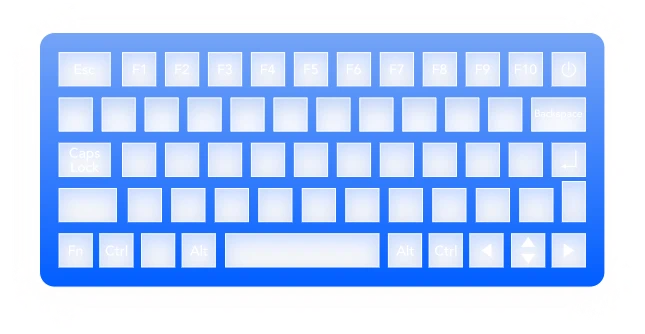



5. Bonus Tip: Windows settings that may affect kyboard input:
1. Filter Keys, 2. Sticky Keys, 3. Power-saving settings, 4. USB selective suspend
To solve your keyboard lagging problems, you can try the 5 methods below.
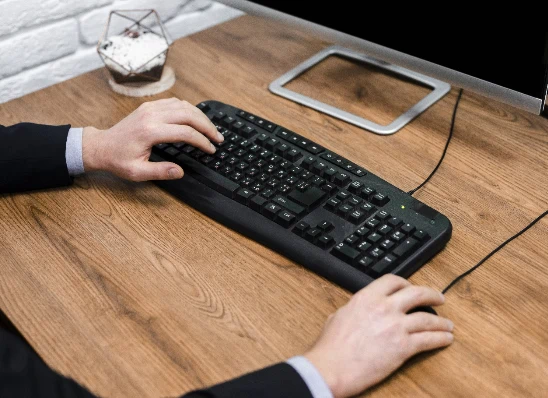
Use a Wired Connection
A wired or 2.4GHz connection can help reduce keyboard latency and provide a faster, more consistent response.
Increase the Keyboard Polling Rate

Keyboard Settings > Polling Rate / Report Rate > Increase Polling Rate from 125Hz → 500Hz → 1000Hz → 4000Hz.
Update Your Keyboard Firmware
Update your keyboard firmware through the manufacturer's official software. Firmware updates can improve overall input responsiveness.
Update Keyboard, USB, and Chipset Drivers

Keeping relevant drivers up to date can resolve communication issues that cause keyboard input lag.
Reduce CPU and System Load
Open Task Manager to close unnecessary background applications and reduce input-processing delays to improve latency consistency.
Keyboard latency matters most when gaming, upgrading your keyboard, updating drivers, or changing connection methods. Test your keyboard to check for responsive and consistent input.

This is one of the most frustrating reasons gamers turn to a keyboard latency test. You might notice your character takes a split second to move after you hit W, a jump feels slightly delayed when you press Space, or an ability doesn’t fire when you expect it to. These tiny delays can be especially noticeable in fast-paced FPS games, and a quick keyboard delay test can help you figure out whether your keyboard or system is causing the problem.

You Feel Delayed Input While Gaming
If you're experiencing gaming lag, a keyboard input lag test is a good place to start.
After buying a new keyboard from brands like Wooting, SteelSeries, Razer, Corsair, or Logitech, you may want to make sure it works smoothly with your PC. A keyboard latency tester gives you a quick way to check keyboard input lag and response time.

You just Bought a New Keyboard
Speed keyboard test is necessary for typing test.

If you recently updated your keyboard driver, USB driver, or chipset driver to solve keyboard delay problem/keyboard not typing problem, you may want to check whether there’s any positive changes. Running a keyboard test mac and Windows can help you compare input lag and identify potential changes in system-level input performance.

You just Updated Your Keyboard Drivers
New Drivers are very likely to have conflicts with your current system.

Switching from Bluetooth to a wired USB connection or a 2.4GHz wireless dongle may improve your keyboard's response time. If you've recently changed your connection method, a keyboard delay test can help you compare the results and see whether your keyboard responds faster and more consistently.

You Changed the Keyboard Connection
Common sense: A wired keyboard usually responds faster than a wireless keyboard.

Valorant:
≤ 5 ms

CS2:
≤ 5 ms

Fortnite:
≤ 5–10 ms

Rhythm games:
≤ 5 ms

MMO:
≤ 10 ms

MOBA:
≤ 10 ms

1. What is a good keyboard latency for gaming?
Keyboard latency ≤ 5 ms is considered ideal for most games. And keyboard latency over 15 ms is worth of lag testing to check for driver problems, setting problems, and connection problems.
2. How does a keyboard latency test work?
The online keyboard delay test records each key press in real time to measure your keyboard’s input latency and key press duration. It tracks the shortest key press and uses it to estimate your keyboard’s scan rate. The results show key latency and scan-rate data, helping you evaluate your keyboard’s response time.
3. Can an online keyboard test measure actual hardware latency?
No. A browser test cannot measure the full hardware latency inside your keyboard. It is mainly useful for checking browser-level input response.
4. What causes high keyboard latency?
Common causes include Bluetooth connections, high CPU or system load, outdated drivers, and outdated keyboard firmware. USB hubs and certain Windows settings can also affect input in some cases.
5. How can I reduce keyboard latency?
Try using a wired or 2.4GHz connection, increasing your keyboard's polling rate, updating its firmware and drivers, and closing unnecessary background programs.
6. Why keyboard not typing?
The issue is more likely a connection, driver, firmware, or hardware problem than normal keyboard latency. Check the USB/Bluetooth connection, update the keyboard drivers and firmware, and run a keyboard latency test to see if the keyboard is detecting your key presses.
7. Is 100ms keyboard latency good?
No. 100ms is considered very high keyboard latency and can make input feel noticeably delayed, especially in fast-paced games. For gaming, aim for 10ms or less, with 5ms or lower being a much more responsive range.
