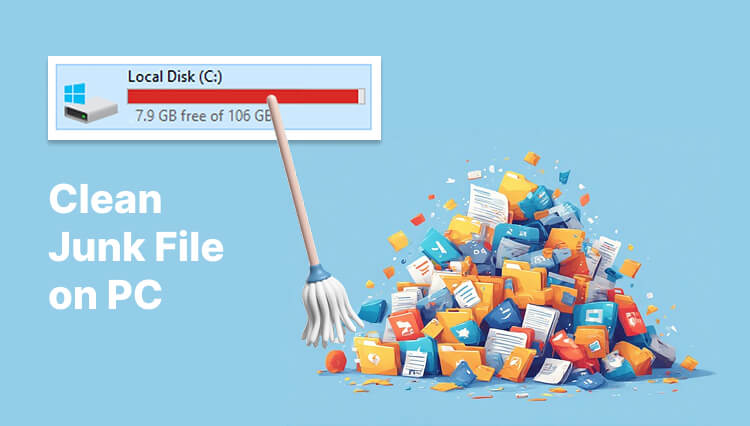
Need a temporary files cleaner? Have you ever opened Windows Storage and wondered why temporary files are taking up so much space? One Reddit user, for example, reported seeing 33 GB of temporary update files and asked how to remove them.
A proper temporary files remove process can recover wasted disk space without touching your important documents. Whether you need a simple temporary files remove command or a more complete Windows temporary files cleaner tool, Windows provides several options for checking and cleaning unnecessary data.
What Are Temporary Files and Where Are They Located in Windows?
Temporary files are created by Windows and applications for short-term tasks, such as updates, software installation, browsing, and file processing.
Where Are Temporary Files Located in Windows?
So, where are the temporary files located in Windows 10 or 11 that users should check? Common locations include:
1. User Temp Folder: C:\Users\<Username>\AppData\Local\Temp — press Win + R, enter %temp%, and press Enter.
2. Windows Temp Folder: C:\Windows\Temp — used for system-level temporary data.
3. Windows Update Cache: C:\Windows\SoftwareDistribution\Download — contains update-related files.
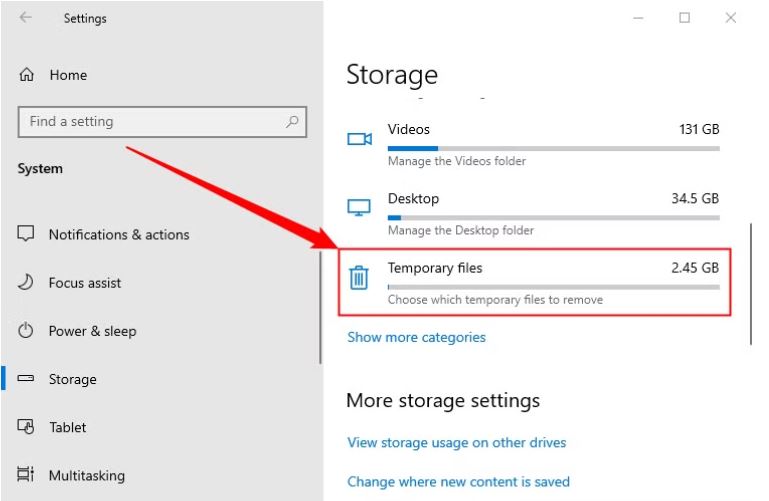
4. Windows Storage: Go to Settings > System > Storage > Temporary files to view temporary data from different sources.
5. Browser and Application Caches
Browsers and other applications may store temporary data in their own cache folders, which can vary depending on the program and Windows version.
Because temporary files can be spread across multiple locations, using a built-in cleanup feature or a dedicated Windows temporary files cleaner can be more convenient than checking every folder manually.
How to Remove Temporary Files on Windows Manually
When you only need a basic temporary files remove solution, Windows' built-in tools are usually enough. They are free and do not require additional software.
First, open Settings > System > Storage > Temporary files. Windows will scan available categories and let you select the data you want to remove.
You can also access the user Temp folder directly:
1. Press Win + R.
2. Enter %temp%.
3. Press Enter.
4. Select unnecessary files and delete them.
5. Skip anything that Windows says is currently in use.
This %temp% shortcut is often used as a temporary files remove command because it provides quick access to user-level temporary data. For temporary files remove command Windows 11 or temporary files remove command Windows 10, this is one of the simplest options. Do not force-delete files that an active application is using.
Best Windows Temporary Files Cleaner: Advanced SystemCare
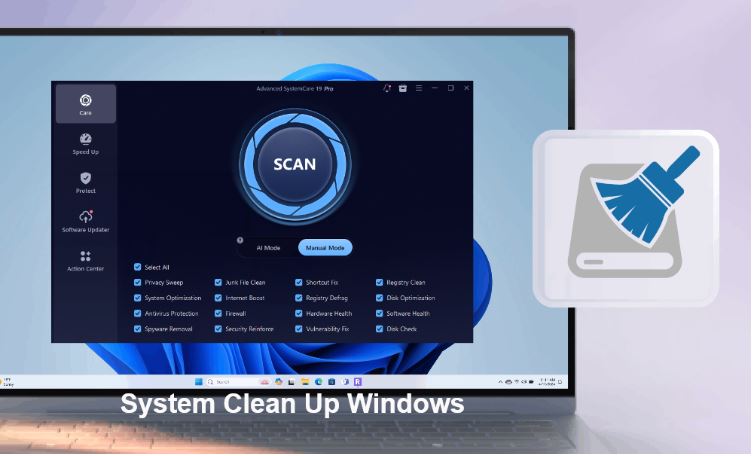
Manual temporary files remove methods are useful for occasional cleanup, but they can be inconvenient when temporary data is scattered across different locations. A dedicated Windows temporary files cleaner can simplify the process by scanning multiple categories from one interface. Advanced SystemCare is one such option, especially for users who want to combine temporary file removal with broader Windows maintenance.
Advanced SystemCare Free
- Clean: 420 billion traces removed & 85 EB junk files cleaned
- Protect: 80 million unauthorized access blocked & 20 million bugs fixed
- Speed Up: 6 million hours of startup time saved & Turbo boost
- Optimize: Auto clean and auto care your PC with AI mode

Why Use Advanced SystemCare?
This PC cleaner can scan Windows for temporary and other unnecessary files without requiring users to manually check folders such as %temp% or C:\Windows\Temp. This makes it easier to perform regular temporary files cleanup Windows 11 or Windows 10 tasks.
For users searching for a convenient temporary files cleaner, Advanced SystemCare, a practical alternative to relying entirely on manual cleanup, offers:
Centralized cleanup: Scan temporary files and other junk from multiple areas in one place.
Broader junk removal: Besides temporary files, it can identify browser caches, logs, and other unnecessary data.
Less manual work: You do not need to remember different file locations or repeatedly enter a temporary files remove command.
Beginner-friendly: Its guided interface is easier for many users than navigating system folders manually.
Routine maintenance: It can be used as part of a regular cleanup routine rather than only when the C: drive is almost full.
How to Remove Temporary Files with Advanced SystemCare
The basic process is straightforward: download it for free first.
Then, follow the simple steps below:
Step 1. Launch Advanced SystemCare on your Windows PC.
Step 2. Tick Junk File Clean, or click the Gear icon.
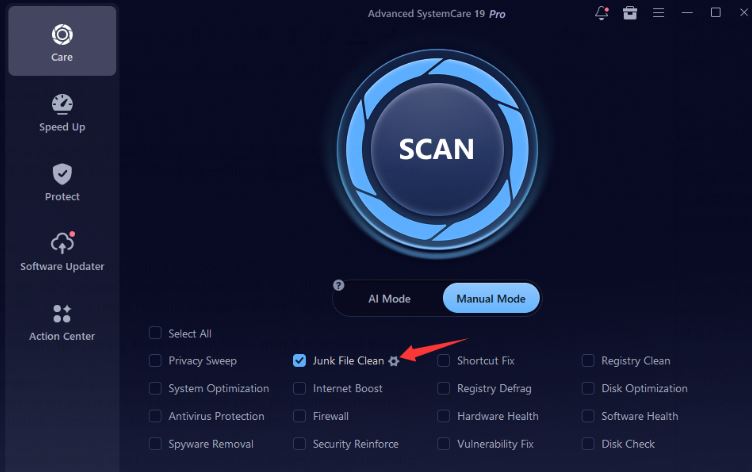
Step 3. Select the temporary files and more junk files you want to remove. You can also choose to keep recent Windows temporary files, such as those from the past week. Then, click OK.
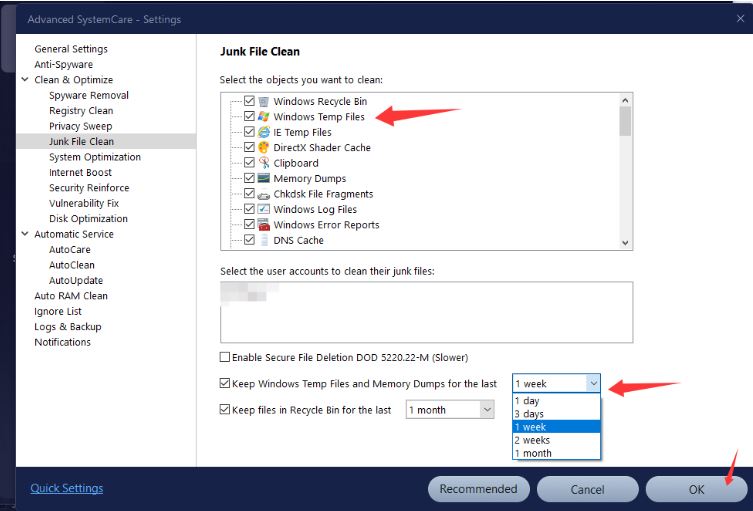
Step 4. Review the scan results and check the categories identified as safe to remove.
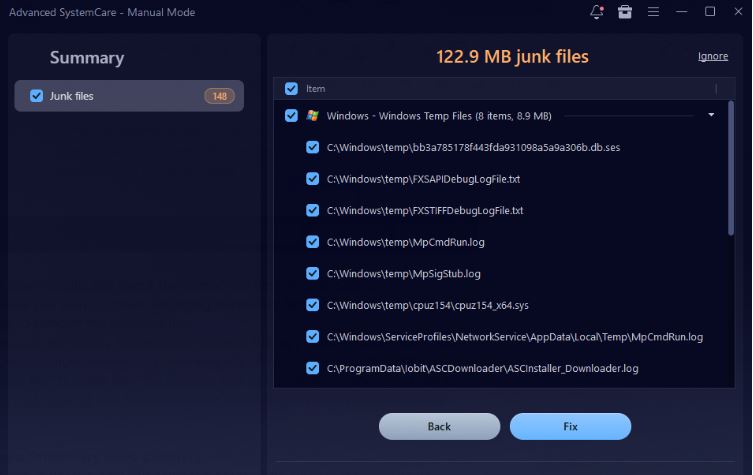
Step 5. Select the data you want to clean, including temporary files and other unwanted junk. Click Fix to remove the selected files immediately.
Compared with a manual temporary file removal process, this approach reduces the need to visit multiple Windows locations individually. It is also useful when you want to combine temporary file cleanup with broader junk file cleanup and system maintenance. You can also use it as a free hard disk cleaner that further helps in improving overall system efficiency.
Other 3 Tools for Windows Temporary Files Remove
Advanced SystemCare is not the only Windows temporary files cleaner tool. Other third-party software can handle temporary files and related junk.
Temporary Files Remove Tool 1. Windows Disk Cleanup
Disk Cleanup is one of the oldest built-in Windows tools for temporary files disk cleanup. Search for Disk Cleanup, choose your system drive, and select the categories you want to remove. You can also click Clean up system files to access additional system-level cleanup options.
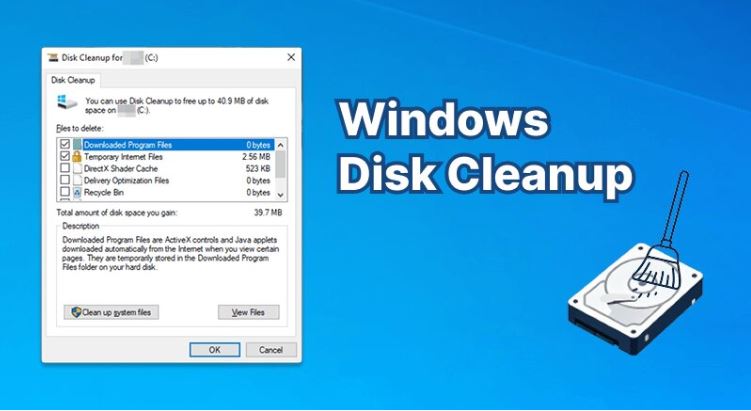
It is a good choice for users who want a straightforward, built-in temporary files cleaner without installing another application. However, it offers less automation than dedicated maintenance software.
Temporary Files Remove Tool 2. Storage Sense
Storage Sense is Windows' automatic approach to cleanup. It can remove unnecessary temporary files and Recycle Bin content when configured, helping reduce the need for frequent manual temporary files remove operations. Microsoft notes that Storage Sense works on the system drive by default.
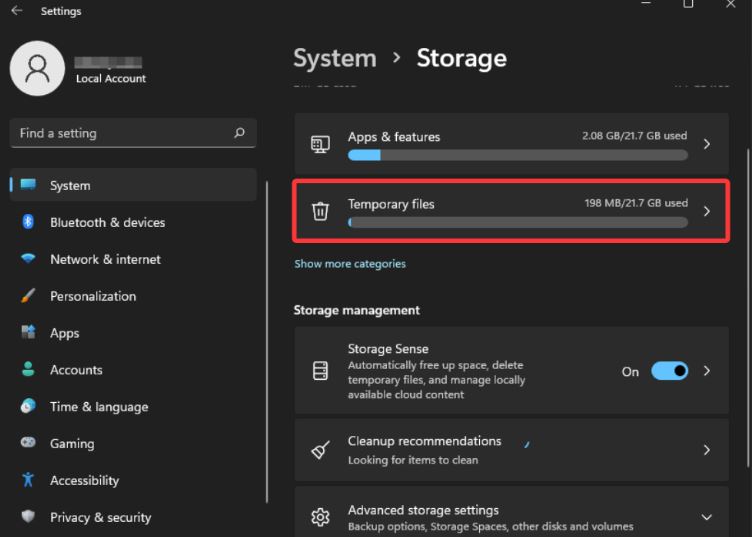
Go to Settings > System > Storage > Storage Sense to configure it or run it manually. It is especially useful for users who prefer hands-off maintenance.
Temporary Files Remove Tool 3. CCleaner
CCleaner is another third-party Windows temporary files cleaner that can scan temporary data, browser caches, and other common junk locations. Its broader category support can make routine cleanup more convenient than checking individual folders manually.
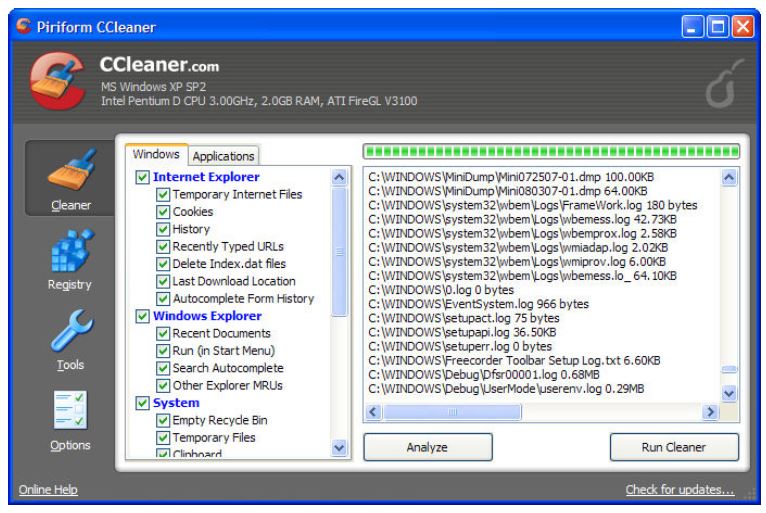
As with any cleaning software, review the selected categories before deleting data, especially when dealing with browser information or application-specific files.
Comparison of the 5 Ways for Windows Temporary Files Clean
The five options above all support temporary files remove; the table below makes the main differences easier to compare.
Tool/Method |
Temporary Files |
Auto Cleanup |
Ease of Use |
Best For |
Manually |
Yes |
No |
Easy |
Direct control |
Advanced SystemCare |
Yes |
Yes |
Very Easy |
Broader system cleanup |
Windows Disk Cleanup |
Yes |
No |
Easy |
Built-in manual cleanup |
Storage Sense |
Yes |
Yes |
Easy |
Automatic maintenance |
CCleaner |
Yes |
Yes |
Easy |
Multi-category junk cleanup |
For occasional temporary files remove, manual cleanup or Disk Cleanup may be enough. Storage Sense and Advanced SystemCare are better for automation. Meanwhile, Advanced SystemCare and CCleaner are more suitable when you want a broader temporary files clean process.
Should You Perform a Temporary Files Removal Operation?
Temporary files usually do not cause immediate problems, but when they accumulate over time, they can take up a significant amount of disk space. The main impacts include:
1. Take Up Disk Space: Large amounts of temporary data can consume several gigabytes of storage, especially on the system drive.
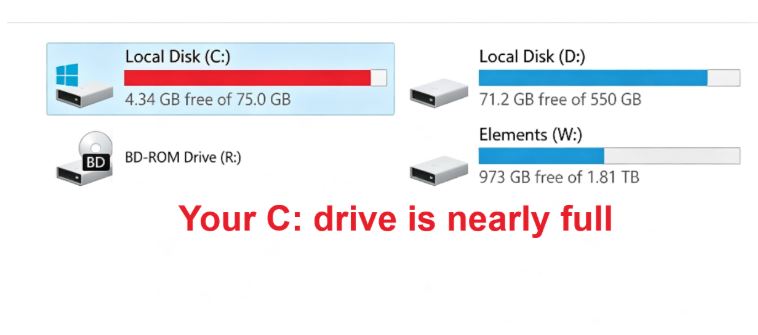
2. Reduce Available C: Drive Space: When your system drive becomes nearly full, Windows may have less room for updates, applications, and other operations.
3. Limit Windows Update Space: Some Windows updates require additional temporary storage for downloads and installation files.
4. Leave Unnecessary Data Behind: Applications that crash or close unexpectedly may leave temporary files that are no longer needed.
5. Indirectly Affect System Performance: Temporary files themselves do not usually make a PC slow, but extremely low free disk space can affect overall system operation.
In most cases, removing unnecessary temporary files is mainly useful for recovering storage space rather than delivering a dramatic performance boost.
How Often Should You Clean Temporary Files?
There is no need to perform temporary files remove every day. The right frequency depends on how you use your Windows PC and how quickly temporary data accumulates. Consider these situations:
For regular users: Check and clean temporary files about once a month to prevent unnecessary data from building up.
After installing or uninstalling software: Run a cleanup to remove leftover installation files, caches, and temporary data.
Before major Windows updates: Cleaning temporary files can help free enough disk space for update-related downloads and installations.
When your C: drive is nearly full: Check Temporary Files immediately and remove unnecessary data with a C drive cleaner to recover storage space.
For users who download or process large files frequently: Consider cleaning more often, especially if you regularly work with large archives, videos, or installers.
You May Like: Free PC Performance Test: Check and Optimize >>
Conclusion
A reliable temporary files remove routine can free disk space and reduce unnecessary file buildup. Choose the approach that fits your cleanup needs. Clean up your Windows storage today and reclaim unnecessary space.