You are about to save an important work document, install a massive game update, or render a video project when suddenly the dreaded “Disk Full” warning pops up. Your PC slows down, apps take forever to load, and even simple tasks feel frustrating and figuring out how to free up disk space on PC becomes an urgent priority. Over time, temporary files, cache, leftover app data, duplicate files, and outdated system logs silently consume valuable storage space.
That’s where hard drive cleaner software becomes essential. A reliable disk cleaner can remove junk files, optimize storage, improve performance, and even extend the lifespan of your drive. In this guide, we’ll explore the best disk cleaners, including beginner-friendly solutions and advanced utilities for power users.

Key Features to Look for in Hard Drive Cleaner Software
Choosing the right best disk cleanup software is not only about deleting junk files. A good tool should balance safety, effectiveness, convenience, and value.
Safety: First, safety matters most. The software should avoid deleting important system files or causing Windows instability.
Effectiveness: Secondly, in choosing how to clean up hard drive, effectiveness is critical because users expect the tool to locate gigabytes of unnecessary files, including temporary files, old Windows updates, browser cache, and leftovers from removed apps.
Ease of use: Thirdly, ease of use also plays a major role. Many people prefer automated cleaning instead of manually selecting folders.
Price: Finally, pricing should make sense. Free versions should handle basic cleaning tasks, while premium plans can provide advanced optimization and privacy protection features.
With those criteria in mind, let’s compare the top options available today.
Take a Glance: The Top 7 Hard Drive Cleaners
Don't be confused about how to choose the right hard disk cleaner for you. First, take a look at what's available, their general advantages, and differences.
Hard Drive Clean up Tool |
System Safety |
Effectiveness |
Ease of Use |
Extra Features |
Best For |
IObit Advanced SystemCare |
Excellent |
High Capacity |
Very Easy |
AI optimization, privacy protection |
General users |
Windows Disk Cleanup |
Good |
Light Cleaning |
Easy |
Built into Windows |
Simple maintenance |
Wise Disk Cleaner |
Good |
Reliable |
Easy |
Scheduled cleaning |
Free users |
CCleaner |
Good |
Reliable |
Easy |
Registry cleaner |
Advanced users |
BleachBit |
Excellent |
Deep Clean |
Moderate |
Open-source privacy tools |
Tech-savvy users |
CleanMyPC |
Good |
Reliable |
Beginner-friendly |
Startup manager |
Casual users |
IObit Uninstaller |
Excellent |
Targeted (Software leftovers) |
Very Easy |
Batch uninstall |
Removing large apps |
Deep Dive: Best Hard Drive Cleaner Software in 2026
#1. IObit Advanced SystemCare
Among all the tools tested, IObit Advanced SystemCare stands out as the best all-in-one hard drive cleaner software for most users. It combines AI-powered cleaning, system optimization, privacy protection, and deep junk removal into one beginner-friendly dashboard.
What makes it especially useful is the one-click optimization system. Instead of manually selecting categories, the AI scan automatically identifies unnecessary files, registry clutter, browser traces, and startup slowdowns. This dramatically simplifies the entire hard drive clean up process.
It also includes extra optimization features designed to help users speed up a PC and resolve common performance issues like Windows 11 100% disk usage.
Advanced SystemCare Free
- Clean: 420 billion traces removed & 85 EB junk files cleaned
- Protect: 80 million unauthorized access blocked & 20 million bugs fixed
- Speed Up: 6 million hours of startup time saved & Turbo boost
- Optimize: Auto clean and auto care your PC with AI mode

Why is it the best disk cleaner software?
IObit Advanced SystemCare provides a complete solution for cleaning junk files, optimizing system performance, protecting privacy, and improving overall PC stability in just a few clicks.
This free all-in-one platform handles routine drive cleaning and deep performance optimization without requiring multiple utilities.
Intelligent AI scanning engine automatically analyzes your system to instantly detect hidden junk files and performance bottlenecks.
It safely clean up temp files, large downloads, system logs, and bloated caches to reclaim valuable hard drive space.
Clean and intuitive user interface allows beginners to easily optimize their entire operating system with one click.
Built-in toolbox includes a professional disk utility, giving advanced users granular control to eliminate specific system clutter.
Proactive privacy tool securely wipes away tracking cookies and browsing history to protect your personal data online.
By managing heavy background applications and disabling unnecessary startup programs, this tool significantly reduces system boot times.
Cons
#2. Built-in Disk Cleanup and Storage Sense
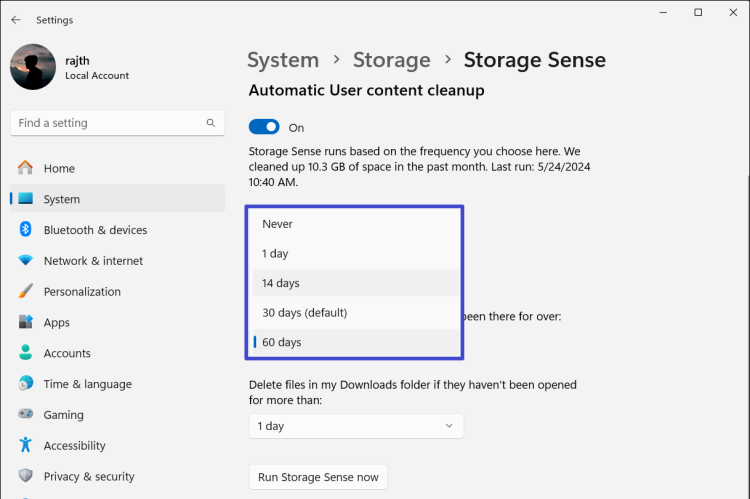 Windows already includes basic hard drive cleaning software through Disk Cleanup and Storage Sense. Disk Cleanup is a classic tool that allows users to manually select and safely remove temporary files, recycle bin data, system thumbnails, and old Windows update files to free up disk space.
To complement this, Windows 11 features Storage Sense, which can automatically clear temporary files and unused cloud content. These built-in utilities are simple, lightweight, and convenient for users who do not want to install extra programs.
Features
Completely free and built into Windows
Simple interface for beginners
Removes temporary and system-generated files
Automatic cleanup scheduling with Storage Sense
Cons
#3. Wise Disk Cleaner
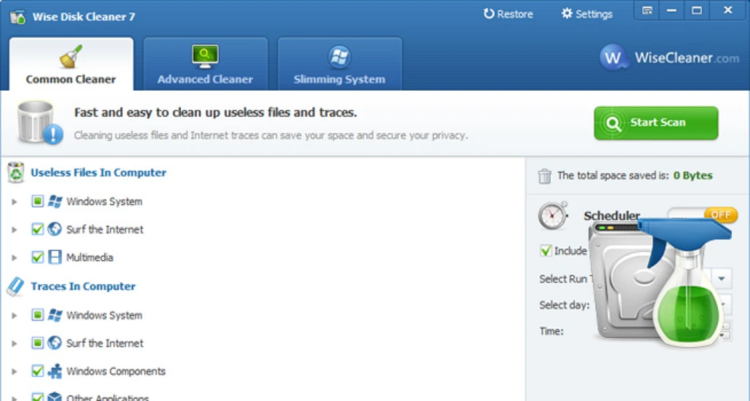
Wise Disk Cleaner is a lightweight and efficient hard drive clean up software solution focused on removing unnecessary files quickly. Its standout feature is scheduled automatic cleaning, which helps maintain disk health without manual effort. The software supports browser cache cleanup, junk removal, and disk defragmentation tools for HDD users.
Features
Fast junk scanning
Scheduled automatic cleanup
Browser and cache cleaning
Portable version available
Cons
#4. CCleaner
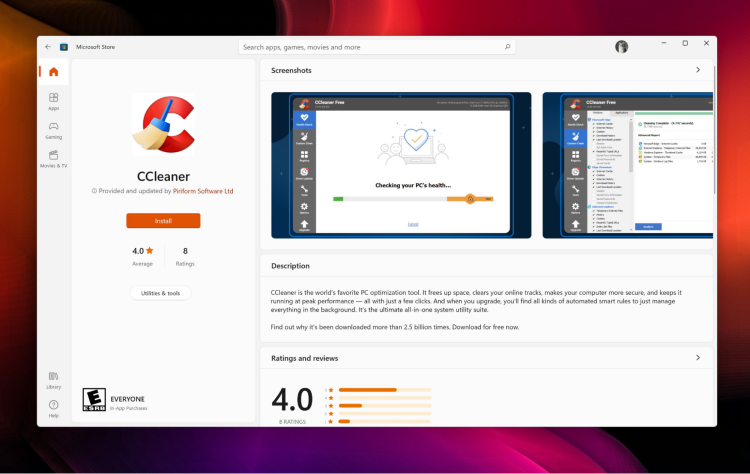
CCleaner remains one of the most recognizable names in the HDD cleaner and SSD cleaner market. It combines junk file cleaning with registry optimization and startup management.
The tool works especially well for users who want more granular control over what gets deleted.
Features
Cons
#5. BleachBit
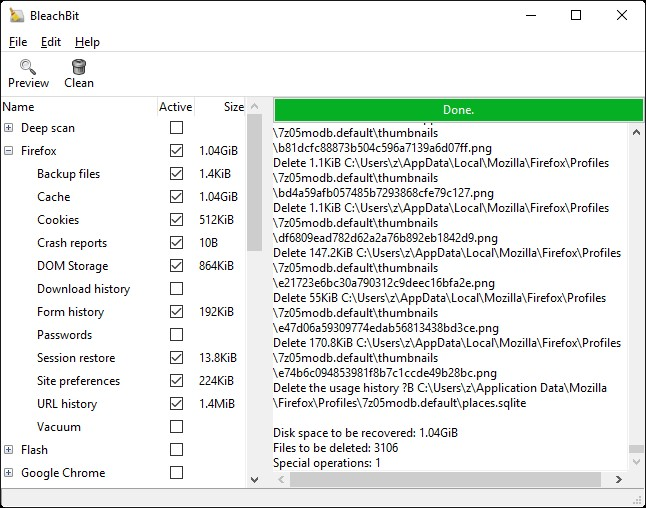
BleachBit is a free, open-source disk cleaner designed for advanced users who want secure cleaning and privacy-focused features. It can perform a deep hard drive wipe clean by permanently deleting unnecessary files and wiping free disk space. Unlike many mainstream cleaners, BleachBit focuses heavily on privacy and secure deletion.
Features
Cons
#6. CleanMyPC
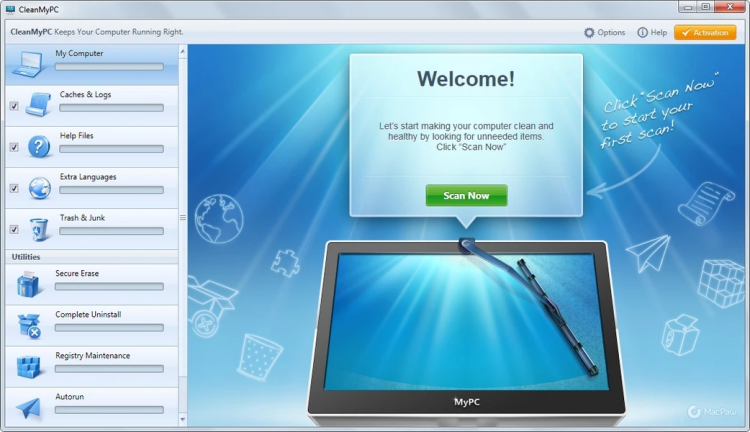 CleanMyPC offers a clean and beginner-friendly interface that simplifies PC maintenance. It helps users perform a basic hard drive clean up while also managing startup items and uninstalling unnecessary programs. The software is ideal for casual users who prefer simplicity over advanced customization.
Features
Easy navigation
Startup optimization
Registry maintenance
Hibernation cleanup
Cons
#7. IObit Uninstaller
Another useful way to free up storage is by uninstalling large or unused applications. IObit Uninstaller specializes in removing stubborn software and deleting leftover files that regular uninstallers miss. This is especially useful when trying to perform a deeper hard drive wipe clean and reclaim storage from games or large creative applications.
IObit Uninstaller Free
- Complete forced uninstallation for stubborn programs.
- Uninstall a batch of programs at once.
- Scan and remove leftover files, folders, and registry entries.
- Support the management of Universal Windows Platform apps.

Features
Batch uninstall multiple programs
Removes leftover files and registry traces
Detects bundled software
Lightweight and beginner-friendly
Cons
How to Clean Hard Drive Deeply with IObit Advanced SystemCare
Using IObit Advanced SystemCare disk cleaner is one of the easiest ways to deeply clean and optimize your hard disks. Follow these steps to diagnose your computer.
Step 1. Download and Install Advanced SystemCare, open it on your PC.
Step 2. Enable AI Mode to start a quick scan. The software automatically detects junk files, registry clutter, browser traces, and startup issues.
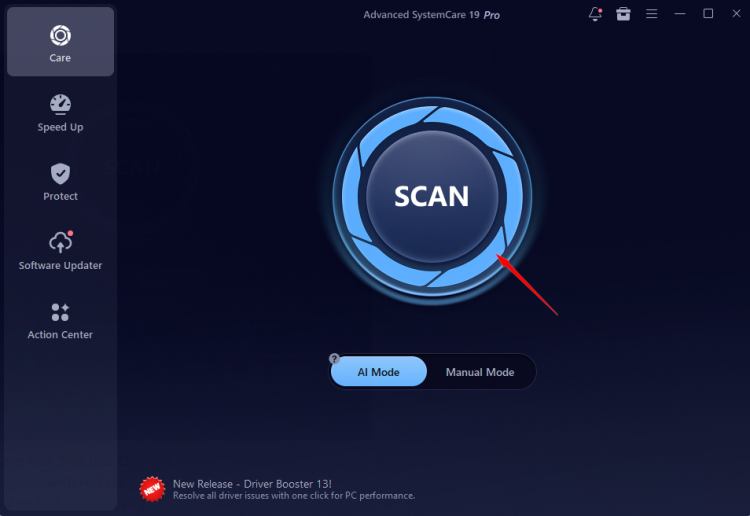
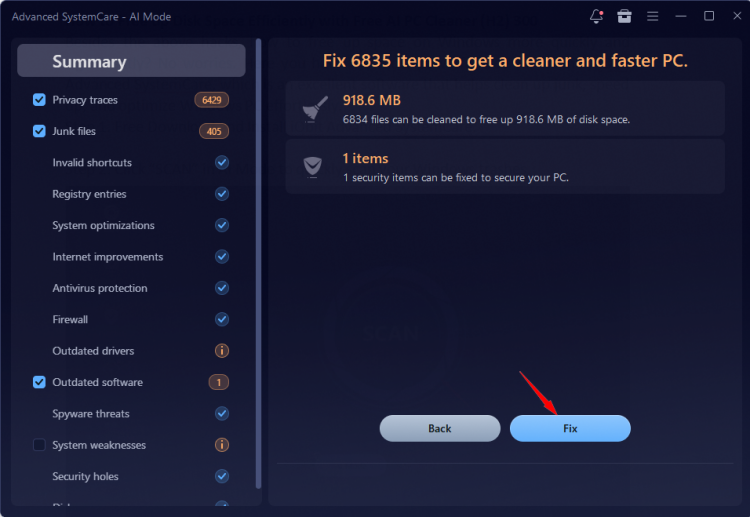
Step 3. Check the detected categories, including junk files, temporary files, and privacy traces.
Step 4. Press “Fix” to perform a deep hard drive clean up instantly.
If you have a specific category you want to clean or optimize, click on the Manual Mode section to customize by yourself for even deeper scans.
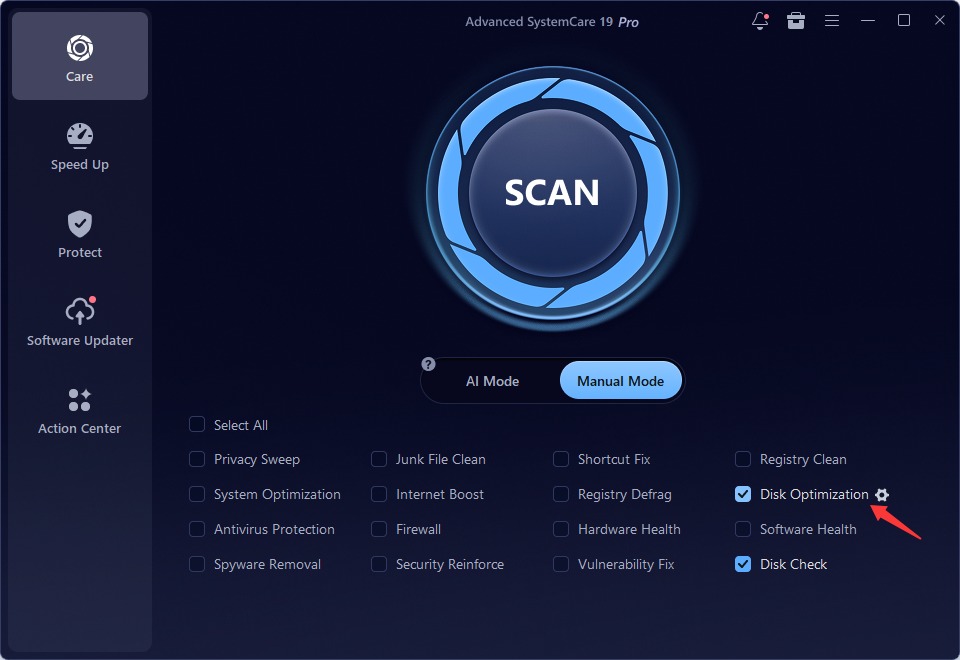
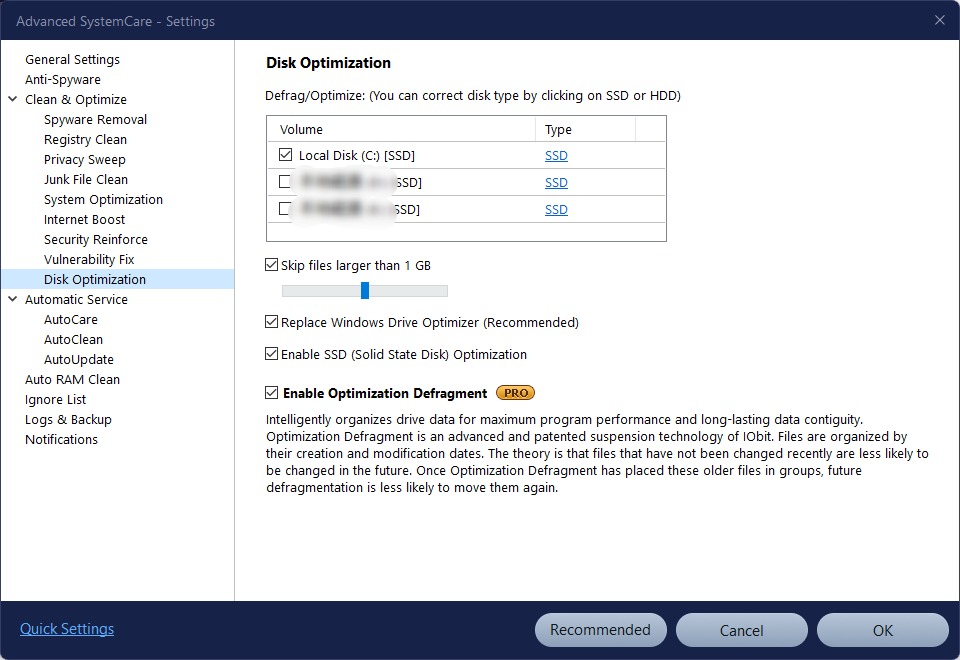
Click the gear icon to further optimize your hard drives. After configuring the settings, click OK to return and scan.
Tips to Maintain Your Hard Drive Health
Keeping your drive healthy requires regular maintenance. Run your preferred hard drive cleaner software at least once every two weeks to remove junk buildup. Avoid storing unnecessary duplicate files and uninstall apps you no longer use.
You should also clear temporary files regularly, especially after Windows updates or large software installations. SSD users should maintain at least 15–20% free space for optimal performance. Finally, monitor startup programs and browser cache to prevent gradual slowdowns over time.
Things You May Be Concerned About Hard Drive Wipe Clean
Q: Which is the hard drive cleaner software that suits my needs?
If you want an all-in-one cleaner with automation and optimization, IObit Advanced SystemCare is the best option. Advanced users may prefer BleachBit or CCleaner for more manual control.
Q: Is disk cleaner safe for SSDs?
Yes. Modern cleaning tools are generally safe for SSDs as long as they avoid excessive defragmentation. Most modern cleaners are SSD-aware.
Q: Can I recover files accidentally deleted on the hard drive after cleaning?
Sometimes. Recovery depends on whether the files were securely erased. Tools performing secure hard drive wipe clean operations make recovery much harder.
Q: How often should I run a cleaner?
For most users, once every one to two weeks is sufficient. Heavy gamers or creative professionals may benefit from weekly cleanups.
Conclusion
A cluttered drive can slow down your PC, reduce productivity, and create constant storage headaches. Fortunately, the right hard drive cleaner software can remove junk files, optimize storage, and improve overall system performance with minimal effort.
Among all the tools reviewed, IObit Advanced SystemCare offers the best balance of simplicity, deep cleaning capability, and optimization features for most users. Whether you need a quick hard drive clean up, advanced junk removal, or a full system optimization suite, it delivers an easy and reliable solution.
If your PC is running out of storage or slowing down over time, now is the perfect time to try SSD and HDD cleaners and give your computer a fresh start.
Advanced SystemCare Free
- Clean: 420 billion traces removed & 85 EB junk files cleaned
- Protect: 80 million unauthorized access blocked & 20 million bugs fixed
- Speed Up: 6 million hours of startup time saved & Turbo boost
- Optimize: Auto clean and auto care your PC with AI mode