Few things are more frustrating than your computer suddenly freezing mid-task, especially when gaming, working, or on a school project. A frozen PC can instantly erase your unsaved progress and leave your system completely unresponsive. Fortunately, most freezing issues can be resolved with the right fixes.
In this guide, we will explore exactly why your computer keeps on freezing, provide actionable troubleshooting steps to fix it, and share proven tips to prevent it from happening again.
Why Does My Computer Keep Freezing?
First, let’s break down the reasons why your PC keeps on freezing, which further nails down the actions to fix it.
Overheating components may force the CPU or GPU to throttle performance.
Insufficient RAM when too many programs are running simultaneously.
Malware or virus infections that consume resources or damage system components.
A failing hard drive or SSD may have trouble reading or writing data, leading to freezes and errors.
Outdated or faulty drivers can create conflicts between hardware and software.
Missing or corrupted system files can affect Windows stability.
Too many startup or background applications overload system resources.
Outdated or incompatible software that may crash or conflict with your operating system.
Faulty external devices, such as USB drives, keyboards, or mice, can trigger freezing issues.
How to Quickly Unfreeze and Restart a Frozen Computer?
If your computer suddenly freezes, don't panic. First, wait a few seconds to see if Windows recovers from a temporary system overload. Then try these quick fixes to safely unfreeze your screen or restart your computer:
1. Reset Your Graphics Driver
If your mouse won't move or the screen becomes unresponsive, your graphics driver may have crashed. You can use a built-in shortcut to restart it. Press Win + Ctrl + Shift + B simultaneously, and your screen will flicker with a short beep.
2. Close Unresponsive Programs
If a specific app or game is causing the freeze, try ending the process in Task Manager:
Hold down Ctrl + Shift + Esc to open Task Manager directly. Or, if that doesn't work, press Ctrl + Alt + Delete and select Task Manager from the blue security screen.
Locate the program marked Not Responding, click on it, and click End Task.
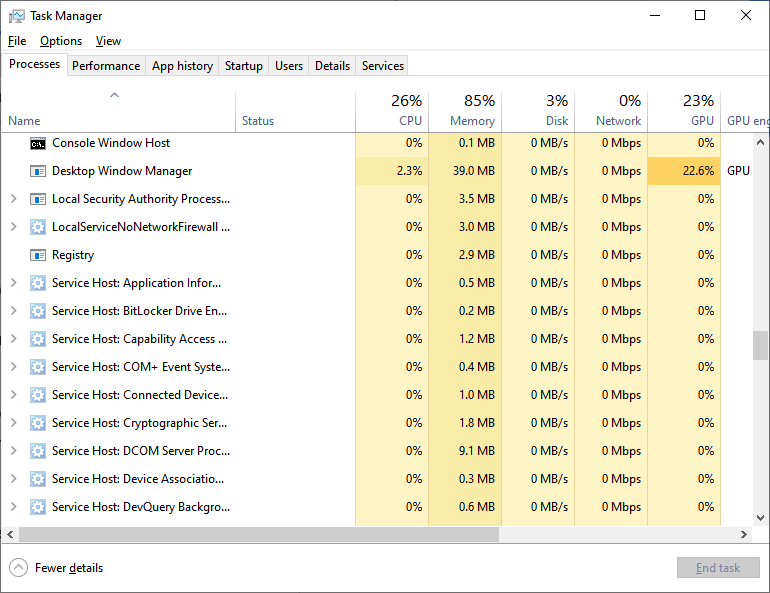
Tips: Press Alt + F4 to close the active window if only one application has frozen.
3. Disconnect External Devices
Disconnect all non-essential external devices, such as USB drives, printers, webcams, and other accessories, then check whether your PC becomes responsive again.
4. Restart Your Computer
If your Windows device is frozen or stuck on a blank screen, try restarting it with a soft reboot:
Press Ctrl + Alt + Delete simultaneously and wait for a menu to appear.
Click the power button in the bottom-right of the screen.
Select Restart.
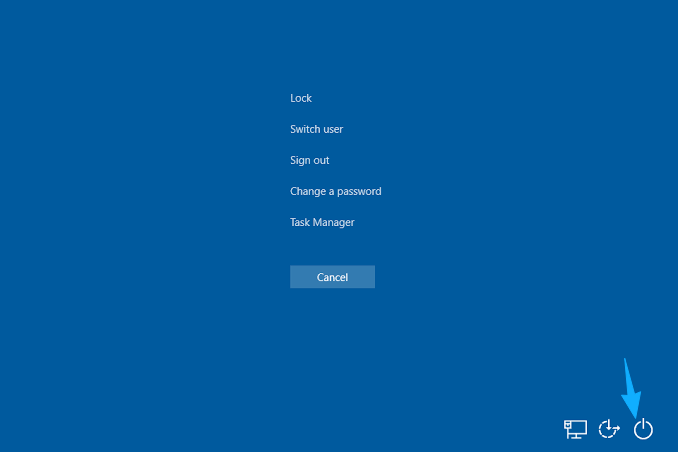
This is the safest way to restart your computer. But if your laptop freezes and won’t turn off, you can perform a force restart by holding the Power button for 5-10 seconds until the computer shuts down, then turn it back on.
5. Boot into Safe Mode
If your computer continues to freeze after restarting, booting into Safe Mode can help identify software, driver, or malware-related issues.
Click the Start Menu and click the Power icon.
Hold the Shift key and click Restart.
On the Choose an option screen, select Troubleshoot > Advanced options > Startup Settings > Restart.
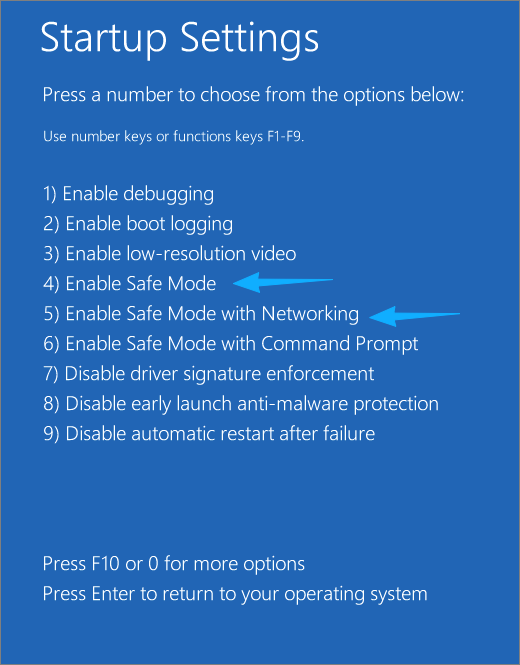
After your PC reboots again, press 4 or F4 to launch Safe Mode, or press 5 or F5 for Safe Mode with Networking.
Advanced Troubleshooting to Fix a Computer Keeps on Freezing
If your computer keeps freezing after these quick fixes, try the advanced methods to identify and resolve the root cause.
Update Device Drivers
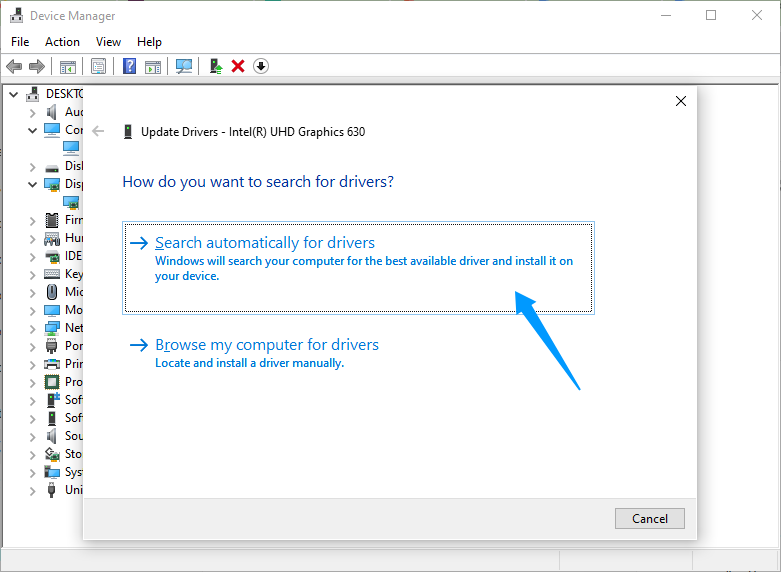
Open Device Manager from the Windows Search box, expand the relevant device category, right-click the device, and select Update driver > Search automatically for drivers. Windows will then check for and install available updates. Alternatively, use a dedicated driver update tool like Driver Booster to automatically scan for outdated drivers and update them in one click.
Check Your RAM
Faulty RAM is a common cause of random freezing, crashes, and system instability. To check your memory for errors:
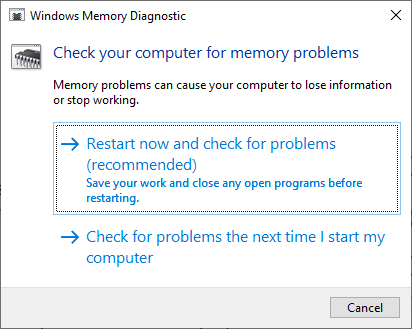
Press Windows + R, type mdsched.exe, and click OK to launch the Windows Memory Diagnostic tool.
-
Select Restart now and check for problems. Your computer will restart and begin the memory test automatically.
After the scan is complete and Windows restarts, open Event Viewer from the Windows Search box.
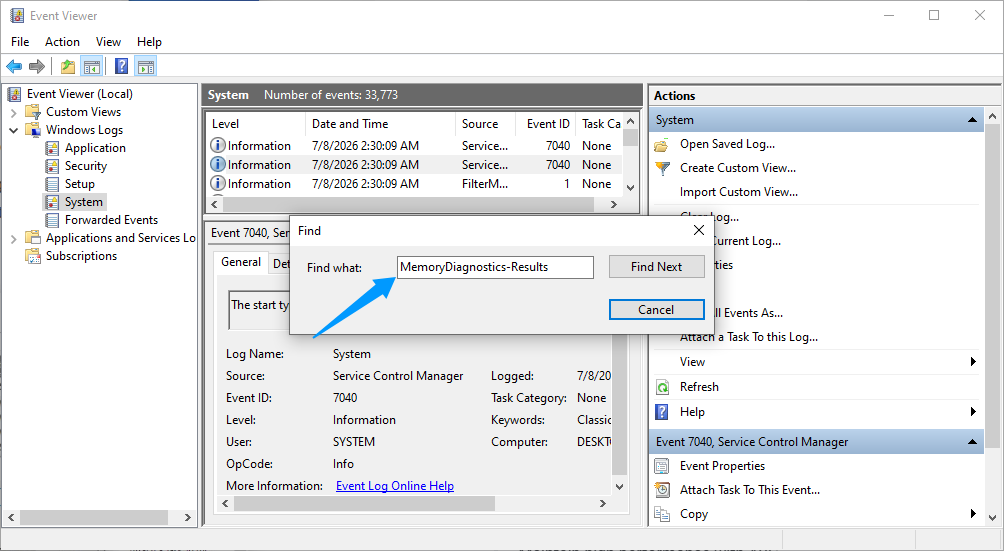
Expand Windows Logs and select System.
-
Click Find in the right-hand pane (or press Ctrl + F), type MemoryDiagnostics-Results, and click Find Next.
Open the event to view the memory test results. If Windows reports that hardware problems were detected, your RAM may be faulty and require further testing or replacement.
Also Read: How to Free Up RAM on PC with 10 Ways >>
Scan for Malware
If your computer keeps on freezing, it may be because malware is consuming resources, corrupting critical files, or interfering with the system's normal operation. Run a full system scan using a trusted antivirus software, such as IObit Malware Fighter, and remove any threats it detects.
Run SFC and DISM Scans
As mentioned above, missing or corrupted system files can cause instability and may be the reason your computer keeps on freezing. To repair damaged Windows files:
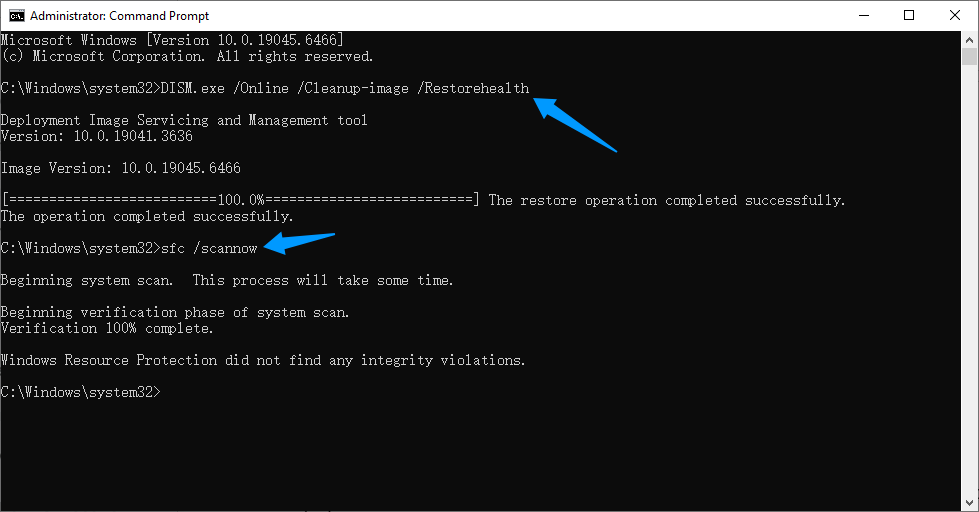
Open Command Prompt as Administrator.
Type the command DISM.exe /Online /Cleanup-image /Restorehealth, and press Enter.
Once DISM is finished, type sfc /scannow, and press Enter.
Windows will automatically scan for and repair corrupted system files it finds.
Once both scans are complete, restart your computer and check whether the freezing issue has been resolved.
Check Your Hard Drive for Errors
A failing Hard Disk Drive (HDD) or Solid State Drive (SSD) may struggle to read and write data properly, leading to freezes, crashes, and system lockups. Here's how to:
Still, open Command Prompt as an administrator.
-
Type the command chkdsk C: /f /r, and press Enter.
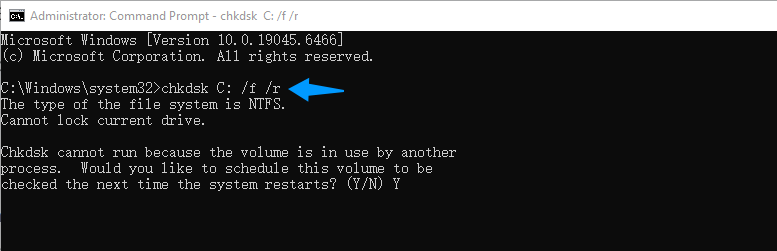
If Windows reports that the drive is in use, type Y and press Enter to schedule the scan for the next restart.
Restart your computer. Windows will perform a deep scan of your drive before loading the desktop.
All-in-One Tool to Fix PC Keeps on Freezing
We understand that manual troubleshooting can be time-consuming and challenging, especially if users aren't tech experts. If you are looking for a more comprehensive solution to fix the computer keeps on freezing, a dedicated PC optimization tool can handle the heavy lifting for you. This is particularly useful for systems affected by excessive startup programs, junk files, system errors, or high resource usage. Advanced SystemCare is designed to detect and fix common PC issues while optimizing overall performance with just a few clicks.
Advanced SystemCare Free
- Clean: 420 billion traces removed & 85 EB junk files cleaned
- Protect: 80 million unauthorized access blocked & 20 million bugs fixed
- Speed Up: 6 million hours of startup time saved & Turbo boost
- Optimize: Auto clean and auto care your PC with AI mode

Here's how it can help reduce random freezes and improve system stability:
AI-powered PC Optimization. It performs a comprehensive scan to detect and repair invalid registry entries and hidden system errors that may contribute to sudden Windows crashes.
Built-in Startup Optimizer. This feature identifies and disables unnecessary startup programs or background processes to reduce resource usage and improve system stability.
Realtime Performance Monitor. Advanced SystemCare also allows you to continuously check your system’s hardware usage, helping you identify causes of PC freezes.
Deep Junk File Cleaner. No complicated setup, this tool helps you easily clear temporary files, caches, and other clutter that could impact performance over time.
Advanced SystemCare makes it easy to diagnose and resolve common issues that may cause your computer to freeze. Here's how to use it:
Step 1. Download and launch this optimization tool on your Windows PC.
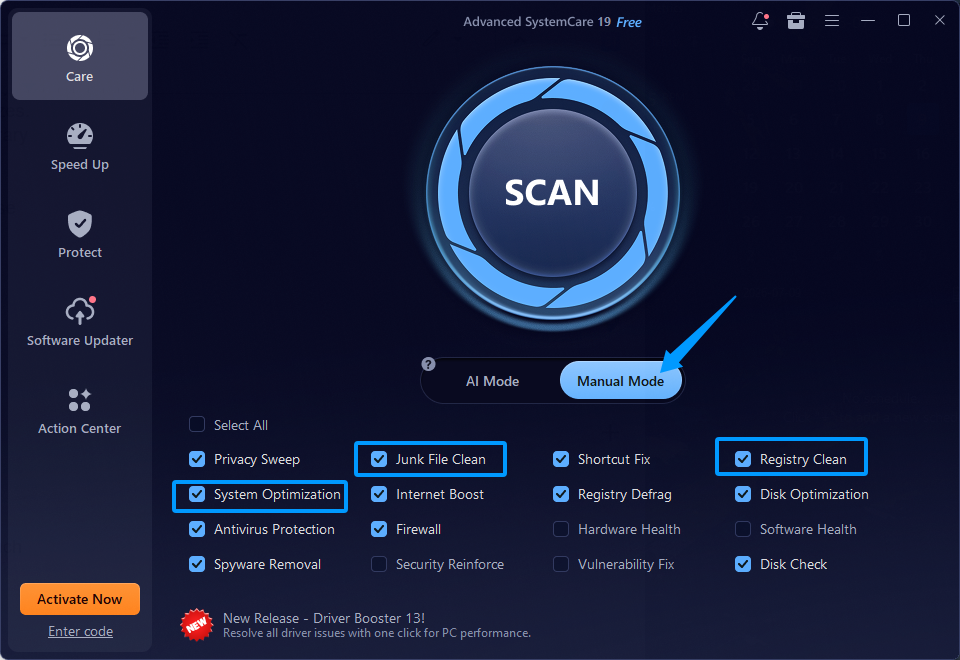
Step 2. On the Care tab, switch to Manual Mode and tick the items you want to scan, such as Junk File Clean, System Optimization, and Registry Clean. Then click Scan.
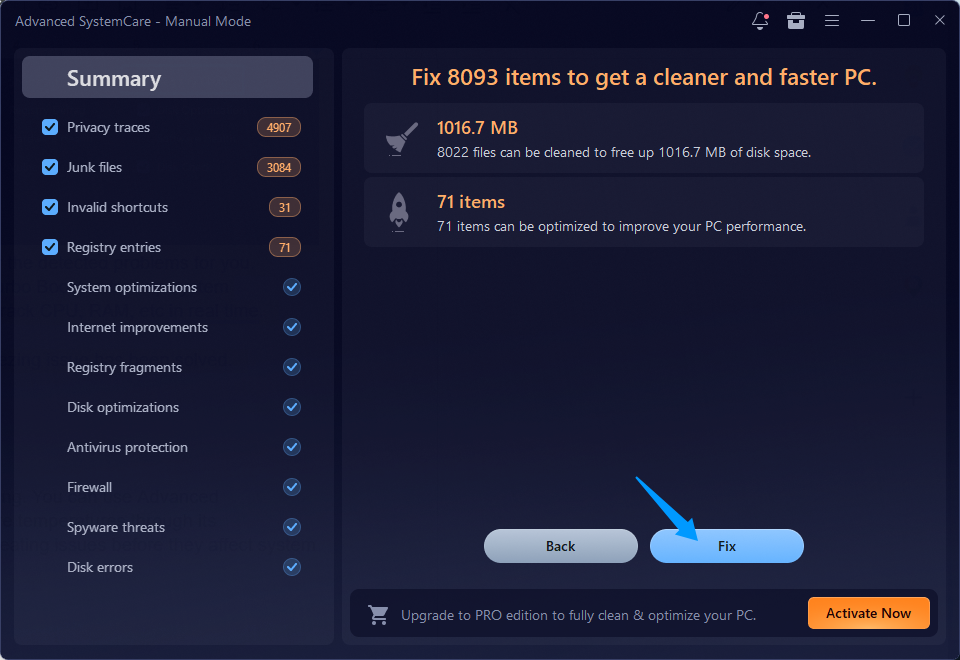
Step 3. After the scan is complete, click Fix to automatically repair the detected issues.
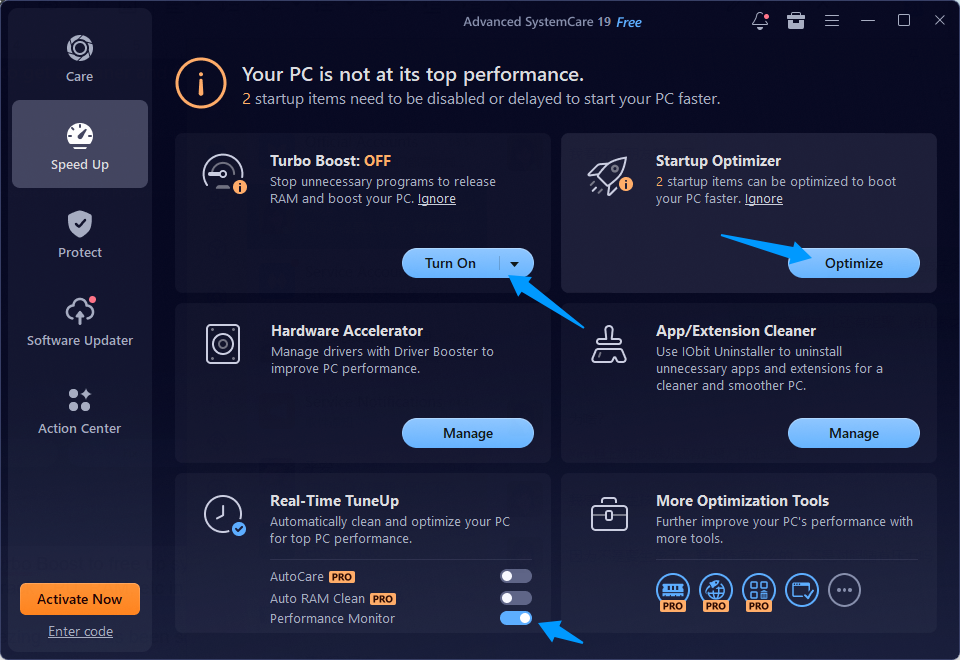
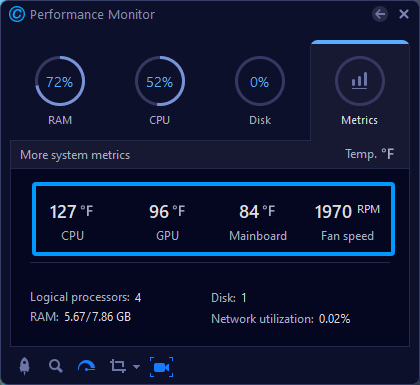
Step 4. Go to the Speed Up tab, enable Startup Optimizer and Turbo Boost to free up system resources. Alternatively, you can turn on Performance Monitor to track CPU, RAM, disk usage, and temperatures in real time.
 Step 5. Restart your computer and check whether the freezing issue has been solved.
Monitor CPU and GPU Temperatures
Excessive heat is one reason your computer keeps freezing. You can use Advanced SystemCare, a Windows RAM optimizer, to monitor system performance and hardware temperatures through its Performance Monitor, helping you identify potential overheating issues before they affect system stability.
Pro Tips to Prevent Computer Freezing in the Future
Once you’ve resolved the cause of the computer keeps on freezing, it's important to take preventive measures to maintain system stability and avoid future lockups. Here are some best practices to follow:
Keep drivers up to date, especially graphics, chipset, and storage drivers.
Run regular antivirus scans to detect and remove malware for a healthy PC status.
Maintain sufficient storage space and clean junk files that can slow down your system.
Disable unnecessary startup programs to reduce resource usage during boot.
Check your hard drive or SSD health regularly to identify potential drive failures early.
Use Advanced SystemCare to automate system cleanup, monitor performance, and keep your computer running at its best.
Conclusion
By understanding the root causes of why your computer keeps on freezing, you can take the right steps to restore system stability and performance. Just as importantly, regular maintenance, timely updates, hardware health monitoring, and routine data backups can help reduce the risk of future freezes. However, if the issue persists after troubleshooting, it is advisable to consult a professional technician to diagnose potential hardware or system-level problems.
Advanced SystemCare Free
- Clean: 420 billion traces removed & 85 EB junk files cleaned
- Protect: 80 million unauthorized access blocked & 20 million bugs fixed
- Speed Up: 6 million hours of startup time saved & Turbo boost
- Optimize: Auto clean and auto care your PC with AI mode