Programs that launch automatically when you start your computer can be really annoying. They slow down your boot time and clutter your system right from the start. So, how to disable startup programs on Windows? You can do it manually, and it often takes time to dig through settings and figure out what’s safe to turn off. But don’t worry. This blog introduces several solutions to help you disable startup programs. You’ll also find the simplest method to do it in just one click!
Before You Go: Essential Startup Programs Windows 11
It’s important to know that some essential startup programs Windows 11 should never be turned off. They are designed to keep your system secure and ensure core features run properly.
Windows Security (or SecurityHealthSystray): Provides real-time antivirus and threat protection.
Realtek HD Audio (or your audio driver): Ensures your sound works right away without the need to launch anything manually.
Touchpad/Graphics/Driver utilities (Intel/AMD/NVIDIA): Manage hardware features like gestures and display settings.
Antivirus or security suite main service: Don’t disable your third-party antivirus, as it protects from the moment it boots.
System Processes (Microsoft Services): Include critical background services that keep the OS stable.
As long as you keep these in mind, you can safely disable other startup programs without causing system issues. If you’re not sure about a program, it’s always a good idea to look it up before turning it off. Now, let’s walk through different ways to disable startup programs in the next part.
How to Disable Startup Programs Manually?
According to Microsoft’s community discussions, Windows provides several built-in tools that make it easy to manage startup apps. Let’s see how to disable startup programs manually with system settings.
Step 1: Start with Windows Task Manager
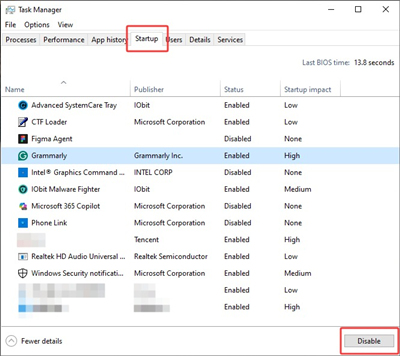
The simplest and most straightforward method is to use Task Manager. Here’s how to disable autostart in Windows 11 using this feature: Right-click the taskbar or press Ctrl + Shift + Esc > Go to the Startup tab > select the unwanted apps and disable them.
Step 2. Check All Startup Locations Thoroughly
However, even if you disabled an app in Task Manager, it may still launch from other places. Open these one by one:
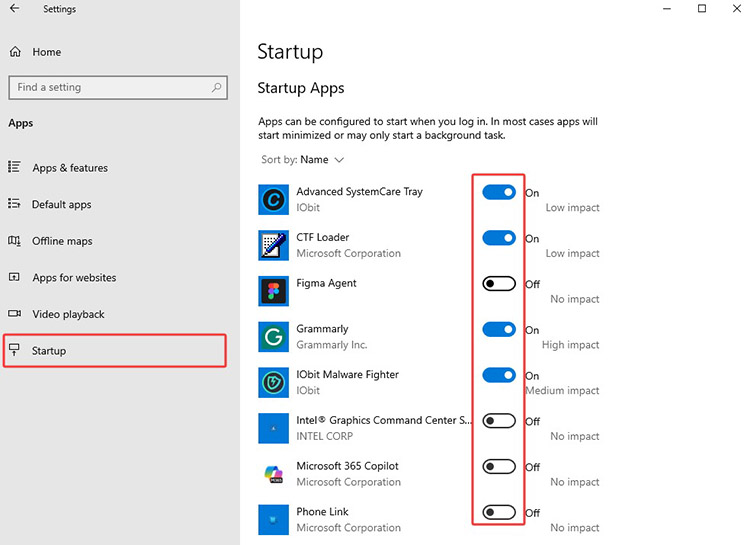
Windows Settings: Go to Settings > Apps > Startup. Toggle off the apps so they won’t be launched at startup.
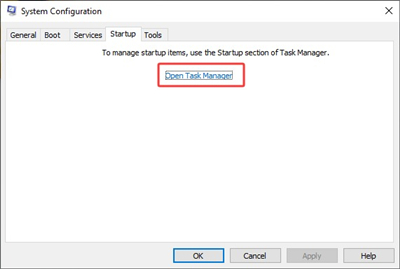
System Configuration: Search for “System Configuration”, then go to Startup > Task Manager. Similarly, disable the startup apps from here.
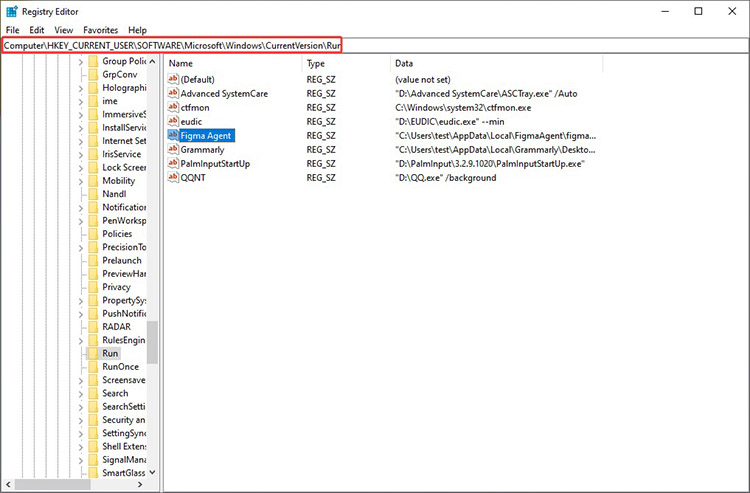
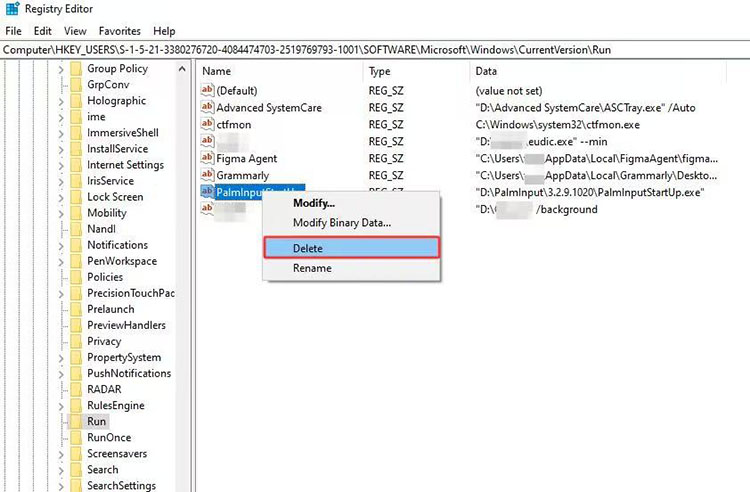
Registry Editor: Registry Editor is another place where you can manage startup apps. Here’s how to disable autostart in Windows 11. Search for “Registry Editor” on Windows and then check the following keys.
HKEY_CURRENT_USER\Software\Microsoft\Windows\CurrentVersion\Run
HKEY_LOCAL_MACHINE\Software\Microsoft\Windows\CurrentVersion\Run
Once you find an unwanted entry, right-click it and delete it to remove the app from startup.
Startup Folders: Enter the following address to access the Startup Folders. Delete or move shortcuts of unwanted programs from these locations:
%AppData%\Microsoft\Windows\StartMenu\Programs\Startup
%ProgramData%\Microsoft\Windows\StartMenu\Programs\Startup
Step 3: Check Task Scheduler for Hidden Startup Tasks
Some apps use scheduled tasks to run at login or startup. Here’s how to disable startup programs with it. This is especially useful for stubborn background apps that keep returning.
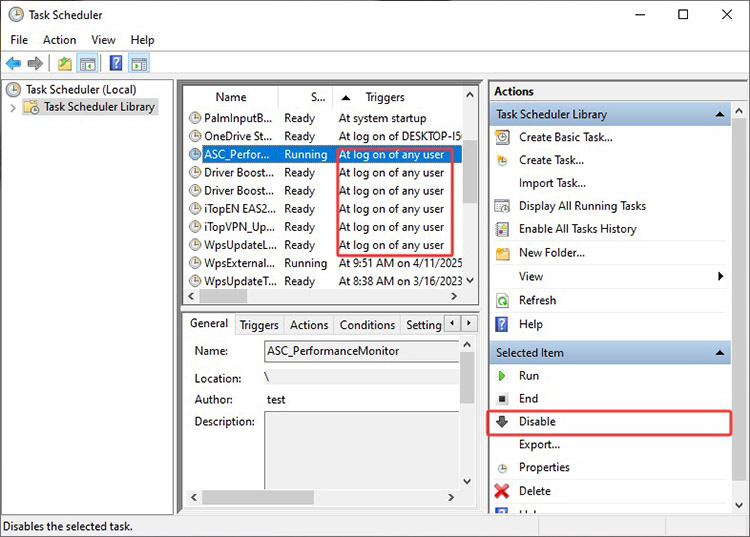
Search for Task Scheduler, and open it. In the left pane, expand the Task Scheduler Library.
Look for tasks with triggers like “At startup” or “At log on”. Right-click any unwanted task > Disable or Delete.
Step 4: Disable Fast Startup
Fast Startup can cause apps to behave as if they are still set to autostart. Here’s how to turn off autostart in Windows 11 with Fast Startup.
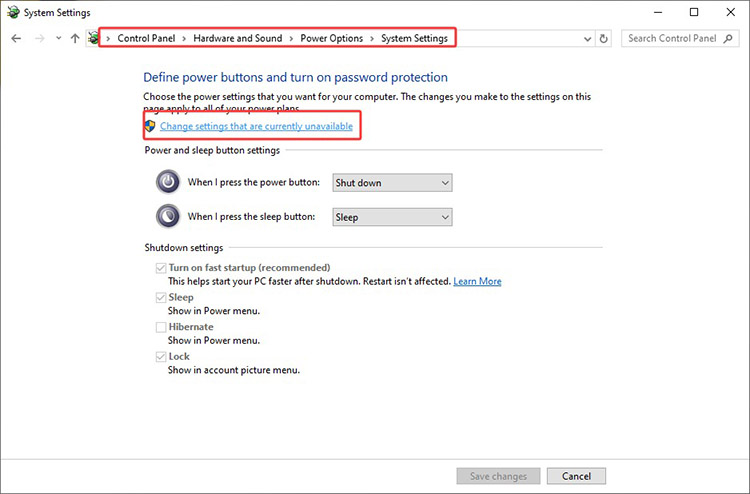
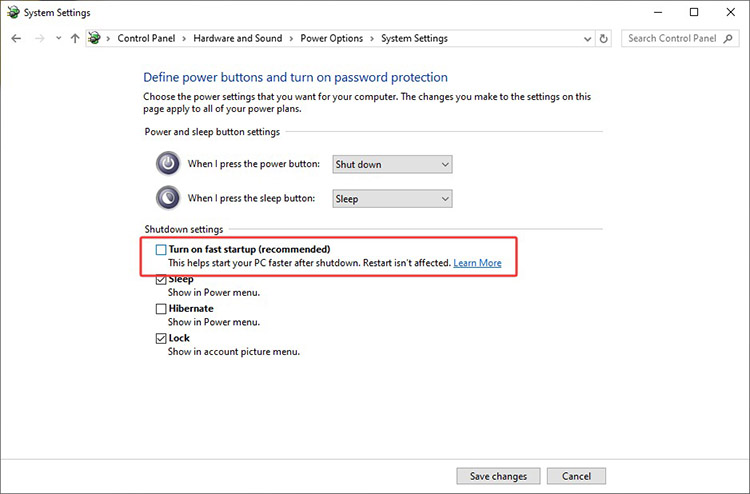
That’s all for how to disable startup programs on Windows. However, these steps can feel a bit complicated. Plus, some items may still hide in Registry entries or scheduled tasks and aren’t completely removed. Don’t worry—You can also disable startup programs in just one click with IObit Advanced SystemCare. Read on to learn more!
How to Disable Startup Programs Windows 11? IObit Startup Manager
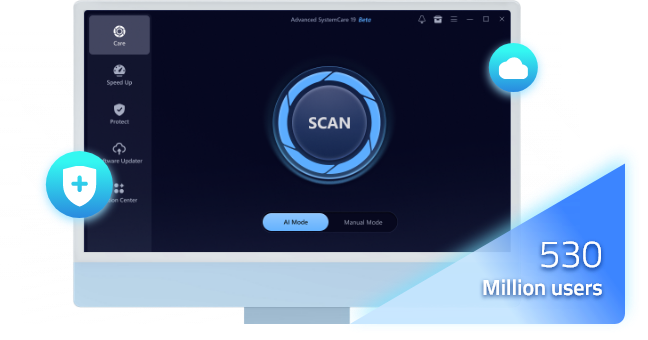
IObit Advanced SystemCare is a handy option. This all-in-one system optimization tool includes a powerful Startup Optimizer that scans your system and lets you disable unwanted startup programs in just one click. Best of all, it’s free to use—just like those Windows’ built-in settings.
If you don’t want to go through every setting, the software offers a simple dashboard that makes it easy to manage startup apps. Now, let’s walk through how to disable startup programs with it step by step.
Advanced SystemCare Free
- Clean: 420 billion traces removed & 85 EB junk files cleaned
- Protect: 80 million unauthorized access blocked & 20 million bugs fixed
- Speed Up: 6 million hours of startup time saved & Turbo boost
- Optimize: Auto clean and auto care your PC with AI mode
Step 1. Free download and install the IObit Advanced SystemCare.
Step 2. Navigate to Speed up > Startup Optimizer. Click on the Optimize to proceed.
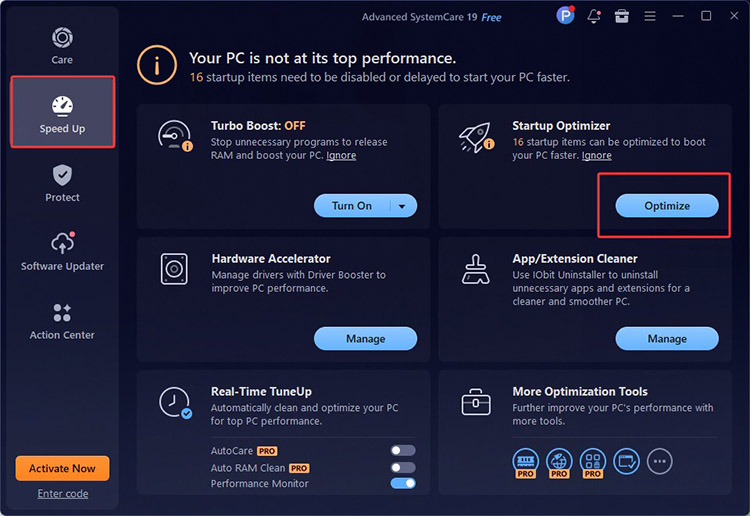
Step 3. Under the Quick Optimization tab, there is a list of startup apps. Choose the one you want to disable and click on the Optimize button.
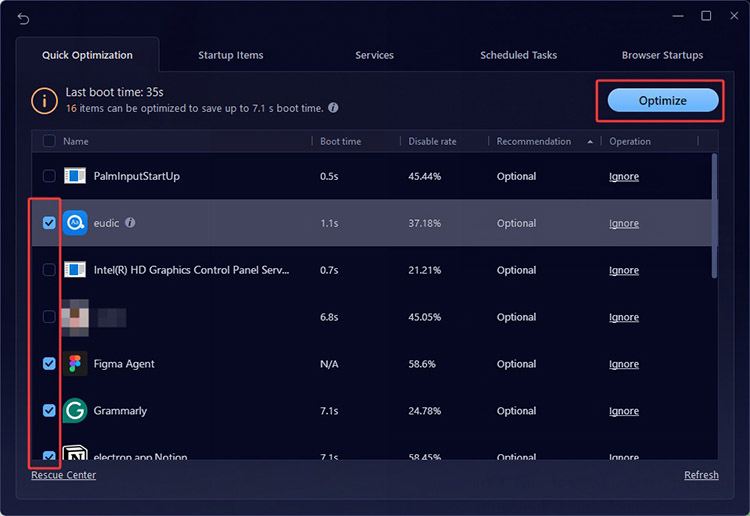
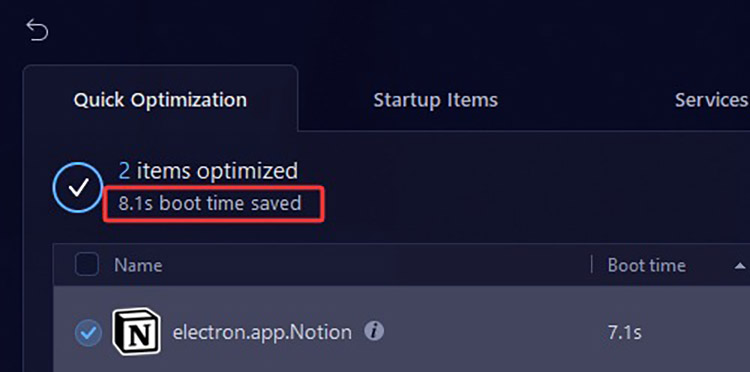
Step 4. IObit Advanced SystemCare will disable these apps, and you can see the boot time saved.
Beyond startup management, IObit Advanced SystemCare also includes a range of practical features. For example, it offers tools for system cleanup, privacy protection, RAM optimization, and internet speed boosting tools, among others. The software can remove junk files, fix registry issues, and improve overall PC performance—helping your system run faster over time.
How to Disable Startup Programs Windows 11 Using Command Prompt
If you prefer using built-in system tools, Command Prompt is another way to manage startup items. It may look technical at first, but it’s actually a straightforward option once you know where to look. For advanced users who’d rather not dig trhought multiple system settings, Command Prompt is a solid alternative. Here’s how to disable startup programs Windows 11 using Command Prompt.
Step 1. Press Windows + S, search for Command Prompt to open the interface.
Step 2. Type the following command and press Enter to open the Startup folder:
powershell -command "Get-CimInstance Win32_StartupCommand | Select-Object Name, User, Location”
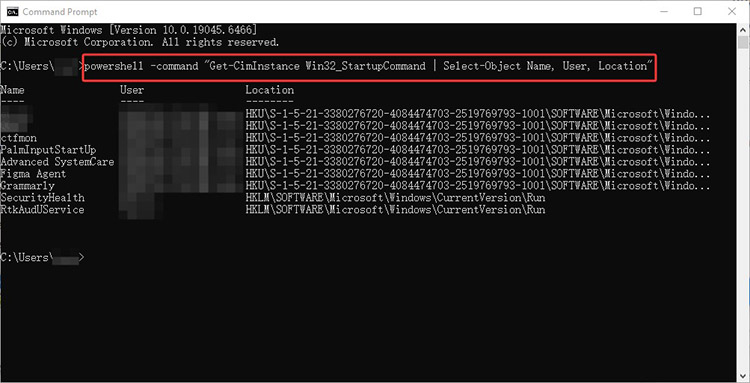
Step 3. The interface will show the startup apps with their location. Copy and paste the address into the address bar of Registry Editor to find the app Registry.
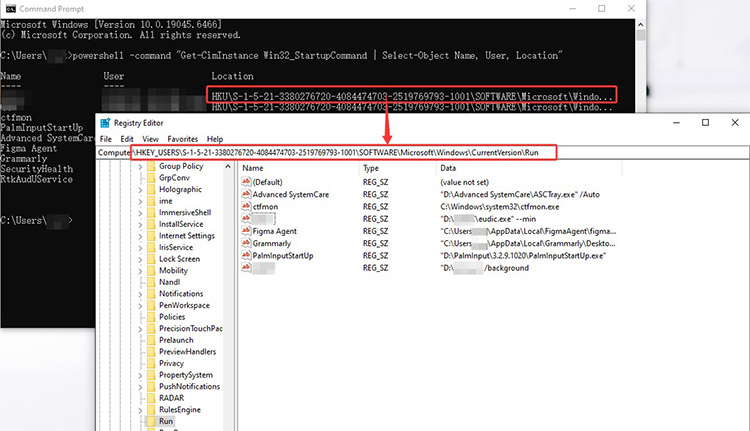
Step 4. Right-click any unwanted program shortcut and remove it from startup.
PowerShell Disable Startup Apps Windows 11: Tutorial
PowerShell is another powerful tool developed by Microsoft. It works similarly to Command Prompt but offers more advanced scripting capabilities and deeper system control. If you want a more flexible way to manage your system behavior and startup apps, PowerShell is a great option. Here’s how to disable start up programs Windows 11 PowerShell using PowerShell, step by step.
Step 1. Search for PowerShell to open the system tool.
Step 2. Input the command:
Get-CimInstance Win32_StartupCommand | Select-Object Name, User, Location.
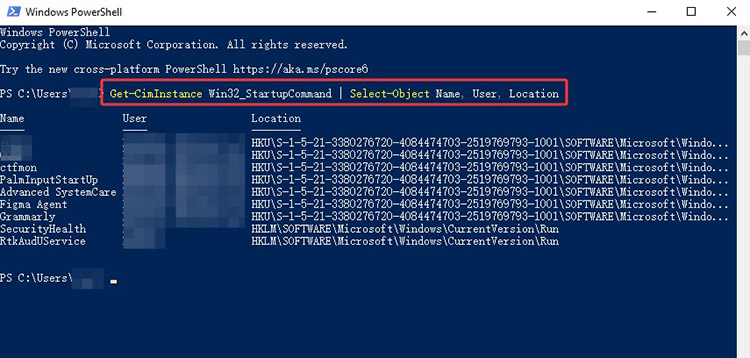
Step 3. Similarly, PowerShell will list the startup apps in a list. Copy and paste the registry location, and press Enter to open that location.
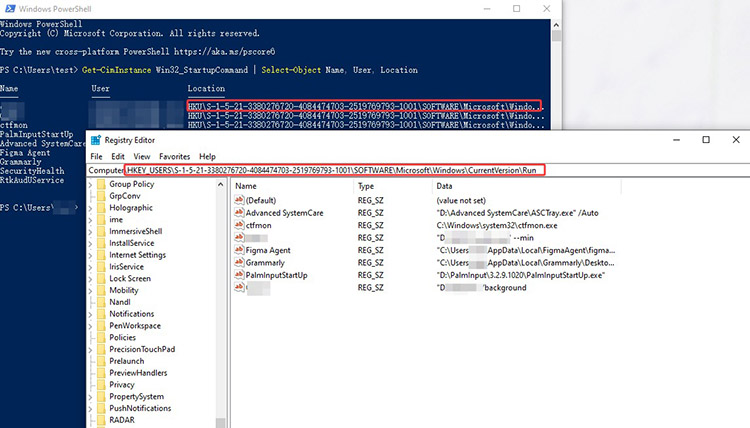
Step 4. Right-click on the startup app name you want to get rid of when launching your PC. Click on the Delete to disable it.
Conclusion
How to disable startup programs? Now you have four effective methods with step-by-step guidance. While manual methods and command-line options work, they can be a bit too complicated for the average user.
As you can see, IObit Advanced SystemCare remains the fastest solution, which helps you safely clean up unnecessary startup items without digging through system settings or dealing with risky configurations. Give it a try and enjoy a cleaner, faster boot experience from now on!
Advanced SystemCare Free
- Clean: 420 billion traces removed & 85 EB junk files cleaned
- Protect: 80 million unauthorized access blocked & 20 million bugs fixed
- Speed Up: 6 million hours of startup time saved & Turbo boost
- Optimize: Auto clean and auto care your PC with AI mode