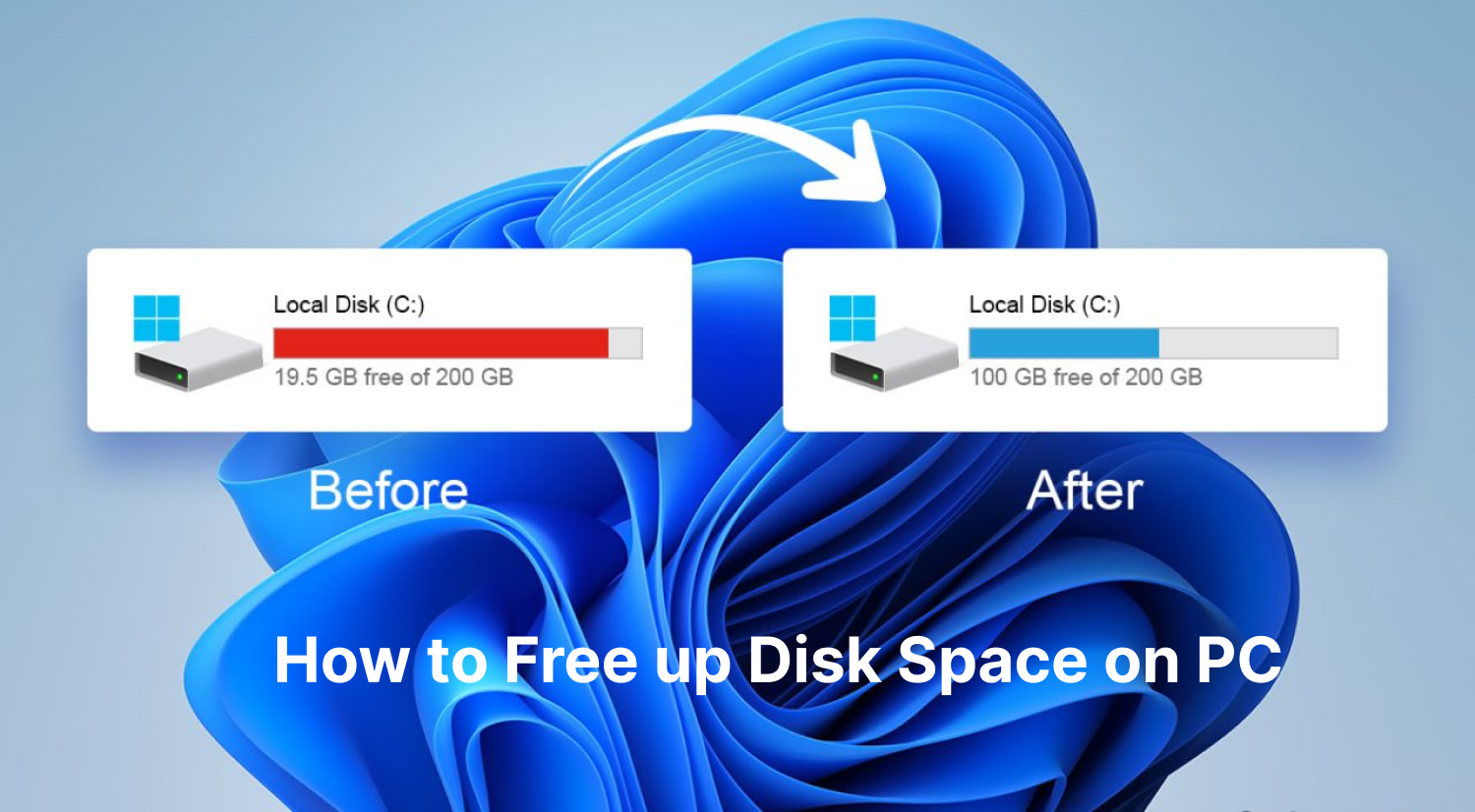
Many PC users today are struggling with the frustrating Windows 11 100 disk usage issue. When your disk is constantly running at full capacity, even simple tasks can feel slow and unresponsive. Apps lag, system performance drops, and productivity suffers. But worry not. In this guide, you will discover multiple proven methods for fixing 100 disk usage in Windows 11. We will also introduce the best free PC cleaner to help you release disk space and improve performance efficiently.
Why Is Your Windows 11 100 Disk Usage?
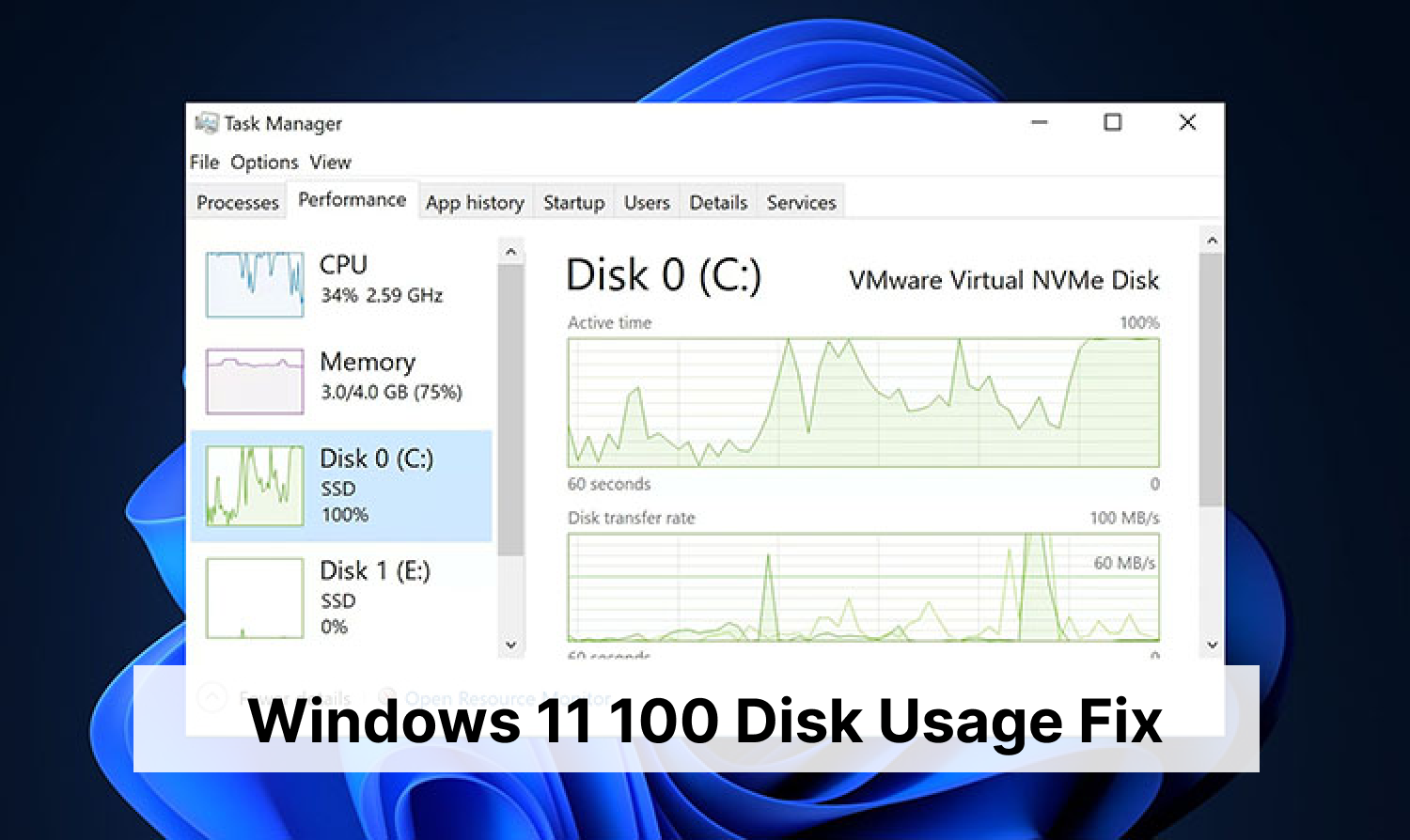
The Windows 11 100 disk usage issue occurs when your hard drive or SSD is running at full capacity (100%). That means it can not handle additional read or write requests efficiently. As a result, your system becomes slow, unresponsive, and prone to freezing or lagging during even basic tasks.
So why does this 100 disk usage Windows 11 issue happen? Here are the major causes:
- Malware or viruses are running hidden processes in the background
- Insufficient disk space filled with junk files, caches, and temporary data
- Corrupt or outdated drivers that cause repeated disk activity
- Too many background apps are consuming system resources
- The SysMain (Superfetch) service is overloading disk usage
- Windows Search indexing constantly scans files
- Disk errors or bad sectors on the hard drive
- Startup programs launch automatically and overload the system
[9 Ways] How to Fix 100 Disk Usage Windows 11
No matter what’s causing the issue, there are always effective ways to resolve Windows 11 100 disk usage and restore your system’s performance. Let’s check out the 9 proven solutions to Windows 11 disk usage 100 with step-by-step guides!
Fix 1. Upgrade Your Windows 11
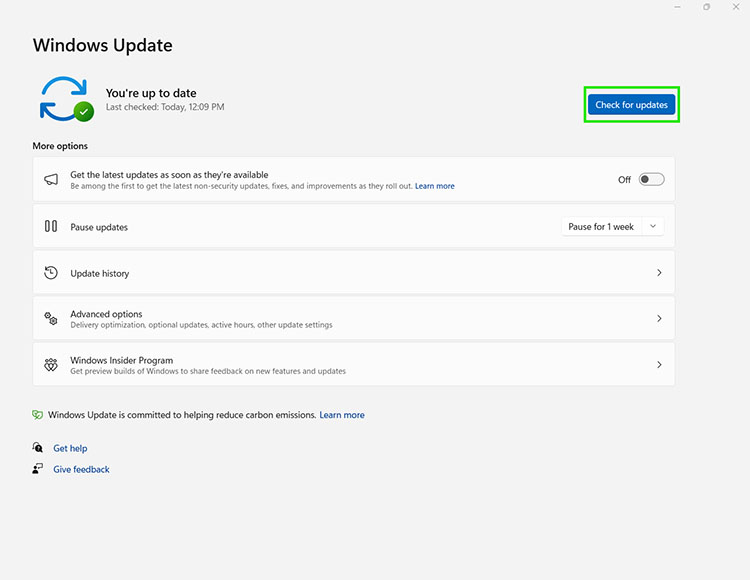
Outdated system versions can cause disk usage 100 Windows 11 due to bugs and compatibility issues. That’s why one great 100 percent disk usage Windows 11 fix you can start with is to update your operating system. Here’s how to fix disk 100 usage Windows 11.
Step 1. Navigate to Windows Settings (Press Windows + I).
Step 2. Find the Windows Update and click Check for updates. Download and install all available updates.
Step 3. Restart your PC and check if the Windows 11 100 disk usage issue has improved/resolved.
Fix 2. Disable Superfetch Service (SysMain)
SysMain (formerly known as SuperFetch) is a built-in Windows background service used to silently analyzes your computer usage patterns to preloads those applications and files you open most frequently. For traditional hard drives (HDD), it speeds up boot times and application launches, while for solid state drives (SSD), its role is negligible. You can disable the service to fix the Windows 11 100 disk usage problem. Here are the simple steps to reduce high disk usage Windows 11.
Step 1. Press Windows + R, type services.msc.
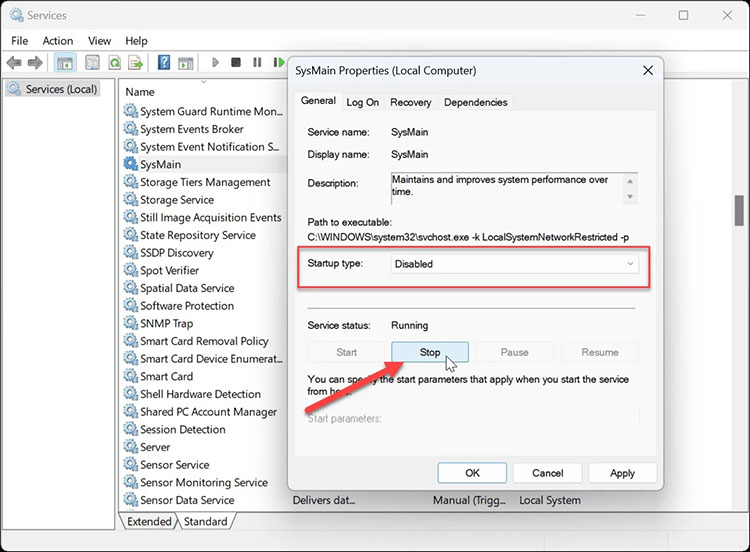
Step 2. Find SysMain, right-click on it, and select Properties > General tab. Disable the Startup Type.
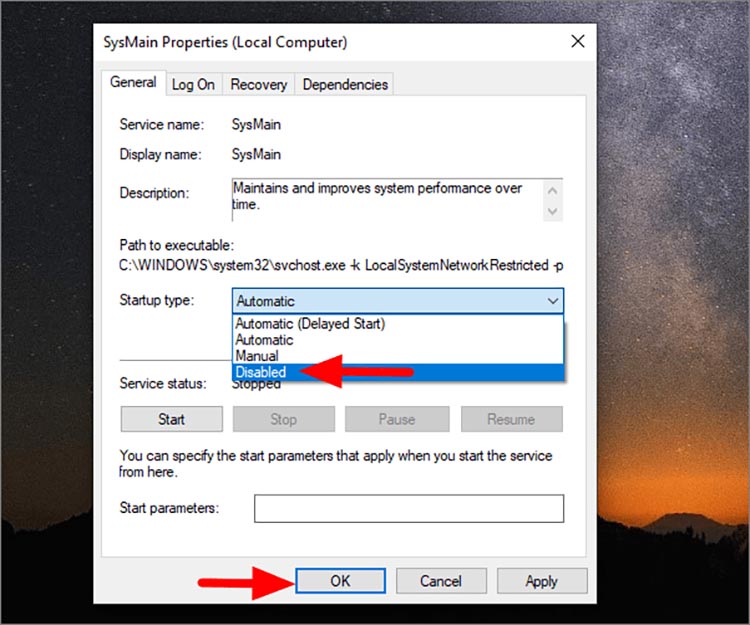
Step 3. Set Startup type to Disabled and click Stop if running. Apply the changes and restart your computer.
Fix 3. Clean up Disk Space Fast with AI
If you are looking for a super easy 100 percent disk usage Windows 11 fix, IObit Advanced SystemCare is your go-to choice. This powerful free software uses AI to quickly scan your system, remove junk files, and optimize performance. With its smart automation and user-friendly interface, it delivers a fast and highly efficient way to reduce Windows 11 100 disk usage without complicated steps.
Advanced SystemCare Free
- Clean: 420 billion traces removed & 85 EB junk files cleaned
- Protect: 80 million unauthorized access blocked & 20 million bugs fixed
- Speed Up: 6 million hours of startup time saved & Turbo boost
- Optimize: Auto clean and auto care your PC with AI mode

How to clean disk space on Windows 11 with AI (fix 100 disk usage Windows 11 instantly)
Step 1. Free download & install the software on your Windows PC.
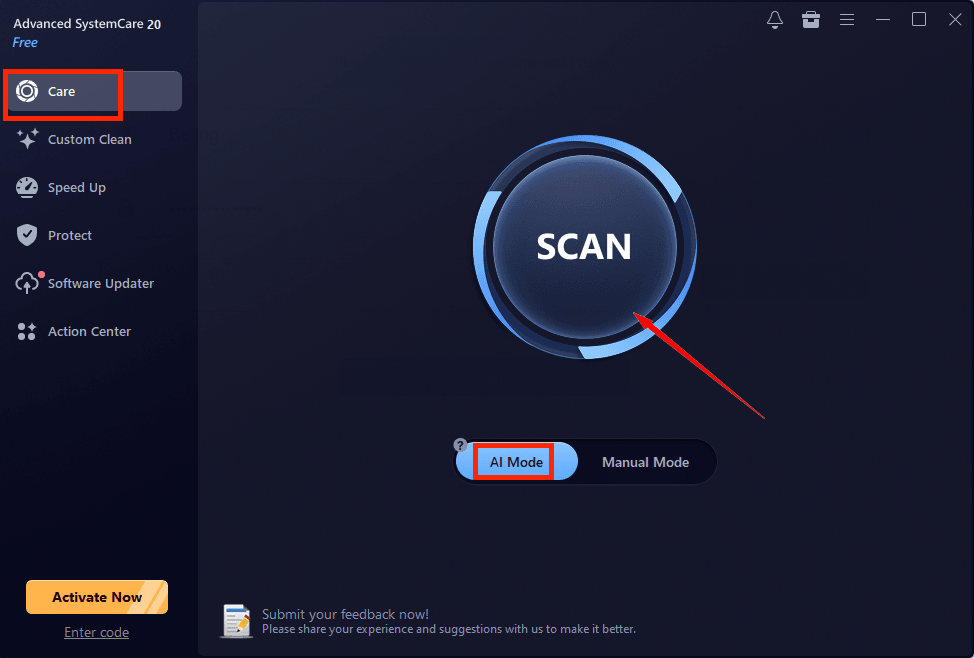
Step 2. Go to the Care tab on the left. Select AI Mode and click Scan to start analyzing your system.
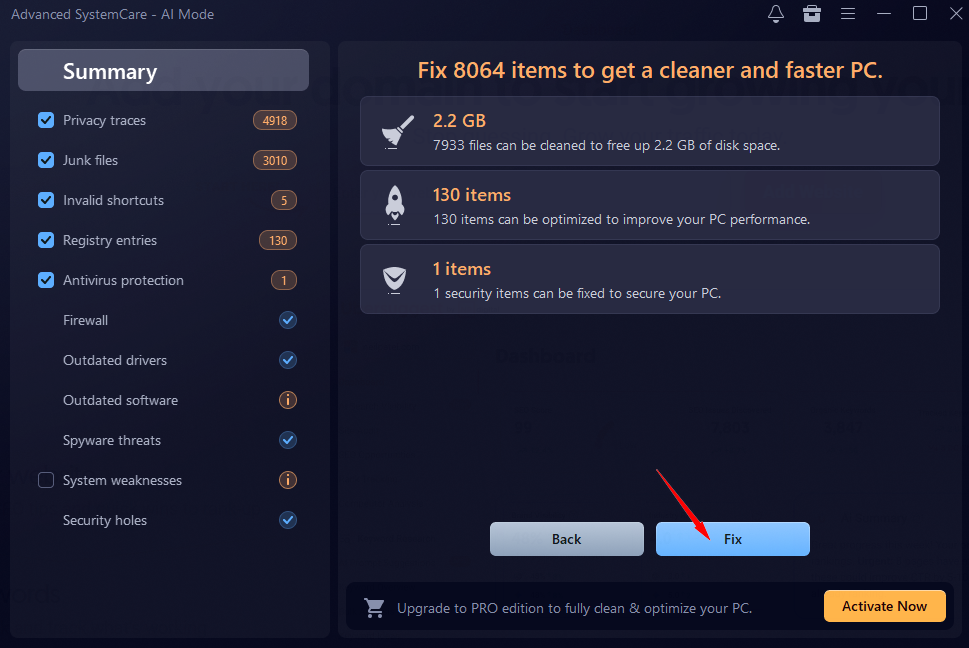
Step 3. After scanning, the tool will display junk files, caches, and other issues. Click Fix to clean up disk space and optimize your system.
Step 4. Now your Windows 11 100 disk usage should be significantly reduced with improved performance.
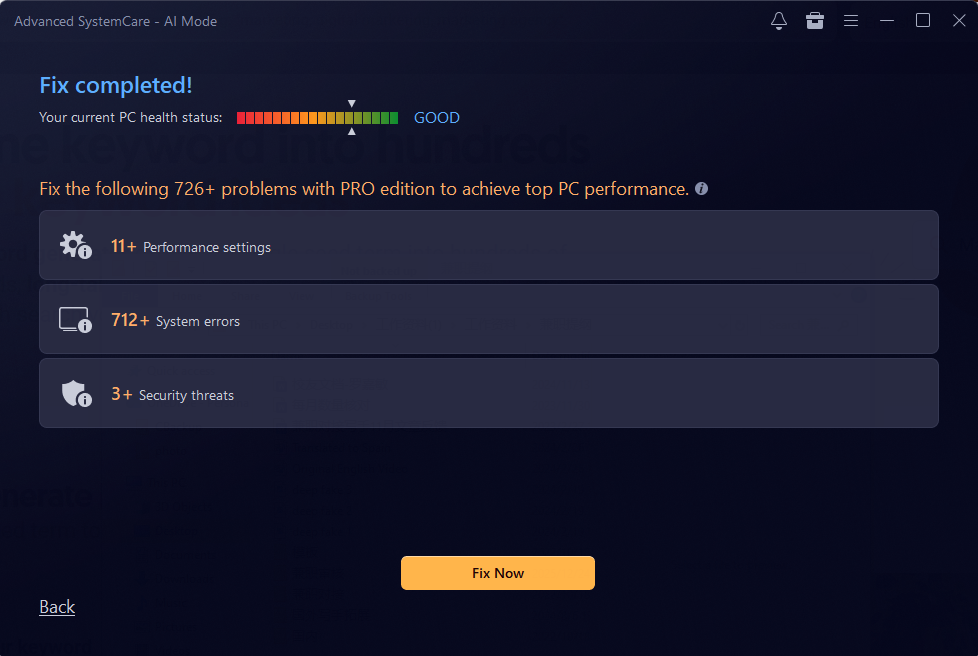
Customize Disk Clean in Manual Mode
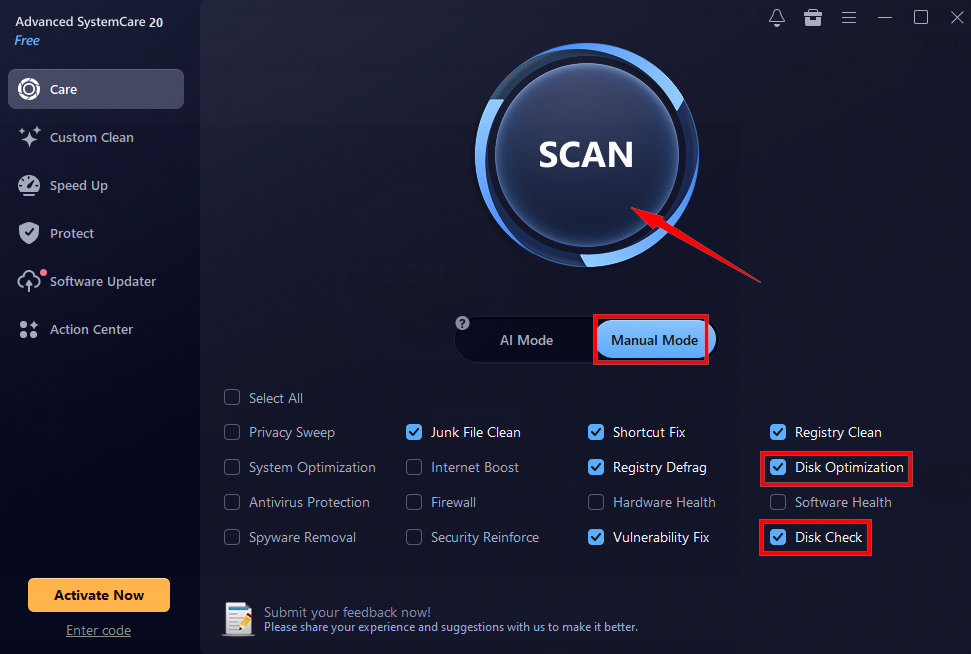
If you prefer more control over Windows 11 100% disk usage, Advanced SystemCare also provides a Manual Mode that lets you customize how your disk is cleaned and optimized.
Step 1. Switch to Manual Mode in the Care interface. Choose the options you want, such as Disk Check and Disk Optimization. Click Scan.
Step 2. The software will quickly list files, logs, and system issues. Review the results and click the Fix button.
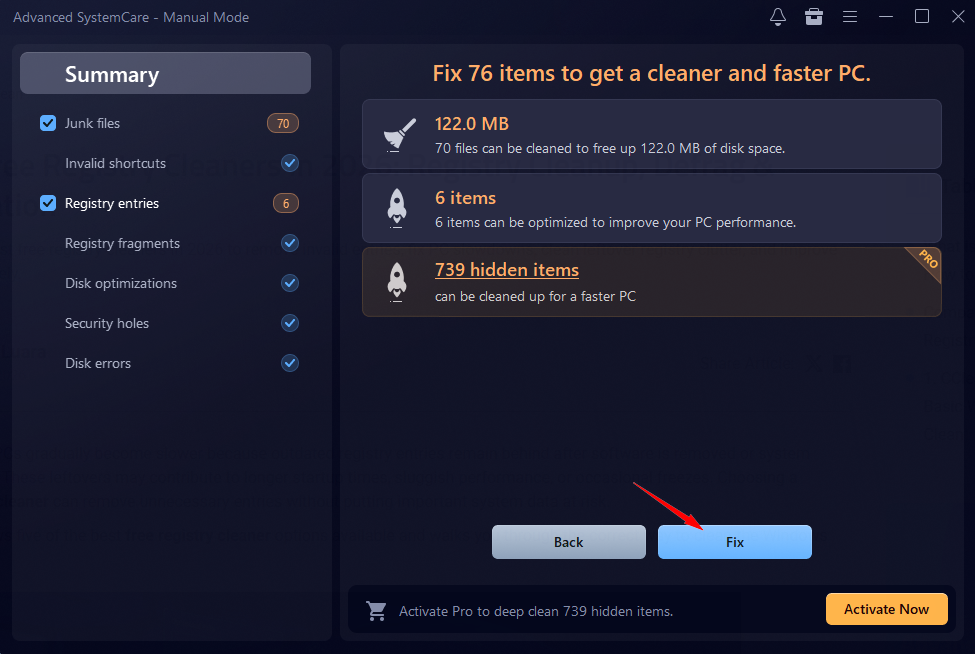
Step 3. After a while, the software will help Windows 11 clean up disk space and Windows 11 HDD 100 usage effectively.
Why Is IObit Advanced SystemCare Your Best Disk Cleaner?
Full Scan & Clean up Disk Space with AI Free: Its intelligent AI can quickly detect and clean up junk files, logs, caches, and temporary data. You can just perform a Windows 11 100 disk usage fix for free.
Custom Disk Check & Optimization for PC: You can customize your disk check and optimization with its manual mode. Just pick the module to fix common disk errors or optimize your hard disk in one click.
Speed up Your Windows with Top Optimizer: You can turn on Turbo Boost to temporarily pause unnecessary services and background apps. As an excellent RAM optimizer Windows 11, its Smart RAM also monitors and clears unused memory in real time to keep your system fast.
Advanced Protection for Online Threats: Advanced SystemCare provides system, browser, and privacy protection. It prevents unauthorized access to files, erases privacy traces, and masks your digital fingerprint to keep your online activity secure.
Fix 4. Uninstall Unwanted Programs to Free Up Disk Space
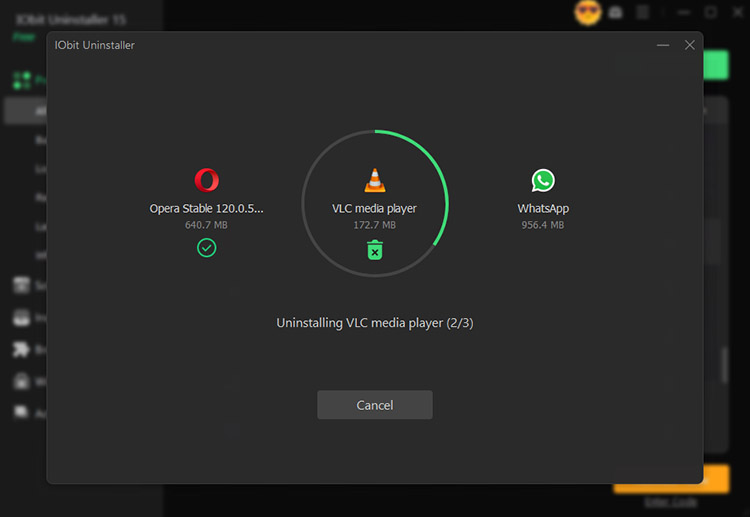
Unwanted programs and bloatware are major contributors to Windows 11 100 disk usage. They occupy valuable disk space and run background processes that keep your hard drive constantly busy. Here’s when IObit Uninstaller comes into play. This free program uninstaller supports batch removal, leftover file cleaning, forced uninstalls for stubborn apps, and browser extension management, helping you free up and optimize disk space quickly. Here’s how to fix Windows 11 high disk usage.
Step 1. Free download the software and install it on your PC.
Step 2. Open the software and select the "Programs" tab. Select the desired program from the list.
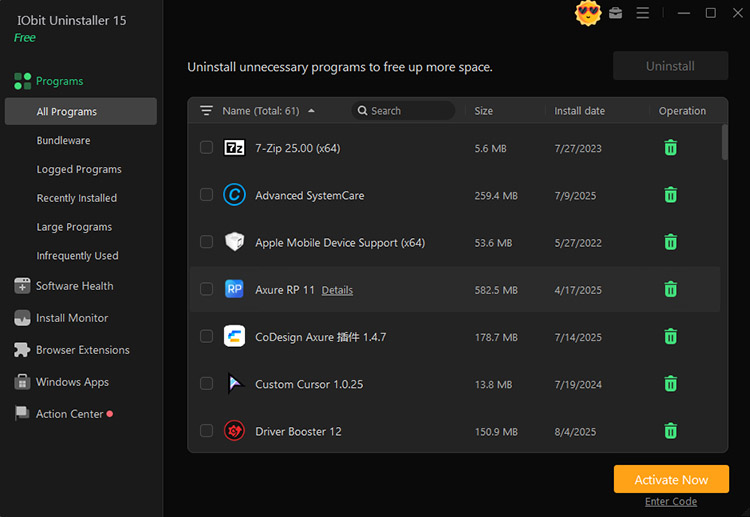
Step 3. Then click the "Uninstall" button to remove all the unwanted programs easily.
Fix 5. Disable All Background Apps
When you have too many background apps continuously accessing the disk, it’s time to limit them, which is an effective way to fix the "Disk at 100 Windows 11" issue and reduce unnecessary resource consumption.
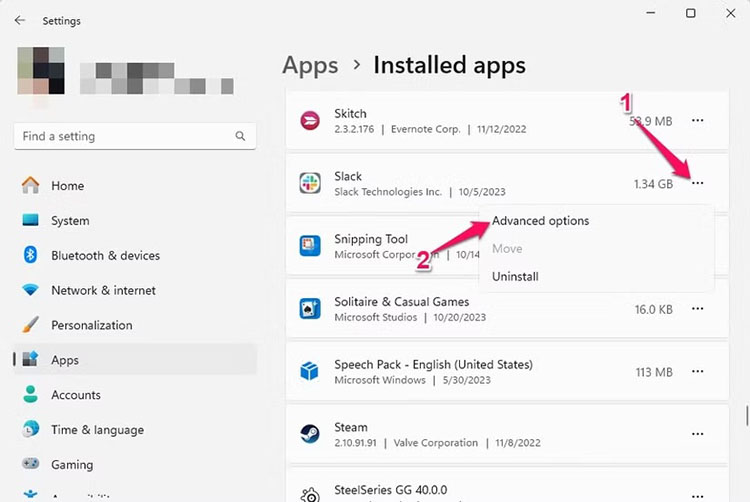
Step 1. Go to Settings > Apps > Installed apps.
Step 2. Click the three-dot menu and select Advanced options.
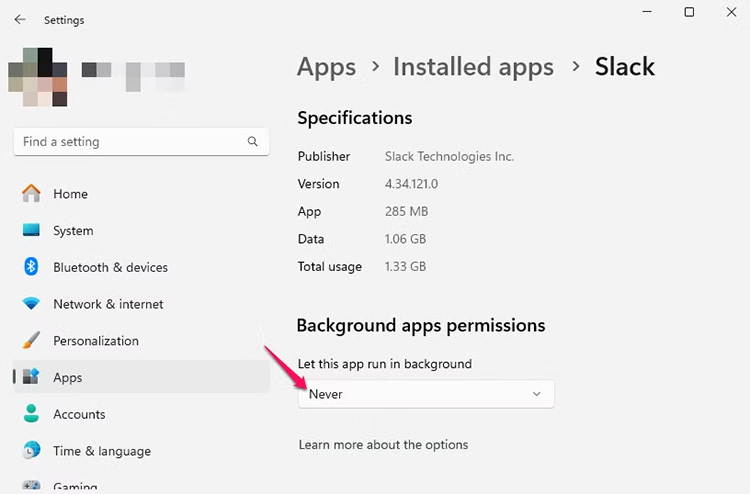
Step 3. Set background permissions to Never. Repeat for multiple apps.
Fix 6. Update Your Device Driver
Outdated or faulty drivers can lead to abnormal disk activity and system instability. But worry not. You can update your driver easily with the steps below.
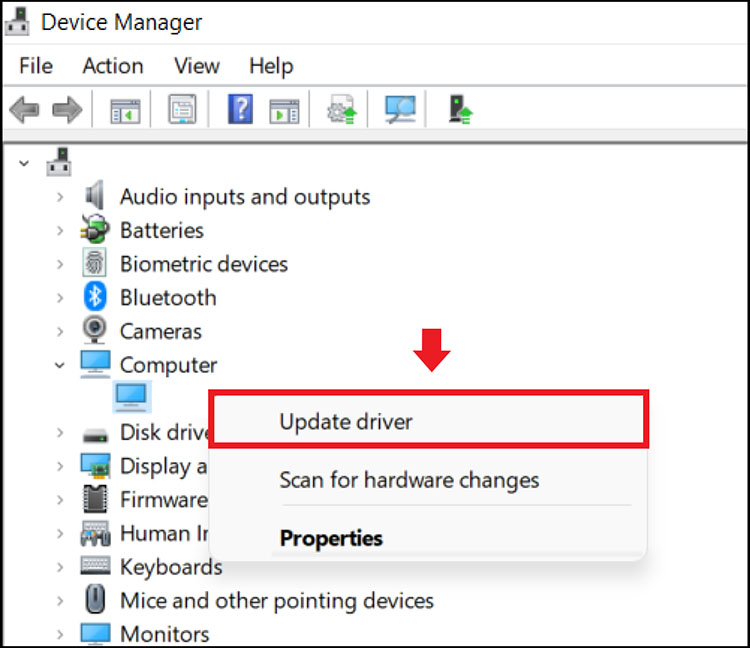
Step 1. Right-click Start and open Device Manager.
Step 2. Expand categories and update drivers.
Step 3. Select Search automatically for drivers. Restart your PC after updates.
Fix 7. Scan & Remove Viruses and Malware
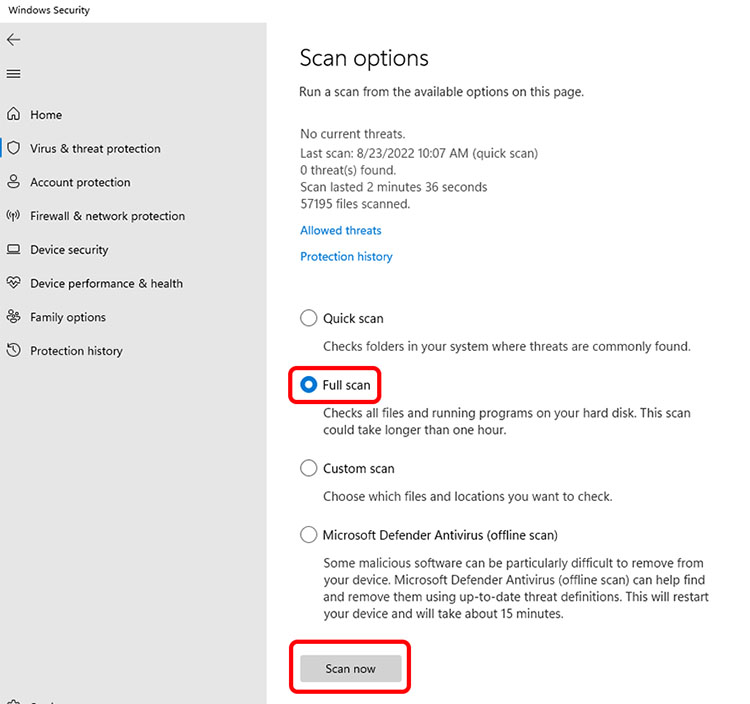
Malware often runs hidden processes that heavily consume disk resources, which might cause persistent Windows 11 100 disk usage. Here’s how to fix Windows 11 disk at 100 usage natively.
Step 1. Open Windows Security from Settings.
Step 2. Go to Virus & threat protection > Quick scan or Full scan.
Step 3. Allow it to remove detected threats. Restart your PC.
Fix 8. Close Windows Content Indexing
While Windows Content Indexing speeds up file searches by continuously scanning and indexing files, it significantly increases disk usage. To fix Windows 11 system process high disk usage, you can adjust the settings by following the steps below.
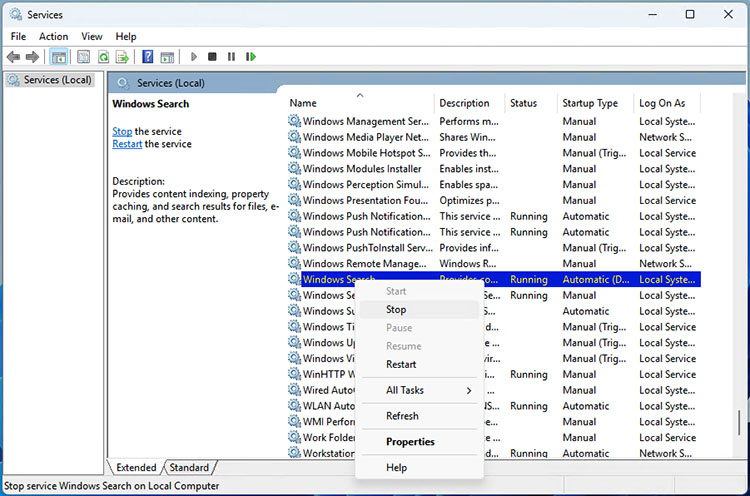
Step 1. Right-click the Start button, select Run, type services.msc, and click OK to open the Windows Services Manager.
Step 2. Scroll down and locate the Windows Search service, then right-click it and select Stop.
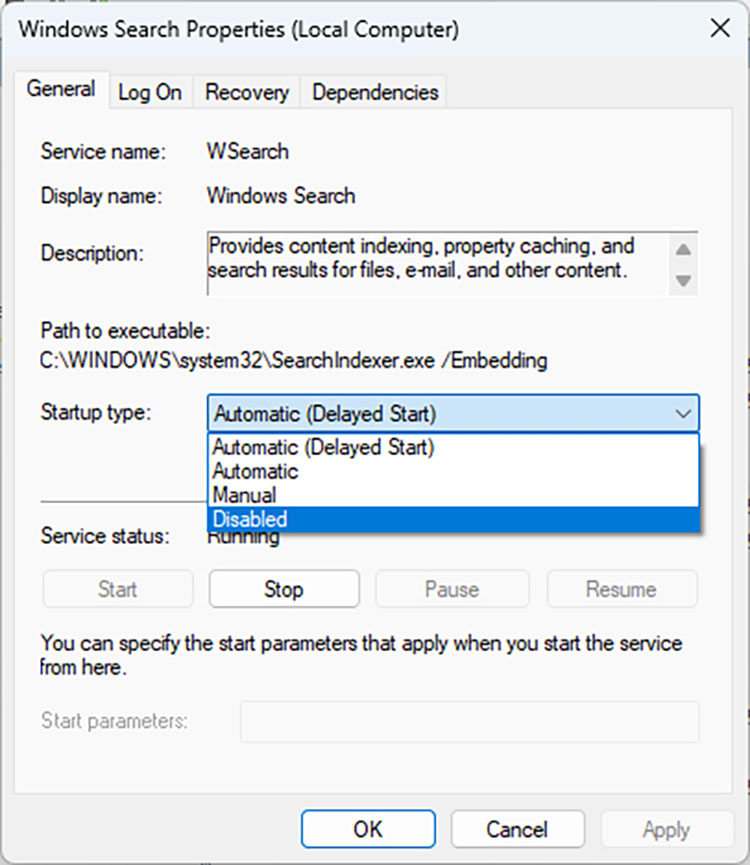
Step 3. To permanently disable it, right-click Windows Search again, choose Properties, and set Startup type to Disabled, then click OK.
Fix 9. Check and Repair Hard Disk Issues
Disk errors, bad sectors, or file system corruption can cause continuous read/write activity, leading to Windows 11 100 disk usage. Here’s how to check these issues and improve overall disk performance and stability for HDD 100 usage Windows 11.
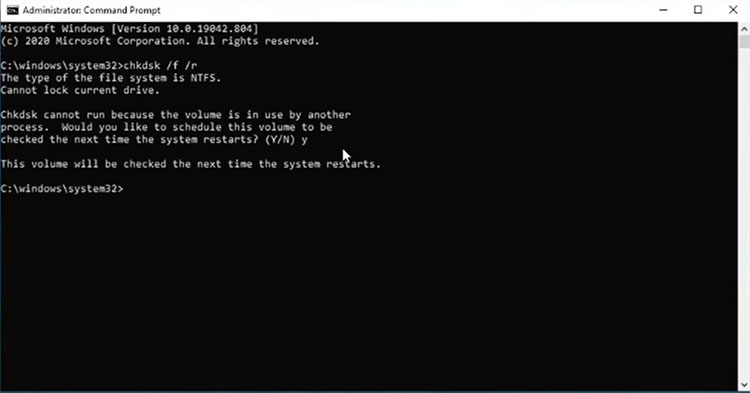
Step 1. Type Command Prompt in the search bar, right-click it, and select Run as administrator.
Step 2. Enter the command chkdsk C: /f /r and press Enter to scan and fix disk errors.
Step 3. If prompted, type Y to schedule the scan, then restart your PC to begin the repair process.
FAQs About Windows 11 100 Disk Usage
Q1. Does High Disk Usage Slow Down My Computer?
Yes, Windows 11 100 disk usage can significantly slow down your computer. When the disk is fully occupied, the system struggles to process tasks efficiently, causing lag, delayed responses, freezing applications, and an overall decrease in performance.
Q2. Will 100% Disk Usage Damage My Disk?
Running at 100% disk usage for short periods is generally safe, but prolonged usage may increase wear, especially on traditional hard drives. Over time, this can reduce lifespan, cause overheating, and lead to potential data reliability issues if not addressed.
Q3. How to Avoid 100% Disk Usage Windows?
To avoid Windows 11 100 disk usage, you might want to regularly clean junk files, update drivers, disable unnecessary background apps, and monitor system processes. It’s also recommended to use optimization tools and maintain sufficient free disk space, which can help prevent the windows 11 disk at 100% issue from recurring.
Q4. Windows 11 Disk Usage Reach 100% even with No Apps Open, Why?
When you turn on the PC and find your disk usage reach 100 percentage, try the folllowing steps:
Open Task Manager to disable processes with high disk usage
Disable SysMain to prevent large app preloading
Clean junk files like background bloat and temporary files
Pause Windows Update temporarily
Update storage and chipset drivers
Run Command Prompt and scan disk for corrputed sectors
The Bottom Line
What is Windows 11 100 disk usage? It happens when your drive is fully occupied, slowing down your system. How to solve 100 disk usage in Windows 11? This guide has covered the major causes and 9 effective ways to fix 100 disk usage Windows 11, from basic tweaks to advanced solutions. When it comes to the simplest and fastest way to fix disk 100 Windows 11, IObit Advanced SystemCare is an excellent choice. It offers powerful AI-driven cleaning and optimization that removes junk files, fixes disk issues, and improves performance effortlessly. Just download it to boost your PC speed now!
Advanced SystemCare Free
- Clean: 420 billion traces removed & 85 EB junk files cleaned
- Protect: 80 million unauthorized access blocked & 20 million bugs fixed
- Speed Up: 6 million hours of startup time saved & Turbo boost
- Optimize: Auto clean and auto care your PC with AI mode