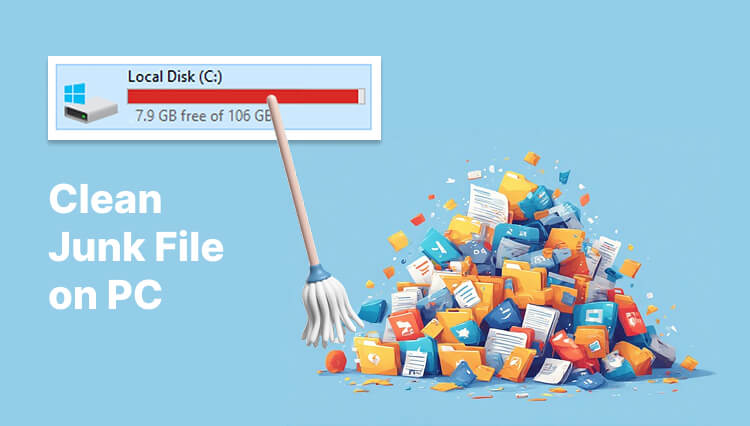
After years of use, with thousands of apps installed and files created, your disk is about to get full, full of junk files. This is not difficult to spot: your hard drive gives out red warnings, and at the same time, your PC will slow down while gaming, watching videos, working, etc. Things can worsen if the junk is not removed. Then, how to clean junk file in PC? Are there any efficient means to delete them?
Stay tuned, and find out the answers in this blog. We will introduce several feasible methods to help you clean junk files from PCs.
What Junk Files Are Taking Up Your Disk
Knowing your “enemy” is the very first step to defeating it. Before learning how to delete junk files in Windows 11/10/more, digging out what on earth junk files are that eat your hard drive space is necessary. You've got plenty of them:
Temporary files: temp files are created by the system, apps, etc., to perform certain tasks while running, and usually stay on your disk without being removed.
Downloaded program files: installation packages generally stay in your Downloads folder.
Recycle bin items: deleted files are just moved to the Recycle Bin. Only if you remove them again will they be permanently deleted.
Duplicate files: as the name suggests, identical files that share the same name, content, format, etc.
Windows update files: cached update files and the Windows.old files of your last update, which helps you roll back to the last version in case you regret it.
Browser cache
Error reports
Log files
…
Why You Need to Clean Junk Files from PCs
Why do you need a junk file cleaner? Junk files, even if they served a purpose, can accumulate over time, slowing down boot times, reducing disk space, and increasing system errors. That’s why you need to remove them:
Optimize storage space: removing waste items can free up disk space, making room for more useful apps or files.
Enhance performance: wiping accumulated wastes keeps your system running faster.
Improve experience: it helps speed up system response and ensures proper functioning, e.g., boosting your gaming experience by reducing lag.
How to Delete Junk Files in Windows 11 Manually with Built-In Tools
Then, how to clear unnecessary files on PC? Does Windows 11 or Win 10 offer official tools or features? Yes, for sure. Several official means help you clear up your device, which might be somewhat complex and risky. If you prefer a more efficient way, e.g., a 1-stop app, you may move on to the next part for professional software, like Advanced SystemCare, a powerful and comprehensive PC maintenance app.
Advanced SystemCare Free
- Clean: 420 billion traces removed & 85 EB junk files cleaned
- Protect: 80 million unauthorized access blocked & 20 million bugs fixed
- Speed Up: 6 million hours of startup time saved & Turbo boost
- Optimize: Auto clean and auto care your PC with AI mode

No time to delay, let’s move on to the detailed methods on how to clear unnecessary files on PC.
#1 Clean Junk Files from PC with Storage Sense
Storage Sense is an ideal feature designed to free up your disk space by automatically removing disk junk files, including temp files, recycle bin files, etc. But please notice that Storage Sense only cleans junk files on the system drive, usually the C: drive. If you want to remove rubbish files on other disks, head on and find other features and apps.
How to Delete Unnecessary Files in PC
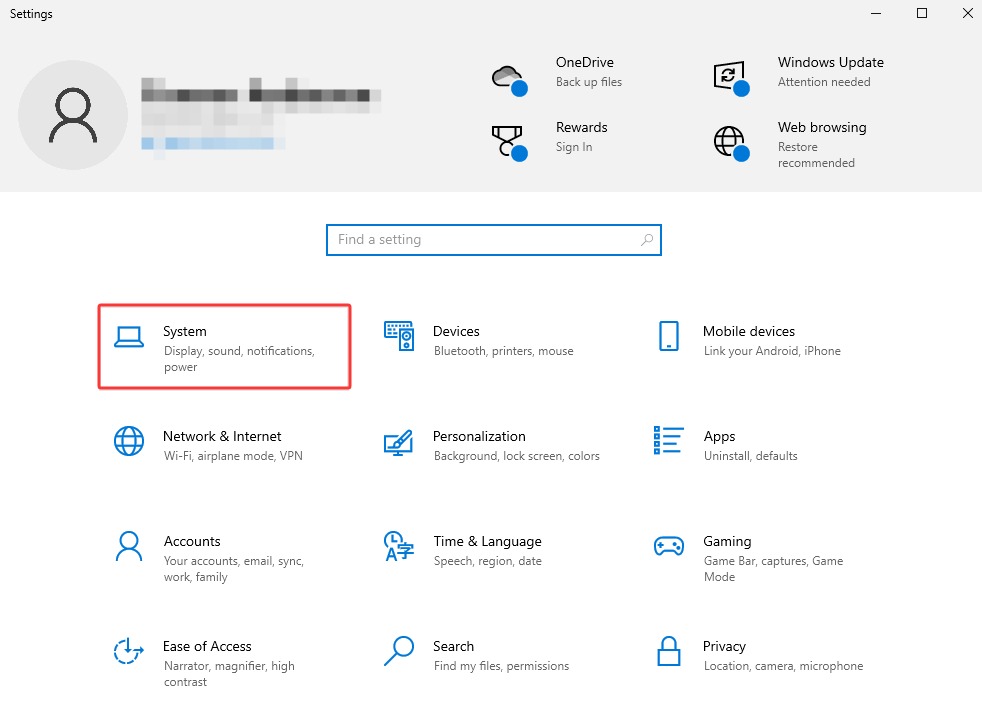
Step 1. Access Windows Settings via the Start Menu button, and then click System.
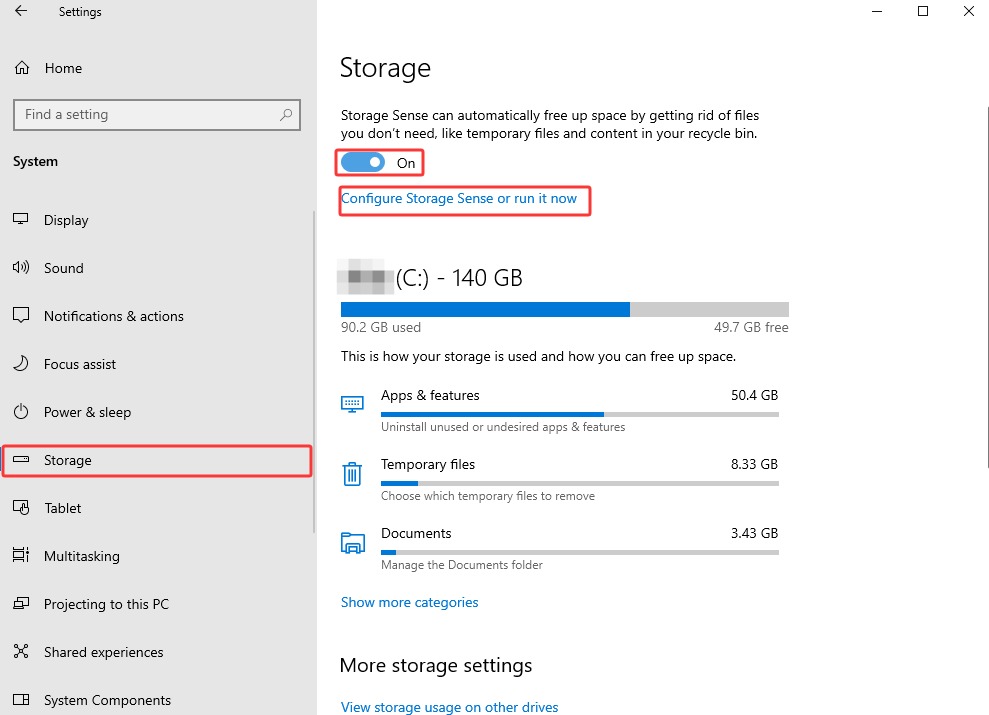
Step 2. Find Storage on the left panel > switch on Storage Sense. Also, you can configure Storage Sense and run it now via the button below.
Step 3. Customize the frequency of Storage Sense and temporary file removal, e.g., every day/week/month; choose whether to remove items in the Downloads folder or locally saved cloud storage.
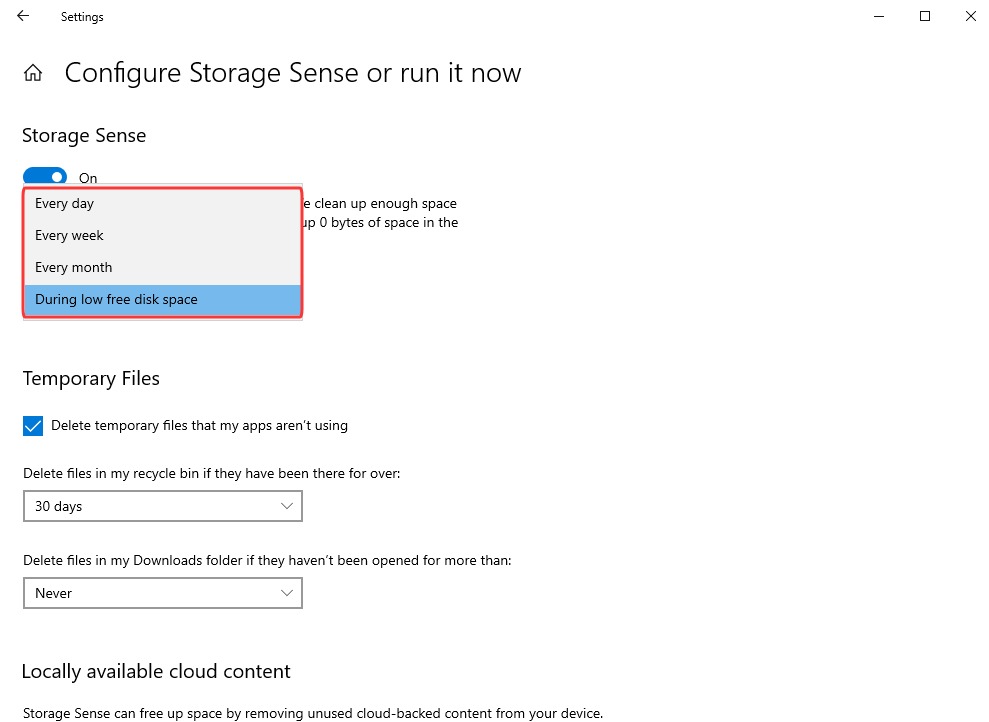
This helps delete junk files Windows 10 system drives.
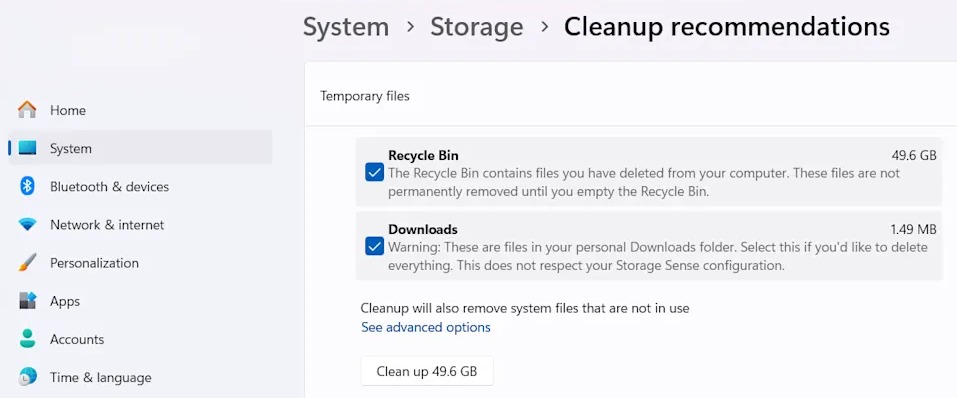
Notice for Windows 11: Storage Sense was introduced to Windows 10 in 2018 to delete junk files Windows 10, and was replaced by Win 11 Cleanup Recommendation. If you are a Windows 11 user, find Cleanup Recommendations in Settings > System > Storage.
#2 Clean Junk Files Windows 10 via Disk Cleanup
Disk Cleanup is also an available junk file cleaner to delete junk files if you don’t have Storage Sense. This feature was introduced to Windows as early as Windows 98, searching and wiping useless files, including the following.
Temp files
Recycle Bin content
Thumbnails
Downloaded program files
Windows updates
Windows update log files
DirectX Shader cache
…
Removing these junk files that are no longer in use can also speed up PC significantly.
How to Delete Junk Files on PC?
Check how to delete unnecessary files in PC via Disk Cleanup.
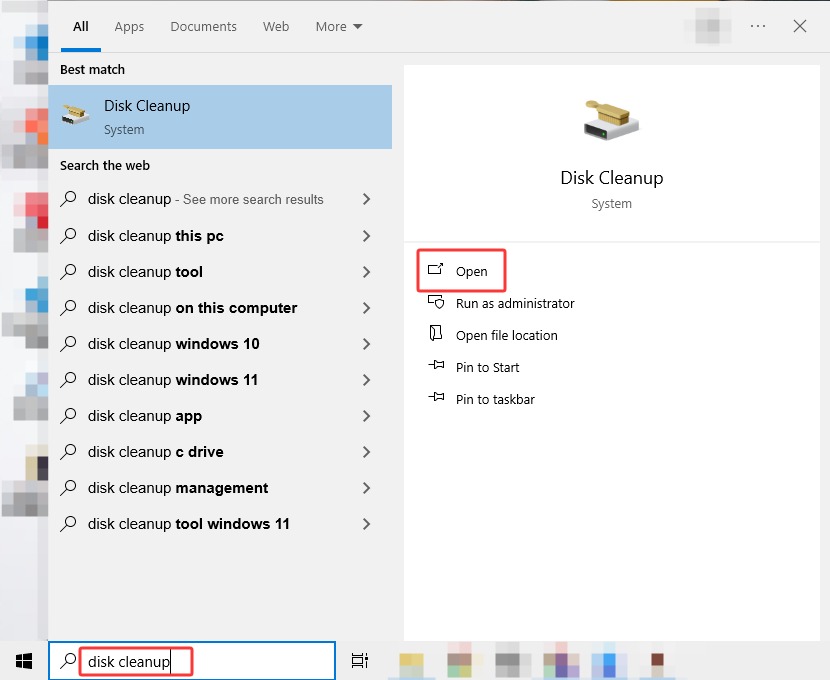
Step 1. Input “disk cleanup” in the Windows search bar > click Open.
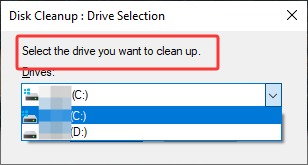
Step 2. Choose the drive you want to clean up > let it calculate the disk space.
Step 3. Choose the files that you want to remove, e.g., Downloaded Program Files, Temporary Internet Files, error reports, caches, etc. Then, click OK.
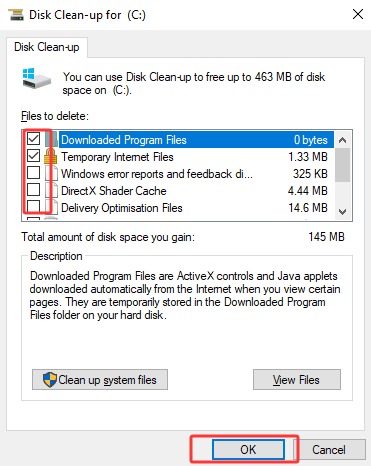
Tips: The “Clean up system files” allows you to remove system files like the Windows update files. But please be cautious and notice that this removes your Windows.old files; in this case, you can’t roll back to the previous Windows version.
#3 Remove Junk Files Windows 10 Manually from Several Places
There are chances that you don’t have these two features, or you just find that they are not thorough enough; e.g., it might omit temporary files in certain apps; therefore, you prefer to clean junk files from PC manually in person. It is feasible. Now, check how to remove junk files from PCs manually from multiple places; you may utilize the Recycle Bin, uninstallation, and you might as well run command to clean junk files from computer Windows 10/11.
Empty the Recycle Bin
Directly clean the Recycle Bin content. Go to the Recycle Bin > click “Empty Recycle Bin” on the toolbar > click Yes.
This cannot be undone. Files removed from the bin will be permanently deleted; so, please make sure to restore the files you may still need.
Uninstall Unused Apps
To remove multiple useless applications in 1 go, try a professional app uninstaller, e.g., you may rely on the powerful IObit Uninstaller, which removes unwanted apps in batch conveniently and safely.
IObit Uninstaller Free
- Complete forced uninstallation for stubborn programs.
- Uninstall a batch of programs at once.
- Scan and remove leftover files, folders, and registry entries.
- Support the management of Universal Windows Platform apps.

Clean Temp Files with Commands
You can also run command to clean junk files from computers.
Press Win+R > input “%temp%” > Enter > remove all the files in the folder. *Skip temp files in use.
Win+R > input “temp” > OK > delete all temp files; skip files in use.
Win+R > type “prefetch” > OK > do the same as the previous steps.
Or access the temp folder via C:\Users\Username\AppData\Local\Temp
*It is generally safe to remove prefetch and temp files, but please still be careful and skip the currently in-use files.
How to Clean Junk File in PC Effortlessly & Safely
Manually removing unwanted junk files is complex and time-consuming, and at the same time, can be incomplete and dangerous, as you might mistakenly remove some in-use or important files. Actually, you don’t have to choose between convenience and security; simply get both with a professional application, Advanced SystemCare, an all-in-one system optimizer that scans, identifies, and removes junk files efficiently in 1 click.
Clean Junk File from PC Thoroughly & Efficiently
It offers an AI mode to analyze your device and carry out the optimal solution to clean, speed up, and protect your system based on its status. Manually, you can also customize things to delete: temp files, the Recycle Bin, broken shortcuts, caches, and way more. Only in 1 click, you can remove junk files Windows 11/10/8/7.
Boost Performance for Different Scenarios
Apart from removing junk files, the best hard drive cleaner software provides more targeted methods to boost performance for different purposes: work/game/battery modes, for a smooth working/gaming experience, and to expand battery life.
Hands-Free System Care & Optimization
If you are tired of manual junk file cleaning and system maintenance, this app can free you from complex work: it can automatically clean and optimize your PC with Auto RAM Clean, AutoCare, and more features to build a tidy and secure environment.
How to Remove Junk Files from PC Efficiently?
Step 1. Download Advanced SystemCare on your device. It supports Win11/Win10/Win8/Win7/Vista/XP.
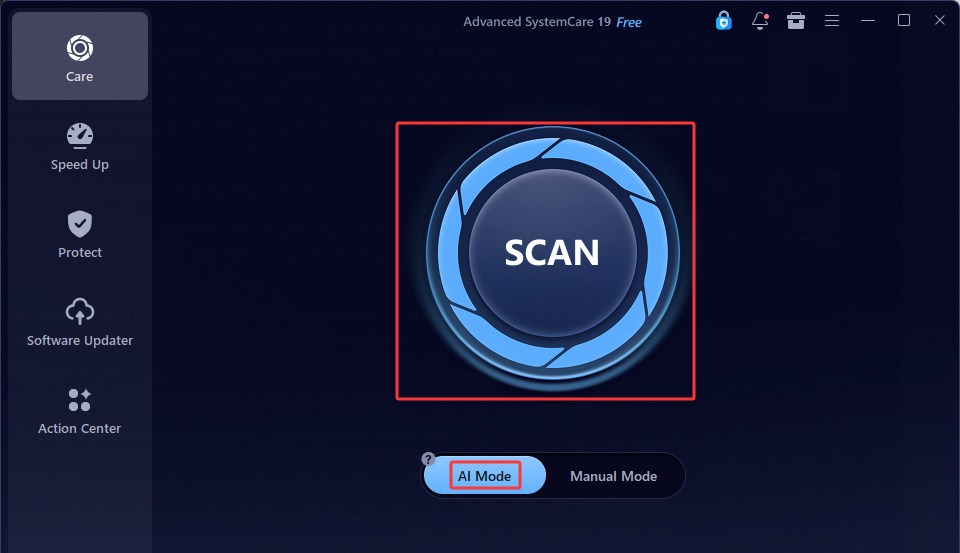
Step 2. Launch the app > Choose Manual Mode > select Privacy Sweep, Junk File Clean, Shortcut Fix, and Registry Clean. Add more options based on your needs. Click Scan.
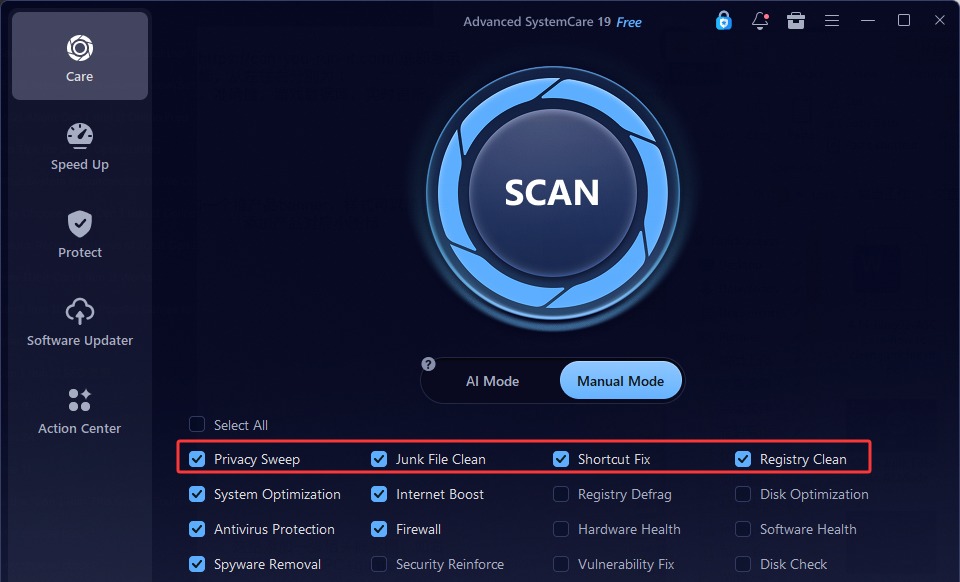
Also, you might directly use the AI Scan for an intelligent analysis and cleaning solution.
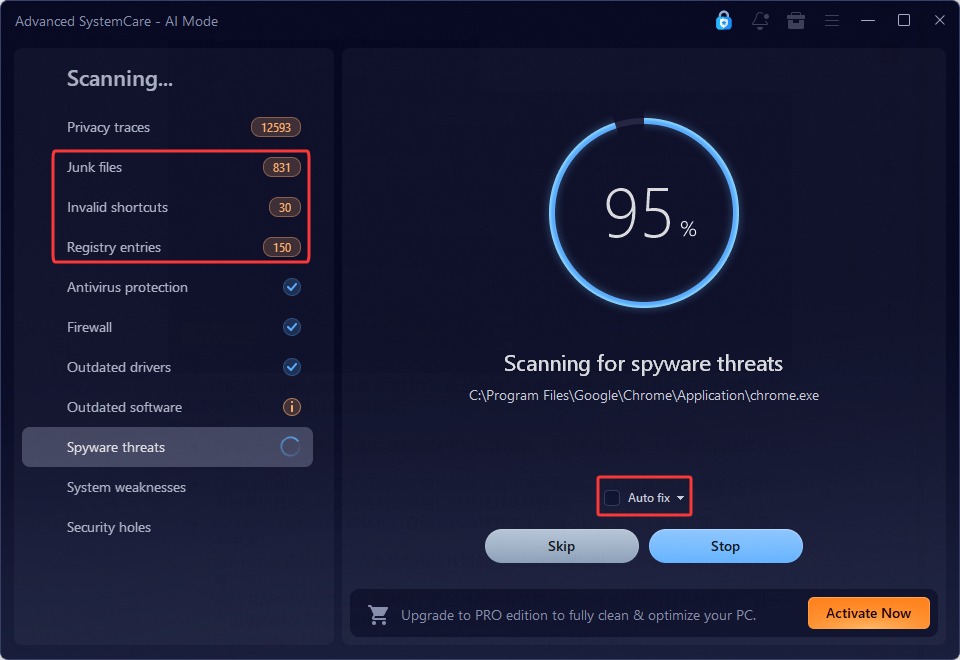
Step 3. While scanning, you might check how many junk files have been spotted. Activate Auto Fix as you like.
Step 4. When finished scanning, check the items, and click Fix. All scanned junk files will be removed.
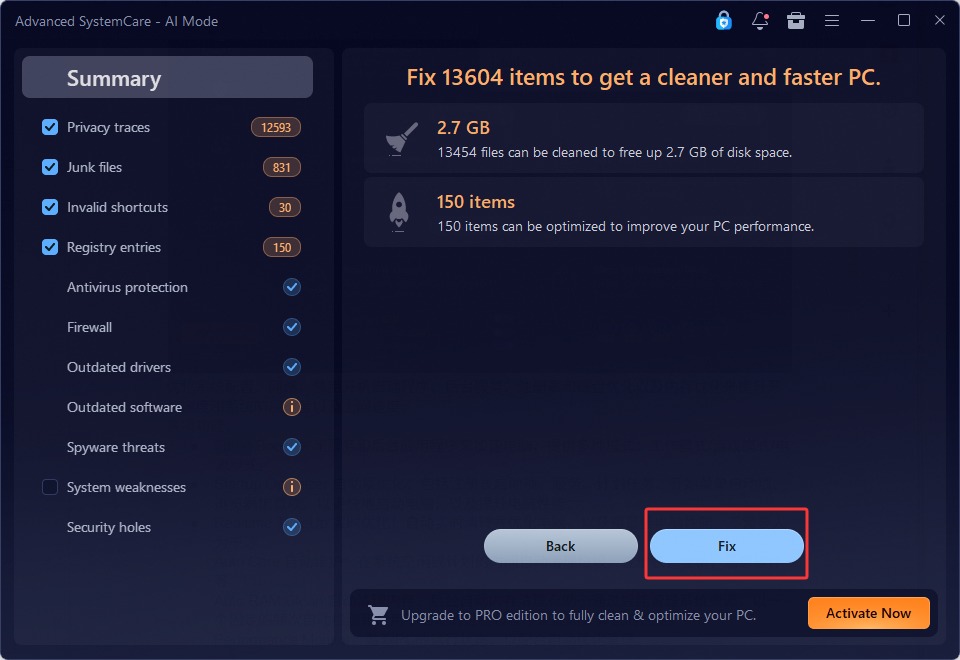
This is how to clean junk files on PC inWindows 11 and more easily.
Advanced SystemCare Free
- Clean: 420 billion traces removed & 85 EB junk files cleaned
- Protect: 80 million unauthorized access blocked & 20 million bugs fixed
- Speed Up: 6 million hours of startup time saved & Turbo boost
- Optimize: Auto clean and auto care your PC with AI mode
FAQs About Junk File Cleaner & Cleaning
Apart from "How to delete junk files in Windows 11/10/more", any further questions to ask? These questions and answers may help you.
Is It Safe to Delete Temp Files?
Yes, generally speaking, it is safe to remove temp files. They are designed to save short-term data, orphaned by apps or the system after running. You can safely remove them with Windows features or professional utilities without hurting the system. Just skip the temp data in use.
What Happens If I Delete Windows.old Folder?
Windows.old folder stores a complete backup of the system files, apps, and personal data in your previous Windows installation, helping you roll back to the previous update in case you regret it. If you delete it, then you cannot go back to the last Windows update version.
Can Viruses Consume My Disk Space?
Yes, viruses and malware can eat considerable drive space. They may corrupt your system/personal files, download more malware or bundled software, etc., filling up your drive. Use professional AV like IObit Malware Fighter to scan and deal with possible threats.
The Bottom Line
This is all about how to clean junk file in PC. A bunch of Windows built-in features and powerful third parties can help you remove junk files Windows 11, 10, and more safely. If you are looking for an effortless way to free up space on your disk and an efficient tool to manage and optimize your device, turn to Advanced SystemCare. Let the professional Windows optimizer help you out.