Almost every PC user is familiar with this problem: a USB device suddenly not recognized, an external hard drive that doesn't respond, or a USB flash drive that only partially works. Such annoyances can often be caused by outdated or faulty USB drivers. Regularly updating USB drivers not only prevents crashes and malfunctions but also ensures that your devices work smoothly. However, many people don't know how easy the update process can be—or they're afraid to do it for fear of making mistakes.
 In this article, we'll show you step-by-step how to update or reinstall USB drivers, which methods are most reliable, and how to avoid common problems. This way, you can get the most out of your hardware and finally reduce computer frustration.
How Can I Reinstall or Update the Driver for My USB Devices?
In this section, we'll show you step-by-step how to download, install, and update the USB driver so that your USB devices work reliably again—both on Windows 10/11 and Windows 8/7.
Method 1: Update USB Drivers via Device Manager in Windows 11/10/8/7
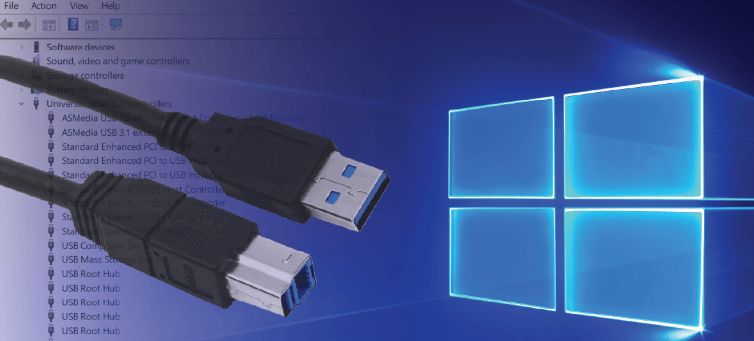
You can update USB drivers using the Device Manager built into Windows. This is available in various Windows versions, but the interface and operation differ slightly.
| Windows |
Steps |
| Windows 11 |
1. Right-click on Start → Open Device Manager
2. Under "USB controllers," select the desired device.
3. Right-click → Update driver → Search automatically for drivers
|
| Windows 10 |
1. Start → Open Device Manager
2. Under "USB controllers," select the device.
3. Right-click → Update driver → Search automatically for drivers
|
| Windows 8 / 8.1 |
1. Press Win + X → Open Device Manager
2. Select the USB device
3. Right-click → Update driver → Search automatically for updated driver softwar
|
| Windows 7 |
1. Start → Control Panel → Device Manager
2. Select the USB device
3. Right-click → Update driver → Search automatically for updated driver software
|
Also Read: How to Update Graphics Drivers >>
Method 2: Download and Reinstall USB Drivers Directly from the Manufacturer's Website
The manufacturer's website usually offers the latest drivers. These drivers come directly from the manufacturer and are optimally configured for the device, improving stability and performance.
Here's how:
Step 1: Identify the manufacturer of your USB device
Check which manufacturer made your USB device, e.g., SanDisk, Kingston, Logitech, or Corsair.
Step 2: Visit the official website
Go to the manufacturer's official website. For example:
Intel: https://www.intel.com/content/www/us/en/download-center/home.html
AMD: https://www.amd.com/en/support/download/drivers.html
NVIDIA: https://www.nvidia.com/en-us/drivers/
Step 3: Find the appropriate driver
Look for the support or download section on the website. Enter the exact model number of your device. Be sure to select the drivers for your current operating system (Windows 7, 8, 10, 11).
Step 4: Download the driver for your USB device
Click Download and save the file to a location you can easily find, such as your desktop.
Step 5: Install the driver for the USB device
Double-click the downloaded file and follow the installation instructions. For some devices, you may need to restart your computer after installation for the driver to activate correctly.
Method 3: Keep USB Drivers Up-to-Date with Free Driver Updaters
Using a free driver update tool like Driver Booster overcomes the drawbacks of the two methods mentioned above. Driver Booster helps users quickly and automatically find the latest and most stable drivers and update all outdated drivers, including USB device drivers, with just one click.
Driver Booster Free
- Automatically scan and update drivers.
- Update game ready drivers for peak gaming performance.
- Identify and fix various common of hardware issues.
- Boost 30% of system performance for fast & smooth running.

How to update USB drivers with Driver Booster, check this guide below:
Step 1: Download and Install Driver Booster
Step 2: Scan your system
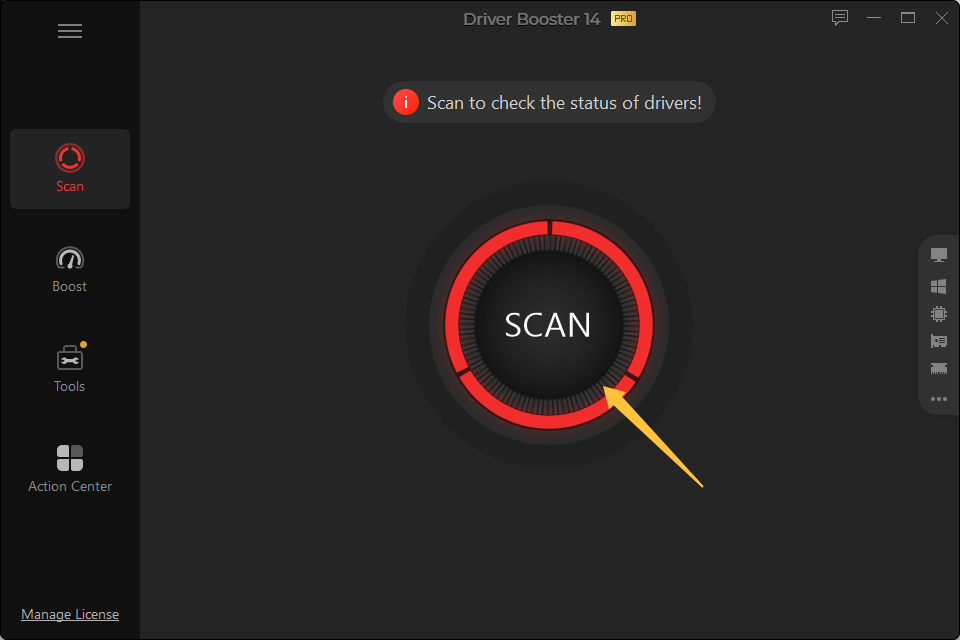
Launch Driver Booster and click "SCAN." The program will scan all installed drivers and indicate which ones are outdated or faulty.
Step 3: Select and update USB drivers
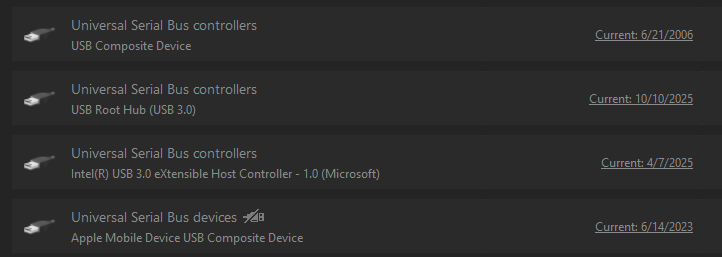
The list will also display USB devices. Select the desired USB drivers and click "Update."
Step 4: Restart your system
After the USB driver update is complete, Driver Booster recommends restarting your system to fully activate the new drivers.
Additional benefits of Driver Booster:
Time-saving: Automatic detection and updates in minutes
User-friendly: Intuitive interface, no technical expertise required
Security: All drivers are officially from the original hardware manufacturers and have passed Microsoft WHQL and IObit testing.
Compatibility: Supports Windows 11/10/8.1/8/7/Vista/XP and ensures reliable operation of USB devices.
10 Useful Tips for USB Driver Update
Regularly check if your USB drivers need updating to prevent malfunctions.
For simple driver updates, you can use Windows Device Manager.
For maximum compatibility and stability, download drivers directly from the official manufacturer's website.
Before installing new drivers, create a backup of your current version in case problems occur.
Special tools like Driver Booster can automatically update all drivers and save time.
Make sure the driver is compatible with your Windows version (e.g., Windows 7, 8, 10, or 11).
Check the exact model number of your USB device to find the correct driver.
After installing the driver, briefly unplug and replug the USB device to ensure the driver is properly activated.
Restart your PC frequently after installing USB drivers for the changes to take effect.
Avoid drivers from unknown sources to prevent system damage or viruses.
Also Read: Updating your Wi-Fi drivers >>
Conclusion
Regularly updating your USB drivers is crucial to avoiding device problems in Windows. Whether manually or with tools like Driver Booster, which automatically detects and updates outdated drivers, your USB devices will remain reliable and error-free.
Take this opportunity to update USB drivers in Windows 11/10/8.1/8/7 now to ensure your USB device always works optimally!
Driver Booster Free
- Automatically scan and update drivers.
- Update game ready drivers for peak gaming performance.
- Identify and fix various common of hardware issues.
- Boost 30% of system performance for fast & smooth running.