If your computer has been feeling slow lately or you keep seeing low disk space warnings, there’s a good chance temporary files are piling up behind the scenes. These files are created by your system and apps to store short-term data—but over time, they can take up gigabytes of space and drag down performance.
The good news? Learning how to clean up temp files is simple, even if you’re not tech-savvy. In this guide, you’ll discover multiple easy methods—from quick manual fixes to smarter automated solutions—to help you reclaim storage and speed up your PC.
What Are Temp Files and Why Do They Matter?
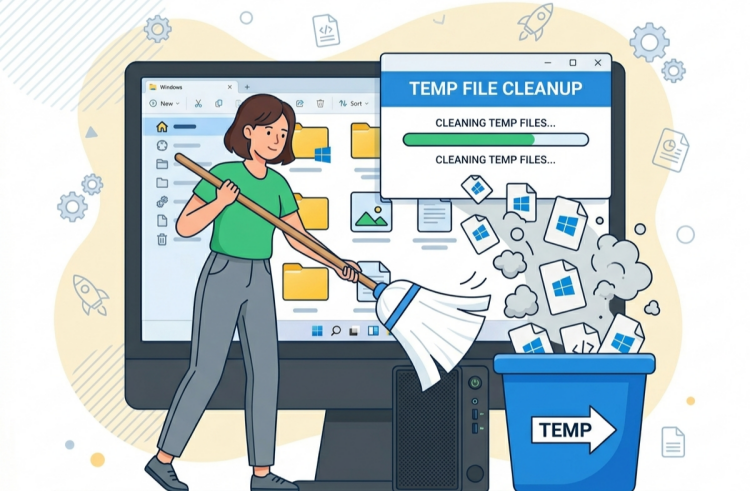
Temporary files (often called “temp files”) are created by Windows, browsers, and various applications to store data temporarily while tasks are running. For example, when you edit a document or browse a website, your system saves temporary data to ensure smooth performance.
The problem is that many of these files don’t get deleted automatically. Over time, they accumulate in folders like %temp%, cache directories, and leftover installation files.
While they’re not harmful by nature, too many temp files can:
That’s why understanding how to clean temp files regularly can make a noticeable difference in your computer’s performance.
Is It Safe to Delete Temp Files?
Yes—most temporary files are completely safe to delete. These files are designed to be disposable, so removing them won’t harm your system.
However, there are a couple of things to keep in mind:
Before cleaning, please close all apps. This ensures you can remove as many unnecessary files as possible without issues. Below are 4 ways to how to delete temporary files on Windows. Pick the one that fits your comfort level, or mix and match.
Quick Method: How to Clean Up Temp Files via Run Command
How to clean up temp files? Use the Run command way is ideal if you want a quick fix and already know how to remove temp files from computer without relying on extra tools. It’s fast, easy, and effective.
Steps:
Step 1. Press Win + R to open the Run dialog.
Step 2. Type %temp% and press Enter.
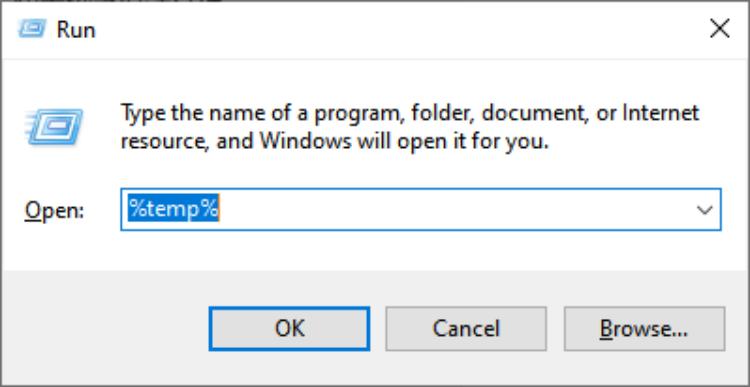
Step 3. A folder opens full of temp files. Press Ctrl + A to select them all, then hit Delete.
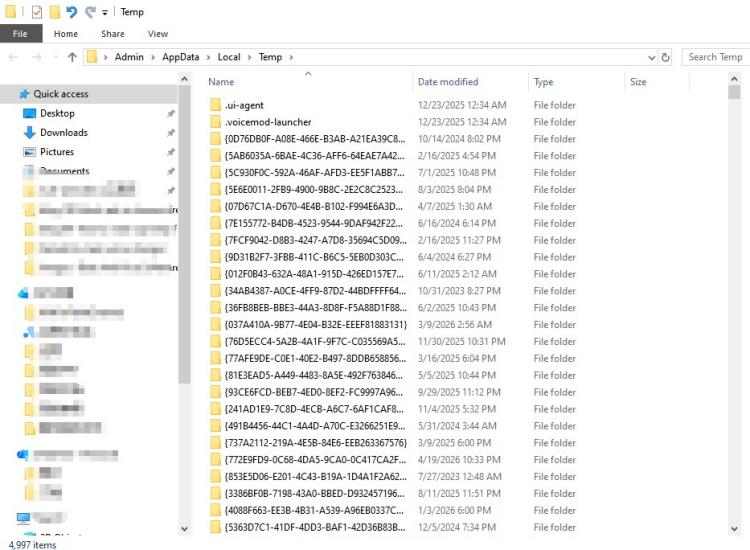
Some files may not delete because they’re in use—just skip them.
IObit Uninstaller Free
- Complete forced uninstallation for stubborn programs.
- Uninstall a batch of programs at once.
- Scan and remove leftover files, folders, and registry entries.
- Support the management of Universal Windows Platform apps.

Easiest Method: How to Clean Temp Files Use Disk Cleanup
Windows includes a built-in utility designed specifically for removing unnecessary temp files. This is a beginner-friendly way to learn how to delete temporary files safely, as Windows filters out important data automatically.
Steps:
Step 1. Search for “Disk Cleanup” in the Start menu.
Step 2. Select your system drive (usually C:).
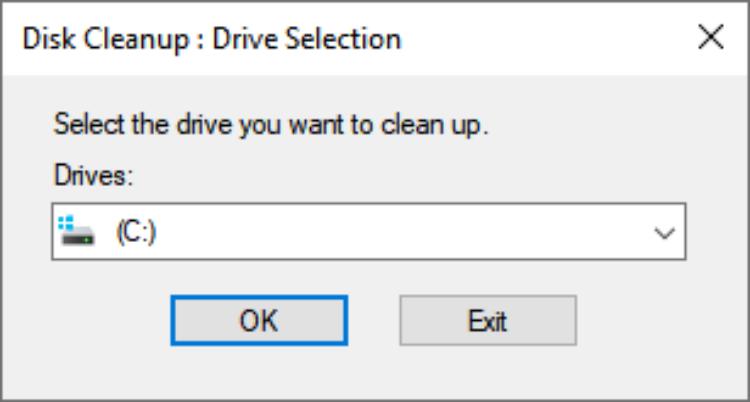
Step 3. Check the box for “Temporary files”. Click “OK” to delete.
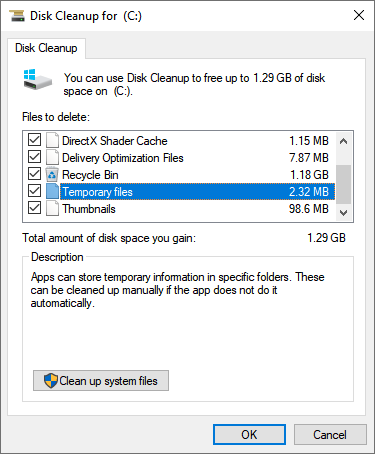
You can also click “Clean up system files” for a deeper scan.
Deeper Clean Method: How to Remove Temp Files via Dedicated Cleanup Tool
At this point, the 3 built-in tools mentioned above are powerful enough to clean up most temporary files. However, they all overlook an important factor: software cache. This cache includes old folders left behind by Adobe, NVIDIA, Discord, game launchers, and applications that haven't been fully uninstalled. This is where IObit Uninstaller comes in handy. If you frequently install and uninstall software, this method is far more effective than manually cleaning it up separately.
IObit Uninstaller Free
- Complete forced uninstallation for stubborn programs.
- Uninstall a batch of programs at once.
- Scan and remove leftover files, folders, and registry entries.
- Support the management of Universal Windows Platform apps.
How to clean up temp files in Windows 11 with IObit Uninstaller:
Step 1. Click the download button below to have this strong cleanup tool installed on your Windows PC.
Step 2. Once you open it, switch to the Program Health tab. Find Software Redundant Files and select it. This tab contains temp files and privacy traces.
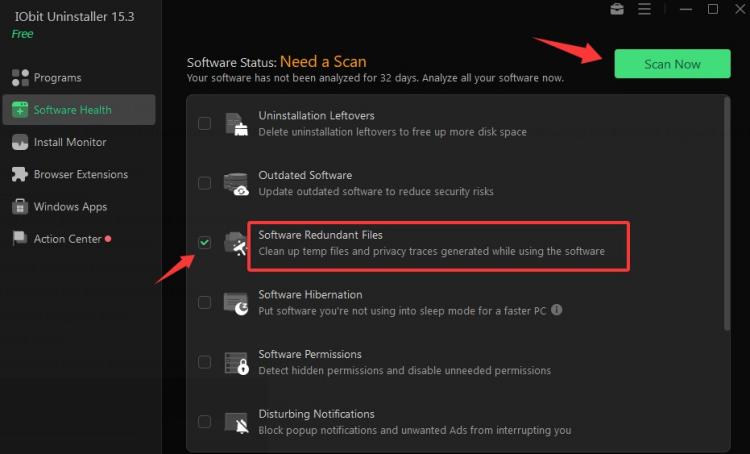
Step 3. Click Scan Now, and it shows the number of temp files that need to be fixed.
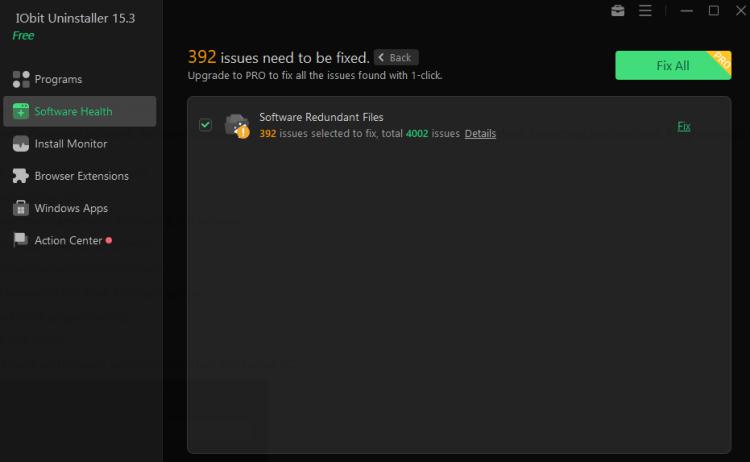
You can click Details to check the temp files list.
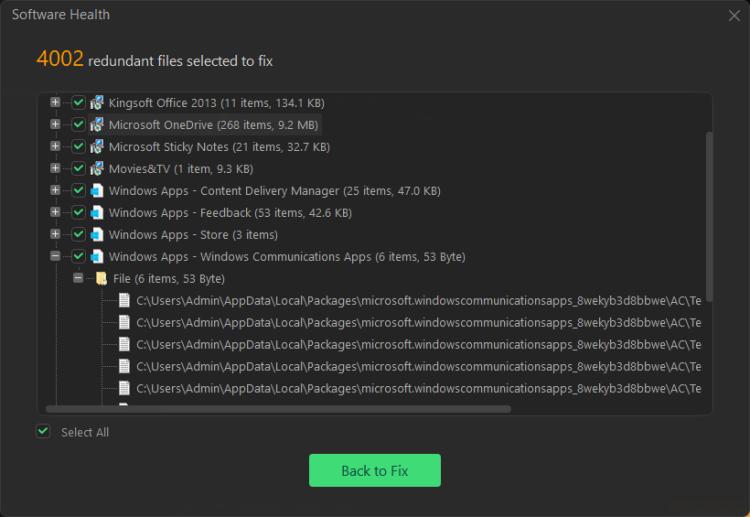
Step 4. Click Fix, and the cleanup will be completed quickly in a few seconds.
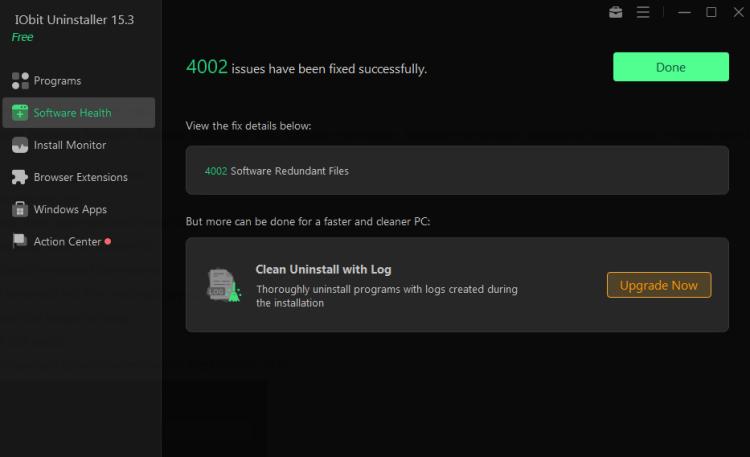
The reasons why you can rely on IObit Uninstaller:
IObit has a simple and user-friendly interface that allows you to scan and clean temp files and other caches with a single click without any manual operation. Free, clean, and fast.
It can scan and delete residual cache directories, log files, and hidden junk files left after software uninstallation. This is more effective for users who want to completely solve system bloat issues and achieve a truly clean uninstall.
Many temporary files are not concentrated in the regular Temp folder but are scattered across different paths. IObit Uninstaller has intelligent scanning capabilities that can automatically identify these hidden caches.
It's not just a cleaning tool but also a software uninstallation manager. You can directly clean up related temporary files and caches while uninstalling programs, avoiding repetitive operations and improving overall efficiency.
Set & Forget Method: How to Delete Temporary Files with Storage Sense
If you don’t want to manually clean files every time, Storage Sense is your automatic assistant.
Steps:
Step 1. Go to Settings > System > Storage.
Step 2. Turn on Storage Sense.
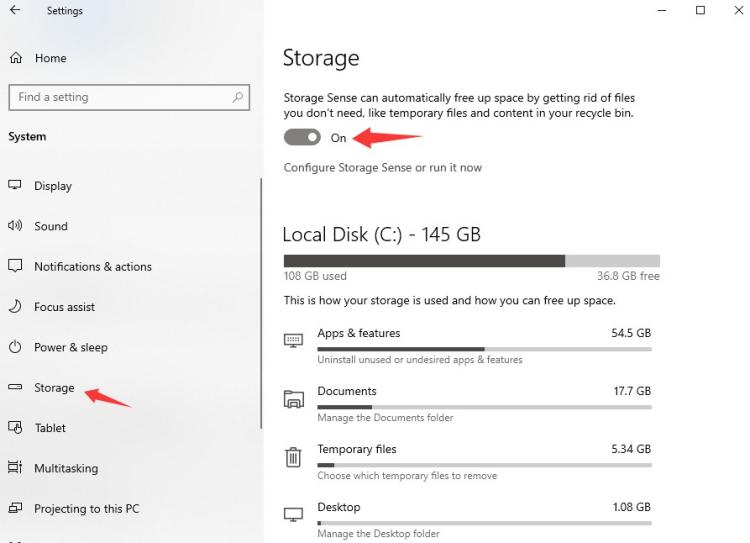
Step 3. You can click Configure Storage Sense or run it now to customize how often it runs (daily, weekly, monthly).
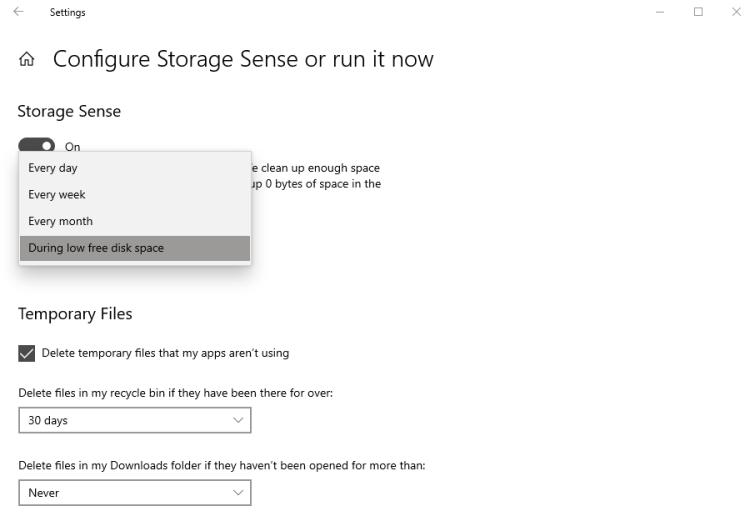
This feature automatically deletes temporary files and manages storage in the background.
Common Questions About Temporary Files Cleanup
Can deleting temp files speed up my computer?
Yes, especially if your storage is nearly full. Removing unnecessary files can improve system responsiveness.
Why do temp files come back after deleting them?
Temp files are automatically recreated by apps and the operating system during normal use.
What happens if I delete all temp files?
In most cases, nothing harmful. Some apps may take slightly longer to load the next time as they rebuild cache.
How often should I clean temp files?
For most users, cleaning temp files once every 2-4 weeks is enough. If you prefer a hands-off approach, automated tools or Storage Sense can handle everything for you.
Conclusion
Temporary files are a normal part of how your system works—but letting them build up can slow everything down. The good news is that once you understand how to clean up temp files, maintaining your PC becomes much easier.
Whether you choose which way, the key is consistency. Regular cleanup helps free up space, improve speed, and prevent unnecessary clutter. If you haven’t cleaned your temp files in a while, now’s a great time to start.