Websites are regarded as excellent places for instant information access over the internet. While many websites deliver valuable resources, some others bring unknown threats, from phishing sites to NSFW content. It is a necessity to block unreliable websites against possible online risks, especially for kids.
How to block a website on your PC? Windows has built-in settings that help you control web access. Additionally, third-party PC security tools and browser extensions offer streamlined solutions for creating safer online experience.
Why Do You Need to Block Websites on PC
Blocking websites not only refers to security control, but reduces distractions during work and study. Whether you are a parent or just a casual user, it is a good decision to block specific websites on your PC.
Parental Control: The internet shows a diversity of resources for child development while sometimes it lead them to inappropriate content, such as adult sites, violence or gambling platforms. Essentially, parents set up blocks on age-unsuitable sites, ensuring that younger users have a safe space to explore without stumbling onto things they shouldn’t see.
Enhance Online Security: The internet also includes some dangerous websites with malware, phishing scams, etc. Block known suspicious domains and protect your PC from infections, data theft and other cybersecurity threats.
Improve Productivity: The internet is a giant distraction machine. People always feel that the time was accidentally losing on social media or video streaming sites. Blocking sites like TikTok, Instagram, YouTube etc., helps eliminate temptation and keep you stay focused on the tasks. That’s why some organizations often block non-work-related websites to ensure employees or students to use internet efficiently.
If you are looking to block websites on Windows and trying to set up a broader filtering system for work or family, the following methods can drive you out.
Windows hosts file, the plain-text system file, is a local phonebook for the internet. It maps website domain names to numerical IP addresses and tells your PC exactly where to connect the web address you type into browser. The host file can be modified for specific tasks, for example blocking access to certain websites.
How to block a website on your PC with hosts file? Follow the steps.
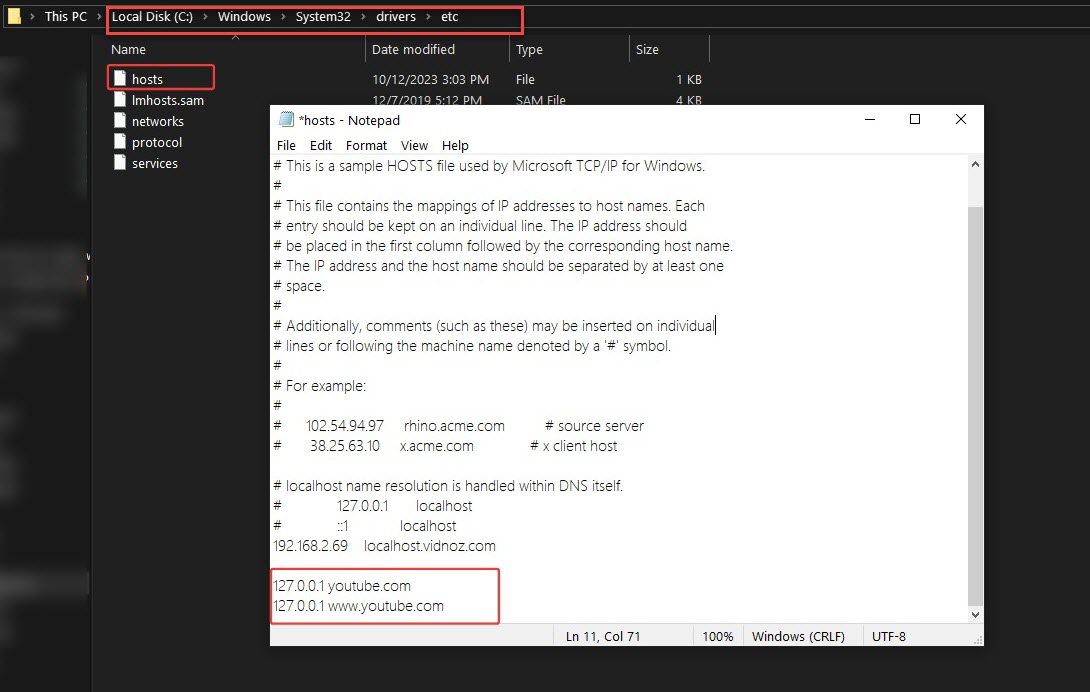
1. Navigate to “C:\Windows\System32\drivers\etc” and find the hosts file.
2. Right-click the file > Open with > Notepad.
3. Add a new line at the bottom of the file, which contain 127.0.0.1 and the website URL you want to block.
4. You should add two lines for each blocked site, one with “www.” and one without.
For example, if you want to block YouTube, type the following lines at the end of hosts file.
127.0.0.1 youtube.com
127.0.0.1 www.youtube.com
5. Click File > Save or press Ctrl+S to save the changes. Now, you can’t get access to the blocked websites in any browser.
Perfect for: Users who want to reduce distractions by blocking websites like YouTube, Facebook, Instagram or other time-consuming sites during work or study sessions.
Notice: Editing hosts file is quick and simple solution if you only need to block a few specific websites temporarily without extra installation. But, anyone who use the computer can easily modify the file to remove blocked websites.
Way 2. How to Block Websites on Windows with Microsoft Family Safety
Microsoft Family Safety is designed to help parents create a healthy digital environment for children. Using it, you can easily limit screen time, block inappropriate websites/apps across Windows, Xbox and Android devices.
Microsoft Family Safety is bundled with Windows 11 and 10. Link the family account and then you can block the content unfriendly to children on PC.
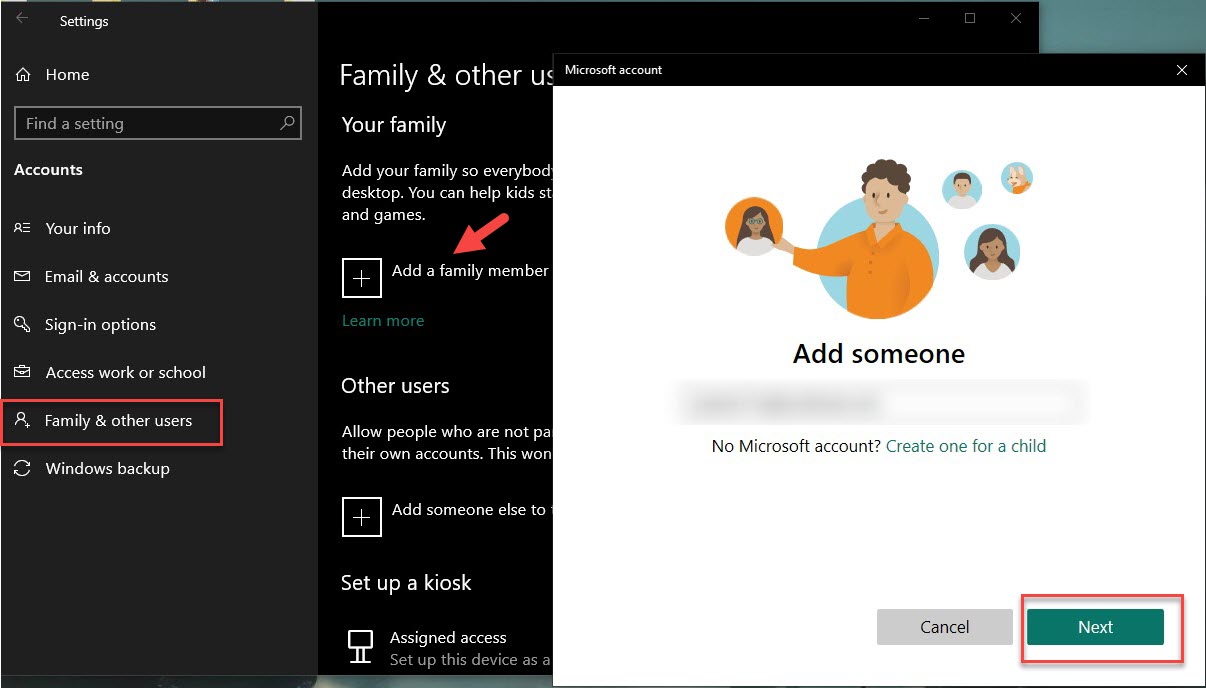
1. Navigate Settings > Account > Family & other users.
2. Click Add a family member and enter the email address. You can also create one for a child.
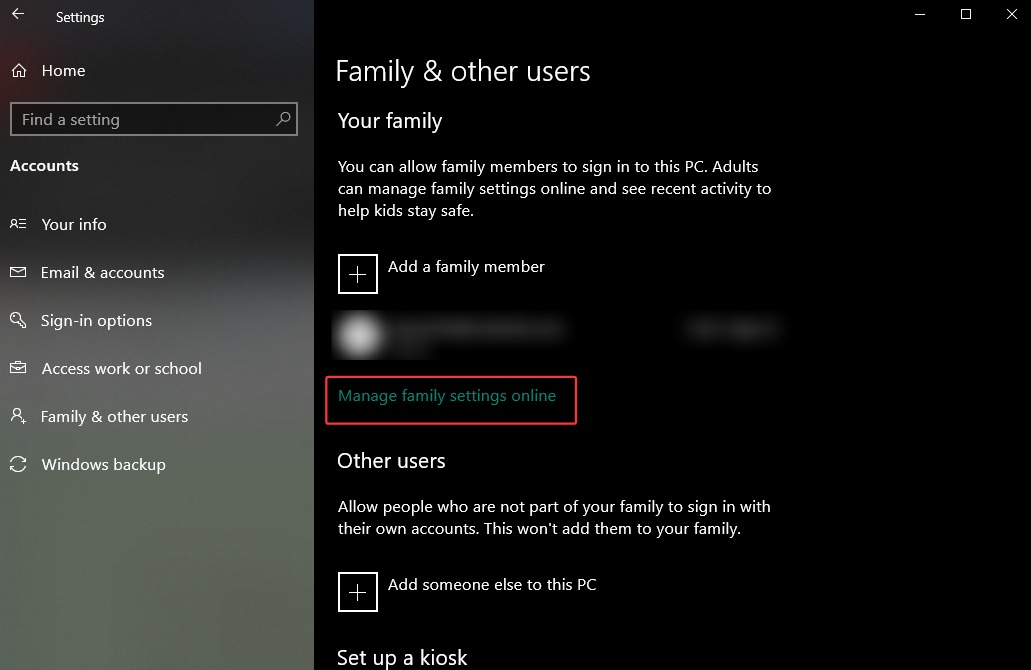
3. Click Manage family settings online and you will be directed to your Family Safety Account.
4. Select your child’s account. Click the three dots and select Go to overview.
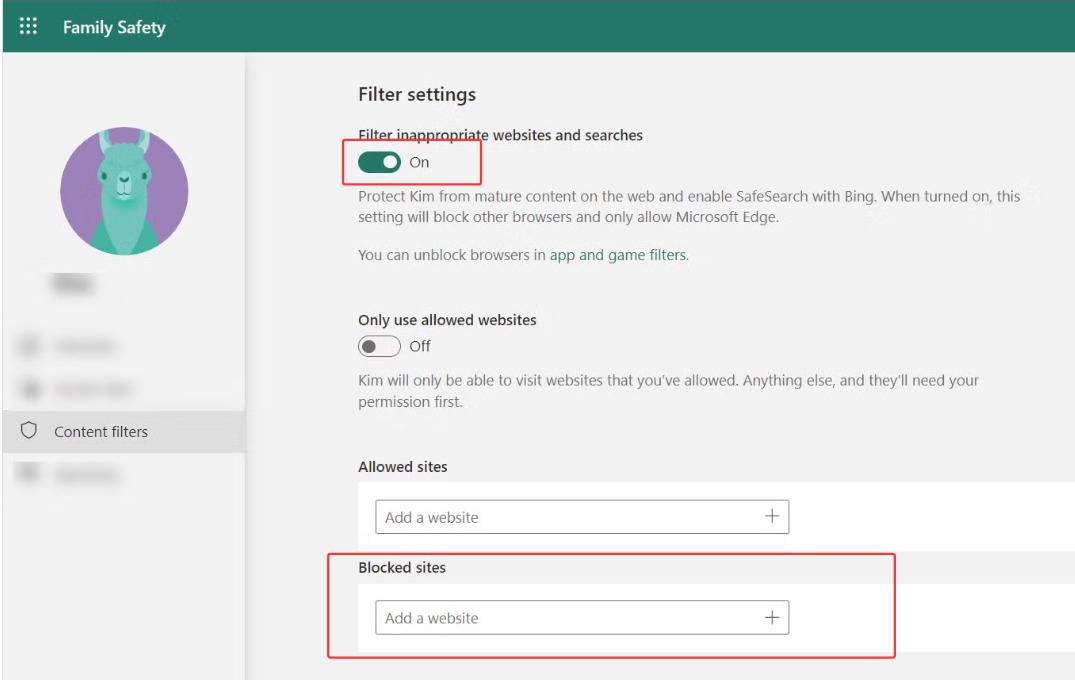
5. Click on Content filers > Web and search > Filter inappropriate websites and searches > turn it on to force Bing SafeSearch and block adult content.
6. If you want to block specific websites, scroll down the Block sites and type the web address. Click + to add more.
Perfect for: Families and parents who want an centralized way to block websites and manage children’s digital habits across multiple devices.
Notice: You should connect a Microsoft family group to enable content filter feature. And, Microsoft account for family members are required.
Way 3. How to Block a Website on Your PC Using Advanced SystemCare
Advanced SystemCare is a comprehensive suite to optimize, clean and protect your PC. It integrates system protection, privacy protection and browser protection into a single panel helping users prevent any possible security threats.
Surfing protection is a practical feature for browser protection. In addition to protect Chrome, Firefox, Edge against online threats in one-click, it also empowers you to manually add websites you want to block and remove anytime.
Advanced SystemCare has an intuitive interface, guiding you to discover wanted protection features and perform the tasks hassle-free.
1. Download and install Advanced SystemCare on your PC.
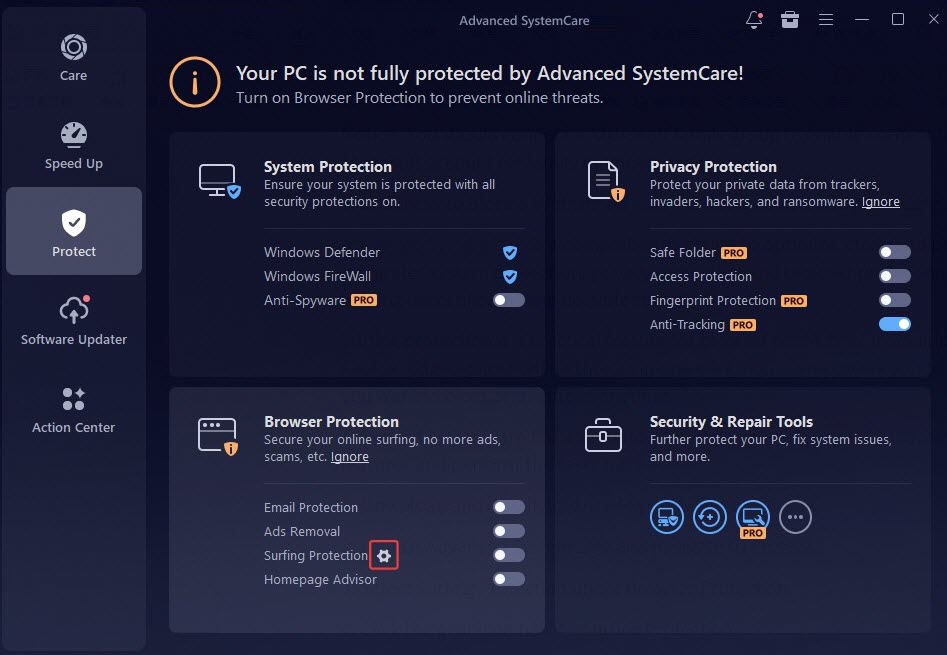
2. Launch Advanced SystemCare and navigate to Protect.
3. Select Surfing Protection under Browser Protection.
4. Click the gear icon next to Surfing Protection.
5. Select Settings tab and type the websites you want to block. Click Add.
6. If you want to remove the blocked website, click the Delete icon.
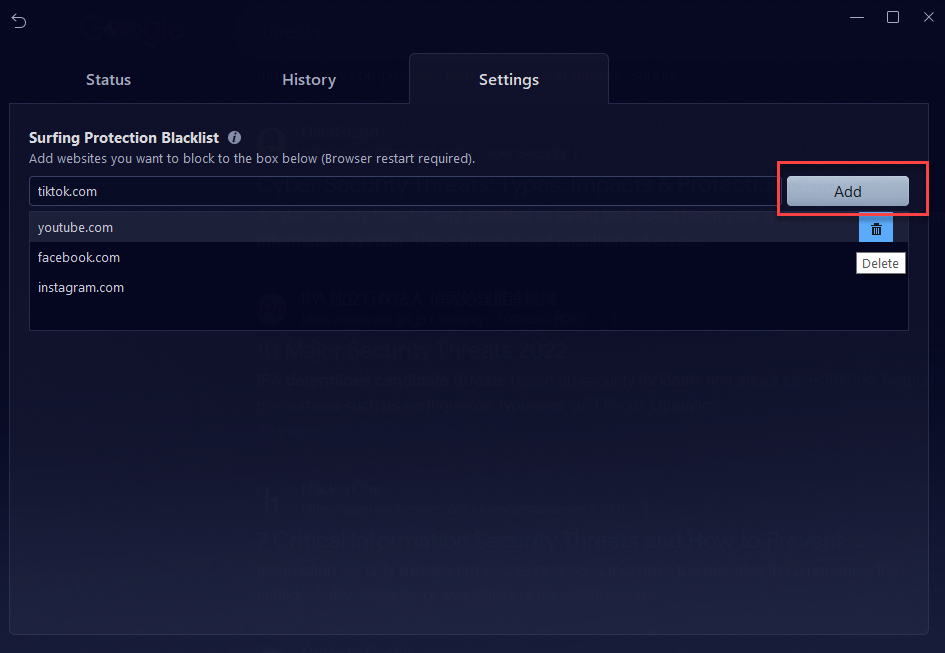
7. Restart your browser and now you can’t visit the blocked sites.
Perfect for: Casual users and beginners who want to block harmful or malicious content without complex settings.
Notice: Advanced SystemCare is primarily designed as a Windows optimizer to make your PC faster, cleaner and safer. If you need to usually manage your PC, not only for protection but stabilization, it is the best choice.
Advanced SystemCare Free
- Clean: 420 billion traces removed & 85 EB junk files cleaned
- Protect: 80 million unauthorized access blocked & 20 million bugs fixed
- Speed Up: 6 million hours of startup time saved & Turbo boost
- Optimize: Auto clean and auto care your PC with AI mode

Way 4. How to Block a Website on Your PC by Installing Web Blocker Extensions
Web blocker extension is one of the easiest solutions to block websites on PC. It can be quickly installed to browser and stop you from visiting specific websites. In addition to adding known websites into blacklist, you can instantly block a suspicions site that is accidentally opened in your browser.
BlockSite is one of the most popular web blocker for Chrome. Let’s take it as example and show how to block websites on PC.
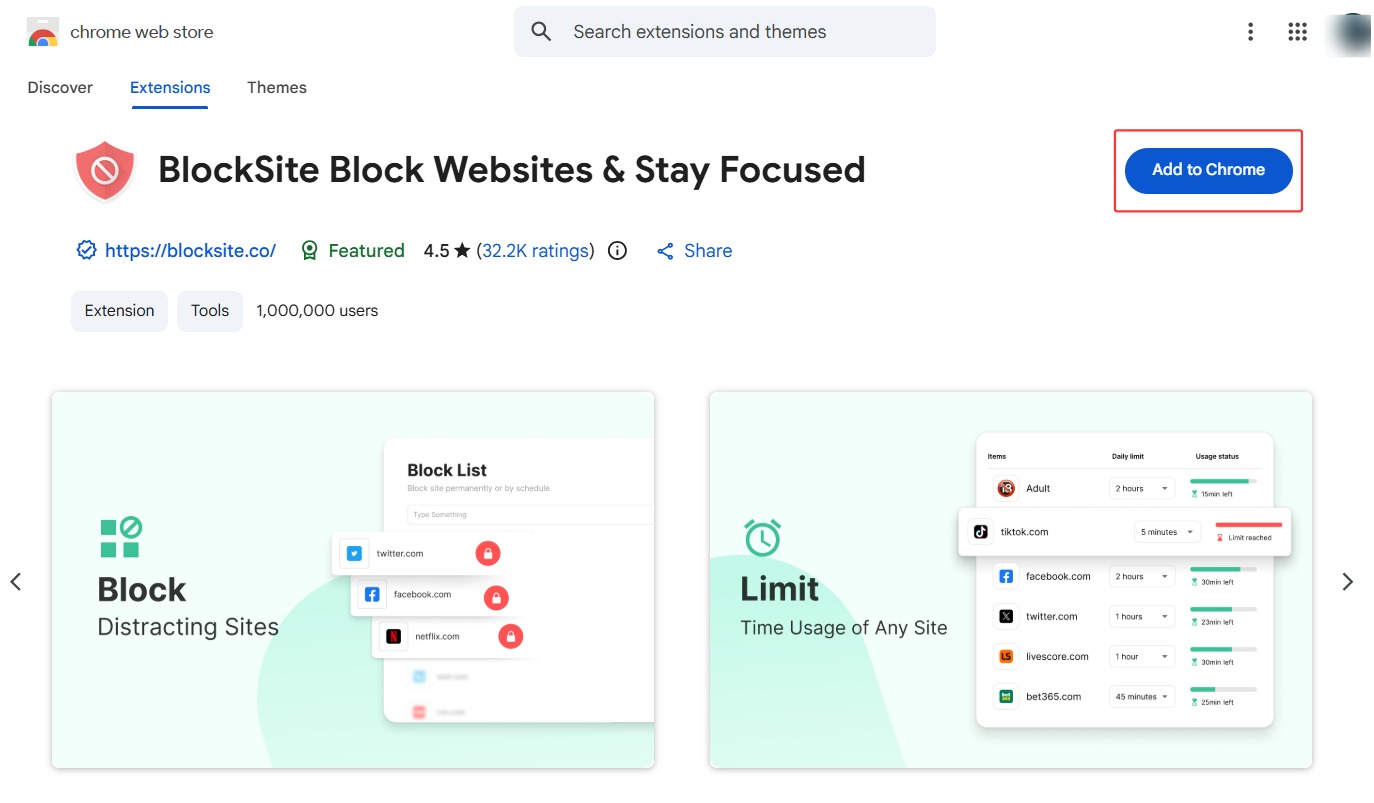
1. Search BlockSite in Chrome Web Store.
2. Click Add to Chrome to install it.
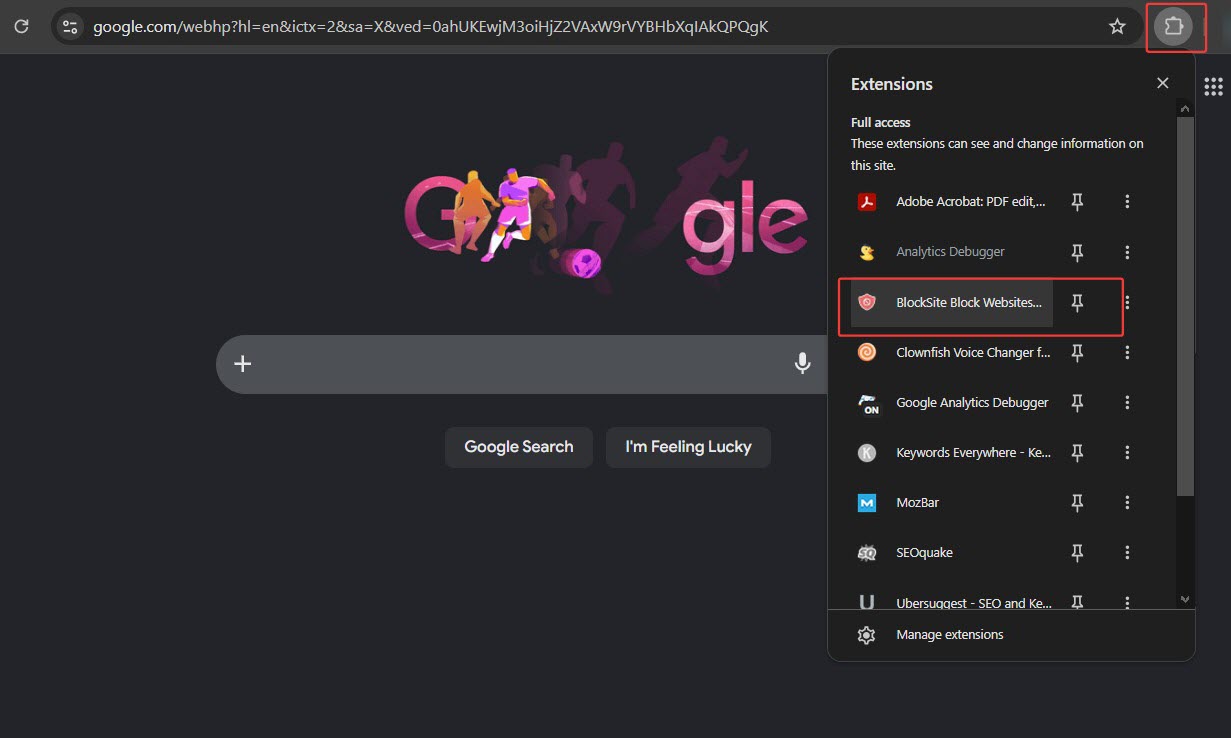
3. Click the extension icon on your browser and select BlockSite.
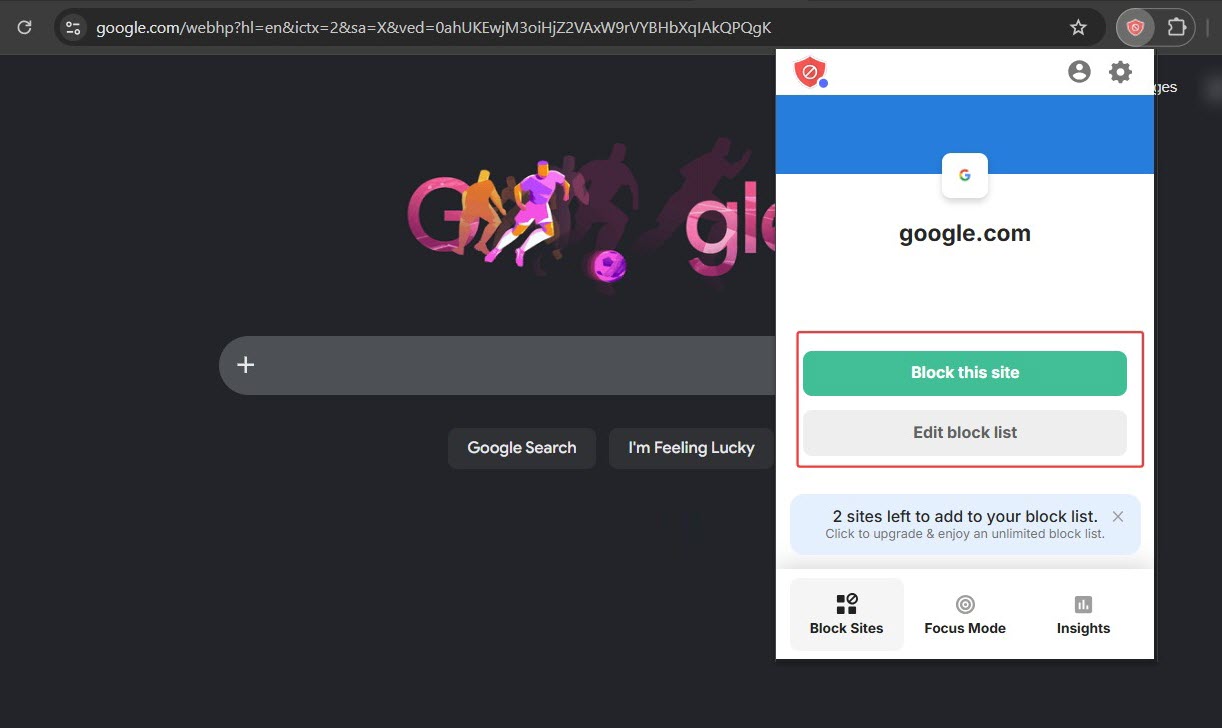
4. Click Block this site to block the active website.
5. Click Edit block list and you will be redirected to the option page.
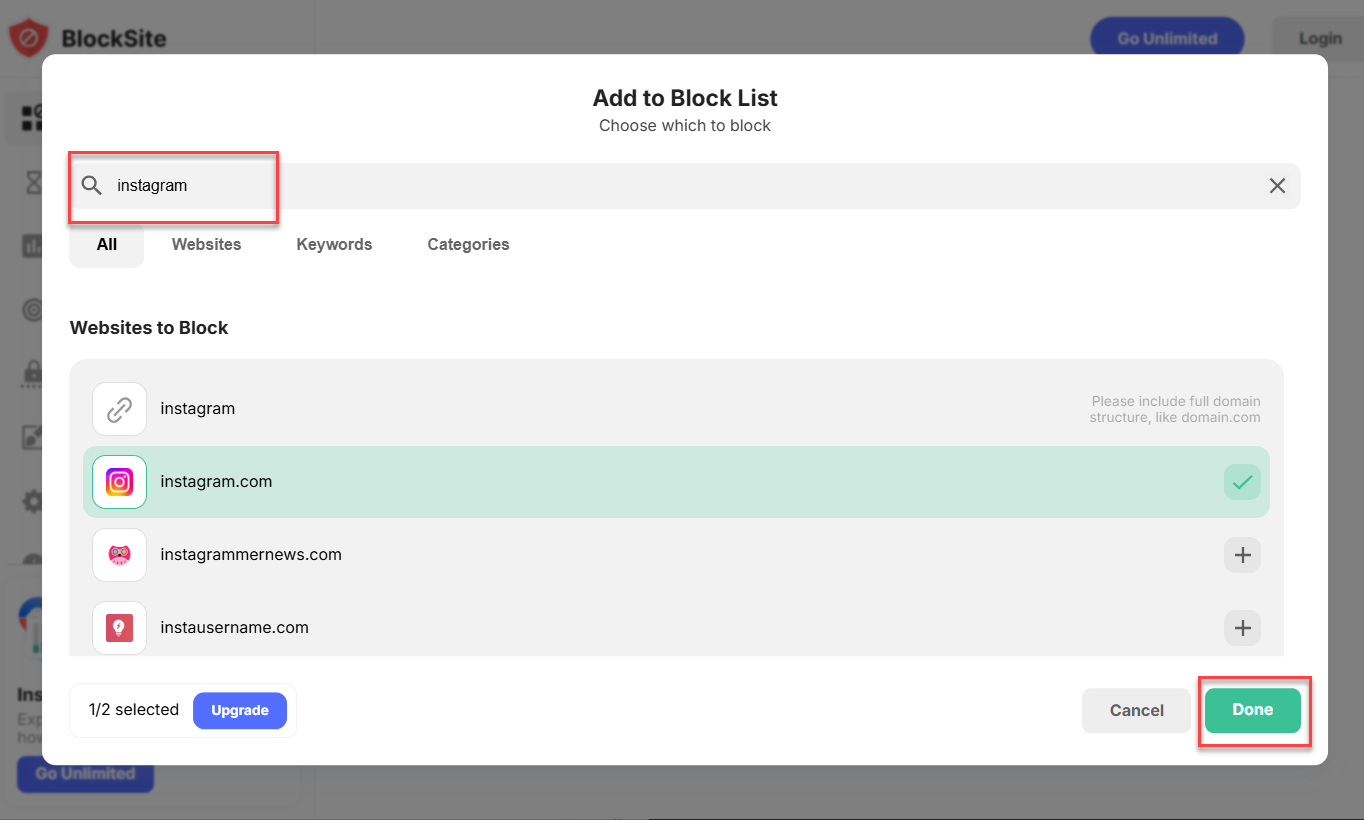
6. Click Add to Block List. Type websites, category or keyword in the search bar.
7. Click + to add specific site into block list and click Done.
Perfect for: Users who want a quick, convenient and flexible way to restrict access to websites.
Notice: Web blocker extension can’t block website across all browsers and devices. Some extensions require you to upgrade to premium version for advanced features.
The Bottom Line
With the vast number of websites available today, it is important to control over what can be accessed on your PC for creating a safer digital environment. But, How to block websites on PC? Windows users have several effective ways to block websites. Besides the built-in features - like host file and Microsoft Family Safety, you can also use third-party PC protection tool and browser extensions. Depending on your goals, choose the right method to block websites on Windows to enhance your online experience.