Are you troubled by the annoying ads while browsing the web? Constant pop-ups, tracked ads, and auto-playing video ads not only slow down your browsing speed, but also may bring potential security risks when you accidentally click on them. If you are looking for an easy and effective way on how to remove ads from Chrome, you have come to the right place.
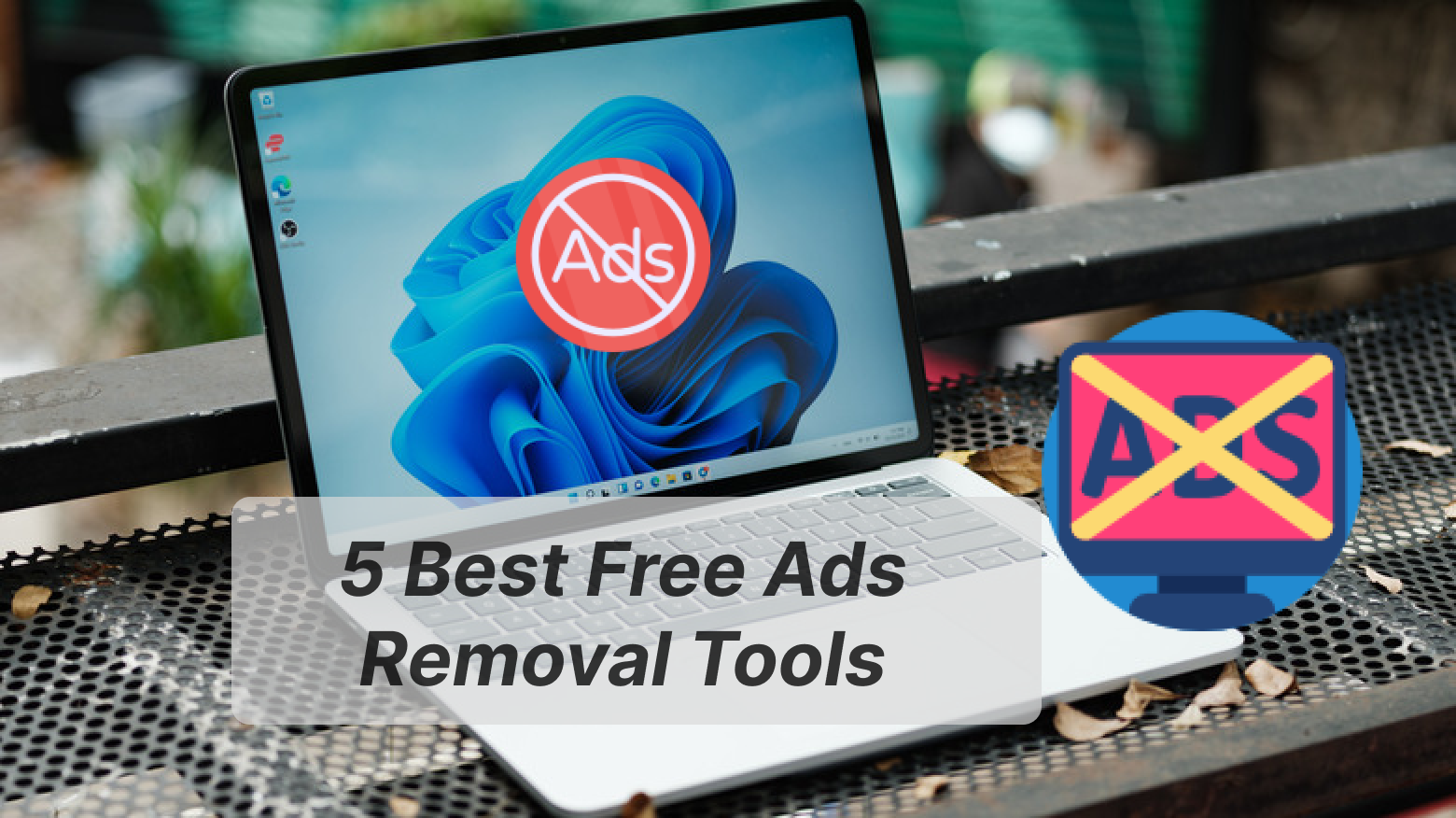
Below we will walk you through the clear steps to remove ads on your PC via dedicated ads removal tools, as well as how to use Chrome's built-in settings to block basic ads for free.
Why Do You Need Ads Removal?
So why should you remove ads from Chrome or any other browsers? Here are some common reasons why you need reliable and efficient ads removal:
Faster speed & better experience: Removing ads can make websites load 2x to 5x faster, as your browser doesn't have to wait for dozens of external ad servers to respond. Also, you’ll get a better browsing experience without interrupting ads on webpages.
Protecting your data privacy: Pop-up ads are always heavily integrated with invisible trackers and fingerprinting scripts. Advanced ads removal helps protect your online data while browsing with anti-tracking.
Avoiding malicious cyberattacks: Hackers now buy ad space on legitimate and high-traffic sites to deliver malware. Ad blockers can prevent these ads from loading in the first place, removing the primary delivery vehicle for these attacks.
Top 5 Free Ads Removal Tools & Software [2026 Updated]
It’s time to find a trusted ad remover for you! Now, let’s take a look at the 5 best ads removers in 2026 that help block unexpected advertisements on the web easily for free.
1. Total Adblock - Block Pop-Ups, Banner & Video Ads
Total Adblock is a comprehensive and user-friendly extension designed to eliminate ads across all major websites. It is particularly effective at catching various forms of advertising on YouTube, Facebook, ESPN, etc., before they disrupt your workflow.
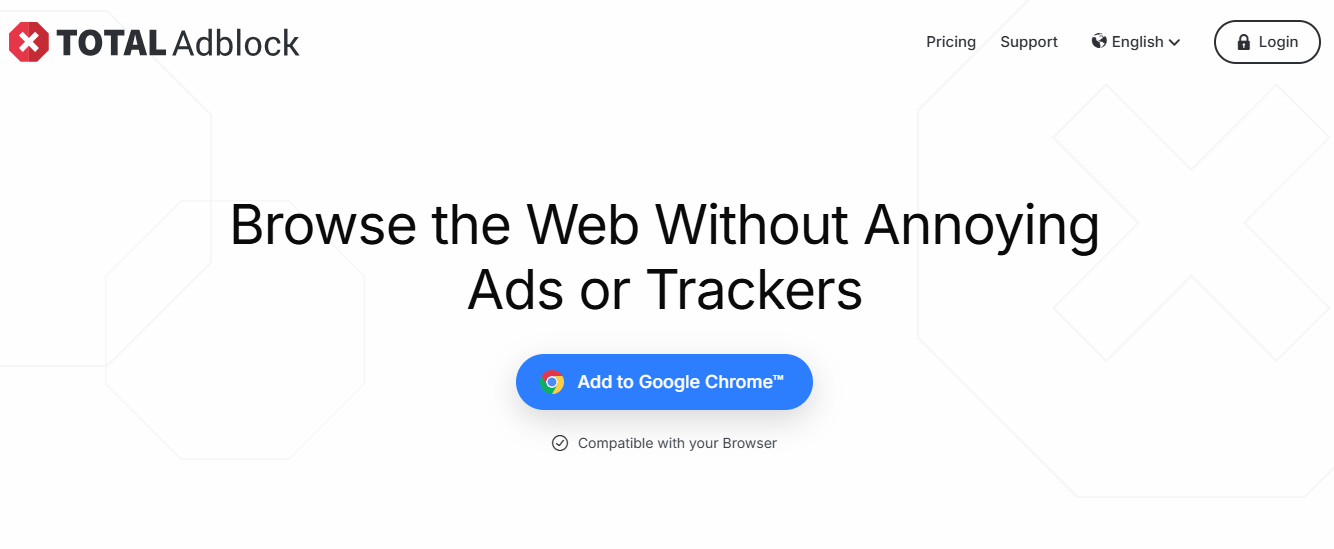
Best for: Users who want a set-and-forget extension that works effectively on social media and video platforms.
Main Features:
Comprehensive Video Blocking: It automatically skips pre-roll and mid-roll ads on platforms like YouTube and ESPN.
Pop-ups & Overlay Removal: Instantly hides annoying pop-up ads and those unexpected overlays that ask for unknown newsletter signups.
Whitelisting Capabilities: Total Adblock allows you to easily support your favorite creators by toggling the blocker on or off for specific sites with one click.
2. IObit Advanced SystemCare - Free Browser Ads Removal
If you don't want to be annoyed by unwanted ads popping up on the web, IObit Advanced SystemCare is also an excellent go-to free software. With its automatic ads removal feature, all the intrusive advertisements on your Chrome, Firefox for other browsers will be blocked completely, instant and 100% free!
Advanced SystemCare Free
- Clean: 420 billion traces removed & 85 EB junk files cleaned
- Protect: 80 million unauthorized access blocked & 20 million bugs fixed
- Speed Up: 6 million hours of startup time saved & Turbo boost
- Optimize: Auto clean and auto care your PC with AI mode

Best for: Users who prefer clean web browsing and built-in speed up and privacy features on Windows.
Main Features:
Automatic Ads Removal by 1 Click: IObit Ads Removal allows you to automatically eliminate all types of browser ads within just one click.
Custom Ads Block for Major Browsers: Custom ad blocking for all mainstream browsers, including Chrome, Firefox, and Edge. You can adjust the blocking scope based on your own needs.
Exclude Special Sites for Ads Display: You’re allowed to add sites you trust to the exclusion list, so you can still see ads on your preferred platforms.
Easy and Instant Setup: The entire setup process takes less than 2 seconds. After startup, it runs quietly in the background, which will not occupy too much system memory or affect your daily browsing.
IObit Advanced SystemCare is not just about ad removal, but also works as the best free PC cleaner and RAM optimizer Windows 11.
3. Opera - Built-in VPN & Ad Blocker for Desktop & Mobile
As a pioneer in integrated browser features, Opera comes with its own suite of privacy and ad-removal tools without the need for add-ons. Its built-in ads blocker not only removes ads, but also protects your privacy and speeds up your browsing on both mobile & desktop.
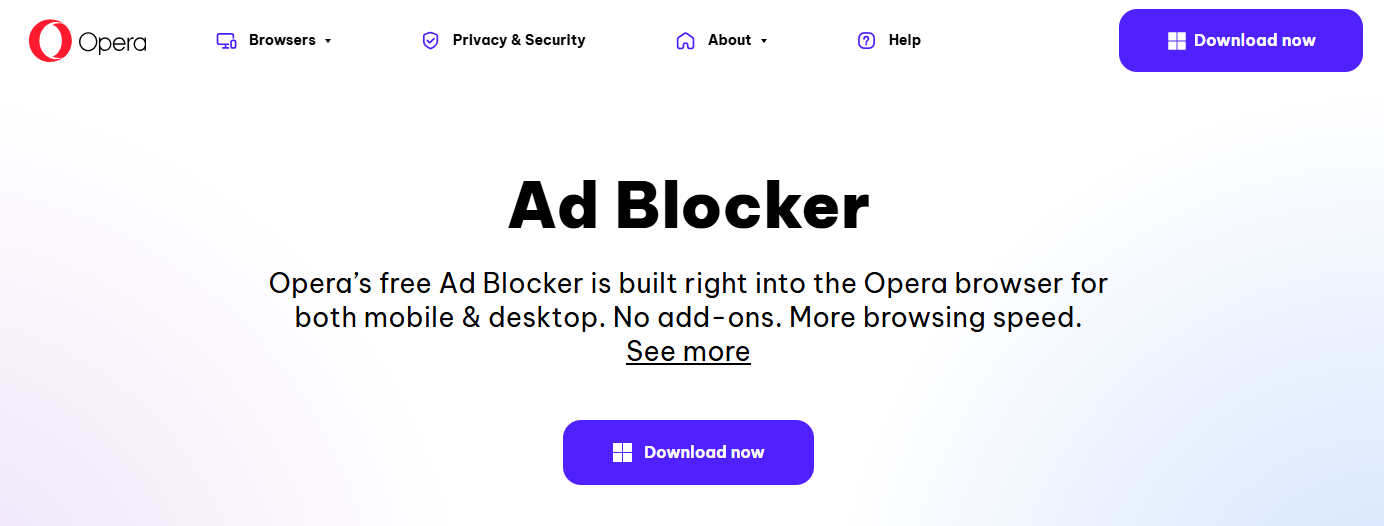
Best for: Users looking for an all-in-one desktop and mobile solution with built-in security features.
Main Features:
Fast Ad Blocker: Because it is built into the browser engine, it stops ads faster and uses less battery than external extensions.
Free Unlimited VPN: Opera provides built-in VPNs for security by masking your IP address, requiring no separate subscription.
Seamless Syncing on the Web: Your ad-blocking preferences and file sharing move perfectly between your computer and your smartphone.
4. uBlock Origin - Free, Open-Source Ad Blocker Extension
uBlock Origin is widely considered the gold standard by tech enthusiasts for content filtering. It is a free open-source project that delivers professional-grade ad blocking across websites, including YouTube, Twitch, and other video platforms.
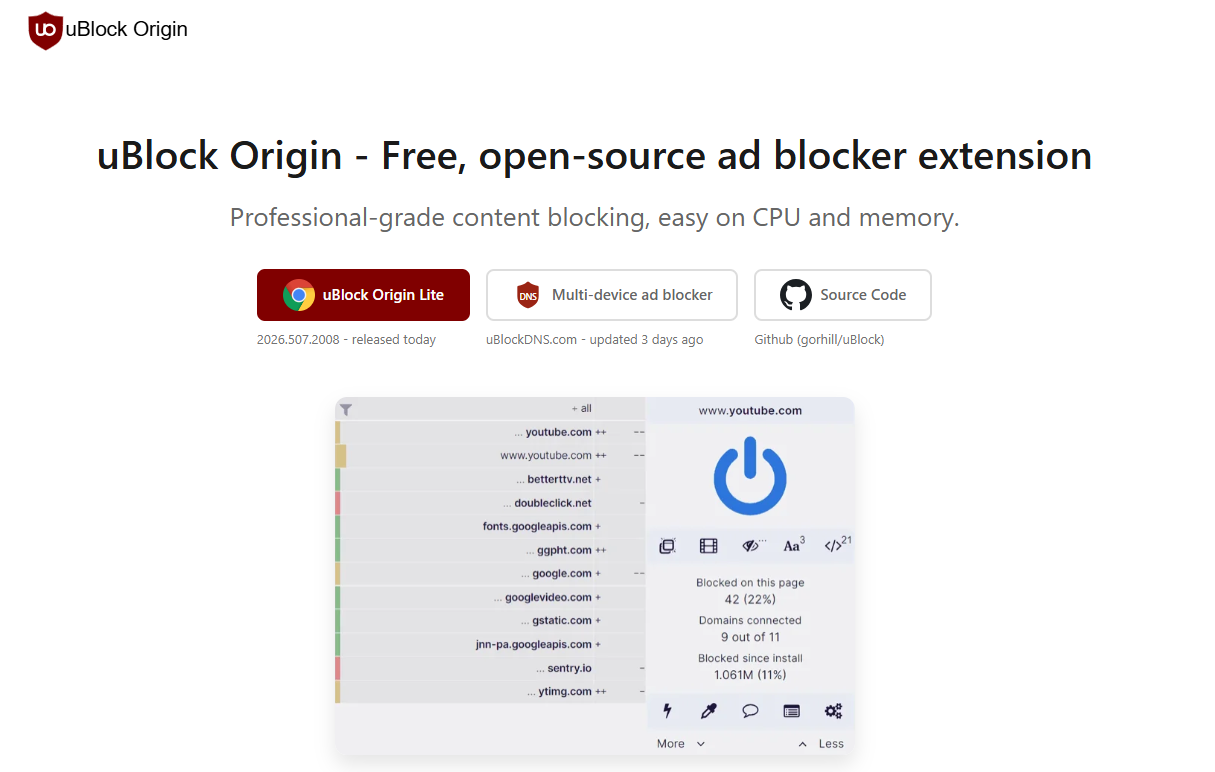
Best for: Users who want a lightweight and highly customizable experience that doesn't slow down system resources.
Main Features:
Ultra-Low Resource Impact: As an open-source project, uBlock Origin uses significantly less memory and CPU than other popular blockers.
Deep Customization: It includes a Zapper tool that allows you to manually select and delete any specific element on a webpage.
Are you experiencing sluggish network on your Windows? Check how to boost internet speed on PC with the best free internet booster!
5. Brave Browser - All-in-One Ads Remover for Better Privacy
The last excellent ads removal tool is called Brave, an all-in-one browser that provides ad-blocking, private search, and data protection. It’s rather efficient to get faster browsing and a clean web experience.
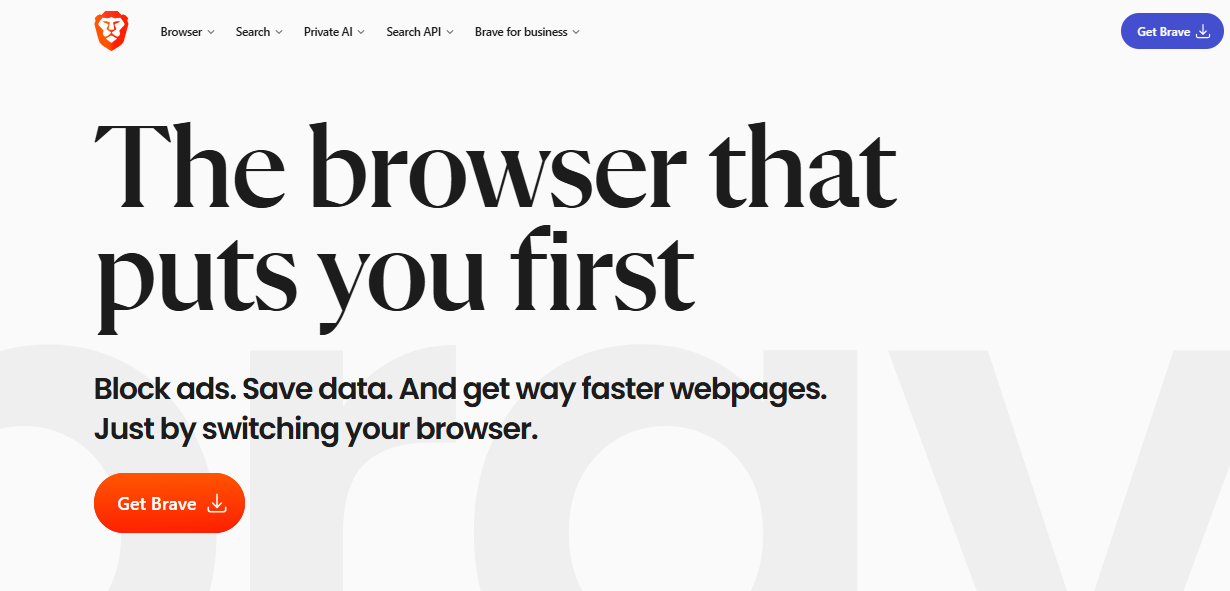
Best for: Users who want maximum privacy and speed without managing multiple browser extensions.
Main Features:
Brave Shields: It blocks cross-site trackers, fingerprinting attempts, and ads at the source automatically.
Advanced Performance: By preventing heavy ad scripts from loading, pages load much faster compared to standard browsers.
Privacy-Safe Rewards: You can see privacy-safe ads in exchange for tokens that can be used to tip content creators.
A Quick Comparison of Top 5 Ads Removers
Don’t know how to pick the one that suits you most? Check the quick comparison of the list of 5 best ads removal tools to diminish unwanted distractions below.
Ads Remover |
Type |
Platform |
Difficulty |
Resource Usage |
Total Adblock |
Extension |
Windows, macOS, iOS, Android (via browser) |
Easy |
Low (Optimized for battery life) |
IObit Advanced SystemCare |
Software |
Windows |
Easy |
Medium (Performs deep system scans) |
Opera |
Browser |
Windows, macOS, Linux, iOS, Android |
Medium |
Medium (Varies with active features) |
uBlock Origin |
Extension |
Firefox, Chrome, Edge, Safari (Lite) |
Easy |
Very Low (Industry-leading efficiency) |
Brave Browser |
Browser |
Windows, macOS, Linux, iOS, Android |
Medium |
Low (Native Rust-based engine) |
How to Remove Ads from Chrome/Any Browser Automatically
Based on the above comparison, IObit’s Free Ads Removal is the best option for Chrome and other browser users. So how to remove ads from Chrome and other mainstream browsers? Let’s walk through the detailed steps to remove ads with IObit Advanced SystemCare.
Step 1. Free download and install IObit Advanced SystemCare on your Windows.
Step 2. Launch the software and go to the “Protect” tab, find “Ads Removal” under Browser Protection, and enable it.
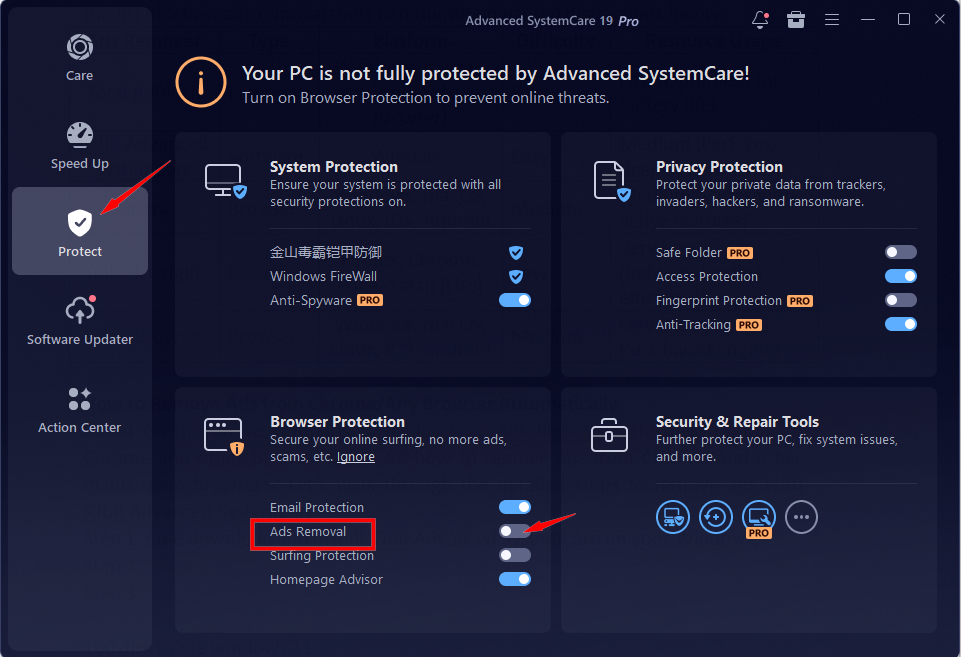
Step 3. Once done, IObit’s ad remover will protect your browsing experience from annoying ads. (Remember to restart the browser for a successful setup.)
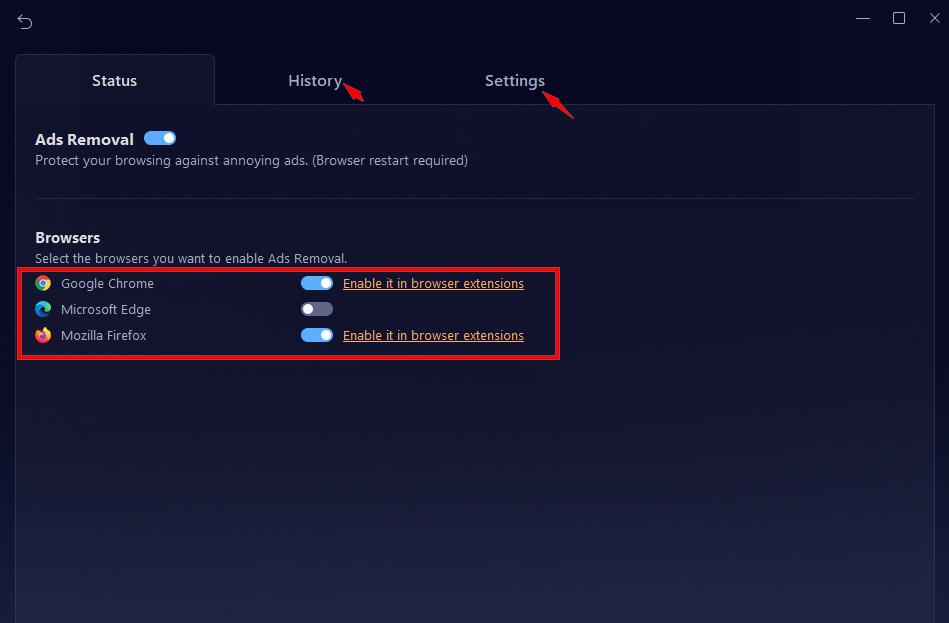
Tips: You’re able to customize the browsers you want to enable Ads Removal, including Google Chrome, Microsoft Edge, and more. Also, it supports history review and exclusive website settings if you need them.
What if your computer is still running slowly after enabling Ads Removal? Maybe it is caused by your 100 disk usage Windows 11. Use this superior free PC cleaner to free up your disk space in seconds effortlessly!
How to Remove Ads from Chrome Via Google Settings
Can you remove ads from Chrome with built-in features? Absolutely, yes! Follow this guide to manually block unwanted ads with Google ads removal on PC.
Step 1. Open Chrome and click “three dots” > “Settings”.
Step 2. Find “Privacy and security” > “Site settings” > “Additional content settings”, then click “Intrusive ads”.
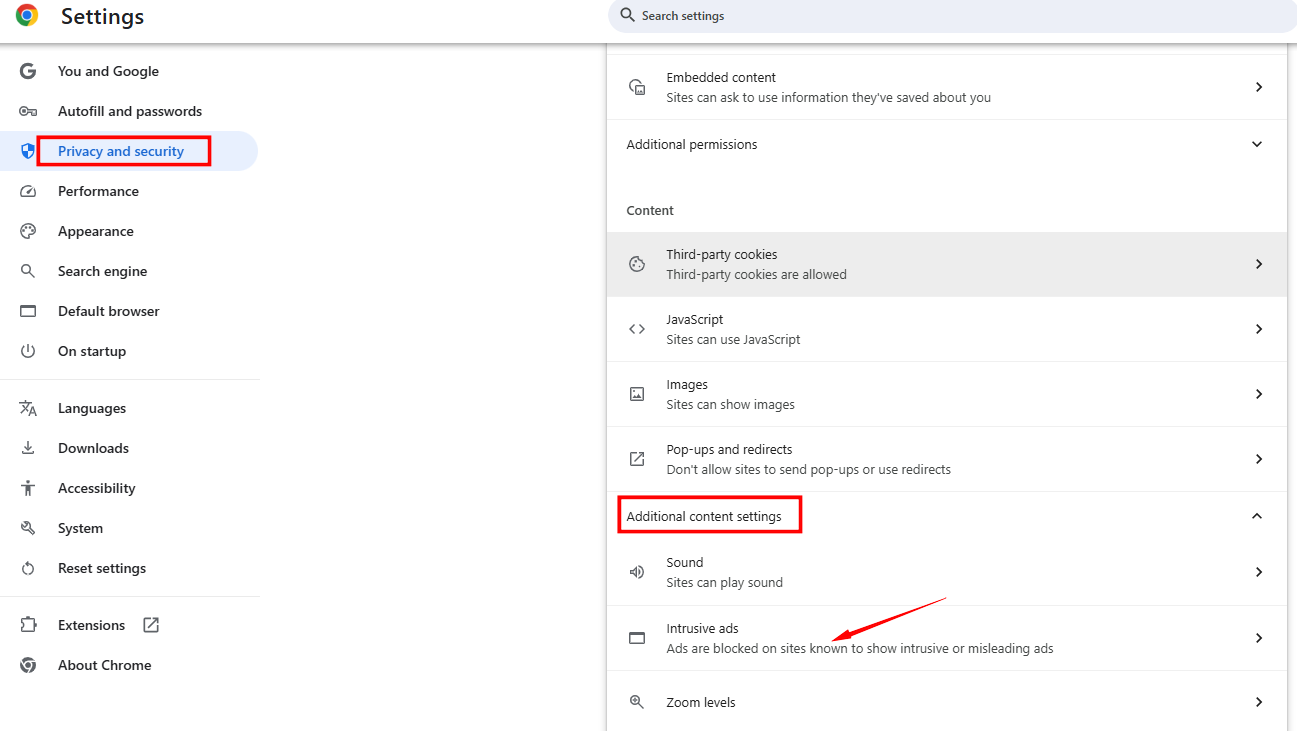 Step 3. Select "Ads are blocked on sites known to show intrusive or misleading ads", and done.
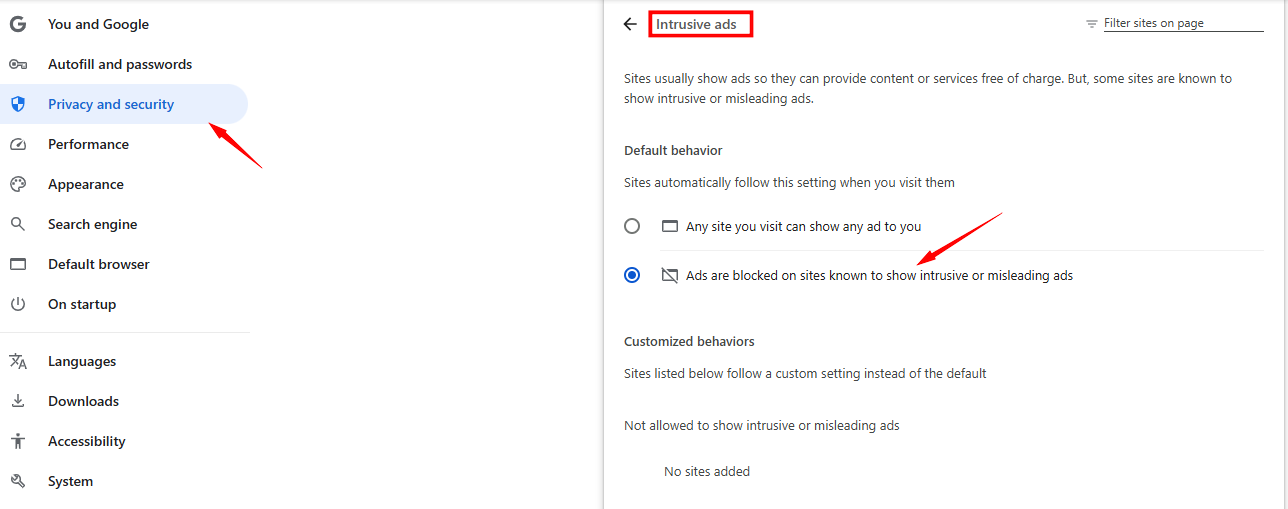
That’s how remove ads from Chrome manually.
FAQs About Ads Remover & Blocker
1. How to Remove Ads Permanently?
To remove ads on browsers permanently, just get a free download of IObit Advanced SystemCare and enable Ads Removal to prevent any ad instantly and everlastingly.
2. Is There a Way to Remove All Ads for free?
Yes. IObit’s Ads Removal helps you to automatically remove all ads on major browsers effortlessly on Windows for free.
3. How Can I Stop All Ads from My Phone?
You can use Total Adblock, Opera, and Brave Browser to remove interrupting ads on Android and iOS phones.
Final Thoughts
No longer be annoyed by intrusive ads on the web with these 5 best ads removal tools. Pick the one that suits you most to block any pop-ups, sponsored banners and video-ads instantly! Free download IObit Advanced SystemCare to enable automatic ad removal in Chrome, Firefox, or Microsoft Edge effortlessly and at no cost.
Advanced SystemCare Free
- Clean: 420 billion traces removed & 85 EB junk files cleaned
- Protect: 80 million unauthorized access blocked & 20 million bugs fixed
- Speed Up: 6 million hours of startup time saved & Turbo boost
- Optimize: Auto clean and auto care your PC with AI mode