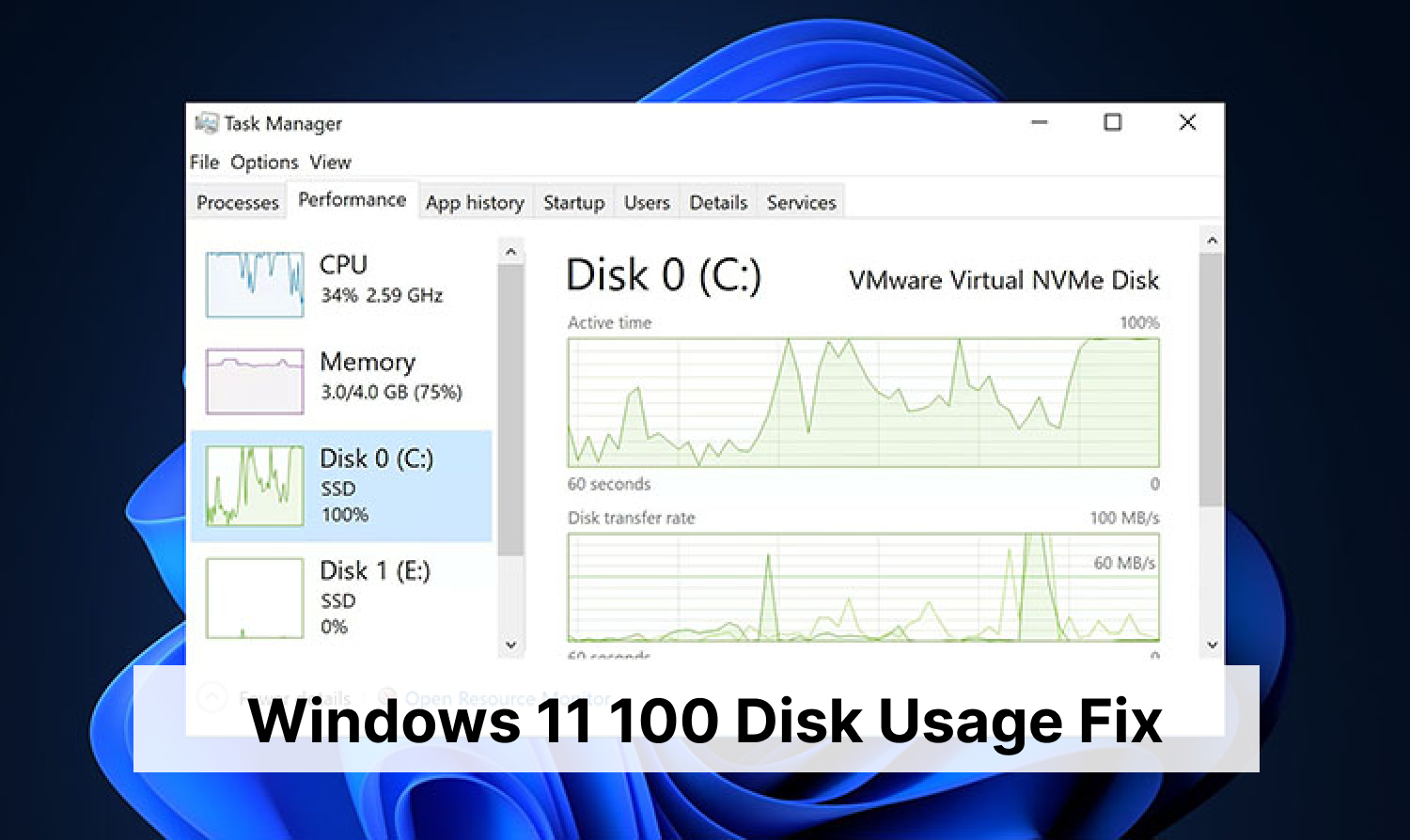
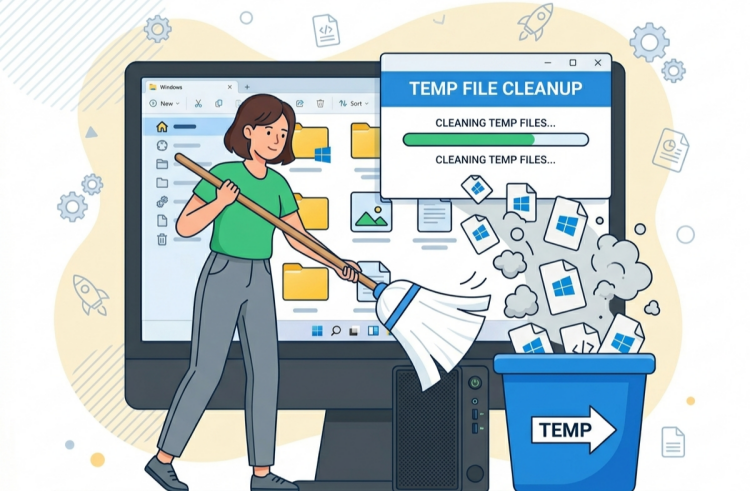
Have you noticed that your disk space is insufficient? Is your computer running slowly because of low or full disk space? This is a significant issue that annoys numerous PC users relying on hard drive storage. How to free up disk space on PC easily and speed up your computer? This comprehensive guide will show you 9 useful ways to clean up disk space on Windows and optimize your system performance.
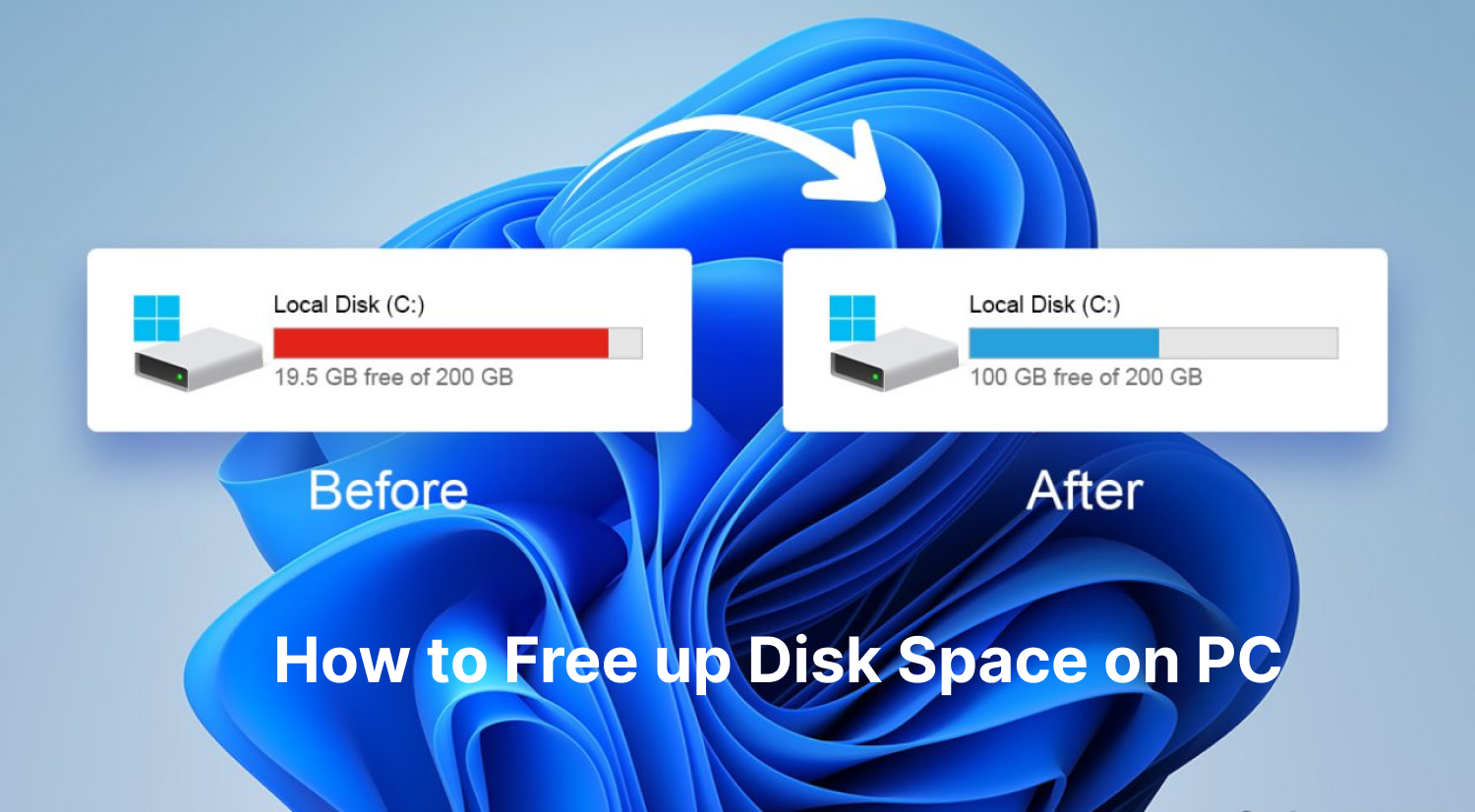
Is Your Disk Space Full? Check Your Available Disk Space on PC
What is disk space exactly? Disk space refers to the amount of storage available on your computer’s hard drive to save files, programs, and data. Before knowing how to free up disk space, you much know how much disk space you currently have.
How to Check Disk Space on Windows 10/11
Follow this guide to check the available disk space on your PC or laptop:
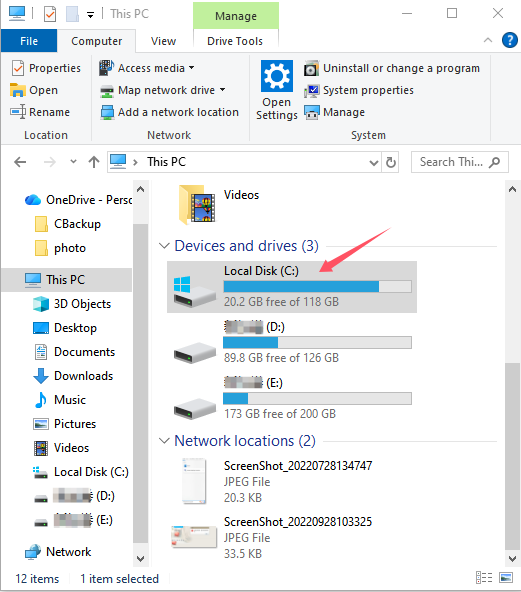
Step 1. Press “Windows key + E” to open File Explorer.
Step 2. Click “This PC” in the left taskbar, and find Local Disk (C) under “Devices and drives”.
Step 3. Check the specific free disk space of C drive at present.
Typically, if your disk space is over 85% capacity, it’s time to clean up and optimize disk drive on your Windows.
How to Free up Disk Space Efficiently with Free AI PC Cleaner
Running out of disk space on your Windows PC can lead to slow performance, failed updates, and limited room for new files and programs. How to free up space on Windows quickly and significantly? No worries. Here you have the most powerful free PC cleaner, iObit Advanced SystemCare, which is an excellent software that helps clean up junk, speed up, and optimize Windows PC effortlessly.
Advanced SystemCare Free
- Clean: 420 billion traces removed & 85 EB junk files cleaned
- Protect: 80 million unauthorized access blocked & 20 million bugs fixed
- Speed Up: 6 million hours of startup time saved & Turbo boost
- Optimize: Auto clean and auto care your PC with AI mode

Here's how to clear disk space easily with the best tool to free up space on PC:
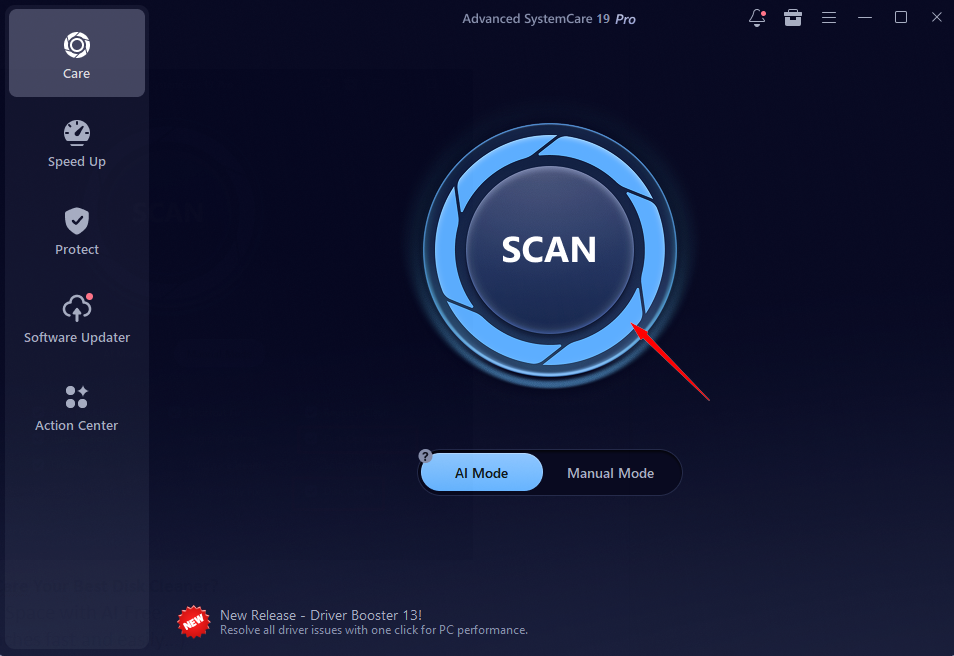
Step 1. Free Download and Install IObit Advanced SystemCare.
Step 2. Click “SCAN” in AI Mode to quickly scan your Windows trashes, including privacy traces, invalid shortcuts, registry entries, etc.
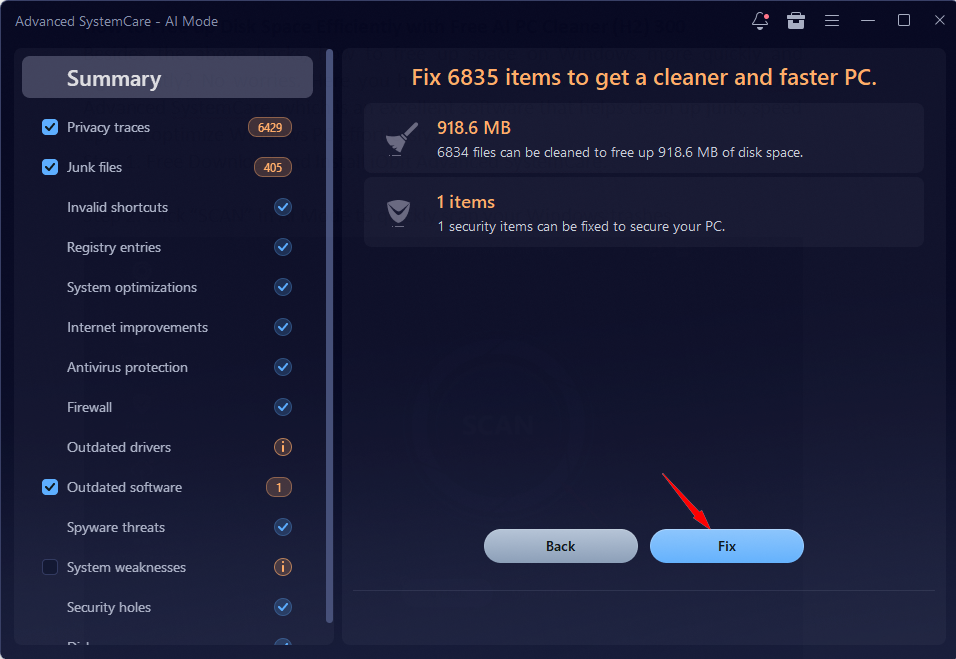
Step 3. Click on “Fix” to free up significant storage of disk space automatically.
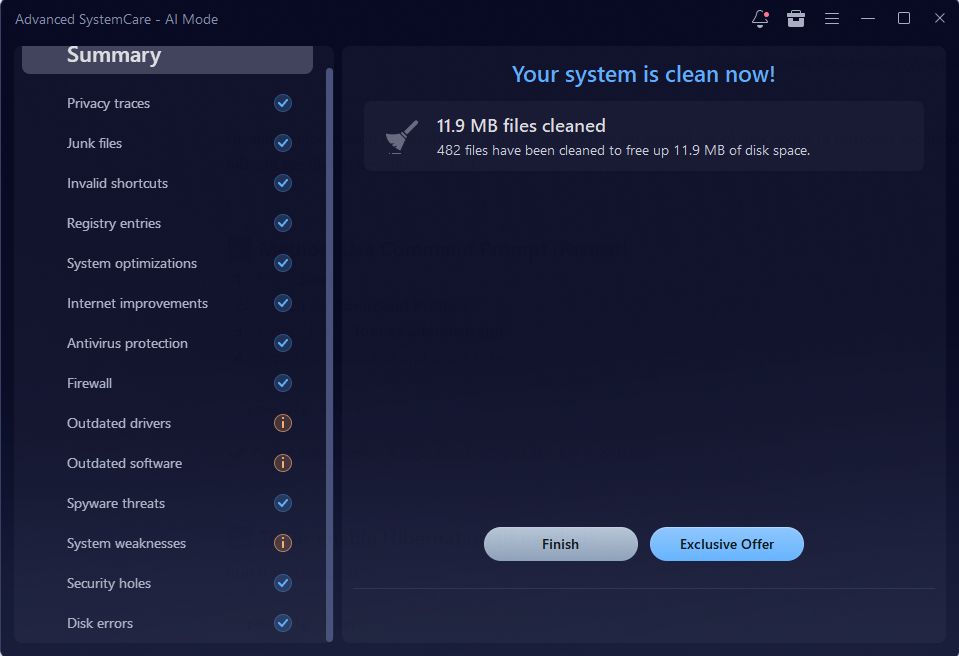
Step 4. Please wait for the progress to complete in minutes. Click “Finish” to end the work.
Tips: If you need a customized cleanup on PC, you’re recommended to use “Manual Mode” scanning, and select the preferred options to free up and optimize the system.
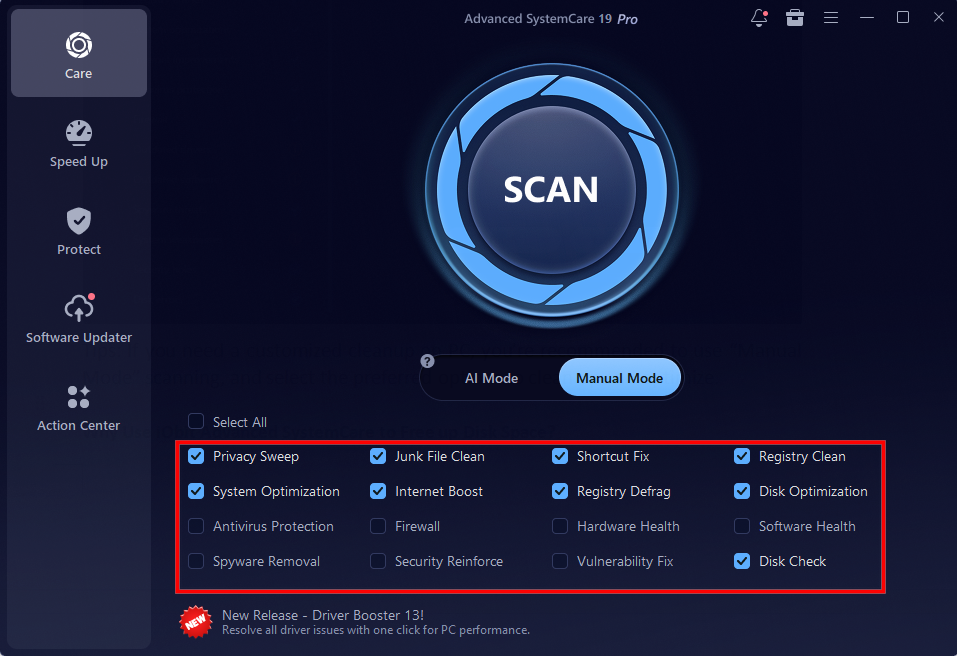
Why Use IObit Advanced SystemCare to Free up Disk Space?
How to free up disk space on my PC? IObit Advanced SystemCare is the best PC cleaner to auto remove all junks, caches, invalid shortcuts, etc., in hard disk easily with AI. 100% for free to clean up your disk storage.
This amazing disk cleaner also provides multiple firewall and antivirus protection to ensure your computer is protected well. You’re free to enjoy Privacy Sweep, Spyware Removal, Security Reinforce, and more options.
Not just disk space free up, IObit SystemCare also helps auto scan and fix your common disk errors, such as corrupted file system, bad sectors, etc. Moreover, it works perfectly to optimize hard disk (HDD/SDD) for maximum program performance.
It’s a wonderful tool to speed up your Windows PC by various features: Turbo Boost, which stops unnecessary programs to release RAM, Startup Optimizer, and Real-Time TuneUp, which automatically clean & optimize your PC.
The fabulous hard disk cleaner offers comprehensive online protection, including System Protection (anti-spyware), Privacy Protection (anti-tracking), Browser Protection (email protection, ads removal).
That’s how to free up disk space on a laptop or PC Windows with IObit Advanced SystemCare.
How to Free up Disk Space on PC Windows 11/10 [8 Tips]
Can you clean up space on PC without a third-party tool? Fortunately, Windows 10 & 11 offer several built-in tools and simple strategies to help you reclaim storage. This guide walks you through the 8 best ways to free up storage on PC, step by step.
Tip 1. Use Built-in Disk Cleanup Tool
How to free up disk space on Windows 11? To free up disk space on your PC, the fastest way is to rely on Windows built-in disk cleanup tool. It’s a handy tool for removing temporary and unnecessary files.
Step 1. Input “Disk Cleanup” in the Windows search bar.
Step 2. Select your system drive (usually C:), and click on “OK” for scanning.
Step 3. Click “Clean up system files” to get a more thorough clean up.
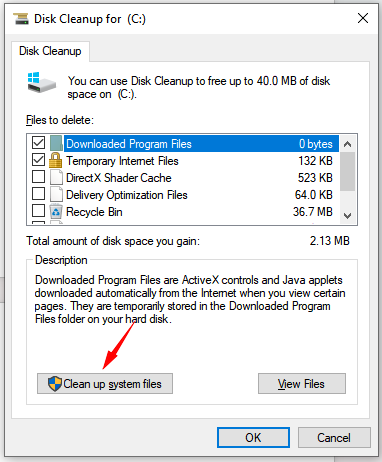
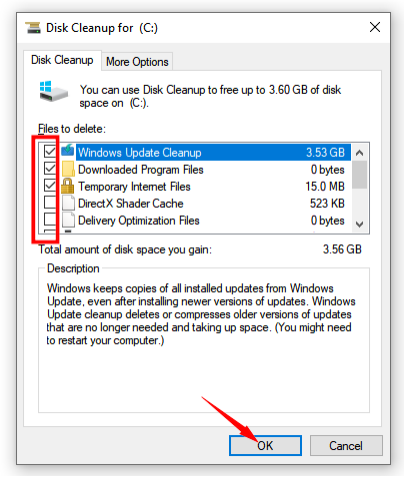
Select the files you want to delete or remove:
Step 4. Click “OK” to free up your PC disk space in several minutes. (It depends on the amount of data needs deleting.)
Tip 2. Enable Windows Storage Sense
How to clean up disk space? Besides Disk Cleanup, Windows also provide a built-in Storage Sense feature that automatically removes unnecessary files when your system is running low on storage to optimizes your disk space.
Step 1. Go to “Settings” > “System” > “Storage”.
Step 2. Turn on Storage Sense, and click “Configure Storage Sense or run it now”.
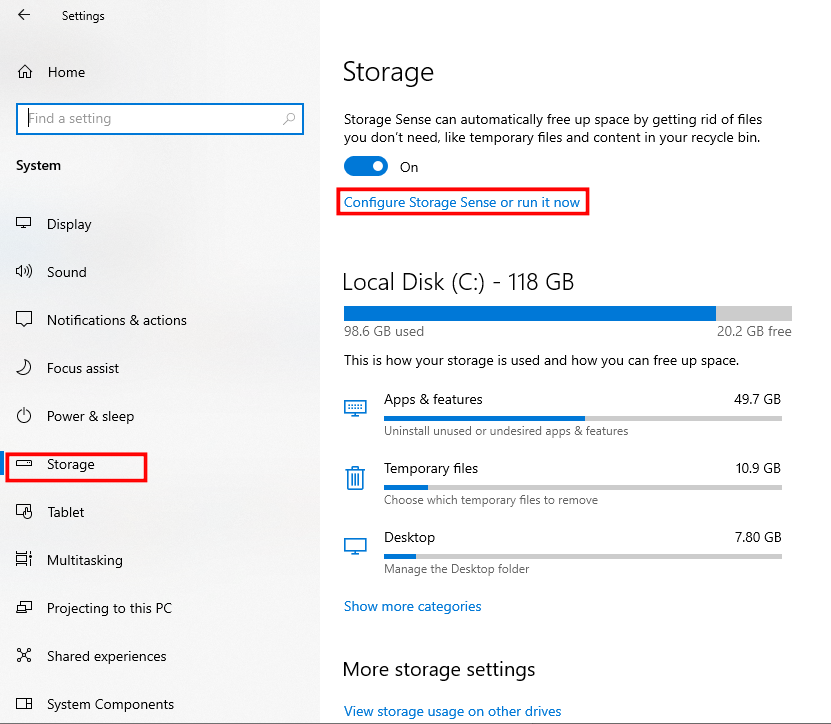
Step 3. Customize Storage Sense settings as you prefer.
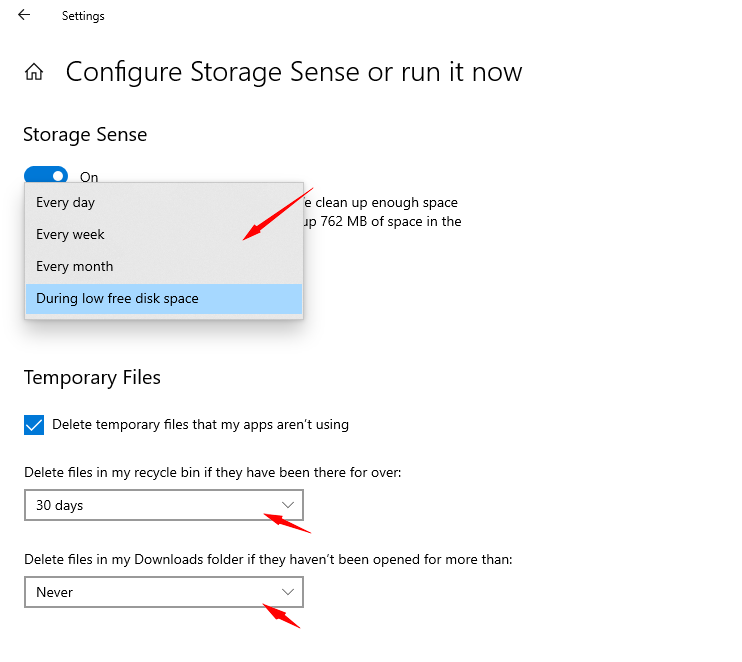
You can choose how often it runs and whether it deletes temporary files or empties the Recycle Bin automatically. This is a great hands-off solution.
Tip 3. Empty Your Recycle Bin
All your deleted files from computer will be moved in the Recycle Bin and won’t be removed permanently until the Recycle Bin is emptied. Free up your disk space by emptying your Recycle Bin:
Step 1. Right-click the Recycle Bin icon on your desktop.
Step 2. Select “Empty Recycle Bin”.
If you frequently delete large files, this simple step can instantly free up a noticeable amount of space.
Tip 4. Uninstall Unnecessary Programs & Games
How to clean up disk space on computer? Unused or non-essential programs and PC games can take up a lot of disk storage, so uninstalling these applications and games is a smart way to clean up your disk space. If you would like to uninstall bunk programs and games fast and completely, free download IObit Uninstaller to get speedy and advanced uninstallation.
IObit Uninstaller Free
- Complete forced uninstallation for stubborn programs.
- Uninstall a batch of programs at once.
- Scan and remove leftover files, folders, and registry entries.
- Support the management of Universal Windows Platform apps.

General steps to remove unnecessary programs:
Step 1. Free download and install IObit Uninstaller on your computer.
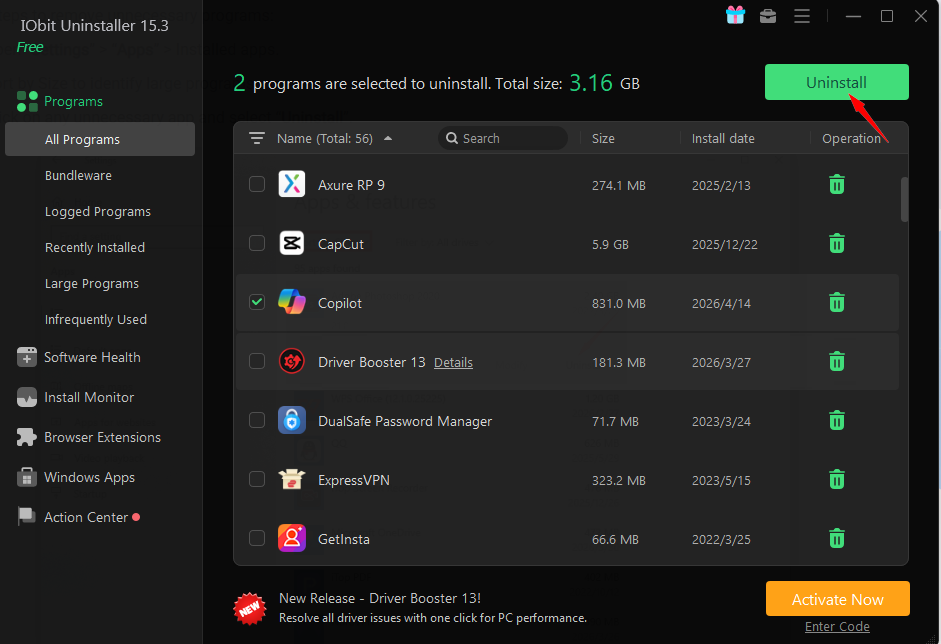
Step 2. Launch the software and select unwanted programs under the "Programs" tab, then click on "Uninstall".
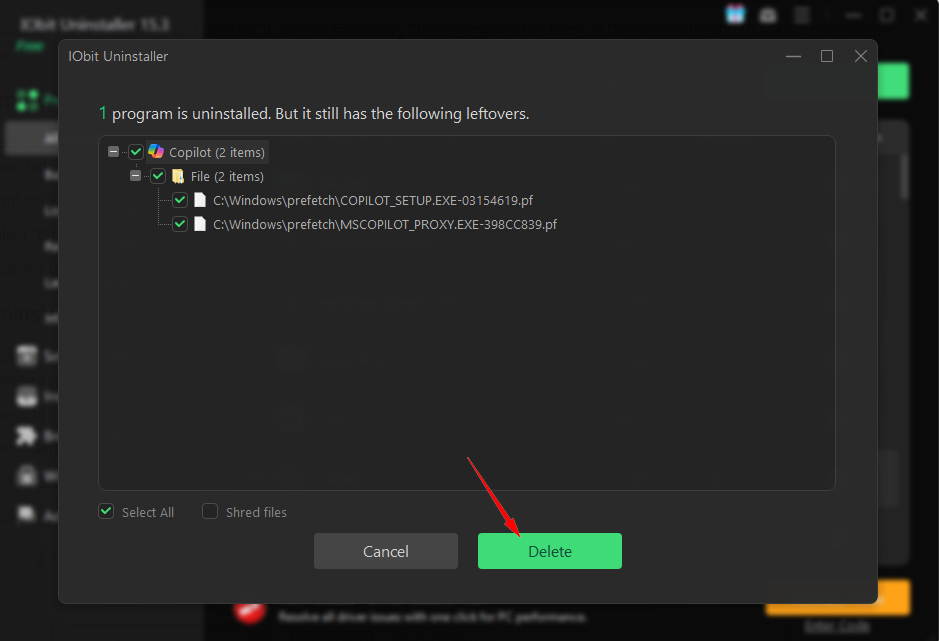
Step 3. When finished, confirm the uninstallation and click "Delete" to completely remove all leftovers.
It's rather easy and fast to free up your disk space! Remember, focus on removing software you no longer use, trial programs, or large games you rarely play on your computer.
Tip 5. Move Large Files to External Storage
How to free up PC space? If your hard drive still has a large amount of data stored on it currently, transferring your large files to external storage can be a fantastic way to free up limited disk space. So, move the large files that don't require frequent access to external storage now.
Options Include:
How to Do It:
Step 1. Connect your external storage device.
Step 2. Drag and drop large files or folders onto it.
Step 3. Verify the transfer before you delete the original.
This method keeps your files safe while freeing up space on your main drive.
Tip 6. Save New Files to the Cloud Storage
Another way on how to free up disk space on PC Windows 10 and 11 is relying on your cloud storage. Most cloud storage services work effectively to back up and manage extensive files, as well as protect your privacy in the cloud. Choose a reliable cloud storage option and have a try!
Most recommended cloud storage options:
Google Drive (15GB of free storage and syncs)
Dropbox (2 GB of free storage and syncs)
One Drive (5 GB of free storage and syncs)
iCloud (5 GB of free storage and syncs)
Amazon Drive (5 GB of free storage and syncs)
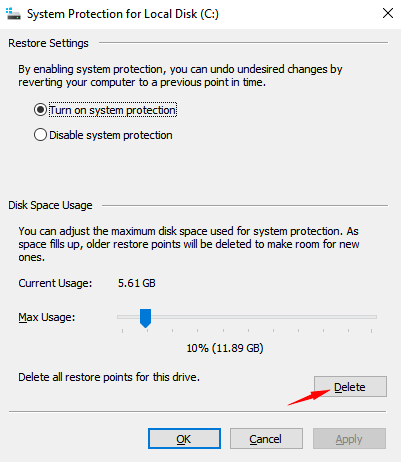
Tip 7. Remove Old System Restoration Points
System restoration points help revert your computer to a previous state if it breaks due to updates or other problems. Removing all old system restoration points in your system is also an effective way to release your disk space.
Steps on how to clean up disk space:
Step 1. Type "sysdm.cpl" in the Search Bar or press (Windows key + Pause) to open "System Properties".
Step 2. Click on "System Protection" > your system drive (C) > "Configure".
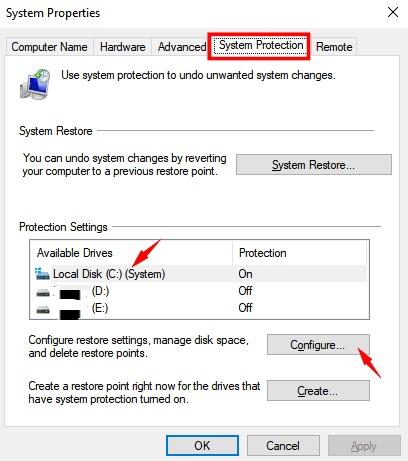
Step 3. Click "Delete" to remove old restore points to free up disk space (Adjust space usage or disable as you demand).
Tip 8. Disable Hibernation to Free up Disk Space
Windows hibernation is a power-saving feature that lets your computer completely turn off while saving your current work so you can resume later exactly where you left off. The final hack on how to free up disk space is to disable hibernation, which may free up considerable storage space on your hard drive.
Step 1. Input cmd in the search bar to open Command Prompt, select Run as administrator.
Step 2. Type powercfg -h off and press Enter.
Step 3. Restart your computer.
The Bottom Line
How to free up disk space on your computer? You must have found the best solution in this guide with 9 tips to free up disk space and speed up your Windows 10 & 11. If you’d like to free up disk space fast and efficiently, IObit Advanced SystemCare is the best way to free up space on PC. One click to clean up all junk files and caches and optimize your Windows!
Advanced SystemCare Free
- Clean: 420 billion traces removed & 85 EB junk files cleaned
- Protect: 80 million unauthorized access blocked & 20 million bugs fixed
- Speed Up: 6 million hours of startup time saved & Turbo boost
- Optimize: Auto clean and auto care your PC with AI mode