RAM (Random Access Memory) is a device’s short-term memory. Whether you want to run apps, games or browser tabs, it takes a certain memory to temporarily store the data your processor needs.Too many memory on your PC will cause shuttering, buffering, crashing, and more. In this guide, we will break down effective and step-by-step methods to instantly free up RAM, and optimize your system settings for a permanently smoother, faster computing experience.
How to free up RAM on PC? Follow the steps below.
1. Stop unnecessary programs and processes
There are some services that are running in the background which occupy memory, including startup apps, Steam web helper and more.
Common processes that needs to close to free up RAM:
Startup services: They run in the background since PC startup.
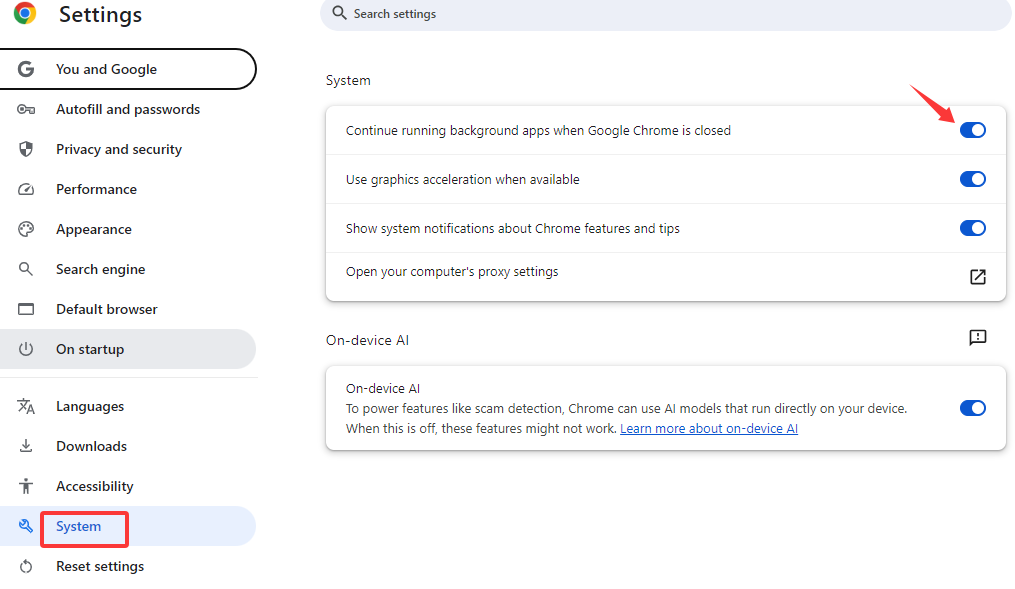
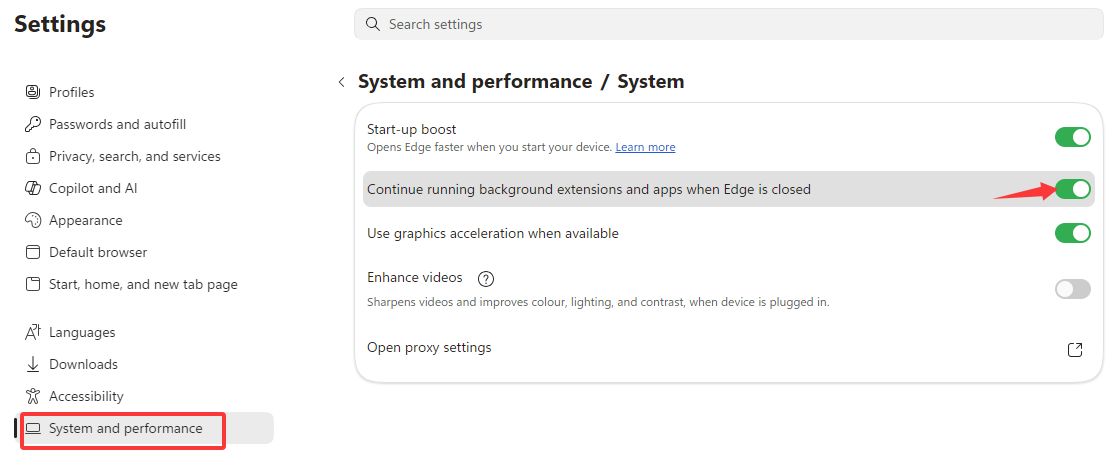
Residual browser processes: If you don’t disable the default feature “Continue running background apps when browser is closed”, it means even if you close all browser windows, certain processes, extensions, and apps are still active in the background.
Game lunch helpers: The game is closed, but the platform’s web rendering engines and friends list services are still active.
Stop them by going to Task Manager > click Memory > close those services and apps that you don’t need at all but still rank tops.
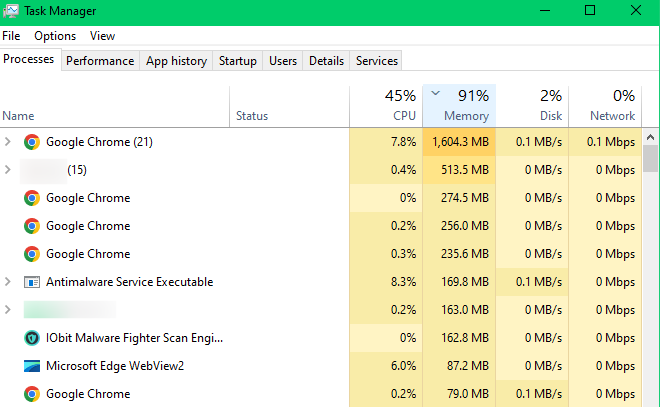
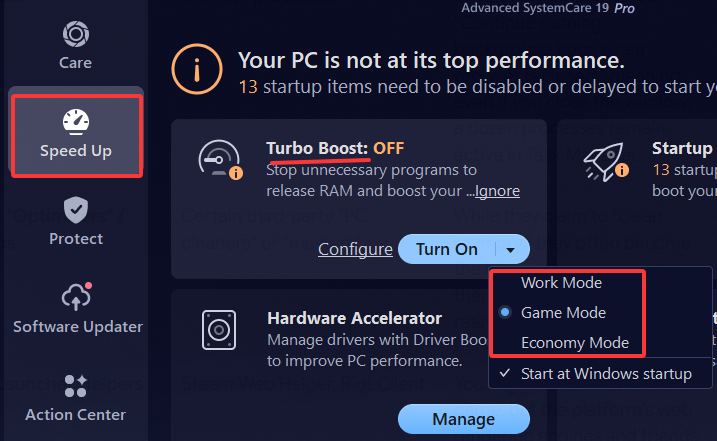
For automatically closing unnecessary services with one click, try Advanced SystemCare, a kind of comprehensive Windows optimizer to improve your PC performance from multiple aspects.
2. Close Browser Tabs and Adjust Some Browser Settings
Browsers now are adapting multi-process architecture. Every browser tab is a new and independent process which consumes larger RAM than ever. Especially when your tab contains HD pictures, auto-play videos, browsers need to put them into RAM to make sure smooth browsing and playing.
To reduce the RAM, you could follow the steps below.
Close unused tabs
Disable the feature “Continue running background apps when Google Chrome is closed”.
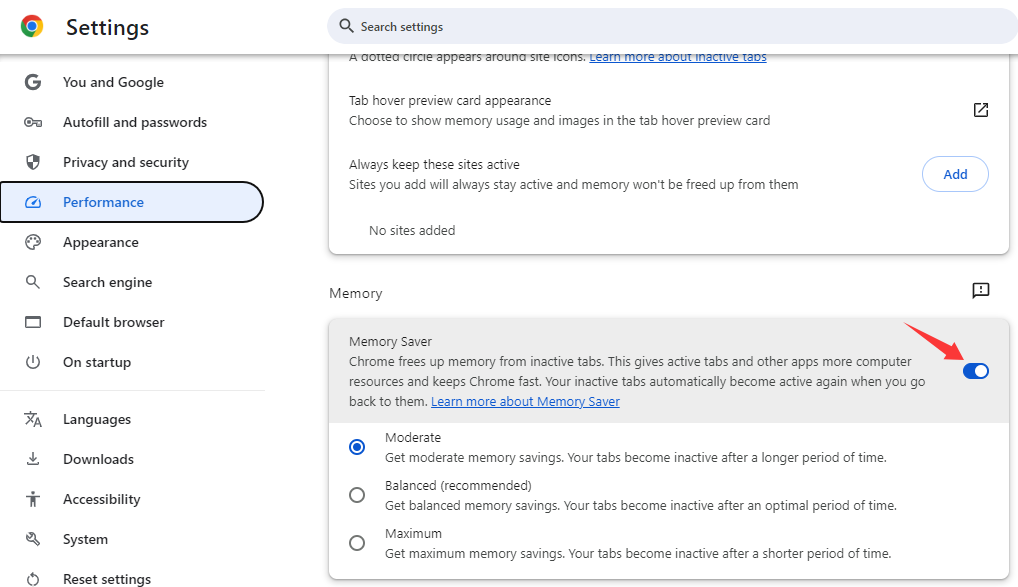
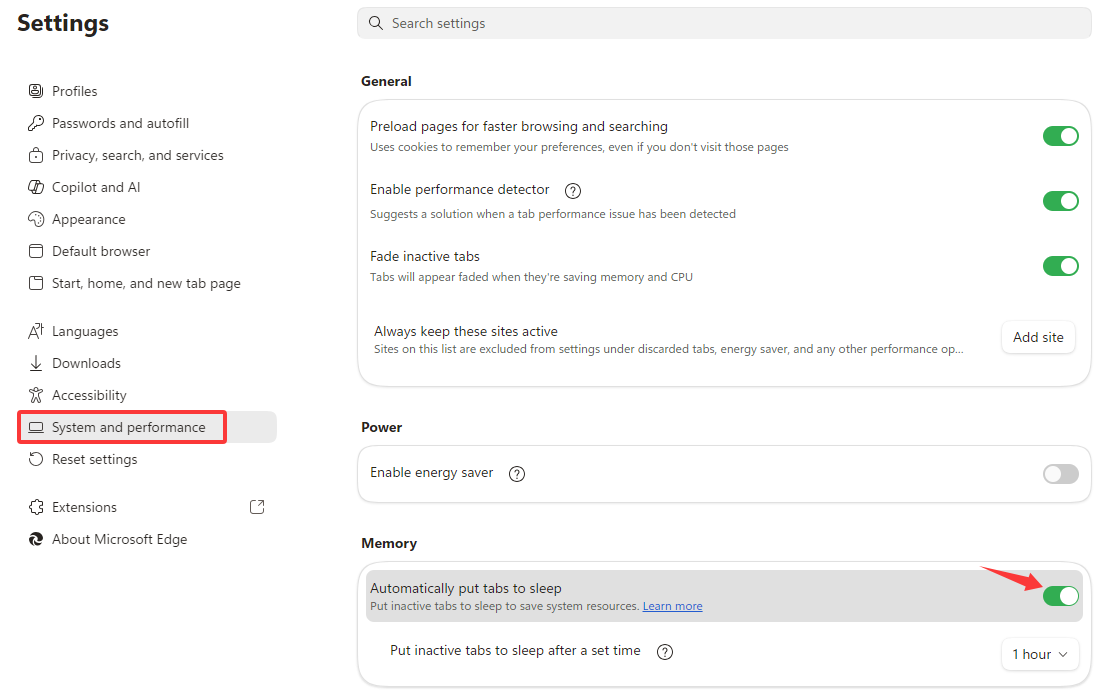
Toggle on native tab hibernation mechanism
3. Manage Startup Services
Some software has been installed to run since PC startup by default, for the sake of collecting data, pushing ads, or fast launching. If you don’t manage your startup items, they continue to occupy your RAM and GPU.
Disable startup services manually on Task Manager:
Go to Task Manager by pressing Ctrl+Shift+Esc.
Click Startup on the top menu, check the status of services and click the Disable button to prevent it from running after you boot the PC.
Optimize startup items automatically with Advanced SystemCare:
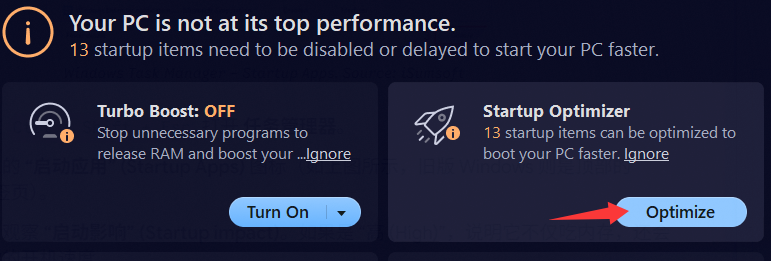
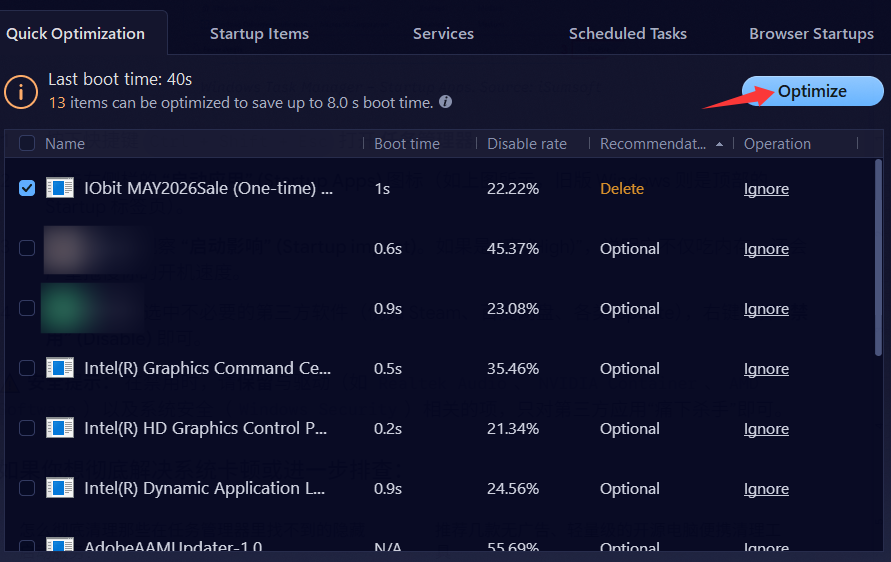
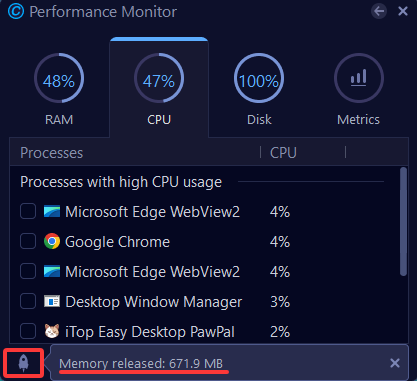
4. Use RAM Cleaner to Clean RAM Automatically
A famous brand in the industry, Advanced SystemCare, may be what you need, for automatic ways and user-friendly interface.
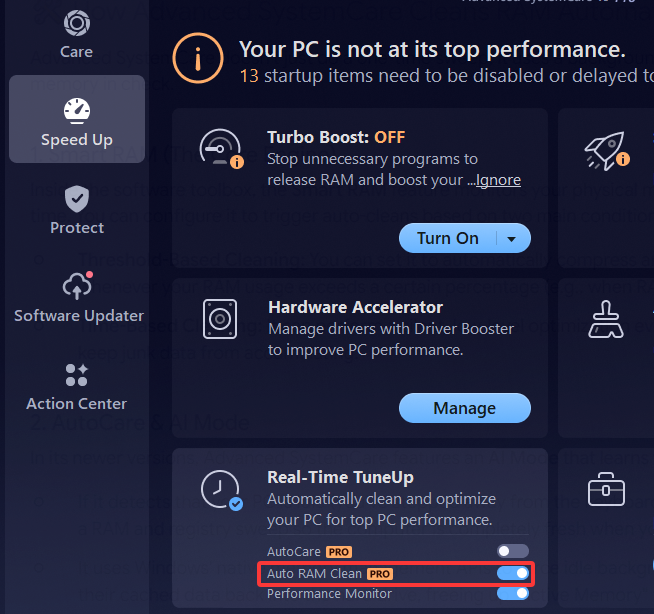
Advanced SystemCare improves your PC performance from the following aspects:
System clean: Delete temporary system files, junk files, cookies, and broken registries.
Speed up: Boost your PC speed by managing startup services, stop unnecessary programs, and improve internet speed.
Update software: One-click to update all outdated software.
Safe folder: Protect your files or folders with password.
5. Restart PC to Clear RAM
If your PC stays at 80% memory or more for a long time, or even worse, close to 100%, restarting the operating system is the fastest way to release all RAM in a short time. It forcefully flushes everything stored in the RAM and terminates all background processes.
6. Clear Your RAM Cache
When you close a software, the system will not erase all data in the memory from the software. These data are labeled as cached or Standby Memory. In a word, RAM cache is to store recently accessed data for quick retrieval.
When do I need to clear the RAM cache manually?
Memory leak: Some buggy programs might hoard data in the cache and cannot be released automatically.
Game shuttering: Some heavy modern games encounter micro-shutters or sudden FPS drops because the OS may fail to release the cache fast enough.
How to clear RAM cache?
Regular Task Manager “End Task” commands can’t clear system-managed RAM cache. For the safest and most recommended way, download RAMMap, an advanced physical memory analysis utility for Windows made by Microsoft Sysinternals, to analyze and manage system memory.
Download and right-click RAMMap, and choose Run as administrator.
Open your Task Manager > Performance > Open Resource Monitor on the bottom > Memory.
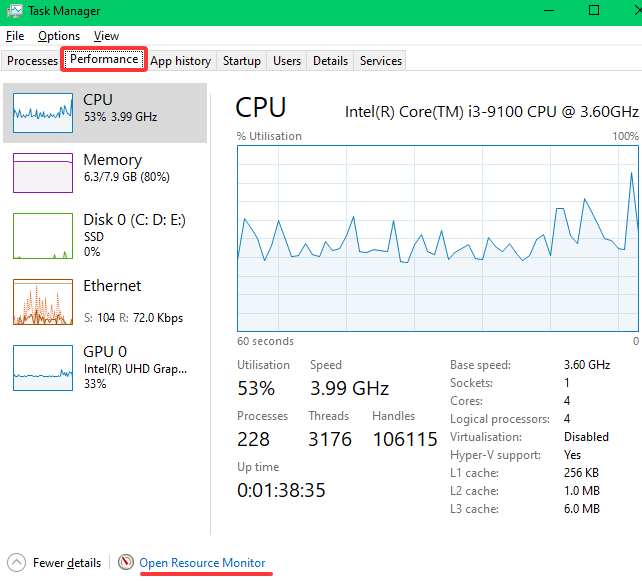
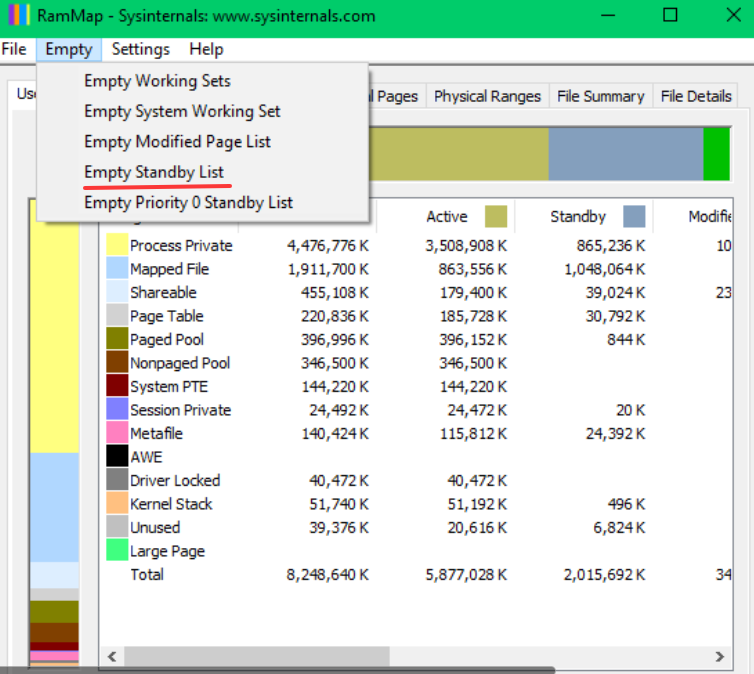
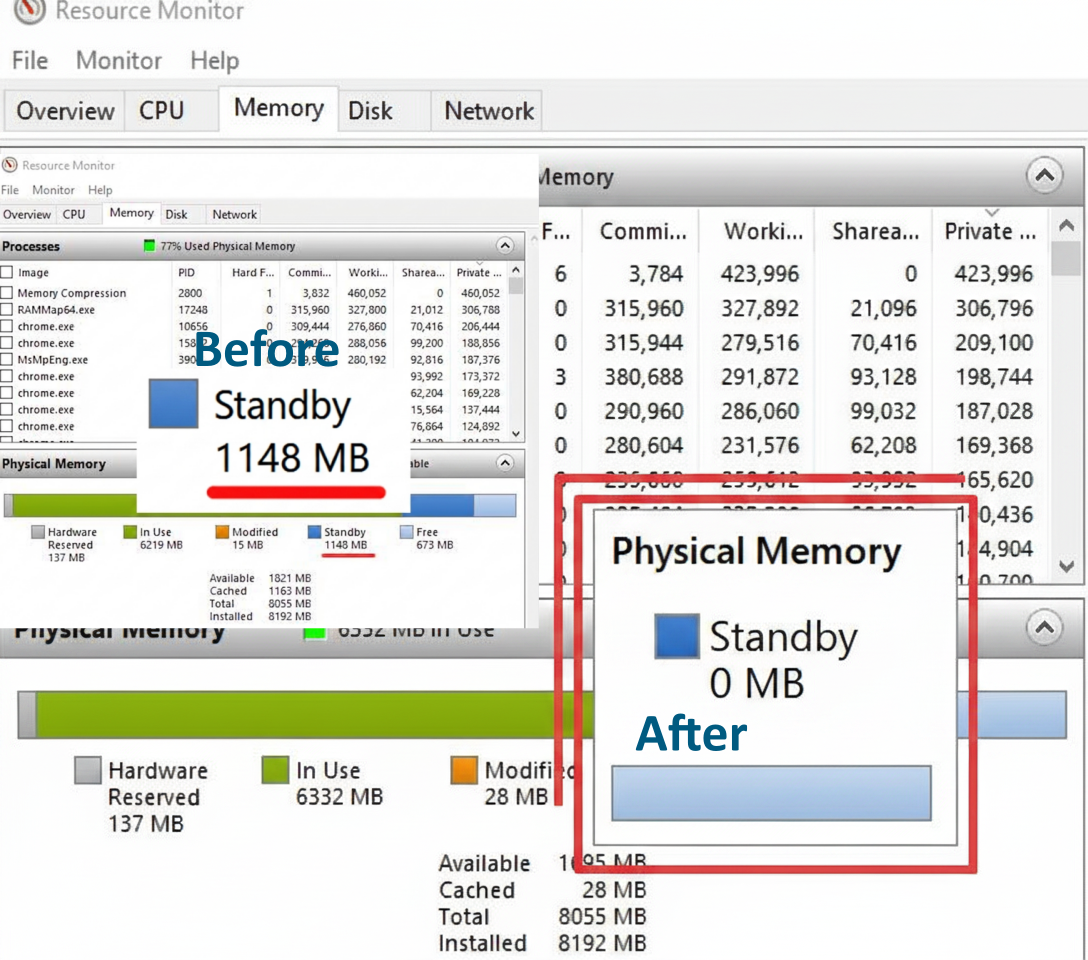
If there are no changes in the number of Standby memory after using RAMMap, it may be caused by blocking by your Windows 11’s Windows Defender or other built-in security features. Try another tool ISLF (Intelligent Standby List Cleaner).
7. Disable Operating System Visual Effects
We have to admit that Windows visual interface effects consume a very small proportion of system RAM. Still, it is a way to reduce high RAM usage and speed up your Windows by disabling all effects instantly.
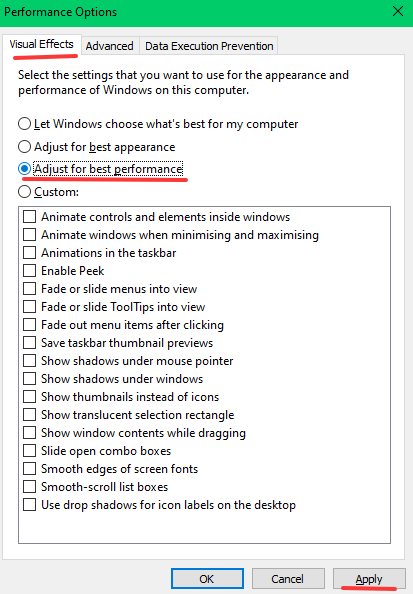
Press Windows + R key to open the Run dialog box.
Input SystemPropertiesPerformance.exe and press Enter.
Under the Visual Effects tab, select Adjust for best performance.
8. Update Apps to the Latest Version
Some apps contain bugs that lead to memory leak. When they are updated for fixing bugs and optimize performance, updating is necessary. Even not for reducing less RAM, updating apps is still vital.
For Windows apps, go to Microsoft Store to download the latest version app; for third-party apps, go to their official websites to download.
9. Scan Your Device for Malware
If your PC is infected with malware, it will install rogue software that takes up large system resources, especially RAM. Scan your device with built-in Windows Defender or try IObit Malware Defender for real-time malware detection and blocking.
IObit Malware Fighter Free
- Quick and deep system scanning throughout PC system.
- Smart defense against all malicious infestations.
- High-level security and privacy protection in real time.
- Leading anti-malware and anti-virus engines.

10. Final Way: Upgrade RAM or Buy a New RAM
If you've tried various methods to optimize your computer but still experience lag, crashes, or other issues, the best solution is to upgrade your RAM or purchase a larger capacity RAM module.
Before upgrading RAM, you need to:
1. Check your system’s physical limitations
Open Task Manager > click Performance > Memory. You can see the slot used on the device.
2. Make sure to buy the correct generation and form factor, match the frequency of your existing memory.
To buy a new RAM, you need to:
1. Check the compatibility
Generation: Select DDR3, DDR4, DDR5, according to your motherboard and CPU.
Form Factor: Desktop always need full-size DIMMs, and laptop always need smaller SO-DIMMs.
Clearance: Check your CPU cooler’s clearance.
2. Choose the capacity
Choose the capacity of RAM based on your needs.
8GB: For budget/light users (basic web browsing, )
16GB: For Everyday standard
32GB: For power users & gamers, photo/video-editing
64GB: For professionals & creators 4K video editing/3D modeling, CAD software
Tips: Dual-channel RAM is better than single RAM for higher FPS, faster load times, and quicker render times.
Why Need Free Up RAM?
The more tasks your device is processing, the more memory it takes. If you run out of RAM, your computer will cause some lags and issues.
Solve system lag and frame drops
When RAM is running low, to prevent crashes, Windows has to move some data from RAM to a temporary area on the hard drive (HDD/SDD), which is far slower than RAM in read/write speeds. In this condition, the screen freezes, the mouse spins, typing lags, or game frame drops.
Prevent software crashes and disruptions
When running a large software and RAM is nearly 100% full, the software will crash due to an Out of Memory error. In this situation, you may encounter suddenly exited software or crashed browser tabs.
Solve software memory leaks
Some programs that are not so perfect in code can cause memory leaks, that is, the program consumes much larger memory than it is supposed to be as time passes.
Signs & Moments You Need More RAM
Slower speed
Software crashes
Longer load times
High memory usage
Programs not responding
Low frame rates
Conclusion
Clearing RAM on PC is mainly to eliminate unnecessary clutter so your system can focus its resources on what you are actually doing right now for faster speed and quicker response. You can try to manage startup services, stop unnecessary background apps, close browser tabs, and more. If you still encounter crashes or buffering, physical hardware upgrade is the ultimate solution.