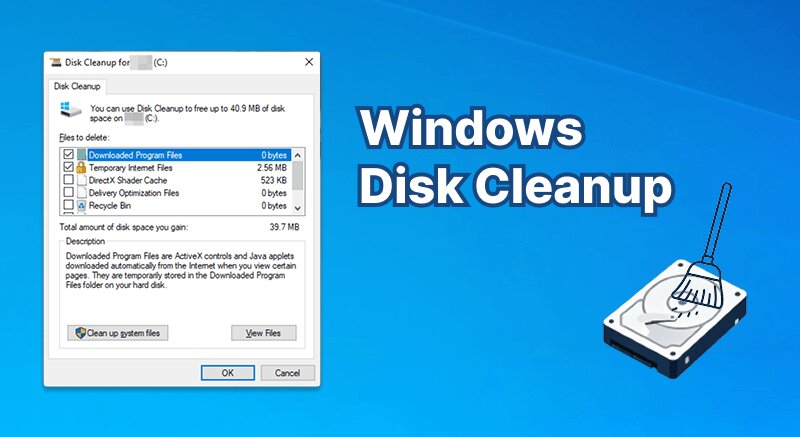
A slow PC and a nearly full drive may turn simple tasks into a daily annoyance. Junk files, cache, temporary browser data, invalid registry entries, and other digital clutter quietly build up as you use Windows. Finding and removing every unnecessary file manually takes time, and it is easy to miss items hidden in different folders or system locations. A good computer cleaner software can scan these areas in one place, remove unnecessary clutter, and free up valuable disk space.

Why Does Your Computer Need Cleaner Software?
Computer cleaner software is useful for more than freeing up storage. Several common PC problems point to the need for regular cleanup.
Disk space in high usage
When the system drive is close to full, Windows has less room for temporary data, updates, and other system tasks. Large downloads, old installers, and forgotten files consume storage faster than expected.
Accumulation of temporary files
Windows, browsers, and installed programs regularly create cache, logs, temporary files, and other leftovers. Much of this data has little value once the related task is finished, yet it remains on the drive.
Too many unnoticeable startup applications
Some programs launch automatically with Windows even though you rarely use them. A long list of startup apps increases boot time and leaves more processes running in the background.
Outdated or unnecessary software
Programs you no longer use take up storage and may leave behind associated files. Old software also adds background services that serve little purpose.
Duplicate files, photos, or videos
Repeated downloads and multiple copies of the same media quietly consume gigabytes. A cleanup tool identifies these duplicates to let you decide what is safe to remove.
How to Choose Safe Computer Cleaner Software?
Installing a third-party cleaner makes some users hesitate, especially when the software asks for access to system files or other sensitive areas. A few checks reduce the risk of downloading an unreliable program.
Can be searched on Microsoft Store
Check whether the cleaner is listed on the Microsoft Store. Store availability provides an additional source for checking the developer, app details, and user feedback.
Download from Microsoft Store or Official Website
Stick to the Microsoft Store or the software developer's official website. Avoid random download portals, modified installers, and pop-up ads offering a computer cleaner software free download, as these may bundle unwanted programs or outdated versions.
Prioritize software from reputable companies
Look for an established developer with clear product information, support channels, and a transparent privacy policy. A reputable company should also provide regular updates rather than leaving users with an abandoned utility that no longer keeps pace with Windows changes.
5 Best Computer Cleaner Software for Removing Junk & Saving Disk Space
Not every computer cleaner tool handles junk in the same way, so the useful features are worth checking before choosing the best PC cleaner.
Common Points of These Computer Cleaner Software
Most of the computer cleaner software covered here helps with several types of digital clutter:
Delete browser cache, history, and cookies: Remove stored browsing data that accumulates across Chrome, Edge, Firefox, and other supported browsers.
Delete temporary files and junk files: Find unnecessary files left by Windows, installers, and everyday applications to reclaim disk space.
Remove system caches & logs: Clear selected caches, logs, and other system leftovers that are no longer needed.
Clean application residuals: Remove leftover files associated with applications, including data that may remain after normal use or uninstallation.
Auto scan and remove duplicate files: Scan for duplicate files and target repeated photos, videos, documents, or other copies taking up unnecessary storage.
Advanced SystemCare
Highlight: AI mode to clean and optimize PC
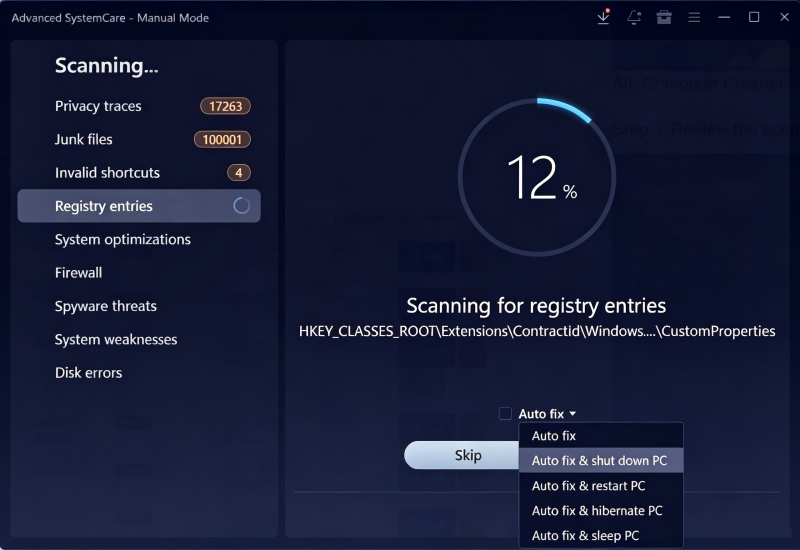
Advanced SystemCare is a Windows optimizer that covers system cleaning with startup management, speed performance enhancement, privacy cleanup, and other maintenance tools. The AI Mode analyzes the system and creates a personalized cleanup plan covering junk files, logs, caches, and leftover data from third-party apps and browsers.
Advanced SystemCare Free
- Clean: 420 billion traces removed & 85 EB junk files cleaned
- Protect: 80 million unauthorized access blocked & 20 million bugs fixed
- Speed Up: 6 million hours of startup time saved & Turbo boost
- Optimize: Auto clean and auto care your PC with AI mode
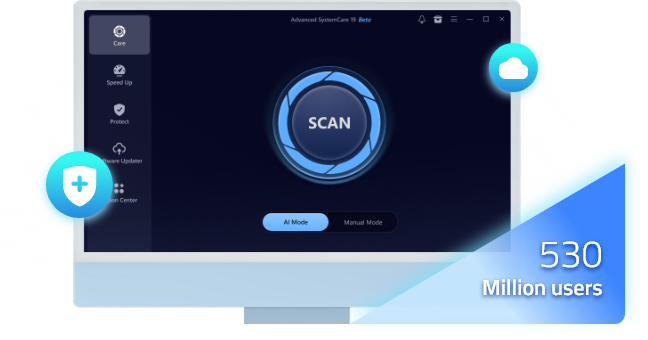
For routine maintenance, Advanced SystemCare also includes AutoCare, which can handle scheduled automatic scans and optimization tasks, reducing the need to remember when to clean the PC manually. Meanwhile, the built-in Startup Optimizer and Turbo Boost close unnecessary startup apps and background processes to free CPU and RAM resources for smoother, faster PC performance.
How to clean a PC with Advanced SystemCare:
Step 1. Install and launch Advanced SystemCare on your Windows PC, then open the Care tab.
Step 2. Select AI Mode or Manual Mode and click SCAN. Advanced SystemCare will examine the selected cleanup and optimization items.
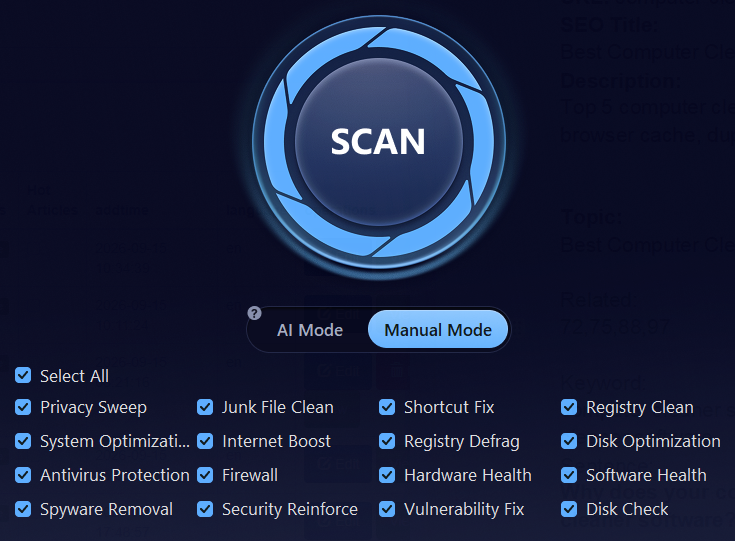
Step 3. Review the scan results and click Fix to remove detected junk.
Wise Care 365
Highlight: Backup Center that lets you create a System Restore Point
Wise Care 365 brings several Windows maintenance tools together, including junk-file cleanup, registry management, privacy cleanup, and system monitoring. Its System Cleaner scans for temporary files, browser cache, cookies, invalid shortcuts, and other unnecessary data. The computer cleaner software also includes tools for checking running processes and managing startup items.
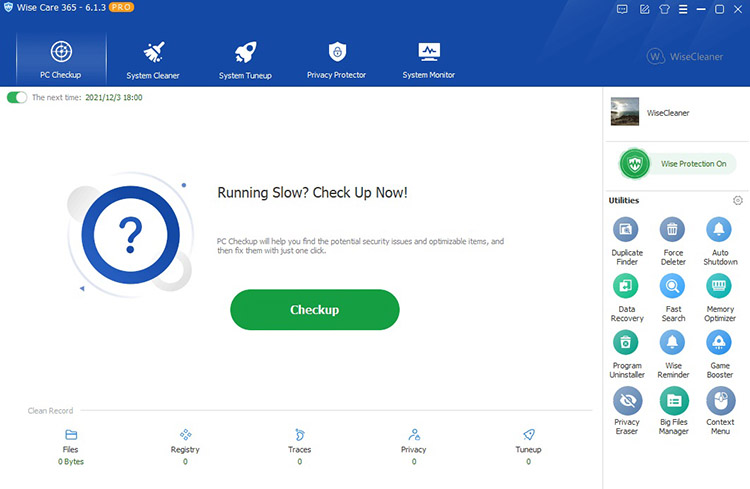
One feature worth noting is the Backup Center. Before making system-level changes, you can use it to create a System Restore Point and keep a recovery option available. Wise Care 365 also backs up registry items before registry cleaning. For people comparing computer cleaner software, Wise Care 365 is a reasonable choice for combining storage cleanup with basic Windows optimization.
Ashampoo WinOptimizer
Highlight: One-click cleanup with built-in tools for Windows performance optimization.
Ashampoo WinOptimizer is an all-in-one Windows hard drive cleaner software that covers disk cleanup, privacy controls, startup management, and performance in a single interface. Its One Click Optimizer scans several areas at once, including unnecessary files, browser traces, and registry entries, while dedicated cleanup tools provide more control over individual categories.
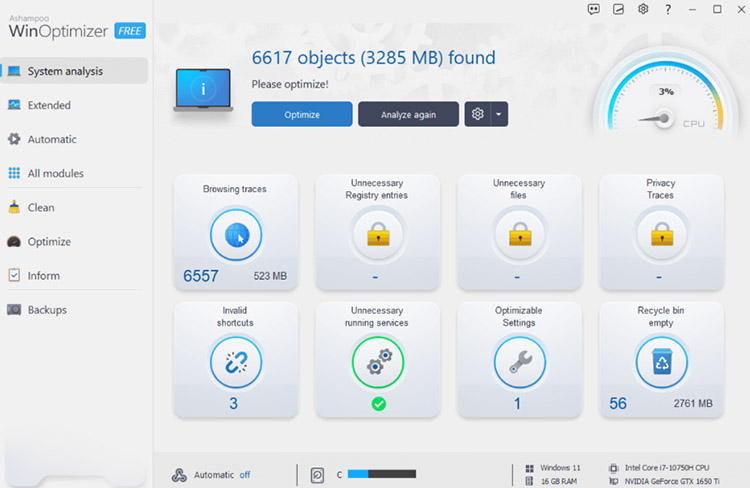
For storage maintenance, the drive-cleaning functions locate, clean up temp files, temporary and leftover files. The software also includes tools for managing startup items and background processes, along with privacy and file-management utilities such as secure file deletion.
For users comparing computer cleaner software, WinOptimizer is appealing mainly because it combines cleaning with a broader set of Windows tuning tools rather than focusing on disk cleanup alone.
BleachBit
Highlight: Free, open-source cleanup with strong privacy and file-shredding tools.
BleachBit takes a straightforward approach to PC cleanup: scan for unnecessary data, select what should be removed, and clean it without adding a large set of unrelated optimization features. It supports common cleanup tasks such as clearing browser cache, cookies, history, temporary files, logs, memory dumps, and Recycle Bin contents. Its privacy tools are a notable advantage, with options to shred selected files and wipe free disk space to make deleted data harder to recover.
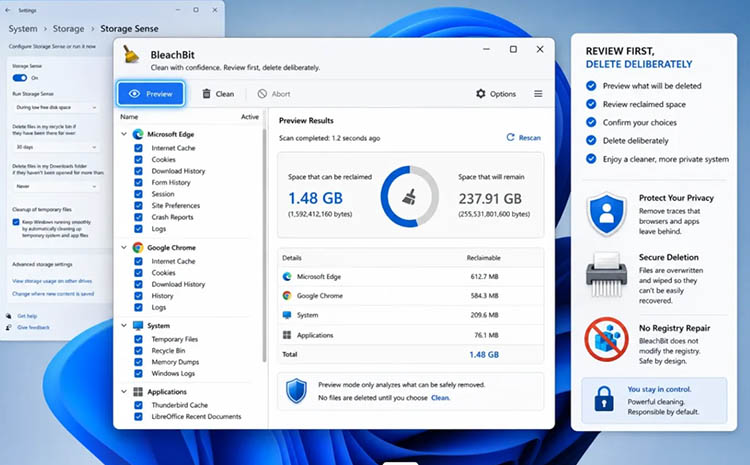
The best computer cleaning software is also free and open source, with versions available for Windows and Linux. There is no premium tier or constant background service consuming system resources. The trade-off is a relatively dated interface and fewer convenience features than full-featured PC tune-up suites.
Kerish PC Doctor
Highlight: Real-time Windows monitoring with automatic error detection and junk cleanup.
Kerish PC Doctor runs in the background to monitor Windows, detect potential system problems, and clean unnecessary data without requiring users to start every maintenance task manually. Its tools cover temporary files, system junk, startup items, Windows settings, and hardware monitoring. The software also monitors temperatures and other hardware conditions, which adds a useful diagnostic angle to its cleanup functions.
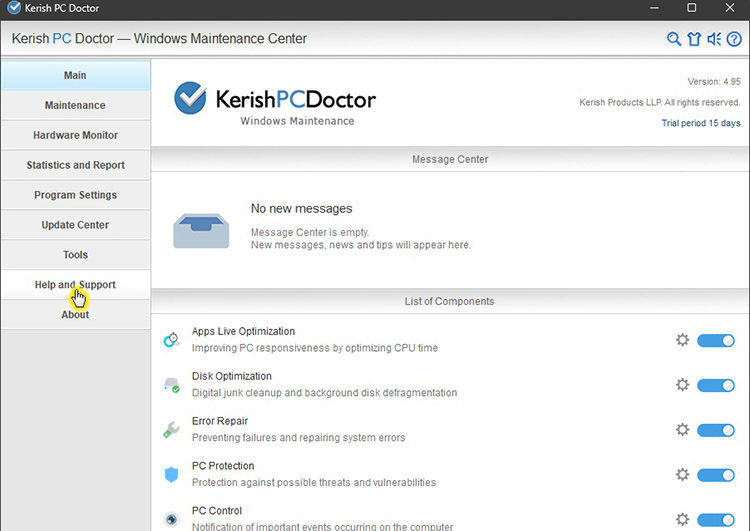
One advantage is its real-time approach, but that also means the Windows computer cleaning software is better suited to those who want continuous system monitoring rather than an occasional manual cleanup.
Conclusion
The right computer cleaner software comes down to how much control and automation you want. BleachBit is a solid pick for a free, open-source cleaner. Wise Care 365 and Ashampoo WinOptimizer go beyond basic junk removal with additional Windows maintenance tools. Advanced SystemCare offers AI Mode, scheduled maintenance, and a broader set of PC optimization features. It fits PCs that need regular cleanup without much manual maintenance.