Great performance comes from not only good hardware but also from persistent maintenance. Otherwise, your device may become laggy, crash a lot, etc., during everyday usage. Therefore, a regular cleanup is necessary for both the PC system. Right here, Windows Disk Cleanup comes to help with basic computer maintenance.
But what are the actual features? How to use it? This blog will delve into disk cleanup on Windows 10 and more and introduce eligible alternatives for deeper and more comprehensive system tune-up.
What Is Windows Disk Cleanup
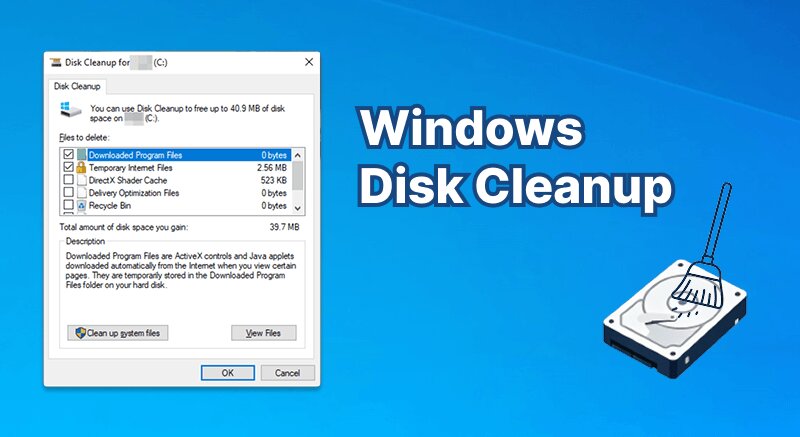
Prior to all, what is Windows Disk Cleanup? Disk Cleanup in Windows 10/11/more is a built-in computer maintenance feature that helps free up disk space. This feature is available on almost all Windows versions, dating all the way back to even Windows 95.
What does Disk Cleanup on Windows remove? Windows Disk Cleanup allows users to remove unwanted/unnecessary files, including temporary software/internet files, system logs, and items that were created by the graphics system.
Items you could get rid of from your disk via Windows Disk Cleanup:
Moreover, it also cleans up system files, which covers some more options:
*Reminder: Please be careful when cleaning up system files.
Pros
Completely free to use.
Windows built-in tool, no need to download any program.
Risk-free from virus/scam.
Cons
No auto disk cleanup feature.
No support for removing large personal files.
How to Run Windows Disk Cleanup to Free Up Disk Space
With the features clear, now it is time to check the amount of disk space you can free up with Disk Cleanup on Windows 10/11/more. Check the detailed steps on how to clean up Windows drives via Windows Disk Cleanup.
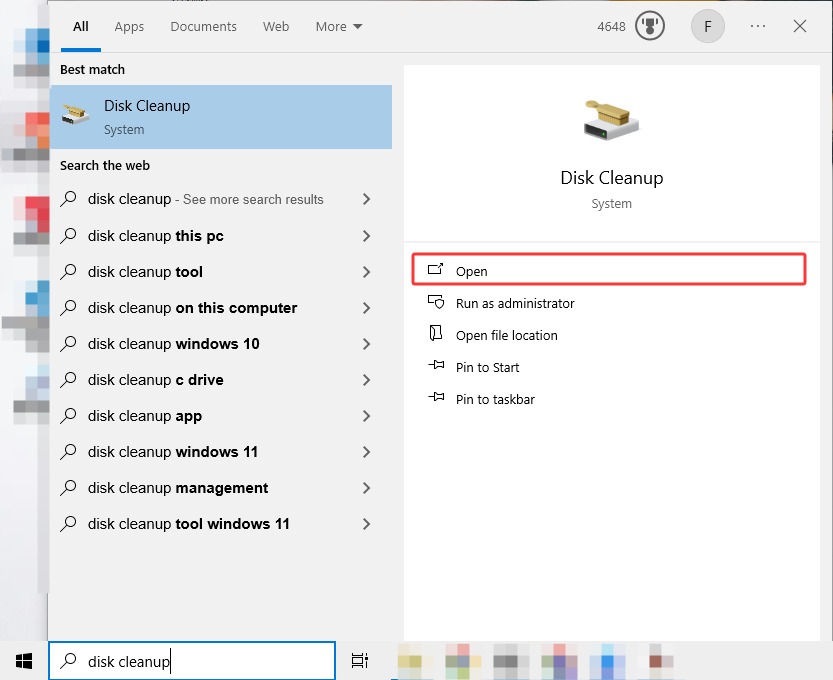
Firstly, you need to access Disk Cleanup on Windows devices. There are 2 means. Check and choose the one you prefer.
1. Via Windows Search Bar:
Step 1. Input Disk Cleanup in the Windows search bar > Click Open to access this tool.
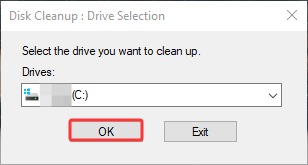
Step 2. Choose the drive you plan to clean > click OK to proceed.
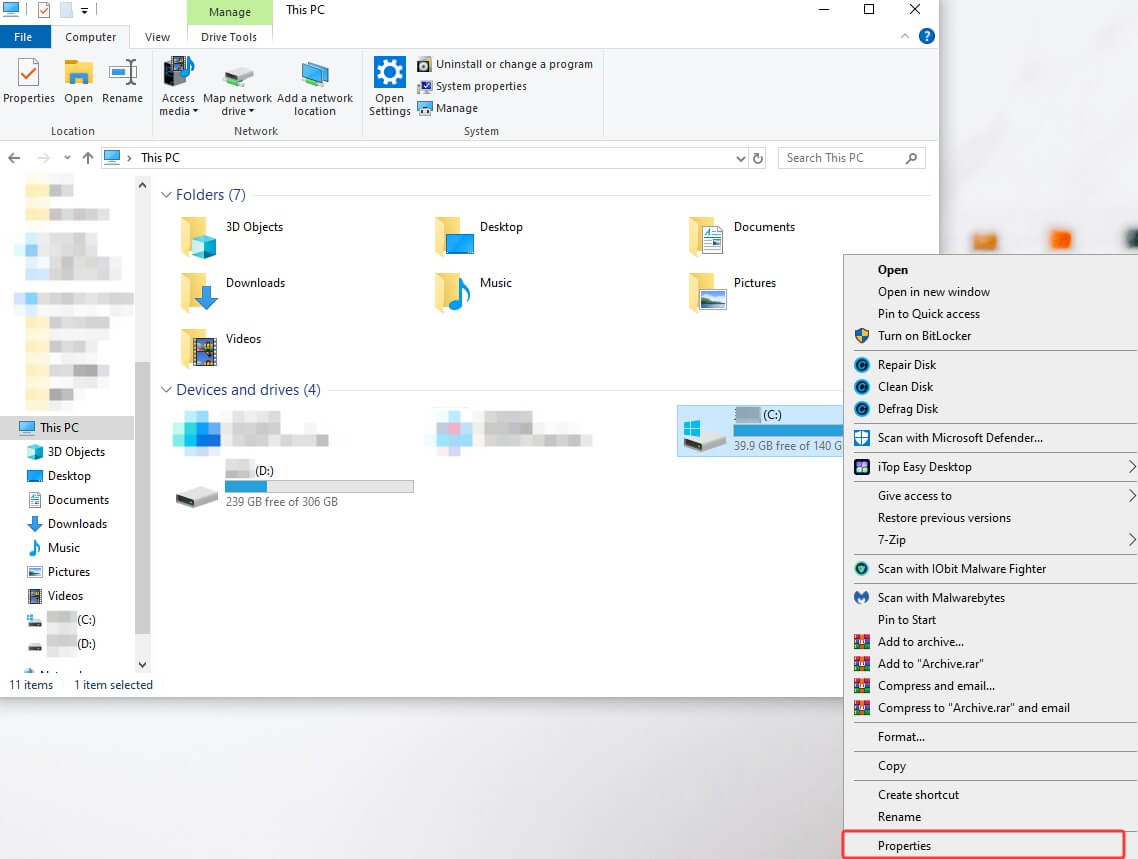
2. Via File Explorer:
Step 1. Press Win+E to open File Explorer > right-click on the drive you want to clean > choose Properties.
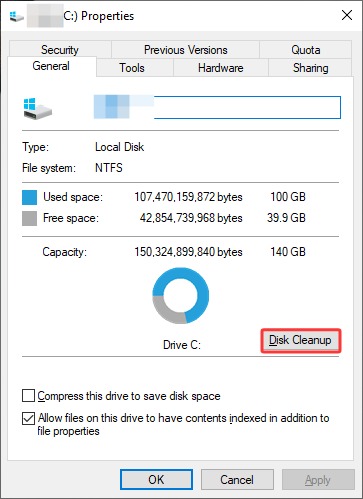
Step 2. Click Disk Cleanup.
Step 3. Customize the items you want to remove; for example, you might choose downloaded program files, temporary files, and the Recycle Bin.
*Tips: Check the description for each item in case you don’t know what the option contains.
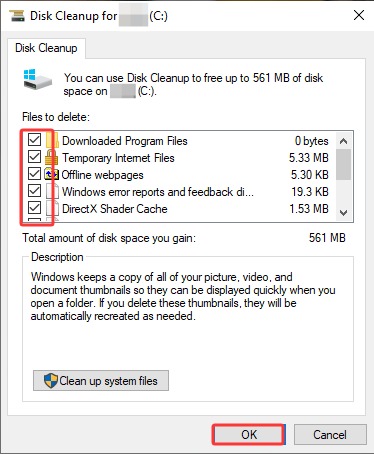
Click OK, and it wipes the unwanted items to clean up Windows disk space for you. In this way, you can successfully free up disk space with the built-in tool Disk Cleanup on Windows 10.
Windows Disk Cleanup Alternatives: Best Ways to Free Up Space
As a free built-in system maintenance tool, Disk Cleanup in Windows is indeed a helpful tool worth trying for everyday users. However, as aforementioned, though with free and safe usage, this feature still has drawbacks: it lacks large application file deletion and auto management, making it less effective and convenient.
Therefore, some users might want to seek some alternatives for a better system cleanup experience. If so, please stay tuned; this section will introduce several eligible alternatives to clean up Windows disk space.
Advanced SystemCare – Auto Disk Cleanup on Windows 10/11/More
If you are tired of manual deletion every time and are seeking an auto-scanning and cleanup solution, then you will feel at home with Advanced SystemCare. This powerful PC optimization tool features automatic system scan and auto-care, automatically cleaning and boosting your PC to top performance.
Advanced SystemCare Free
- Clean: 420 billion traces removed & 85 EB junk files cleaned
- Protect: 80 million unauthorized access blocked & 20 million bugs fixed
- Speed Up: 6 million hours of startup time saved & Turbo boost
- Optimize: Auto clean and auto care your PC with AI mode

Features:
Complete Disk Cleanup in Windows 10/11/8/7/Vista/XP, detecting and removing junk files, privacy traces, registry entries, etc.
Automatically care for your PC device at a scheduled time or when idle, no need for manual scanning and fixing at all.
Manage system resources in the background, automatically optimizing RAM as well to improve responsiveness and loading time.
Efficiently analyze and wipe unnecessary files to enlarge available disk space with standalone optimization tools, like Disk Cleaner, Large File Finder, Empty Folder Scanner, etc.
Beyond disk cleanup features, this program also helps address common PC issues with Win Fix, Disk Doctor, and more.
Pros
The free version includes a powerful manual disk cleanup feature.
Comprehensive PC optimization and system maintenance solution.
Easy-to-use, with AI-powered scanning and an intuitive interface.
Safe, reliable, and suitable for everyday PC maintenance.
Cons
Some advanced features are only available in the Pro version.
How to Clean Up Windows Disk Space with Advanced SystemCare
Step 1. Click the button to download and install this disk cleanup tool on your device.
Step 2. Then, launch the app > on the Care panel, use AI Mode to scan smartly, or customize the items you want to remove > Scan. E.g., Privacy Sweep, Junk File Clean, Shortcut Fix, and Registry Clean. Select other optimization and virus protection options based on your needs.
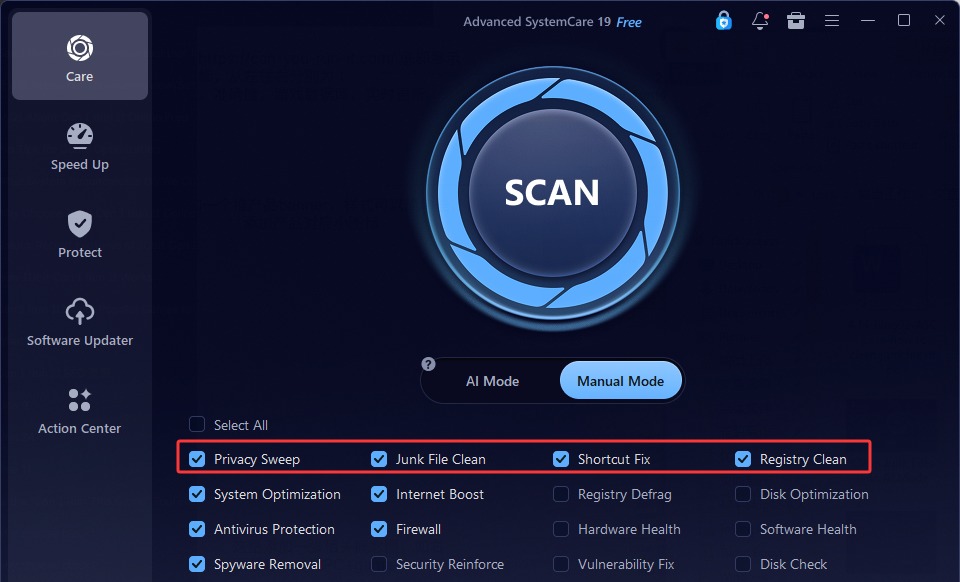
Step 3. Check the items you have scanned, check how much disk space you can free up, and then click Fix. During the scanning, you might also activate Auto Fix to let Advanced SystemCare do everything for you.
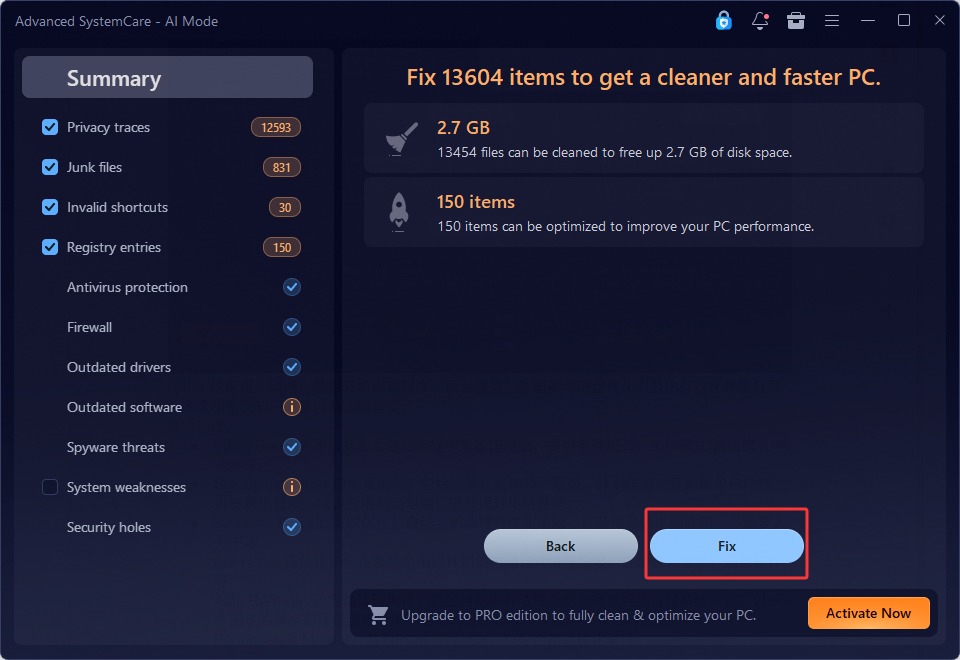
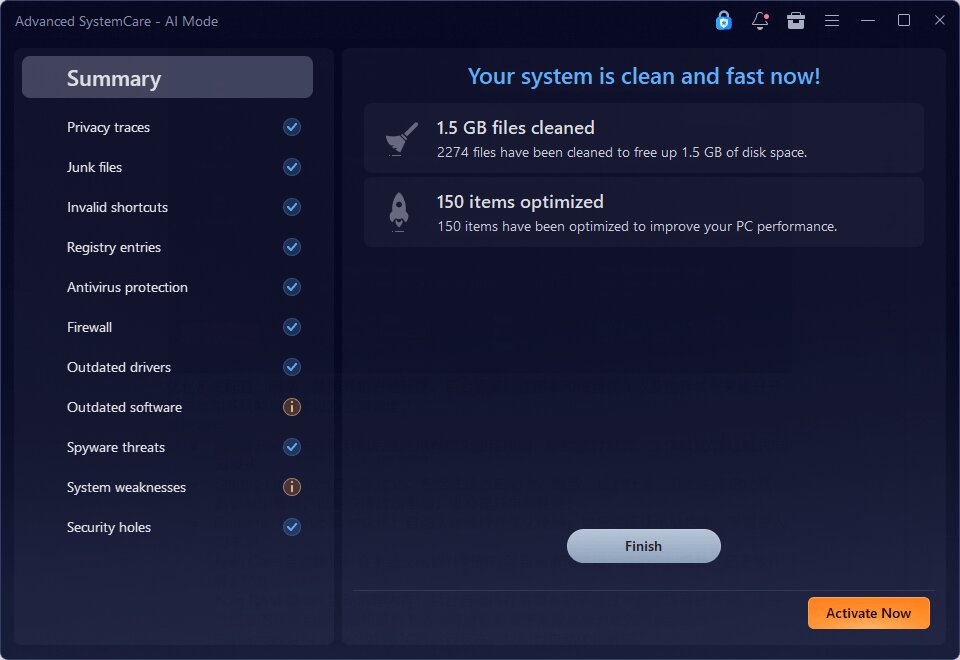
In a few seconds to minutes, your system will be cleaned up and can run faster.
To scan and clean only temp files, you might as well check the toolbox > Disk Cleaner. It analyzes and wipes temp files and log files from all your disks.
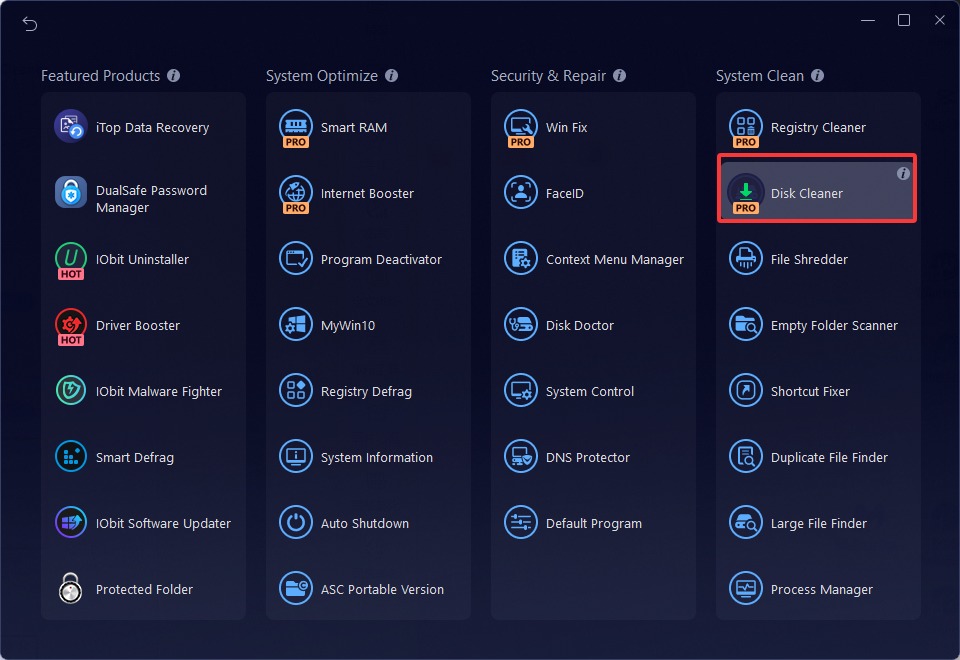
With this versatile tool, you can easily manage and optimize your PC, solve possible issues, and boost internet speed with features like Turbo Boost.
CCleaner – Clean Up Windows Disk with Full Control
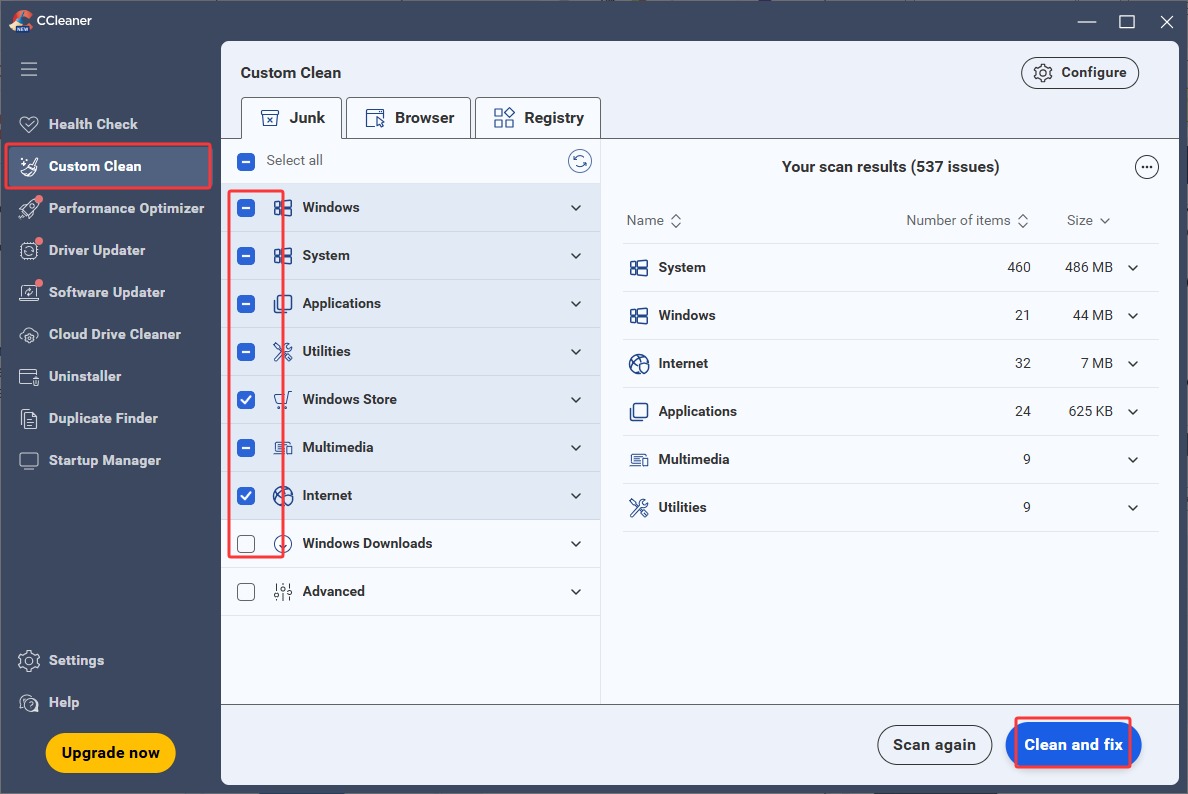
CCleaner is another ideal choice if you prefer a customizable PC cleanup. This disk cleanup in Windows 10/11 and more comes with a highly flexible scan and cleanup: after scanning, you can choose whatever you want to keep or delete, from Windows Direct Shader Cache, Desktop Shortcuts, to browser cookies, etc., pretty similar to Advanced SystemCare, but allows you to choose.
Features:
Custom clean Windows junk files from the system, browsers, and registry entries; choose whatever you want to wipe off in detail.
Check PC overall health stLimited startup control: no in-app options to disable startup launch.atus, including space, privacy, and issues, cleaning and fixing to reduce potential risks.
Come with more maintenance features, like Performance Optimizer, Software Updater, Driver Updater, etc.
Pros
Compatible with Windows, Mac, Android, and iOS.
Quick scanning to test PC performance and health.
Cons
Disk cleanup scan requires closing active applications.
Limited startup control: no in-app options to disable startup launch.
PC optimization features are not open to free users.
How to Clean Up Disk Drive with CCleaner
Step 1. Launch CCleaner > go to Custom Clean.
Step 2. Select the items you want to clean from Junk, Browser, and Registry > Scan.
Step 3. Check the scan results and click Clean and Fix to remove all junk.
Storage Sense Windows Built-in Tool to Clean Up Windows Disk Space
How does Windows clean up disk space? Apart from Disk Cleanup on Windows, the answer should also include Storage Sense. Storage Sense is a newly introduced feature since Windows 10. As a junk file removal tool, it features automatic file deletion, erasing unnecessary files, including temp files and Recycle Bin content.
Pros
Auto unwanted file deletion.
Customizable file deletion frequency.
Cons
No support for customization on temp file categories.
Only removes Recycle Bin and temp files, not comprehensive enough.
How to Clean Up Disk Drive with Storage Sense
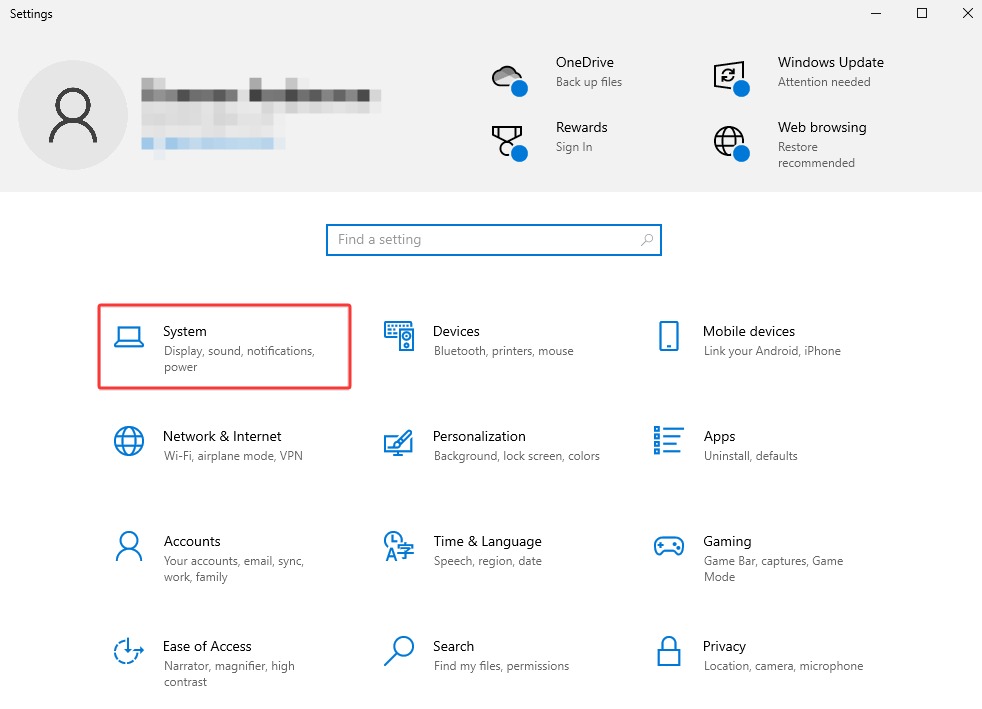
Step 1. Access Windows Settings via Win+I > System.
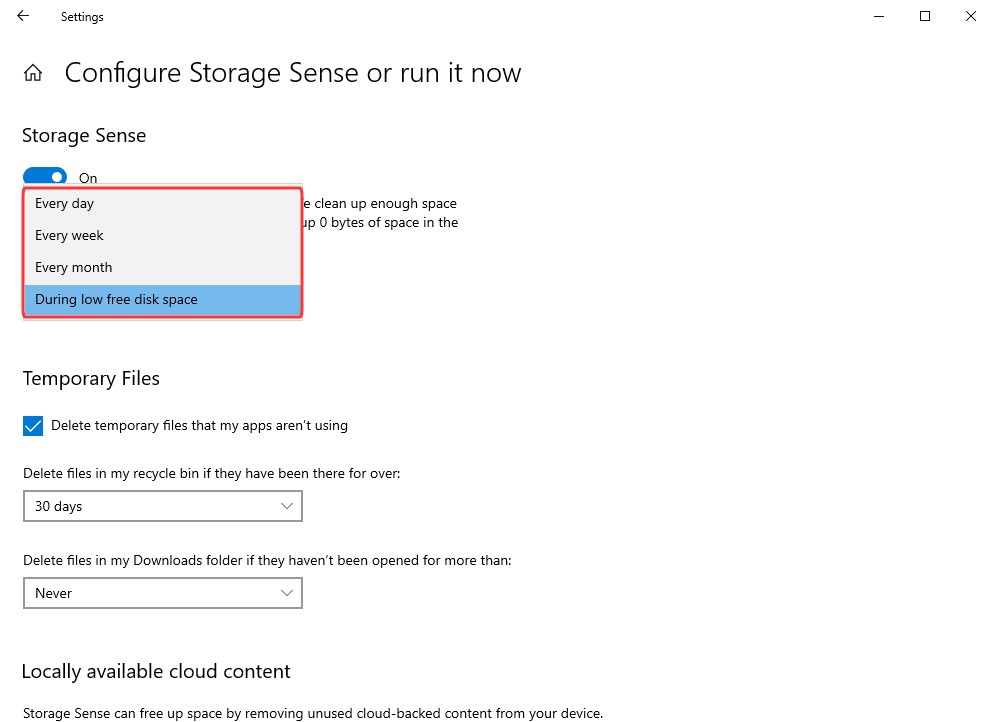
Step 2. Navigate to Storage > turn on Storage Sense. Set your preferences in Configure Storage Sense or run it now.
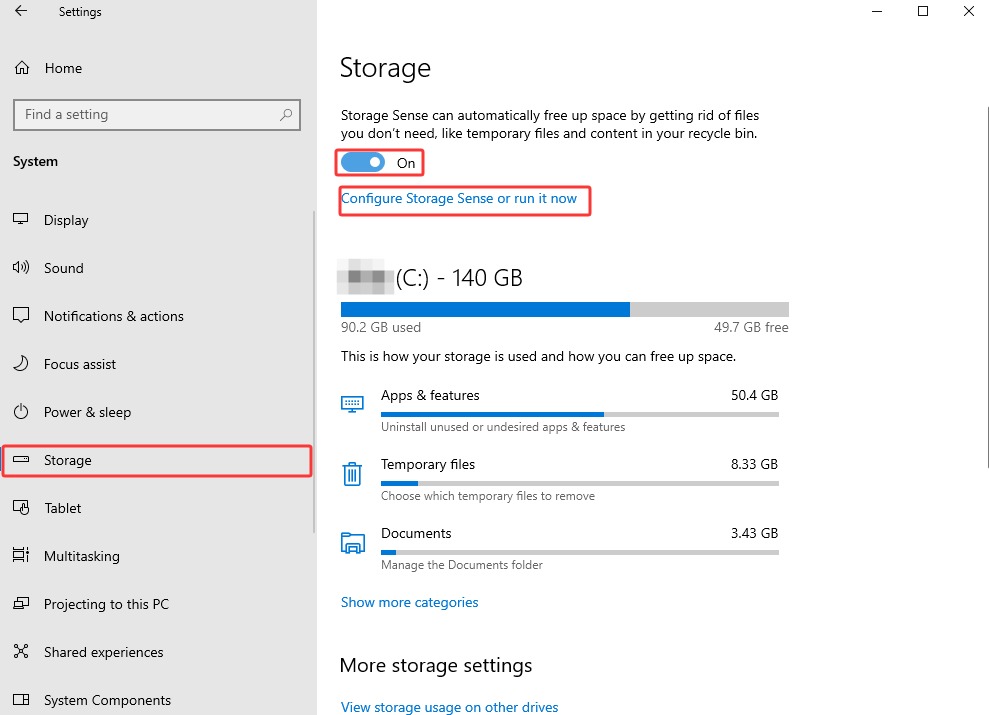
Step 3. Choose the frequency to run Storage Sense automatically. And also customize whether to/when to delete temp files.
FAQ about Windows Disk Cleanup
Apart from the features, usage, and alternatives of Windows Disk Cleanup, there could be some more things you want to know about it. Check the frequently asked questions below.
How Often Should I Run Windows’ Disk Cleanup?
It depends on your PC intensity of use. For common everyday users, once a month will be a decent frequency to keep your system cleaned and optimized. For heavy users, those who download large files/apps a lot, or who are now receiving low disk space warnings, they should run it more frequently, or turn to professional auto tools like Advanced SystemCare.
Is It Safe to Remove Temporary Files with Disk Cleanup in Windows?
Yes. It is safe to do so. These temporary files are files stored on your device to speed up load time and improve responsiveness. Removing them won’t cause system issues. Thus, users can, and are recommended to, clean them regularly to free up more space.
Why Is Disk Cleanup Taking So Long?
The duration depends on how many junk files are to be deleted on your PC. If you were to clean up system files, such as the Windows updates, it can take longer. If it gets stuck, restart and try again.
The Bottom Line
Right here, you have learned important details about Windows Disk Cleanup, the features, tutorial, and also powerful alternatives if you prefer better optimization. With proper tools and methods, freeing up disk space and dealing with possible issues will be efficient. Check and download Advanced SystemCare, one of the best disk cleanup windows 11/10/more available tool now!
Advanced SystemCare Free
- Clean: 420 billion traces removed & 85 EB junk files cleaned
- Protect: 80 million unauthorized access blocked & 20 million bugs fixed
- Speed Up: 6 million hours of startup time saved & Turbo boost
- Optimize: Auto clean and auto care your PC with AI mode