








Expert in

PC Health Solution

Uninstall Apps on MacEffective Ways to Delete Mac Apps

Completely delete unwanted apps to clean and boost your Mac.
Experience a smarter workflow with professional
Mac uninstaller software.
Uninstall Apps with MacBooster
How to Uninstall Apps on Mac

Uninstall App from macOS, Declutter Your System

Unused programs - especially large items - take up valuable storage and potentially clutter your system. Delete unnecessary apps from Mac to maintain an organized workspace.
Uninstall Apps with MacBooster

Free Up Storage Space

While apps themselves can range from megabytes to gigabytes (especially for creative suites or games), they also leave hidden data, such as support files, caches, logs, scattered across your Library folder. Uninstall all “useless” apps to reclaim more storage for important titles.

Resolve App Conflicts

When two or more applications use the same system resources in an incompatible way, software conflicts happen, causing apps to crash or freeze. Perform a clean uninstall of problematic apps to eliminate unwanted interference and restore a smoother experience.

Boost Mac Performance

Many apps install background helper tools, login items, or daemons that consume RAM, CPU, battery life constantly and even slow down your Mac. Removing unwanted and incompatible applications from macOS helps reduce system load and keep your computer running well.

Enhance Security & Privacy

Outdated applications may contain unpatched vulnerabilities. Furthermore, apps you no longer use may still store personal data, tracking cookies, or cached credentials that could pose a privacy risk. Uninstall those apps that may pose risks for security protection.
Before You Begin
  1. Quite the app completely. Make sure it is not running in the background.
  2. Backup important data, such as project files, configurations and any other app-related data, you may need later.
  3. Although uninstalling an app will not delete user-created documents, it may require the original application or a compatible alternative to open those files.
  4. Cancel any subscription associated with the application to avoid future charges.

Delete Apps on MacBuilt-in Options

Take advantage of standard methods to uninstall applications on macOS, no extra installation.
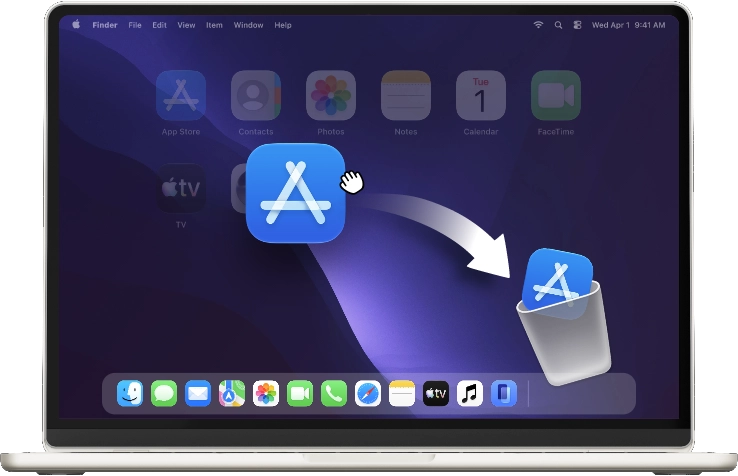
Finder acts as the central hub to browse, organize and manage everything on your Mac, from files, folders to applications. The default file manager provides a straightforward way to remove apps from macOS.

Remaining Data Cleanup

Even when deleted through Finder or Launchpad, an app may leave residual files, like caches, configuration and preference files, behind in your hidden user folder. Manually clean up the data following the tutorial.
  • Open Finder and select Go → Go to Folder..., then enter ~/Library/ and press Return.
  • Search through these specific subfolders: ~/Library/Application Support/, ~/Library/Caches/, ~/Library/Preferences/, ~/Library/Logs/.
  • Drag those matching folders to the Trash and empty it.

Safety Warning

Only delete subfolders or files that match the exact name of the uninstalled app or developer. Removing other system files inside ~/Library can break remaining applications or reset system preferences.

Uninstall Apps DeeperMac Uninstaller Software

App removal made simple with professional macOS uninstaller. Delete unwanted items and get rid of any trace thoroughly.
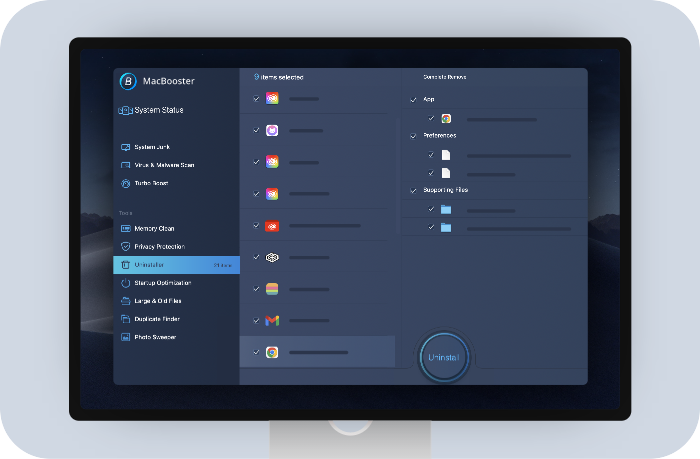
Uninstall Apps on Mac with MacBooster
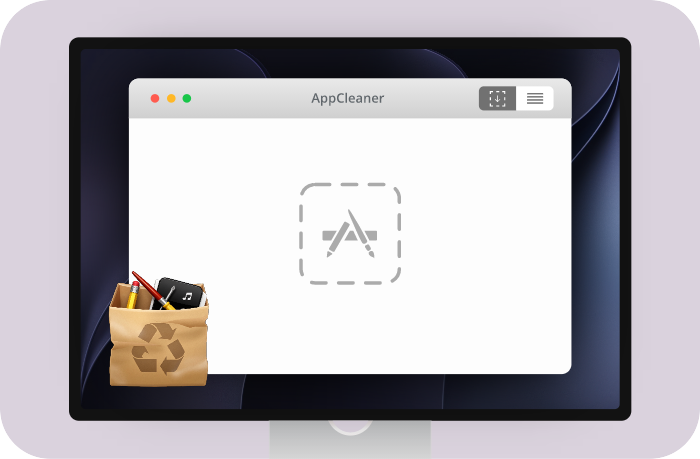
Uninstall Apps on Mac with AppCleaner
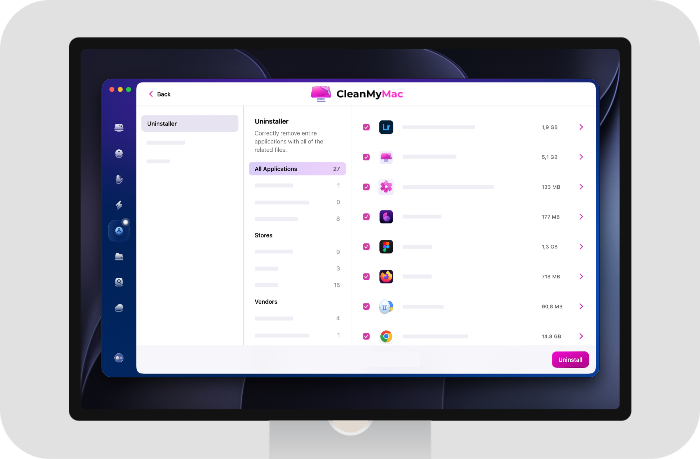
Uninstall Apps on Mac with CleanMyMac
Uninstall Apps on Mac with TrashMe

MacBooster

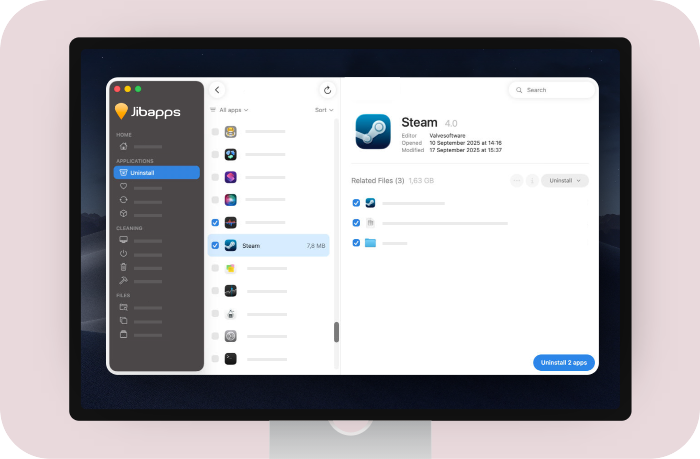
MacBooster introduces its built-in uninstaller as a dedicated cleanup utility to completely uninstall apps from macOS, including hidden leftovers that drag-to-trash methods miss. Analyze, locate, remove the core app package and all related data intelligently. Uninstall multiple apps - whether they are .dmg or .pkg programs - simultaneously. The App Reset feature can restore one app to a fresh state by clearing configuration data without deletion.
Uninstall Apps on MacBooster

Compare All macOS Uninstallers

The built-in options help conveniently delete apps, while macOS uninstallers can automate the process and ensure thorough cleanup.
Finder Launchpad MacBooster AppCleaner CleanMyMac TrashMe
Type Built-in tool Built-in tool Third-party Utility Third-party Utility Third-party Utility Third-party Utility
Free Yes Yes Free,
Paid features
Freeware Paid,
7 days free trial
Paid,
15 days free trial
App Uninstall Yesmanually YesFor App Store apps Yes Yes Yes Yes
Leftover Removal No No Yes Yes Yes Yes
App Reset No No Yes No Yes Yes
App Update No No No No Yes Yes
Mac Cleaning No No Yes No Yes Yes
Startup Optimization No No Yes No Yes No
Anti-Malware No No Yes No Yes No

How to Uninstall Mac Apps in the Right Way

Which method or Mac uninstaller should you use? Find the scenario and make the right decision that fits your specific needs best.
Full Mac Maintenance
Uninstall Apps with MacBooster

Mac App RemovalQuick FAQs

Unlike just dragging an app into the Trash, a Mac app uninstaller is a professional utility to remove applications and delete all of associated files, like caches, preferences and support files for more space.

Say Goodbye to a Bloated MacUninstall apps on your Mac simpler and faster

Uninstall Apps with MacBooster

IObit uses cookies to improve content and ensure you get the best experience on our website.
Continue to browse our website agreeing to our privacy policy.

I Accept