Is your PC starting to feel sluggish? The common issue is often caused by low disk space when your C drive is 100% used. As your system drive fills up quickly with junk files and temporary data, it naturally leads to slower performance and other problems. But worry not. This guide will recommend the 8 best C drive cleaner tools that can help you free up space and optimize your PC’s performance. Read on to find the right solution for a faster and smoother system!
Why You Need a C Drive Cleaner?
When your system C drive keeps filling up, performance will drop noticeably. This is the time you need a great C drive clean tool, which can help you remove junk files and optimize storage effectively.
Here’s what might happen when your C drive is overloaded:
Slower system performance and lag: Your drive has to work harder to find/access files, leading to delays in loading programs and multitasking.
Failed Windows updates: Insufficient space will prevent important security patches and feature updates.
Frequent crashes or freezes: Overloaded drives increase error risk; the system might experience crashes or become unresponsive.

Yet with a C drive cleaner Windows 11, the issue can be fixed successfully. It can remove temporary files, optimize storage, and even support basic C drive repair. For every Windows user, it’s essential to perform regular C drive maintenance for a smooth experience.
8 Best C Drive Cleaner Tools & Methods
While Windows offers free built-in tools for cleaning up, third-party solutions provide advanced features. Let’s check out the 8 best C driver cleaner tools available.
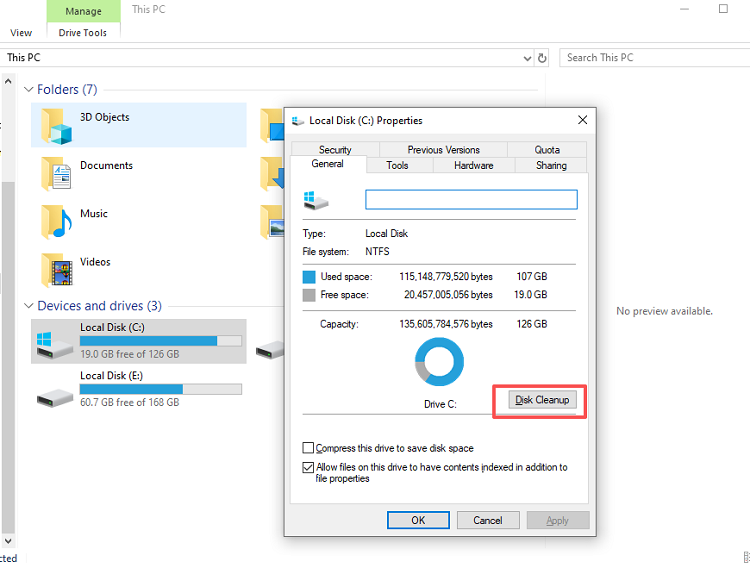
1. Windows Disk Cleanup
Windows Disk Cleanup is a free built-in C Drive Cleaner free that is great for beginners. It efficiently eliminates temporary files, system caches, Recycle Bin clutter, and previous Windows updates. If your system storage is still running low after cleanup, you can explore additional ways to free up disk space on Windows for more advanced optimization. While it provides a remarkably safe method, it lacks the deep cleaning features provided by premium alternatives.
Pros
Clean C drive 100% free
Native compatibility and safety
Extremely easy to navigate
Cons
Limited to basic file categories
No automated & deep cleaning
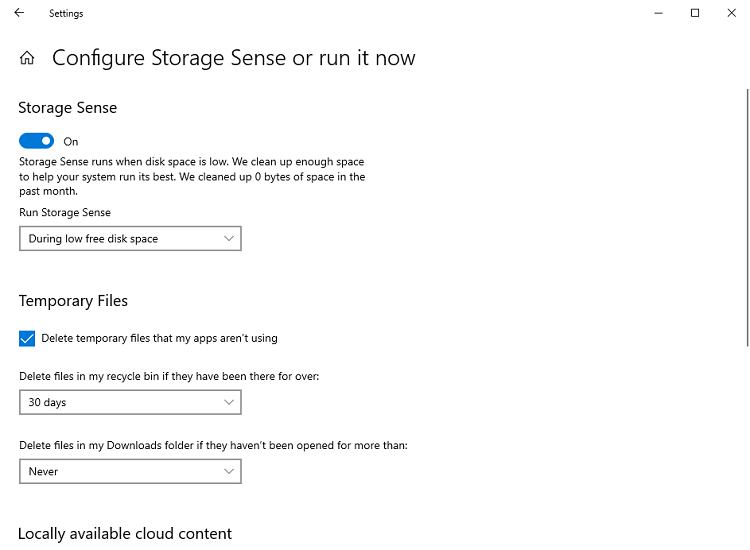
2. Windows Storage Sense
If you prefer automation over manual cleanup, Windows also offers a built-in solution—Windows Storage Sense. Integrated directly into modern Windows PC, the C Drive Cleaner Windows 11 automatically manages your storage when your disk space begins to overload.
Pros
Fully automatic
Support customization
Run silently in the background
Cons
Mainly C drive clean tool; ignore others
Often skip browser caches
3. Advanced SystemCare
Advanced SystemCare is an all-in-one solution that supports disk cleaning and system optimization. With AI-driven scanning, it can perform a deep dive into your system drive to optimize performance and resolve registry errors successfully. You can easily clean your C drive and improve overall system performance in just one click!
Advanced SystemCare Free
- Clean: 420 billion traces removed & 85 EB junk files cleaned
- Protect: 80 million unauthorized access blocked & 20 million bugs fixed
- Speed Up: 6 million hours of startup time saved & Turbo boost
- Optimize: Auto clean and auto care your PC with AI mode

Pros
AI-powered C drive cleaner Windows 11
Comprehensive system optimization
Protect PC security and privacy
Cons
The most advanced features are behind the paywall
4. CCleaner
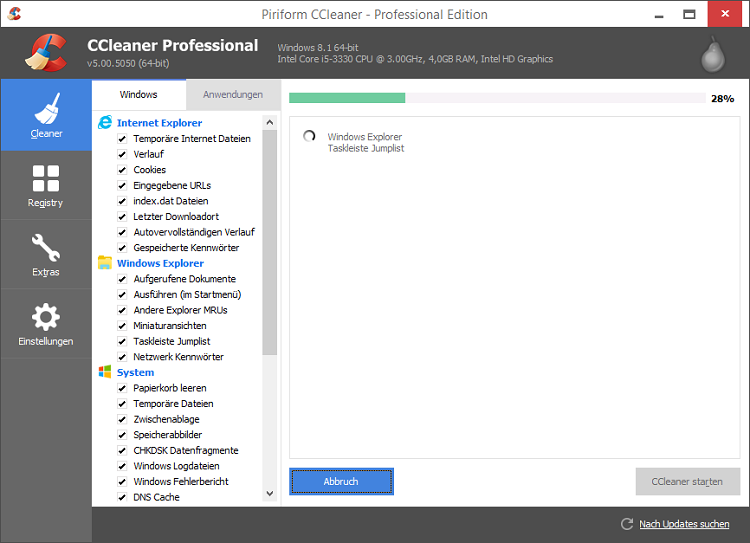
As one of the most widely recognized system optimization tools, CCleaner stands out for its ability to efficiently remove junk files, browser data, and outdated registry entries. It offers more thorough capabilities compared to most built-in Windows tools, making it a popular choice for users who want deeper system optimization.
Pros
Thorough and deep PC C drive cleaner
Lightweight and fast scanning
Support registry cleaner and uninstaller
Cons
Aggressive ads for the free version
Potential registry cleaning risks
5. Wise Disk Cleaner
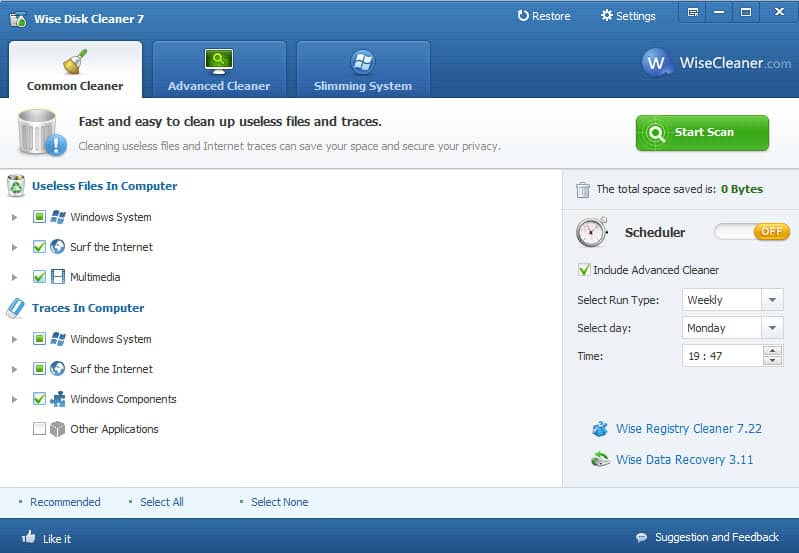
For those who prefer lightweight tools, CCleaner should be an appealing choice. It can rapidly identify and discard junk files, temporary data, and obsolete Windows components to reclaim space instantly. The simple C drive cleaner is great for users who don’t want the bloat of a heavy software suite.
Pros
Highly effective disk cleaning
Exceptional scan speeds
Cleaning drive C for free
Cons
Support Windows only
Potential aggressive cleaning
6. BleachBit
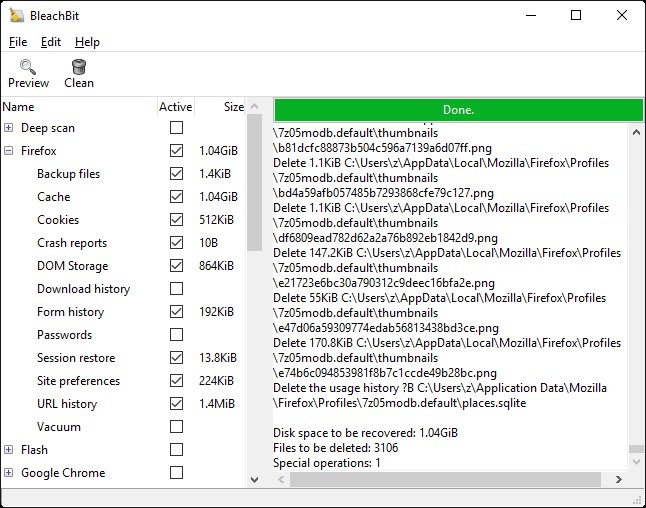
BleachBit is a free and open-source tool that is great for advanced users who need deeper control over cleaning Drive C. The software can delete junk files (cache/cookies/logs) to free up disk space and protect user privacy on Windows and Linux. Moreover, it supports secure shredding options to prevent data recovery.
Pros
Free and open source C drive cleaner
Powerful privacy shredding features
Support Windows and Linux
Cons
Reckless use for system damage
Potential SSD wear possible
7. AVG TuneUp
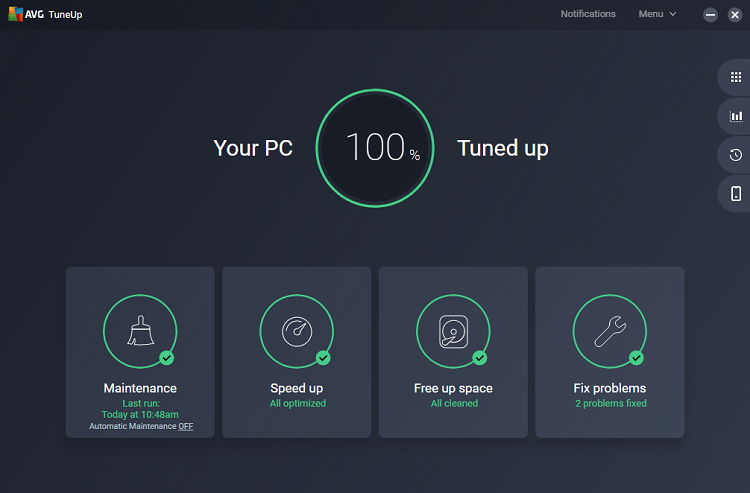
AVG TuneUp is a performance-focused tool that combines junk removal with system optimization. It is particularly adept at identifying and resolving the root causes of performance bottlenecks, making it a solid choice for fixing the "C drive 100% usage” issue. The advanced background maintenance feature can automatically optimize your system for a smoother experience.
Pros
Highly effective C drive cleanup software
Support a versatile toolset
Multi-platform compatibility
Cons
Frequent pop-ups
Higher premium pricing
8. Eraser
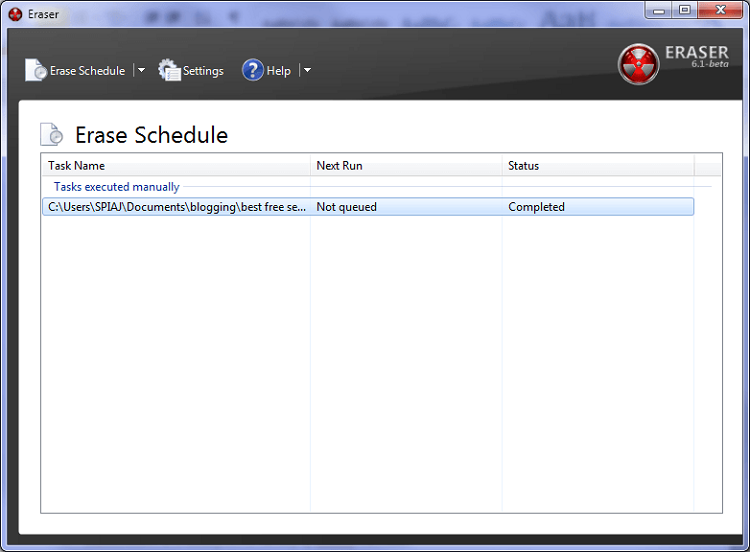
Eraser functions as a specialized secure data deletion tool rather than a general C drive cleaner free. Its primary purpose is to permanently obliterate sensitive files from your C drive, making the recovery virtually impossible. This is the ideal choice for users who need to clean highly confidential or private information on the C drive.
Pros
Military-grade file shredding algorithms
Erase versatile files
Support scheduling tasks
Cons
Can be slow sometimes
Consume RAM when running in the background
Comparison Table of the 8 C Drive Cleaner Tools
If you are still unsure which tool to choose, this table provides an overview to help you compare each C drive cleaner based on the factors that matter most.
Tool |
Ease of Use |
Deep Cleaning |
Automation |
Best For |
Disk Cleanup |
High |
Basic |
Low |
Beginners, quick clean |
Storage Sense |
High |
Basic |
High |
Automated maintenance |
CCleaner |
Medium |
Good |
Medium |
General junk removal |
Advanced SystemCare |
High |
Excellent |
High |
All-in-one optimization |
Wise Disk Cleaner |
High |
Good |
Medium |
Lightweight fast clean |
BleachBit |
Medium |
Good |
Medium |
Privacy & open-source |
AVG TuneUp |
High |
Good |
High |
Performance tuning |
Eraser |
Medium |
Specialized |
Medium |
Secure deletion |
Best C Drive Cleaner: Which Tool Should You Use?
As you can see, each C drive cleanup software above is designed for different needs. While some focus on basic cleanup, others offer more advanced features like automation and performance optimization. Before deciding which optimization tool fits your needs, it may help to run a computer performance test to better understand what is slowing down your system.
Here’s how to pick the right C drive cleaner free:
For quick, simple cleanup: Use built-in tools like Disk Cleanup or Storage Sense.
For lightweight third-party options: Choose tools like Wise Disk Cleaner for fast cleaning
For deeper cleaning and ongoing maintenance: Opt for comprehensive system optimization software.
For a more well-rounded tool, Advanced SystemCare is a go-to choice, which combines deep cleaning, system optimization, and real-time performance monitoring in one place. These highly sophisticated features can keep your PC fast and stable with minimal user effort.
Advanced SystemCare Free
- Clean: 420 billion traces removed & 85 EB junk files cleaned
- Protect: 80 million unauthorized access blocked & 20 million bugs fixed
- Speed Up: 6 million hours of startup time saved & Turbo boost
- Optimize: Auto clean and auto care your PC with AI mode
Key Features of Advanced SystemCare:
AI Mode Cleaning: It uses intelligent algorithms to automatically detect and safely remove junk files, freeing up valuable C drive space quickly.
Real-Time System Optimization: The Real-time Tune up continuously monitors system performance and applies automatic optimizations to reduce lag.
Registry Cleaner: The C drive cleaner free scans invalid/outdated registry entries that accumulate over time and repairs them at the same time.
Startup Manager: You can easily manage startup programs efficiently to reduce boot time. This ensures your system launches faster and runs more smoothly.
Privacy Sweep: It can clear browsing history, cookies, and other traces to help protect user privacy and reduce leftover digital footprints.
Spyware Removal: Detects and removes spyware or malicious threats that may compromise your system performance, data security, and overall PC health.
Turbo Boost: Supporting various Boost modes(Work/Game/Economy), the tool disables unnecessary background processes and services to maximize PC performance.
How to Deep Clean C Drive with Advanced SystemCare
Step 1. Free download the Advanced SystemCare. Install it on your Windows PC in one click.
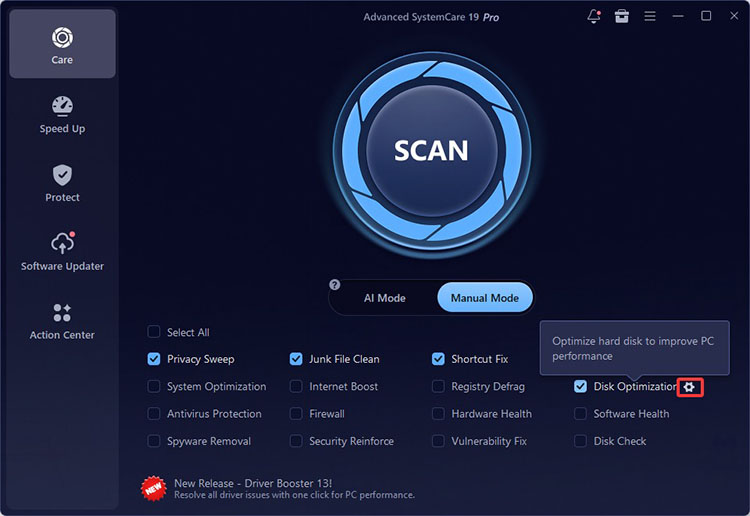
Step 2. Choose the Care > Manual Mode. Choose the options that can help clean your C drive. Click on the icon next to the “Disk Optimization” for configuration.
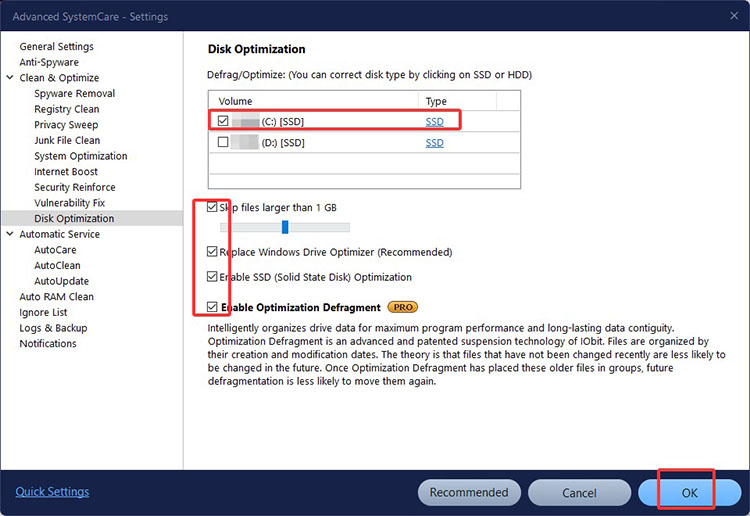
Step 3. Configure the settings. Choose the C drive and tick the options for customization.
Step 4. Go back to the main interface and click the Scan button to start scanning.
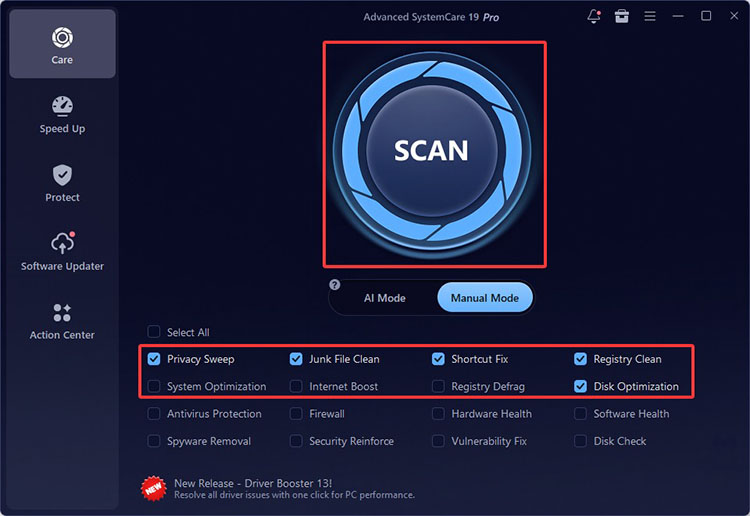
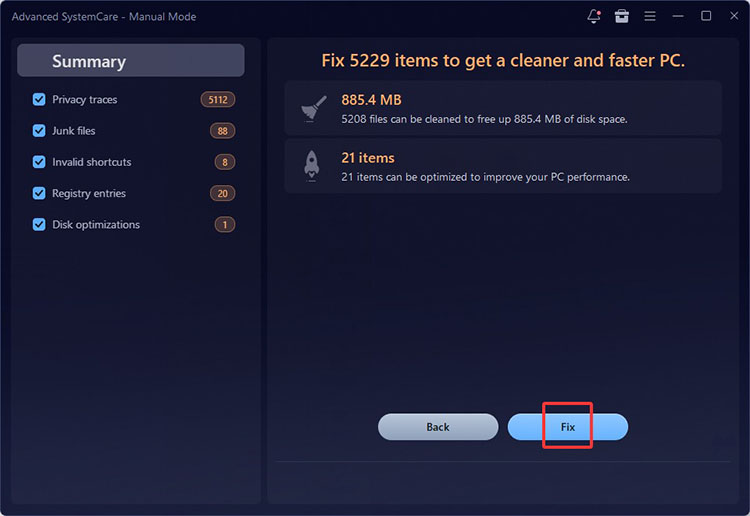
Step 5. Advanced SystemCare will scan your drive and list the junk files, invalid shortcuts, and registry entries. Click the Fix button to proceed.
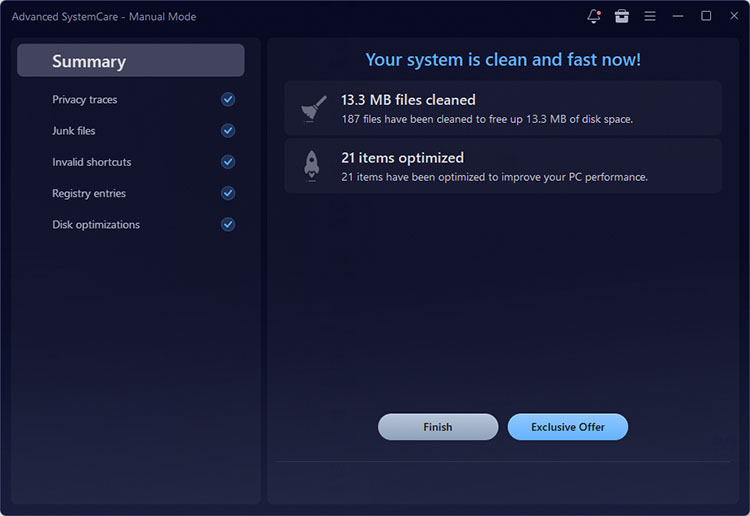
Step 6. Now your C drive should be cleaned. You can have a much faster and smoother system now.
Pro Tip: If you want to perform an even deeper cleanup of your C drive, use the dedicated Disk Cleaner module to target stubborn files. Just head to More Optimization Tools > Disk Cleaner for a thorough cleaning of your C drive.
Final Words
A C drive cleaner is a must-have tool that can maintain system health and avoid performance issues. With the top 8 tools above, the cleaning drive C task should be much more straightforward and effective. For users seeking convenience and reliable results, Advanced SystemCare delivers an excellent all-in-one solution. You can not only clean your C drive but also boost overall system performance. To further optimize your PC experience, consider improving network responsiveness as well. Here are practical ways to boost internet speed on PC for smoother browsing and downloads. Try it and keep your PC running smoothly today!