Over time, even a brand-new Windows PC can gradually slow down. Many users find themselves asking: Do I need a PC optimization tool? Can these tools really breathe new life into a sluggish system? In this guide, we will explain what a PC optimization tool is and when you might need one, and list the best PC optimizer tools that help boost your system performance.
What Is a PC Optimizer
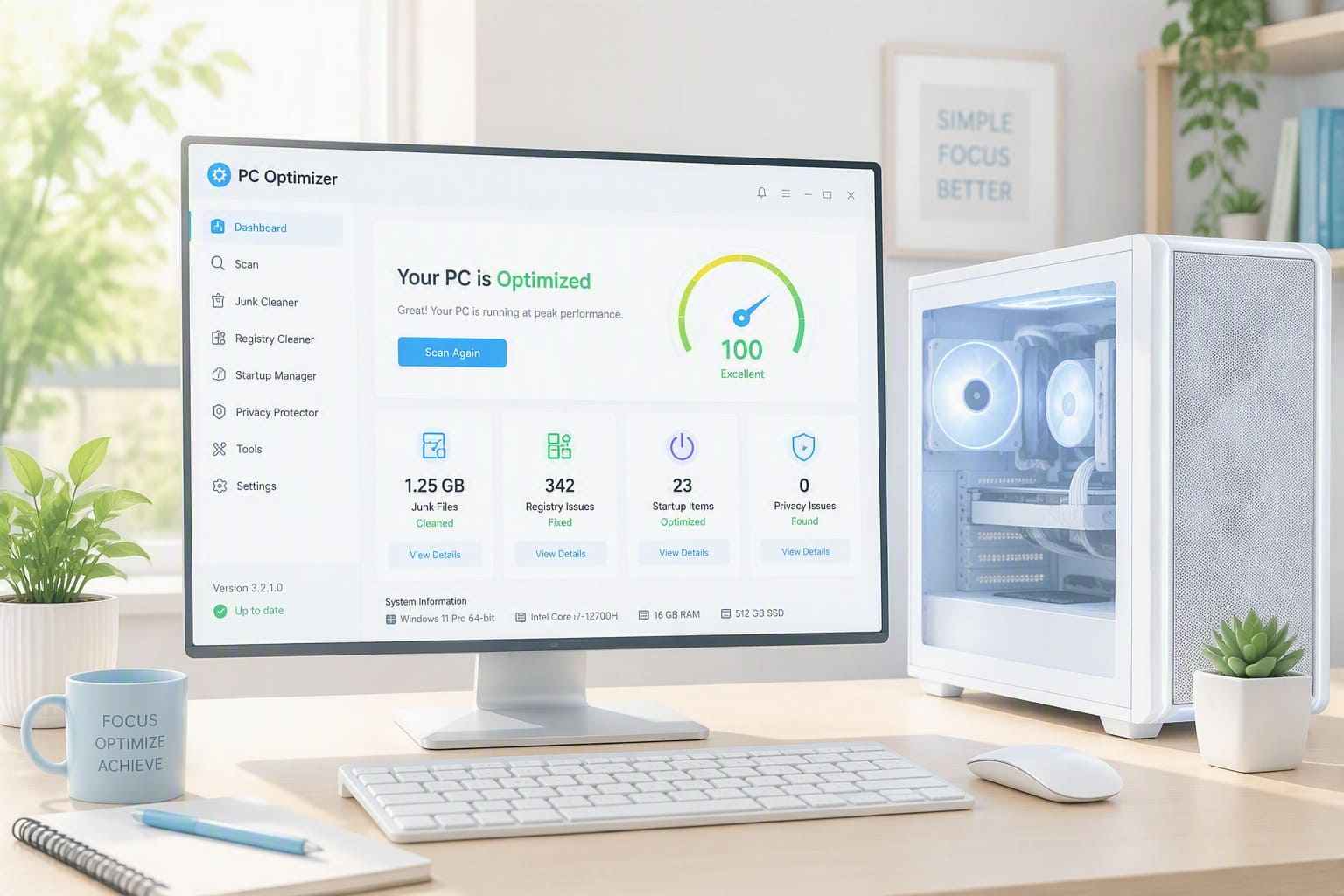
PC optimization software is a Windows-based utility for system cleanup, maintenance, and tuning. Over time, junk files, startup programs, and browser traces build up, wasting disk space and slowing your PC. A reliable PC optimizer does more than clean junk files. It deeply scans and clears cache, invalid registry entries, browser cookies, and optimizes startup items. It also controls resource-heavy background processes in real time. Manual fixes take time, but this software automates the tedious work.
When Do You Need a PC Optimization Software
During daily use, Windows accumulates redundant data and develops configuration errors, gradually slowing down overall performance. Then, you might consider using a computer optimizer when you encounter the following situations.
Slow boot: Too many auto-start apps delay desktop loading.
System lag & app crashes: Your computer stutters, freezes, or shuts down unexpectedly.
Low disk space: The temp files, Windows update caches, and uninstall residues fail to get cleared on time.
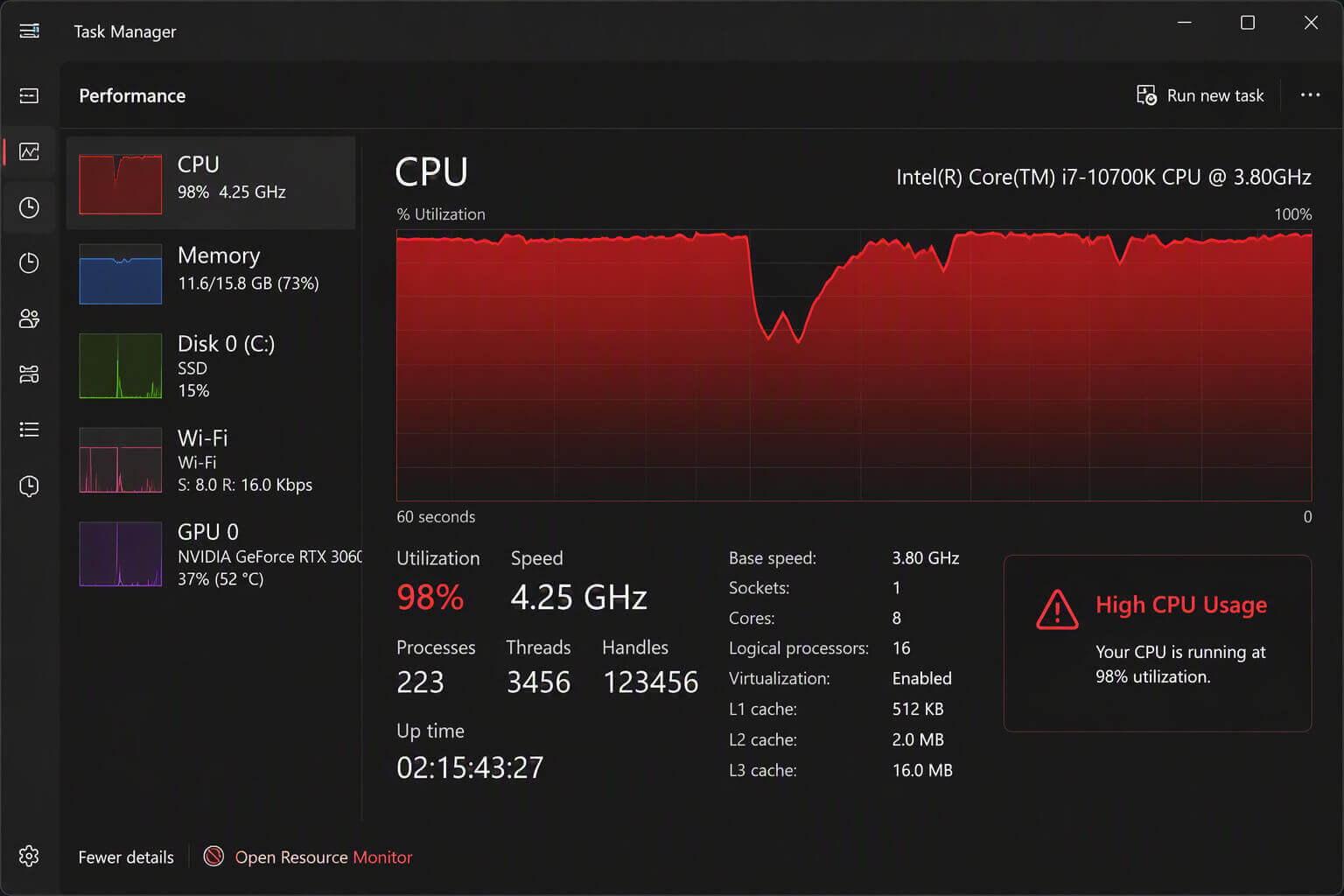
High background resource consumption: The PC uses lots of CPU and memory even when no heavy programs are running.
Poor long-term PC maintenance: Rare junk cleanup causes piles of redundant data.
What to Look for in the Best PC Optimizer
There are many computer optimizers on the market, but not all can truly speed up your computer. Some promise too much and might change your system in bad ways. That’s why you should know what makes best PC optimization software.
Safe cleaning capability: Securely clean junk files, caches, and invalid registry entries, with no critical system file damage.
Practical core features: Look for key functions including startup management, RAM clean, and stay away from software full of useless features.
Low system resource usage: The program itself should not consume much CPU, memory or disk space.
Simple and user-friendly interface: Made for regular users, it has easy controls, one-click optimization and simple scan results.
Good reputation and real-user reviews: Choose stable and reliable tools with genuine user feedback.
With these factors in mind, we’ve selected six qualified and reliable best system optimizer for PC.
Our Top Picks: 6 Best PC Optimizers for Windows
Whether you are looking for faster startup speeds, a cleaner disk, or smoother system performance, the following best PC optimizer tools have you covered.
Advanced SystemCare
CCleaner
AVG TuneUp
Wise Care 365
Ashampoo WinOptimizer
Winhance
After browsing through these tools, check the operation section to improve your Windows PC.
Best PC Optimizer Software: Functionality and Full Guide
All the best Windows optimizers for PC deliver stunning features and simplified workflow to enhance system performance. Let’s get an insight into each tool and learn how to get started with them quickly.
1. Advanced SystemCare - Best Free PC Optimizer & Cleaner
Advanced SystemCare is Windows system optimization and maintenance software developed by IObit. It is primarily used to clean, manage, and protect your PC for optimal performance.
Advanced SystemCare Free
- Clean: 420 billion traces removed & 85 EB junk files cleaned
- Protect: 80 million unauthorized access blocked & 20 million bugs fixed
- Speed Up: 6 million hours of startup time saved & Turbo boost
- Optimize: Auto clean and auto care your PC with AI mode

This automated PC optimizer performs one-click scanning to detect hidden problems hard to spot manually. It owns comprehensive scan and fix, scanning for junk files, bad registry entries, disk problems, and more to fix slowdowns.
As a turbo PC optimizer, it offers Turbo Boost to free memory for gaming and heavy work. What’s more, it speeds up boot with startup optimization and uses real-time tuneup to keep your system running well.
More importantly, this PC optimizer free packs powerful features for basic PC cleanup and optimization. As one of the best Windows 11 optimizers, it works on Windows 11 as well as Windows 10, 8, and 7. Now, give it a try to get better performance for your PC.
Step 1. Run a full system scan and clean up your PC
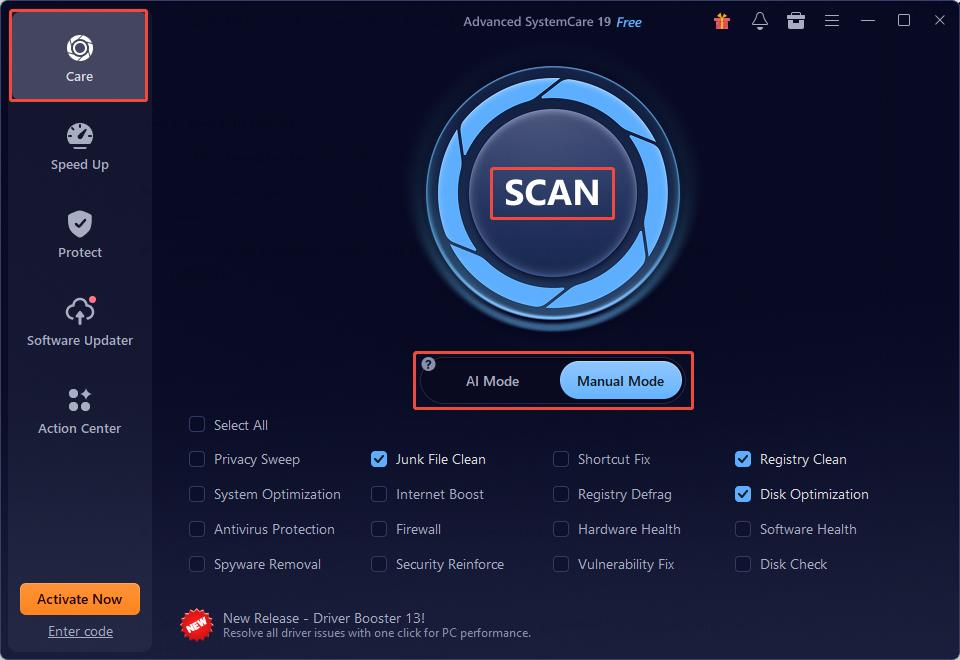
Launch Advanced SystemCare and enter the Care interface. Select a scan mode: use default AI Mode for automatic smart optimization, or pick Manual Mode to select scan modules yourself. Then, click SCAN to scan for issues. When it ends, click Fix to fix them.
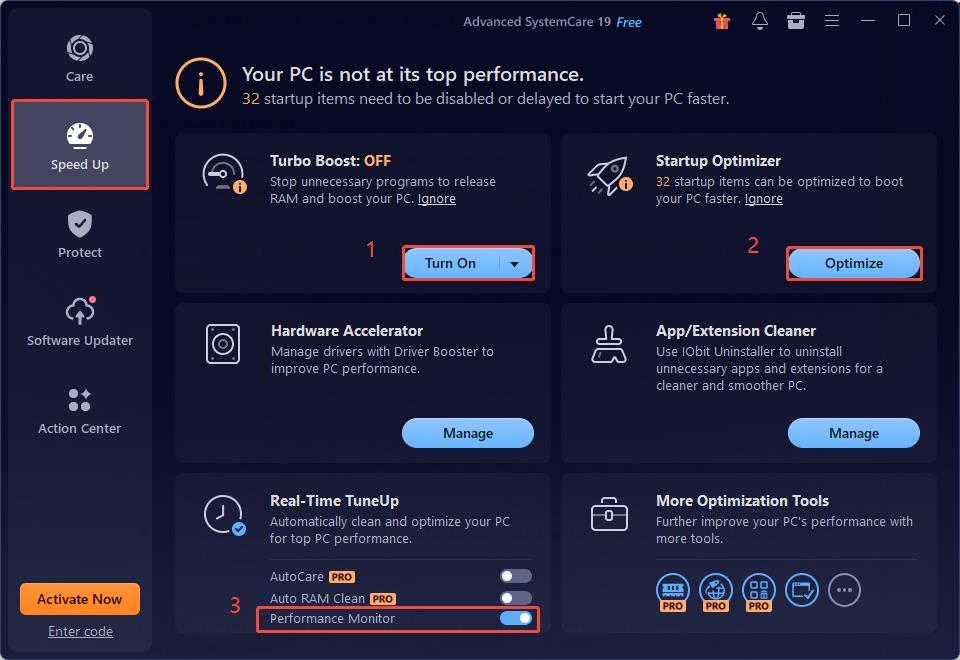
Step 2. Speed up your PC
Switch to the Speed Up tab and do the following operations:
In the Turbo Boost section, click the Turn On button to stop unnecessary programs to release RAM;
In the Startup Optimizer section, click the Optimize button, select all the items, and click Optimize.
In the Real-Time TuneUp section, enable the Performance Monitor option to automatically clean and optimize your PC.
In addition to performance optimization, Advanced SystemCare also offers the following common and essential features.
Privacy & browser safety: It can protect against viruses, safeguard private data, and remove browser traces.
Software Updater: It can automatically detect software and update it with a single click.
Handy toolbox: It provides more than 30 built-in tools, such as Disk Doctor (a corrupted file checker), Driver Booster, and more.
When you have these needs, download this PC optimizer free for one-click fixes.
2. CCleaner - PC Cleaner
CCleaner, one of the best optimizer for Windows 11, is a popular lightweight PC cleaner that removes junk files and browser traces to free up disk space. As a turbo PC optimizer, it also manages startup apps to speed up boot-ups.
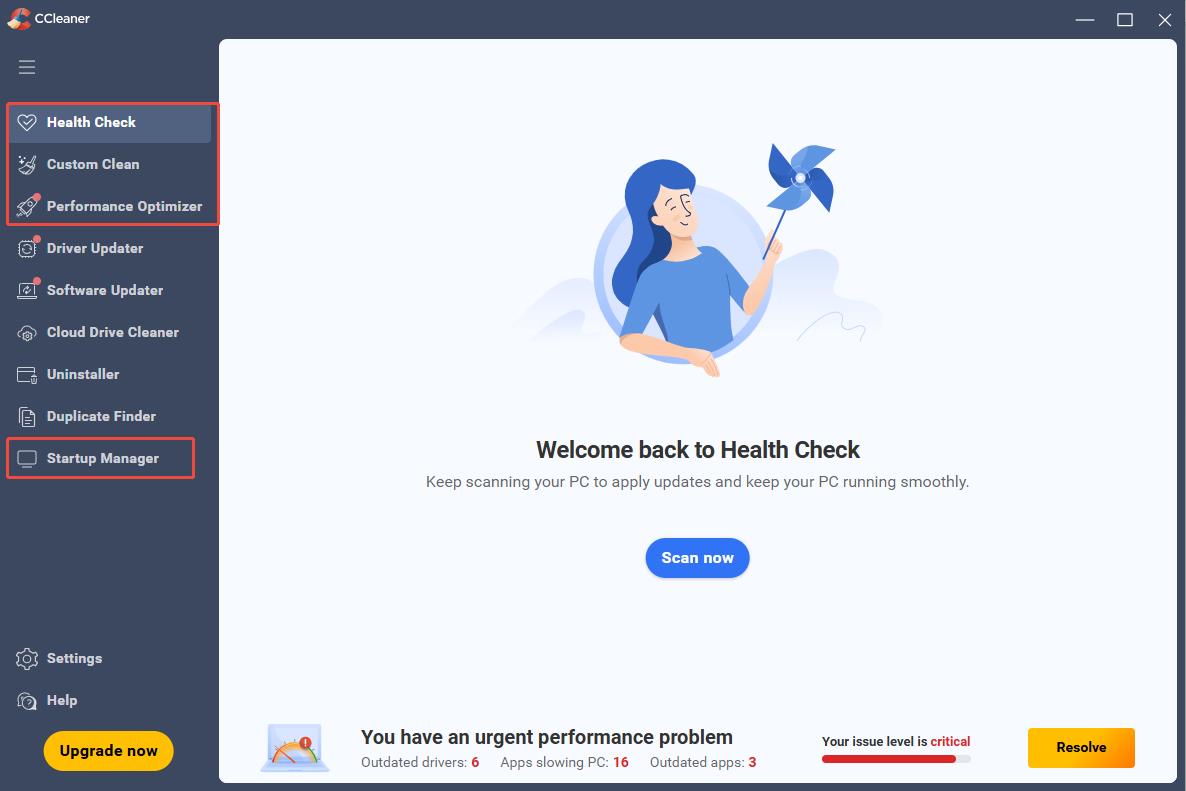
Step 1. Launch the software, click Scan in the Health Check tab to do an automatic clean.
Step 2. Switch to the Custom Clean tab, select the files you want to clean under Junk, Browser, and Registry, and click Clean and fix.
Step 3. In the Startup Manager tab, toggle the switch to disable programs you do not want to start at startup.
3. AVG TuneUp - PC Cleaner & Tune Up
AVG TuneUp, another best optimizer for Windows 11, offers a Sleep Mode that calms down high-consumption background apps to release resources for optimal and smoother performance. It can also remove junk files to keep your disk in good shape. However, it is a subscription-only PC maintenance tool, lacking a permanent free edition.
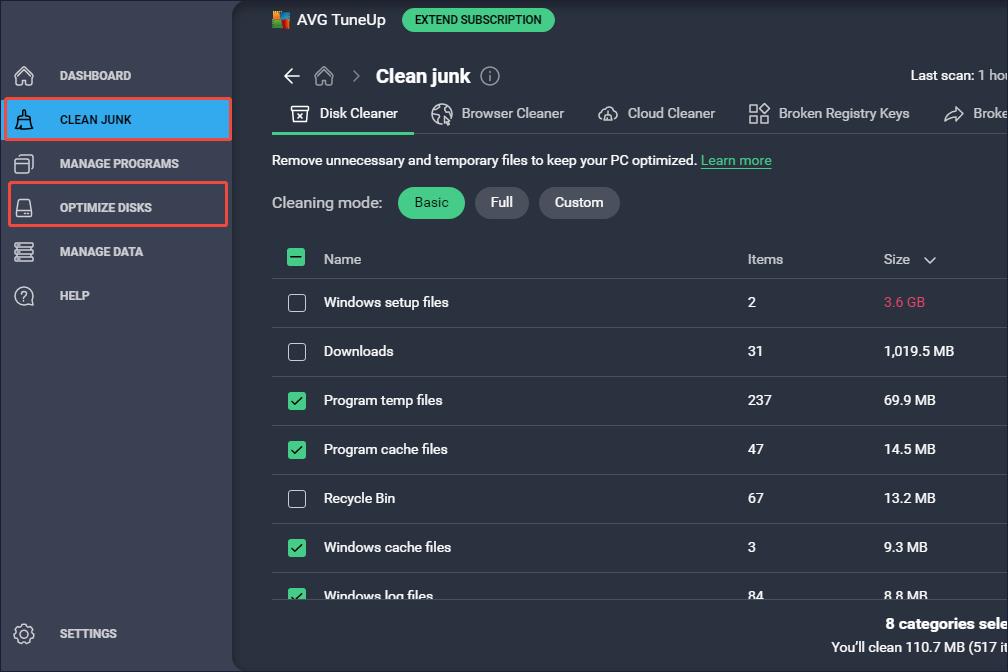
Step 1. Launch the software and switch to the CLEAN JUNK tab. Choose the cleaning items, then click CLEAN.
Step 2. Go to the Optimize Disks tab, select the problematic disk, and click ANALYZE. After it ends, follow the on-screen instructions to fix issues.
4. Wise Care 365 - PC Cleaner & System Optimizer
Wise Care 365 is a secure, full-featured computer optimizer. It includes PC checkup, system clean/tuneup/monitor, and a privacy trace remover.
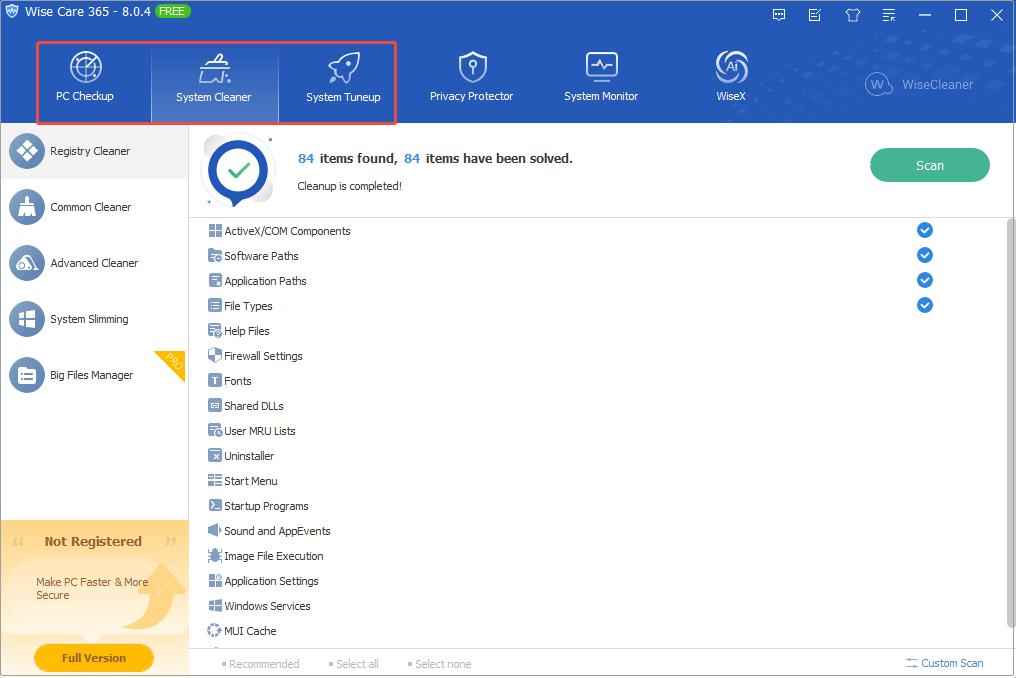
Step 1. Open the software. In PC Checkup, click Checkup Now to scan your PC to find issues. When it finishes, click Fix.
Step 2. In System Cleaner, choose the target files, and then click Scan. When scan ends, click Clean.
Step 3. In System Tuneup, run system/disk optimizer, disable startup items, perform disk/registry defrag, then apply tweaks.
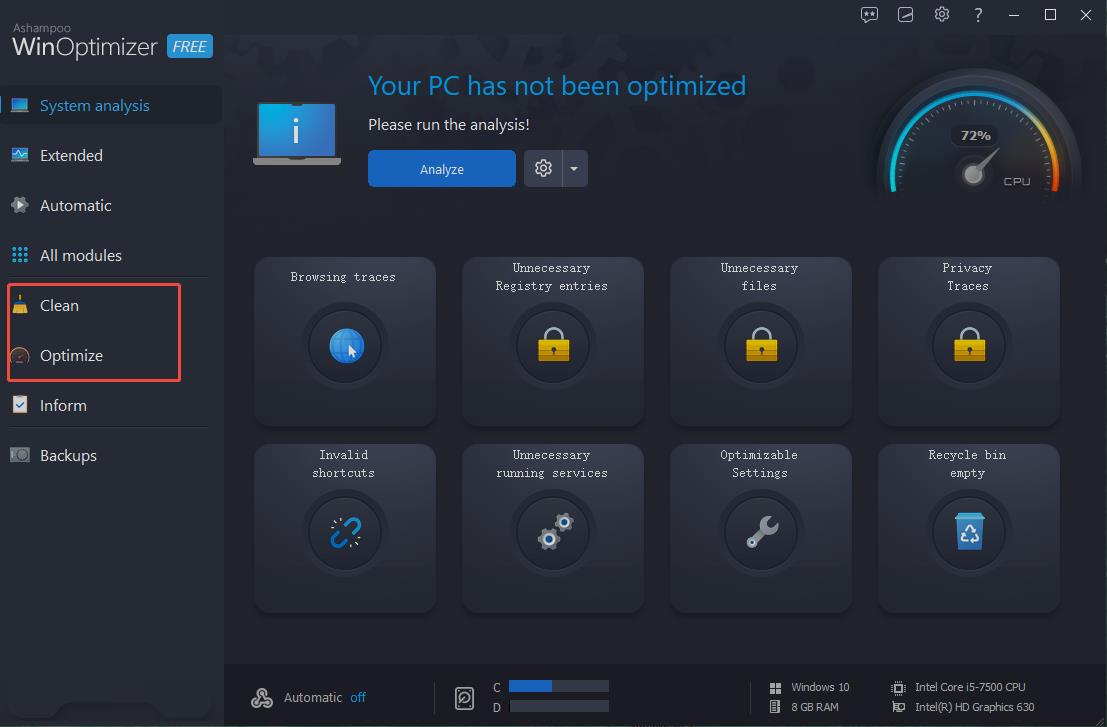
5. Ashampoo WinOptimizer - Windows Optimizer Free
Ashampoo WinOptimizer offers one-click optimization, privacy trace cleaning, and crash-analysis tools. The free edition requires you to create an Ashampoo account and only includes basic cleaning features.
Step 1. Access Ashampoo WinOptimizer’s Clean panel to clean junk/registry entries.
Step 2. Go to the Optimize panel for startup control and system tweaks, then save all changes.
6. Winhance - Windows Enhancement Utility
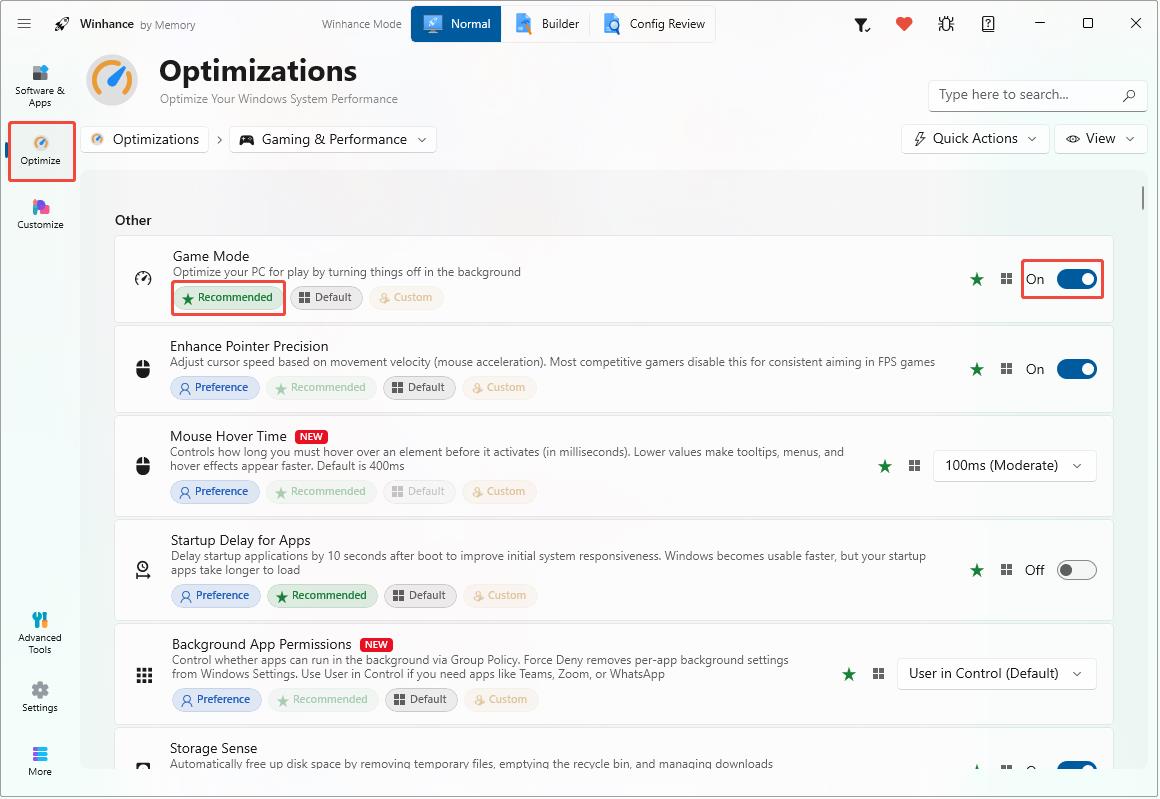
Winhance is a free open-source portable tool for Windows. It removes bloatware and applies gaming, power and privacy tweaks to boost PC performance.
In Winhance, switch to the Optimize module and enable features marked “Recommended” for better performance.
Also Read: Top Free PC Optimizer Tools for Windows 10/11 in 2026
FAQs about the Best PC Optimizer
1. Is a PC optimizer worth it?
Yes. Trusted PC optimizers can optimize your computer quickly and easily. They require little technical skill and work best for systems cluttered with leftover data.
2. Are PC optimizers safe?
Reputable tools, such as Advanced SystemCare, are safe if you keep default settings, yet risky ones may modify critical system files or bring unwanted ads.
3. Does Windows 11 have a built-in optimizer?
Windows 11 offers Storage Sense and Microsoft PC Manager for basic cleanup, though it lacks deep third-party tuning functions.
4. How do I optimize my PC for best performance?
Clean junk files, disable unnecessary startup programs and close idle background apps. You can also remove invalid registry entries. Any tool, like Advanced SystemCare, listed above can optimize your PC.
5. How often should I run a PC optimizer scan?
Most users run a full scan monthly; heavy-use PCs can get scanned every two weeks, and avoid unnecessary daily deep scans.
The Bottom Line
PC optimization software can quickly fix the PC sudden slowdown issues. This post displays 6 best PC optimizers and details their operation steps to help improve system performance. Choose the right one, such as the Advanced SystemCare, a free and handy software, to resolve your computer issues and ensure a good experience.