This might sound familiar: You are ready to tackle an important project, but your PC starts crawling. Apps take forever to load, and documents open with frustrating delays. This kind of slowdown is often caused by insufficient RAM, meaning your computer’s short-term memory is overwhelmed by running processes and accumulated clutter. At this point, a RAM cleaner is what you need. It can greatly free up memory and restore your PC’s performance. Let’s check out the best RAM cleaner software that can help you speed up your computer effectively now!
Common Issues When RAM Usage is Low
High RAM usage will lead to numerous frustrating problems. Here are the most common issues you might have to face when the RAM usage is full.
Sluggish Performance and Lag: Programs respond slowly, and multitasking becomes a nightmare as the system struggles to switch between applications.
Frequent App Crashes and Freezes: Browsers with many tabs, video editors, or games may crash/freeze because they can't allocate enough RAM.
Slow Boot Times and Application Loading: Your PC takes longer to start up, and software launching feels endless due to fragmented memory and background processes hogging resources.
Increased Disk Usage and Noise: When RAM fills up, Windows uses the page file on your drive more heavily. This might cause high disk activity, louder fan noise, and overall system heat.
When you encounter these issues, it means you need a RAM cleaner to free up RAM and maintain smooth operation.
What is a RAM Cleaner?
So, what is a RAM cleaner? Before diving into the concept, it’s crucial to understand RAM (Random Access Memory), the temporary workspace your computer uses to store data for active tasks. The more efficiently your RAM is managed, the smoother your system performs.
Today, modern operating systems can manage RAM automatically. However, over time, inefficiencies can still occur. Background processes continue consuming memory even when not actively used; your browsers and resource-heavy programs also tend to hoard RAM. In addition, the system stores data in standby/cached memory for faster access, which can make available RAM appear limited.
This is the time a RAM cleaner comes in, a tool designed to free up memory and optimize usage. It can identify and release RAM that is occupied by unnecessary processes, cached data, or idle applications, helping reduce system load and improve performance.
Specifically, a RAM cleaner tool boosts memory through two main approaches: One is clearing standby (cached) memory to release reserved resources. Second is stopping inactive background processes to make more RAM available for active tasks. Simply put, a RAM cleaner tool is a solid choice that can keep your PC running efficiently and enhance your overall computer experience.
Free RAM Cleaner Software for Faster PC - Advanced SystemCare
Now comes the key question: How to free up RAM? All you need is Advanced SystemCare, the best RAM Optimizer Windows 11. Perfectly combining RAM cleaning capabilities with all-in-one PC optimization, the software is your reliable companion to boost performance effortlessly. Let’s see how to clear up RAM with its 4 prominent features.
1. How to Free Up RAM Efficiently with Turbo Boost
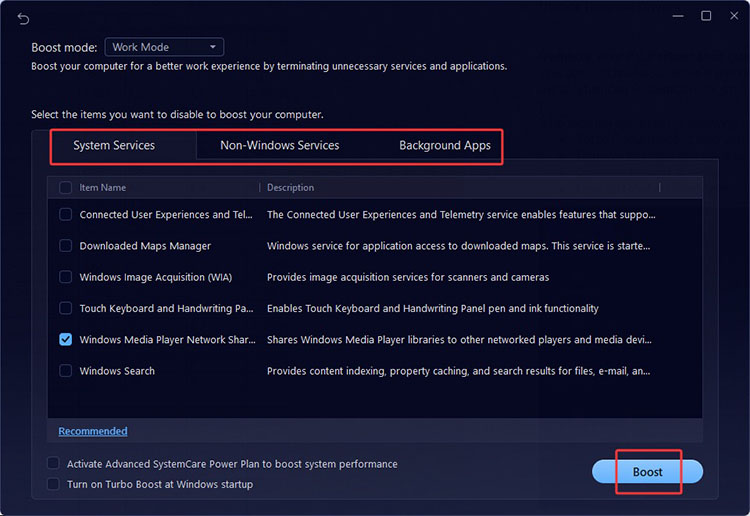
Advanced SystemCare offers a Turbo Boost feature, which is designed for 3 modes to meet your different scenarios.
Work Mode: It focuses on productivity, which shuts down unnecessary background services and frees up RAM for smooth tasks.
Game Mode: Allocates more system resources to gaming, helping reduce lag and deliver more stable frame rates.
Economy Mode: Adjusts resource usage for lighter tasks. Great for extending battery life with stable performance.
Here’s how it works:
Step 1. Download and launch Advanced SystemCare on your PC
Step 2. Go to Speed Up > Turbo Boost. Click on the downward arrow and choose a mode to turn it on.
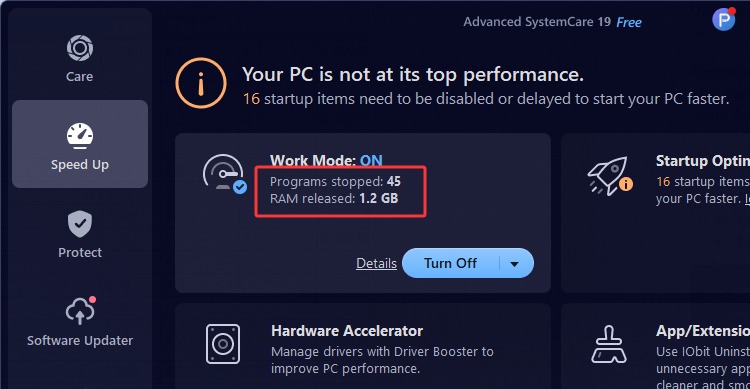
Step 3. You can also click on the details to further configure the mode settings.
2. How to Clear Up RAM Automatically With Auto RAM Clean
Advanced SystemCare also comes with an auto RAM cleaner feature, which provides continuous PC optimization. It runs quietly in the background and automatically clears RAM when the usage becomes excessive or during idle periods. This ensures your PC maintains optimal performance at all times without manual intervention.
Here’s how to enable it.
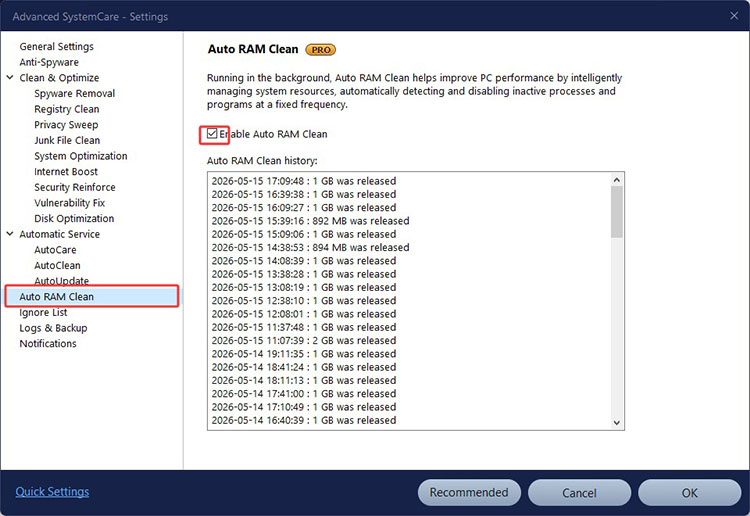
Step 1. Go to Speed Up > Real-Time Tuneup. Toggle up the Auto RAM Clean.
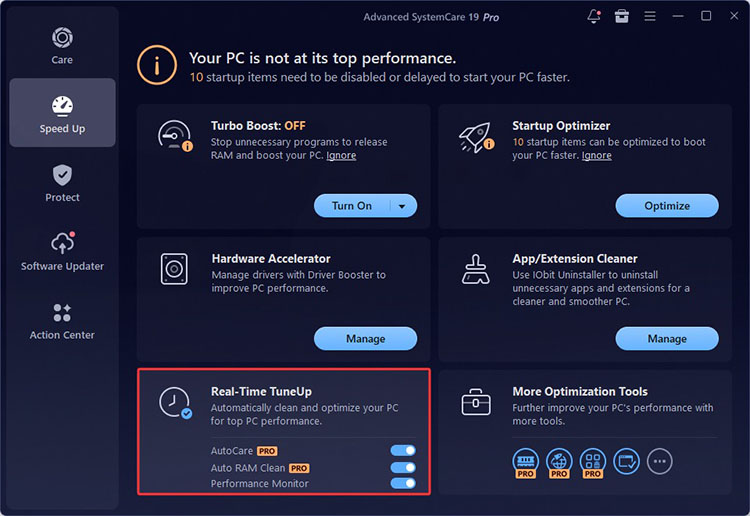
Step 2. Click on the three-line icon in the top right. Go to Settings > Auto Ram Clean. Tick Enable Auto RAM Clean.
3. How to Clear RAM Intelligently with Smart RAM
The Smart RAM offers an intelligent way for memory management. It comes with two major features:
Smart Free: It uses advanced compression technology to reclaim unused memory blocks safely.
Auto Free: Automatically frees RAM when the system is idle, ensuring resources stay available.
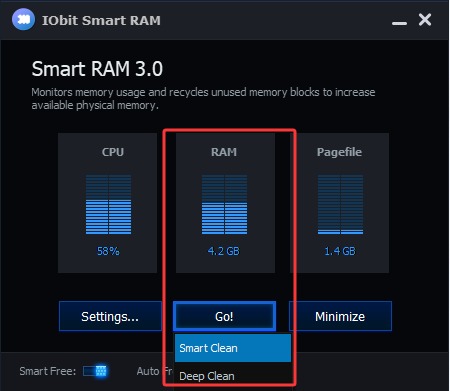
Users can also choose between Smart Clean and Deep Clean for optimization. While Smart Clean is ideal for everyday use, Deep Clean is great for more aggressive memory recovery when system resources are under heavy pressure.
Here’s how it works:
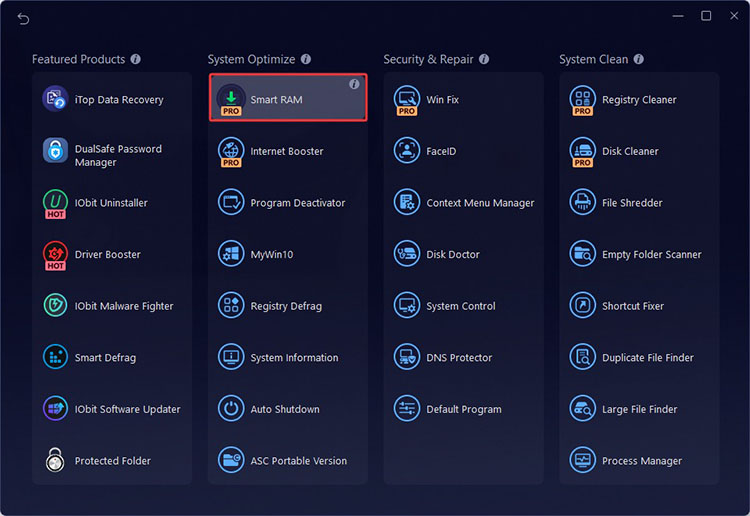
Step 1. Click on the Toolbox in the top right. Navigate to System Optimize > Download the Smart RAM tool
Step 2. Open the Smart RAM. Click on the Go button and choose the clean mode. Apply the mode.
4. How to Reduce RAM Usage with Performance Monitor
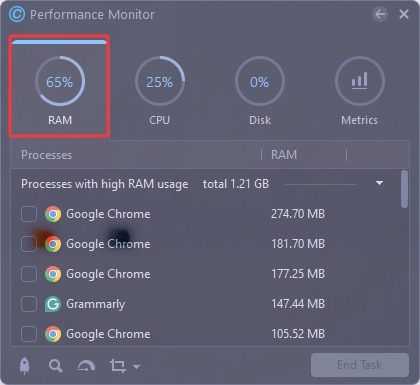
The Performance Monitor tool is another solid tool that provides real-time insights into RAM, CPU, and disk usage directly on your desktop. It not only alerts you when RAM usage becomes excessive but also lets you reduce RAM usage instantly. This feature gives users greater visibility and control over their system’s performance in real time.
Here’s how to use it step by step:
Step 1. Head to Speed Up > Real-Time Tuneup. Toggle on the Performance Monitor, and it will appear on your desktop.
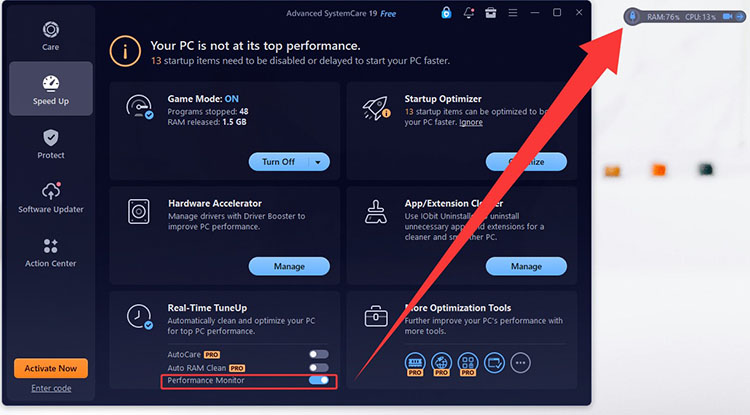
Step 2. Click on the monitor to see RAM in real-time usage. You can end any task to release RAM easily.
Manual Steps to Clean up RAM on PC
While a RAM cleaner is the most efficient solution, there are several manual methods you can try to clear RAM on your Windows PC.
Close Unnecessary Applications: Search Task Manager and open it > Processes tab > select high-memory apps > click End Task to free up RAM from unnecessary background programs.
Disable Startup Programs: Open Task Manager > Startup tab > right-click unnecessary items > select Disable to prevent them from launching automatically and consuming RAM at startup.
Manage Browser Tabs and cache: Close unused browser tabs to reduce memory consumption. Clear your browser cache regularly to free up RAM and improve your browsing performance.
Adjust the Visual Effects: Search for “adjust the appearance and performance of Windows” and open it > Performance Options > Visual Effects, then select “Adjust for best performance” to optimize the RAM usage for better performance.
Restart Your PC Regularly: A simple reboot can clear temporary cached data and restore RAM, which helps your system run more smoothly.
While these steps can help clear up RAM, they are time-consuming and can be challenging for average users. Moreover, incorrect settings might even lead to system instability. That’s why you need a dedicated RAM cleaner for PC, and Advanced SystemCare is your best choice to handle optimization safely and efficiently.
Bonus Tips: All-in-One Solution for Optimizing PC Performance
Advanced SystemCare is not just the best RAM cleaner for PC. The software is an all-in-one system optimization tool that can effectively speed up and improve your PC performance. Here are the outstanding features:
Quicker system startup: Disable or delay unnecessary startups, services, and scheduled tasks to significantly reduce boot time and improve system responsiveness.
Faster surfing speed: Want to know how to boost internet speed on PC? The software can optimize internet settings and remove unwanted browser extensions in bulk for a faster surfing experience.
Deep disk optimization: It can intelligently organize and optimize drive data to reduce file access time and improve overall system efficiency.
Enlarge disk space: It uses AI-powered deep cleaning to remove junk files, residual data, and unnecessary clutter, helping recover valuable storage space.
Stable system performance: Windows optimizer can remove invalid, outdated, and redundant registry entries safely, which improves system stability and prevents system and software crashes.
Conclusion
What is a RAM cleaner? It’s a simple yet effective tool that can easily help you free up computer memory for better performance. As you can see, Advanced SystemCare is a solid and powerful option. It offers comprehensive RAM optimization features and a full suite of performance tools, which can help you clean RAM and keep your PC running smoothly in one click. Just try it for free and experience the instant speed up now!
Advanced SystemCare Free
- Clean: 420 billion traces removed & 85 EB junk files cleaned
- Protect: 80 million unauthorized access blocked & 20 million bugs fixed
- Speed Up: 6 million hours of startup time saved & Turbo boost
- Optimize: Auto clean and auto care your PC with AI mode