Browser cache is a feature that improves your browsing experience. It stores temporary files like images, scripts, and other website data on your device so that pages load faster on subsequent visits. However, over time, this accumulated data can become outdated, leading to slower loading speeds, display glitches, and even websites failing to update.
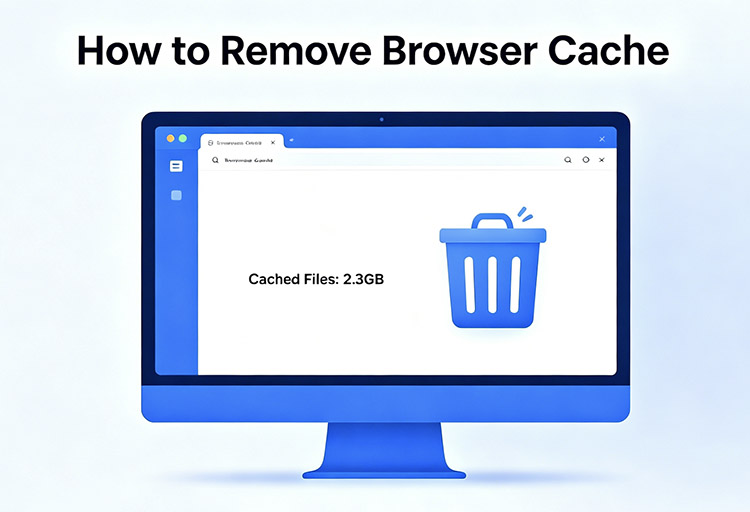
That’s when it’s time to clear your cache for a faster and smoother browsing experience. So, how to remove browser cache? This guide will walk you through step-by-step methods for different browsers and devices. Let’s get started and refresh your browsing performance now!
Why Should I Clear My Browser Cache?
Although cache improves speed initially, it can become outdated or overloaded and create issues over time. Therefore, it’s crucial to clear your browser cache from time to time. Here are the main reasons why you need to do so:
Fix loading and display issues: Old cached files can cause broken layouts or pages not loading correctly. You can clear the cache to refresh everything.
View the latest website content: Websites update frequently, but the browser cache still shows the old ones. You need to clear it to see the most recent content.
Improve browser speed and performance: Too much cached data can slow down your browser, and removing it can improve responsiveness.
Free up storage space: Cache files can take up significant space, especially after long-term browsing.
Protect your privacy: Cached data may store traces of your activity, so clearing it helps reduce potential privacy risks.
Resolve loading issues and “404” errors: Many website errors occur due to outdated cache, and this can be fixed instantly by clearing it.
How to Clear up Browser Cache in Chrome?
Google Chrome is the most common browser these days. It allows you to clear the cache on desktop and mobile devices from the settings. The process is quick and straightforward. Here’s how to clear browser cache Chrome with just a few clicks.
On Desktop:
Step 1. Open your Google Chrome. Go to Settings > Privacy and security.
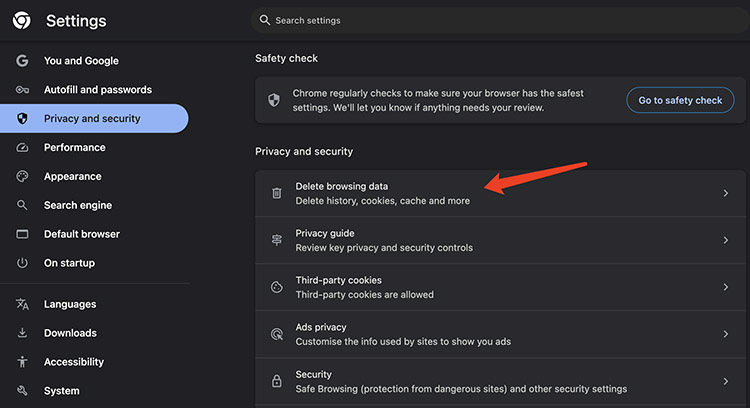
Step 2. Click Delete browsing data. Select the time range and click Delete data to remove the cache.
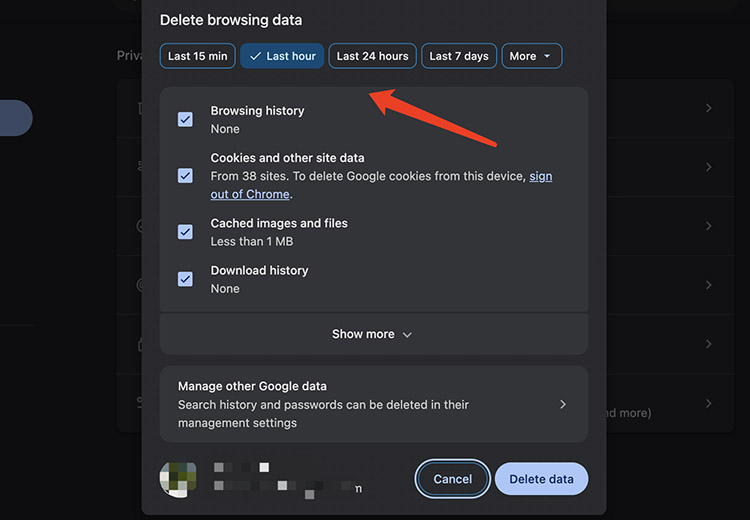
Pro Tip: You can also use the shortcut Ctrl + Shift + Delete (Windows) or Command + Shift + Delete (Mac) to open the clear browsing data window instantly.
On Mobile:
For Chrome on mobile devices, the steps are more or less the same. Let’s see how to clear browser cache Chrome on iPhones.
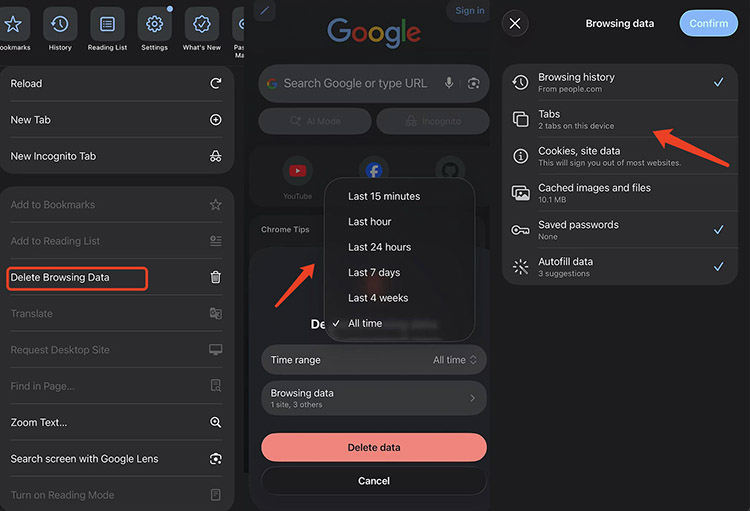
Step 1. Open the Chrome app and tap the three-dot menu in the bottom-right corner. Select Delete browsing data, then choose a time range as you see fit.
Step 2. Click on the Browsing data and tick all the cached data and files you want to remove. Confirm the settings.
Step 3. Go back to the last screen and click on the Delete data to clear your browser cache.
Also Read: How to Clean Junk File in PC Windows Effortlessly >>
How to Clear Browser Cache in Safari?
Safari is the default browser for Apple devices and is optimized for performance. It also provides built-in options to manage and remove cached data on both macOS and iOS devices. Here’s how to clean up browser cache on Safari easily.
On Mac:
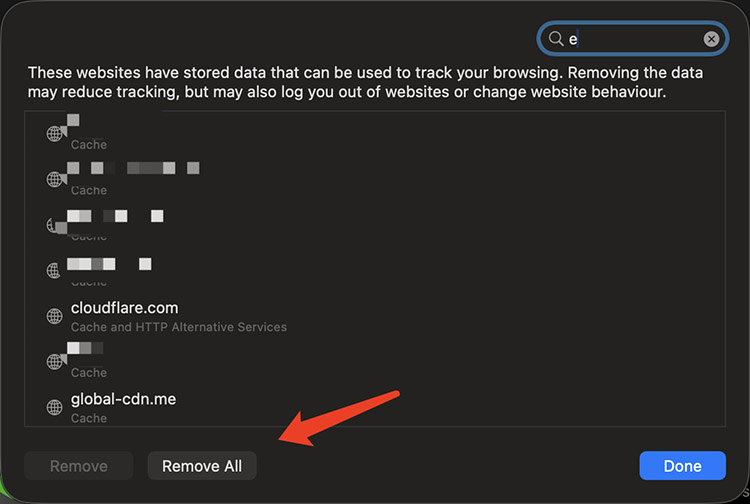
Step 1. Open Safari and click Safari in the top menu. Select Settings > Privacy.
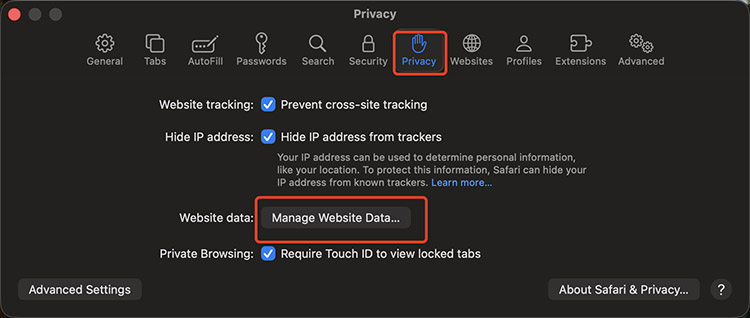
Step 2. Click Manage Website Data, then choose Remove All. Or you can select specific sites and click Remove.
On iPhone & iPad:
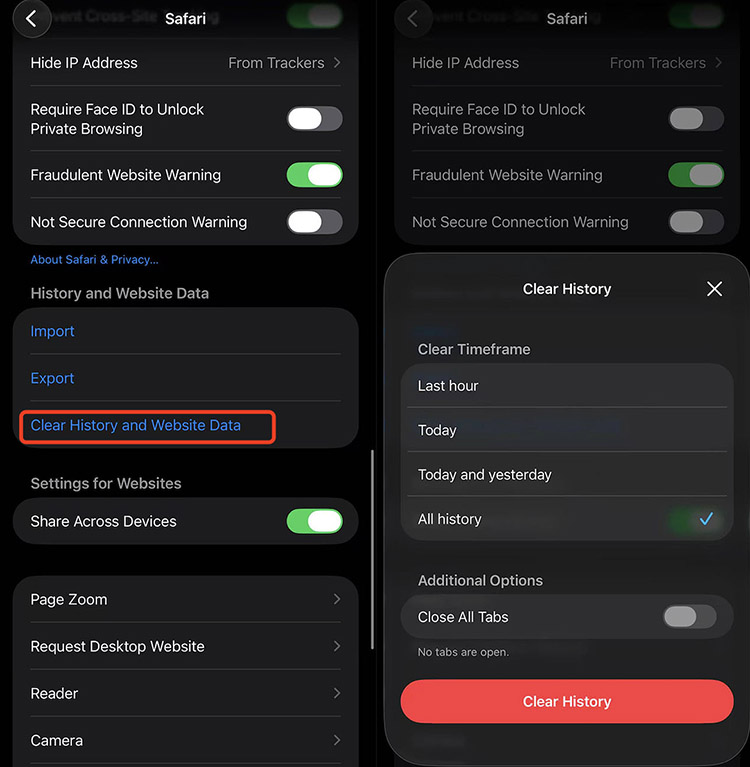
Step 1. Open the Settings app and scroll down until you find Safari, then tap to enter its settings.
Step 2. Scroll to the bottom and select Clear History and Website Data, then confirm your choice to proceed.
Step 3. Select the timeframe and clear the cache instantly.
How to Remove Browser Cache in Mozilla Firefox?
Mozilla Firefox is well known for its focus on user privacy and customization. The browser provides a straightforward interface that allows you to remove cached data in just a few clicks. Here’s how to clear browser cache on Firefox easily.
Step 1. Click the menu icon (three horizontal lines) in the top-right corner and select Settings.
Step 2. Navigate to Privacy & Security and scroll down to the Cookies and Site Data section.
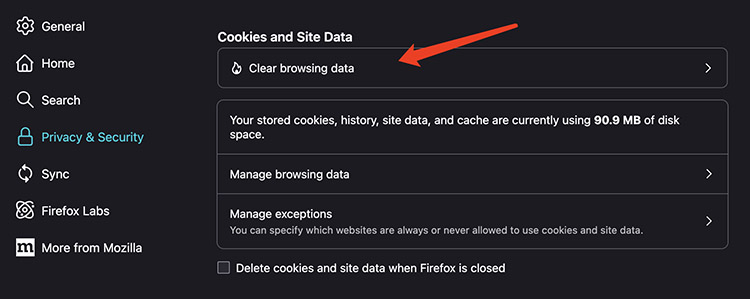
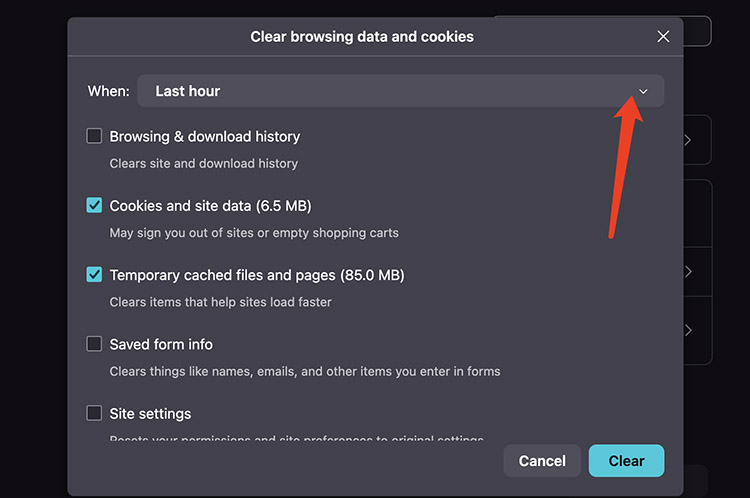
Step 3. Choose Clear browsing data. Choose the time frame and the cache type you want to remove, then click Clear to confirm.
Also Read: How to Clean Up PC Like Getting A New One >>
How to Clear Browser Cache in Microsoft Edge?
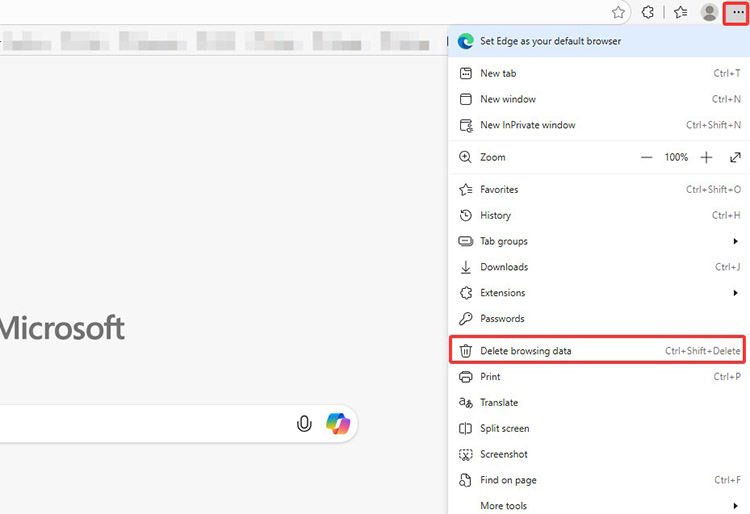
Microsoft Edge has evolved into a fast and modern browser, offering strong performance and compatibility across websites. If you experience slow browsing or errors, clearing the cache can be a quick fix. Here’s how to clear browser cache in Edge for a better experience.
Step 1. Go to the three-dot menu in the top right. Choose Delete browsing data from the menu.
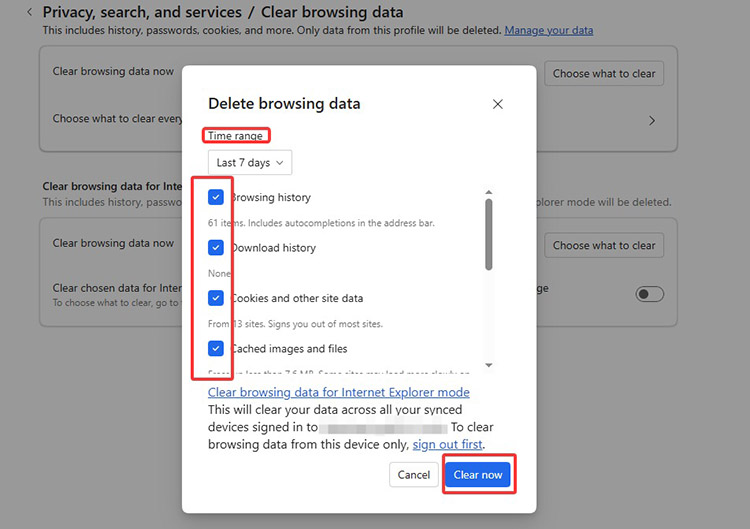
Step 2. Select a time range and check all the cache files if needed. Click Clear now to remove the cache on Edge.
Fastest Way: Clear All Browser Caches With One Click
Now that you know how to clean up browser cache in Chrome, Safari, Edge, and Firefox, you might notice one common problem, that is, manual cleaning takes time. It becomes even more inconvenient if you regularly switch between multiple browsers for work or personal use. Repeating the same steps across different platforms can feel repetitive and inefficient.
This is the time Advanced SystemCare comes into play. The software is a more efficient alternative, which lets you remove all cached data in one go. Moreover, it’s an all-in-one solution that can effectively optimize your PC performance. You can remove the browser cache and speed up your computer at the same time!
Advanced SystemCare Free
- Clean: 420 billion traces removed & 85 EB junk files cleaned
- Protect: 80 million unauthorized access blocked & 20 million bugs fixed
- Speed Up: 6 million hours of startup time saved & Turbo boost
- Optimize: Auto clean and auto care your PC with AI mode

Highlighted features:
Free cross-browser cleaning: How to remove browser cache for free and easily? Advanced SystemCare is the right choice. The software can remove cache, cookies, and browsing history from multiple browsers at once. And most importantly, no extra cost is needed.
AI-powered smart scan: This RAM optimizer Windows 11 offers an AI mode that can intelligently detect junk files, cache data, and performance issues. After that, it will provide optimized cleaning suggestions tailored to your system.
Deep privacy protection: Advanced SystemCare automatically erases online traces, clears browsing history, and removes cached data to protect your activity. It also blocks malicious spyware and prevents potential data theft for safer browsing.
System-wide optimization: The software supports optimization for the full system. For instance, the Turbo Boost modes to enhance performance based on usage mode, the Startup Optimizer to disable unnecessary programs, and the Real-time Tune up features that continuously monitor and optimize your system for smoother operation.
How to remove browser cache with Advanced SystemCare?
Step 1. Download and install Advanced SystemCare on your Windows PC with a few clicks.
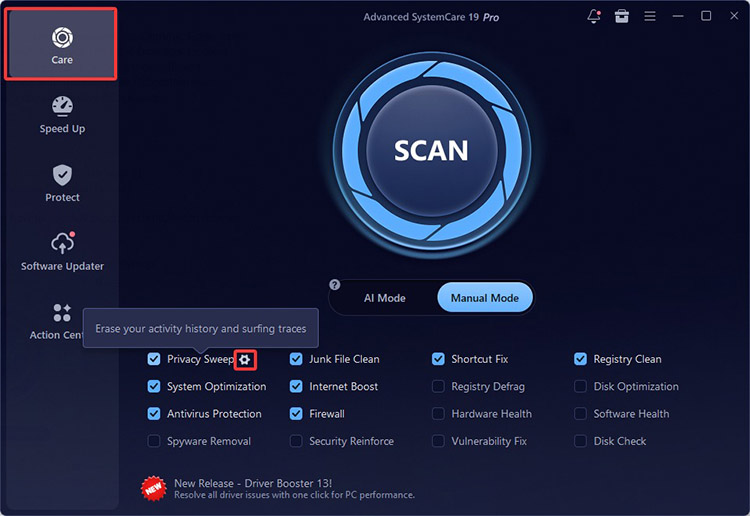
Step 2. On the main dashboard, click on the Settings icon next to Privacy Sweep.
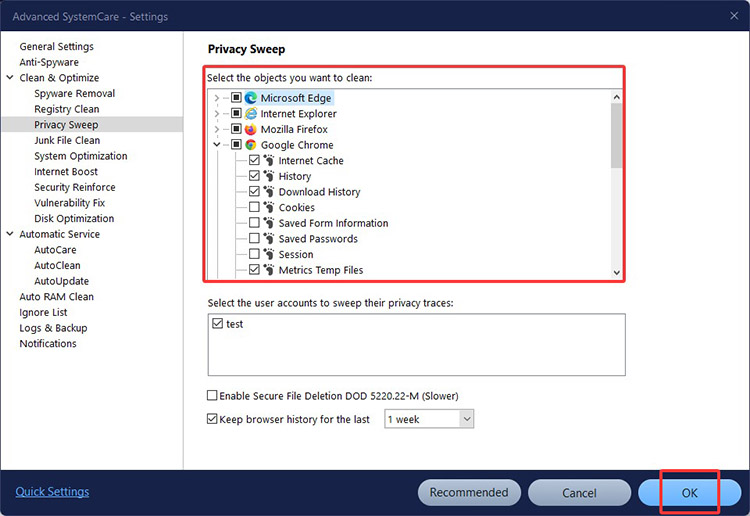
Step 3. From the left menus, head to Clean & Optimize > Privacy Sweep. Tick the browser cache you want to remove. Click OK to confirm the options.
 Step 4. After returning to the homepage, click the large SCAN button.
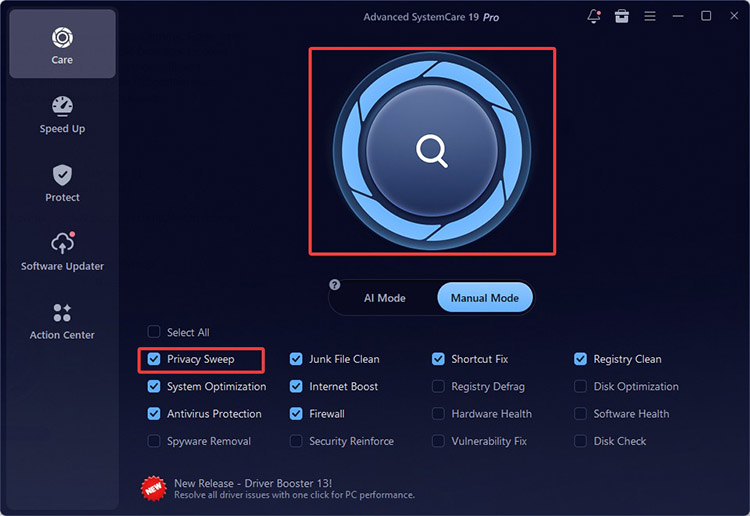 Step 5. It will show a list of the cached files that need to be cleaned. Click on the Fix button to remove your browser cache in one go!
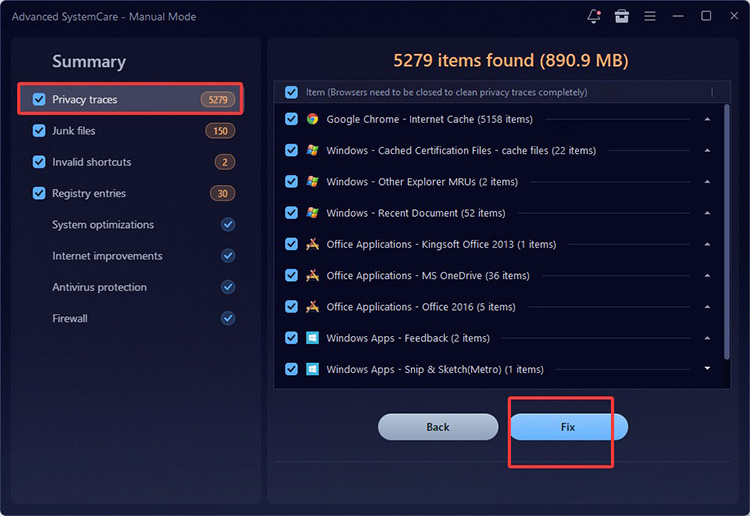 That’s how to remove browser cache using Advanced SystemCare. Now you can enjoy a faster and smoother browsing experience as well as optimal PC performance!
FAQs on How to Remove Browser Cache
1. Is it safe to clear the cache?
Yes. It’s generally safe to clear the cache because it frees up storage space and resolves website glitches. In most cases, it only removes temporary files stored by websites.
2. How often should I clear my cache?
You are recommended to clear your cache every 2-4 weeks. The practice is also necessary when you experience slow loading, display issues, or the website content seems to be outdated.
3. What happens after I clear the cache?
The websites may load slightly slower the first time as fresh data is downloaded. However, it will improve overall performance with fewer browser-related glitches.
4. Will clearing the cache delete my saved passwords or bookmarks?
No, it does not delete passwords or bookmarks. It only removes temporary website files generally. However, passwords might be removed if you manually select them.
Conclusion
How to remove browser cache? You can make it with your browser’s built-in settings, regardless of the browser and device types. While these manual adjustments look simple, Advanced SystemCare makes the process even faster and easier. You can clear all browser cache in just one click! Meanwhile, it’s an all-in-one software that can improve your PC performance with a suite of optimization features. Download it to enjoy smoother browsing and keep your PC running at peak performance now!