If your Windows PC takes forever to boot or launches dozens of apps before you're ready, it's time to take control of your startup programs. A program startup manager helps you decide which applications run automatically when Windows starts, reducing boot time, improving responsiveness, and freeing up valuable system resources.
While Windows includes a basic startup manager, third-party tools often provide more advanced features, such as startup impact analysis, one-click optimization, and startup delay options. In this guide, we'll explore the best startup manager Windows tools for Windows and show you how to use them to speed up your PC.
What Is a Program Startup Manager?
A program startup manager is a utility that lets you view, enable, disable, or optimize applications and services that launch automatically when Windows boots.
Many applications add themselves to the startup list during installation. Although some are essential, many simply run in the background, consuming CPU, memory, and storage resources before you even begin working.
A good startup manager helps you:
Improve Windows boot speed
Reduce unnecessary background processes
Free up system resources
Troubleshoot startup-related issues
Maintain a cleaner, more responsive PC
Most startup items come from startup folders, the Windows Registry, scheduled tasks, or system services.
7 Best Program Startup Manager Tools for Windows
A reliable program startup manager not only lets you disable unnecessary startup programs but also helps improve boot speed and overall system performance. Here are seven of the best program startup manager tools for Windows, ranging from the built-in Windows solution to advanced utilities that offer deeper optimization features.
1. Advanced SystemCare — Best All-in-One Startup Optimization Tool
If you're looking for more than just startup management, Advanced SystemCare Free offers a complete PC optimization solution. As a comprehensive Windows optimizer, it includes Startup Optimization to analyze startup items, disable unnecessary applications with just a few clicks, and improve your PC's overall performance.
Beyond startup management, Advanced SystemCare also cleans junk files, protects privacy, optimizes system settings, and improves overall PC performance using AI-assisted optimization.
Advanced SystemCare Free
- Clean: 420 billion traces removed & 85 EB junk files cleaned
- Protect: 80 million unauthorized access blocked & 20 million bugs fixed
- Speed Up: 6 million hours of startup time saved & Turbo boost
- Optimize: Auto clean and auto care your PC with AI mode

Key features:
Startup Optimization: Detects unnecessary startup programs and optimizes them for faster Windows startup.
Turbo Boost: Stops unnecessary background processes to free RAM and improve responsiveness. If your PC frequently runs out of memory, you can also explore this guide to choosing the best RAM optimizer Windows 11 for additional performance improvements.
AI-Powered Optimization: Automatically recommends system improvements based on your PC's current condition.
Real-Time TuneUp: Continuously optimizes memory and system resources for consistent performance.
Junk File Cleanup: Removes unnecessary files that slow down Windows and waste disk space.
Registry Cleaning: Eliminates invalid registry entries to improve system stability and startup efficiency.
Disk Optimization: Optimizes drives to accelerate data access and improve overall performance. If your computer often experiences slow performance caused by high disk activity, check out our guide on fixing Windows 11 100 disk usage for more troubleshooting tips.
Software Health Check: Identifies problematic software that may negatively impact startup and system speed.
Pros
Best for: Users who want an all-in-one utility to optimize startup performance and overall system health.
2. Windows Task Manager
Windows Task Manager is the built-in startup management tool available in Windows 10 and Windows 11. It lets you view startup apps, check their startup impact, and enable or disable them with a few clicks. It's ideal for basic startup management, although it lacks advanced optimization features found in dedicated utilities.
To access it:
Press Ctrl + Shift + Esc.
Open the Startup apps tab.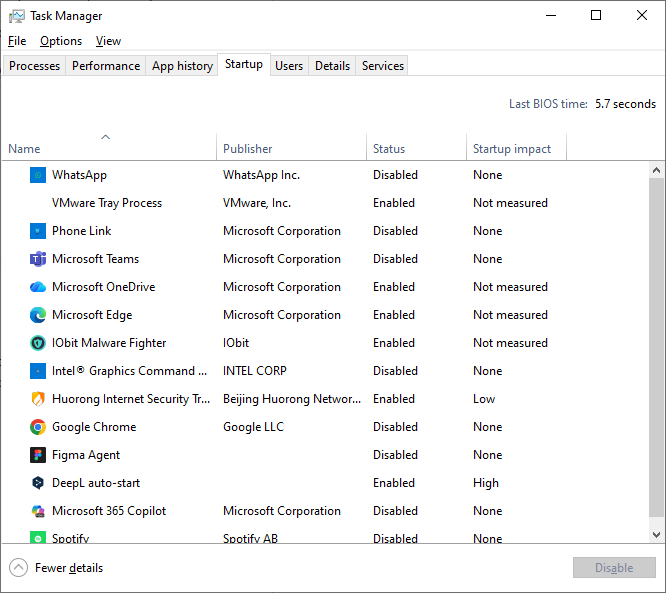
Review each application's startup impact.
Disable programs you don't need at startup.
This built-in solution is ideal for everyday users who only need simple startup management without installing additional software.
3. Microsoft Autoruns
Microsoft Autoruns is a free Sysinternals utility designed for advanced users and IT professionals. It reveals every program configured to start automatically, including registry entries, services, scheduled tasks, drivers, and browser add-ons. Its comprehensive startup analysis makes it excellent for troubleshooting, but the interface can be overwhelming for beginners.
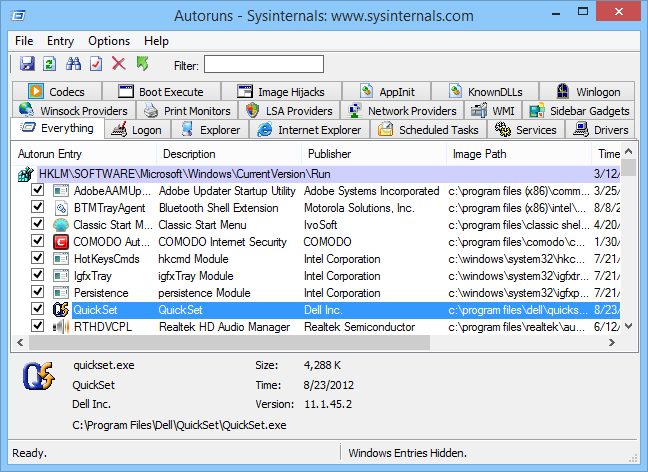
Unlike Task Manager, it displays virtually every startup location in Windows, including:
Registry startup entries
Startup folders
Scheduled tasks
Services
Drivers
Explorer extensions
Browser add-ons
Because of its advanced capabilities, Autoruns is best suited for IT professionals and experienced users.
4. CCleaner Startup Manager
CCleaner Startup Manager Windows helps users control which applications run when Windows starts, making it easier to reduce boot time and improve system responsiveness. Besides managing startup items, it also lets you disable scheduled tasks and browser startup extensions. It's a convenient option for users already using CCleaner for PC maintenance.
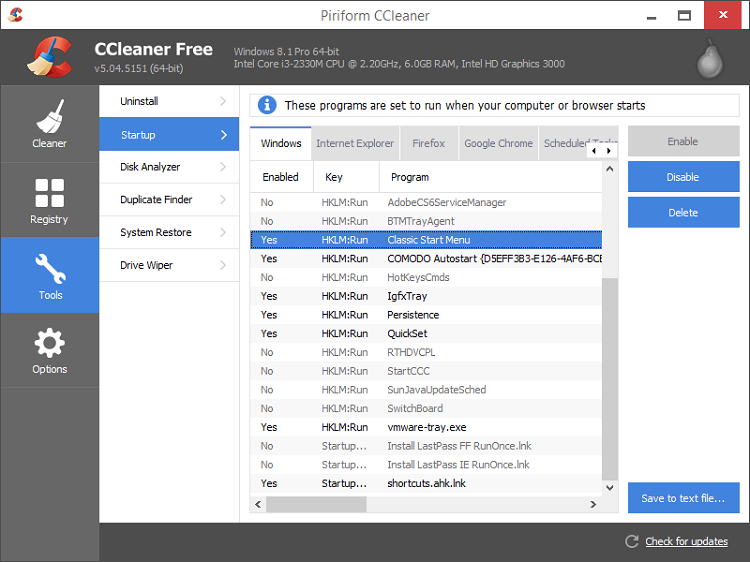
You can manage:
Its straightforward interface makes it a good option for users who already use CCleaner for routine maintenance.
5. Glary Utilities Startup Manager
Glary Utilities includes a built-in Windows program Startup Manager that allows users to enable, disable, or delay startup applications to improve boot performance. As part of the Glary Utilities suite, it also offers disk cleanup, registry repair, and other optimization tools, making it a practical all-in-one maintenance solution.
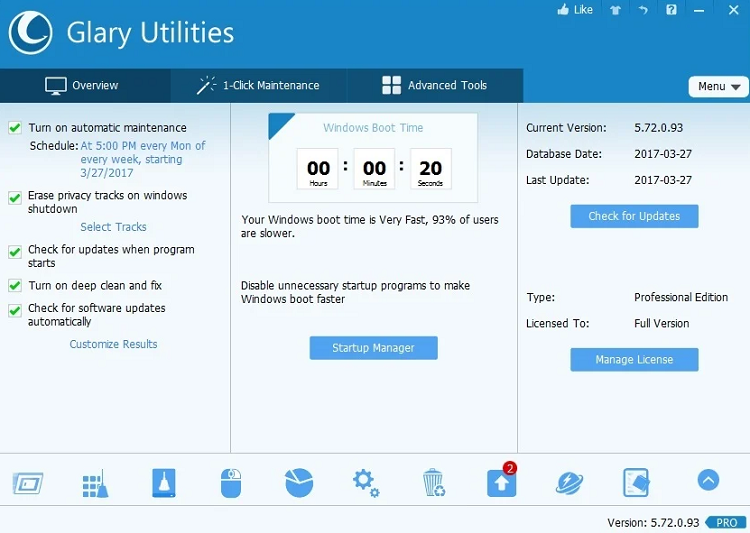 Highlights include:
Startup optimization
Startup delay
System cleanup
Performance monitoring
Registry maintenance
It's a solid choice for users who prefer an all-in-one utilities suite.
6. HiBit Startup Manager
HiBit Startup Manager is a lightweight, free utility that provides comprehensive control over Windows startup items. It can manage startup programs, services, scheduled tasks, startup folders, and registry entries through a clean, user-friendly interface. Its small footprint makes it a great choice for users who want a dedicated startup management tool.
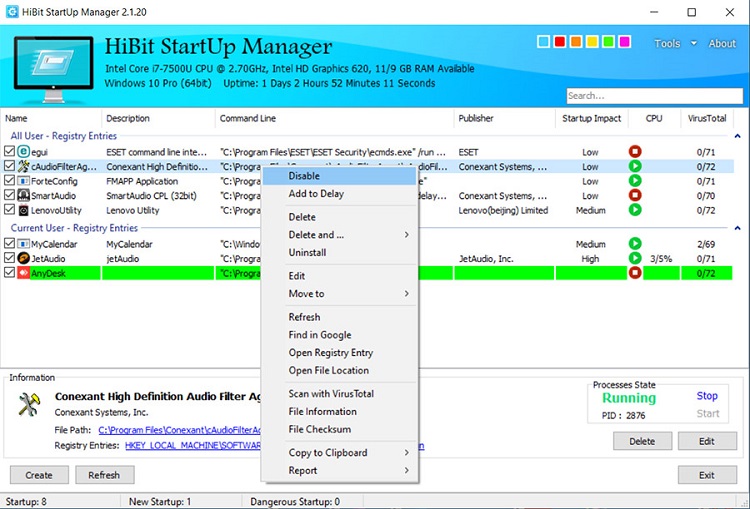 Features include:
Its small footprint makes it a great option for older or lower-spec PCs.
7. Starter
Starter is a free, open-source startup manager that helps users monitor and manage startup programs, processes, and services. It supports editing startup folder entries and registry startup items while displaying detailed process information. Although its interface is dated, it remains a reliable option for users who prefer a lightweight, no-frills utility.
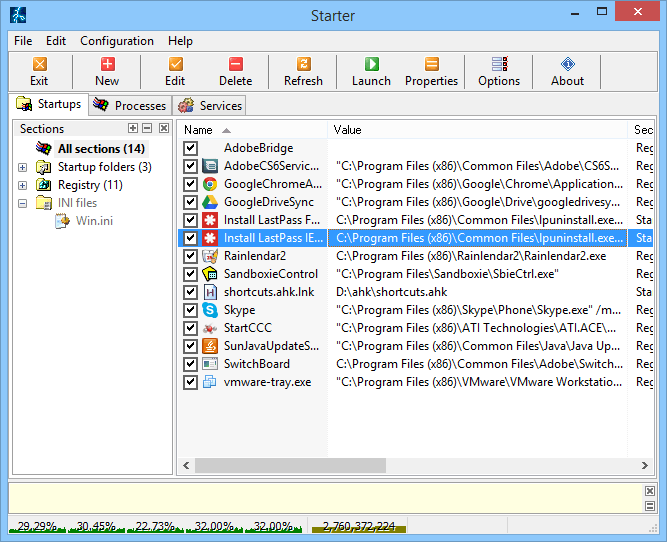
Although its interface is more technical than some modern alternatives, it remains a capable solution for advanced users who want complete control without unnecessary extras.
Program Startup Manager Comparison
Tool |
Beginner Friendly |
Startup Optimization |
Extra Features |
Advanced SystemCare |
★★★★★ |
Excellent |
AI optimization, cleanup, privacy tools |
Windows Task Manager |
★★★★★ |
Basic |
Built into Windows |
Autoruns |
★★☆☆☆ |
Advanced |
Deep startup analysis |
CCleaner |
★★★★☆ |
Good |
System cleaning |
Glary Utilities |
★★★★☆ |
Good |
Complete utilities suite |
HiBit Startup Manager |
★★★★☆ |
Good |
Lightweight management |
Starter |
★★★☆☆ |
Basic |
Open-source |
How to Use IObit Advanced SystemCare to Manage Startup Programs
As mentioned above, IObit Advanced SystemCare is our top recommendation because it combines startup management with comprehensive PC optimization. Its Startup Optimizer automatically detects startup items that impact boot speed, making it much easier to manage startup programs than using Windows' built-in tools alone.
Follow these simple steps to optimize your startup programs:
Step 1. Open the Speed Up Module
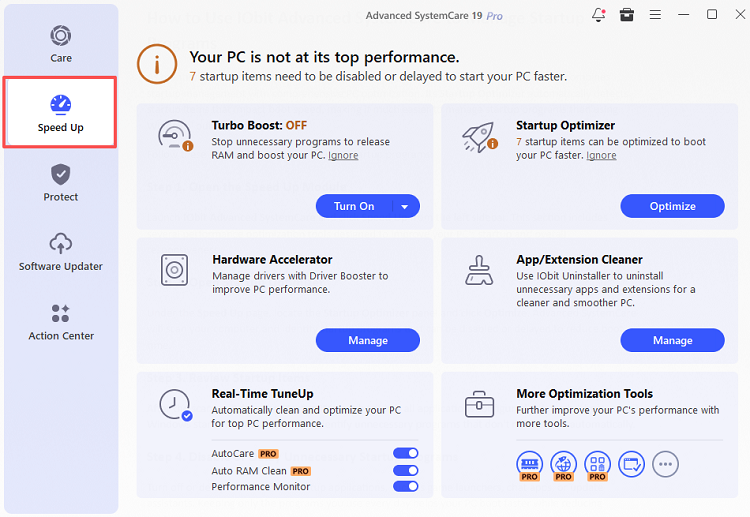
Launch IObit Advanced SystemCare and click Speed Up from the left sidebar. This section includes several performance optimization tools designed to improve your PC's startup and overall responsiveness.
Step 2. Open Startup Optimizer
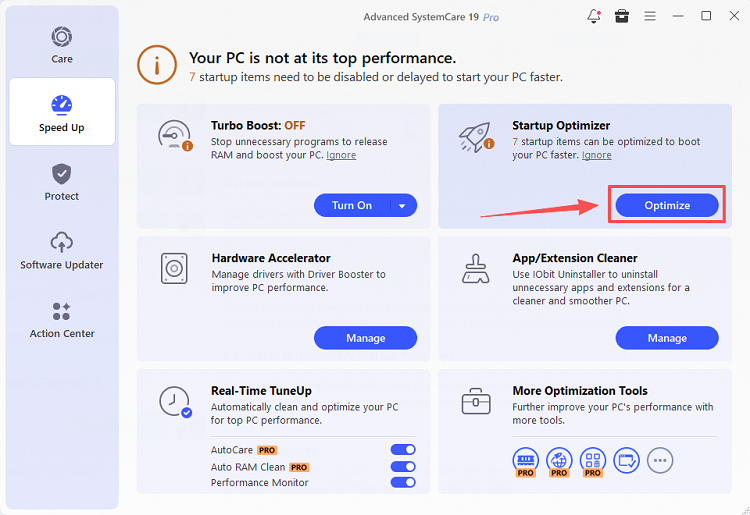
Under the Speed Up page, locate the Startup Optimizer panel and click Optimize. Advanced SystemCare will scan your computer and identify startup programs that can be disabled or delayed to reduce boot time.
Step 3. Review Startup Items
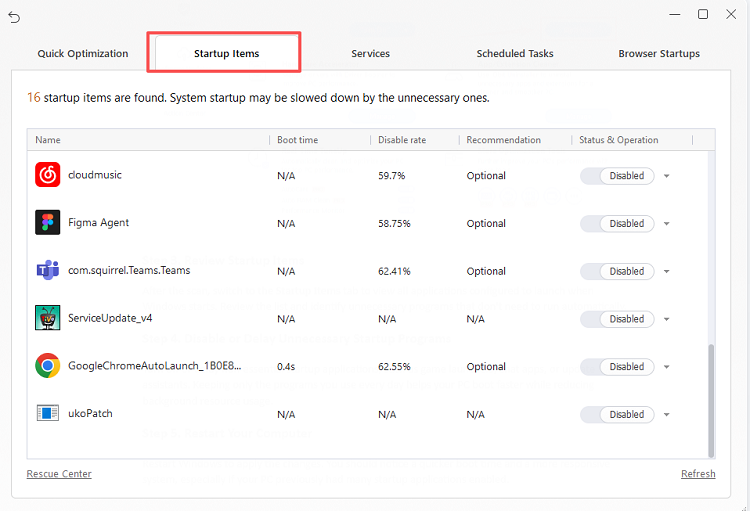
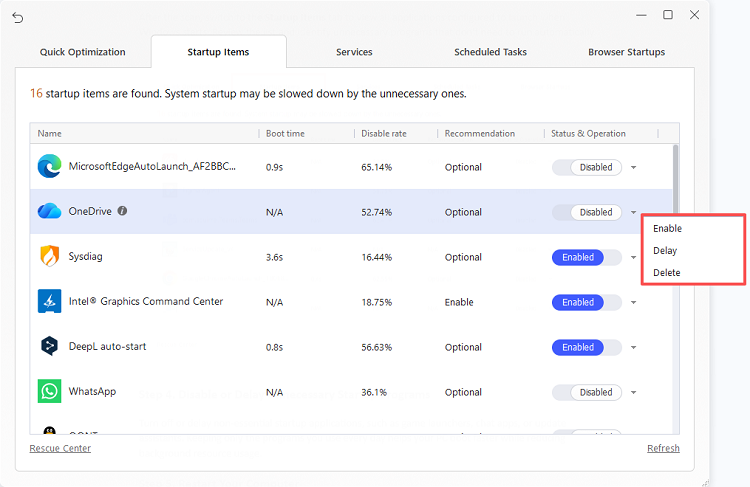
After the scan, switch to the Startup Items tab to view all applications configured to launch when Windows starts. Review the list and identify unnecessary programs that don't need to run automatically.
Step 4. Disable or Delay Unnecessary Startup Programs
Turn off or delay non-essential startup applications, such as game launchers, chat apps, or update assistants. Keeping only the programs you use every day helps your PC boot faster while reducing background resource usage.
Step 5. Restart Your Computer
Restart Windows to apply the changes. You should notice a quicker boot time and a more responsive system, especially if your PC previously had many startup applications enabled.
Common Startup Programs You Can Safely Disable
Many applications don't need to launch every time Windows starts. Examples include:
Music streaming apps
Chat applications
Cloud storage clients (if you don't need immediate syncing)
Game launchers
Software update assistants
RGB lighting utilities
Office quick launch tools
However, avoid disabling:
Managing startup programs is one of the easiest ways to improve Windows responsiveness, but it's only part of overall PC optimization. If you're also experiencing slow downloads, lag, or unstable internet connections, consider using a TCP optimizer to optimize your network settings.
Frequently Asked Questions
What is the best program startup manager?
The best choice depends on your needs. Windows Task Manager is ideal for basic startup control, while Microsoft Autoruns provides advanced diagnostics. For users who want startup optimization alongside system cleanup and performance improvements, Advanced SystemCare offers a well-rounded solution.
Does Windows have a built-in startup manager?
Yes. Windows includes startup management through Task Manager, allowing you to enable or disable applications that launch during startup.
Can disabling startup programs improve performance?
Yes. Reducing unnecessary startup applications can shorten boot time, lower memory usage, and improve overall system responsiveness.
Is it safe to disable startup programs?
Generally, yes—as long as you avoid disabling essential Windows services, hardware drivers, and security software. When in doubt, research an unfamiliar item before making changes.
Which startup programs should never be disabled?
Critical security software, graphics drivers, audio drivers, touchpad software, and core Windows services should remain enabled to ensure your system functions properly.
Final Thoughts
Choosing the right program startup manager is an easy yet effective way to reduce boot time, eliminate unnecessary startup programs, and keep your Windows PC running smoothly. Whether you prefer Windows Task Manager for basic control or a more advanced tool with additional optimization features, regularly managing your startup items can significantly improve your computer's performance.
If you're looking for an all-in-one solution, IObit Advanced SystemCare is an excellent choice. In addition to its powerful Startup Optimizer, it offers AI-powered PC optimization, junk file cleanup, registry maintenance, and real-time performance tuning.