







Kevin Hart
Kevin is an experienced editor focused on tech blog writing. Familiar with all kinds of PC software on the market. All the topics he chooses are aimed at bringing more benefits to users.
Expert in
PC Health Solution

All-in-one PC health solution: clean, optimize and secure

Comprehensive PC cleaning, optimization and protection

Keep drivers always up-to-date

More stable performance with less system crashes

Protect millions of computers against malware

Top computer security with full-round protection

Protect against viruses & boost PC performance
Clean: 420 billion traces removed & 85 EB junk files cleaned
Protect: 80 million unauthorized access blocked & 20 million bugs fixed
Speed Up: 6 million hours of startup time saved & Turbo boost
Optimize: Auto clean and auto care your PC with AI mode

How to disable startup apps in Windows 10 or 11? If you want to know, follow this simple guide to manage startup programs and improve boot performance.

Kevin Hart


Windows 10 or 11 can slow down over time, especially when too many apps launch automatically during startup. Learning how to disable startup apps in Windows 10/11 is one of the easiest ways to speed up boot time and improve overall performance. This guide walks you through every method, explains which apps are safe to disable, and helps you optimize your system without risk.
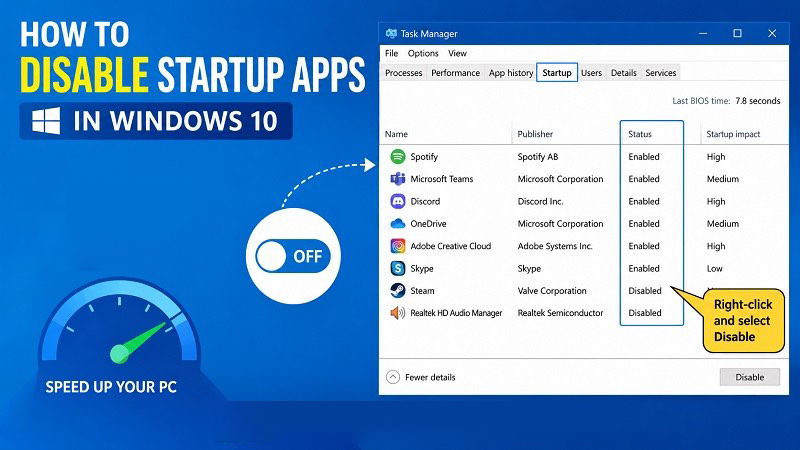
Startup apps run automatically when your PC boots. While some are essential, many are unnecessary and consume memory, CPU, and background resources.
Faster boot times
Reduced background activity
Improved system responsiveness
Less clutter and fewer interruptions
Better battery life on laptops
This section covers the most reliable methods to disable startup programs in Windows 10/11, from beginner‑friendly to advanced. , from beginner‑friendly to advanced.
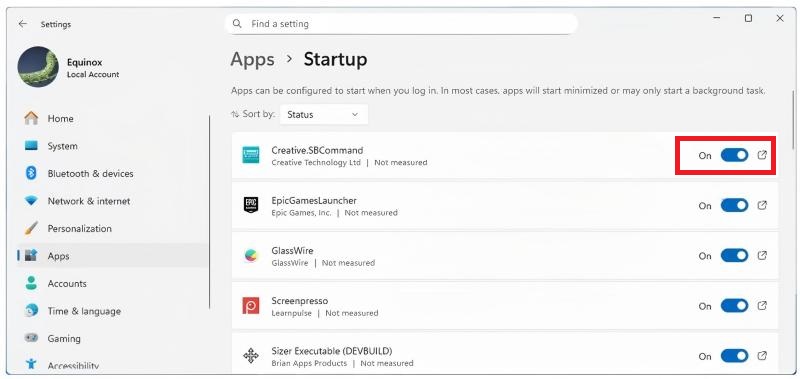
Whether you believe it or not, the Windows Settings app provides the simplest way to manage startup applications. This method is ideal for beginners because it only takes a few clicks. But it provides limited information about each startup item and cannot remove invalid or leftover startup entries. If you don’t mind, just follow these steps to disable startup programs in Windows 10/11.
Step 1. Navigate to Apps > Startup.
Step 2. Click the toggle next to the app you wish to disable to Off.
Task Manager provides more detailed information than the Settings app, including each program's estimated startup impact. This makes it one of the most popular methods for users who want greater control. However, it offers limited performance recommendations and cannot optimize other boot-related settings.
Step 1. Right‑click the Taskbar and select Task Manager.
Step 2. Click the Startup tab.
Step 3. Review each app’s Startup impact (Low, Medium, High).
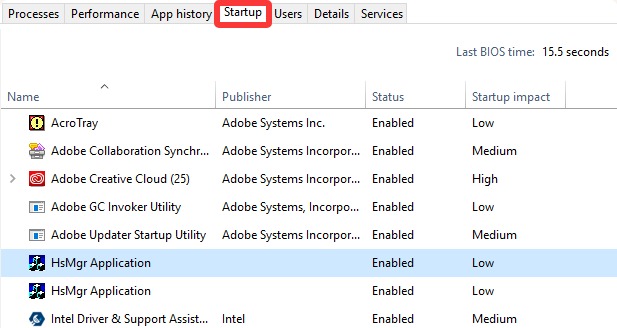
Step 4. Select an app you don’t need at startup.
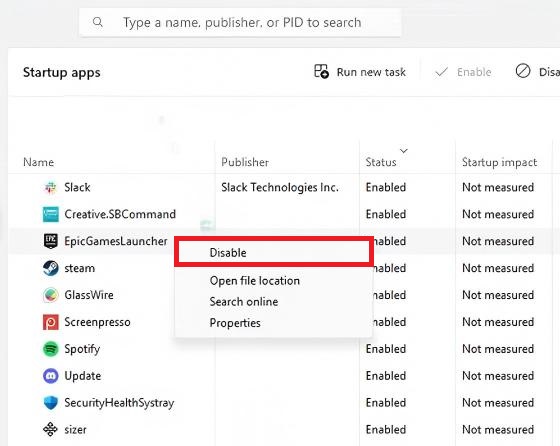
Step 5. Right-click a program on the list to disable it.
If you want a more comprehensive solution that not only manages startup items but also helps optimize boot performance, clean unnecessary files, and improve overall system responsiveness, a dedicated PC optimization tool such as Advanced SystemCare offers significantly more features than Windows' built-in utilities.
After trying Windows' built-in startup management tools, you may want a solution that offers deeper optimization and more control. IObit Advanced SystemCare simplifies startup management by helping you identify unnecessary startup items, optimize boot performance, and maintain your PC—all from a single interface. Unlike Windows' built-in tools, it also offers additional optimization features, such as junk file cleanup, registry cleaning, and privacy protection. That makes it especially useful for users who want to improve startup speed without manually checking every startup entry.

Key Features of Advanced SystemCare for Startup Management
One-Click Startup Optimization and Management
Automatically detects and disables unnecessary startup items to reduce Windows boot time. Display programs, services, and scheduled tasks in one convenient management panel.
Startup Impact Analysis & Boot Time Monitoring
Identifies programs that significantly affect boot speed for smarter optimization decisions, tracks Windows startup time, and lets you compare improvements after optimization.
Scheduled Startup Optimization
As one of the best RAM optimizers for Windows 11, it can automatically check and optimize startup items on a regular schedule.
Junk File Cleanup & Registry Cleaning
Removes temporary files that may affect overall system performance and repairs invalid registry entries that can contribute to slower startup.
Privacy Protection & Real-Time Performance Monitor
It cleans browsing traces and privacy data while improving overall system efficiency. Also, it displays CPU, RAM, and disk usage so you can monitor resource consumption.
Here are the steps to disable startup apps in Windows 10/11 with Advanced SystemCare.
Step 1. Download and install Advanced SystemCare on your Windows 10/11 computer.
Step 2. Click Speed Up in the left navigation panel. Then, select Startup Optimization or Startup Manager to view all startup items.
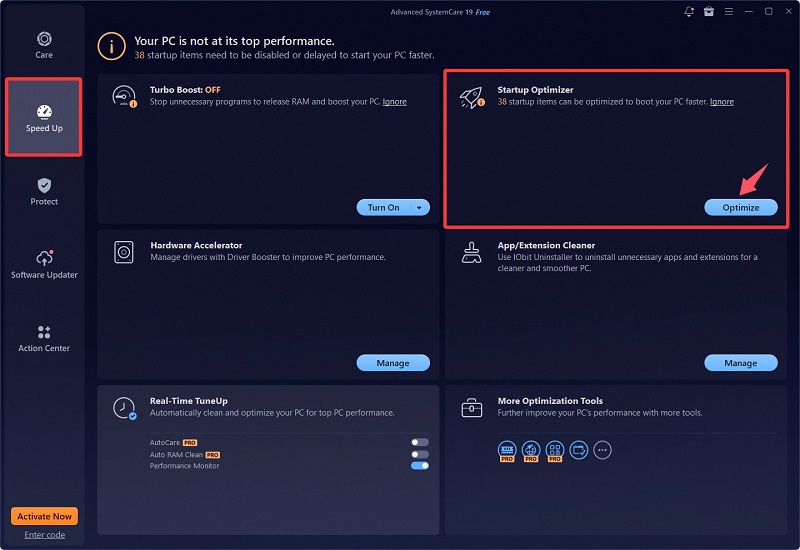
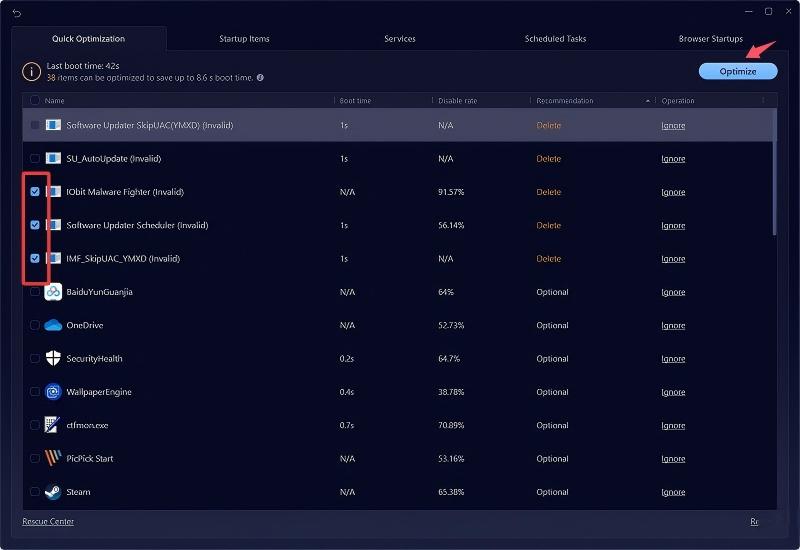
Step 3. Browse the list of startup applications, services, and scheduled tasks. Advanced SystemCare highlights items that may slow down Windows startup. Turn off the applications or services you don't want to launch automatically when Windows starts.
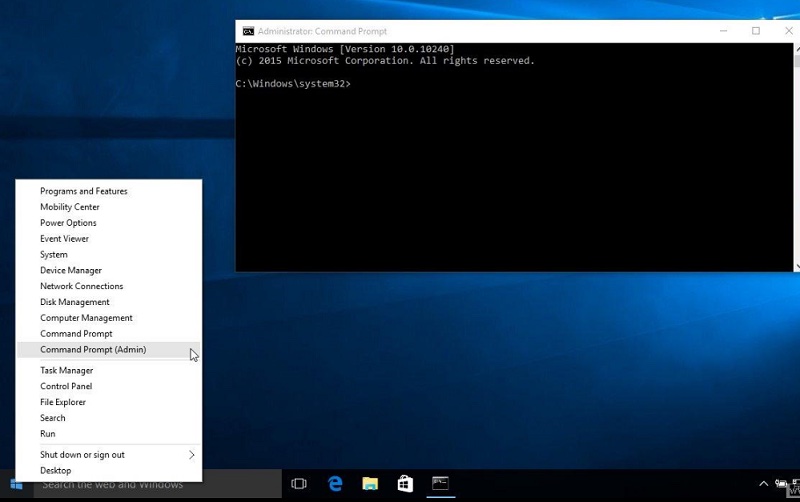
If you prefer command-line tools, Command Prompt can open the Startup folders where Windows stores shortcuts for automatically launched programs. Removing unwanted shortcuts prevents those applications from starting with Windows.
Note: Command Prompt cannot directly disable every startup program. Some applications are managed through the Registry, Task Manager, or Windows Services.
Step 1. Press Windows key + R, type cmd in the box, and press Enter to open Command Prompt.
Step 2. Right-click Command Prompt and select Run as administrator.
Step 3. Type the following command and press Enter:
start shell:startup
Step 4. Delete the shortcut of any application you no longer want to launch automatically.
Step 5. Restart your computer and verify that the selected programs no longer launch during startup.
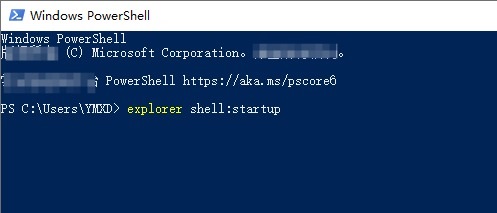
For advanced users, PowerShell provides another way to access Windows startup folders and manage startup items. Although PowerShell doesn't include a built-in command to disable every startup application, it offers a fast way to locate and remove startup shortcuts.
Step 1. Right-click the Start button and choose Windows PowerShell.
Step 2. Run the following command:
explorer shell:startup
Step 3. Remove the shortcuts for applications you don't want to run automatically.
Step 4. Restart Windows and confirm the disabled startup programs no longer open automatically.
Tip: PowerShell is best suited for advanced users and scripting. For most users, Advanced SystemCare, Task Manager, or Settings provides a simpler and safer way to disable startup programs while also offering additional optimization features.
The right method depends on your needs and experience level.
Windows Settings is ideal for beginners who want the quickest solution.
Task Manager offers additional information, including startup impact ratings.
Command Prompt and PowerShell are better suited to experienced users who prefer command-line tools.
Advanced SystemCare provides the most comprehensive startup management by combining startup optimization with system cleanup, registry maintenance, and performance monitoring in one application.
If your goal is not only to disable startup apps but also to keep your computer running at its best, Advanced SystemCare offers the most complete solution among the methods covered in this guide.
Not all startup applications affect your computer equally. Some consume significant CPU, memory, or disk resources during startup, while others have little to no noticeable impact. Windows 10/11 includes a Startup Impact rating in Task Manager to help you decide which programs are worth disabling.
Step 1. Press Ctrl + Shift + Esc to open Task Manager.
Step 2. If necessary, click More details.
Step 3. Select the Startup tab.
Step 4. Review the Startup impact column beside each application.
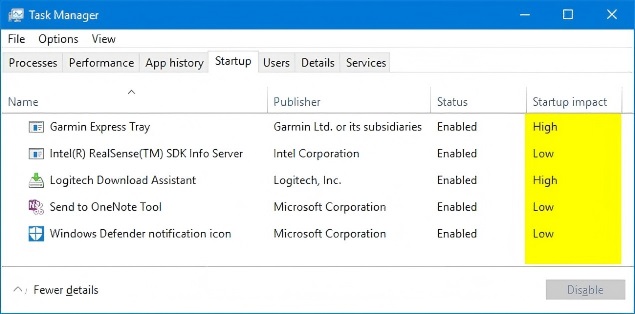
Tip: Focus on disabling unnecessary applications with High or Medium startup impact before considering lower-impact items.
How to disable startup apps in Windows 10/11? Disabling startup apps in Windows 10 can make your PC start faster and use fewer resources. You can do this with Settings, Task Manager, Command Prompt, or PowerShell. If you want an easier all-in-one option, this Windows optimizer - Advanced SystemCare offers Startup Manager, boot monitoring, service optimization, registry cleaning, and junk file cleanup. Check your startup list often, remove apps you do not need, and keep up with regular maintenance. Small changes can improve speed and overall performance for a smoother daily experience.

All-in-one PC health solution.
Free Download