How to clean up and boost PC performance Windows 10, 11? Computers naturally become slower over time, even if they worked perfectly when they were new. Frequent software installations, accumulated junk files, background processes, and limited storage space can all reduce system responsiveness. If you're searching for how to boost performance on PC without replacing your hardware, there are several effective methods here for you.
Do you also ask how to boost your PC performance for gaming? Whether you want to learn how to clean up and boost PC performance Windows 10 11, or boost PC for gaming, or simply want to know how to boost PC performance for everyday work, this guide covers 8 practical Windows optimization solutions for keeping your computer running smoothly.
Why Does Your PC Become Slow Over Time?
Before exploring how to boost performance on PC, it's helpful to understand why Windows gradually slows down. Everyday activities such as installing software, browsing the web, downloading files, and updating Windows create unnecessary files and increase system workload over time. Identifying these common issues allows you to choose the most effective optimization methods. If you're unsure where the bottleneck is, performing a PC health check is a great place to start.
Too Many Startup Programs – Applications that launch automatically during startup increase boot time and consume memory immediately after Windows starts.
Junk and Temporary Files – Browser cache, installation leftovers, and temporary files gradually occupy valuable storage space.
Low Disk Space – A nearly full system drive leaves less room for Windows updates, virtual memory, and temporary files, reducing overall performance.
Too Many Background Apps – Background processes continuously use CPU, RAM, and network resources, slowing multitasking.
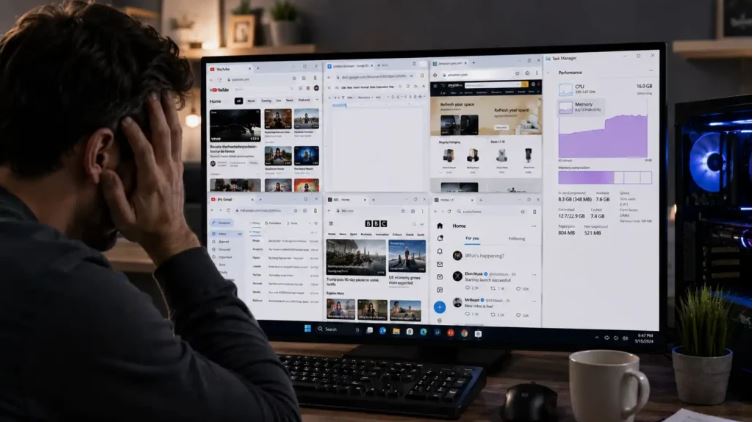
Outdated Drivers or Windows Versions – Missing updates can reduce hardware compatibility, system stability, and overall efficiency.
Malware and System Clutter – Viruses, unwanted software, invalid registry entries, and obsolete system files can all contribute to poor PC performance.
Boost PC Performance Methods Overview:
Boost Performance on PC Without Third-Party Software:
1. Disable Unnecessary Startup Programs
2. Clean Temporary Files with Storage Sense
3. Free Up Valuable Disk Space
4. Stop Unnecessary Background Apps
5. Remove Unused Programs
6. Optimize Windows Visual Effects
7. Keep Windows and Drivers Updated
8. Scan for Malware and Security Threats
Boost PC Performance with Windows Optimization Software:
9. One-click PC Optimization and Boost - Use a PC Optimizer Free
How to Boost Performance on PC Without Third-Party Software – 8 Methods
Windows includes several built-in maintenance tools that can significantly improve performance without installing additional software. Although these methods require some manual work, they're ideal for users looking for how to boost performance on PC Windows 11, or how to clean up and boost PC performance Windows 10 using native Windows features.
Method 1. Disable Unnecessary Startup Programs
Startup applications are one of the biggest reasons Windows boots slowly. Disabling programs you rarely use can noticeably shorten startup time and free memory for other tasks.
Steps:
1. Press Ctrl + Shift + Esc to open Task Manager.
2. Select the Startup Apps tab.
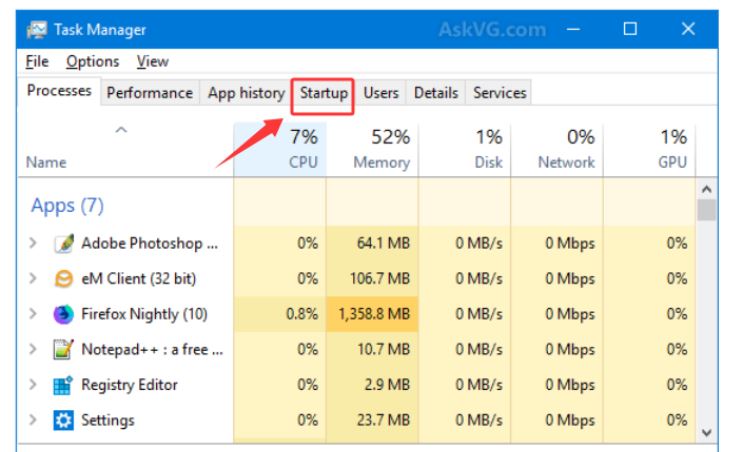
3. Review all enabled startup programs.
4. Right-click unnecessary applications and choose Disable.
5. Restart your PC.
Method 2. Clean Temporary Files with Storage Sense
Windows Storage Sense automatically removes temporary files, Windows update leftovers, and Recycle Bin contents. It's one of the easiest ways to maintain your computer regularly.
Steps:
1. Open Settings > System > Storage.
2. Turn on Storage Sense.
3. Configure cleanup preferences.
4. Select Run Storage Sense Now.
Method 3. Free Up Disk Space
Keeping enough free storage allows Windows to perform background tasks more efficiently and improves overall responsiveness.
You can free up space by:
Emptying the Recycle Bin.
Removing unnecessary Downloads.
Deleting duplicate files.
Uninstalling large applications you no longer use.
Moving videos and photos to external storage.
If manual cleanup takes too much time, using a free professional hard drive cleaner software can make disk maintenance much easier.
Method 4. Close Background Apps
Many applications continue running after you've closed their windows, consuming valuable system resources.
Steps:
1. Open Settings > Apps > Installed Apps.
2. Select the application you don't need running continuously.
3. Open Advanced Options (when available).
4. Change Background app permissions to Never.
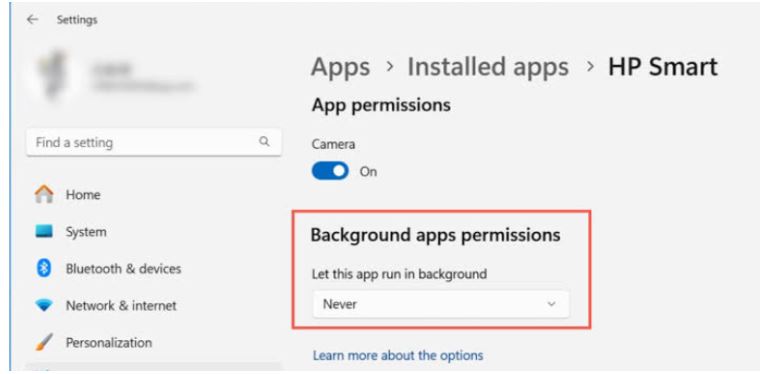
Reducing background activity is another effective way to how to boost performance on PC, especially on older laptops with limited memory.
Method 5. Uninstall Programs You No Longer Use
Unused software not only occupies storage space but may also install background services that consume CPU and memory.
Steps:
1. Open Settings > Apps > Installed Apps.
2. Sort applications by size or installation date.
3. Select software you no longer need.
4. Click Uninstall.
Removing unnecessary applications keeps Windows cleaner and makes it easier to boost PC performance over time.
Method 6. Adjust Visual Effects for Better Performance
Animations, shadows, and transparency effects improve Windows' appearance but also consume system resources.
Steps:
1. Search for Adjust the appearance and performance of Windows.
2. Open Performance Options.
3. Select Adjust for best performance.
4. Click Apply and OK.
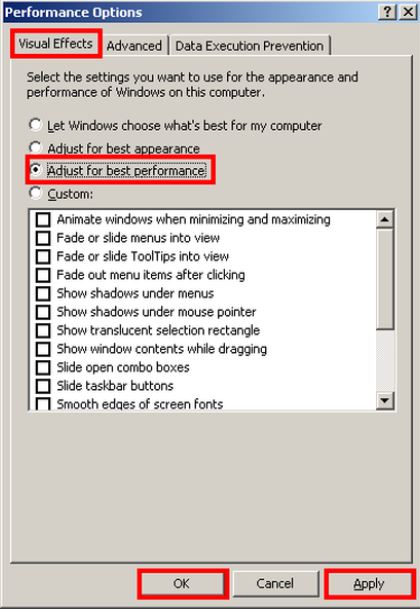
This setting is particularly useful for older computers or anyone wondering “how to boost my PC performance” without upgrading hardware.
Method 7. Update Windows and Device Drivers
Keeping Windows and hardware drivers up to date improves compatibility, security, and performance. Graphics driver updates are especially beneficial if you're looking for how to boost your PC performance for gaming or how to boost PC gaming performance, as they often include game-specific optimizations.
Steps:
1. Open Settings > Windows Update.
2. Install available Windows updates.
3. Update graphics, chipset, and storage drivers from your hardware manufacturer.
Method 8. Run a Malware Scan
Malware, spyware, and potentially unwanted programs can secretly consume system resources and significantly slow your computer.
Steps:
1. Open Windows Security.
2. Select Virus & Threat Protection.
3. Click Quick Scan or Full Scan.
4. Remove detected threats and restart your computer.
While all of these methods are effective, they require you to switch between multiple Windows settings and perform maintenance manually. If you're looking for a faster and more convenient way to how to boost performance on PC, an all-in-one optimization solution can save both time and effort.
How to Boost Your PC Performance More Efficiently
The built-in Windows tools introduced above can certainly improve system performance, but they require you to open different settings and complete each task separately. Cleaning junk files, managing startup items, checking system health, and optimizing background processes all involve different utilities, making routine maintenance more time-consuming than many users expect.
For how to clean up and boost PC performance Windows 10 and 11, a simpler way to do it is using Advanced SystemCare Free, which combines multiple optimization features into a single application. With one scan, it can detect common performance issues and apply multiple fixes automatically, making it a convenient solution for both Windows 10 and Windows 11 users.
Advanced SystemCare Free
- Clean: 420 billion traces removed & 85 EB junk files cleaned
- Protect: 80 million unauthorized access blocked & 20 million bugs fixed
- Speed Up: 6 million hours of startup time saved & Turbo boost
- Optimize: Auto clean and auto care your PC with AI mode

Here's how Advanced SystemCare Free helps boost your PC performance:
Scan and remove junk files, invalid registry entries, browser traces, broken shortcuts, and other unnecessary data to free storage space and improve system responsiveness.
Identify startup programs that slow boot time and disable unnecessary items with just a few clicks for a faster Windows startup.
Detect resource-hungry background processes and reduce unnecessary CPU and memory usage, allowing your computer to run more smoothly.
Remove temporary files, cache data, obsolete logs, Windows leftovers, and other storage-consuming files automatically.
Monitor CPU, RAM, and disk usage in real time so you can quickly identify programs affecting overall performance.
Whether you're trying to boost PC performance for gaming, daily productivity, or maintain your computer with minimal effort, Advanced SystemCare Free provides a much more streamlined experience than relying on Windows utilities alone.
Built-in Windows Tools vs Advanced SystemCare Free
Both Windows and Advanced SystemCare Free can help optimize your computer, but they differ in convenience and functionality. Windows offers essential maintenance tools, while Advanced SystemCare Free combines them into a unified solution with additional automation and optimization features.
Feature |
Windows Built-in Tools |
Advanced SystemCare Free |
Junk File Cleanup |
Basic |
AI-powered Deep Cleanup |
Startup Management |
Manual |
One-click Management |
Registry Cleanup |
No |
Yes |
Background Optimization |
Limited |
Comprehensive |
Disk Space Cleanup |
Basic |
Deep Cleanup |
Real-Time Monitoring |
No |
Yes |
One-click Optimization |
No |
Yes |
For users who only perform occasional maintenance, Windows' built-in tools are usually sufficient. However, if you regularly want to know how to boost performance on PC without opening multiple settings menus, Advanced SystemCare Free offers a far more efficient workflow. If you'd like to measure the improvement after optimizing your computer, performing a PC performance test before and after cleanup provides an easy way to compare system responsiveness.
How to Use Advanced SystemCare Free to Boost PC Performance
Once you've installed Advanced SystemCare Free, optimizing your computer only takes a few minutes. Instead of manually completing multiple maintenance tasks, you can perform a full system optimization from one interface.
Step 1. Download and install Advanced SystemCare Free.
Step 2. Launch the software and click Scan to detect junk files, registry issues, startup items, and other performance problems.
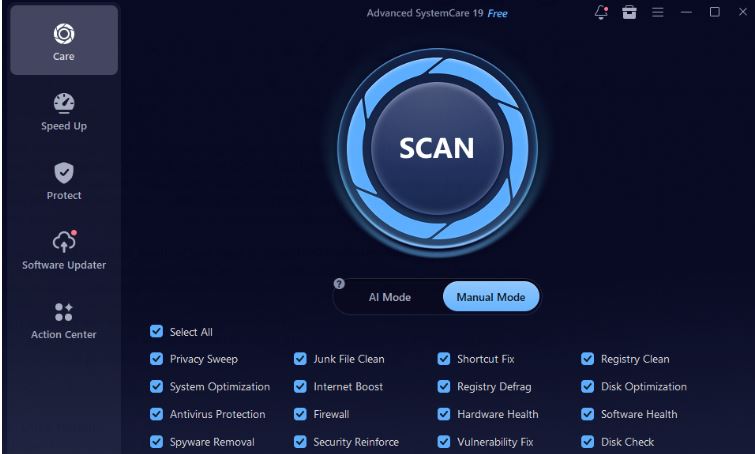
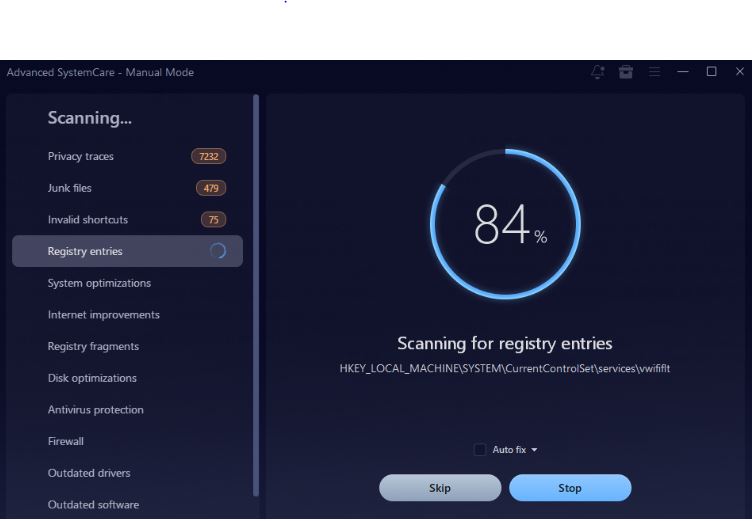
Step 3. Wait for the Scan and then review the scan results.
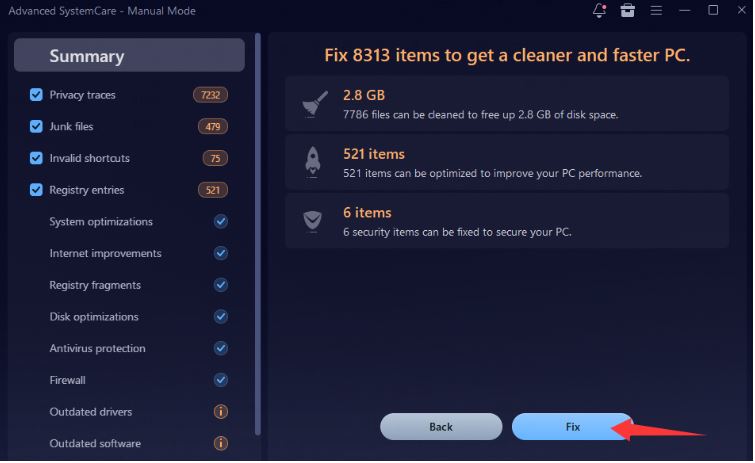
Step 4. Click Fix to remove unwanted files and clean up your PC.
Step 5. Click Finish to enjoy your faster PC.
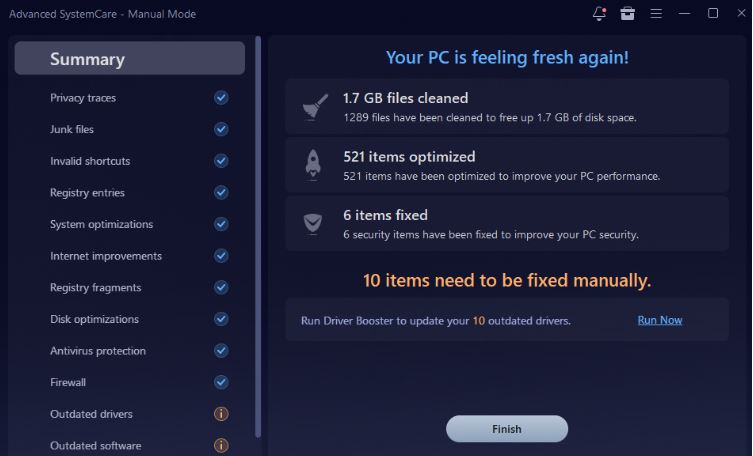
Or, you can click Run Now to update your outdated drivers with an easy-to-use Driver Updater.
The Bottom Line
Learning how to boost performance on PC doesn't have to be complicated. While Windows includes useful built-in optimization tools, Advanced SystemCare Free makes the entire process faster and easier by combining cleanup, startup management, background optimization, and real-time monitoring into one solution. With regular maintenance, your Windows 10 or Windows 11 PC can stay fast, responsive, and ready for everyday tasks and gaming.