



Kevin Hart
Kevin is an experienced editor focused on tech blog writing. Familiar with all kinds of PC software on the market. All the topics he chooses are aimed at bringing more benefits to users.
Expert in
PC Health Solution

All-in-one PC health solution: clean, optimize and secure

Comprehensive PC cleaning, optimization and protection

Keep drivers always up-to-date

More stable performance with less system crashes

Protect millions of computers against malware

Top computer security with full-round protection

Protect against viruses & boost PC performance
Clean: 420 billion traces removed & 85 EB junk files cleaned
Protect: 80 million unauthorized access blocked & 20 million bugs fixed
Speed Up: 6 million hours of startup time saved & Turbo boost
Optimize: Auto clean and auto care your PC with AI mode

Wondering how to boost internet speed on PC? Here is a detailed guide with step by step instructions to help you boost your internet speed on Windows 10/11.

Kevin Hart


Paying for high-speed internet but still experiencing slow browsing, buffering videos, or laggy downloads? This is a common issue, and surprisingly, your internet provider isn’t always the problem. In many cases, your PC’s configuration, background processes, or network settings are the real culprits behind poor performance.
Even with a fast connection, factors like bandwidth-hogging apps, outdated settings, or weak connections can slow things down significantly.
In this complete guide on how to boost internet speed on PC, you’ll discover 5 pro-grade solutions that actually work. Whether you’re searching for how to increase internet speed on pc windows 11, this guide covers everything, from manual tweaks to an automated tool that makes optimization effortless.

Let’s get started.
Before making any changes, it’s essential to measure your current internet speed. This helps you understand whether the issue lies with your PC or your internet connection.
Using an Internet speed testing tool allows you to check three key metrics:
Download speed
Upload speed
Ping (latency)
Testing gives you a baseline so you can compare improvements after applying fixes. Experts recommend using reliable tools to determine whether your connection is performing as expected.
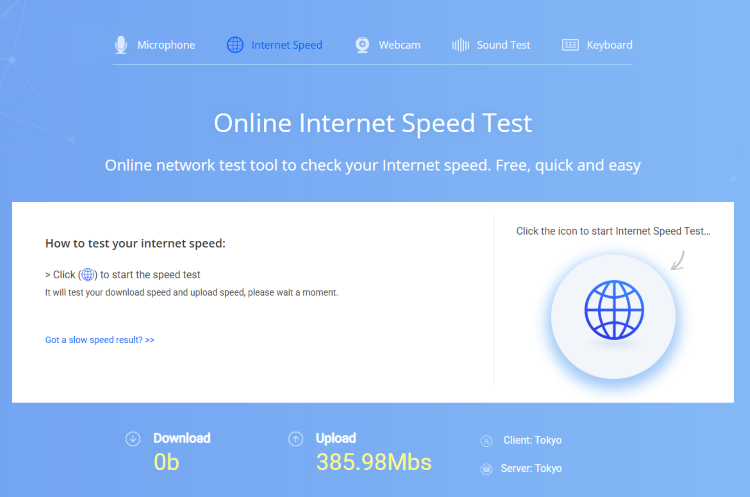
If your speed is significantly lower than your plan, your PC may be limiting performance. This step is crucial for users researching how to boost internet speed on pc windows 10 and how to increase internet speed on pc windows 11, as it ensures you’re solving the right problem.
Once you have accurate data, you can confidently move forward with optimization techniques instead of guessing.
>> Also read, Why Is My Internet Not Working? How to Fix?
Now that you know your current speed, let’s move into practical and proven methods. These solutions address the most common causes of slow internet on PCs.
One of the most effective ways to improve your connection is by switching to a wired Ethernet connection. Wi-Fi is convenient, but it’s often unstable due to interference, distance, and obstacles.
Using an Ethernet cable provides a direct connection to your router, resulting in faster and more stable speeds.
This method is especially useful for users looking for how to boost internet speed on pc ethernet or gamers who need low latency.
Benefits include:
Reduced lag and latency
Consistent speed
Minimal interference
For those searching how to boost internet speed on pc for gaming, this is one of the most impactful upgrades you can make.
Windows can reserve a portion of your bandwidth for updates and background processes. This can reduce your available internet speed without you realizing it.
To optimize this:
1. Press Win + R and type gpedit.msc
2. Now go to QoS Packet Scheduler
3. Open “Limit reservable bandwidth”
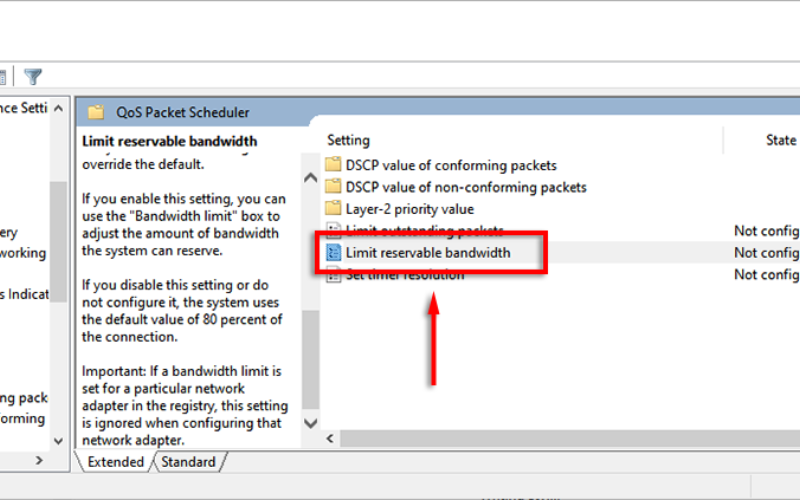
4. Enable it and set the value to 0%
Additionally, Windows updates and background services can consume large amounts of bandwidth if left unchecked.
This method works effectively for both how to speed up internet on pc windows 10 and how to boost internet speed on pc windows 11, helping you reclaim bandwidth for your own usage.
DNS (Domain Name System) translates website names into IP addresses. If your DNS server is slow, your browsing experience will feel sluggish, even if your internet speed is high.
Switching to a faster DNS provider like Google or Cloudflare can significantly improve performance and reduce loading delays.
Common DNS options:
●Google DNS: 8.8.8.8 / 8.8.4.4
●Cloudflare DNS: 1.1.1.1 / 1.0.0.1
Steps to Change DNS Settings on Windows PC:
1. Press Win + R, type ncpa.cpl, and press Enter to open Network Connections.
2. Right-click your active internet connection (Wi-Fi or Ethernet) and select Properties.
3. Double-click on Internet Protocol Version 4 (TCP/IPv4).
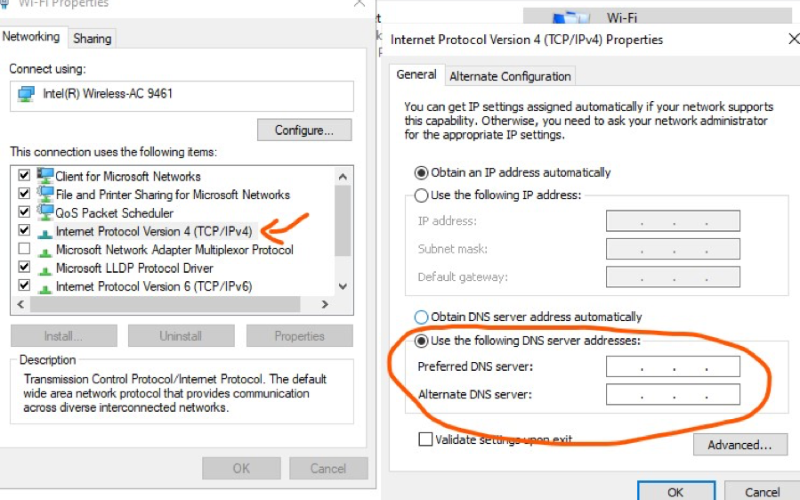
4. Select Use the following DNS server addresses.
5. Enter your preferred DNS:
Preferred DNS: 8.8.8.8
Alternate DNS: 8.8.4.4 (or use Cloudflare: 1.1.1.1 / 1.0.0.1)
6. Click OK, then close all windows.
7. Restart your browser (or PC) to apply changes.
After completing these steps, your system will use a faster DNS resolver, which can noticeably improve website loading speed and reduce latency.
This method is especially effective for users learning how to boost internet speed on PC and those looking for how to speed up internet on pc for gaming, as it helps establish quicker connections to online servers.
Background apps and browser extensions are often the hidden cause of slow internet speeds. Many programs consume bandwidth without your knowledge, which can significantly impact your browsing, streaming, and downloading performance.
Common bandwidth hogs include:
Cloud storage syncing apps (e.g., Google Drive, OneDrive)
Streaming platforms running in the background
Auto-updating software and game launchers
Unnecessary browser extensions
Steps to Identify and Stop Background Apps:
1. Press Ctrl + Shift + Esc to open Task Manager.
2. Click on the Processes tab.
3. Look for apps using high Network usage.
4. Select unnecessary programs and click End Task.
Steps to Disable Startup Apps:
1. Open Task Manager again.
2. Go to the Startup tab.
3. Right-click on apps you don’t need at startup.
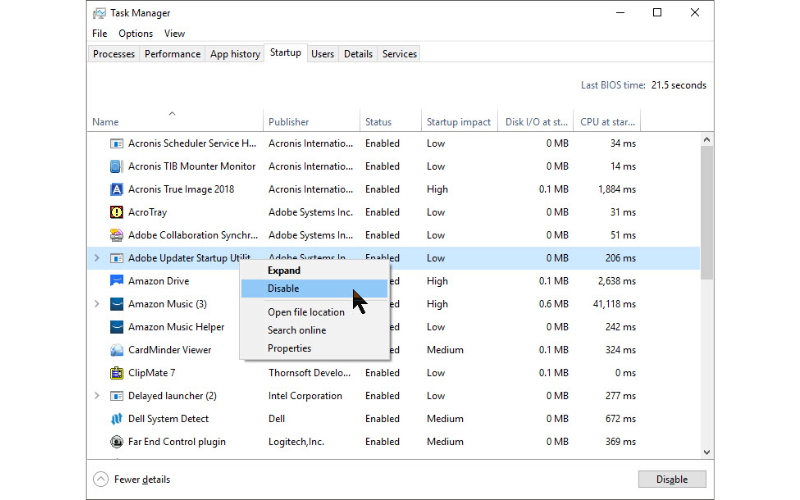
4. Click Disable.
Steps to Clean Up Browser Extensions (Chrome Example):
Open Chrome and click the three dots in the top-right corner.
Go to Extensions > Manage Extensions.
Review installed extensions.
Remove or disable any unnecessary or suspicious ones.
By following these steps, you can eliminate “bandwidth vampires” that slow down your connection. This is a crucial part of mastering how to boost internet speed on PC, as it ensures your internet is fully dedicated to the tasks that matter most.
If manual optimization feels complicated or time-consuming, there’s a faster solution. Instead of tweaking multiple settings, you can use an automated tool like Advanced SystemCare.
Advanced SystemCare is an all-in-one PC optimization tool designed to improve both system performance and internet speed. It includes a dedicated “Speed Up” feature that enhances your network performance instantly.
Key benefits include:
Automatically stops unnecessary background services
Optimizes network configurations
Improves system responsiveness
Beginner-friendly interface
Since many internet slowdowns are caused by hidden processes and misconfigurations, using an automated tool ensures nothing is missed.
For users searching how to speed up internet on PC, this is one of the easiest and most effective solutions available.
Step 1. Download and Install Advanced SystemCare
First of all, download and install the software on your PC.
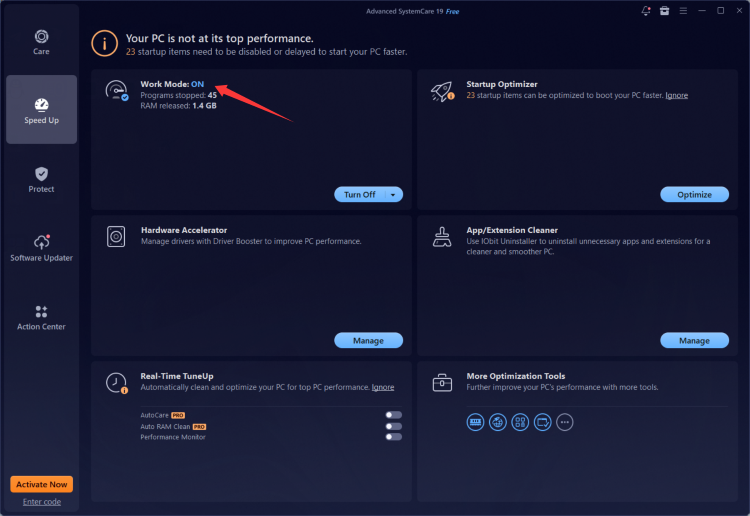
Step 2. Activate Work Mode
Open the program and go to the Speed Up section. Turn on Work Mode to optimize system resources and improve overall performance.
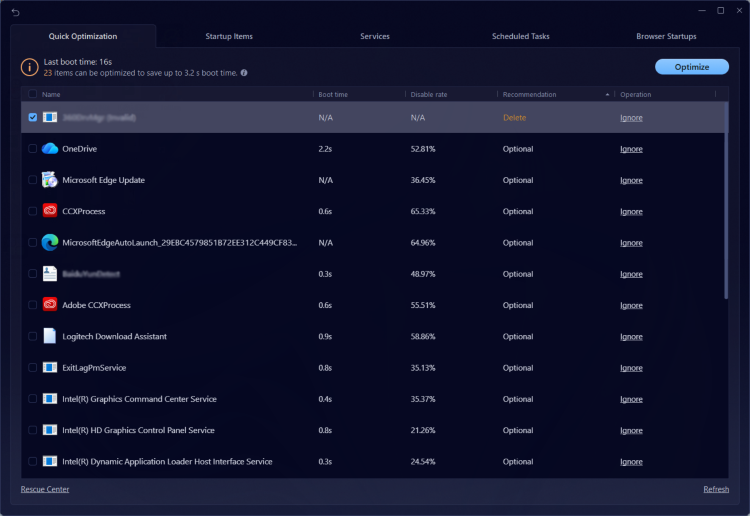
Step 3. Run Startup Optimization
Click on Optimize to scan and manage startup items. This helps reduce boot time and ensures your PC runs more efficiently.
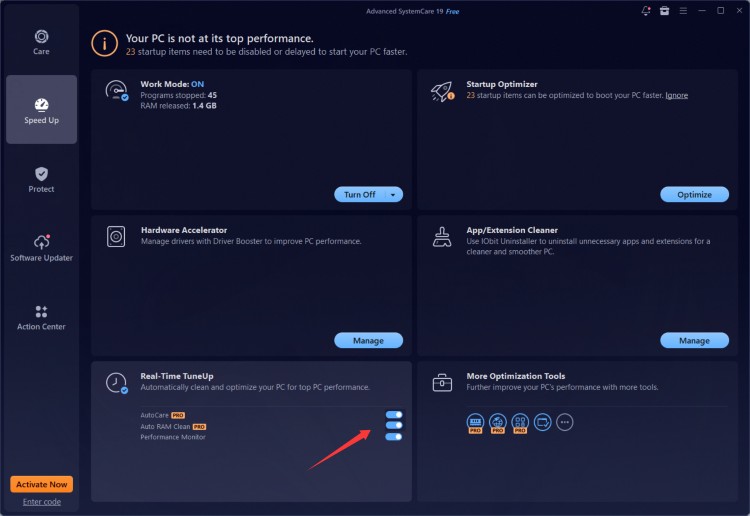
Step 4. Enable Real-Time TuneUp
Turn on the Real-Time TuneUp feature to allow continuous optimization. It will automatically clean up background processes and maintain system performance in real time.
Improving your connection doesn’t always require upgrading your internet plan. By following these proven methods on how to boost internet speed on PC, you can significantly enhance your browsing, streaming, and gaming experience.
From switching to Ethernet and optimizing DNS to managing background apps, each step plays a crucial role in maximizing performance.
However, if you want a faster and hassle-free solution, Advanced SystemCare offers a powerful all-in-one approach. It simplifies the entire process and ensures your PC runs at peak efficiency, helping you get the most out of your internet connection.

All-in-one PC health solution.
Free Download