If your PC is slower to respond to programs, stalls during multiple tasks, or seems slow even when you aren't using heavy software, then you may be dealing with computer slowdowns. One of the common reasons for a slow performance is the high usage of RAM. Over time, the amount of memory available for running programs could be limited by the amount of memory that is being used for caching. Clearing RAM cache can help to free up memory, boost responsiveness and lessen system lag. This guide details how to clear RAM cache manually and automatically, applicable to Windows 11, 10 and previous operating systems.
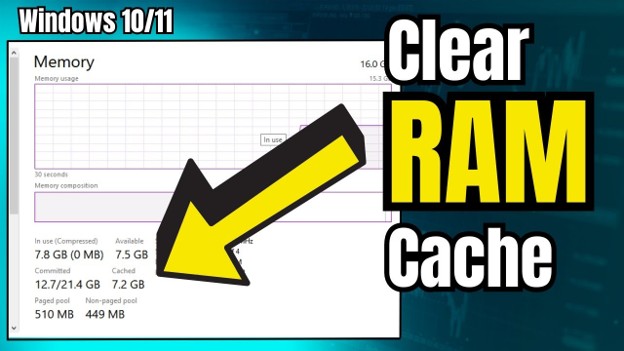
What Is RAM Cache & Why It Matters
RAM cache is an area of your computer's memory that temporarily holds files, applications and system information that you have recently used. Windows stores data in RAM for instant access rather than having to load it repeatedly from the SSD or hard drive. This will make applications start quicker and boost system performance.
How Does RAM Cache Work?
Windows stores a portion of information in the cached memory when you open a program or file. When content is accessed again, the system reads directly from RAM and skips the reading from the storage. This fastens the loading time and enhances performance.
Why Is RAM Cache Important?
RAM cache speeds up your computer by storing frequently used data in fast-access memory rather than loading it repeatedly from slower storage drives. This reduces latency, makes apps and web pages load faster, and prevents the system from waiting on slower hardware.
Should You Clear RAM Cache on Windows?
Generally, modern operating systems automatically manage RAM cache, and it is unnecessary to clear RAM cache manually. But If you experience the following symptoms, you might need to clear RAM cache:
Slow application startup
Frequent freezing or lag
Delayed response when switching programs
High memory usage in Task Manager
Browser tabs crashing unexpectedly
Games stuttering during gameplay
"Out of Memory" warnings
Slow file transfers
Reduced multitasking performance
Programs becoming unresponsive
What Are Benefits of Clearing RAM Cache?
Insufficient RAM probably causes multiple unexpected system issues. You can clear RAM cache on PC to frees up resources that may no longer be needed.
Fix PC Lags: When memory becomes crowded with cached data, Windows has fewer resources available for active applications. Clearing cache can improve responsiveness.
Resolve Software Glitches: Some applications continue using memory even after closing. Removing cached memory can help eliminate these leftover processes.
Reduce Drive Strain: When physical memory runs low, Windows relies more heavily on virtual memory stored on your drive. Freeing RAM reduces this dependency.
Enhance Security: Cached memory may temporarily store information from previously used applications. Clearing it removes unnecessary residual data.
Improve Multitasking: More available RAM allows Windows to allocate resources more effectively across multiple running programs.
How to Clear RAM Cache on Windows 11 and More
Method 1. Restart Your PC to Clear RAM Cache
The easiest method to clear RAM cache is to restart your computer. Once Windows starts up again, the contents of the active memory is deleted, any processes running in the background are reset and any cached memory is updated. This frequently helps overcome temporary performance problems right away.
Steps to Restart Your PC
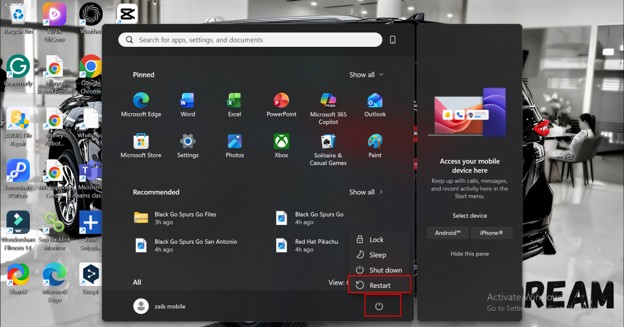
Step 1: Click on the Start button on the taskbar and push the Windows Start menu down from the lower left corner of your screen.
Step 2: Click on the Power icon to check the list of power options like Sleep, Shut Down, Restart.
Step 3: Click Restart and let Windows close the programs and automatically restart.
Step 4: Once your PC is back on, open Task Manager and see how much memory is being used to make sure that RAM resources are being refreshed.
Pros
Fast and easy
No software required
Works on all Windows versions
Cons
Closes all open applications
Interrupts ongoing work
Method 2. Make a Shortcut to Flush RAM Cache
Windows can be configured to create a shortcut that will clear some memory caches each time the shortcut is run, so that the computer need not be rebooted. This is a convenient and fast way to clear your Ram cache, which is why it is a favorite among many users who are seeking a way to do so.
Steps to Create a RAM Cache Shortcut
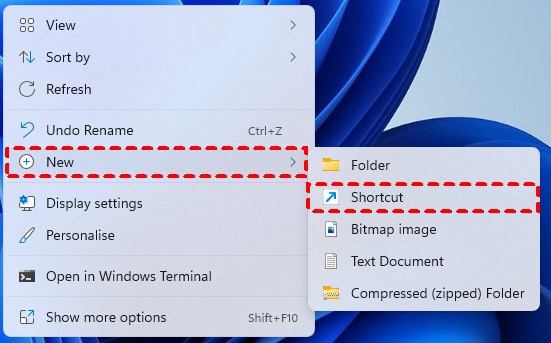
Step 1: Right-click on the blank space of the desktop, pick New, and then pick Shortcut on the menu.
Step 2: Type the following command in the location field and click Next to proceed with creating the shortcut.
%windir%\system32\rundll32.exe advapi32.dll,ProcessIdleTasks
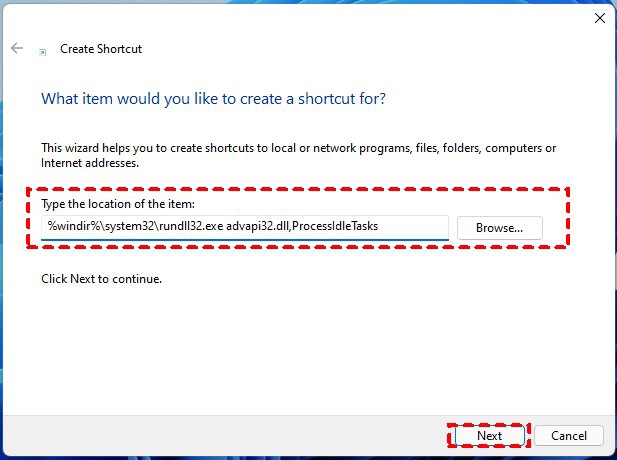
Step 3: Enter the shortcut name Clear RAM Cache and click Finish to add this shortcut to desktop.
Step 4: Double click the shortcut whenever memory is being used up to let Windows process idle tasks and refresh memory resources.
Although this doesn't actually remove anything from RAM, it may assist Windows in optimizing RAM usage.
Pros
Easy to use
No restart required
Built into Windows
Cons
Results vary between systems
Doesn't clear all cached memory
Method 3. Clear RAM Cache with RAMMap
For more advanced RAM cleaner, the best tool for the job is the Microsoft's RAMMap utility. This is RAMMap, a free tool for memory analysis from Microsoft Sysinternals. It offers comprehensive memory information and users can safely clear standby memory.
Steps to Clear RAM Cache Using RAMMap
Step 1: Download the RAMMap from the Microsoft official Sysinternals website and install or extract the RAMMap on your computer.
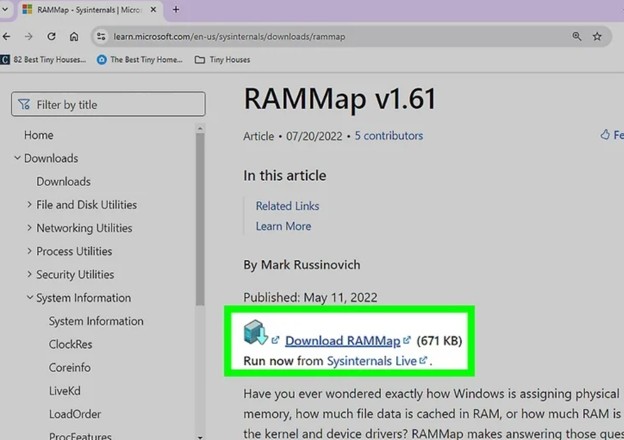
Step 2: Right click on the RAMMap application and run it as Administrator to gain access to some more advanced memory management options.
Step 3: When RAMMap appears, click the Empty menu at the top and select Empty Standby List to clear the cached standby memory.
Step 4: Wait a few moments and it is finished, go to Task Manager and view the new RAM usage and available memory.
A lot of cached memory can be used by the Standby List. When it is cleared, it will free RAM immediately.
Pros
Developed by Microsoft
Detailed memory information
Effective standby memory cleanup
Cons
Requires downloading software
Intended for advanced users
Method 4. Auto Clear RAM Cache with Advanced SystemCare
Not all users want to reboot their computer if they run into high memory usage. Manual methods can be cumbersome for others who have to defragment RAM frequently. That is one area that could benefit from RAM optimization software. Advanced SystemCare is a popular Windows optimizer with Auto RAM Clean feature, which optimizes the use of memory. The software continuously tracks the use of RAM and frees up available memory when necessary, instead of manually freeing up memory. This will minimize RAM consumption, make it more responsive and ensure your PC works well without excessive effort from the user.
Advanced SystemCare Free
- Clean: 420 billion traces removed & 85 EB junk files cleaned
- Protect: 80 million unauthorized access blocked & 20 million bugs fixed
- Speed Up: 6 million hours of startup time saved & Turbo boost
- Optimize: Auto clean and auto care your PC with AI mode

Key Features of Advanced SystemCare
Auto RAM Clean: Automates RAM monitoring and frees up RAM when it exceeds a set threshold.
Real-Time Performance Monitor: Continually monitors CPU, RAM, disk and system activity to help you pinpoint performance problems easily.
Startup Optimization: Identifies and controls programs that start up and use up memory using Windows boot times.
Junk File Cleanup: Cleans up temporary files, cache files and other unnecessary files that might impact overall system performance.
One-Click System Optimization: Combines memory cleanup, privacy cleanup, startup management, and system maintenance into a single action.
Steps to Clear RAM Cache Using Advanced SystemCare
Step 1: Download and install Advanced SystemCare, then launch the program and open the Speed Up section from the left-side menu.
Step 2: Scroll to the Real-Time TuneUp area and locate the Auto RAM Clean feature, which monitors memory usage automatically.
Step 3: Turn on the toggle button next to Auto RAM Clean to allow Advanced SystemCare to release unnecessary RAM resources in the background.
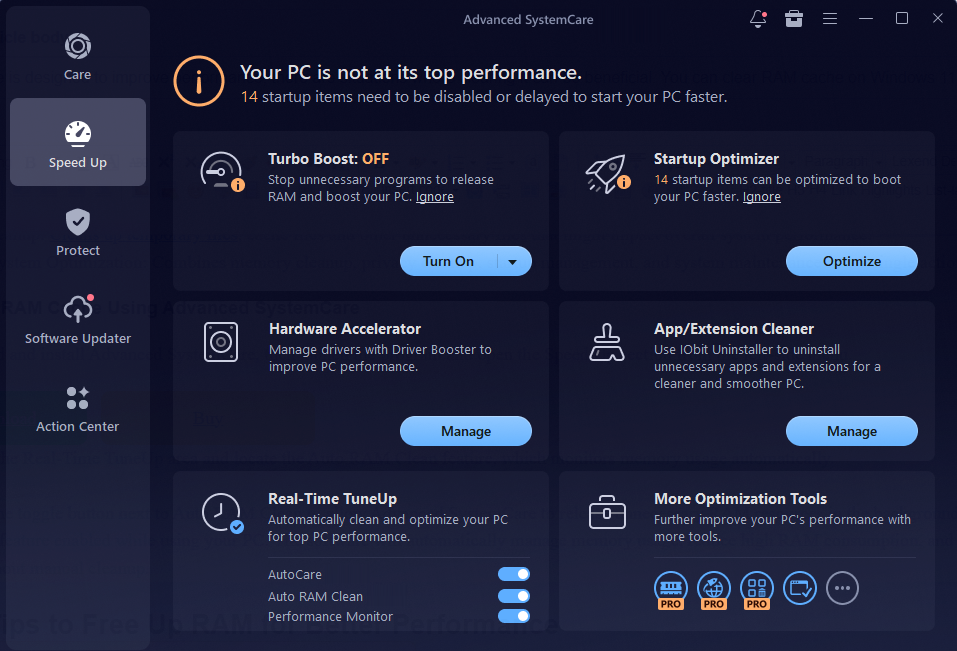
Step 4: Keep the feature enabled while using your PC. The software will automatically manage memory usage, reduce high RAM consumption, and help maintain smoother system performance without manual cleanup.
More Tips to Free Up RAM for Better Performance
While learning how to clear ram cache on PC is helpful, you can improve performance even further with a few additional practices. Here are some techniques that help free up memory and optimize Windows performance.
Stop Background Apps: A lot of apps remain running after you close them. Unnecessary background apps are disabled in Windows Settings.
Close Unused Browser Tabs: Modern browsers can use several gigs of RAM. Unused tabs are closed immediately, freeing up memory.
Disable Startup Programs: More than one startup program will use more memory when Windows starts.
Remove Junk and Temporary Files: Temporary files are files that use up space and can sometimes cause problems with performance. System health is maintained with regular clean up.
Uninstall Unused Software: Unused software may be running services in the background.
Pause Automatic Updates During Work: Windows updates sometimes utilize a considerable memory resource. Provide updates about the schedules and keep performance on track.
Upgrade Your RAM: If there's always not enough RAM, you may benefit from increasing the amount of RAM.
Optimize RAM with Advanced SystemCare: The Auto RAM Clean feature can help to optimize RAM usage, and minimize manual intervention.
Alongside cache cleaning, these optimization tips can make a huge impact if you want to clear RAM in laptop and computer.
The Bottom Line
Understanding how to clear RAM cache can aid the speed of a system, lessen lag, and free up memory for running applications. The easiest way to get started is to simply restart your PC, and then there's the option to use desktop shortcuts. For advanced users, RAMMap provides a lot of control, while Advanced SystemCare provides automatic memory management with its Auto RAM Clean feature. Another useful solution to clear your RAM cache periodically is using an automated tool like Advanced SystemCare. The Windows optimizer can do the job without manual intervention and save some time in keeping your system running at optimal performance. These are just a few practical approaches to help you manage memory and ensure your computer runs smoothly, regardless of whether you're running Windows 11 or an older version.
Advanced SystemCare Free
- Clean: 420 billion traces removed & 85 EB junk files cleaned
- Protect: 80 million unauthorized access blocked & 20 million bugs fixed
- Speed Up: 6 million hours of startup time saved & Turbo boost
- Optimize: Auto clean and auto care your PC with AI mode