

Annie
Annie Cooper is a 7-year PC software and IT writer focused on security, workflow, and efficiency. Following EEAT principles, she delivers accurate, experience-backed advice to help users work smarter and stay safer.
Expert in
PC Health Solution

All-in-one PC health solution: clean, optimize and secure

Comprehensive PC cleaning, optimization and protection

Keep drivers always up-to-date

More stable performance with less system crashes

Protect millions of computers against malware

Top computer security with full-round protection

Protect against viruses & boost PC performance
Automatically scan and update drivers.
Update game ready drivers for peak gaming performance.
Identify and fix various common of hardware issues.
Boost 30% of system performance for fast & smooth running.

Find out how to check and how to update graphics card driver sets here. Using 4 easy ways to figure out how to update graphics driver software for peak performance.

Annie


Is your game stuttering for no reason? Are videos looking choppy, or is your screen flickering at random, and finally, does the entire system crash to a blue screen? Nine times out of ten, an outdated graphics driver is the culprit. The good news: updating it takes less than five minutes once you know where to look.
This guide will walk you through everything, including how to check if your graphics driver is current, whether you even need to update it, and how to update your graphics drivers in four easy ways on Windows.
Yes, but not as often as you might think. GPU manufacturers like NVIDIA, AMD, and Intel regularly release driver updates that deliver real, tangible benefits:
Optimize New Games: New graphics drivers are often released specifically to make a new game run smoothly with boosted FPS.
Fix Bugs: Patch those annoying flickering lights, random crashes, black screens, and display glitches.
Improve System Compatibility: Make your video editors, AI tools, and creative apps run well.
Enhance Security: Closing vulnerabilities that could let malware exploit your hardware.
How do I know if my graphics driver is up to date?
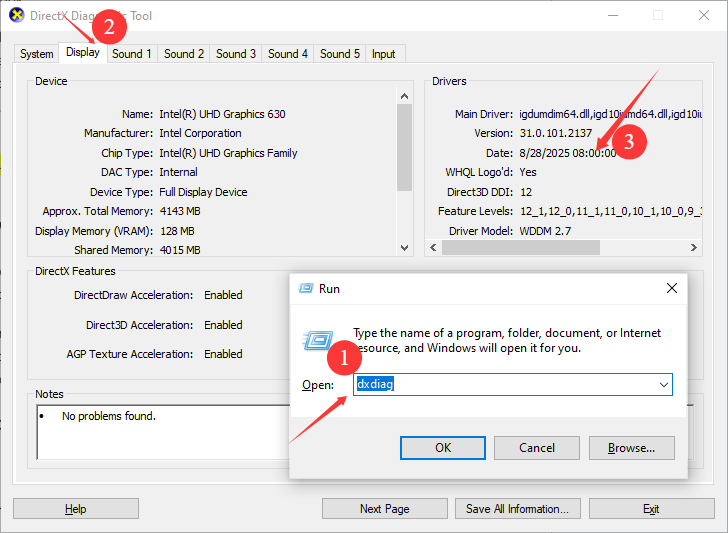
The easiest way is to press “Win + R” > Type “dxdiag” and hit Enter > Click the “Display” tab. Your driver version and date will be listed there.
How often should I update graphics drivers?
If your PC is running perfectly and you only use it for web browsing and spreadsheets, checking every two to three months is plenty. If you're a gamer or work in video/3D, update whenever a major game or creative app releases.
There are three main ways to handle this, ranging from "set and forget" to "manual control."
For the casual user who uses their PC for web browsing and office work, Windows Update is usually sufficient.
Step 1. Go to Settings > Update & Security > Windows Update.
Step 2. Click Check for updates.
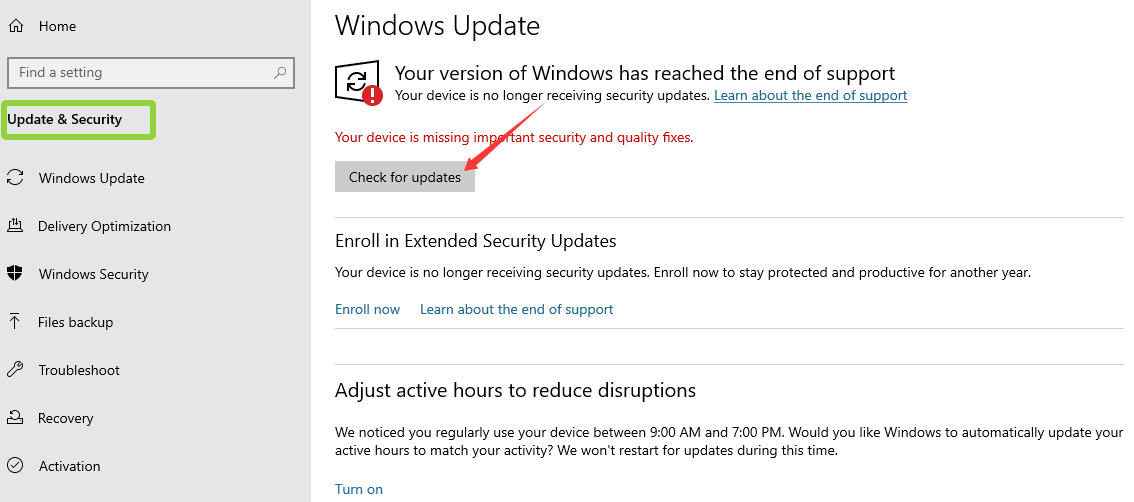
Step 3. Windows will automatically look for stable, Microsoft-certified graphics drivers and install them.
Note: Windows Update is often several months behind the latest manufacturer releases. If you are a gamer or a creator, you should use the next method.
If you want the best performance without having to manually hunt for files every month, use the software provided by your GPU manufacturer. These tools notify you the moment a new driver is available.
For NVIDIA Users:
Download GeForce Experience. It features a "Drivers" tab where you can click "Check for Updates" and "Express Installation."
For AMD Users:
Use AMD Software: Adrenalin Edition. It offers a similar one-click update interface and even allows you to tune your hardware for better cooling.
For Intel Users:
Use the Intel Driver & Support Assistant (DSA). This is essential for those using integrated graphics on laptops or the newer Intel Arc cards.
Also Read: PC Sound Not Working? Can I Uninstall and Reinstall the Realtek Audio Driver to Solve it? >>
These programs are "down-to-earth" solutions because they identify your specific hardware automatically, preventing you from downloading the wrong file.
If your manufacturer software is acting up, or if you are an IT professional who prefers total control, you can go directly to the source:
Step 1. Visit the official download page (NVIDIA.com, AMD.com, or Intel.com).
Step 2. Input your specific hardware model and operating system (e.g., Windows 11, 64-bit).
Step 3. Download the .exe installer and run it.
Also Read: 3 Free and Manual Ways for How to Update Video Drivers for Display Problems >>
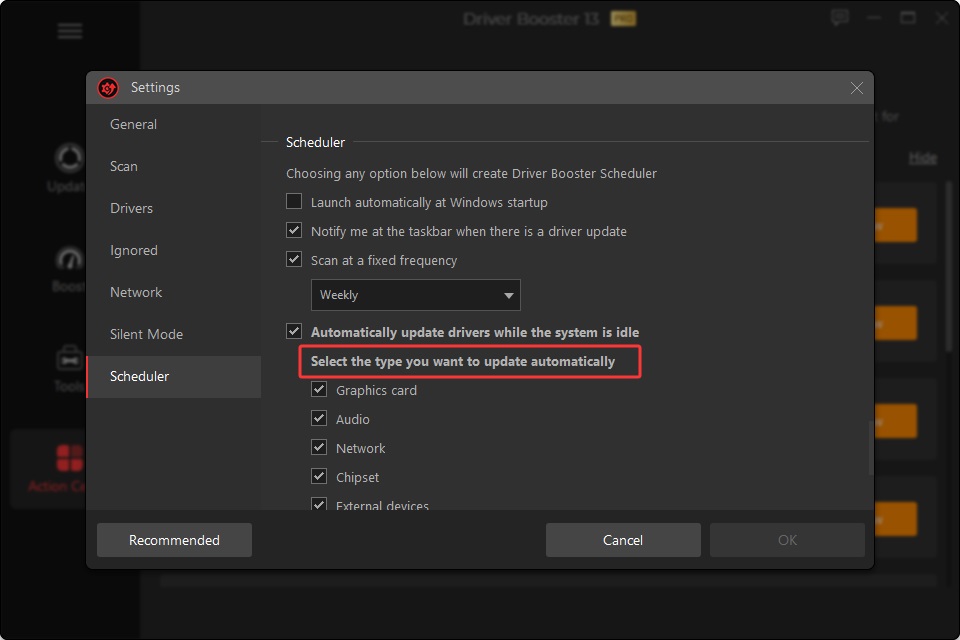
Besides the formal three ways, there is an automated tool for updating graphics drivers called IObit Driver Booster.

It is a dedicated driver management utility for Windows ARM64 devices that you can use to automatically scan your entire system for outdated, missing, or not-working drivers. Then, by simply clicking, it will download and install the newest, correct graphics card driver for your system. And its driver database (over 1200) is verified by Microsoft WHQL and certified by formal, major brands. Whether you need drivers for GeForce, GPU, printer, audio, graphics card, etc., you can get an instant and assuring update here.
Easy Steps to Update Your Graphics Driver for Gaming, Editing, or Streaming
Step 1. Download Driver Booster below and install it in one minute.
Step 2. Open it; you’ll see a large Scan button. Just click it to find out all the outdated, missing, and faulty drivers on your system, including the graphics driver.
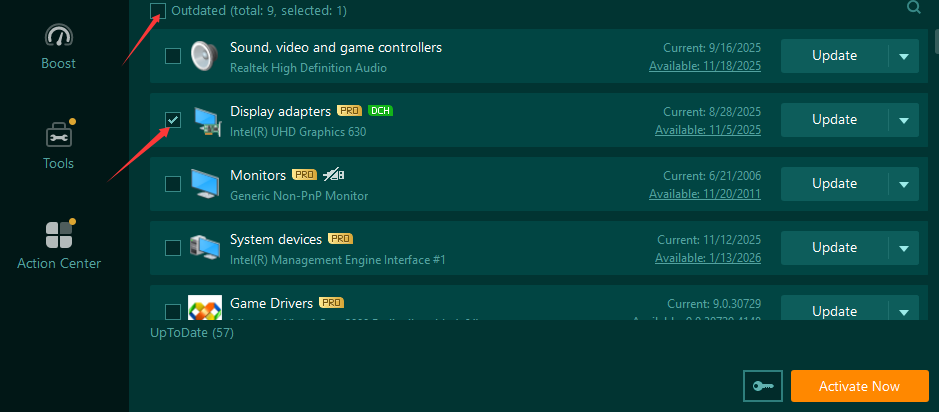
Step 3. Check the list of drivers that need to be updated; you can see their current version and the available updated version.
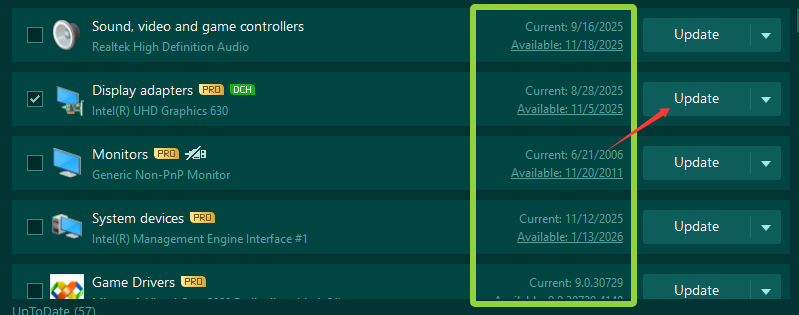
Step 4. Select your graphics driver, or you can batch choose drivers and update them at one time.
Tips: Before updating, you’d better go to its Tools section > Hot Fix Tools > Backup & Restore. Create a backup and restore point of your current driver to avoid system issues in case of an error.
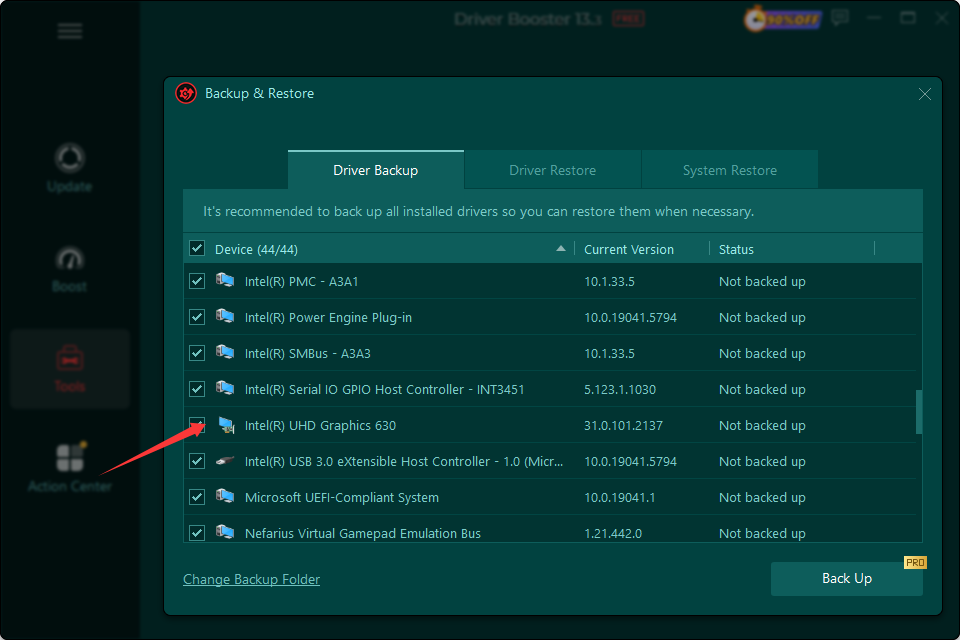
Step 5. Driver Booster will automatically complete the installation of your graphics driver: download the correct version from your GPU model and Windows version > install the new graphics driver silently in the background.
Step 6. Once it is finished, restart your PC manually and check if the graphics driver works well.
How to update graphics drivers on a macOS system? If you are on a Mac, the process is much simpler and more restricted. Apple handles all graphics drivers through macOS System Updates.
You have to go to System Settings > General > Software Update.
If there’s an update for your Mac, your graphics drivers are included in that package.
Don’t try to download standalone drivers from NVIDIA or AMD for modern Macs.
Also Read: Why Won’t My GeForce Driver Update? Complete Fix Guide [Tested] >>
Rarely, a new driver might be buggy for your specific setup. If your computer starts crashing after an update, don't worry, you can go back.
If you use IObit Driver Booster to update your graphics card, you can go back to the created backup and restore point.
If you use the Windows Update, you can go back as follows:
Open Device Manager again.
Right-click your GPU and select Properties.
On the Driver tab, click Roll Back Driver.
This will instantly revert you to the previous, stable version while you wait for the manufacturer to release a fix for the newer version.
Conclusion
How to update graphics driver? For most users, the simplest path is to install your GPU manufacturer's companion software,, like GeForce Experience, AMD Adrenalin, or Intel's Driver Assistant, and let it handle updates automatically. If you've never checked your driver version before, now is a great time to take 60 seconds and see where you stand. Chances are, there's a performance boost waiting for you.

Keep drivers always up-to-date.
Free Download