Struggling with slow downloads, high ping, or unstable connections? You’re not alone - and that’s exactly why so many users search for a reliable TCP optimizer. Whether you’re gaming, streaming, or working online, your network performance depends heavily on how your system handles TCP/IP settings.
A TCP optimizer program is designed to fine-tune these hidden network parameters, helping you reduce latency, improve speed, and stabilize your connection. In this guide, you can learn how a TCP optimizer works, how to safely perform a TCP optimizer download, the best settings to use, and an easier alternative for one-click optimization.

What Is a TCP Optimizer and How Does It Work?
A TCP optimizer is a tool that adjusts Windows TCP/IP settings to improve Internet performance. These settings control how your system sends and receives data across networks.
By default, Windows uses generalized configurations that may not suit your specific connection type. A TCP optimizer program allows you to customize parameters such as:
When optimized correctly, these adjustments can:
Reduce lag in online games
Improve download and upload speeds
Enhance connection stability
Instead of relying on default values, a TCP optimizer helps tailor your network settings for maximum efficiency.
TCP Optimizer Features, Download, and Setup Guide
SG TCP Optimizer is free to download from SpeedGuide and can be used on Windows 11 and Windows 10. For most users, the built-in Optimal settings provide a simple starting point without manually adjusting individual TCP/IP parameters.
SG TCP Optimizer stands out as a reliable TCP optimizer program and PC gaming optimizer because it’s free, portable, and highly customizable. It offers both automatic and advanced configuration modes, giving users full control over TCP/IP settings. However, due to its technical interface and networking terminology, it is better suited for users with some computer knowledge rather than complete beginners.
Key features of SG TCP Optimizer
Preconfigured “Optimal” settings for quick tuning
Advanced mode for manual TCP/IP adjustments
MTU and latency optimization tools
Backup and restore functionality for safety
How to Use SG TCP Optimizer
To perform a secure TCP Optimizer download, always use the official source from SpeedGuide. Avoid third-party sites that may bundle unwanted software.
Step 1. Visit the official SpeedGuide download page and download SG TCP Optimizer.
https://www.speedguide.net/downloads.php
Step 2. Right-click the downloaded file and run as administrator.
Step 3. Select your network adapter.
 Step 4. You can choose your connection speed.
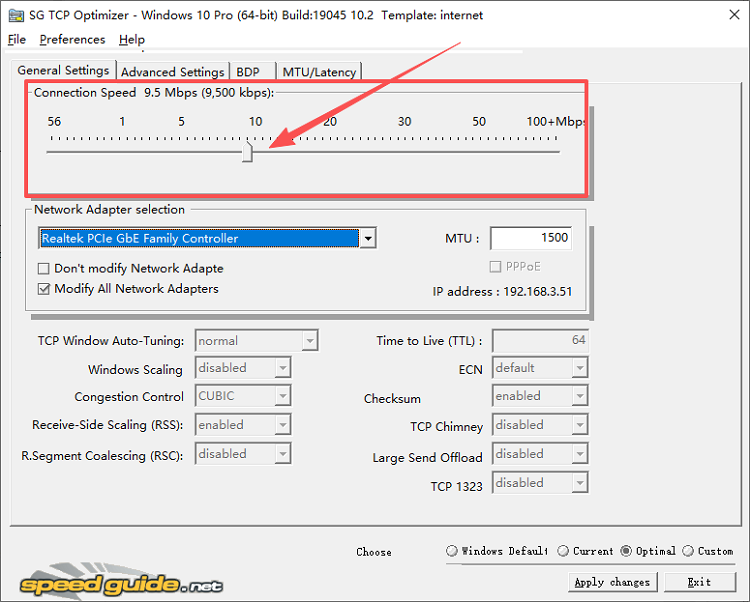
Step 5. Click “Optimal” for recommended settings.
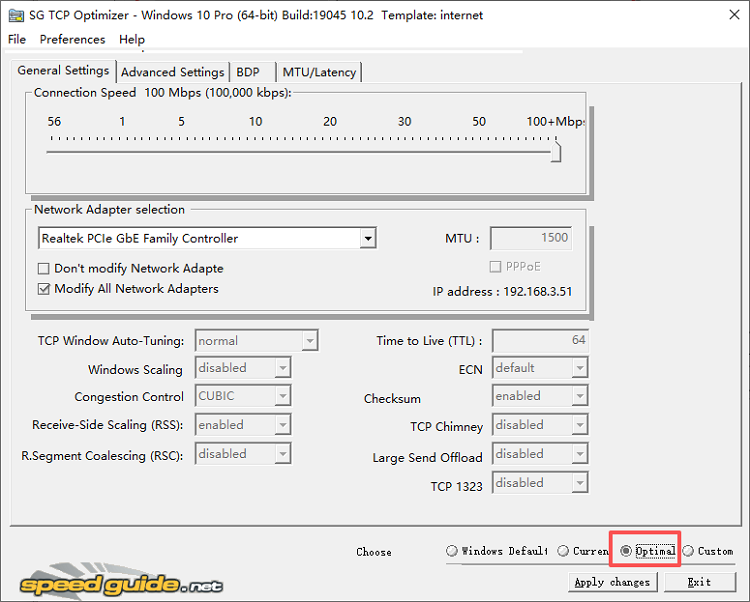 Does TCP Optimizer Work on Windows 11 and Is It Safe?
Yes. SG TCP Optimizer works on Windows 11 and can adjust TCP/IP settings to help optimize network performance. For most users, the Optimal preset is the safest place to start because results can vary depending on your network and current configuration. TCP Optimizer changes Windows network settings, so avoid adjusting advanced values randomly. Before making custom changes, back up your current settings. If you experience connection problems afterward, you can restore the backup or return to the default Windows settings.
While SG TCP Optimizer offers detailed control over TCP/IP settings, its technical options may feel complicated for users unfamiliar with networking terms such as MTU or TCP Window. If you prefer a simpler way to optimize your internet connection without manual configuration, an automated optimization tool can be an easier alternative.
Alternative Way to Optimize Internet - IObit Advanced SystemCare
If you want a faster and easier solution, Advanced SystemCare offers a modern alternative. Instead of focusing only on TCP/IP tuning, Advanced SystemCare uses AI-Powered optimization to improve your entire system - including your internet performance.
Advanced SystemCare Free
- Clean: 420 billion traces removed & 85 EB junk files cleaned
- Protect: 80 million unauthorized access blocked & 20 million bugs fixed
- Speed Up: 6 million hours of startup time saved & Turbo boost
- Optimize: Auto clean and auto care your PC with AI mode

Key Features of IObit Advanced SystemCare:
AI Mode: Automatically analyzes your system condition and network environment, then applies intelligent optimizations to improve overall performance without requiring manual configuration or technical expertise.
Internet Booster: Optimizes network-related settings and processes to accelerate browsing speed, reduce latency, and enhance online gaming and streaming experiences with minimal user input.
Deep System Cleaning: Removes junk files, invalid registry entries, and background clutter that can indirectly slow down your internet performance and system responsiveness over time.
Real-time System Monitor: Display live CPU, RAM, disk, and network usage, helping you identify performance bottlenecks and manage resource-heavy processes affecting your connection.
Privacy Protection: Blocks trackers, clears browsing traces, and secures sensitive data, ensuring safer and more private internet usage while maintaining optimal system performance.
How to Optimize the Internet with Advanced SystemCare
Follow these steps to boost your internet speed and overall system performance using Advanced SystemCare:
Step 1. Download and Install Advanced SystemCare
Go to the official IObit website, download the latest version, and complete the installation by following the on-screen instructions.
Step 2. Open the Software and Go to the “Care” Tab
Launch the program and stay on the “Care” tab. This is the main dashboard where you can run system-wide optimization.
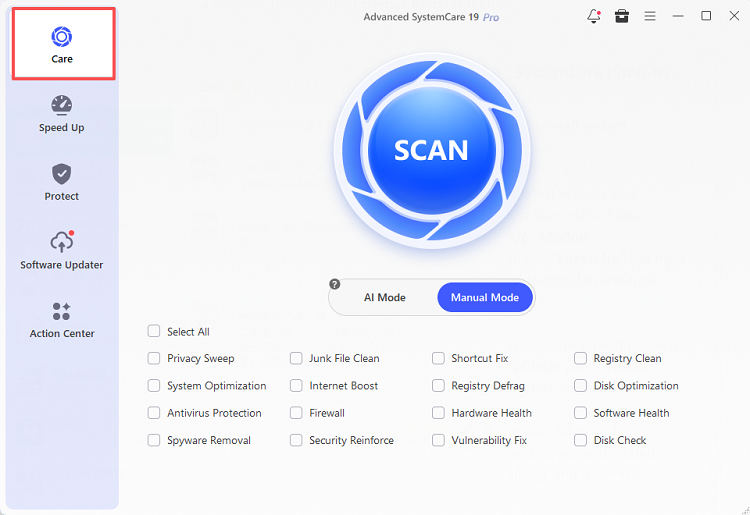
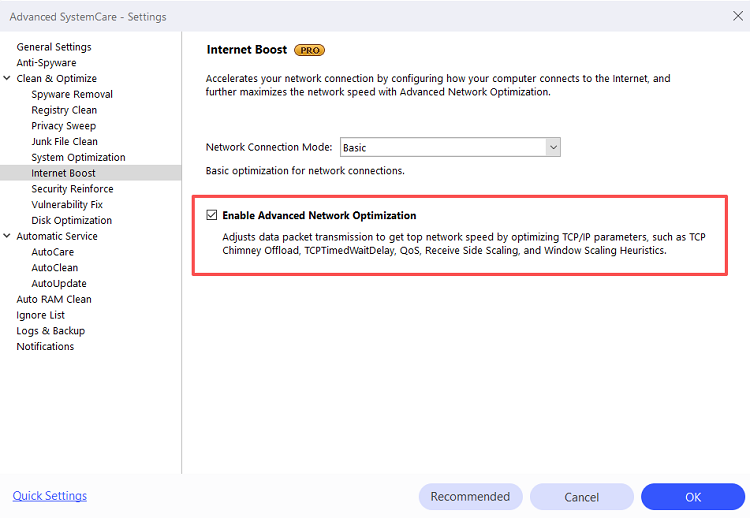
Step 3. Open Internet Boost Settings First (Important Step)
Find “Internet Boost” in the list and click the gear icon next to it (as shown in the image).
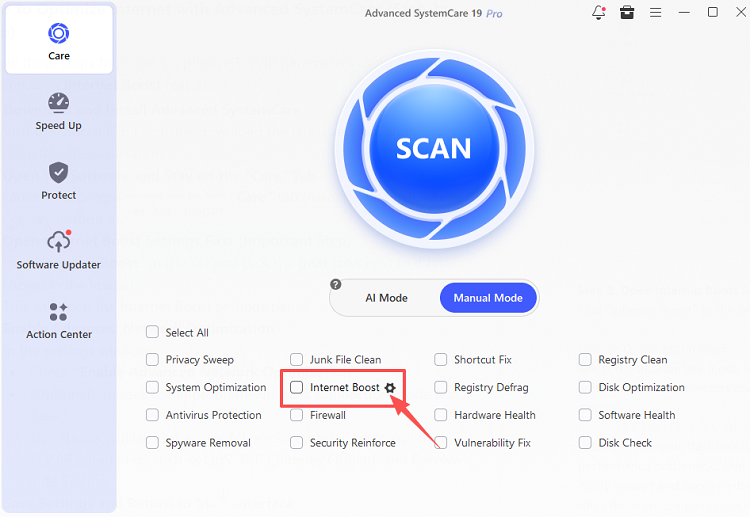 Step 4. Enable Advanced Network Optimization
In the settings window, check Enable Advanced Network Optimization. You can also choose the appropriate Network Connection Mode (e.g., Basic). Click “OK” to apply the settings, then return to the Care tab.
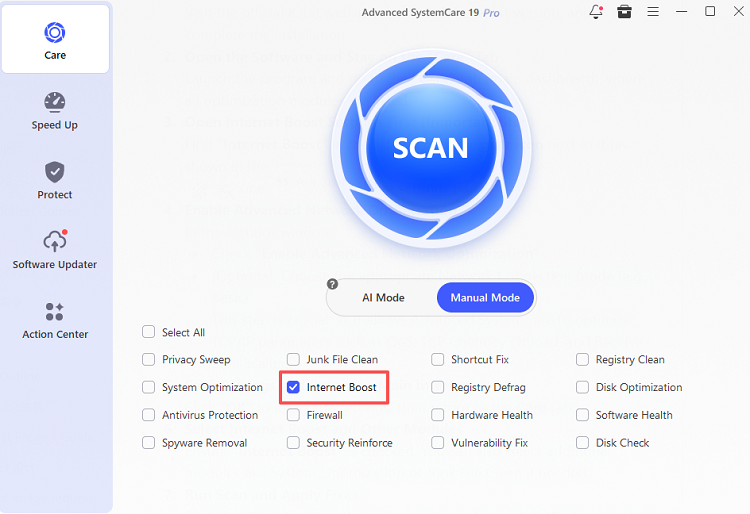
Step 5. Select Internet Boost and Other Modules
Ensure “Internet Boost” is checked. You can also select additional modules like System Optimization or Junk File Clean if needed.
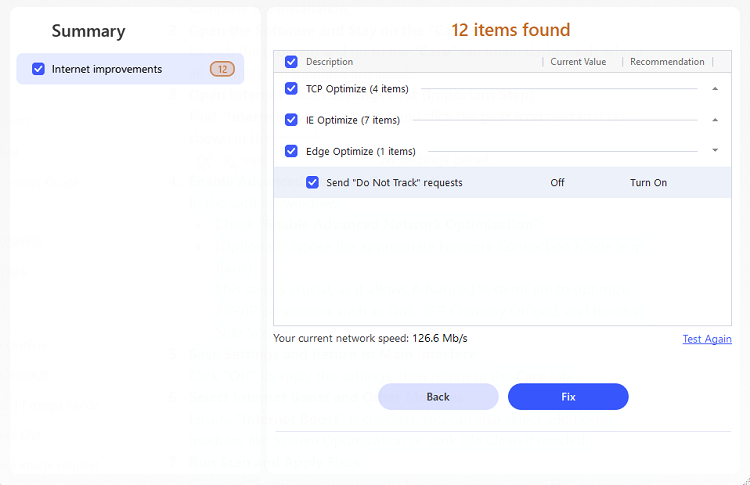
 Step 6. Run Scan and Apply Fixes
Click the “Scan” button. After the scan completes, click “Fix” to apply all optimizations.
Step 7. Restart Your PC (Recommended)
Restart your computer to ensure all TCP/IP and system optimizations take full effect.
With these steps, you can significantly improve your internet speed and system performance—without the complexity of manually configuring a TCP optimizer on Windows 11.
TCP Optimizer vs Advanced System Optimization Tools
When choosing between a TCP optimizer Windows 11 and an all-in-one optimization tool, most users care about ease of use, safety, and real performance impact. While both can improve your internet experience, they differ significantly in how they work and who they’re best suited for.
Key Factor |
TCP Optimiser (e.g., SG TCP Optimizer) |
Advanced SystemCare |
Ease of Use |
Requires manual setup and understanding of network terms |
Beginner-friendly with one-click optimization |
Technical Skill Required |
Medium to high (knowledge of TCP/IP settings needed) |
Low (fully automated with AI assistance) |
Optimization Scope |
Focuses only on TCP/IP and network parameters |
Optimizes entire system, including network, CPU, and RAM |
Risk of Misconfiguration |
Higher if incorrect settings are applied |
Very low due to safe, pre-configured optimization |
Time Required |
Manual setup and testing needed |
Fast, instant optimization with minimal effort |
Best For |
Advanced users and gamers who want fine control |
General users seeking convenience and stability |
A TCP Optimizer is great for fine-tuning, while Advanced SystemCare offers a more convenient, all-in-one solution.
Final Thoughts
A TCP optimizer Windows 11 like SG TCP Optimizer is an excellent tool for improving internet performance, especially if you want direct control over network settings. It’s particularly useful for gamers and advanced users looking to reduce latency.
However, for most users, a simpler and safer approach can deliver equally good—or even better—results without the complexity. Skip the complexity and download IObit Advanced SystemCare for a fast, safe, and one-click optimization experience that delivers real results.