Let’s be honest. If your computer has started taking longer to boot, programs freeze unexpectedly, or your system just feels sluggish, it’s probably time for a PC health check. A good PC health check scans your system, finds what’s wrong, and fixes most issues automatically. But with so many tools out there, which one should you trust? Check this guide, and you can grab 5 of the best PC health check Windows 11 utilities in 2026.

What Is a PC Health Check?
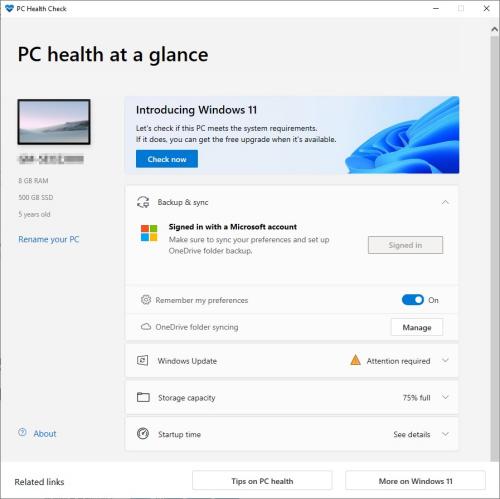
PC Health Check is an app released by Microsoft for checking whether a PC is eligible for Windows 11. PCs that cannot meet all of the requirements in this app will not be able to upgrade to Windows 11. But here, 5 solutions are still available for you. You can use them to optimize your PC and then run the PC health check a second time for upgrading to Windows 11.
Why You Need Regular PC Health Checks
Windows 11 runs more background processes than previous versions, which can gradually consume system resources. Here are a few common reasons to run a PC health check for Windows 11 users often overlook:
Storage clutter: Temporary files and caches build up quickly.
Startup overload: Too many apps launching at boot slow everything down.
Driver issues: Outdated drivers can cause crashes or poor performance.
System updates: Misconfigured updates may lead to errors like “PC health check your organization manages updates on this PC”.
Running regular PC health checks helps prevent these issues before they become serious problems.
Get Started with Windows Built-in PC Health Check Software
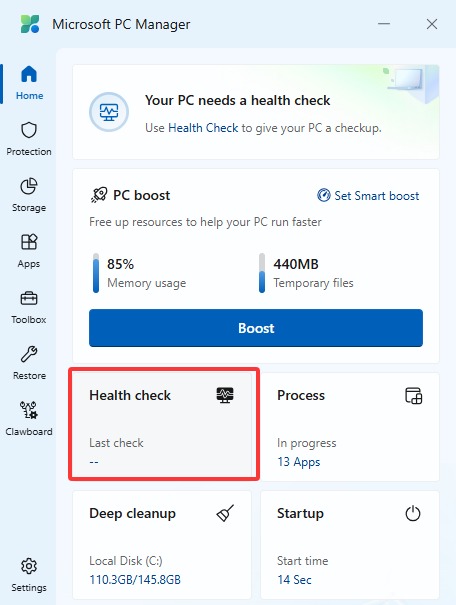
Before exploring third-party PC health check Windows 11, it’s worth trying what Windows already offers. If you want the safest option, get PC health check app from Microsoft Store – officially called Microsoft PC Manager. This free tool provides a clean dashboard with a one-click “Boost” button that clears temporary files and closes background processes. And you can perform a full and adequate computer health check. It also offers basic storage cleanup, startup app management, and a quick link to Windows Security. It’s completely free, trustworthy, and lightweight. No ads. No upsells. Just Microsoft.
Best for: Cautious users who prefer official Microsoft software.
Pros
100% free, no hidden fees.
Trustworthy, developed by Microsoft, safe and lightweight.
Intuitive and user-friendly interface, suitable for beginners.
Cons
Quite limited, it doesn’t perform deep cleaning or optimization.
Other Reliable PC Health Check Tool for Windows 11 with Deep Clean
While built-in tools can meet some basic needs, they often lack automation and deeper optimization features. That’s where third-party PC health check for Windows 11 come in.
IObit Advanced SystemCare - Best All-in-One PC Optimizer
If you’re looking for a powerful and beginner-friendly PC health check solution, this is one of the best options. IObit Advanced SystemCare gives you a complete PC health check tool for Windows 11 in one dashboard. It scans for junk files, registry errors, startup bottlenecks, and privacy traces simultaneously.
The free version handles basic cleaning well. Pro adds real-time protection, driver updates, and automatic maintenance. It’s perfect if you want one tool to do everything.
Best for: Users who want a “set and forget” optimizer.
Advanced SystemCare Free
- Clean: 420 billion traces removed & 85 EB junk files cleaned
- Protect: 80 million unauthorized access blocked & 20 million bugs fixed
- Speed Up: 6 million hours of startup time saved & Turbo boost
- Optimize: Auto clean and auto care your PC with AI mode

Pros
Easy one-click system scan and care, no complicated settings.
Comprehensive features ensure PC cleaning and optimization.
AI configuration cleaning, optimization, and speed up a PC.
Free version and paid version satisfy all level users.
Cons
Free version pushes upgrades often.
CCleaner – The Veteran That Still Works
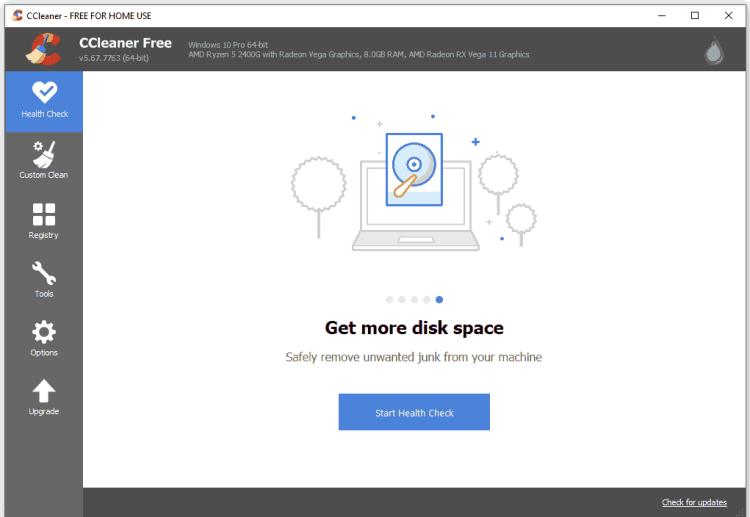
CCleaner remains one of the most trusted names in PC health check and cleaning. It analyzes your system’s performance, security, and privacy in one scan. It removes temporary files, browser history, and unwanted startup items with a clean, beginner-friendly interface.
One note: Use the registry cleaner sparingly. Microsoft has warned that unnecessary registry edits can cause problems. But for everyday junk cleaning, CCleaner is rock solid.
Best for: Everyday users who want a familiar, reliable cleaner.
Pros
Lightweight and simple interface.
Trusted brand with large user base.
Effective basic cleaning satisfying daily demand.
Cons
Limited advanced diagnostics compared to newer tools.
Ashampoo WinOptimizer – One-Time Purchase Toolkit
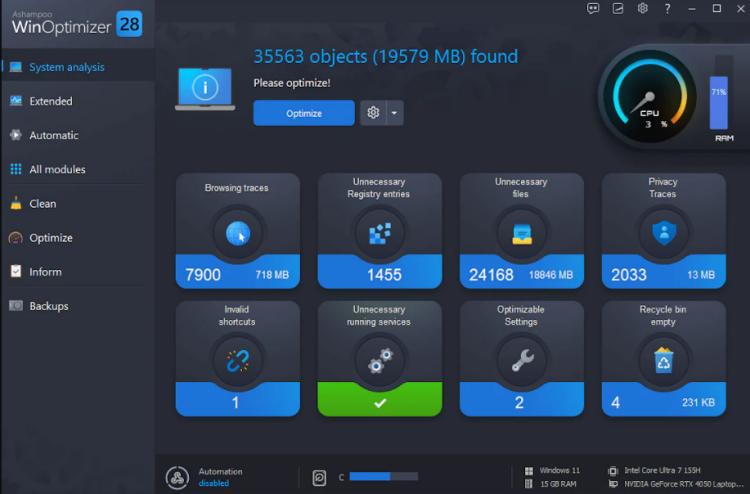
Ashampoo WinOptimizer is known for its flexibility for PC health check and optimization. Scan and clean junk file in PC, corrupted registry entries, and other PC problems are all done with a single click. It provides a full description of each identified problem, along with suggested repairs, giving you the freedom to choose whether or not to address these issues.
Unlike most competitors, Ashampoo uses a one-time purchase model – pay once and own it forever.
Best for: Users willing to invest in a premium lifetime tool.
Pros
One-time payment, no subscription.
Deep toolset, high user satisfaction.
Quick, thorough scans with descriptive interface.
Cons
No permanent free version (30-day trial only).
Fortect - Advanced Repair Tool
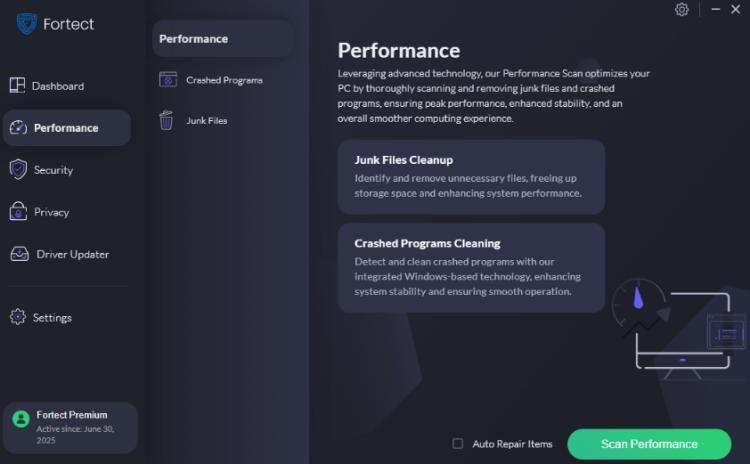
This tool focuses more on system repair than PC health check and clean. It doesn't simply delete junk files; instead, it proactively repairs damaged Windows system files and replaces them with clean versions from its online database.
Fortect offers a wealth of tools that allow users to quickly clean up junk files, fix registry problems, and free up disk space. Furthermore, Fortect can find and remove malware and other malicious programs that can slow down your computer.
Best for: Users whose PC suffers from crashes, missing DLLs, or suspected malware damage.
Pros
A one-click repair tool that replaces damaged system files.
Integrates system repair and computer cleanup, comprehensive protection.
Good at identifying threats, fast scanning.
Cons
No live chat support, limited free version.
How to Perform a PC Health Check on Windows 11
Running a PC health check for Windows 11 doesn’t have to be complicated. Here I will provide a simple tutorial showing how to perform a PC health check using IObit Advanced SystemCare.
Step 1. Have this powerful PC optimizer on your Windows, install it by following the instructions. (It may recommend downloading other applications; simply uncheck the box.)
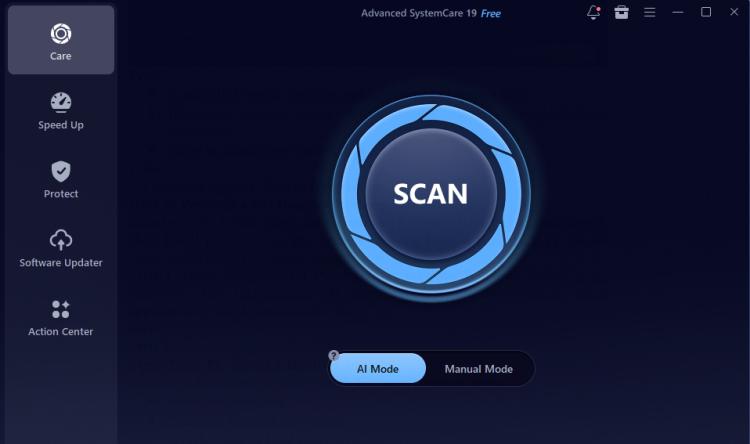
Step 2. Once enter the main interface, you can see a big Scan button. You can choose AI mode, or configure the categories you want to check manually. Then wait for the scan to check PC health.
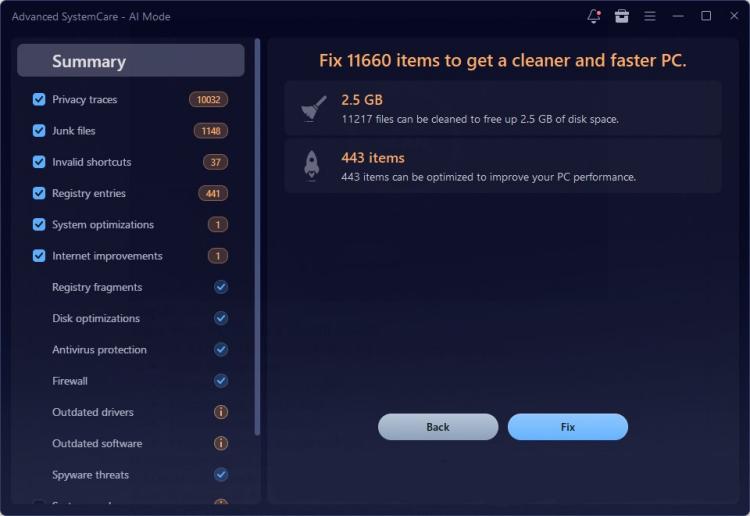
Step 3. Within minutes, this tool will scan and check all the junk files and potential system issues for you. Click Fix to clean or optimize them.
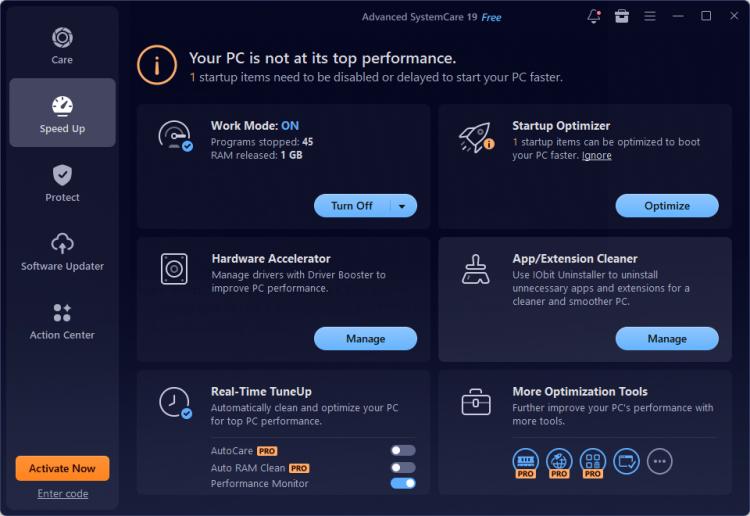
Step 4. To speed up your PC, you can enable turbo boost and startup optimizer to lead your computer to its top performance.
Signs Your PC Needs a Health Check
Not sure when you need to check PC health? Watch for these common signs:
If you notice any of these, it’s time for a PC health check for Windows 11/10.
FAQs about Windows 11 PC Health Check
Does Windows 11 have a built-in PC health check tool?
Yes, the PC Health Check app from Microsoft provides basic system insights, and test if your computer can be upgraded to Windows 11. It lacks advanced PC scan and optimization features.
Why does it say “your organization manages updates on this PC”?
This message usually appears due to group policy settings or system configurations that control updates. It’s not uncommon during a PC health check Windows 11 process.
How often should I check PC health?
Once a month is a good baseline, but weekly checks are ideal for heavily used systems.
Can a PC health check improve performance?
Yes. Removing junk files, cleaning up temp files, optimizing startup programs, and fixing system issues can noticeably boost speed and stability.
Conclusion
A regular PC health check Windows 11 routine is one of the easiest ways to keep your system fast, stable, and secure. If you want a faster and more efficient solution, using a dedicated PC health check tool for Windows 11 such as IObit Advanced SystemCare can save time and effort. With just a few clicks, you can clean up your system, fix hidden issues, and restore peak performance.