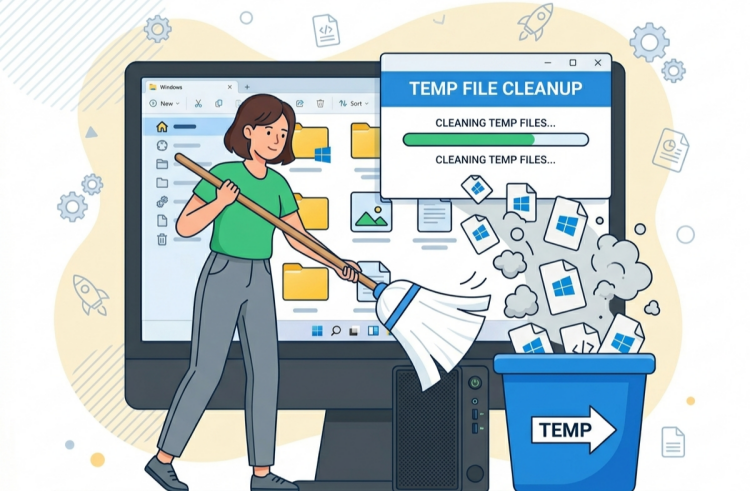
Over time, Windows accumulates temporary files, cache, and other residual files that take up space and can slow down your computer. A simple and effective way to solve this problem is to use commands to clean your PC directly from the Command Prompt (CMD), without relying on external programs.
Below, you'll find a step-by-step guide on how to clean your PC using CMD to free up space and improve system performance.
Why Use Commands to Clean your PC?
Using commands to clean up PC via CMD offers clear advantages over third-party software: it ensures greater transparency about what is being executed, is lighter as it doesn't require additional installation, and provides direct control over what will be removed (cache, temporary files, Prefetch, updates, etc.). Furthermore, these commands work across different versions of Windows.
Because these are powerful commands, it's important to exercise extra caution to avoid unwanted deletions.
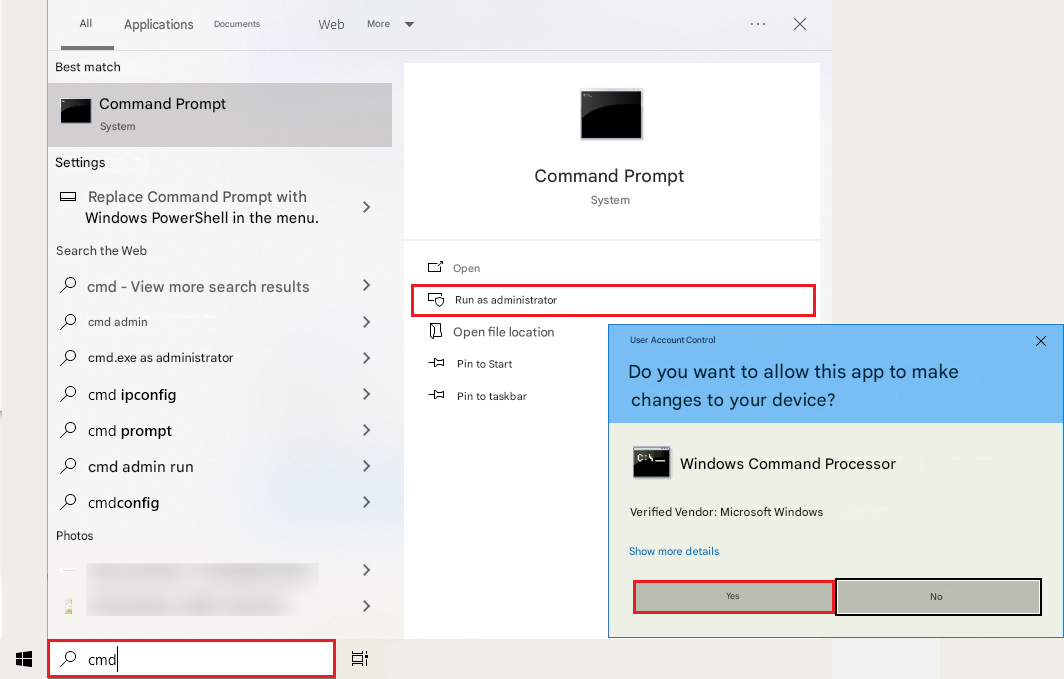
First Step: Open the Command Prompt as Administrator
Before starting, it is essential to open CMD with administrator privileges:
Type cmd in the Windows search bar;
Click on Run as administrator;
Please confirm via the security alert (UAC).
Commands to Clear Temporary Files on Your PC
How to clean a PC using commands? Temporary files can take up many gigabytes. To remove them:
Delete the User's TEMP Folder
In the CMD window, type del /q /f /s %TEMP%\* and press the Enter key.

This command removes all temporary files from the user's folder, generated by programs during daily use. It is useful when the PC is slow or has little space. Running this command to clean temporary files is safe and keeps the system running faster.
Delete Temporary System Files
In the CMD window, type del /q /f /s C:\Windows\Temp\* and press the Enter key.

It works in the Windows temporary folder, deleting files from internal processes and updates. Recommended when the main disk is full or the system is slow. This CMD command to clear the cache helps free up space quickly.
CMD Command to Clear Cache and Other Residual Files
Do the following to free up disk space on a PC with CMD commands. How to clean PC using CMD? Run commands to clean PC as follows quickly.
Clear DNS Cache
In the CMD window, type ipconfig /flushdns and press the Enter key.

Clears stored IP address logs, fixing slow browsing or connection issues. Using this CMD command to clear the cache is quick and safe.
Clear Microsoft Store Cache
In the CMD window, type wsreset.exe and press the Enter key.

Remove old data from the store, useful when apps are slow or experiencing errors. Running this command to clean your PC keeps the Store more efficient.
Remove Windows Update Cache
In the CMD window, type the following commands and press the Enter key.
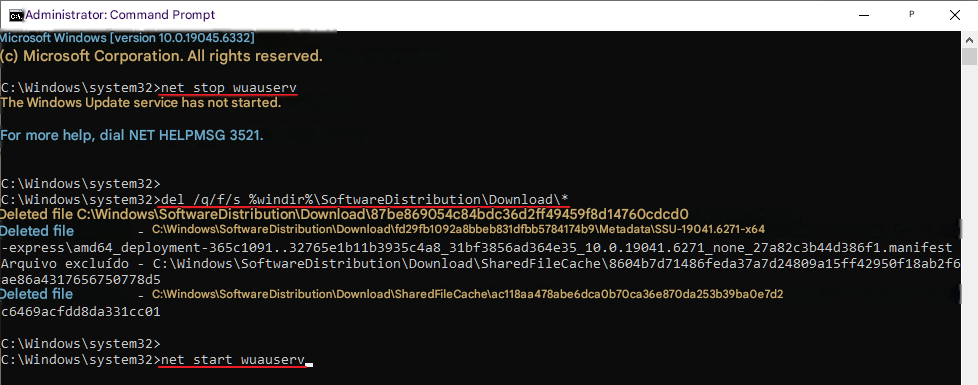
Deletes downloaded update files, freeing up space and fixing crashes. This is a safe way to clean up temporary files related to Windows Update.
Clear Thumbnail Cache
In the CMD window, type the following PC clean commands and press the Enter key.
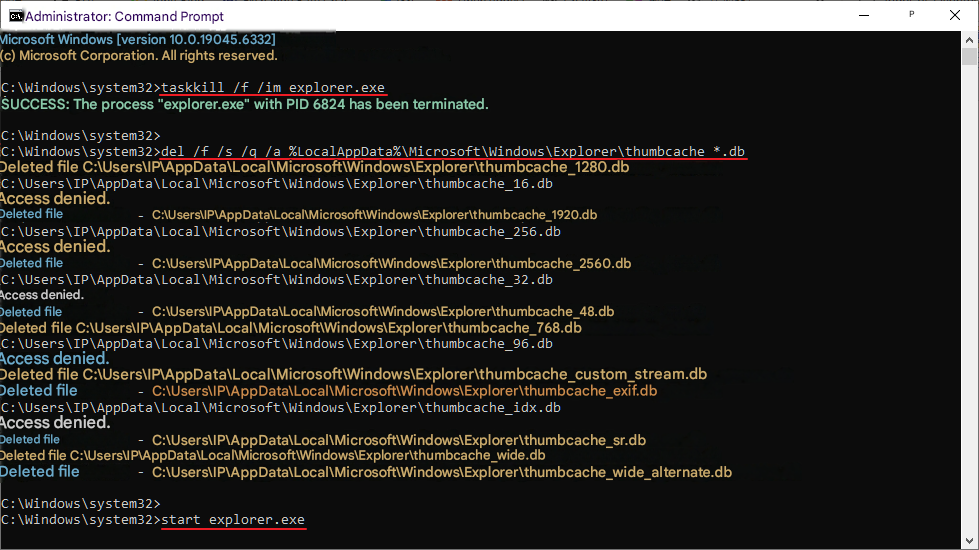
Remove old thumbnails created by Windows, resolving Explorer slowdowns and corrupted icons. Running this CMD commands to clean PC cache improves interface performance.
Empty the Trash Can via CMD
It is also possible to empty the Recycle Bin for all users using CMD: rd /s /q C:\$Recycle.Bin

Run command to clean junk files from computer. This Windows R commands for cleaning permanently removes files from the Recycle Bin, freeing up disk space.
Clear Prefetch on PC via CMD
In the CMD window, type del /q /f /s C:\Windows\Prefetch\*.* and press the Enter key.

Deletes old prefetching files that can slow down programs. Using this command to clean your PC via CMD helps keep your system faster and more responsive.
Clean your PC Using the CMD and the Cleanmgr Utility
In the CMD window, type cleanmgr /d C: and press the Enter key.
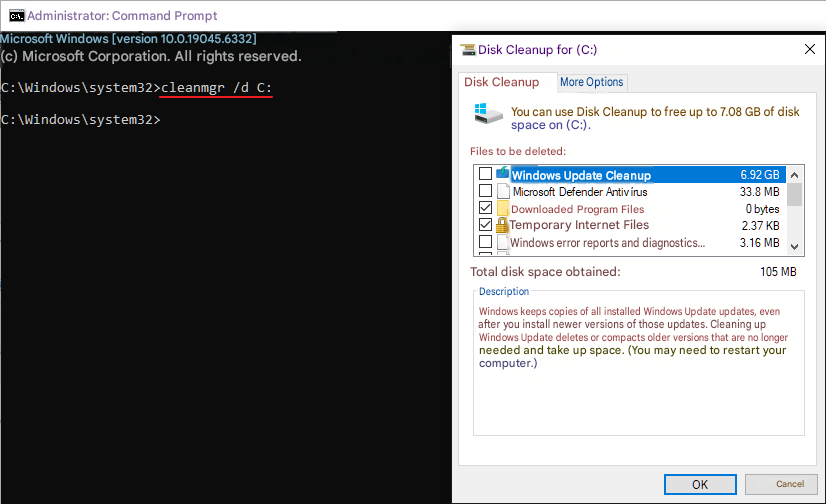
Cleanmgr (Disk Space Freezer) removes temporary files, installation caches, and other residual files. Ideal when you want to free up space quickly without installing extra programs. This command opens the Cleanmgr interface, allowing the user to manually select the items to be cleaned.
Advanced Operation: Automating Cleaning with /sageset and /sagerun
For advanced users who want to automatically clean their PC via CMD, the command `cleanmgr /sageset:65535 && cleanmgr /sagerun:65535` can be used.
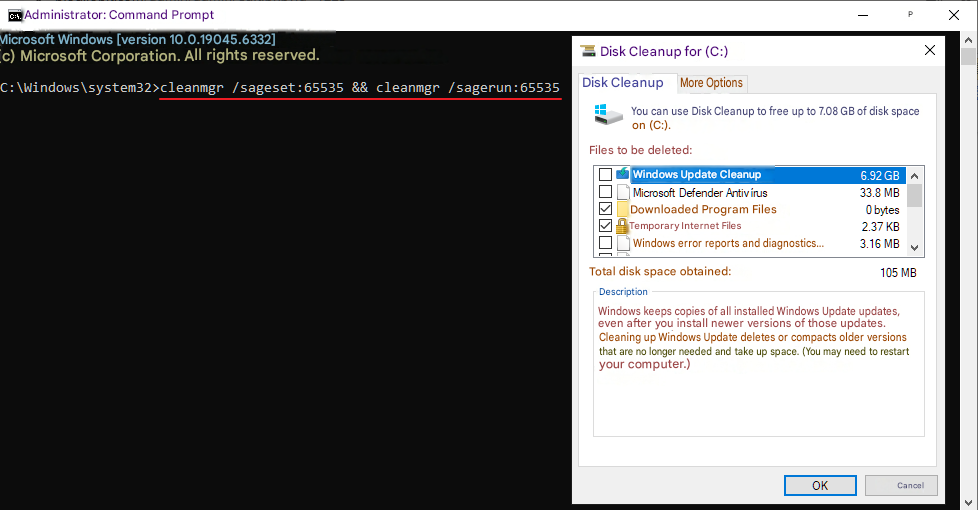
/sageset:65535: opens the Cleanmgr configuration window for you to choose which files you want to clean (temporary, Prefetch, cache, Windows Update, etc.) and saves this configuration with ID 65535.
/sagerun:65535: automatically performs the cleanup using the saved configuration, without needing to interact with the interface.
This is an advanced form of CMD command to clear cache and temporary files, suitable for those who want total control over PC cleaning via CMD, allowing them to automate cleaning, save time on recurring tasks, and keep the system always optimized without manual intervention.
Additional Commands to Optimize Performance
Check for Disk Errors with CHKDSK
Before defragmenting the disk, it is recommended to check for file system errors or bad sectors.
The CHKDSK command allows you to analyze and correct problems on the disk: chkdsk C: /f /r
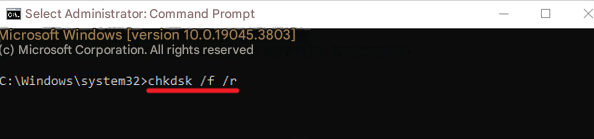
The /f parameter corrects any errors found, while /r locates bad sectors and attempts to recover readable data. In some cases, Windows may prompt you to restart the system to complete the check.
Defragment Your HDD with defrag
In the CMD window, type defrag C: and press the Enter key.

The defrag command reorganizes fragmented files to improve performance, but should only be used on traditional hard disk drives (HDDs).
*On computers with SSDs, defragmentation is not recommended, as Windows already uses the TRIM command automatically to optimize this type of storage.
Caution with Advanced Controls
Commands like `diskpart clean` or `clean all` completely erase the contents of a disk. They should only be used by experienced users. Even commands to clear cache or temporary files should be performed with an up-to-date backup.
Tips: Clean Your PC by Uninstalling Programs
If, even after using commands to clean your PC, disk space remains limited, an effective alternative is to uninstall rarely used or forgotten programs. Many software programs not only occupy space with their main files, but also leave residue in the system, such as hidden folders, temporary files, and entries in the Windows registry.
In these cases, specialized tools like IObit Uninstaller can be very helpful. Besides allowing batch uninstallation (ideal for removing multiple programs at once), it also performs a deep clean, automatically eliminating residual files and registry entries that typically remain after a standard Windows uninstall.
IObit Uninstaller Free
- Complete forced uninstallation for stubborn programs.
- Uninstall a batch of programs at once.
- Scan and remove leftover files, folders, and registry entries.
- Support the management of Universal Windows Platform apps.

Another advantage is the ease of identifying rarely used applications or those that take up a lot of space, which helps to further optimize the system. This allows you to clean your PC more thoroughly, free up disk space, and improve overall computer performance.
How to Clean Up PC by Uninstalling Unnecessary Programs
Step 1. Free download and install IObit Uninstaller on your PC.
Step 2. Search for or select all unwanted apps or software, and click “Uninstall”.
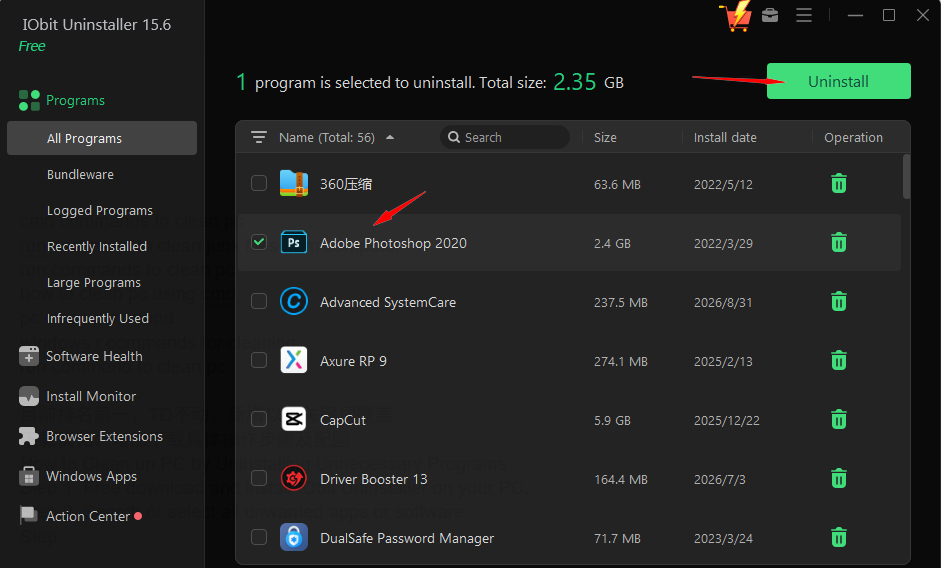
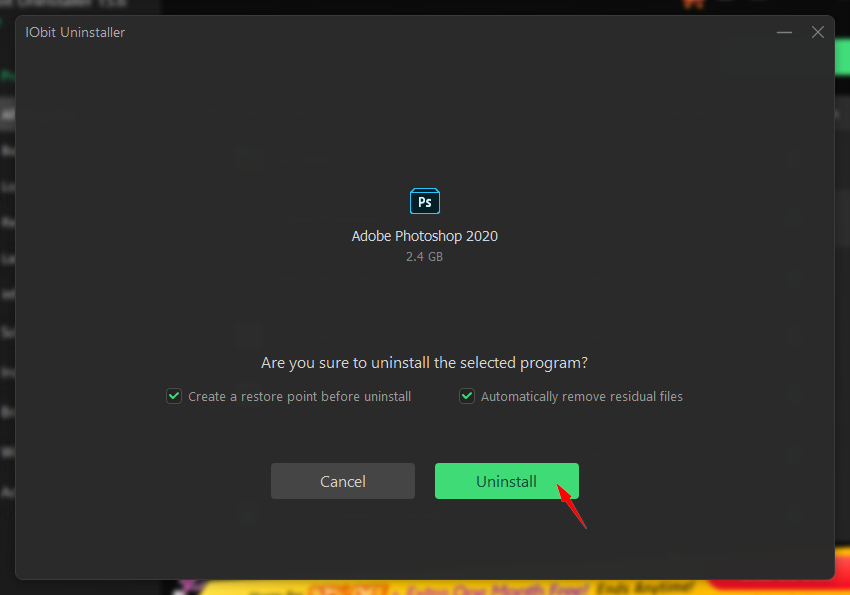
Step 3. Check the options you need and click “Uninstall” again to remove it completely.
You May Need: How Do I Uninstall Chrome Extensions? A Complete 2026 Guide >>
Conclusion
Running CMD commands to clean PC is a practical and efficient way to remove unnecessary files, free up space, and optimize Windows without relying on external programs. These commands allow direct access to system functions, ensuring greater control over what is being deleted and contributing to a more precise cleanup.
Furthermore, by adopting this practice regularly, it's possible to avoid the excessive accumulation of temporary files, cache, and other residual data that affect performance over time. With just a few steps, you can already notice improvements in system speed and organization. If you don't want to run command to clean PC, free up your PC with IObit Uninstaller effortlessly.