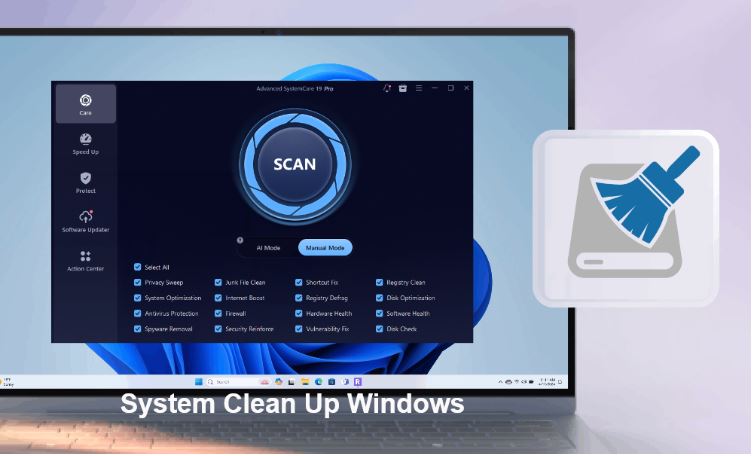
Need a quick cookies delete Chrome solution? This guide explains how to clear Chrome cookies on a Windows PC, including clearing browser cache and cookies Chrome together. It covers all cookies, specific sites' cookies, and individual cookies.
The following guide focuses on Windows, while Chrome on Mac and mobile follow a largely similar process.
What Are Chrome Cookies and Why Do You Need to Clear Them
To clear cookies with Chrome, you should know what they really are. Chrome Cookies are small data files stored by websites to remember login sessions, preferences, shopping carts, and other information.
Over time, outdated or excessive Cookies can cause login issues, incorrect site settings, or other browsing problems. Clearing them can help troubleshoot these issues and remove stored website data.
As for the types of cookies, Chrome cookies refer to cookies stored across the browser. Individual cookies mean one specific cookie, while Specific sites' cookies refer to all cookies belonging to one website or domain. Understanding the difference helps us choose the right cleanup method instead of unnecessarily deleting all browser data.
How to Clear All Cookies on PC – 2 Methods
When you need to delete cookies Chrome PC and start fresh, you have two practical options. The first uses Chrome itself, while the second combines browser cleanup with broader Windows maintenance.
Method 1: Clear All Cookies with Chrome Settings
Chrome provides a straightforward way to clear cookies with Chrome without installing another tool.
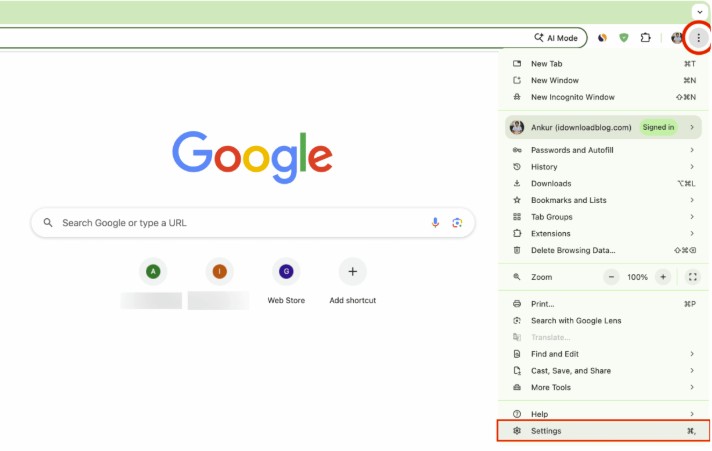
Step 1. Open Chrome and click the three-dot menu in the upper-right corner. Select Settings.
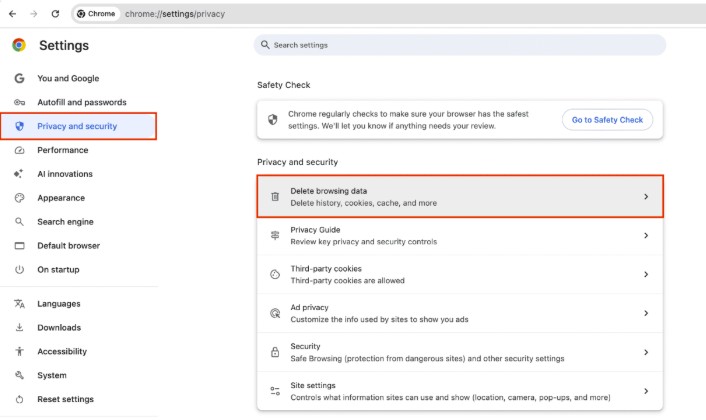
Step 2. Go to Privacy and security. Click Delete browsing data.
Step 3. Set the time range to All time.
Step 4. Check Cookies and other site data.
Step 5. Click Delete data.
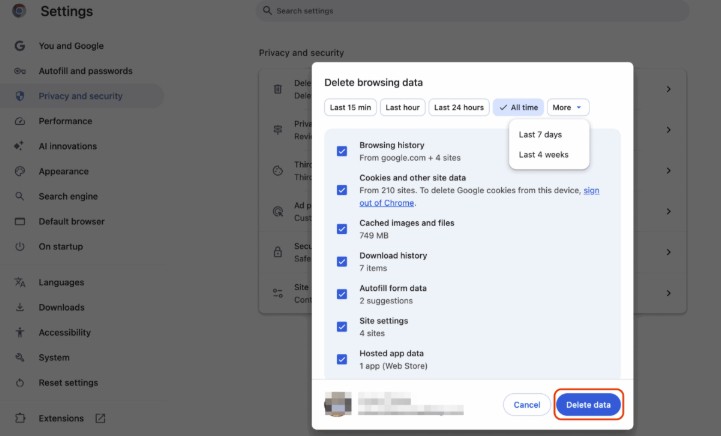
This is the most direct and commonly used method to complete a cookies delete chrome task. If you also select Cached images and files, Chrome will clear both Cookies and cached browser data at the same time. Keep in mind that deleting Cookies would sign you out of some websites, so you may need to enter your account information again.
For occasional cleanup, Chrome's built-in option is usually enough. When clearing browser data is only part of your overall PC cleanup, this next method is more practical.
Method 2: Delete Chrome Cookies with Advanced SystemCare
If you want to delete cookies Chrome PC while also cleaning other unnecessary browser and system data, or boost all your browsers with one click, Advanced SystemCare Free provides a broader cleanup approach.
Advanced SystemCare Free
- Clean: 420 billion traces removed & 85 EB junk files cleaned
- Protect: 80 million unauthorized access blocked & 20 million bugs fixed
- Speed Up: 6 million hours of startup time saved & Turbo boost
- Optimize: Auto clean and auto care your PC with AI mode

Advanced SystemCare is a Windows PC optimization software that brings together browser privacy clearing, thorough PC cleanup, and Windows system maintenance capabilities. Besides helping with cookies delete Chrome tasks, it can scan Chrome and other areas for unnecessary data, making regular PC cleanup more convenient.
Key related features include:
Clean Chrome Cookies and browser data: Not only removes Chrome cookies, but also cache and other browsing traces that accumulate during everyday use.
Support broader browser cleanup: Helps clear unnecessary data from Chrome and other supported browsers, like Edge and Firefox, without checking each browser separately.
Deep clean and storage savings: It can find and remove unnecessary temporary files, large files, duplicated files, corrupted files, and more that can take up storage and add to overall system clutter.
Combine privacy and PC maintenance: Handle browser cleanup together with other Windows optimization tasks, such as Startup optimize, hard drive clean, speed boost, PC health check, etc., in one place.
How to Delete Chrome Cookies with Advanced SystemCare:
Step 1. Install and launch Advanced SystemCare.
Step 2. Tick Privacy Sweep and click the Gear icon.
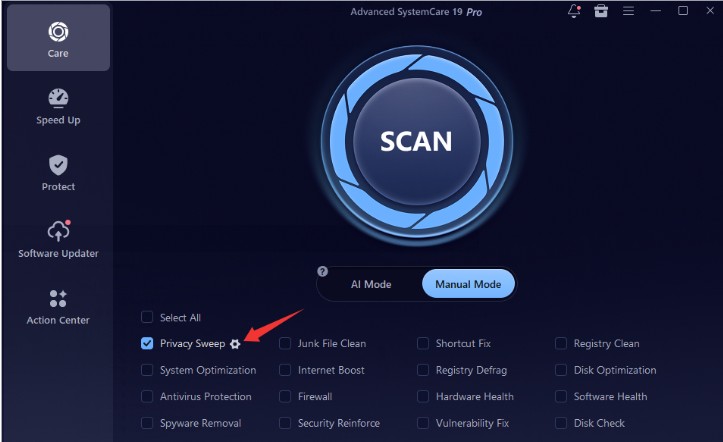
Step 3. Scroll down, select Chrome and tick the browser data you want to scan and remove, then click OK.
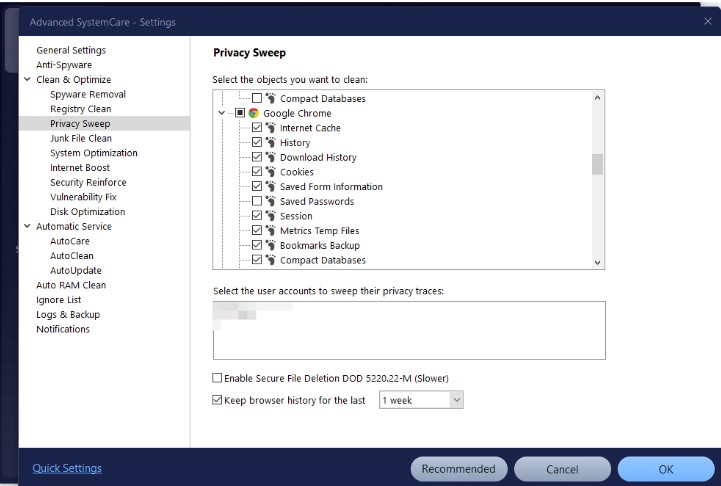
Note: It is recommended not to check "Save Passwords"; otherwise, you will lose all your stored passwords after cleaning, and you will need to re-enter them the next time you log in.
Step 4. It will go back to the main interface, then click Scan.
Step 5. Review the results and confirm the cleanup.
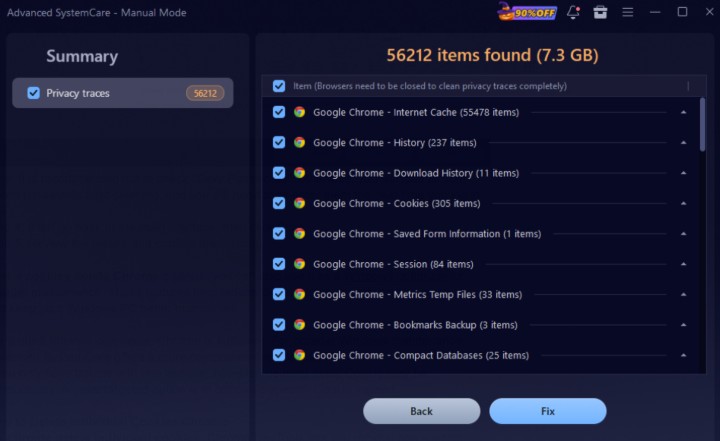
To sum up, for a quick browser-only reset, Chrome is sufficient. For broader Windows cleaning and optimization, Advanced SystemCare, one of the best PC cleaners, offers a more comprehensive approach. If you only have trouble with one website, however, deleting every cookie may be unnecessary. A more targeted option is to remove a specific cookie instead. Then, how to clean? Check below.
How to Clear Cookies from Specific Sites
At times, you may only want to delete cookies from a single website. In that case, there is no reason to perform a complete cookies delete Google Chrome operation.
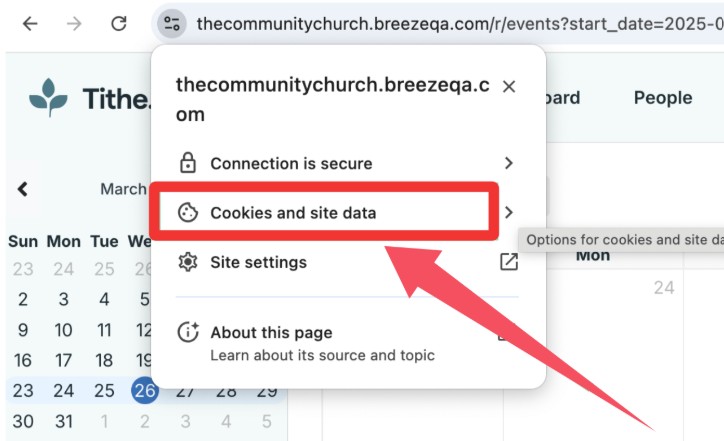
Step 1. Select an open site. Click the Tune Icon (two sliders) that appears in your URL bar, which provides site-specific information and settings.
Step 2. Select Cookies and site data.
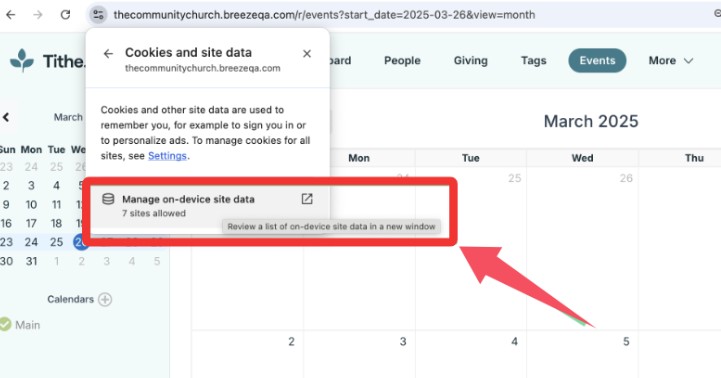
Step 3. Find the Manage on-device site data.
Step 4. Delete the stored data for the specific sites.
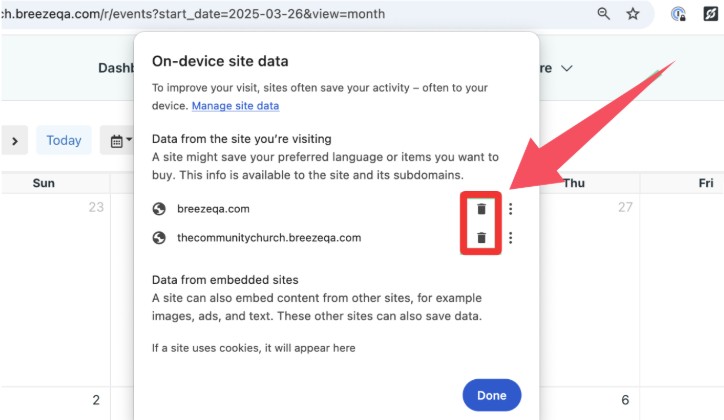
Step 5. Click Done to confirm deletion, and then reload the current page.
This method clears cookies of the selected site and won’t impact other sites. It is particularly useful when one website has login problems, outdated preferences, repeated redirects, or other unusual behavior.
How to Delete Individual Cookies Chrome
For Chrome delete individual cookies, Chrome DevTools lets you remove one specific cookie without clearing all the others.
Step 1. Open the target website in Chrome.
Step 2. Right-click the page and select Inspect.
Step 3. Open the Application tab. Select Storage > Cookies.
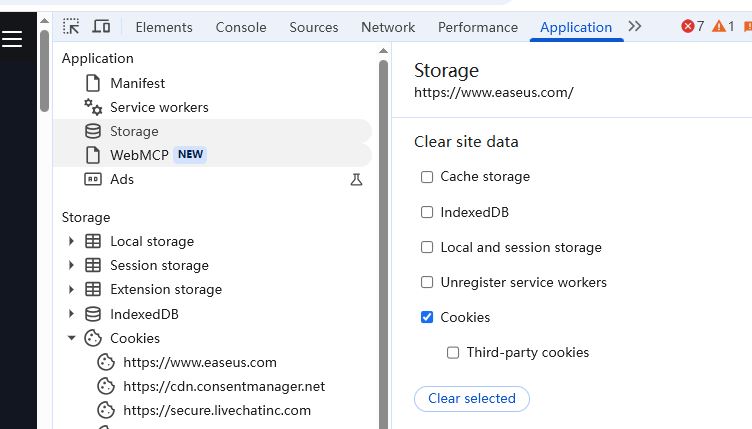
Step 4. Choose the relevant website or domain.
Step 5. Find the Cookie you want to remove.
Step 6. Right-click it and delete it.
This is the most precise cookies delete chrome approach. For example, a website may store ten Cookies, but you can remove only one while leaving the other nine intact. This can be useful for testing, troubleshooting login problems, or checking whether a particular cookie is causing unexpected behavior. If you are not sure what an individual cookie does, avoid deleting it at random.
When Should You Delete Chrome Cookies?
You may want to perform a cookies delete chrome cleanup when:
A website stops working properly: Clearing outdated Cookies may resolve certain site issues.
You have login problems: Removing Cookies can reset an affected login session.
A site keeps old settings: Deleting stored site data can remove outdated preferences.
You share a PC: Removing Cookies can reduce saved website data on a shared computer.
You are troubleshooting Chrome: Cookie cleanup can help identify whether stored site data is causing a problem.
You are maintaining your PC: Regular browser cleanup can be combined with other maintenance tasks.
Remember, you do not need to delete everything every time. If only one website is affected, deleting its Cookies is usually more appropriate than a complete browser cleanup.
FAQs About Cookies Delete Chrome
Does deleting Chrome Cookies delete browsing history?
No. Cookies and browsing history are separate types of browser data and can be deleted independently.
Will deleting Chrome Cookies log me out?
Usually, yes. Many websites store login sessions in Cookies, so you may need to sign in again.
Should I delete all Cookies or individual Cookies?
Use individual or site-specific deletion for isolated problems. Delete all Cookies when you need a broader browser reset.
The Bottom Line
Those are the several ways to manage and delete cookies in Chrome, from deleting everything to removing data from one site or a single cookie. For basic cookies delete Chrome needs, Chrome Settings is enough. For broader Windows cleanup, Advanced SystemCare Free provides a more comprehensive option. Hope you have a fast Chrome and a clean PC.