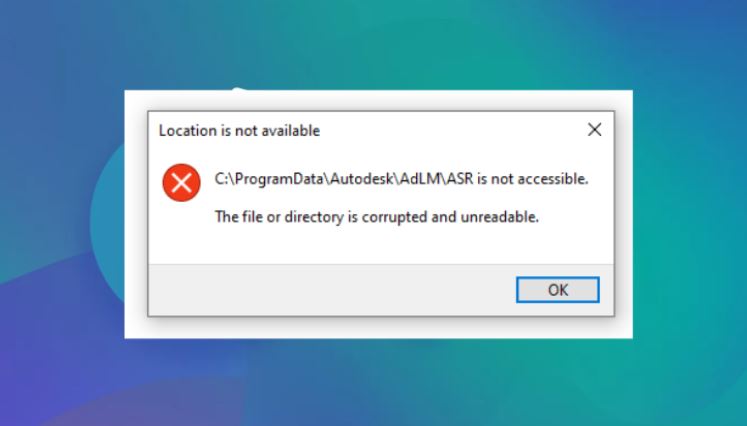
Corrupted files are a common issue on modern Windows PCs. Many users always ask, "How do I delete a corrupted file?" after seeing errors such as “The file or directory is corrupted and unreadable” or “Access is denied.” However, in some cases, the file cannot only not be opened, but also cannot be moved or permanently deleted normally.
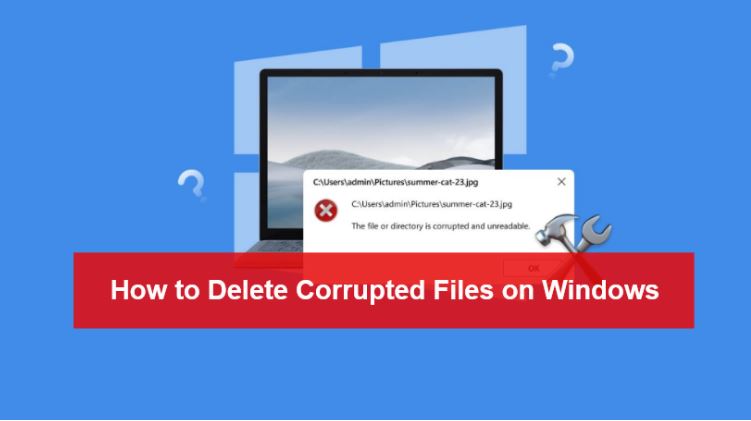
Then, how to delete corrupted files Windows 11 or Windows 10? The good news is that several proven solutions can help. Let's live in.
What Are Corrupted Files in Windows?
Before learning how to delete a corrupted file, it helps to understand what corrupted files actually are and how they come to be. A corrupted file is a file whose structure or data has become damaged, incomplete, or unreadable by Windows. This can happen because of sudden shutdowns, failed Windows updates, bad sectors on a hard drive, malware infections, or interrupted software installations.
Common corrupted files include:
Corrupted ZIP archives
Damaged DLL files
Broken EXE program files
Invalid shortcuts
Leftover uninstall files
In both Windows 10 and Windows 11, corrupted files may cause system lag, software crashes, or deletion failures. Sometimes users only notice the issue when they can't delete corrupted file folders or when Windows repeatedly displays disk errors.
Why You Can’t Delete Corrupted Files Directly
Many people asking “how do I delete a corrupted file” discover that Windows often blocks normal deletion attempts. This usually happens because the corrupted file is still being used by a background process or because the file system itself contains errors.
Some common reasons include:
File is currently in use
Administrator permission is missing
File path is too long
Windows Explorer is locked
Registry references are broken
Software uninstall process failed
NTFS file system corruption exists
You may also see errors like:
The file or directory is corrupted and unreadable
or:
Access is denied
Because corrupted files behave differently depending on the cause, there is no single universal fix. The methods below cover the most effective ways to remove damaged or undeletable files safely.
Method 1 – Delete Corrupted Files Normally in File Explorer
The simplest solution is still worth trying first. In many situations, corrupted files are only temporarily locked by Windows Explorer or another background task. Restarting the computer can often release the file and allow normal deletion.
For how to delete corrupted files in Windows 10 or Windows 11 using built-in tools, File Explorer should always be your starting point. The steps are almost identical on both systems.
Step 1. Restart Your Computer
Restarting helps close background processes that may be locking the file.
Step 2. Locate the Corrupted File
Open File Explorer and navigate to the damaged file or folder.
Step 3. Press Shift + Delete
This permanently deletes the file instead of sending it to the Recycle Bin.
Step 4. Rename the File and Try Again
If Windows still refuses deletion, make sure it is not in progress, or rename the file first and retry. This occasionally fixes broken file references.
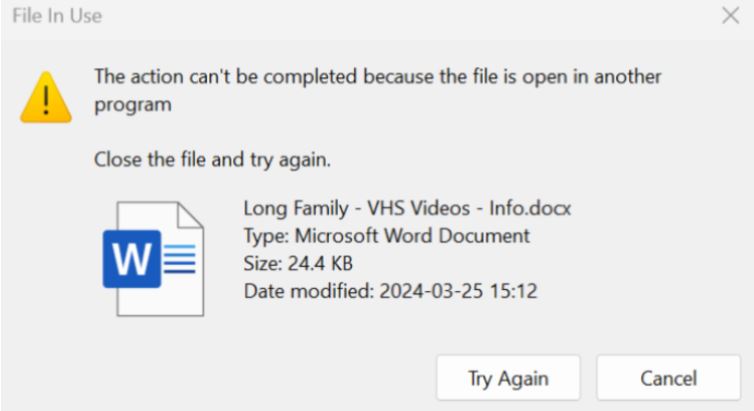
Corrupted temporary files and failed update leftovers can also consume storage unnecessarily. Cleaning them up helps free up disk space and improve system responsiveness.
Method 2 – Delete Corrupted Files Using CMD
When File Explorer fails, Command Prompt provides a stronger way to force deletion. CMD commands bypass some graphical restrictions and can remove files that Windows Explorer cannot handle properly.
This method is especially useful for users searching for how to remove a corrupt file from computer systems when standard deletion keeps failing.
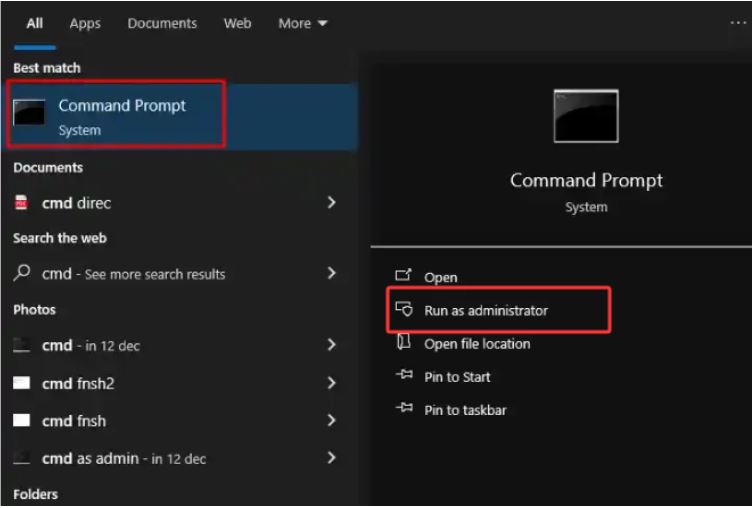
Step 1. Open CMD as Administrator
On Windows 10 and Windows 11:
1. Type “CMD” in Windows Search
2. Right-click Command Prompt
3. Select “Run as administrator”
Step 2. Navigate to the File Location
Use the CD command:
cd C:\Path\To\File
Step 3. Use the DEL Command
Run:
del /f /q filename
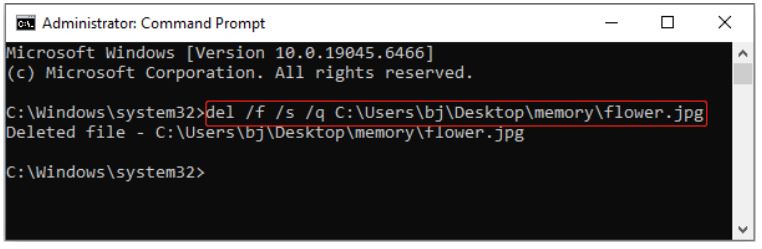
Parameters:
●/f forces deletion
●/q enables quiet mode
Step 4. Remove Corrupted Folders
If the damaged item is a folder, use:
rd /s /q foldername
Step 5. Restart Explorer and Retry
If deletion still fails, restart Windows Explorer from Task Manager and try the command again.
CMD is one of the most effective answers for users who want to know how to delete corrupted files in Windows 11 without installing extra software.
Method 3 – Delete Corrupted Files in Safe Mode
Safe Mode starts Windows with only essential drivers and services. Because most third-party applications are disabled, fewer files remain locked in memory. This makes Safe Mode extremely useful when you can't delete corrupted file folders connected to antivirus software, games, or damaged applications.
The overall Safe Mode process is similar on Windows 10 and Windows 11, although the menus look slightly different.
Step 1. Open Advanced Startup
On Windows 11: Open Settings > System > Recovery > Click “Restart now” under Advanced startup
On Windows 10: Open Settings > Update & Security > Recovery > Click “Restart now”
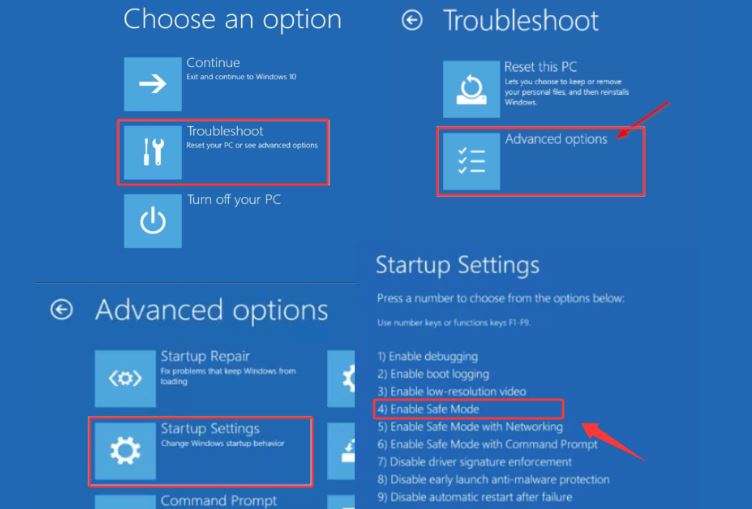
Step 2. Enter Safe Mode
After restarting: Select Troubleshoot > Advanced options > Startup Settings > Press F4 for Safe Mode.
Step 3. Locate the Corrupted File
Open File Explorer after Safe Mode loads and find the damaged file.
Step 4. Delete the File
Use normal deletion or Shift + Delete.
Step 5. Restart Windows Normally
Restart the PC to return to standard Windows mode.
Safe Mode works particularly well for stubborn leftovers, damaged DLLs, and software-related corrupted files.
Method 4 – Run CHKDSK to Repair File System Errors
Why does CHKDSK help with corrupted files? In many cases, the file itself is not the real problem. Instead, the NTFS file system or disk index may contain errors. CHKDSK scans the drive, repairs logical problems, and checks for bad sectors that may prevent file deletion.
If you are researching how to delete corrupted files Windows 11 after sudden shutdowns or disk errors, CHKDSK is one of the best built-in tools available.
To fix it, you can:
Step 1. Open Command Prompt as Administrator
Search for CMD and select “Run as administrator.”
Step 2. Run the CHKDSK Command
Type:
chkdsk /f /r
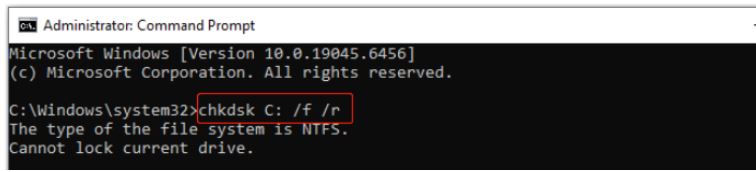
Parameters:
●/f repairs file system errors
●/r scans for bad sectors
Step 3. Schedule the Scan
If Windows says the drive is in use, press Y to schedule the scan for the next restart.
Step 4. Restart the PC
Restart your computer and allow CHKDSK to complete the repair process.
Step 5. Delete the Corrupted File Again
After Windows finishes repairing the drive, try deleting the damaged file normally.
This method is particularly effective for external drives, old HDDs, and systems affected by unexpected power loss.
Method 5 – Use Advanced Uninstaller Tools for Stubbornly Corrupted Files
Sometimes corrupted files are actually leftover files from broken software, failed uninstall processes, damaged updates, or locked background services. This is common with antivirus programs, VPN software, game launchers, and browser extensions. In these cases, normal deletion methods may fail repeatedly.
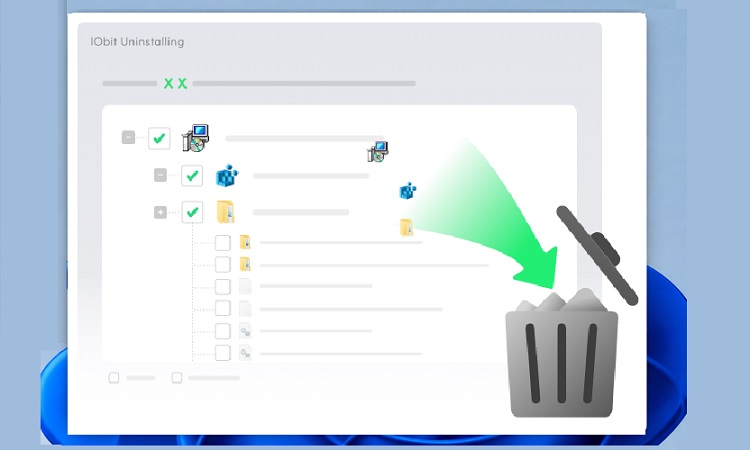
For users searching for how to delete corrupted files Windows 11 or how to delete a corrupted file when CMD and File Explorer do not work, an advanced uninstall utility can help remove hidden leftovers more completely. One useful option is IObit Uninstaller.
IObit Uninstaller Free
- Complete forced uninstallation for stubborn programs.
- Uninstall a batch of programs at once.
- Scan and remove leftover files, folders, and registry entries.
- Support the management of Universal Windows Platform apps.

When it comes to removing corrupted file Windows issues, this best uninstaller for Windows can be especially helpful for software-related corrupted files that cannot be deleted normally. Its Force Uninstall and File Shredder features can identify hidden leftovers, locked files, invalid shortcuts, uninstall remnants, and more corrupted files, making it easier to remove stubborn corrupted files that standard Windows tools often fail to handle.
Beyond corrupted file removal, IObit Uninstaller also helps users manage installed programs, remove stubborn applications in batches, clean browser extensions, monitor software health, and eliminate leftover files after uninstallation. These features can help keep Windows systems cleaner, reduce software clutter, and improve overall system organization over time.
So, with it, you can enjoy:
Force Uninstall for undeletable programs
File Shredder to remove broken or corrupted files
Deep Leftover Cleanup after uninstallation
Removal of stubborn software remnants
Detection and cleanup of invalid shortcuts
Browser extension management and cleanup
Batch uninstall for multiple applications
Software Health monitoring and optimization
Large and rarely used program identification
Windows apps uninstall support
How to Use IObit Uninstaller to Remove Stubborn Corrupted Files
You may not realize that many corrupted files are actually tied to broken software installations, failed uninstallations, or leftover program components. In these situations, simply deleting the file often doesn't solve the problem because hidden folders, registry entries, or background services may still be linked to it. Using IObit Uninstaller can help identify and remove these related components, making it easier to delete stubborn, corrupted files completely.
Step 1. Install and Open IObit Uninstaller
Download and launch the tool on Windows 10 or Windows 11.
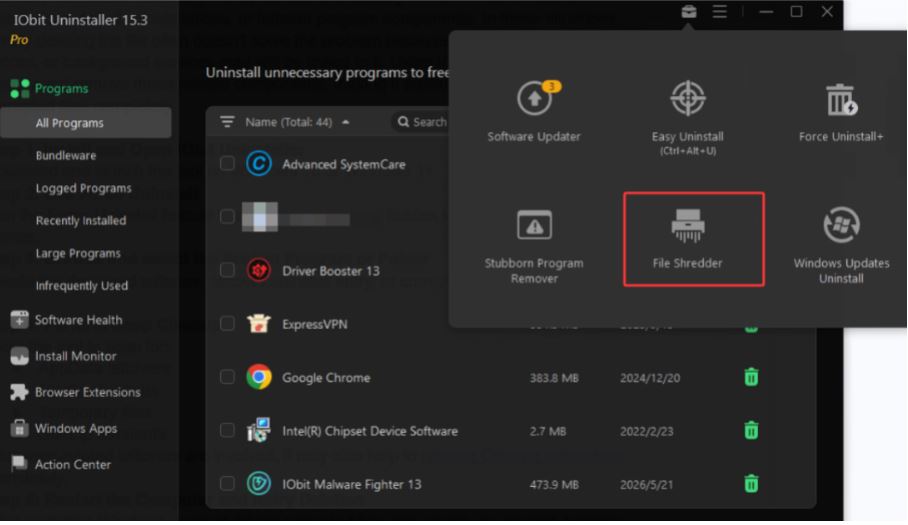
Step 2. Use File Shredder
Run the File Shredder feature to remove corrupted files, locked files, hidden leftovers, and related registry entries.
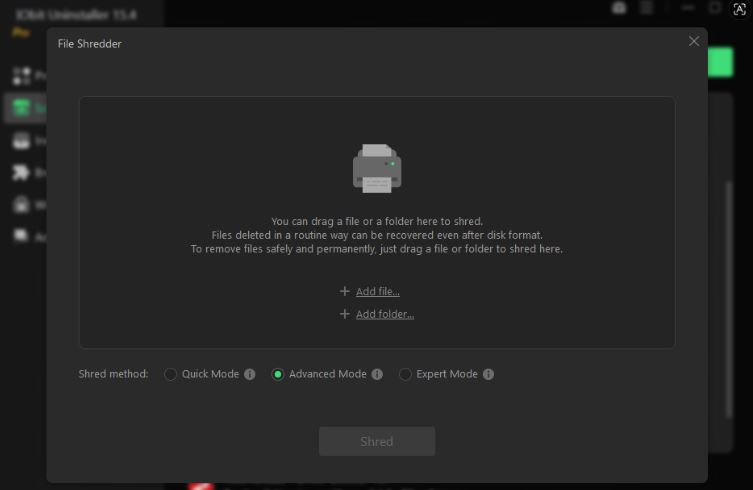
Step 3. Browse and select the Broken Program or Folder
Locate and add the damaged software, corrupted files, leftover uninstall entry, or corrupted application folder.
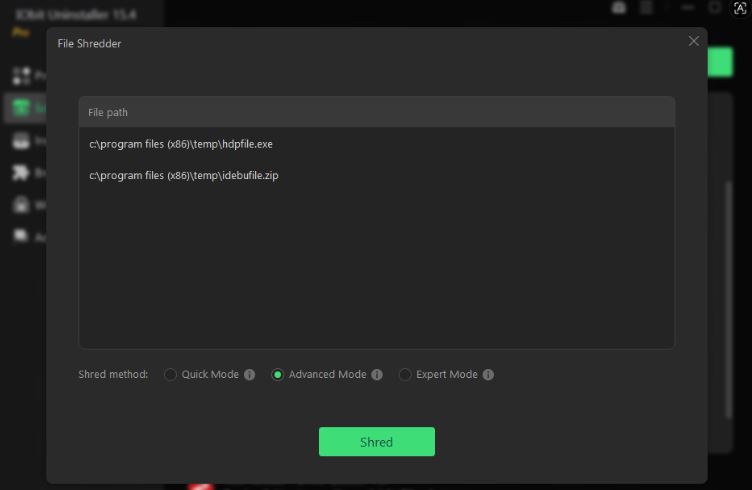
Step 4. Perform Deep Delete
Select Advanced Mode and allow the tool to shred selected corrupted files.
Step 5. Restart the Computer
After restarting Windows, there are no stubborn corrupted files; all have been removed.
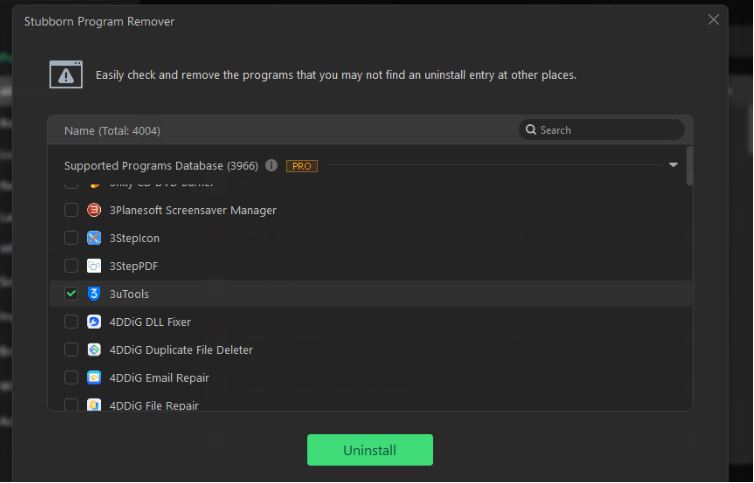
If browser-related leftovers are involved, it also helps to remove Chrome extensions completely. Besides using File Shredder, you can also check its Stubborn-supported program database to see if the software you want to uninstall is there, and then click "Uninstall".
Conclusion
How to delete a corrupted file on Windows 10 or Windows 11 depends on what caused the corruption in the first place. Simple cases may only require File Explorer, while stubborn files may need CMD, Safe Mode, or CHKDSK repairs. For damaged software leftovers and uninstall failures, advanced uninstall tools can provide a more complete cleanup solution. Try these methods, and you can delete any corrupted file on your computer easily.