If you've ever tried to delete Microsoft Edge from your Windows PC, you’ve likely run into the same frustration: the uninstall button is greyed out, or it doesn't even appear in your list of installed apps.
You’re not alone—thousands of users search for how to uninstall Microsoft Edge every day, wondering why this built-in browser is so hard to remove. In this guide, we'll break down exactly how to uninstall Microsoft Edge permanently, cover why you might be struggling to remove it, and share the easiest, most reliable method to get rid of it—along with all its leftover files and registry entries.
Why Can’t You Uninstall Microsoft Edge?
Before we dive into the methods to uninstall Edge, it’s important to understand why can’t I uninstall Microsoft Edge in the first place. Microsoft has intentionally locked Edge into Windows for a few key reasons, and there are common issues that make uninstallation even harder for most users.
Microsoft’s Built-In Restriction
Microsoft Edge is no longer just a regular browser—it’s a core component of the Windows operating system. It’s deeply integrated with Windows Update, the Windows Search bar, widgets, progressive web apps (PWAs), and even some system features. Because of this, Microsoft has made it difficult to uninstall by default, as they consider it an essential part of the Windows experience.
Common Issues That Block Uninstallation
You might run into some issues when trying to uninstall Edge. Here are the most common reasons can’t uninstall Microsoft Edge:
Microsoft Edge is running in the background: If Edge is open (even in the system tray) or its processes are active, the uninstall button will be greyed out.
Insufficient permissions: You need to be logged in as an administrator to remove Microsoft Edge, as it’s a system component.
Windows Update is active: Windows often automatically updates Edge, which can override your uninstall attempt or re-install Edge after you’ve removed it.
Corrupted system files: If your Windows system files are damaged, it can prevent the uninstallation process from completing successfully.
Leftover files from previous uninstall attempts: If you tried to uninstall Edge before and it failed, leftover files or registry entries can block future attempts.
The good news? All these issues are fixable—and we’ll show you how, including a foolproof method using IObit Uninstaller to bypass all these restrictions.
Pre-Uninstallation Checklist for Uninstalling Microsoft Edge
Before you start the uninstallation process, take a few minutes to complete this checklist. This will ensure the process goes smoothly, prevent data loss, and avoid common mistakes that can cause Edge to reinstall or leave behind unwanted files.
Close all Microsoft Edge windows: Make sure Edge is fully closed, including any tabs or background windows. Check the system tray to ensure Edge isn’t running in the background.
Backup your browsing data: If you have bookmarks, passwords, or browsing history in Edge that you want to keep, export them first. Open Edge, go to Settings > Profiles > Import or export browser data, and select “Export to file” to save your data.
Disable Windows Automatic Updates (temporarily): Windows Update often reinstalls Edge automatically. To prevent this, go to Settings > Windows Update > Advanced options, and toggle off “Get updates for other Microsoft products” and “Download updates over metered connections (extra data charge may apply).”
Create a system restore point: If something goes wrong during uninstallation, a system restore point will let you revert your PC to its previous state. To create one, search for “Create a restore point” in the Windows search bar, click “Configure,” and follow the prompts to create a restore point.
Below are three methods of how to remove Microsoft Edge from Windows 10/11, ranging from the official (EEA-only) method to a universal force uninstall method, and the easiest method using IObit Uninstaller. Choose the method that best fits your Windows version and region.
Method 1: How to Uninstall Microsoft Edge via Windows Settings
If you’re in the European Economic Area (EEA) and using Windows 11 23H2 or later, Microsoft is required by the DMA (Digital Markets Act) to let users uninstall Edge officially. So you can uninstall Microsoft Edge directly via Windows Settings—no workarounds needed. This is the official method recommended by Microsoft.
Step 1. Press the Windows key + I to open Settings. Click on “Apps” in the left sidebar, then select “Installed Apps.”
Step 2. In the search bar at the top, type “Microsoft Edge” to find the browser.
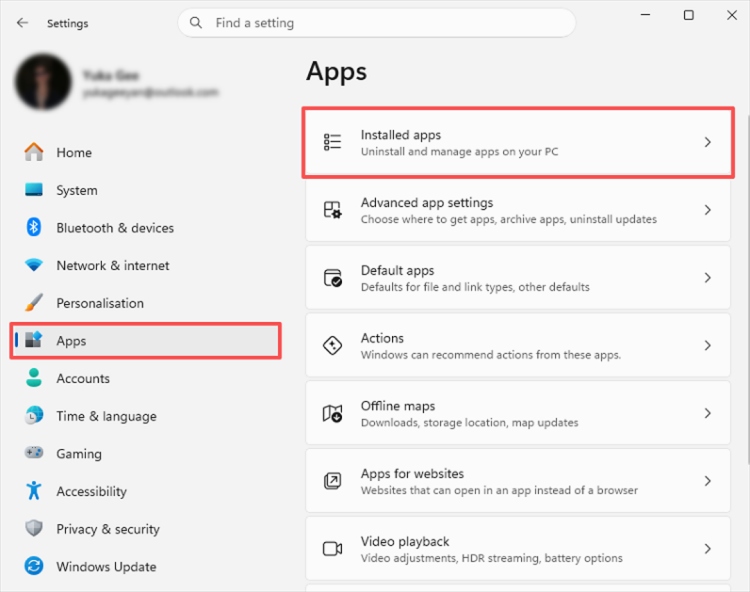
Step 3. Click the three dots (…) next to Microsoft Edge, then select “Uninstall.”
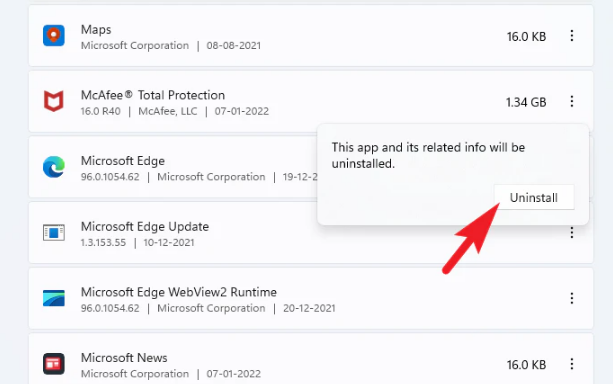
Step 4. A pop-up will appear asking if you want to delete your browsing data. Check the box if you want to remove bookmarks, passwords, and history, then click “Uninstall.”
Step 5. Wait for the uninstallation process to complete, then restart your PC to finalize the removal.
If you don’t see the “Uninstall” option, it’s likely because you’re using an older version of Windows 11 or Windows 10. Of course, if you’re not in the EEA, you’ll need a workaround to remove it.
Method 2: Force Uninstall Edge via Command Prompt/PowerShell
For everyone else—including Windows 10 users and non-EEA Windows 11 users—Edge is locked. This method works for all versions of Windows 10 and Windows 11 and lets you force uninstall Microsoft Edge by bypassing Microsoft’s restrictions. It’s a bit technical, but we’ll walk you through every step.
Step 1. First, ensure Microsoft Edge is fully closed. Then, pree Win + E to open File Explorer and navigate to the following folder: C:\Program Files (x86)\Microsoft\Edge\Application
Step 2. Inside the “Application” folder, you’ll see a folder with a version number (e.g., 124.0.2478.51). Open this version folder.
Step 3. Click on the address bar at the top of File Explorer, type “cmd,” and press Enter. This will open Command Prompt in the current folder.
Step 4. In Command Prompt, type the following command and press Enter: setup.exe --uninstall --system-level --verbose-logging --force-uninstall.
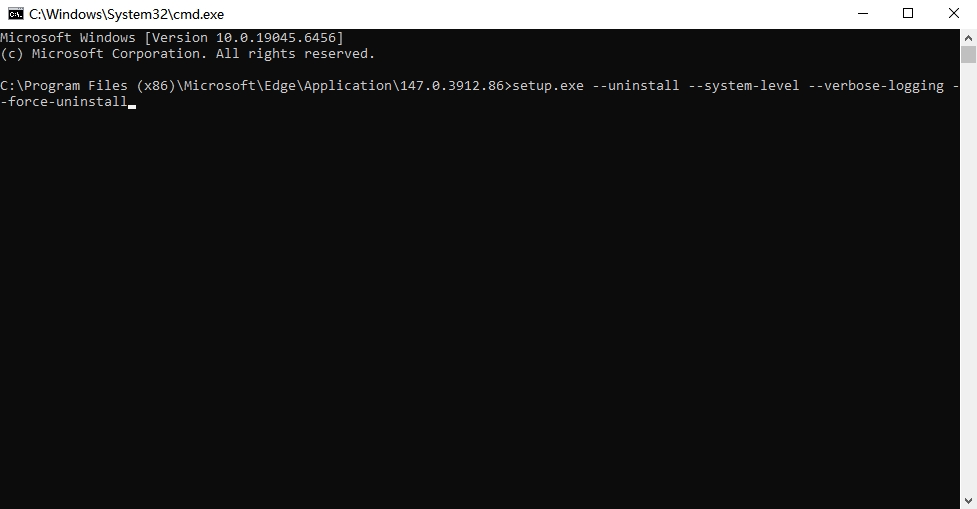
Step 5. A new window will open, showing the uninstallation progress. Wait for it to complete. Once the process is done, restart your PC. Microsoft Edge should now be uninstalled.
If you get an error message, make sure you’re logged in as an administrator, and that no Edge processes are running. If the error persists, try Method 3—it’s simpler and more reliable.
Method 3: How to Delete Microsoft Edge Completely with IObit Uninstaller
If you want to avoid technical commands and ensure Microsoft Edge is uninstalled completely, including all leftover files, registry entries, and cache, IObit Uninstaller is the best choice. IObit Uninstaller is a professional Windows uninstall tool that bypasses Microsoft’s restrictions, force-uninstalls stubborn software like Edge, and cleans up every trace of it—all with one click.
Best of all, IObit Uninstaller has a free version that’s more than enough to uninstall Microsoft Edge, and it’s trusted by millions of users worldwide for its safety and reliability. Here’s how to use it:
Step 1. Click the button below to download and install IObit Uninstaller.
IObit Uninstaller Free
- Complete forced uninstallation for stubborn programs.
- Uninstall a batch of programs at once.
- Scan and remove leftover files, folders, and registry entries.
- Support the management of Universal Windows Platform apps.

Step 2. Open IObit Uninstaller. On the main dashboard, click on “All Programs” to see a list of all installed software on your PC.
Step 3. In the search bar at the top, type “Microsoft Edge” to find the browser.
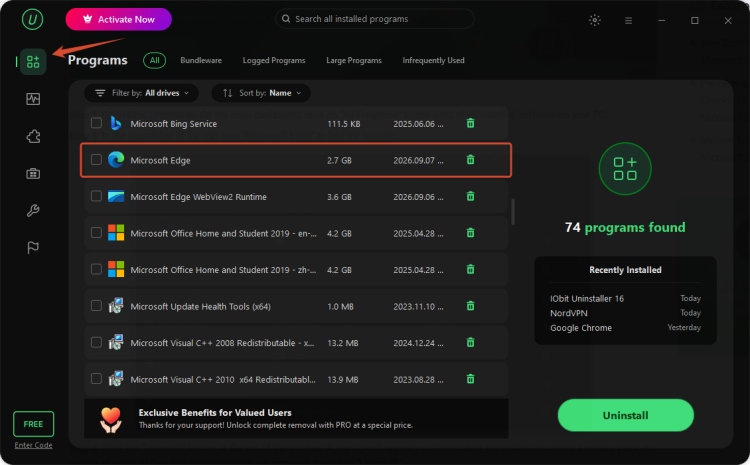
Step 4. Click the “Uninstall” button at the top of the window. A pop-up will appear—you can select the options to create a restore point, or ensure all residual files and registry entries are removed, then click “Uninstall.”
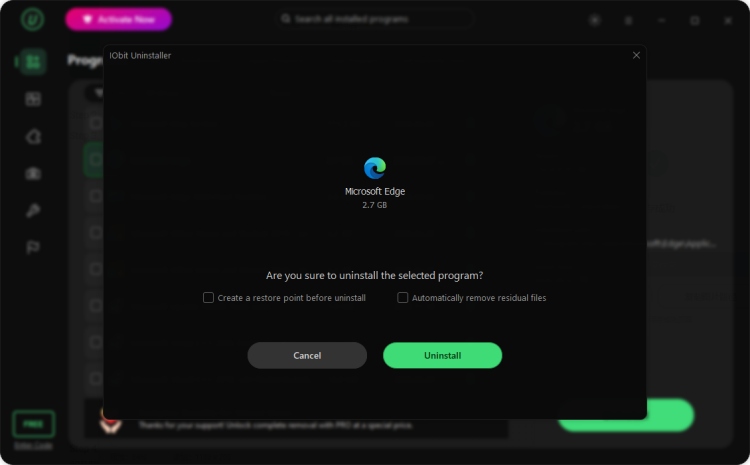
Step 5. IObit Uninstaller will now uninstall Microsoft Edge and scan for leftovers. Once the scan is complete, click “Delete” to remove all leftover files. Restart your PC, and Microsoft Edge will be completely uninstalled—no traces left behind.
IObit Uninstaller isn’t just for Microsoft Edge. It can also force uninstall other stubborn software, remove unwanted browser plugins and toolbars, and even batch-uninstall multiple programs at once. It’s a must-have tool for keeping your PC clean and fast.
Why IObit Uninstaller Is the Best Choice for Uninstalling Edge
Bypasses Microsoft’s Restrictions: Unlike the command prompt method, IObit Uninstaller automatically bypasses Microsoft’s locks on Edge, so you don’t have to type complex commands or worry about errors. It works for all versions of Windows 10 and 11, regardless of your region.
Completely Removes All Leftovers: The biggest problem with the official or command prompt methods is that they often leave behind residual files, registry entries, and cache. These leftovers can slow down your PC, take up storage space, and even cause Edge to reinstall. The uninstaller for Windows scans deep into your system to find and delete every trace of Edge.
No Technical Skills Needed: You don’t need to be a tech expert to use IObit Uninstaller. The interface is simple and intuitive, and the entire uninstallation process takes just a few clicks. Even if you’re a beginner, you can uninstall Edge in minutes.
Safe & Reliable: IObit Uninstaller is developed by IObit, a trusted software company with over 20 years of experience in Windows optimization tools. It’s 100% safe, no malware, and it automatically backs up your system before making changes—so you can revert if something goes wrong.
Free Version Available: The free version of IObit Uninstaller has all the features you need to uninstall Microsoft Edge and clean up leftovers. If you want extra features like automatic updates, deep system scans, and batch uninstallation, you can upgrade to the Pro version for a low annual fee.
Post-Uninstallation Steps to Keep Microsoft Edge Gone Permanently
Once you’ve uninstalled Microsoft Edge, there are a few steps you can take to ensure your PC runs smoothly and prevent Edge from reinstalling:
Install an alternative browser: If you don’t already have one, install a browser like Google Chrome, Mozilla Firefox, or Opera to use as your default browser. Go to Settings > Apps > Default apps to set your new browser as the default.
Clean up your system: Navigate to Software Health in IObit Uninstaller, select options such as “Uninstallation Leftovers” and “Installation Files,” then scan and remove leftover files, caches, and temporary files from your system. This will free up storage space and speed up your PC.
Prevent Edge from reinstalling: Keep Windows Automatic Updates disabled temporarily, or go to Settings > Windows Update > Advanced options and toggle off “Get updates for other Microsoft products.” You can also use IObit Uninstaller’s “Software Health” feature to monitor and block unwanted reinstalls.
Restore your browsing data: If you backed up your Edge bookmarks and passwords earlier, import them into your new browser. Most browsers have an “Import data” option in their settings.
FAQs About Uninstalling Microsoft Edge
Q: How do I uninstall Microsoft Edge on Windows 11?
A: If you’re in the EEA and using Windows 11 23H2 or later, you can uninstall Edge via Settings > Apps > Installed Apps. For everyone else, use the command prompt method or IObit Uninstaller to force-uninstall it. IObit Uninstaller is the easiest and most reliable option, as it also cleans up leftovers.
Q: Why can’t I uninstall Microsoft Edge Windows 11?
A: Microsoft locks Edge in Windows 11 (except for EEA users with Windows 11 23H2+) because it’s a core system component. This is intentional, as Microsoft wants Edge to be the default browser. To uninstall it, you’ll need to use a workaround like the command prompt or IObit Uninstaller.
Q: Will uninstalling Microsoft Edge cause problems with my PC?
A: For most users, uninstalling Microsoft Edge will not cause any problems. The only exceptions are if you use Edge-specific features like PWAs, Windows widgets, or the Windows Search bar (which may use Edge’s engine). These features may stop working, but you can replace them with alternatives.
Q: Is IObit Uninstaller safe to use for uninstalling Edge?
A: Yes, IObit Uninstaller is 100% safe. It’s trusted by millions of users worldwide, and automatically backs up your system before making changes. You can use it with confidence.
Conclusion
Uninstalling Microsoft Edge doesn’t have to be a frustrating process. While Microsoft has made it difficult to remove by default, there are reliable methods to get rid of it permanently. Whether you’re in the EEA and can use the official method, or you need to force-uninstall it with command prompt or IObit Uninstaller, this guide has you covered.
If you’re tired of struggling with how to uninstall Microsoft Edge and want a quick, reliable solution, IObit Uninstaller is the best choice. Download IObit Uninstaller today to delete Microsoft Edge, clean up your PC, and keep it running fast and smooth!
IObit Uninstaller Free
- Complete forced uninstallation for stubborn programs.
- Uninstall a batch of programs at once.
- Scan and remove leftover files, folders, and registry entries.
- Support the management of Universal Windows Platform apps.