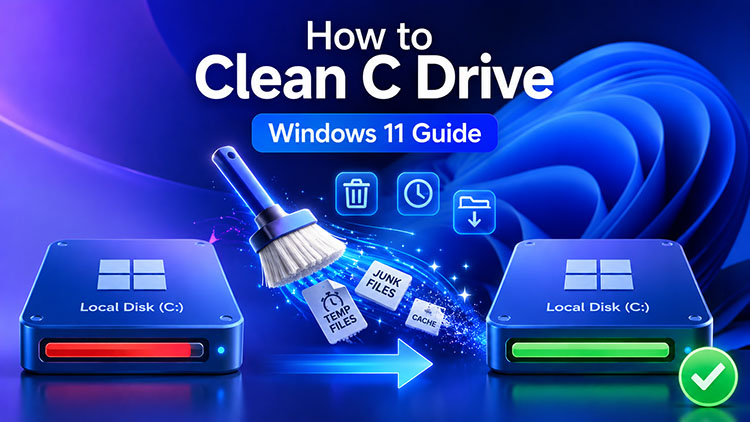
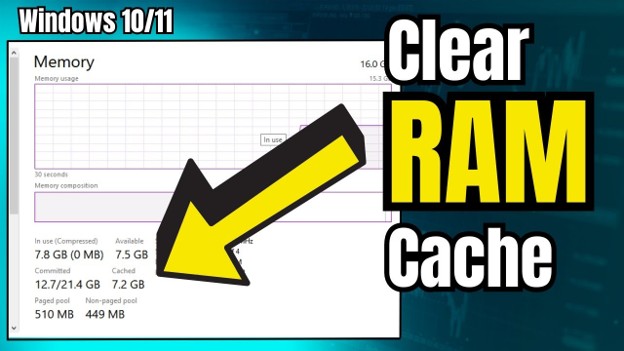
Have you noticed your PC taking longer to start up than it used to? Is your storage almost full, or do apps freeze even during simple tasks? These are common signs that it's time for a system clean up Windows. As temporary files, browser cache, and other unnecessary data accumulate, they can consume valuable storage and affect overall performance.
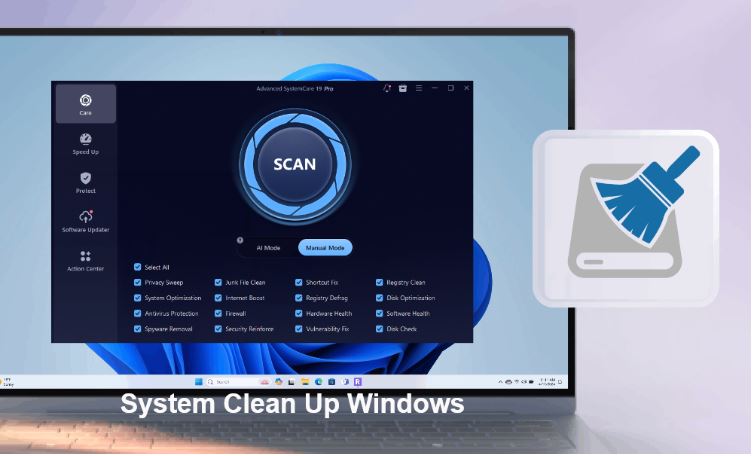
Whether you're looking for a built-in method or an all-in-one PC system cleaner, this guide has you covered. You'll learn which files can be safely deleted, how to clean Windows without installing extra software, and when it makes sense to use professional system cleaner utilities for deeper optimization.
What Is a System Clean Up on Windows?
A system clean up Windows is the process of removing unnecessary files and data that accumulate over time without affecting your personal documents. These files commonly include:
Temporary files created by Windows and applications
Browser cache and cookies
Recycle Bin contents
Windows Update leftovers
Thumbnail cache
Delivery Optimization files
It focuses on deleting junk files rather than your personal documents. The goal is to free up disk space Windows, reduce storage clutter, and improve overall responsiveness. Whether you want to clean up Windows 11 or Windows 10, performing a regular system clean up Windows helps maintain a faster and more organized PC without affecting your personal files.
Why Your Windows PC Needs Regular System Cleanup
Even if your computer seems to work normally, unnecessary files continue growing in the background. Performing a regular system clean up Windows helps prevent storage from filling up while keeping Windows responsive.
Benefits include:
Free up valuable disk space
Remove temporary and cached files
Reduce Windows Update leftovers
Improve application responsiveness
Shorten startup times
Make storage management easier
While cleanup alone won't upgrade your hardware, reducing storage clutter can improve everyday responsiveness and make Windows easier to maintain. Windows includes built-in tools like Disk Cleanup and Storage Sense, while third-party Windows cleanup tools can provide more advanced cleaning features. If you're also interested in broader performance optimization, you can use an all-in-one Windows optimizer to improve Windows performance beyond basic cleanup.
What Files Can Be Safely Deleted?
Before you start deleting files, it's important to know what is safe to remove and what should be left alone. A proper system clean up Windows focuses on unnecessary files that Windows can recreate automatically or no longer needs, helping you recover storage without affecting personal data.
The following table shows the most common file types that can be safely cleaned.
File Type |
Why Remove It? |
Temporary Files |
Remove application and system temporary files to recover storage. |
Recycle Bin |
Permanently delete files you've already discarded. |
Windows Update Files |
Remove outdated update files after Windows installs successfully. |
Thumbnail Cache |
Windows automatically rebuilds thumbnails when needed. |
Browser Cache |
Clear cached web content and free browser storage. |
Delivery Optimization Files |
Delete update-sharing cache that is no longer required. |
Avoid deleting folders such as Program Files, Windows, or personal documents unless you're certain they are no longer needed. It's also a good idea to review your Downloads folder before deleting its contents. If you're trying to reclaim even more storage, a dedicated hard disk cleaner can identify large, duplicate, or obsolete files that are easy to overlook.
How to Clean Up Windows Without Software
Windows includes several built-in tools that make system clean up Windows easy without installing extra software. Check below.
Method 1. Use Cleanup Recommendations
Open Settings > System > Storage > Cleanup recommendations.
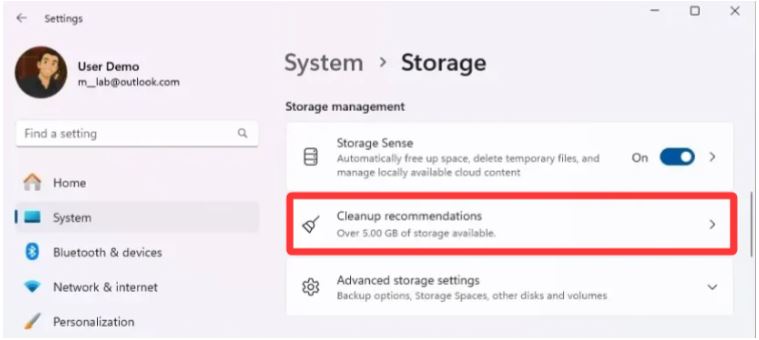
Windows scans your PC and suggests temporary files, unused apps, large files, and cloud content that can be safely removed to free up disk space Windows.
Method 2. Run Disk Cleanup
Search for Disk Cleanup, choose your system drive, then remove temporary files, thumbnails, and Windows Update leftovers.
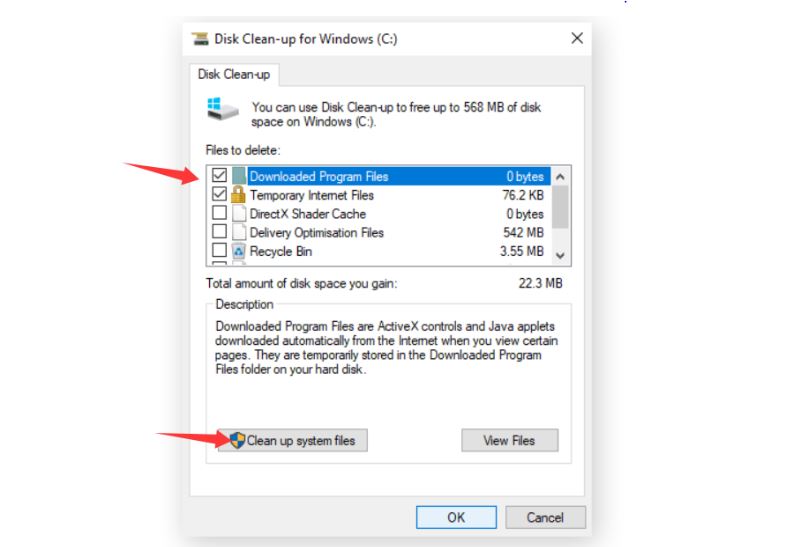
Select Clean up system files for a deeper scan. This remains one of the easiest ways to clean junk files Windows.
Method 3. Enable Storage Sense
Go to Settings > System > Storage and turn on Storage Sense.
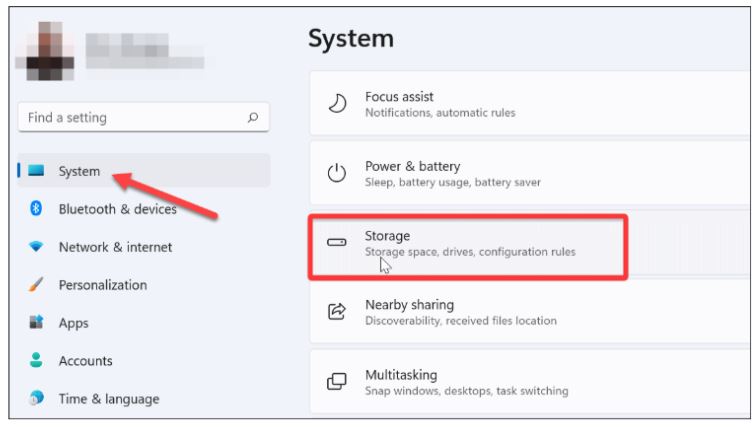
It automatically deletes temporary files, empties the Recycle Bin, and can even clean old Downloads files based on the schedule you choose.
Method 4. Uninstall Unused Apps
Open Settings > Apps > Installed apps.
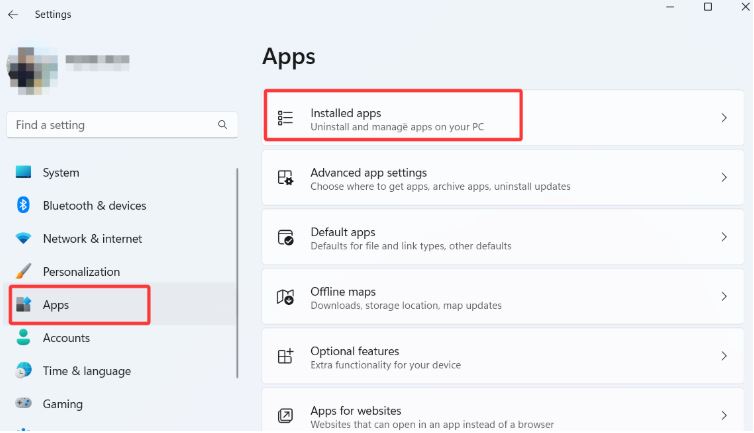
Sort applications by size or usage, and uninstall programs you no longer need. Removing unused software helps recover storage and reduce unnecessary background activity.
Built-in tools are ideal for routine maintenance, but if you also want browser cache cleaning, startup optimization, and one-click maintenance, a dedicated Windows cleanup tool or pc cleanup software can provide more comprehensive system management.
5 Best Windows System Cleanup Software for Deep Clean
Although Windows includes useful cleanup utilities, many users prefer third-party Windows system cleaner tools for more comprehensive maintenance. A good system cleaner can remove browser junk, application cache, invalid shortcuts, and other unnecessary files while also providing startup management and performance optimization. Which one is the best system cleaner for Windows? These five options are worth considering.
1. Advanced SystemCare Free
Advanced SystemCare Free is an excellent all-in-one PC system cleaner for everyday users. It combines junk file removal, privacy protection, startup optimization, and performance improvements into a simple one-click scan.
Advanced SystemCare Free
- Clean: 420 billion traces removed & 85 EB junk files cleaned
- Protect: 80 million unauthorized access blocked & 20 million bugs fixed
- Speed Up: 6 million hours of startup time saved & Turbo boost
- Optimize: Auto clean and auto care your PC with AI mode

Key features include:
AI-powered Smart Scan
Junk File Cleanup
Registry Cleaner
Startup Optimization
Privacy Sweep
Browser Cache Cleanup
One-click System Care
The clean interface makes it suitable for beginners, while advanced tools offer more control for experienced users.
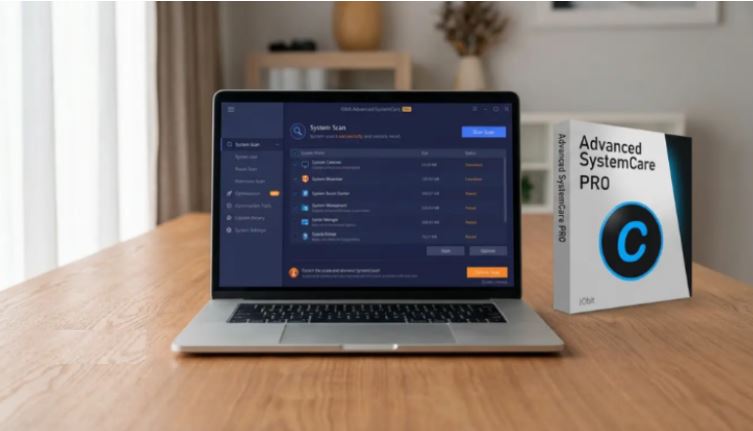
Besides helping with system clean up Windows, it can also optimize system settings to improve responsiveness and reduce unnecessary background activity. Tech reviewers continue to recommend Advanced SystemCare Free for users looking for an easy-to-use Windows maintenance solution.
2. CCleaner
CCleaner has been one of the best-known cleanup utilities for years. It focuses on removing temporary files, browser cache, cookies, and application leftovers while providing tools such as duplicate file detection and software uninstallation.
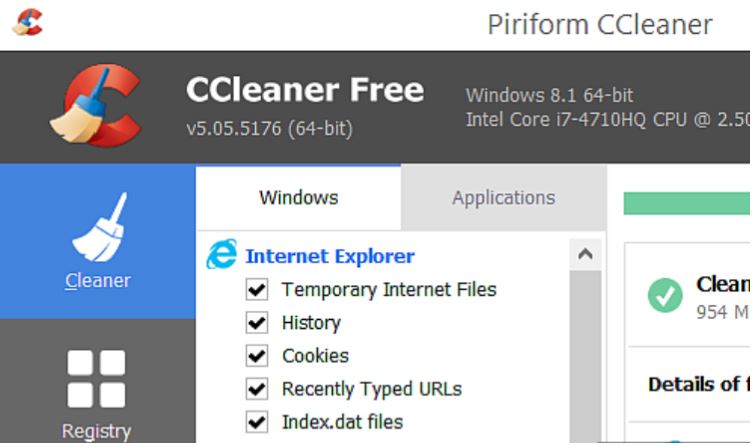
It's suitable for users who want more cleaning options than the built-in Windows utilities. However, many advanced features are available in the paid version.
3. BleachBit
BleachBit is a free, open-source system cleaner designed for users who want complete control over what gets deleted.
Highlights include:
Open-source and free
Cleans browser cache and logs
Supports many third-party applications
Preview mode before deletion
Privacy-focused cleaning
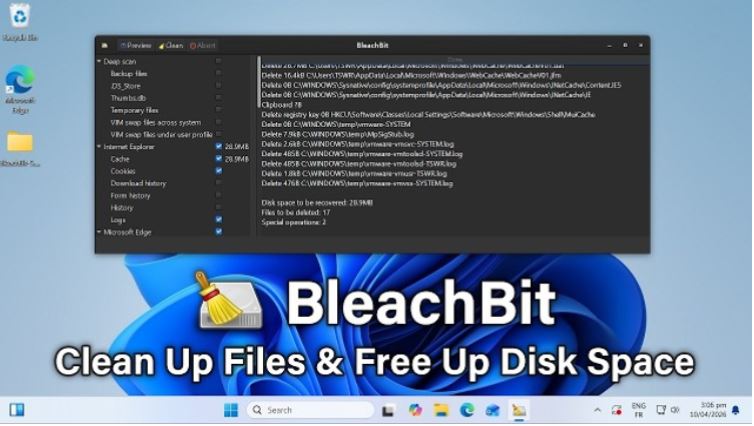
Its Preview feature lets you review removable files before cleaning, making it a good choice for advanced users who prefer transparency.
4. Wise Disk Cleaner
Wise Disk Cleaner is a lightweight utility that focuses on removing junk files and reclaiming storage space.
It offers:
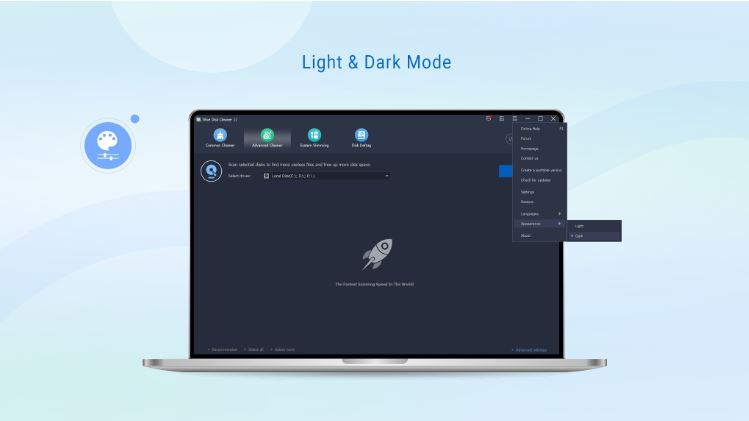
Its simple interface makes it particularly friendly for beginners looking for a Windows 10 PC cleaner free solution without unnecessary complexity.
5. Microsoft PC Manager
Microsoft PC Manager is Microsoft's own maintenance utility that combines several built-in Windows features into one interface.
It includes:
Storage cleanup
Startup app management
Health Check
Process management
Windows integration
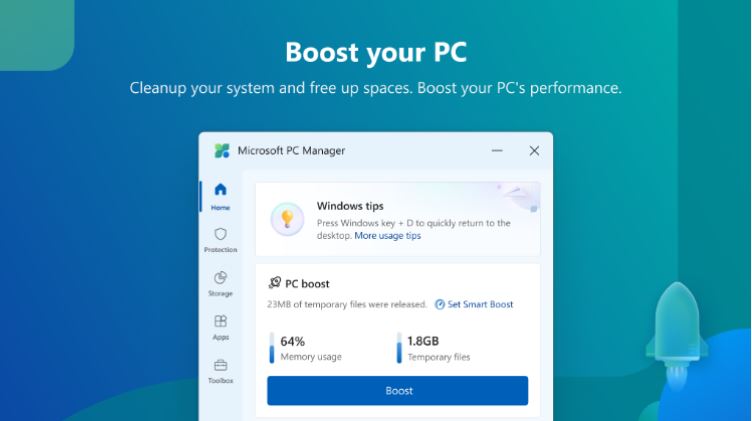
While it doesn't offer as many advanced optimization features as dedicated third-party software, it's a safe option for users who prefer Microsoft's ecosystem and want quick access to existing Windows maintenance tools.
The right tool ultimately depends on your needs. Built-in utilities work well for basic maintenance, while dedicated PC system cleaner software can automate deeper cleanup and ongoing optimization.
How to Speed Up Windows After Cleanup
Cleaning unnecessary files is only one part of improving performance. After completing a system clean up Windows, a few additional maintenance habits can help your PC stay fast over time.
Here are several best practices:
Disable unnecessary startup programs.
Keep Windows and drivers updated.
Leave enough free space on your SSD or hard drive.
Scan regularly for malware.
Restart your computer periodically to refresh system resources.
If your computer still feels slow after cleanup, it may need broader optimization rather than additional file deletion. Utilities like Advanced SystemCare combine junk file removal with startup management, system optimization, and privacy cleaning, making them a practical choice for long-term maintenance. If you're unsure whether cleanup has improved your computer, running a PC performance test is a simple way to measure the results.
FAQs about System Clean Up Windows
1. Is system clean up Windows safe?
Yes. Deleting temporary files, browser cache, and Windows update leftovers is generally safe when using Windows tools or trusted cleanup software.
2. Does Windows have a built-in system cleaner?
Yes. Disk Cleanup, Storage Sense, and Cleanup Recommendations are built into Windows and help remove unnecessary files safely.
3. How often should I perform a system clean up Windows?
For most users, cleaning your PC once a month is enough. If you install many applications or download large files frequently, every two weeks may be more appropriate.
4. Can a system cleaner make my PC faster?
A system cleaner can improve responsiveness by removing junk files, freeing storage, and reducing startup clutter. It does help keep your Windows running faster.
Conclusion
Performing a regular system clean up Windows is one of the easiest ways to reclaim storage, remove unnecessary files, and maintain stable PC performance. Whether you use Windows' built-in utilities or a dedicated cleanup solution like Advanced SystemCare, consistent maintenance will help keep your computer organized, responsive, and running at its best. Start cleaning your PC now.