Windows 11 delivers a cleaner design, better multitasking, and smoother gaming performance than previous Windows versions. But after months of use, many users still notice slower boot times, laggy apps, increased memory usage, and reduced responsiveness.
That is where a reliable Windows 11 optimizer can help. This guide will show you how to choose the right one, and which optimizer Windows 11 are worth trying in 2026. By the end of this post, you’ll know exactly how to reclaim 20–30% of your lost speed. No fearmongering. No fake “1000+ problems found” popups. Just honest, hands-on advice.
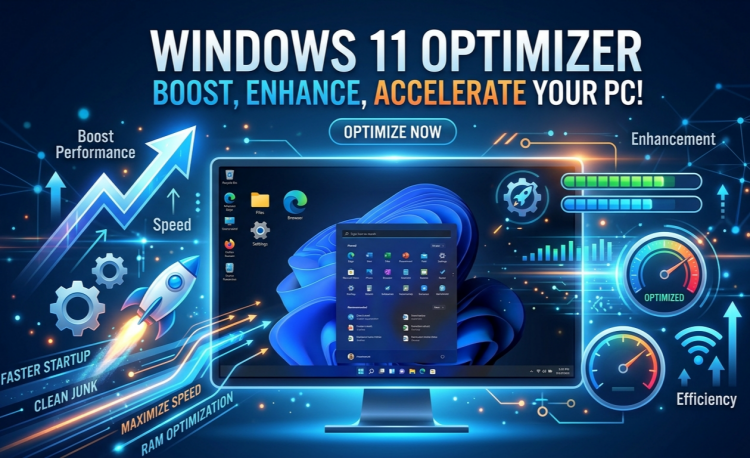
Signs Your PC May Need Windows 11 Optimization
Sometimes performance problems appear gradually, making them easy to ignore at first. However, several common symptoms usually indicate that your system could benefit from a Windows 11 optimizer.
Slow startup and shutdown
Lag during gaming or multitasking
Storage space disappearing quickly
Overheating and high resource usage
…
What Features Should the Best Windows 11 Optimizer Have?
Not every optimizer offers the same capabilities. The best Windows 11 optimization software should provide a balance between cleaning, speed improvement, ease of use, and safety.
Junk File Cleaning
Includes removing: temp files, registry, browser cache, log files, invalid shortcuts.
Startup Optimization
Disable unnecessary startup entries safely.
Registry Cleanup
Should never be exaggerated as a miracle fix, moderate cleanup can help maintain a cleaner system environment.
Real-Time Performance Monitoring
Provide system monitoring tools that display CPU, RAM, disk, and temperature usage in real time.
Gaming and Performance Modes
Features like temporary background process suspension or “Turbo Boost” can help free resources during gameplay.
Set and Forget
Automatically clean up Windows 11 regularly to keep it in good working order.
Best Windows 11 Optimization Software in 2026
There are many Windows 11 optimization tools available, but only a few provide a good balance between functionality, usability, and safety. Below are some of the top choices for Windows 11 optimization in 2026.
#1. Advanced SystemCare – Best All-in-One Windows 11 Optimizer
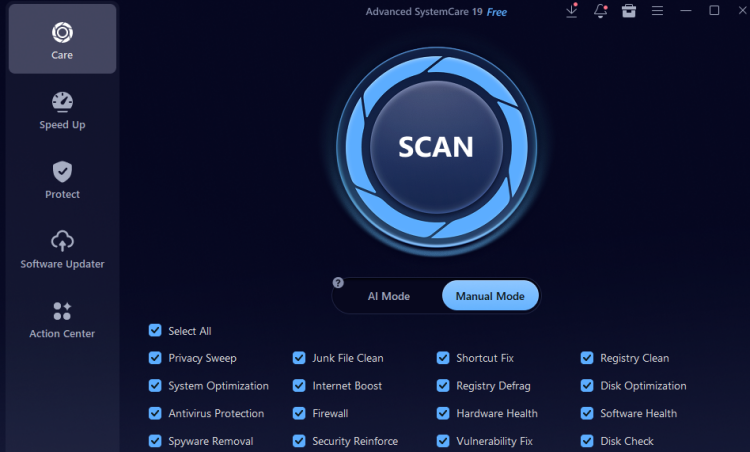
Advanced SystemCare is one of the most comprehensive best PC optimizer for Windows 11 tools for users who want automated PC maintenance and performance improvement in a single interface. This Windows 11 optimizer combines junk cleaning, startup management, privacy cleanup, registry maintenance, and performance boosting features. Its AI-powered scan can automatically detect common system issues, free up disk space, and apply recommended optimizations.
Key Features:
AI-powered system cleanup
Startup optimization
Turbo Boost for gaming
Privacy cleaning
Broser protection to prevent online threats
Registry cleanup
Real-time system monitoring
Pros
Easy one-click Win 11 optimizer
Beginner-friendly design
Includes gaming optimization features
Supports scheduled maintenance
Cons
Some advanced tools require the Pro version
Deep scans may take longer on older devices
Best for: This is a strong option for users searching for the best free Windows 11 optimizer that meets basic maintenance and advanced features.
Advanced SystemCare Free
- Clean: 420 billion traces removed & 85 EB junk files cleaned
- Protect: 80 million unauthorized access blocked & 20 million bugs fixed
- Speed Up: 6 million hours of startup time saved & Turbo boost
- Optimize: Auto clean and auto care your PC with AI mode

#2. CCleaner – Lightweight Cleanup Solution
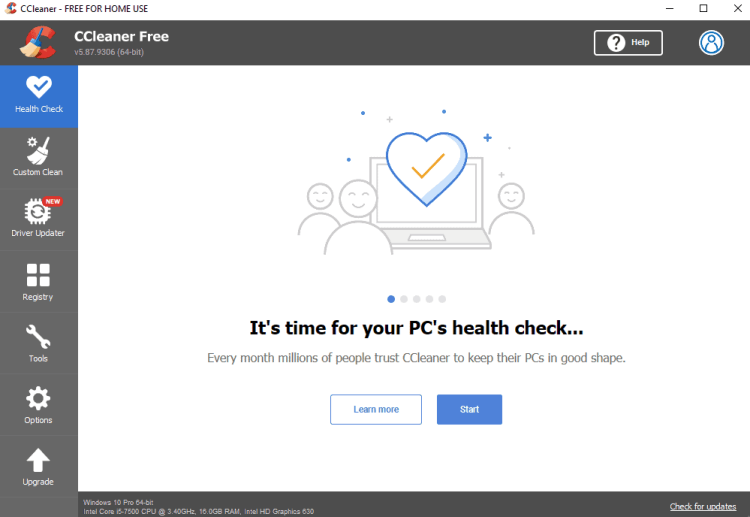
CCleaner remains a popular best system optimizer Windows 11 thanks to its simple interface and fast cleanup capabilities. This powerful and reputable hard drive cleaner software mainly focuses on removing temporary files, browser cache, and unnecessary clutter.
Key Features:
Temporary file cleanup
Browser privacy cleaning
Startup management
Basic software updates
Pros
Lightweight and fast
Easy for beginners
Good browser cleanup performance
Cons
Fewer advanced optimization tools
Limited gaming optimization features
Best for: For users wanting a lightweight maintenance utility, CCleaner is still a practical choice.
#3. Glary Utilities – Multi-Tool Windows Maintenance Suite
Glary Utilities includes a wide variety of system maintenance features beyond basic cleanup. This Windows 11 optimizer offers duplicate file finders, memory optimization, registry repair, and disk management utilities. So that you can get rid of 100 disk usage Windows 11 problem.
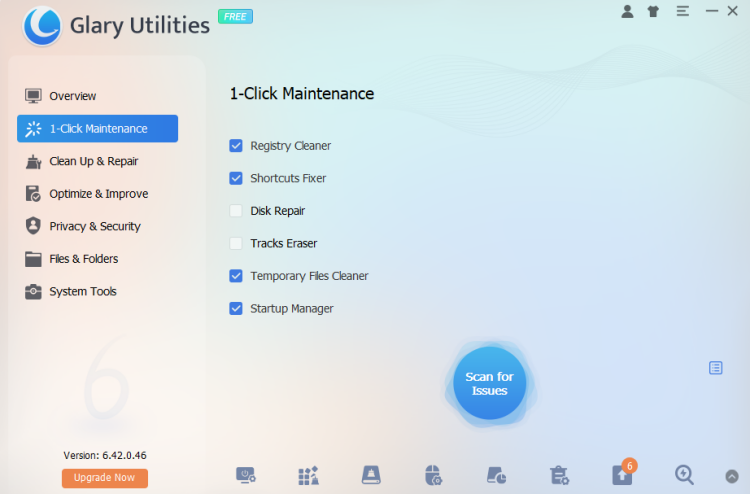
Key Features:
One-click maintenance
Registry repair
Memory optimization
Duplicate file finder
Disk analysis tools
Pros
Broad feature set
Useful advanced maintenance tools
Flexible optimization options
Cons
Interface may feel crowded initially
Some features overlap
Best for: Users who prefer more manual control may appreciate this Windows 11 optimization software.
#4. Wise Care 365 – Lightweight Speed Optimization
Wise Care 365 focuses on fast scanning and lightweight cleanup. It works well for older systems or users who want a straightforward optimization experience.
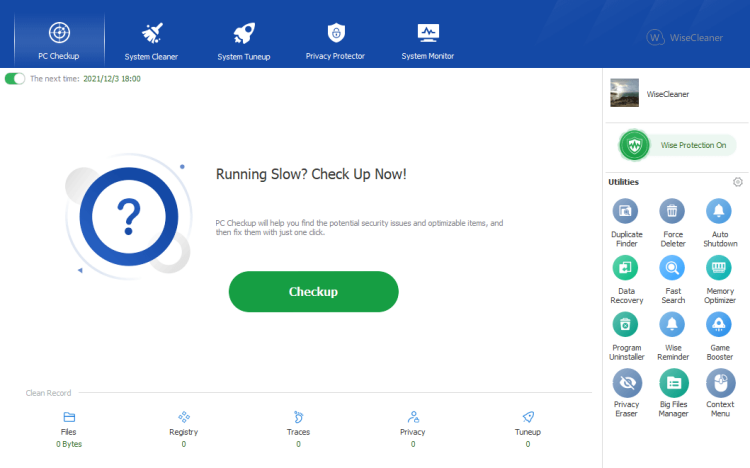
Key Features:
Junk file and temporary file cleanup
Registry cleaner and system tune-up
Startup and background app management
Privacy eraser for browser traces and usage history
Disk defragmentation and disk analyzer tools
Real-time hardware and system monitoring
Cons
Fewer advanced features
Less comprehensive than larger suites
Best for: It can be a good alternative for users looking for the best free PC optimizer for Windows 11 without heavy system impact.
#5. Ashampoo WinOptimizer – Advanced Privacy and System Tweaks
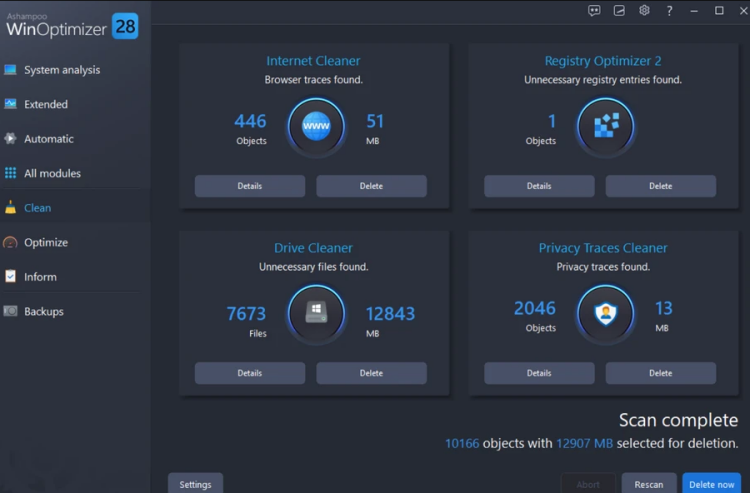
Ashampoo WinOptimizer combines optimization with privacy-focused system management. It includes service management, startup control, and system tuning tools.
Key Features:
One-click Windows cleanup and optimization
Startup Tuner and Service Manager
Privacy Traces Cleaner and Internet Cleaner
SSD optimization and boot acceleration tools
Registry Optimizer and Drive Cleaner
Crash Analyzer and system diagnostic utilities
Windows customization and hidden setting tweaks
Pros
Strong privacy features
Detailed system controls
Useful diagnostic tools
Cons
Better suited for intermediate users
More complex interface
Best for: This option appeals to users who want deeper customization during Windows 11 optimization.
More Things You May Concern About Windows 11 Optimization
Does Windows 11 really need optimization?
Yes. Even modern systems accumulate temporary files, cache, and unnecessary startup processes over time. Regular Windows optimizer helps maintain speed and responsiveness.
What is the best Windows 11 optimizer for beginners?
Many beginners prefer tools with automated scans and one-click maintenance. Advanced SystemCare and CCleaner are both beginner-friendly choices.
Is Windows 11 optimization software safe?
Reputable optimization programs downloaded from official websites are generally safe to use. Always avoid unknown or heavily advertised “miracle speed boost” tools.
How often should I optimize Windows 11?
For most users, running a cleanup once every one or two weeks is enough to keep the system running smoothly.
The Bottom Line
Keeping your Windows 11 fast and responsive does not always require complicated system tweaks or hardware upgrades. Choosing a reliable solution can make everyday computing, gaming, and multitasking much more enjoyable. Among the Windows 11 optimizer tools reviewed above, Advanced SystemCare stands out as a well-rounded option for users looking for automated cleanup, real-time optimization, and easy system maintenance in one place. Try it, stay fast, and stay safe.
Advanced SystemCare Free
- Clean: 420 billion traces removed & 85 EB junk files cleaned
- Protect: 80 million unauthorized access blocked & 20 million bugs fixed
- Speed Up: 6 million hours of startup time saved & Turbo boost
- Optimize: Auto clean and auto care your PC with AI mode