






Lane Maxwell
With extensive experience in the tech industry, Lane is a trusted editor who delivers actionable insights and solution-driven content. His articles have guided millions of readers toward effective and efficient problem-solving.
Expert in
PC Health Solution

All-in-one PC health solution: clean, optimize and secure

Comprehensive PC cleaning, optimization and protection

Keep drivers always up-to-date

More stable performance with less system crashes

Protect millions of computers against malware

Top computer security with full-round protection

Protect against viruses & boost PC performance
Clean: 420 billion traces removed & 85 EB junk files cleaned
Protect: 80 million unauthorized access blocked & 20 million bugs fixed
Speed Up: 6 million hours of startup time saved & Turbo boost
Optimize: Auto clean and auto care your PC with AI mode

Learn how to fix a slow computer with 10 manual methods or a one-click solution. Perfect for slow-running Windows, laptops, and extremely slow PCs.

Lane Maxwell


Is your PC taking forever to start, freezing during simple tasks, or lagging when you open multiple tabs? If you’re asking how to fix a slow computer, you’re not alone. Many users experience frustratingly slow performance, even on relatively new machines. Over time, clutter, outdated drivers, and hidden background processes bog down your system.

Whether you need how to fix a slow laptop computer or a desktop, this guide covers 10 manual solutions - plus a faster, smarter alternative to restore speed in minutes.
Before fixing, understand why your computer might be running slowly. Here are the most common culprits:
Too many startup programs – Apps that launch at boot consume resources and extend startup time.
Fragmented hard drive (HDD only) – Scattered file parts make data access slower.
Insufficient RAM – Without enough memory, your PC struggles with multitasking.
Outdated software and drivers – Old versions cause compatibility issues and slowdowns.
Malware and viruses – Malicious software steals resources and destabilizes your system.
Background processes – Unseen apps eat CPU and memory even when idle.
Hard drive errors – Disk corruption leads to data access delays.
Now let’s explore how to fix the slow computer using proven methods.
If you’re wondering how can I fix a slow computer without extra software, follow these manual steps.
Press Shift + Ctrl + Esc to open Task Manager > Startup tab. Right‑click any high‑impact program you don’t need at boot and disable it.
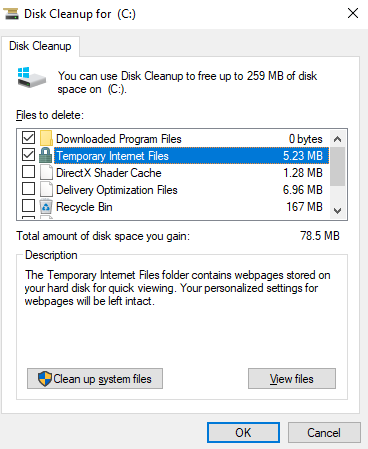
Search for “Disk Cleanup,” run as administrator, select your Windows drive, check all temporary file categories, and click “Clean up system files.”
Also Read: [Fixed] How to Free up Disk Space on PC Windows 11/10, Fast & Efficient
Outdated drivers silently hurt performance. Use Device Manager or visit your PC manufacturer’s site to get the latest drivers.
Right‑click This PC > Properties > Advanced System Settings > Performance > Settings > “Adjust for best performance.” This disables resource‑hungry animations.
Windows Security provides solid protection. Run a full scan to remove hidden threats. This helps how to fix a computer that is running slow due to malware.
Type “defragment” in search, open Defragment and Optimize Drives, select your HDD, and click Optimize. SSDs do not need defragmentation.
Go to Settings > Apps > Installed Apps. Remove software you never use, especially manufacturer‑installed bloatware.
You can follow this guide to uninstall apps on Windows using different built-in methods.
Click the OneDrive icon in the notification area, choose More, and pause syncing for a few hours.
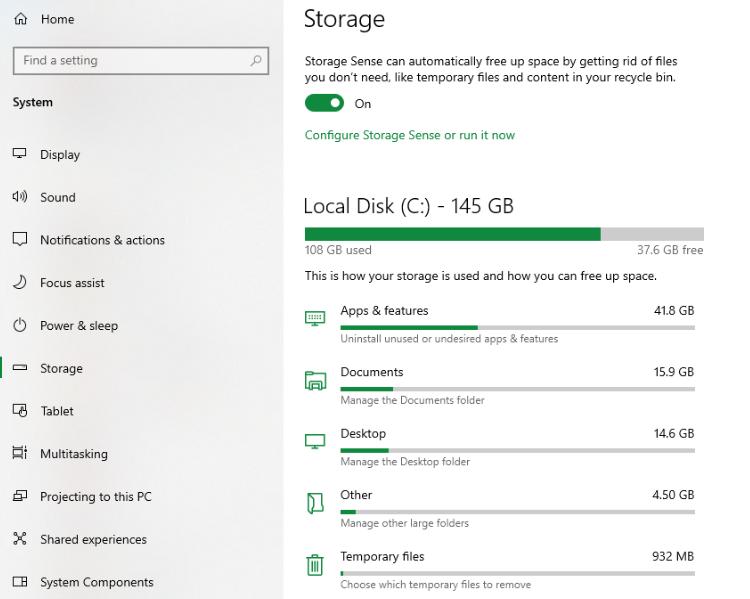
Search for “Storage Sense” in Settings and turn it on. It automatically deletes temporary files and old downloads.
Use compressed air to remove dust from fans and heat sinks. Overheating forces CPU throttling, which cripples performance—essential for how to fix a slow running computer.
After these ten manual fixes, you may see improvement. However, manual maintenance takes time and technical knowledge. If you’re looking for how to fix a slow computer for free or with minimal effort, there’s a better way.
What if you could fix everything above with a single click? That’s exactly what IObit Advanced SystemCare delivers - trusted by over 100 million users worldwide.

Here’s what Advanced SystemCare does automatically:
One‑Click Scan & Repair – Detects junk files, invalid registry entries, spyware, outdated drivers, and system errors, then fixes them instantly.
Enhanced Startup Optimization – Manages more startup items to dramatically reduce boot time.
Turbo Boost for Gaming & Heavy Apps – Pauses unnecessary background processes to free up RAM and CPU cycles.
AI‑Powered Smart Optimization – Learns your usage patterns and tailors performance tuning.
Real‑Time ActiveBoost – Continuously reclaims wasted memory so your computer never slows down during the day.
Even if you’ve asked how to fix a computer that's running slow many times, this tool provides the answer instantly.
Step 1: Download and Install IObit Advanced SystemCare.
Click the button below to download and install the latest version of Advanced SystemCare 19 on your PC.
Step 2: Choose Your Optimization Mode.
AI Mode (Recommended) – The AI learns your PC’s status and creates a custom cleaning plan.
Manual Mode – Select individual modules like Junk File Clean, Registry Clean, or Privacy Sweep.
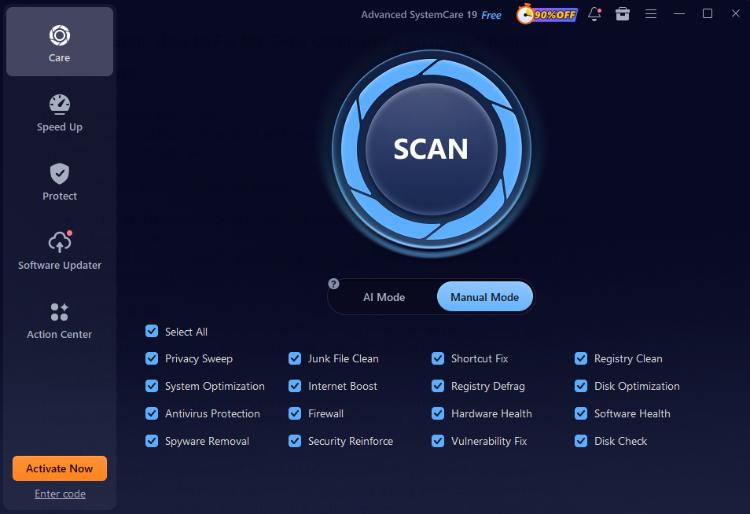
Step 3: Click “Scan”.
In just one or two minutes, the AI engine intelligently identifies all reasons why your computer is running slowly—including issues manual methods often miss.
Step 4: One‑Click Repair.
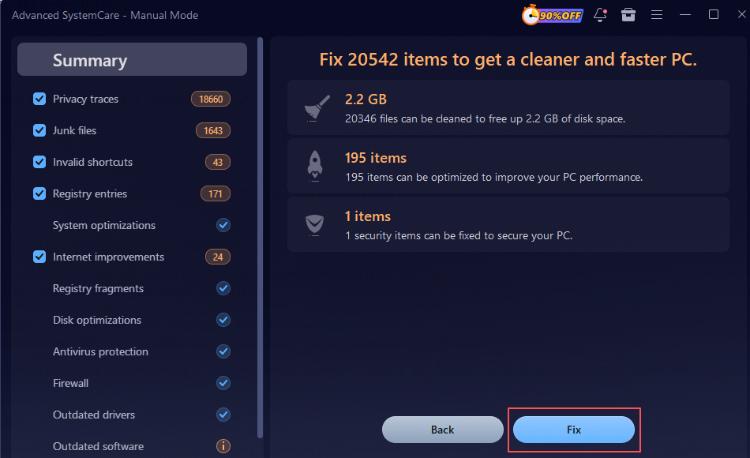
After the scan, click the Fix button. Advanced SystemCare removes junk, repairs the registry, and optimizes system settings in seconds.
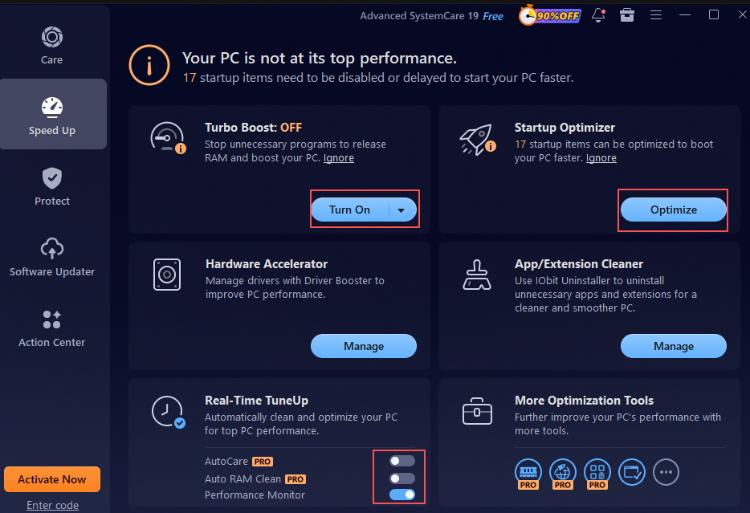
Step 5: Optimize StartUp and activate Real‑Time Protection.
Select Speed Up and click Optimize to disable software that doesn't need to start automatically on boot. Enable Tubo Boost and Real‑Time TuneUp so your PC stays in peak condition automatically.
Whether you need how to fix a slow computer Windows 10 or 11, Advanced SystemCare works perfectly across all modern Windows versions. This is especially valuable for how to fix a very slow computer or even how to fix an extremely slow computer—the software prevents future slowdowns before they happen.
If you want to go beyond basic optimization, try these advanced tweaks.
1. Disable Virtualization‑Based Security (VBS) for Gaming – VBS can impose a 5–15% performance penalty. If security isn’t a top concern, disable Memory Integrity in Windows Security > Core Isolation.
2. Adjust Paging File (Virtual Memory) Size – Set initial size to 1.5× your physical RAM and maximum to 3× on a fast drive. Go to Control Panel > System > Advanced System Settings > Performance > Advanced > Virtual Memory.
3. Upgrade from HDD to SSD – This is the single most impactful upgrade. Boot times drop from 60+ seconds to under 15 seconds.
4. Add More RAM – In addition to using a RAM optimizer Windows 11, you can add more RAM, as Windows 11 runs well with 8GB of RAM, but 16GB of RAM can make multitasking smoother, especially when multiple browser tabs are open.
5. Use Group Policy Editor (Windows Pro only) – Disable unnecessary services like Print Spooler (if you never print) or Windows Search to free background resources. Caution: Disabling critical services can break functionality.
6. Explore Advanced SystemCare’s Toolbox – It includes 20+ utilities: disk defrag, duplicate file finder, file shredder, registry cleaner, and more—all in one dashboard.
These advanced tips complement the one‑click solution, giving you complete control over performance.
Conclusion
So, how to fix a slow computer the best way? Start with the 10 manual methods if you have time and expertise. But for immediate, lasting results with zero hassle, use IObit Advanced SystemCare. It answers every variation: how to fix a slow laptop computer, how to fix a computer that is running slow, how to fix a slow running computer, and even how to fix an extremely slow computer - all in one click. The free version already delivers solid cleanup, and the Pro version adds real‑time automation.
Download IObit Advanced SystemCare today and experience the difference that true one‑click optimization can make.

All-in-one PC health solution.
Free Download