A cluttered bookmark library can make it difficult to quickly find saved websites. Over time, duplicate links may appear due to browser syncing, bookmark imports, backup restores, or repeated saves of the same webpage. These unnecessary copies can turn your organized bookmark collection into a confusing list.

If you want to delete duplicate bookmarks, this guide explains effective ways to find and remove repeated bookmarks in Chrome and Firefox. You will also learn how Advanced SystemCare helps clean browser junk files and maintain a smoother browsing experience.
What Are Duplicate Bookmarks and Why Should You Remove Them?
Duplicate bookmarks are identical website links saved multiple times in your browser. Although they usually do not directly slow down your browser, they can make bookmark management much harder, especially when you have hundreds or thousands of saved pages.
Regularly performing a bookmarks clean up helps you:
Quickly find frequently used websites.
Keep bookmark folders organized.
Remove outdated or unnecessary links.
Improve browsing efficiency.
Duplicate bookmarks commonly appear after importing bookmarks from another browser, restoring browser data, or enabling synchronization across multiple devices. Learning how to remove duplicate bookmarks can help you maintain a cleaner and more efficient browser.
How to Delete Duplicate Bookmarks in Chrome
Chrome lacks a built-in tool for automatically identifying duplicate bookmarks. However, you can clean up repeated entries manually or use a third-party bookmark manager to detect and remove duplicates.
Method 1. Manually Delete Duplicate Chrome Bookmarks
If you only have a small number of duplicate bookmarks, Chrome’s built-in Bookmark Manager is enough to quickly locate, review, and manually delete them without needing any additional tools.
Step 1. Open Google Chrome on your computer.
Step 2. Click the three-dot menu in the upper-right corner.
Step 3. Select Bookmarks and lists > Bookmark Manager.
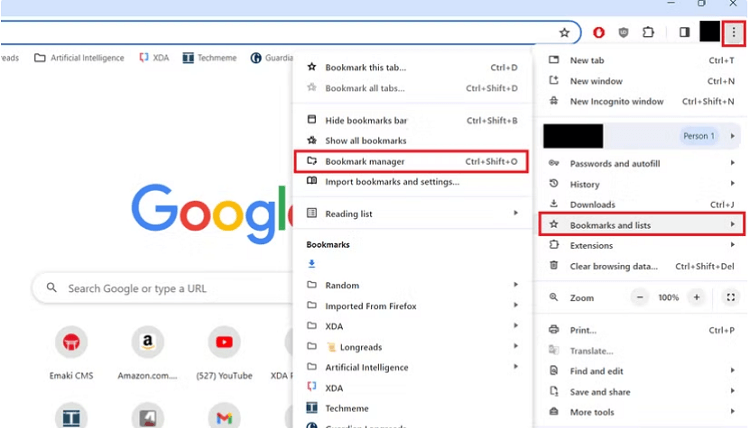
Step 4. Check your bookmark folders and identify repeated website links.
Step 5. Right-click the duplicate bookmark and select Delete.
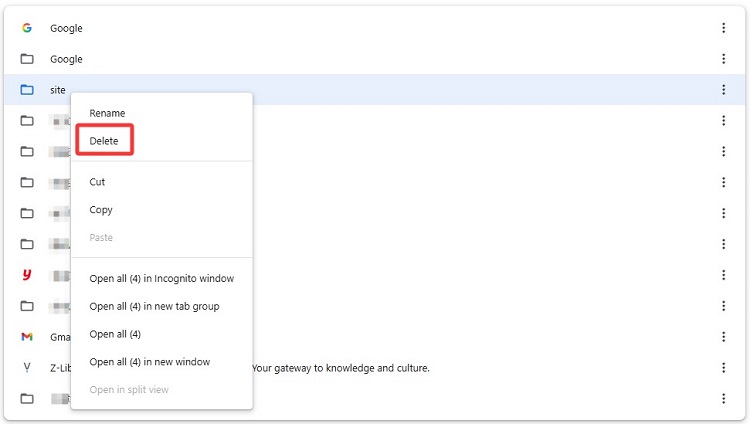
This method gives you complete control over which bookmarks are removed. However, manually checking every bookmark can be inefficient if your collection contains many saved websites.
Method 2. Use a Bookmark Cleanup Extension
For users with large bookmark libraries, a Chrome extension can make cleanup faster. Bookmark cleanup extensions can scan saved links and detect duplicate URLs automatically.
One popular example is “Bookmarks clean up”, a Chrome extension designed specifically to find and remove duplicate bookmarks with just a few clicks. It makes bookmark management easier by removing duplicates, deleting outdated links, and keeping saved pages organized, allowing you to find and access frequently visited websites more quickly while maintaining a clean and structured bookmark library.
Follow these steps to remove duplicate bookmarks using the extension:
Step 1. Open the Chrome Web Store.
Step 2. Search for “Bookmarks clean up.”
Step 3. Click Add to Chrome and confirm installation.
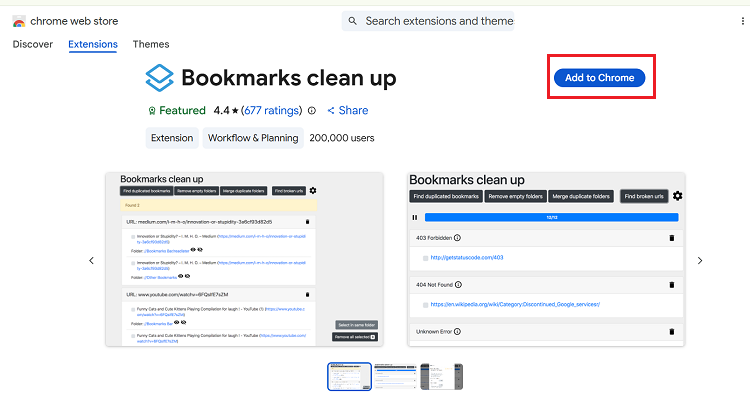
Step 4. Once installation is finished, click the extension icon in the Chrome toolbar.
Step 5. Select Find duplicate bookmarks to analyze your bookmarks.
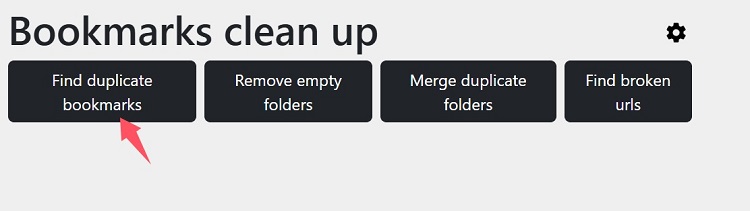
Step 6. Review the detected duplicate entries.
Step 7. Click Remove duplicates to clean your bookmark library.
How to Delete Duplicate Bookmarks in Firefox
Firefox offers powerful bookmark management options, but it also does not include a one-click duplicate bookmark remover. Users searching for delete duplicate bookmarks Firefox solutions can clean their bookmark library manually or use compatible tools.
Method 1. Remove Duplicate Firefox Bookmarks Manually
To manually clean Firefox bookmarks:
Step 1. Open Firefox.
Step 2. Click the menu button and choose Bookmarks.
Step 3. Select Manage bookmarks.
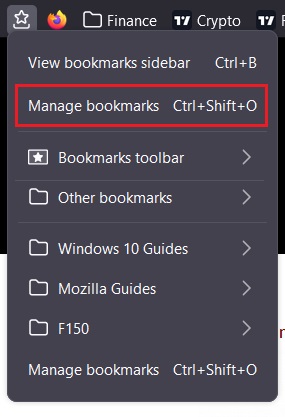
Step 4. Browse through your bookmark folders.
Step 5. Right-click unwanted duplicate entries and select Delete Bookmark.
This method works well when you have only a few repeated bookmarks. However, checking a large bookmark collection manually can take significant time.
Method 2. Use Firefox Bookmark Management Tools
Firefox users can also use bookmark management extensions to simplify cleanup. One simple example is the “Bookmark Dupes” Firefox add-on, which is designed to detect and remove duplicate bookmarks automatically. After installing it, you can quickly scan your saved links and clean them up in just a few clicks. Here’s how to use it:
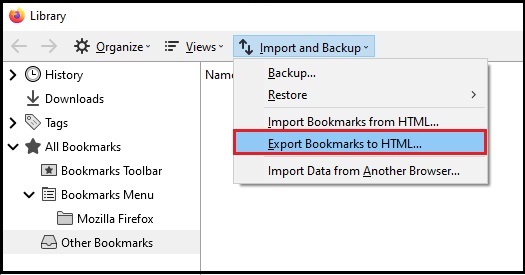
Step 1. Before making major changes, export your Firefox bookmarks:
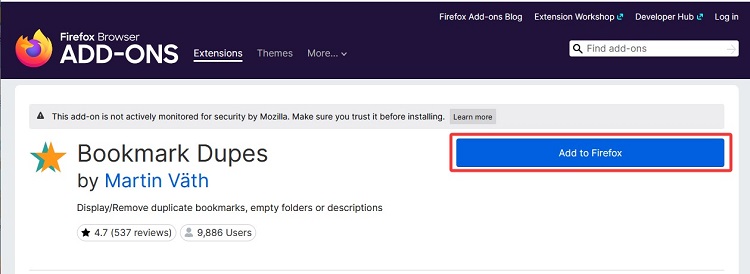
Step 2. Open the Firefox Add-ons store and search for Bookmark Dupes.
Step 3. Click Add to Firefox and complete the installation.
Step 4. Open the extension from the toolbar.
Step 5. Run a scan to detect duplicate bookmarks in your library.
Step 6. Check the results and remove the duplicates.
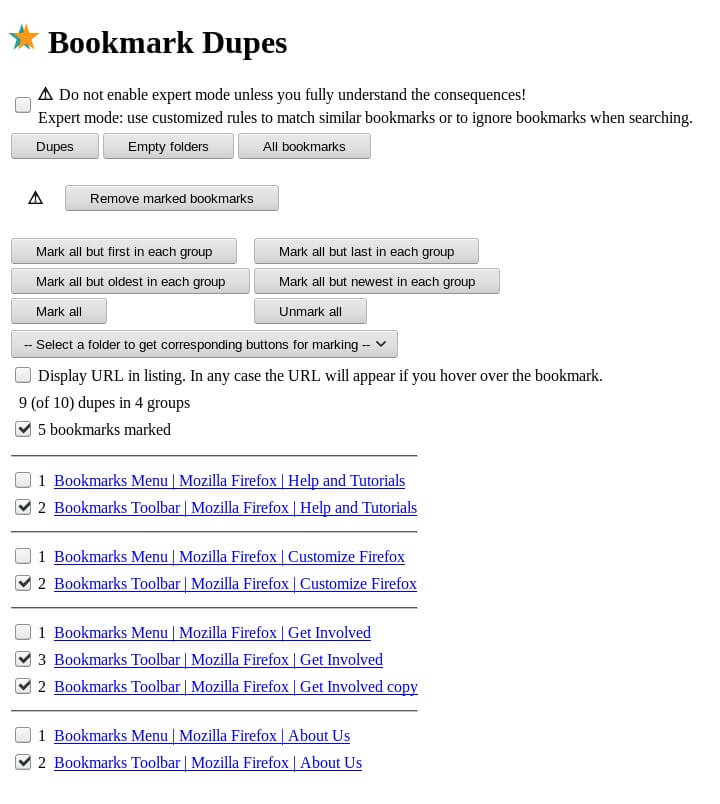
Step 7. Click Remove to clean your bookmarks and restart the browser if needed.
How to Clear Bookmarks Backup in Chrome
Chrome creates backup files for bookmarks to help restore saved links when problems occur. However, old backup files may become unnecessary after you successfully organize your bookmarks.
If you want to clear bookmarks backup Chrome, follow these steps carefully:
Step 1. Close Google Chrome completely.
Step 2. Press Windows + R.
Step 3. Enter: %LocalAppData%\Google\Chrome\User Data\Default
Step 4. Locate these files:
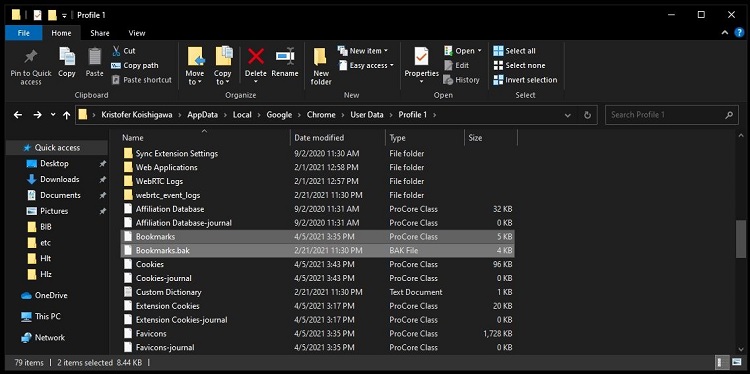
Step 5. Copy the files to another location if you want to keep a backup.
Step 6. Delete outdated backup files when they are no longer needed.
Avoid deleting bookmark files without creating a backup first. Incorrect changes may cause Chrome bookmark data to disappear.
Advanced SystemCare: Improve Browser Cleanup and PC Performance
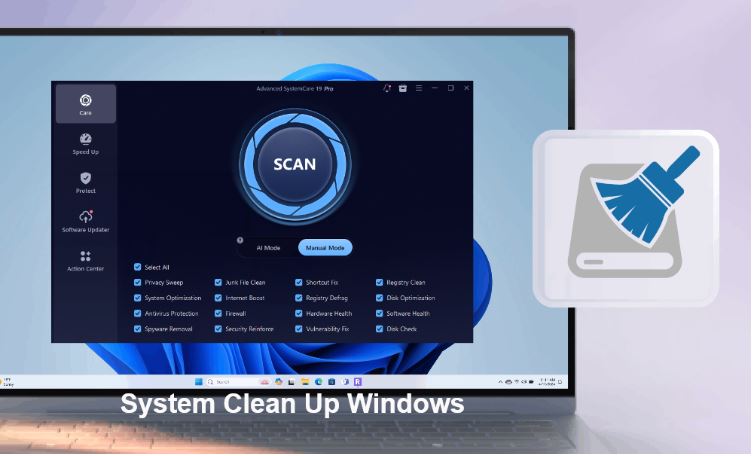
After you delete duplicate bookmarks, your browser may still contain unnecessary cache files, tracking data, and junk that builds up during daily use. Advanced SystemCare provides a complete optimization solution to clean these unwanted files and improve overall system performance.
Advanced SystemCare can scan popular browsers, including Chrome, Firefox, Edge, and other Chromium-based browsers, to remove unnecessary browser data and backup. It helps clean browser cache, privacy traces, junk files, and other digital clutter that may affect browsing performance.
Advanced SystemCare Free
- Clean: 420 billion traces removed & 85 EB junk files cleaned
- Protect: 80 million unauthorized access blocked & 20 million bugs fixed
- Speed Up: 6 million hours of startup time saved & Turbo boost
- Optimize: Auto clean and auto care your PC with AI mode

Why Choose Advanced SystemCare for Browser Cleanup?
This RAM optimizer Windows 11 can remove browsing history, cookies, and tracking data to protect user privacy and prevent online activity tracking.
Deletes stored temporary files from websites, freeing storage and improving page loading speed and browser performance. Or you can use it as a hard disk cleaner to remove unwanted files in hard disk.
Finds and removes unnecessary system files, logs, and leftover app data that waste disk space over time.
Performs a quick full-system scan or PC performance test to detect junk, errors, and optimization opportunities with a single user action.
Automatically adjusts system settings and resources to enhance speed, responsiveness, and overall computer performance efficiency.
Steps to Clean Browser Bookmarks Backup and Improve PC Performance
Step 1. Download and install Advanced SystemCare on your computer.
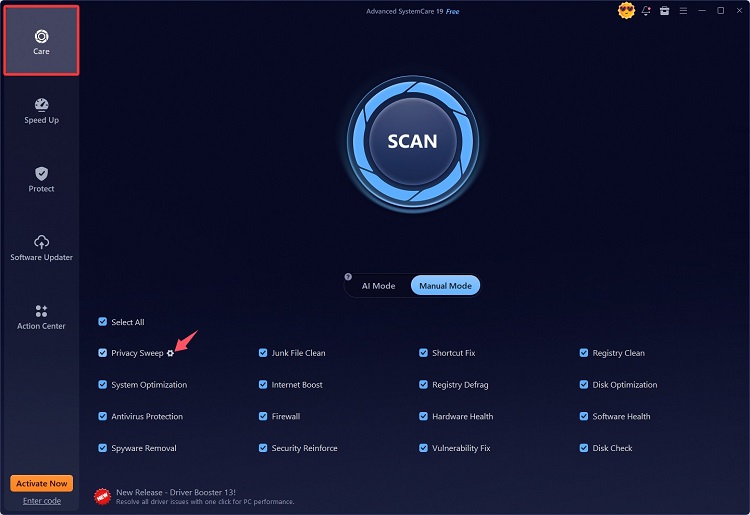
Step 2. On the home page, check the box next to Privacy Sweep. To view more details, just click the gear next to it.
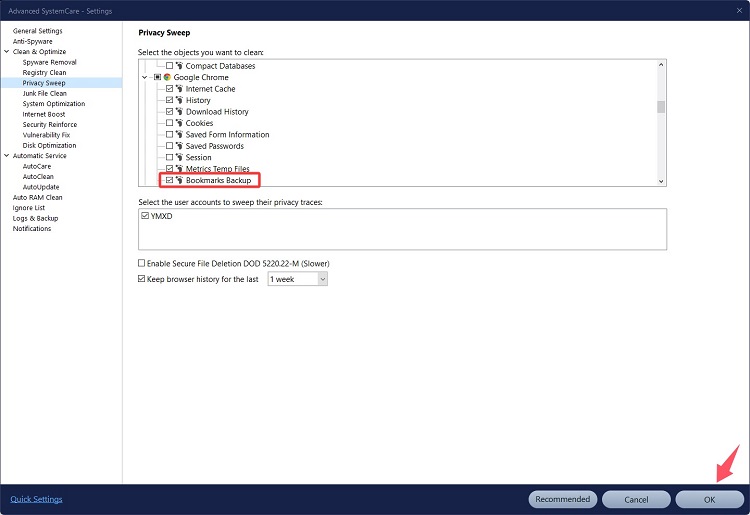
Step 3. Select Bookmarks Backup under the browser you wish to delete and click OK to proceed.
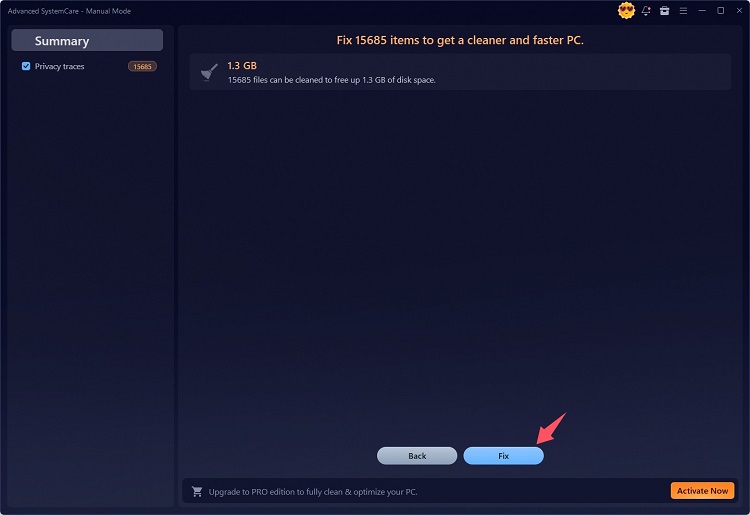
Step 4. Go back to the home screen and click Scan to detect your browser backup. Once finished, click Fix to clean them.
Tips to Prevent Duplicate Bookmarks
Once you finish your Bookmarks clean up, you can prevent duplicate bookmarks from appearing again by adopting a few simple habits that keep your browser organized, reduce clutter, and ensure every new save is intentional and properly placed:
Check existing bookmarks before saving new pages.
Organize bookmarks into specific folders.
Avoid importing the same bookmark file repeatedly.
Remove outdated websites regularly.
Review browser synchronization settings.
Keeping your bookmark library organized from the beginning reduces future cleanup time.
Final Thoughts
Duplicate bookmarks can make browser management frustrating, especially when hundreds of repeated links are stored over time. Whether you manually clean Chrome and Firefox bookmarks or use bookmark management tools, removing unnecessary entries helps create a more organized browsing experience.
After you delete duplicate bookmarks, consider using this Windows optimizer - Advanced SystemCare to remove browser junk, protect privacy, and optimize your PC performance. Regular browser maintenance keeps your system cleaner and helps you browse faster.