Feel like it’s the time to quit League of Legends or Valorant? Riot games are awesome to play, yet you might still want to leave due to many other factors, for instance, the precious disk space, and then you decide to uninstall the games. Well, is this the end? Far not! Riot still takes up your disk storage with the Riot Client and residual files.
This blog explains how to uninstall Riot Client completely, both efficiently with a proper tool and step by step manually, as well as common fixes when unable to uninstall Riot Client. Stay tuned!
Before You Uninstall Riot Client
There is some pre-work required right before trying to uninstall Riot Client; otherwise, the uninstallation may fail.
Stop Riot Client first, if it is still running. Generally, Riot Client will be active in the background to run security checks of the game.
>> Quit it from the System tray, or right-click the Task Bar > Task Manager > find Riot Client > End task.
Uninstall all the Riot games.
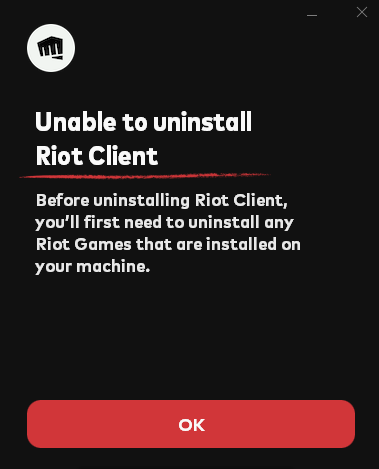
>> Uninstalling the Riot Client requires all related games to be removed first. Or, you may trigger the notice:
Uninstall the Riot anti-cheat, Riot Vanguard. Riot Vanguard locks files and prevents cheat actions. So, uninstall it first, unless it may disrupt your Riot Client uninstallation.
>> Go to Windows Settings via Win+I > Apps > search for Vanguard > uninstall it normally.
How to Completely Uninstall Riot Client in 1 Go?
Known from above, before uninstalling Riot Client, you may have a series of Riot-related apps to delete manually, one by one, which can take hours once issues/bugs occur. Why would you endure that? Windows does not offer a batch uninstalling feature, but a professional app uninstaller will do. IObit Uninstaller is an ideal option if you wonder “How do I uninstall Riot client” AND related apps, residual files, and leftovers altogether.
IObit Uninstaller Free
- Complete forced uninstallation for stubborn programs.
- Uninstall a batch of programs at once.
- Scan and remove leftover files, folders, and registry entries.
- Support the management of Universal Windows Platform apps.

Check what core features and highlights this software uninstaller brings.
Uninstall Riot Client completely and automatically, leaving no leftovers, like registry entries, configuration files, caches, empty folders, etc.; thus, to free up disk space.
Batch uninstall Riot Client & related apps in 1 go, including Riot games, Valorant, League of Legends, Teamfight Tactics, as well as the anti-cheat program Vanguard.
Force-remove stubborn apps when a routine method cannot get rid of them. If you failed to uninstall Riot Client, Vanguard, or any related apps due to missing uninstall registries or errors, this app can help remove them thoroughly.
Now check how to uninstall Riot Client & other apps in one go.
Step 1. Download and install IObit Uninstaller on your device. This program uninstaller is compatible with Windows 11/10/8.1/8/7/Vista/XP.
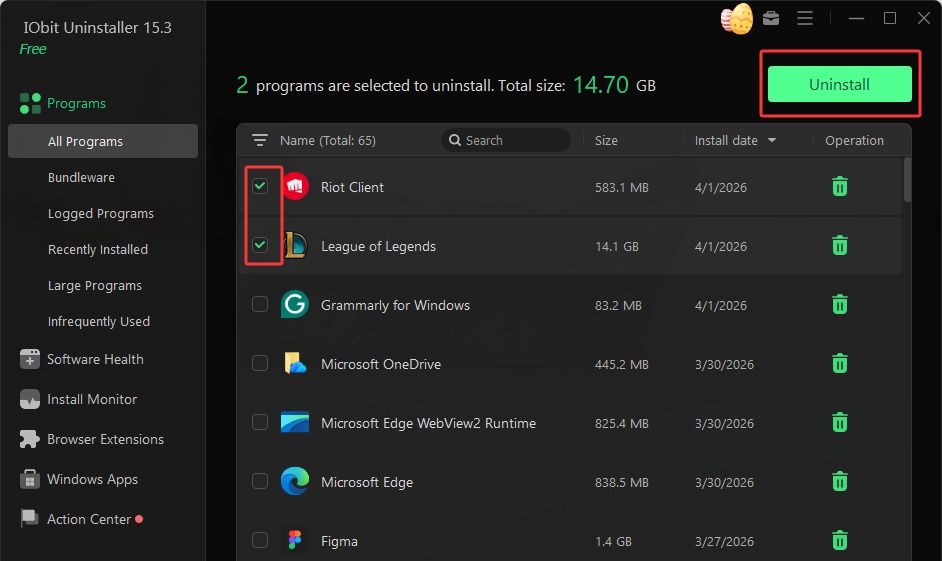
Step 2. Launch this app > find or search Riot Client and any other apps, related games, like LoL, and then click Uninstall.
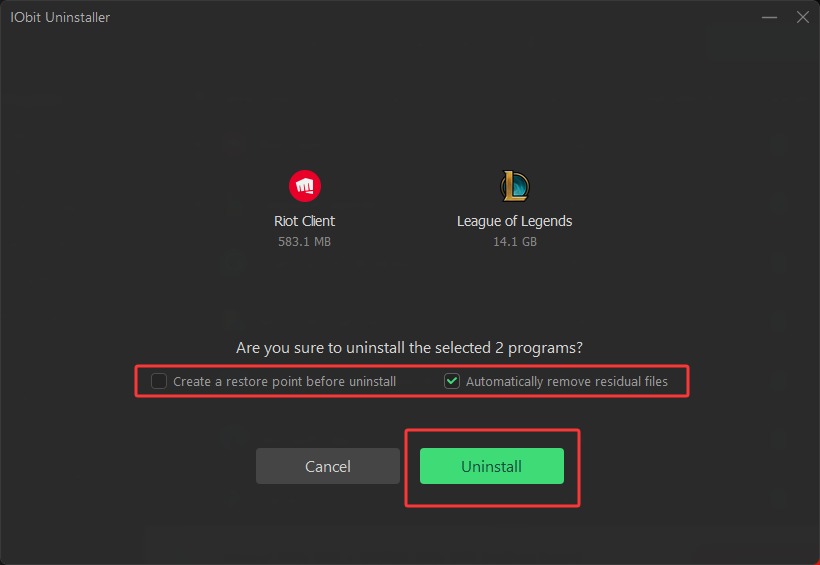
Step 3. Toggle Automatically remove residual files to completely clean leftovers. Choose whether to “create a restore point before uninstall” based on your needs. It helps recover to the status when Riot Client hasn’t been removed, in case you regret it.
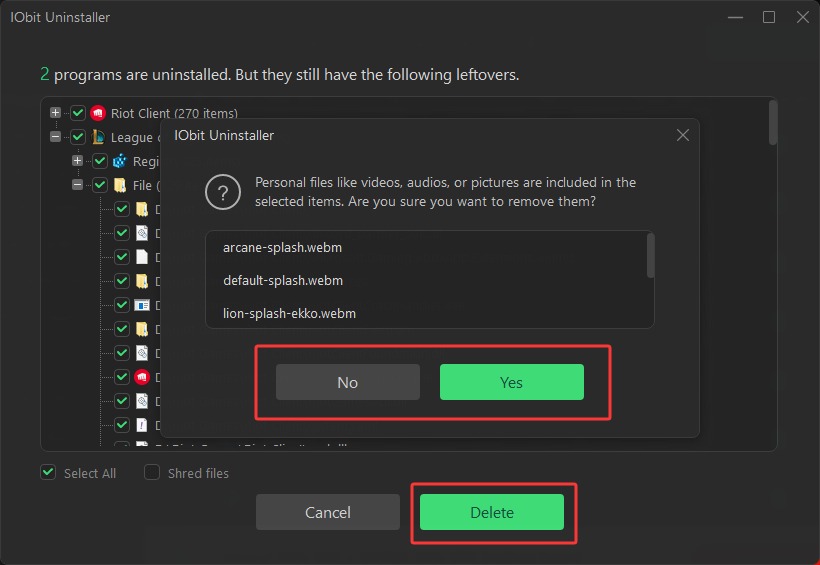
Step 4. Then let IObit Uninstaller scan the leftovers. When finished, click Delete. If you have taken screenshots or recorded videos while gaming, it will remind you to keep or remove your media resources.
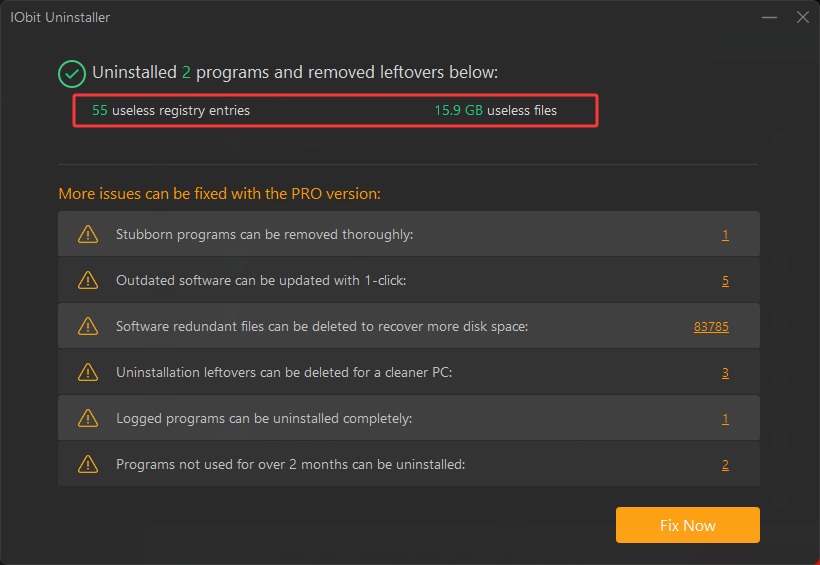
 When over, the Riot Client and all leftovers are gone. This is how to completely uninstall Riot Client with an efficient tool.
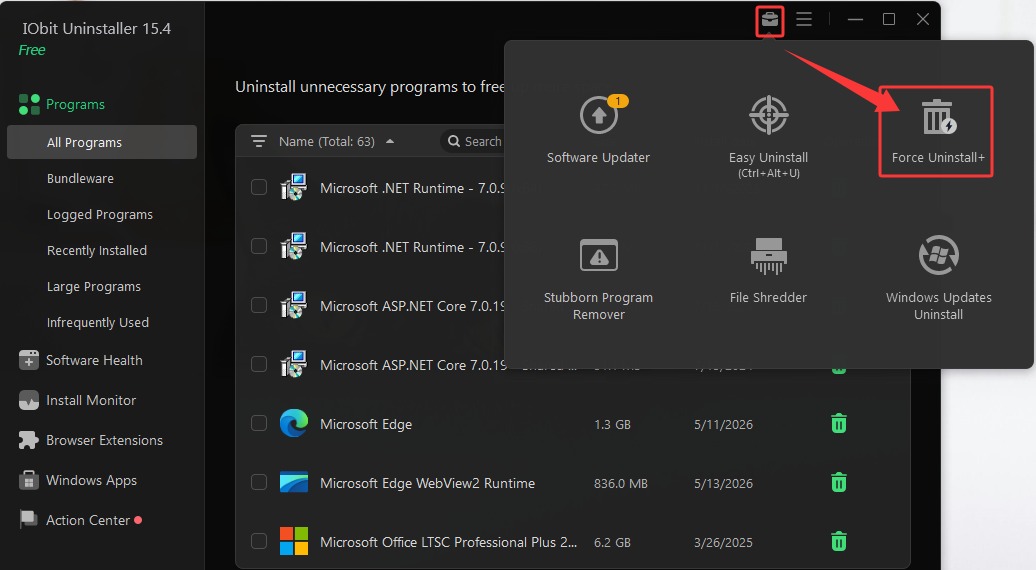
 If Riot Client won’t uninstall yet, try using the Force Uninstall feature in the toolbox. If you can’t uninstall Rainbow Six Siege, more games, and game launchers, you might as well try this feature.
How to Uninstall Riot Client & Delete Data Manually
Without uninstalling a helper, you can still uninstall Riot Client manually with Windows inbuilt tools. Yet, it is not recommended, since you have to repeat the same app uninstallation process several times, not to mention the residual files left on your devices, pretty annoying. Now, follow the instructions below and learn “How do I uninstall Riot client?”.
Step 1. Uninstall Riot Client via Settings
Windows Settings lists apps installed, allowing users to search, sort, filter, modify, or uninstall them. Via Windows Settings, you can remove any app you don’t want manually.
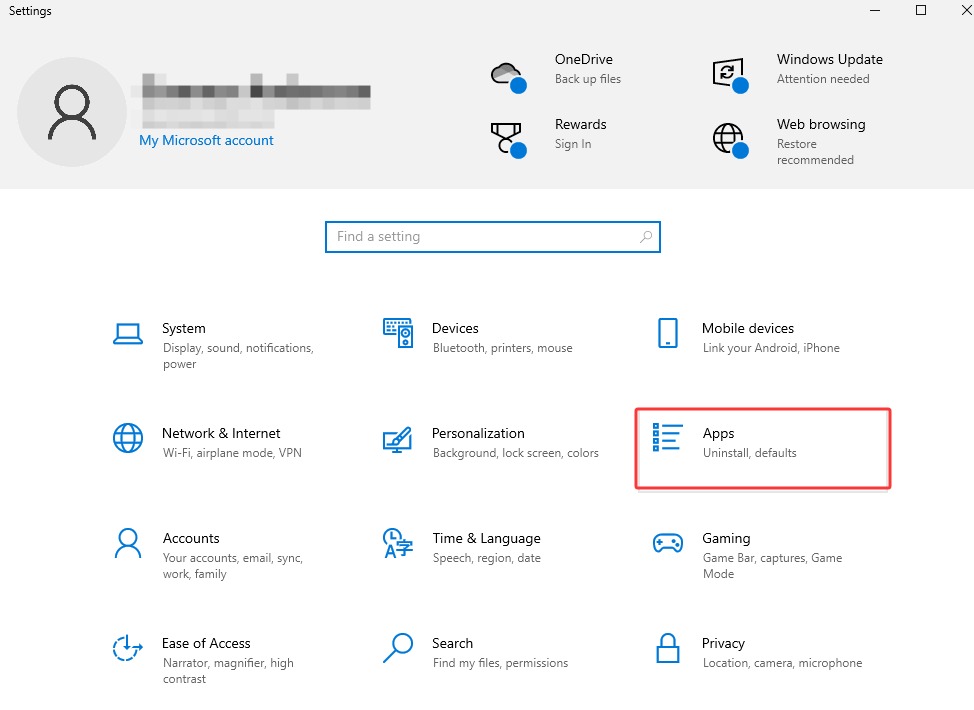
Step 1. Access Windows Settings via Win+I shortcut, or search Add or remove programs in the Windows search bar > find Apps.
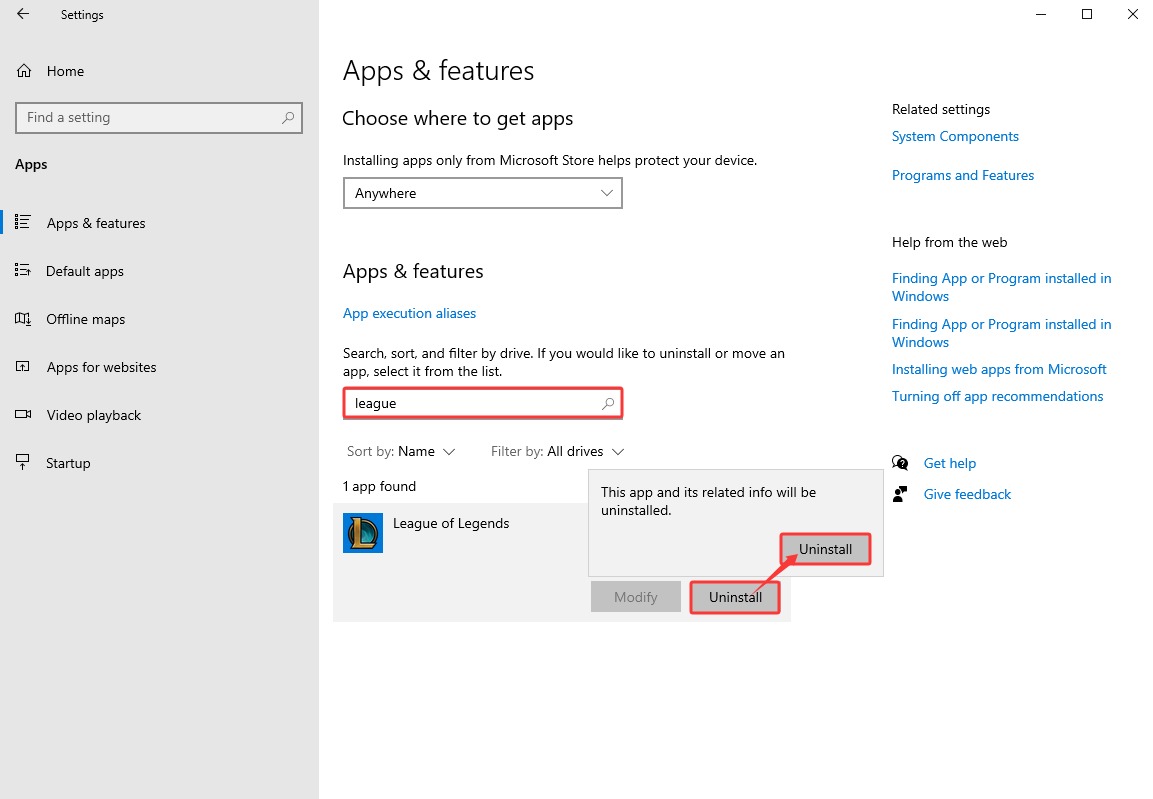
Step 2. You need to remove the Riot games 1 by 1 first. Input the games’ name to search them and click Uninstall. For example, find League of Legends in your app list.
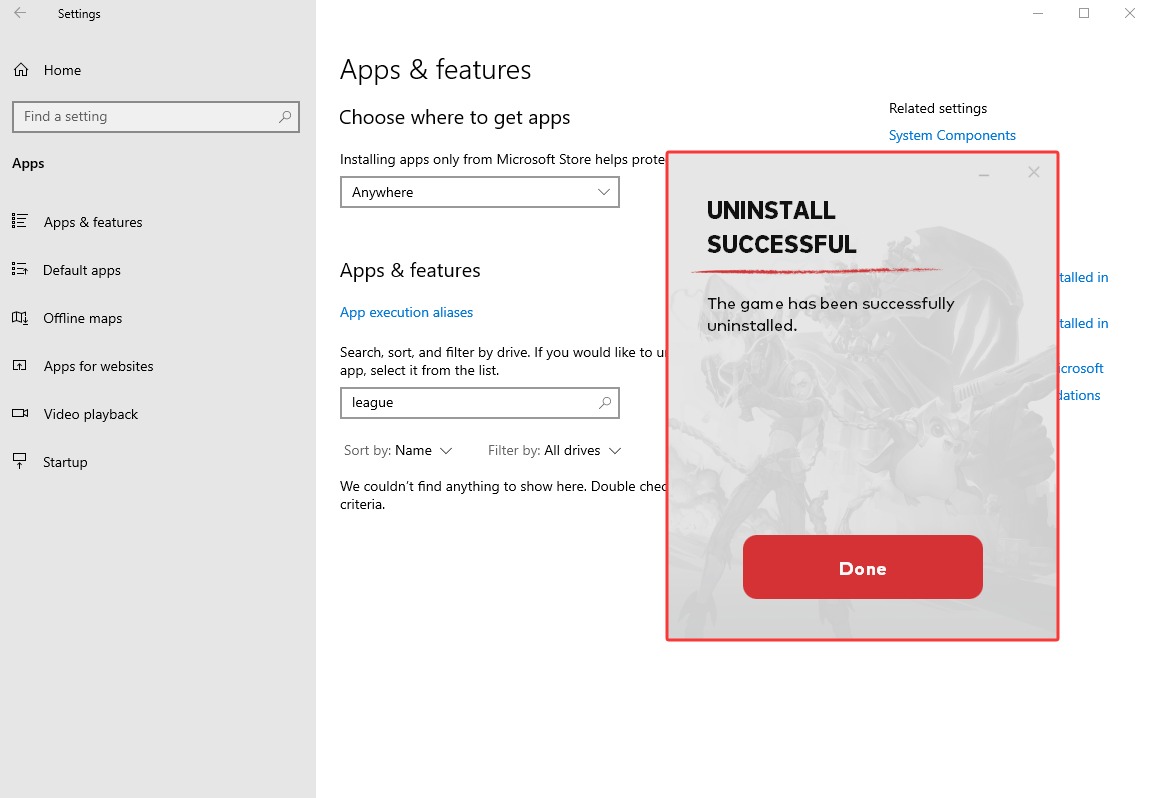
Wait for Windows to delete the games.
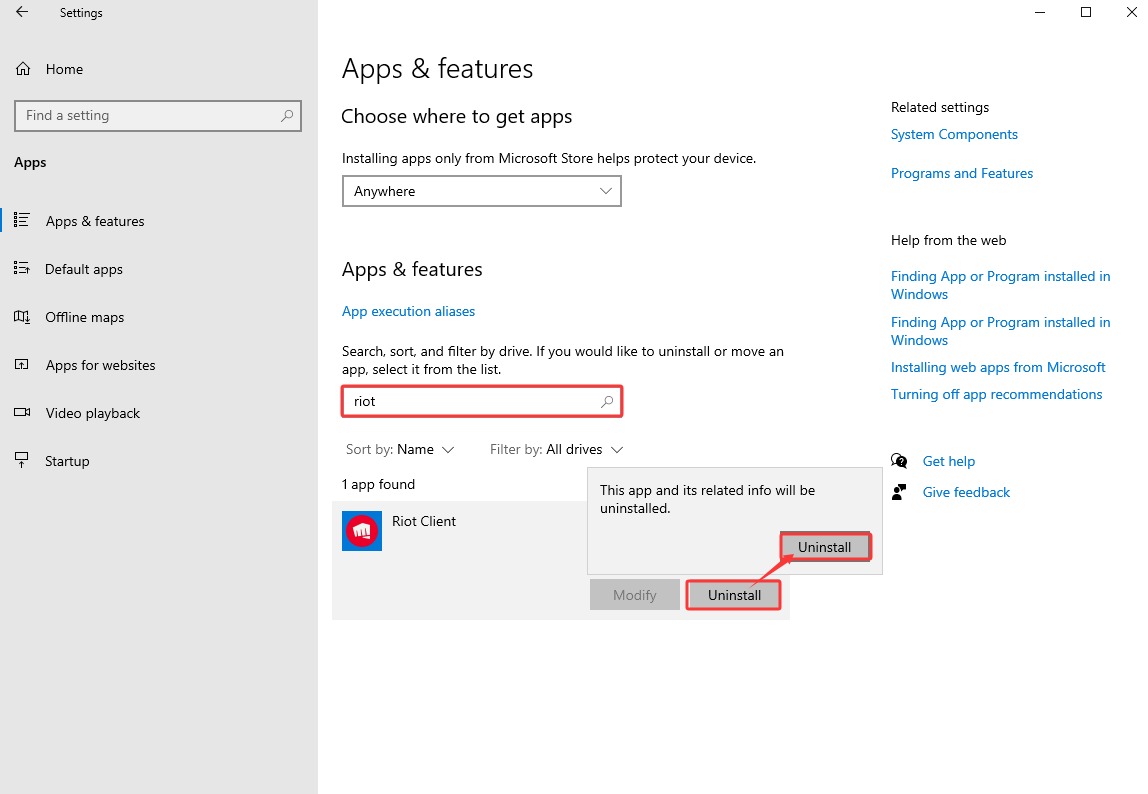
Step 3. Then, when all related games are removed, as well as the anti-cheat program, find and uninstall Riot Client from PC. The method also applies to uninstalling Epic Games Launcher.
*Tips: Uninstalling unused, idled apps can help clean up the Windows installer folder, freeing up disk space.
Step 2. Delete Related Riot Client Data from Folders
Uninstalling is finished, basically, but the residual files and related data are still taking up space on your device. Follow the instructions to get rid of them.
Step 1. Delete the game folder:
Head over to the folder where Riot Games is installed. If you have no idea where it is, right-click the left Riot Client’s shortcut on your desktop > Open file location. Delete this folder normally.
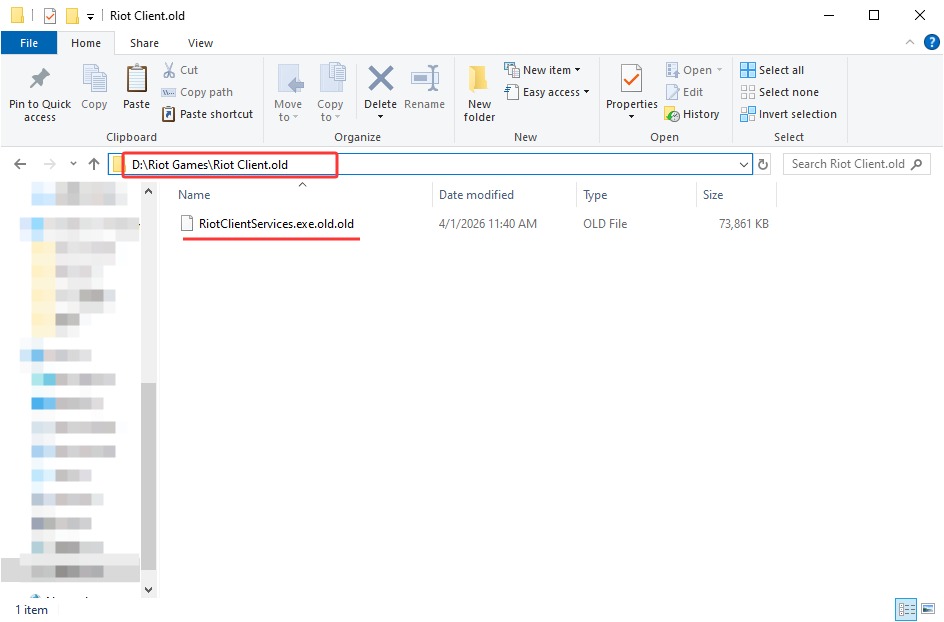
Step 2. Access the appdata folder path:
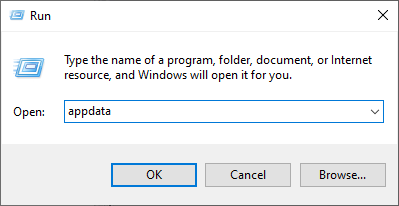
Summon Windows Run via Win+R. Input appdata > Local > Riot Games.
Step 3.
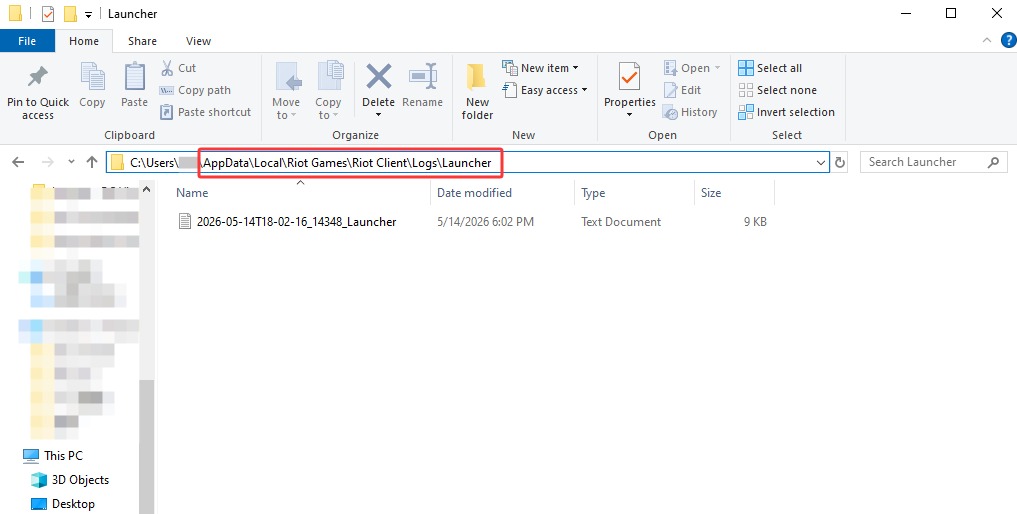
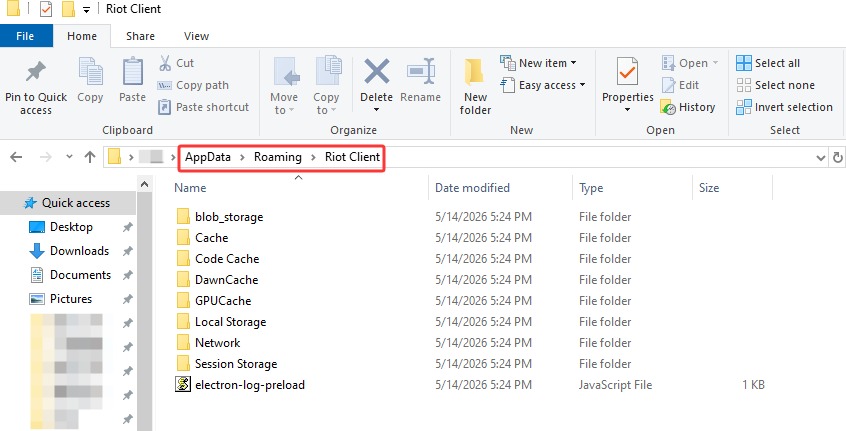
Check and delete the following folders:
C:\Users\UserName\AppData\Local\Riot Games\Riot Client\Logs\Launcher
\Users\UserName\AppData\Roaming\Riot Client
If you need to uninstall Valorant, also check these appdata folders.
Step 3. Empty the Recycle Bin and Restart
When all is done, don’t forget to empty your Recycle Bin folder. Same, this step is also necessary after uninstalling Steam games.
Step 1. Find the Recycle Bin on your Desktop > right-click it > choose Empty Recycle Bin.
Or, get into it, click Empty Recycle Bin in the top-left corner.
*Tips: Make sure to keep the files you still need, since emptying the bin will permanently delete all content, and it will be irreversible.
Step 2. Restart your computer normally. Check if there are still Riot Games leftovers.
Also Read: If I Uninstall Steam What Happens to My Games? >>
Final Thoughts
Uninstalling unwanted apps should not be that challenging with proper tools. This full guide on how to uninstall Riot Client completely has been elaborated on with a detailed tool introduction, explanation, and a step-by-step tutorial. Try using the professional software uninstaller, IObit Uninstaller, to solve your problem efficiently!
IObit Uninstaller Free
- Complete forced uninstallation for stubborn programs.
- Uninstall a batch of programs at once.
- Scan and remove leftover files, folders, and registry entries.
- Support the management of Universal Windows Platform apps.