If you're searching for how to uninstall Epic Games Launcher, you're not alone. Many users decide to remove the launcher due to performance issues, installation errors, or simply to free up disk space. While uninstalling it may sound straightforward, the process isn’t always as clean as expected. Leftover files, background processes, or corrupted installations can make things more complicated.
In this complete guide, you’ll learn how to uninstall Epic Games Launcher on both Windows and Mac using multiple methods. We’ll also cover how to uninstall Epic Games Launcher completely, ensuring no residual files are left behind. Whether you prefer manual steps or a one-click solution, this guide has you covered.
Important: Uninstalling Epic Games Launcher may also remove the games installed through it from your PC. If you only want to remove a specific game, uninstall the game from your Epic Games Library instead of removing the launcher.
Why You May Need to Uninstall Epic Games Launcher
There are several reasons why users look for how to uninstall Epic Games Launcher. Understanding these can help you decide the best approach.
Performance issues: The launcher may consume high CPU or memory resources.
Frequent crashes: Some users experience startup failures or freezing.
Storage concerns: Games and launcher files can take up significant space.
Switching platforms: You might prefer other platforms like Steam.
Corrupted installation: Errors during updates can break functionality.
No matter the reason, knowing how to uninstall Epic Games Launcher properly ensures you avoid lingering problems later.
Method 1 – How to Uninstall Epic Games Launcher from Settings (Windows 10/11)
If you’re wondering how do I uninstall Epic Games Launcher using modern Windows settings, this method is for you.
Steps to Uninstall Epic Games Launcher from Windows Settings:
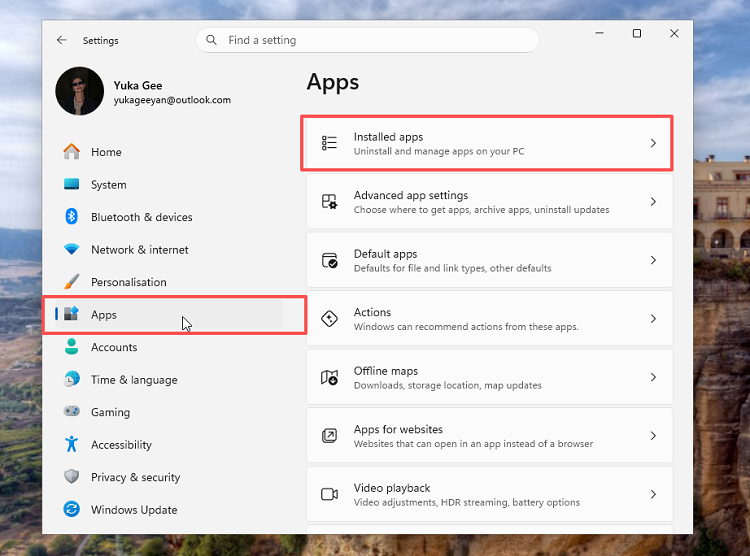
Step 1. Open Settings (Windows + I). Go to Apps > Installed Apps.
Step 2. Scroll down to find Epic Games Launcher. Click the three dots and select Uninstall.
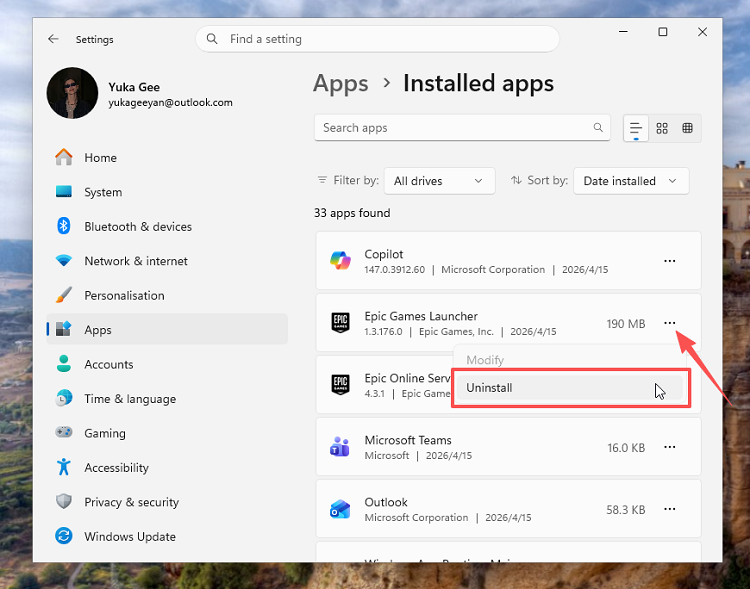
Step 3. Confirm the action and follow prompts.
This method is especially useful for Windows 10 and 11 users. Still, similar to Control Panel, it may leave behind residual files. That’s why many users continue searching for how to uninstall Epic Games Launcher more thoroughly.
Method 2 – How to Uninstall Epic Games Launcher via Control Panel (Windows)
You can also remove Epic Games Launcher through the classic Windows Control Panel.
Steps to Uninstall Epic Games Launcher via Control Panel:
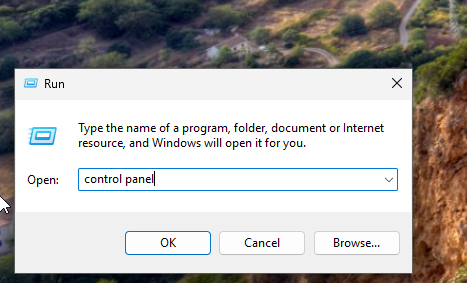
Step 1. Press Windows + R, type Control Panel, and hit Enter.
 Step 2. Click Uninstall a program under Programs on Windows 11.
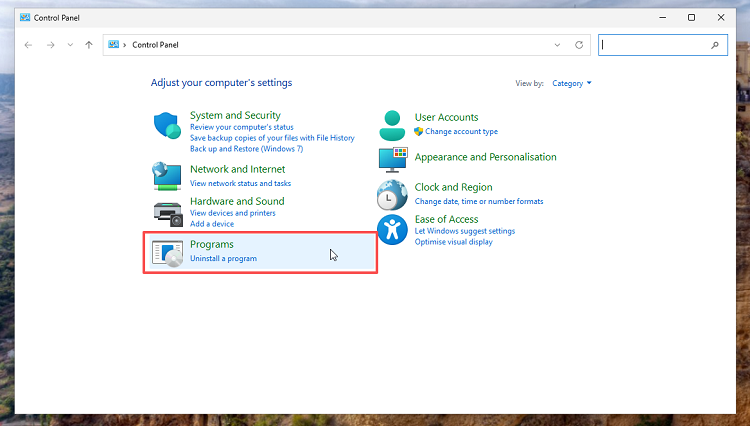
Step 3. Locate Epic Games Launcher in the list. Right-click it and select Uninstall.
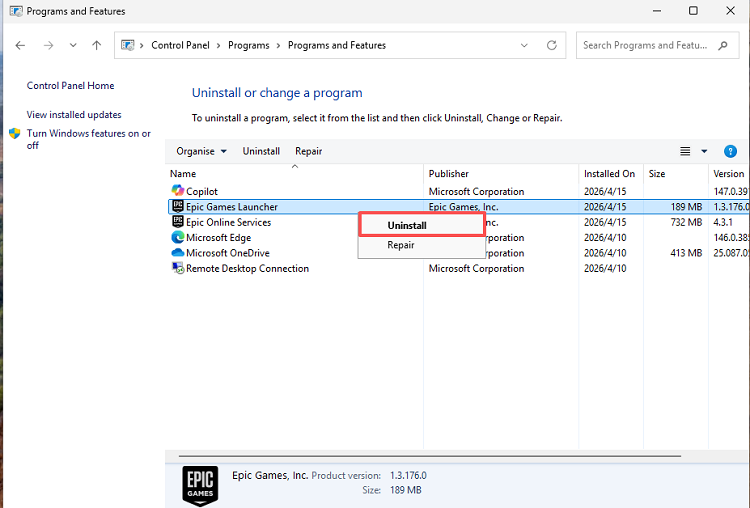
Step 4. Follow the on-screen instructions to complete the process.
This method is simple and effective for most users. However, it may not remove all associated files. If you’re trying to fully understand how to uninstall Epic Games Launcher completely, you may need additional steps later.
Method 3 – How to Uninstall Epic Games Launcher on Mac
Mac users often ask how to uninstall the Epic Games Launcher properly. The process is slightly different but still straightforward.
Steps to Uninstall Epic Games Launcher on Mac:
Step 1. Open Finder and go to the Applications folder. Locate Epic Games Launcher.
Step 2. Drag it to the Trash. Alternatively, you can right-click on the app icon and select Move to Trash from the menu that appears.
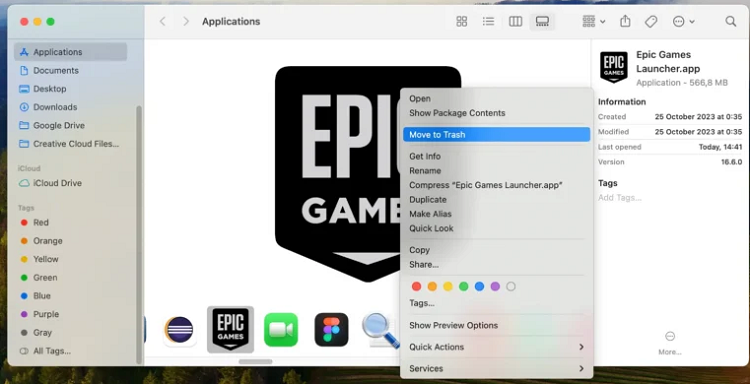
Step 3. Empty the Trash to remove the app.
To go further:
While this removes the main app, leftover files can still exist. That’s why understanding how to uninstall Epic Games Launcher completely is important even on macOS.
Method 4 – How to Delete Epic Games Launcher Completely (Manual Removal)
If you want to know how to delete Epic Games Launcher completely, manual cleanup is required after uninstalling.
Common leftover locations (Windows):
C:\Users\YourName\AppData\Local\EpicGamesLauncher
C:\Program Files (x86)\Epic Games
Temporary files in system folders
Steps to Delete Epic Games Launcher Manually:
Step 1. Press Windows + R, type %appdata%, and press Enter.
Step 2. Locate and delete Epic-related folders.
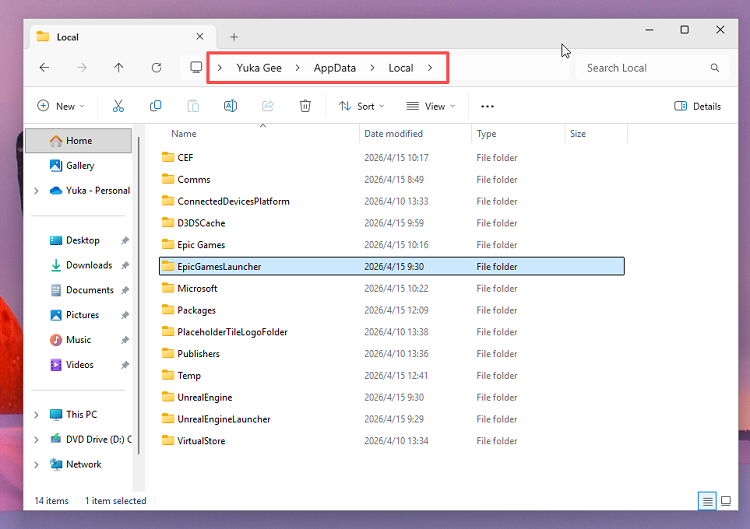
Step 3. Repeat with %localappdata%.
Step 4. (Optional) Open Registry Editor and remove related entries.
⚠️ Warning: Editing the registry incorrectly can cause system issues. Only proceed if you’re confident.
Manual cleanup can remove remaining launcher files, but it takes more time and should be done carefully.
Method 5 – Use an Epic Games Uninstaller for Complete Removal
If manual methods feel complicated, there’s a much easier way to learn how to uninstall Epic Games Launcher completely. IObit Uninstaller simplifies the entire process by removing both the program and its leftovers automatically.
IObit Uninstaller Free
- Complete forced uninstallation for stubborn programs.
- Uninstall a batch of programs at once.
- Scan and remove leftover files, folders, and registry entries.
- Support the management of Universal Windows Platform apps.

Key Features of IObit Uninstaller:
Complete Program Removal (No Leftovers): Removes unwanted software along with associated files, folders, and registry entries for a truly clean uninstall.
Force Uninstall for Stubborn Programs: Easily deletes programs that cannot be removed normally due to missing uninstallers or system errors.
Deep Scan & Leftover Cleanup: Automatically scans and removes residual files after uninstalling, preventing clutter and saving disk space.
Batch Uninstall (One-Click Removal): Allows you to uninstall multiple programs at once, making it fast and efficient to clean your PC.
Browser Plugin & Toolbar Removal: Detects and removes unwanted browser extensions and toolbars to improve security and browsing performance.
Steps to Use IObit Uninstaller to Uninstall Epic Games Launcher Completely:
Step 1. Download and install IObit Uninstaller from the official website.
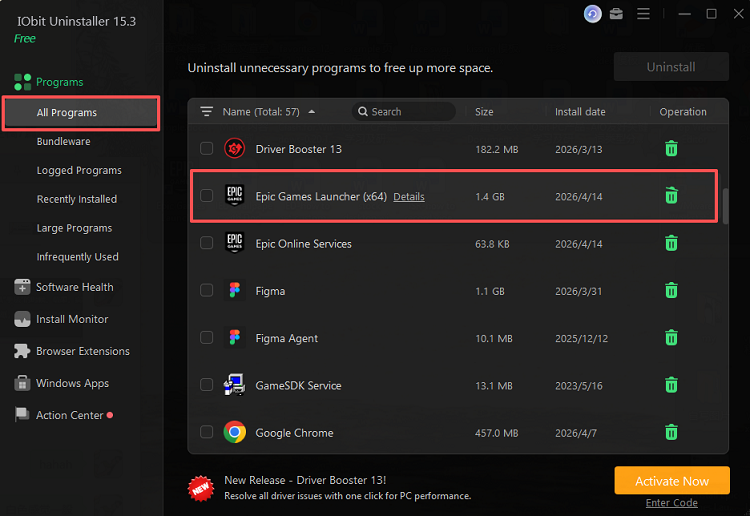
Step 2. Launch the program. Find Epic Games Launcher in the list. Click the Trash icon to uninstall Epic Games Launcher.
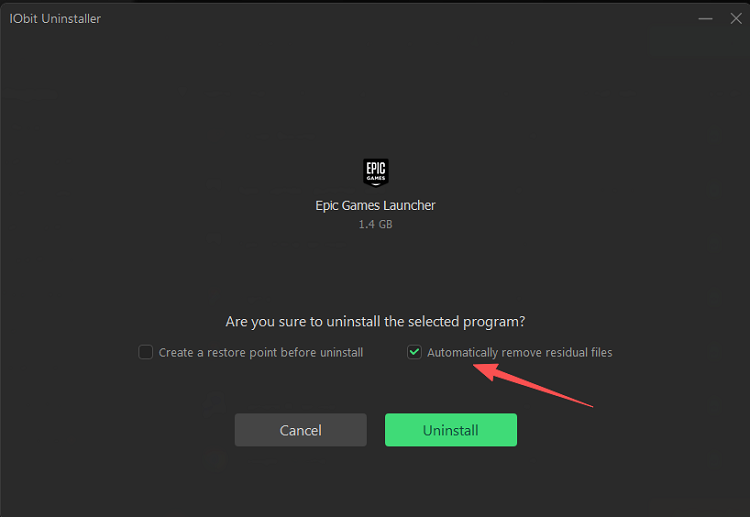
 Step 3. In the pop-up window, select Automatically remove residual files to uninstall Epic Games Launcher completely.
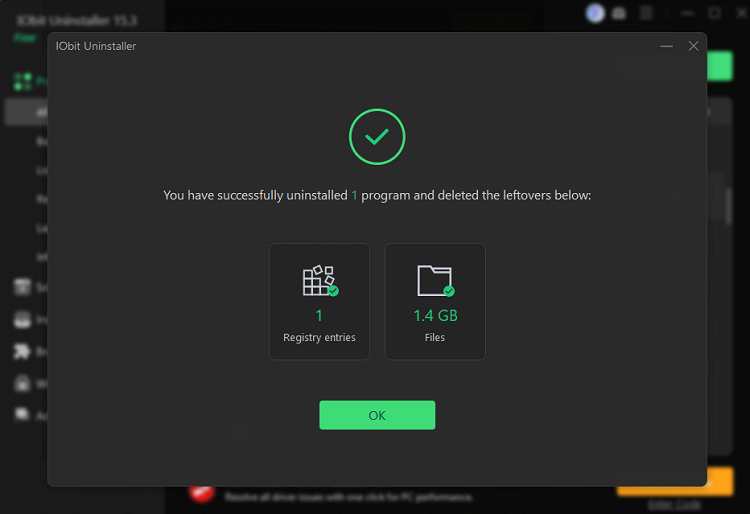
Step 4. Wait for the uninstall process and then you can see the results. The program and the leftovers were all deleted by IObit Uninstaller.
This is the most efficient solution for users who want a hassle-free way to master how to uninstall Epic Games Launcher without dealing with manual cleanup.
Frequently Asked Questions About Uninstalling Epic Games Launcher
Before wrapping up, here are answers to some of the most common questions users have about how to uninstall Epic Games Launcher, including issues with errors, leftovers, and running processes.
Does uninstalling Epic Games Launcher uninstall games?
Yes. Epic Games states that uninstalling the launcher removes the games installed through it from your computer. If you plan to reinstall the launcher later, you can download games you own again from your Epic Games account.
How do I uninstall Epic Games Launcher completely?
To fully understand how do I uninstall Epic Games Launcher, you need to remove both the main program and leftover files. You can do this manually by deleting residual folders or automatically using a tool like IObit Uninstaller.
How do I uninstall a game from Epic Games Launcher?
Open Epic Games Launcher and select Library. Find the game you want to remove, click the three dots next to its title, select Uninstall, and confirm the action. This removes the selected game without requiring you to uninstall the Epic Games Launcher itself.
Why can’t I uninstall Epic Games Launcher?
If you’re struggling with how to uninstall Epic Games Launcher, it may be due to:
The app running in the background
Corrupted installation files
Missing uninstall components
Fixes:
How to close Epic Games Launcher to uninstall?
A common issue when learning how to close Epic Games Launcher to uninstall is that the app keeps running in the background.
Steps:
Right-click the system tray icon and select Exit
Press Ctrl + Shift + Esc to open Task Manager
End all Epic Games processes
This ensures the uninstall process can proceed without errors.
Conclusion
Learning how to uninstall Epic Games Launcher properly is essential if you want to avoid leftover files, system clutter, or recurring errors. While built-in methods like Control Panel or Settings can remove the main program, they often leave behind residual data.
If you want a clean and efficient solution, using a dedicated tool is the smartest choice. Instead of manually searching for hidden files, you can uninstall everything in just a few clicks.
If you’re looking for the easiest and most reliable way to uninstall Epic Games Launcher, try IObit Uninstaller today. It ensures complete removal, saves time, and keeps your system running smoothly.