“How do I uninstall LoL?” You might be thinking about this after you have had enough of the game, have found it takes up too much disk space, or were just planning to uninstall and reinstall it to fix some issues. In any case, if you don’t know how to or have met some issues, check this article that teaches how to uninstall League of Legends in detail via Windows default features and a powerful uninstaller.

How to Uninstall League of Legends Using Windows Features
Firstly, you might want to remove LoL but keep the Riot Client, perhaps to uninstall and reinstall it to see if it can fix the bugs. Don’t worry; Windows offers official, safe methods to uninstall any program as you like. Move on and check 2 means to uninstall League of Legends.
Method 1. Uninstall LoL via Control Panel
Control Panel brings you access to a bunch of customization settings on your device, including programs, sound devices, appearance personalization, language and regions, etc.
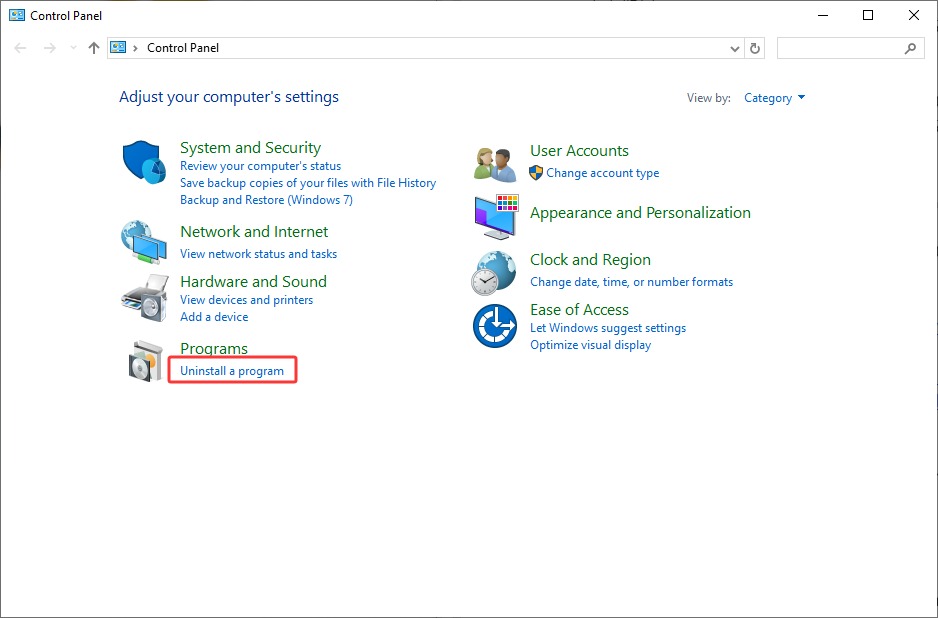
Step 1. Access the Control Panel from your desktop, or just type “Control Panel” in the Windows search bar right beside the Windows Start menu button. Then, click Uninstall a program under Programs.
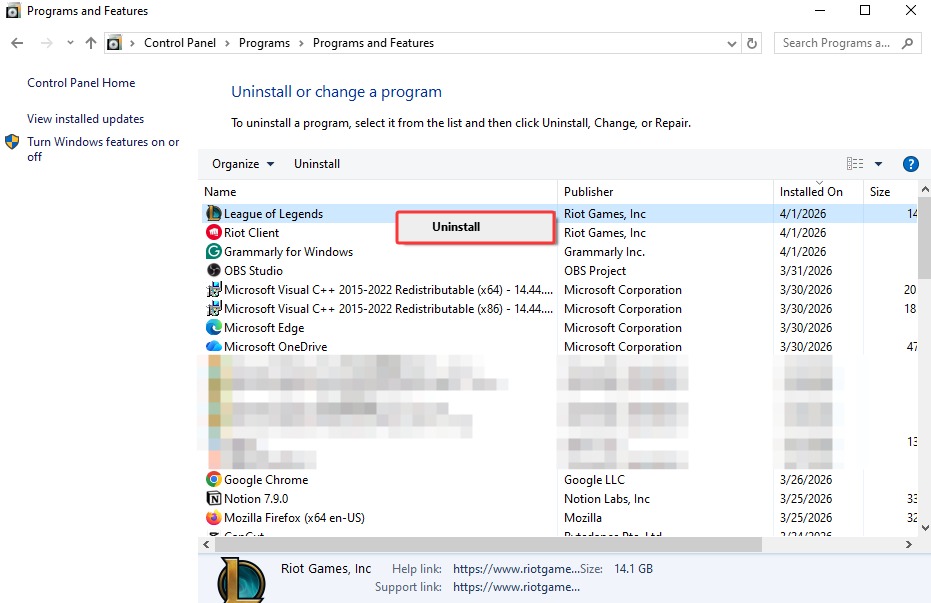
Step 2. Find League of Legends in the list > click Uninstall.
Tips: If a pop-up window says “Riot Client Is Running”, please jump to the troubleshooting part and check the steps to fix it.
Step 3. Though the application is uninstalled, there will be residual files, like temp files, empty folders, etc., on your disk.
For example, you may head over to the following paths of Riot Games:
Installation path: C:\Riot Games (or any other drive where you installed it)
ProgramData path: C:\ProgramData\Riot Games
AppData path: %localappdata%\Riot Games
Then, check if there are leftovers.
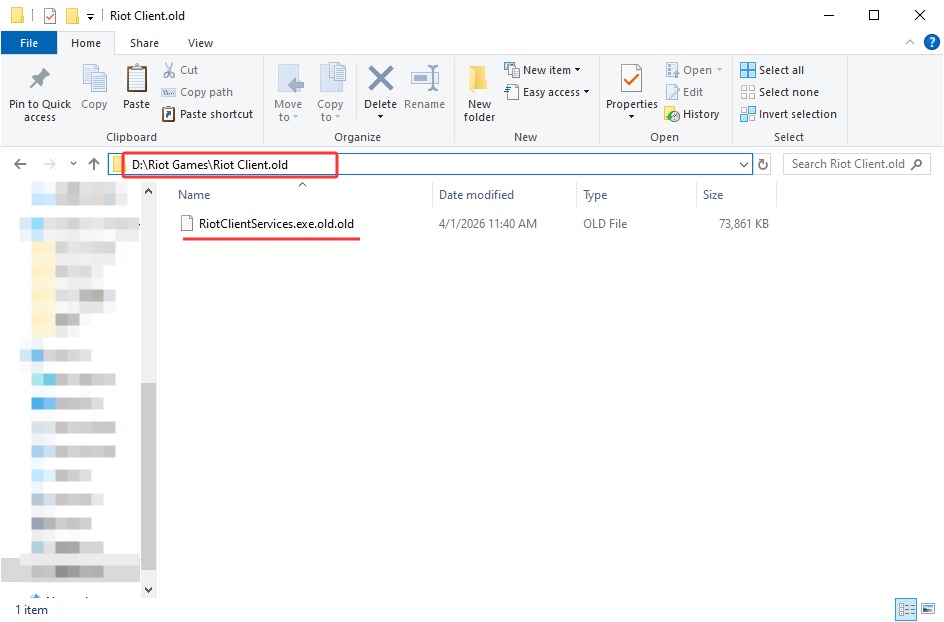
Step 4. If so, please delete the Riot Games folder > press the shortcut Windows+R > input %localappdata% > Enter. This is how to delete League of Legends from PC using Windows features.
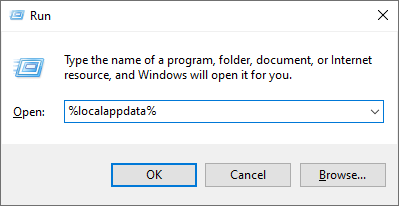
Even if you run this command several times for each LoL folder and empty the Recycle Bin, there still might be leftovers on your PC that you cannot locate. To get rid of all residual files, you might as well try a professional app uninstaller: IObit Uninstaller, which uninstalls software completely as well as all redundant files, leaving no leftovers.
IObit Uninstaller Free
- Complete forced uninstallation for stubborn programs.
- Uninstall a batch of programs at once.
- Scan and remove leftover files, folders, and registry entries.
- Support the management of Universal Windows Platform apps.

Method 2. Uninstall League of Legends via Settings
You can remove apps, access device/personalization/network/account, and more settings via Windows Settings as well. Check the step-by-step guide below.
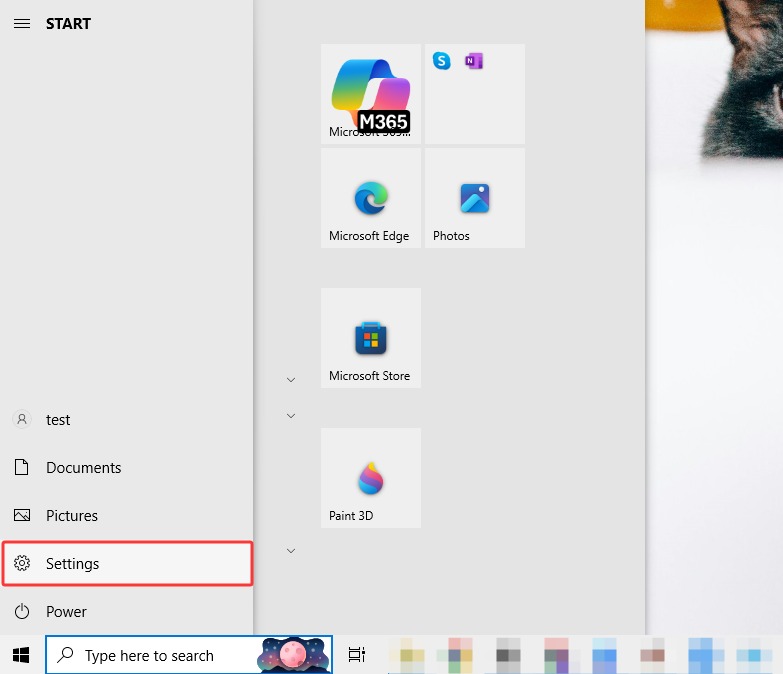
Step 1. Click the Windows Start icon, or press the Windows button on your keyboard > click Settings. Or, you might also directly type “Add or remove programs” in the search bar and access the feature.
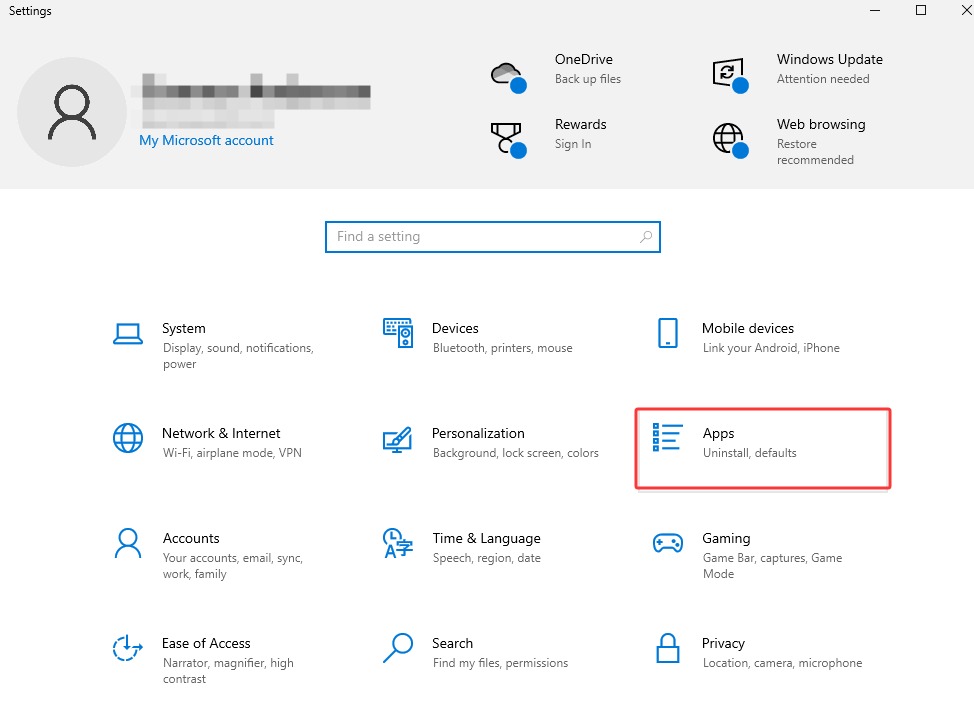
Step 2. Next, go to Apps.
Step 3. Find Apps & features, search “League of Legends” in the search bar > choose Uninstall. This is how you uninstall LoL via Windows Settings.
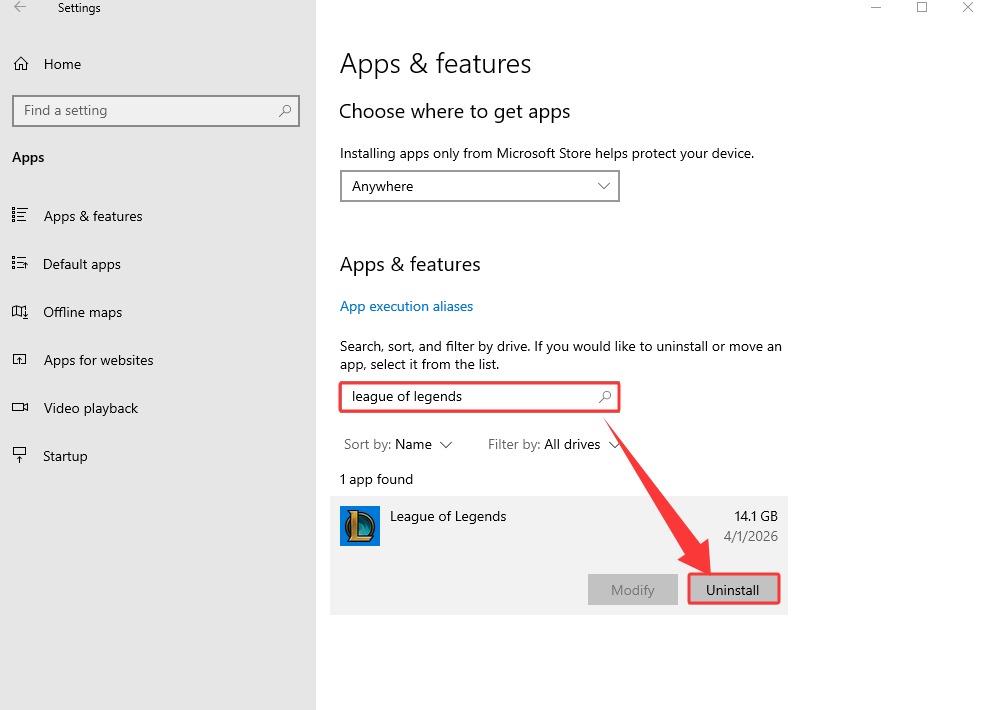
Similar to the Control Panel, this feature only allows users to uninstall 1 app at a time.
But what if you need to uninstall Riot Client as well? Just repeat the steps to uninstall the application, and run Command Prompt several times to remove those residual files … Yes? No! Why bother? Move on to the next part, and see how you can get it done once and for all within 1 application.
How to Uninstall League of Legends from PC Completely
Uninstalling apps with Windows’ native features can be troublesome. Plus, simply deleting apps doesn’t remove residual files; on the contrary, they continue to take up disk space until manually located and removed.
That’s where IObit Uninstaller comes in. This powerful app detects and removes residual data and files that Windows' uninstaller misses, ensuring a complete and hassle-free cleanup.
IObit Uninstaller Free
- Complete forced uninstallation for stubborn programs.
- Uninstall a batch of programs at once.
- Scan and remove leftover files, folders, and registry entries.
- Support the management of Universal Windows Platform apps.
Uninstall League of Legends Effortlessly: This powerful app uninstaller easily uninstalls Valorant, League of Legends, and any game in 3 simple steps: choose, scan, and uninstall.
Clean Up Residual Files Automatically: It automatically removes leftovers, including configuration files, user preferences, cached data, saved game recordings/screenshots, empty folders, etc., bringing your fast and light PC back.
Remove Multiple Apps & Extensions in 1 Go: IObit Uninstaller helps delete apps at once, like common applications, Windows built-in apps, and even browser extensions, all in 1 shot.
Monitor Environmental Health for Software: Apart from uninstallation, it also helps check for old leftover data from previously uninstalled programs, update software, block pop-ups, and resolve uninstall issues to keep your PC running faster and safer.
How to Completely Uninstall League of Legends Effortlessly?
Skip the complex process, simply use IObit Uninstaller to delete the apps you don’t want and clean up needless leftover data.
Step 1. Click the button below and download this app on your device. It supports Windows XP/Vista/7/8/8.1/10/11.
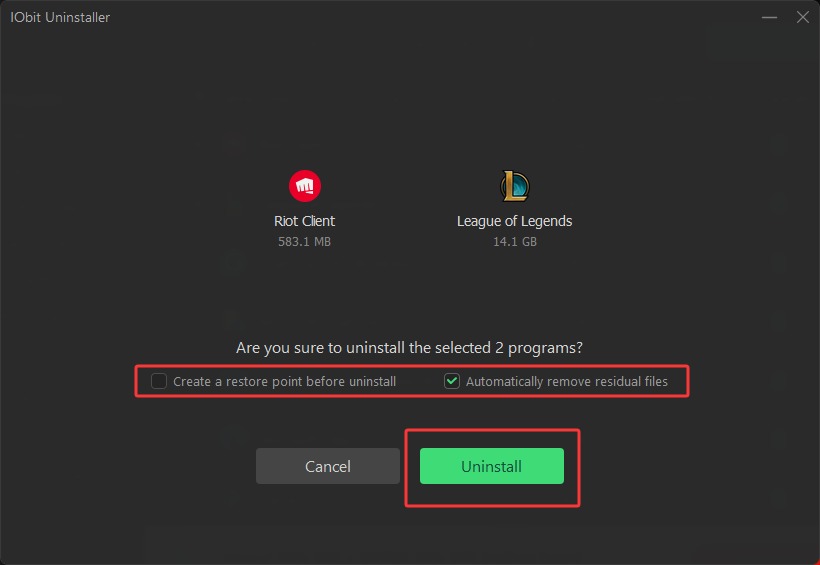
Step 2. Launch the app. By default, it shows all the programs you have. Check the list and select League of Legends and any other app you don’t want, for example, Riot Client. Then, click Uninstall.
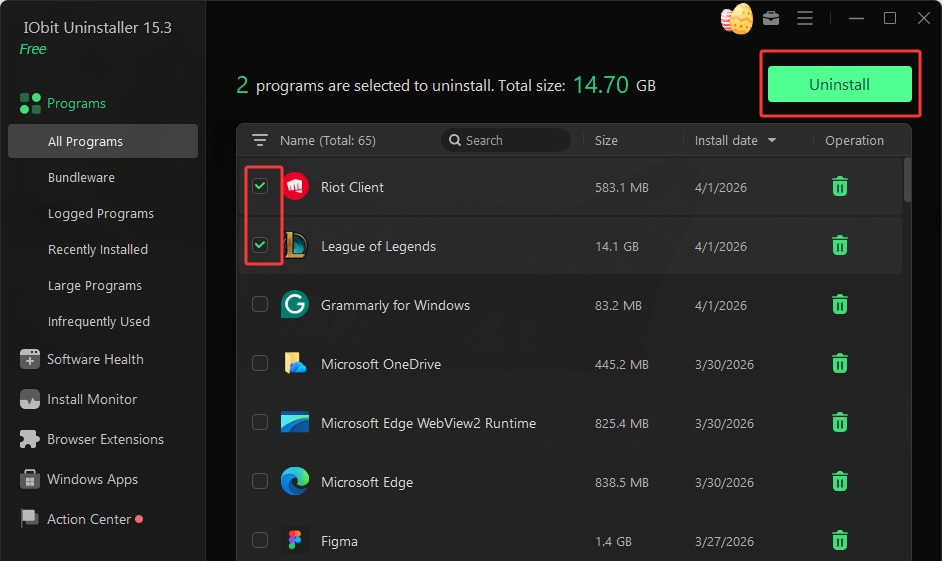
Tips: To access your apps quickly, input the name in the search bar, or sort them by Size, Install date, etc.
Step 3. In the pop-up window, toggle “Automatically remove residual files” and “Create a restore point before uninstall” as you need, and next click Uninstall to confirm your choice.
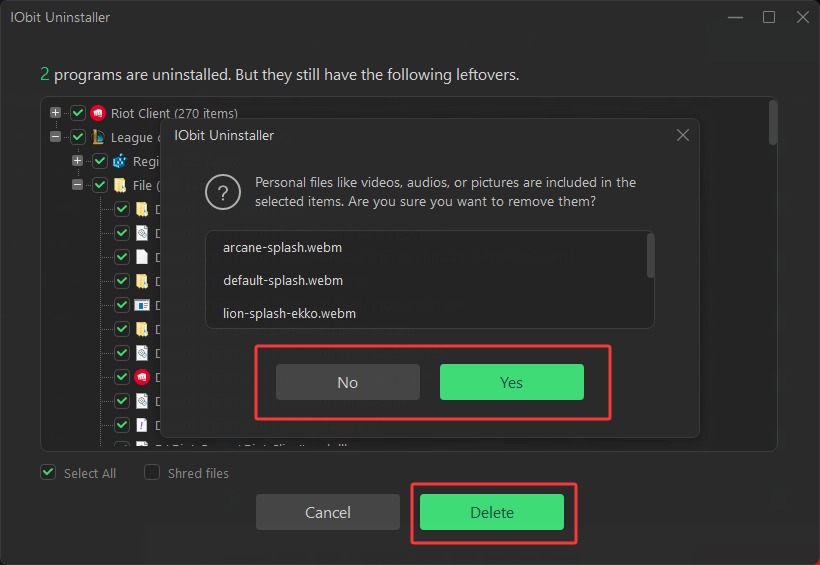
Step 4. Then, it may ask you about how you like to deal with your LoL related videos, pictures, audio, etc. Choose as you like, and click Delete to remove all residual files detected.
Step 5. When finished, check the report about how many useless registry entries and other files you have removed.
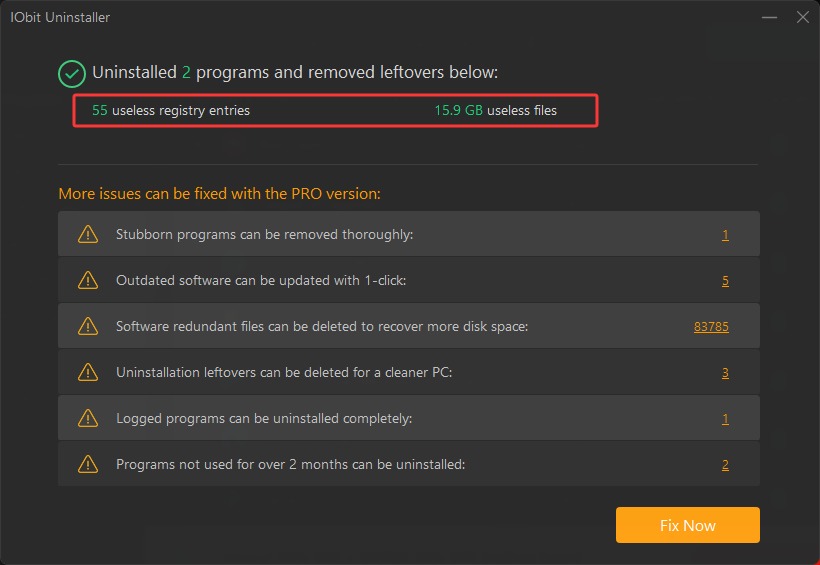
This is how to uninstall League of Legends easily and thoroughly.
Troubleshooting: LoL Uninstallation Issues
While deleting LoL, you may run into unexpected issues or bugs, stopping you from uninstalling it. Here are several common issues you might encounter. Check the reasons and fixes below.
RIOT CLIENT IS RUNNING

This appears when you try to uninstall LoL while the Riot Client is still running in your system tray, which is pretty easy to fix.
Fixes:
Head over to your system tray > find Riot Client > Exit > then uninstall LoL normally via Windows Settings or Control Panel.
Easier fix: IObit Uninstaller can uninstall any app anyway, ignoring this pop-up warning.
Unable to uninstall Riot Client
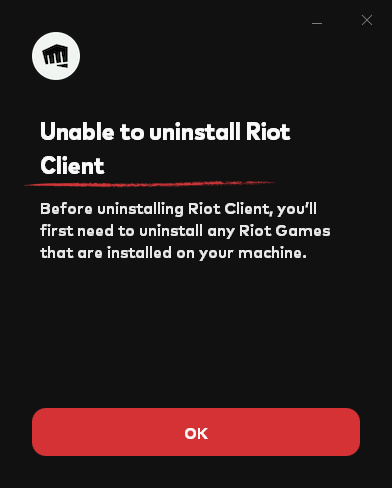
This shows up when you remove the Riot Client individually, but keep the games, like League of Legends. Some users might ask “Can I uninstall Riot Client without uninstalling LoL?”, but no. Riot Client runs as a mandatory game launcher for all Riot games; deleting it removes the games as well.
Fixes:
Try uninstalling games first, including LoL.
Use IObit Uninstaller to uninstall Riot Client and its games at the same time.
Windows cannot find ‘C:\Riot Games\Riot Client\RiotClientService.exe’. Make sure you typed the name correctly, and then try again.
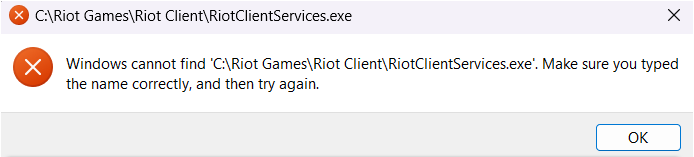
This might happen after an improper uninstallation, and after that, the .exe file might be moved/deleted/corrupted; in this case, you can try these fixes.
Fixes:
Locate this file according to the path, and then rename the RiotClientService.exe.old into RiotClientServices.exe
Try reinstalling the Riot Client from the installation package or the official website.
Try using antivirus software to scan for any viruses.
Final Thoughts
With proper methods and tools, “How to uninstall League of Legends” should not be challenging. Generally, you might use the Windows native features like Control Panel and the app management tool in Settings to remove 1 app at a time, if you don’t care about the leftovers.
Yet, if you are to delete several apps in 1 go, and want to clean up residual files as well, then IObit Uninstaller will be your firm helper. Just use it to uninstall any app you don’t want, from uninstalling Epic Games launcher, normal work programs, Microsoft Store apps, to web extensions.