Can’t uninstall Valorant on PC? Uninstalling Valorant is not as simple as just deleting the app like most games. It comes with Riot Vanguard, a kernel-level anti-cheat system that won't automatically uninstall after Valorant is removed, which is why you failed to uninstall the game normally.
If you’re looking to find out how to uninstall Valorant from your computer, this guide will walk you through multiple easy solutions to uninstall the game properly and completely. Follow the ultimate guide on how to delete Valorant on PC and avoid possible errors and risks of improper removal!
Understanding Why You Need to Uninstall Valorant?
So why you uninstall Valorant? There are several common reasons why players uninstall Valorant. Check whether it is necessary to uninstall the game.
Free up disk space: Valorant is a large app that takes up 20-25GB of storage space on Windows, so some people uninstall the game to quickly free up disk space.
Bugs & troubleshooting: Most players may encounter unknown errors or bugs when performing Valorant, like VAN9001 or VAN140. Then, a clean uninstall and reinstall can be the best way to fix almost all issues.
Improve system performance: Is your Windows PC running slowly? Valorant may be the biggest reason. Uninstalling Valorant can help clean up the system and improve performance.
Personal causes: Maybe you just need to take a break from the addictive game, or you're no longer interested in Valorant gameplay.
Regardless of the reason, check the following easy guide on how to uninstall Valorant completely!
General Steps to Uninstall Valorant (Overview)
How to uninstall Valorant on PC? Here’s a simple guide to uninstall Valorant completely from your PC:
1. Exit Vanguard & Close All Riot Background Apps
Before uninstalling, you should make sure everything related to Riot is fully closed.
Look for the Vanguard icon in the system tray (bottom-right corner).
Right-click it and select “Exit Vanguard.”
Open Task Manager (Ctrl + Shift + Esc) and end any Riot or Valorant-related processes.
2. Uninstall Riot Vanguard
Riot Vanguard must be removed first, or Valorant won’t uninstall properly.
3. Uninstall Valorant
Now you can remove the main game from your PC. (Use a free Valorant uninstaller to get a clean removal.)
4. Delete Leftover/Residual Files (Optional But Recommended)
To fully clean your system, remove any remaining files.
How to Uninstall Valorant on PC Completely (Fast & Easy Method)
Still be stunk in uninstalling the game? No worries. Here comes the fastest and easiest way to uninstall Valorant completely on your PC - using a trusted third-party tool, IObit Uninstaller. It is a professional and powerful free software uninstaller that helps remove Valorant from your computer instantly and entirely without effort. No risk, no residential files, no cost!
IObit Uninstaller Free
- Complete forced uninstallation for stubborn programs.
- Uninstall a batch of programs at once.
- Scan and remove leftover files, folders, and registry entries.
- Support the management of Universal Windows Platform apps.

How to Uninstall Valorant Completely on PC
Comment desinstaller Valorant? Check a more detailed step-by-step guide to clean software removal with IObit Uninstaller!
Step 1. Free download and install the software on your computer.
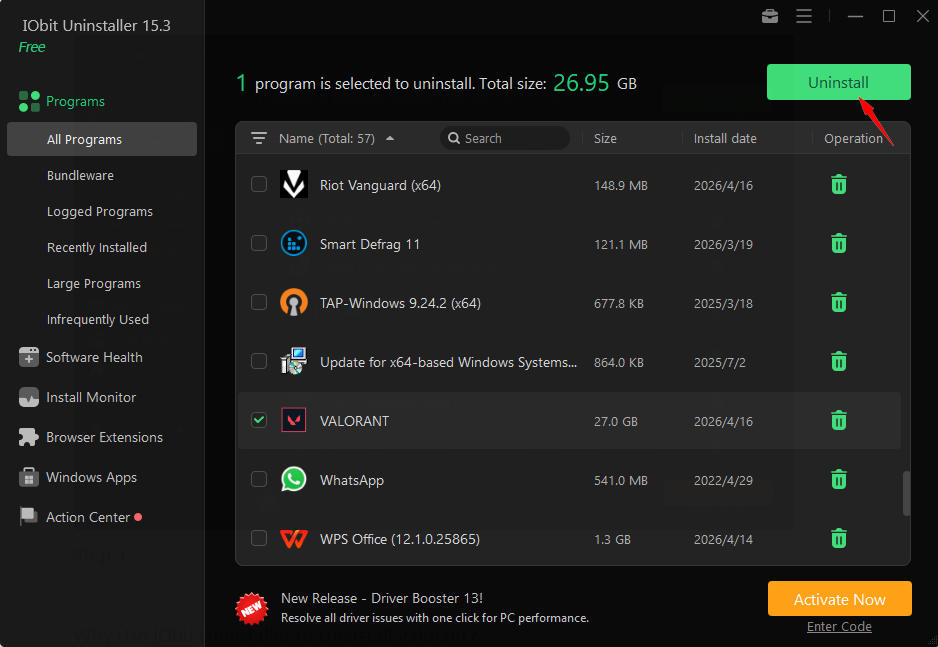
Step 2. Launch the software, find “VALORANT” under the “All Programs” tab (or you can search it directly in the search bar) > click on “Uninstall”.
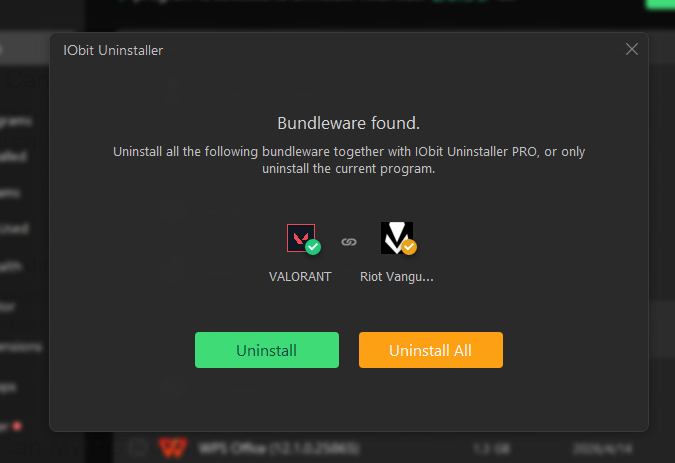
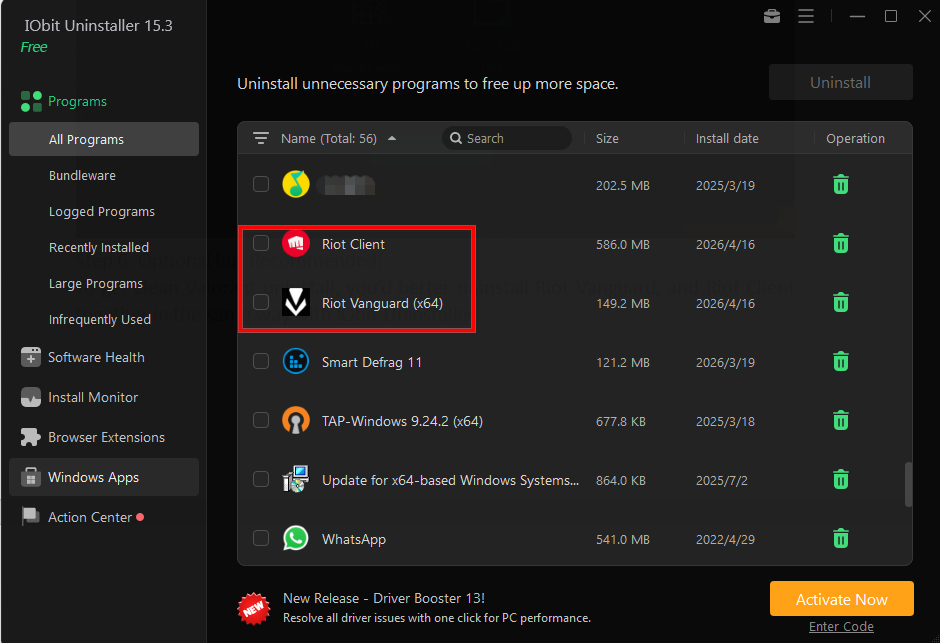
Step 3. IObit Uninstaller will smartly detect the bundleware of chosen programs, and you can choose to uninstall the bundleware (Riot Vanguard) together with PRO or only uninstall the current program for free.
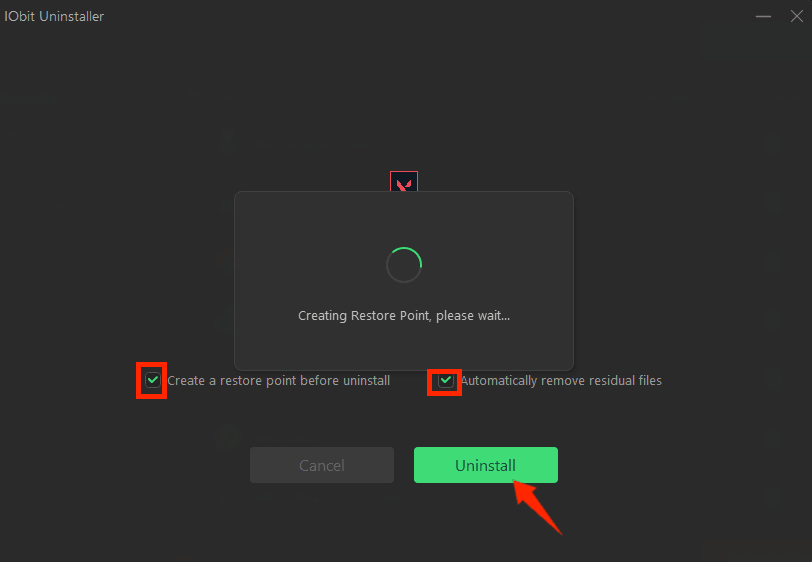
Step 4. Then, you’ll see a prompting page that asks for further decisions: restore point creation and residual files removal. Check the options you need, and click on “Uninstall”.
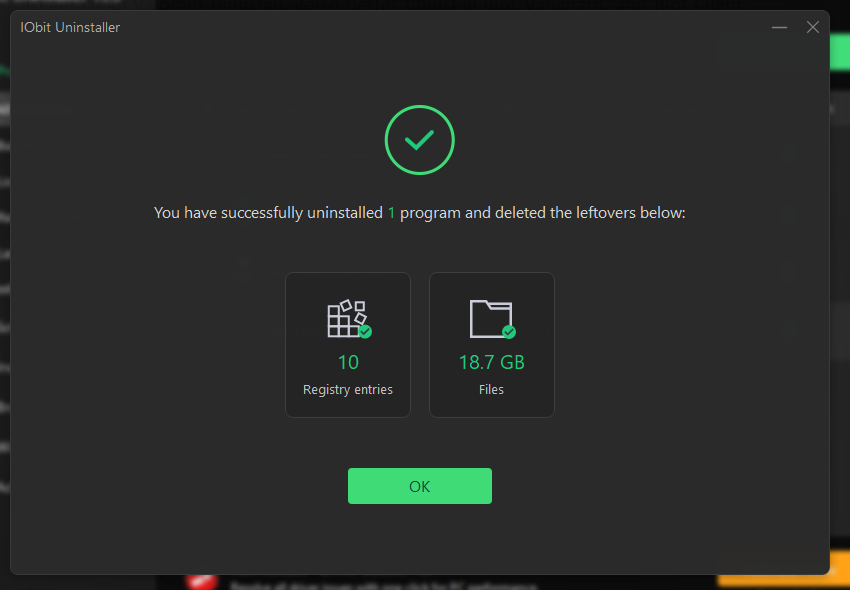
Step 5. After the process is finished, your Valorant will be fully removed from your PC.
Reminders:
To get a clean and proper Valorant uninstall, you’d better exit Riot Vanguard and uninstall it first, and remove Riot Client together in the same way with IObit Uninstaller.
Why Use IObit Uninstaller to Uninstall Valorant?
Why is IObit Uninstaller the best tool to uninstall Valorant? Check the main highlights of the perfect free uninstaller:
Free & Easy to Uninstall Valorant in Seconds: It's rather easy to uninstall Valorant and any other large programs with a single click, without complex techniques or skills, no ads, and it's 100% free.
Clean Valorant Removal on PC Effortlessly: IObit Uninstaller delivers a totally clean Valorant uninstall on your PC without any effort. It can not only uninstall a single program but also remove all leftovers and residual files.
Smart Bundleware Uninstall in One Step: With IObit Uninstaller Pro, you can uninstall all bundleware of Valorant together in one step, saving you time to uninstall bundleware separately.
Restore Points Creation for Fast Reinstall: The excellent tool also allows you to create restore points for uninstallation, in case you need a quick and safe reinstallation one day.
Windows Apps/Browser Extensions Removal: Not just PC game programs, it can also help remove Windows apps, like Calculator and Calendar, and various browser extensions.
Instant Batch Uninstallation at Once: Moreover, it’s an amazing uninstaller that supports batch uninstallation. This means you can uninstall all the unwanted programs/apps from your PC at once.
3 More Methods on How to Uninstall Valorant from a Computer
How to uninstall Valorant Windows 11 with built-in features? Here are 3 proven methods of uninstalling Valorant on PC.
How to Uninstall Valorant via Windows Settings
This is the most modern and straightforward method to uninstall Valorant for Windows 10 and 11 users.
Step 1. Press Win + I to open Settings.
Step 2. Go to Apps > Installed apps (or "Apps & features") > Search for Riot Vanguard in the list.
Step 3. Click the three dots (or the app entry) and select Uninstall. You must do this first, as the game cannot be removed while the anti-cheat is active.
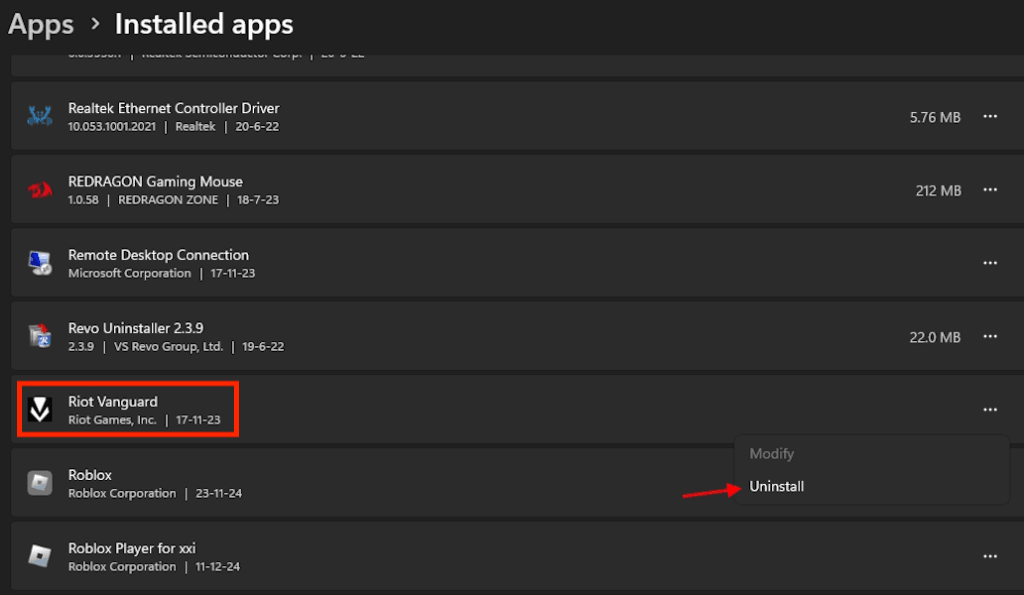
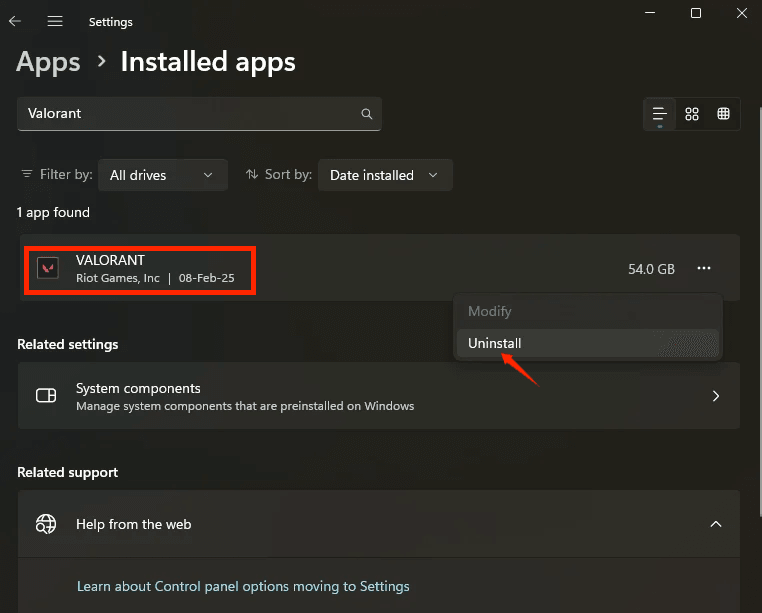
Step 4. Once Vanguard is gone, search for Valorant in the same list.
Step 5. Select Uninstall and follow the on-screen prompts.
Also Read: How to Uninstall Steam Games with Detailed Steps >>
How to Uninstall Valorant with the Control Panel
How to delete Valorant from PC? If your Windows Settings are bugging out, follow these steps to remove Valorant:
Step 1. Press Win + R, type Control, and hit Enter to open Control Panel.
Step 2. Under Programs, click Uninstall a program.
Step 3. Locate Riot Vanguard in the list. Right-click it and select Uninstall.
Step 4. After Vanguard is removed, locate Valorant. Right-click it and select Uninstall.
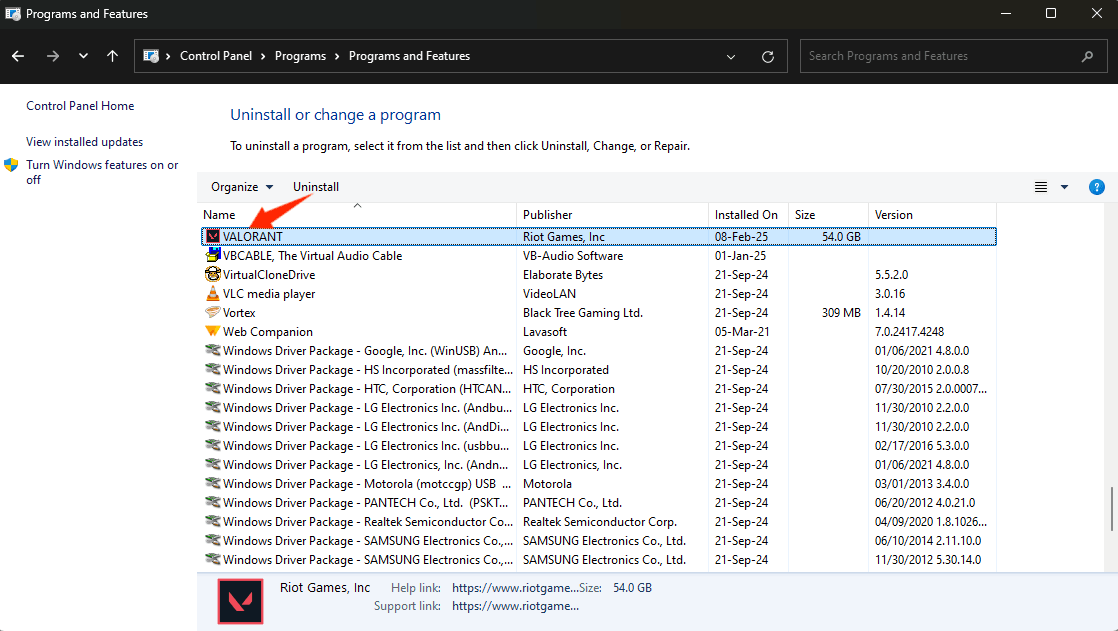
Step 5. Confirm any pop-ups from the Riot Client to finish the process.
How to Uninstall Valorant Manually Using CMD
Cannot delete Riot Vanguard folder? If the standard uninstaller is frozen or giving you errors, you can force the removal of the Vanguard service via the Command Prompt.
Note: This removes the anti-cheat service, but you will still need to manually delete the game folder to reclaim disk space.
Step 1. Press the Windows Key, type cmd, right-click it, and select Run as Administrator.
Step 2. To stop the Vanguard service, type the following command and press Enter:
“sc delete vgc”
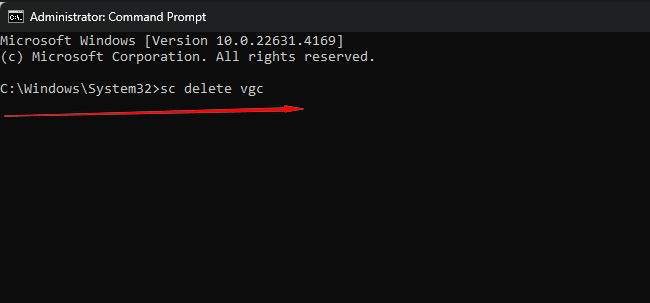
Step 3. To stop the kernel driver, type the following command and press Enter:
“sc delete vgk”
Step 4. Restart your computer. This is vital to release the files from the system memory.
Step 5. After rebooting, navigate to your installation directory (usually C:\Program Files\) and manually delete the Riot Vanguard folder.
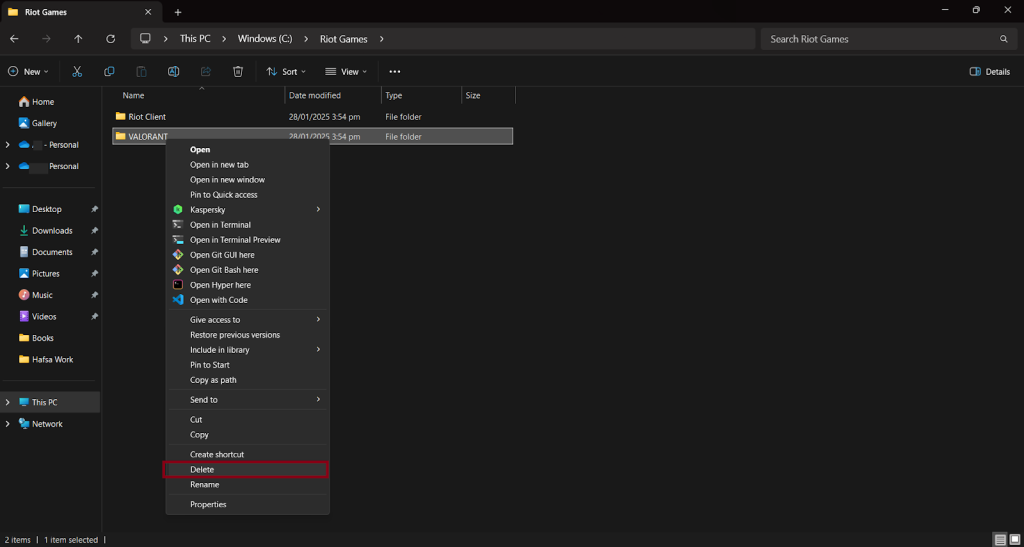
Step 6. Navigate to where Valorant is installed (usually C:\Riot Games\) and delete the VALORANT folder.
How to Verify Valorant is Fully Uninstalled on Your PC
After uninstallation, how to confirm whether Valorant is completely removed from your computer? Check the steps to verify the complete Valorant uninstallation:
Check for Residual Folders/Leftovers:
Riot Games Folder: Go to C:\Riot Games and delete the VALORANT folder.
Vanguard Folder: Go to C:\Program Files and delete the Riot Vanguard folder.
Local AppData:
1. Press Win + R, type %localappdata%, and hit Enter.
2. Look for the VALORANT and Riot Games folders and delete them.
Check the Windows Startup List
1. Press Ctrl + Shift + Esc to open the Task Manager.
2. Click the Startup apps tab (icon looks like a speedometer on Windows 11).
3. Look for Riot Vanguard or Riot Client.
4. If they appear, right-click and select Disable.
Search via the Registry (Advanced)
1. Press Win + R, input regedit, and hit Enter.
2. Navigate to: HKEY_CURRENT_USER\Software
3. Check for a Riot Games folder. If it's empty or only contains Valorant data, you can right-click and Delete it.
4. Navigate to: HKEY_LOCAL_MACHINE\SOFTWARE and check for Riot Games or Vanguard there as well.
Troubleshooting Common Valorant Uninstallation Issues
Valorant uninstall not working? Check the common issues of how to uninstall Valorant, and the troubleshooting for Valorant not uninstalling:
Error 1: “VALORANT is Running in the Background”
The Fix: Press Ctrl + Shift + Esc to Open Task Manager > Look for any VALORANT or Riot processes > Right-click them and select End Task.
Error 2: “VALORANT Won’t Uninstall”
The Fix:
Error 3: “Failed to Uninstall from Riot Client”
The Fix: How do I uninstall Valorant from Riot Client? The Riot Client is mainly a launcher. To uninstall Valorant from it, you should uninstall Valorant and Riot Vanguard first, then remove the Riot Client entry from Apps. You’re recommended to uninstall Valorant effortlessly with a trusted program uninstaller.
FAQs About How to Uninstall Valorant
1. How to Fully Uninstall Valorant on My PC?
With IObit Uninstaller, you can fully uninstall Valorant from your system in just 2 steps: Type Valorant in the search bar and click “Uninstall” to complete the uninstallation. How to delete Valorant in laptop? Do the same with IObit Uninstaller.
2. Will I Lose My Progress If I Uninstall Valorant?
No, you won’t lose your progress even though you uninstall Valorant. The game progression is tied to your Valorant account. But remember to back up important local files before removing the game.
3. Can I Reinstall Valorant After Uninstalling It?
Yes, you can reinstall Valorant anytime you want to play. Download and install the latest version of Valorant from the official Riot Games’ website. If failed, restart your PC or check the above troubleshooting.
The Bottom Line
No more frustrations from Valorant uninstall failures. This full guide on how to uninstall Valorant completely will solve all your problems. Free download the powerful IObit Uninstaller to enjoy complete and easy Valorant uninstallation with a click!
IObit Uninstaller Free
- Complete forced uninstallation for stubborn programs.
- Uninstall a batch of programs at once.
- Scan and remove leftover files, folders, and registry entries.
- Support the management of Universal Windows Platform apps.